
mc-screen-recorder-pro
v1.0.1
Published
World-class browser-based screen recorder with camera overlay, microphone audio, and floating popup controls
Downloads
28

Maintainers
 mohanchinnappan
Readme
Screen Recorder Pro
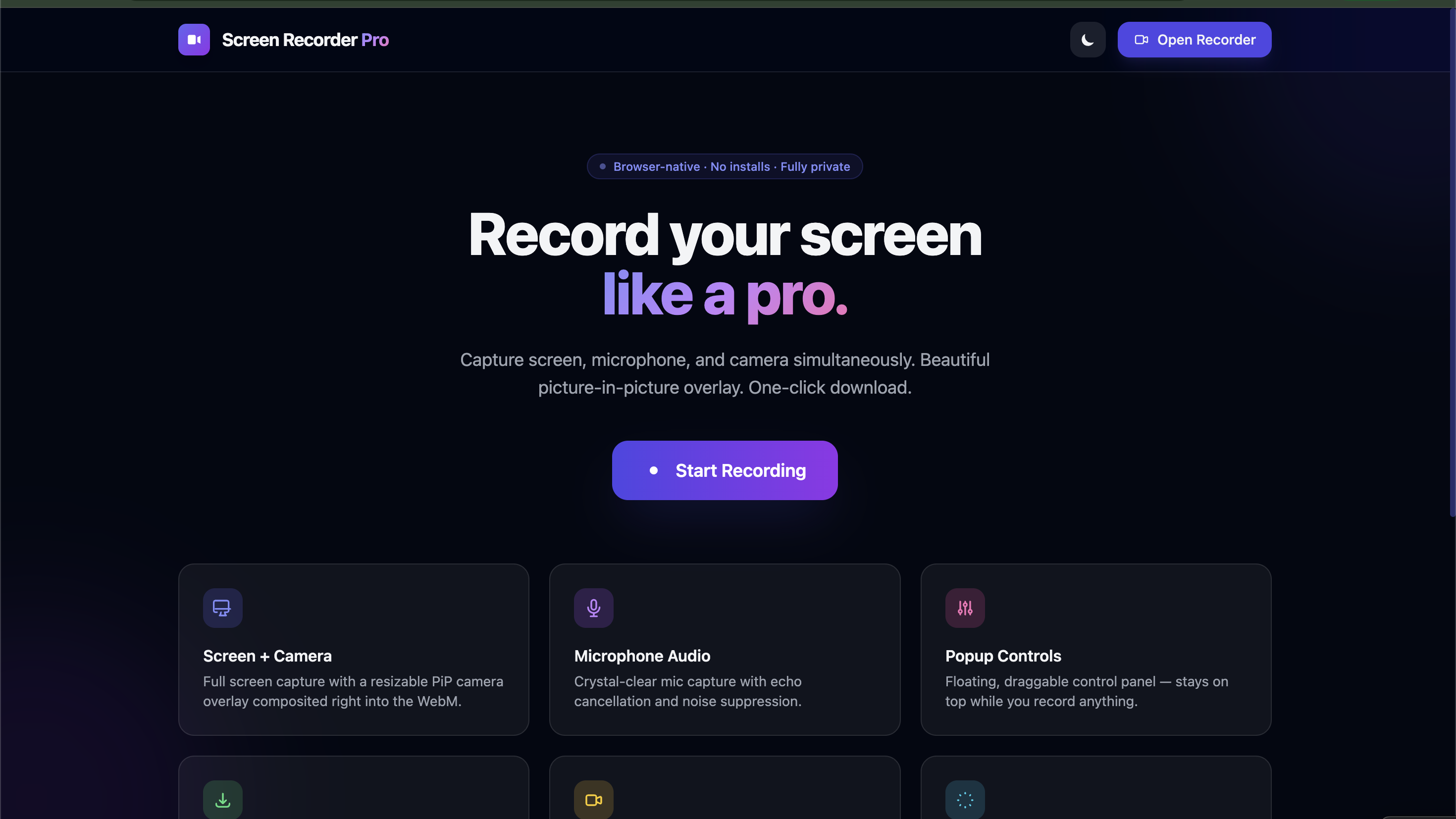
A world-class, browser-native screen recorder with camera overlay, microphone audio, and a floating popup control window — all served by a tiny Node.js/Express server. No cloud uploads. No extensions. Fully private.
Features
| Feature | Details |
|---|---|
| Screen capture | Full screen, window, or browser tab via getDisplayMedia |
| Camera overlay (PiP) | Live camera composited directly into the output WebM |
| Microphone audio | Echo cancellation · noise suppression · adjustable gain |
| Floating popup | Real window.open() popup — move it to a second monitor while recording |
| Pause / Resume | Full MediaRecorder.pause() / .resume() support |
| Dark & Light theme | One-click toggle, persisted in localStorage |
| Instant download | .webm auto-saved when you click Stop |
| Keyboard shortcut | ⌘⇧R / Ctrl⇧R to start or stop from anywhere |
Screenshots
Requirements
- Node.js 18+
- A modern browser (Chrome 88+, Edge 88+, Firefox 86+)
- macOS: grant Screen Recording and Camera permissions in System Settings → Privacy & Security
Installation
npm install -g mc-screen-recorder-pro
Usage
# Custom port
mc-screen-recorder --port 4000

# Bind to all interfaces (LAN access)
mc-screen-recorder --host 0.0.0.0 --port 3000

# Don't auto-open browser
mc-screen-recorder --no-open
Then open http://localhost:3000 and click Open Recorder.
CLI Options
| Flag | Default | Description |
|---|---|---|
| -p, --port <n> | 3000 | Port to listen on |
| -H, --host <addr> | localhost | Host/interface to bind |
| --no-open | — | Skip auto-opening the browser |
| -V, --version | — | Print version |
How It Works
- Open Recorder — launches a separate popup window (move it anywhere on your desktop)
- The popup immediately requests camera and microphone permissions
- Click Start Recording — the browser screen-share picker appears
- Screen + camera are composited on an off-screen
<canvas>usingsetInterval(30 fps) — this keeps running even when the popup is in the background - Click Stop & Save — the WebM is downloaded automatically
Camera Overlay Sizes
Sizes are fractions of the canvas width so they look correct at any resolution (including Retina/HiDPI):
| Size | Fraction | ~1080p | ~4K Retina | |---|---|---|---| | Small | 18% | ~346 px wide | ~518 px wide | | Medium | 26% | ~499 px wide | ~749 px wide | | Large | 36% | ~691 px wide | ~1037 px wide |
macOS Permissions
If screen recording is blocked, go to:
System Settings → Privacy & Security → Screen Recording
Add your browser to the list. Similarly for Camera and Microphone.
Tips
- Use a headset to avoid echo in the microphone capture
- The popup window can be dragged to a second monitor so it doesn't appear in your recording
- The
⌘⇧Rshortcut works even when the popup is not focused
License
MIT © M Chinnappan