
mc-sf-meta-compare
v2.0.2
Published
Compare Salesforce metadata between orgs or git repos — Monaco diff, semantic compare, file-level detailed diff, cron scheduling, email and Slack notifications with ZIP upload.

Maintainers
 mohanchinnappan
Readme
Salesforce Metadata Comparer (mc-meta-compare)
A CLI tool to compare Salesforce metadata between two orgs by metadata type or
package.xml, with an interactive HTML report powered by Monaco editor for content viewing and semantic diff.Auth: automatically authenticates via Salesforce CLI with smart token retrieval — tries
sf org auth show-access-token(SF CLI 2.x) first, falls back tosf org display, thensf force org displayfor older versions. Credentials are stored at~/.meta-compare/auth.json(owner-readable only).
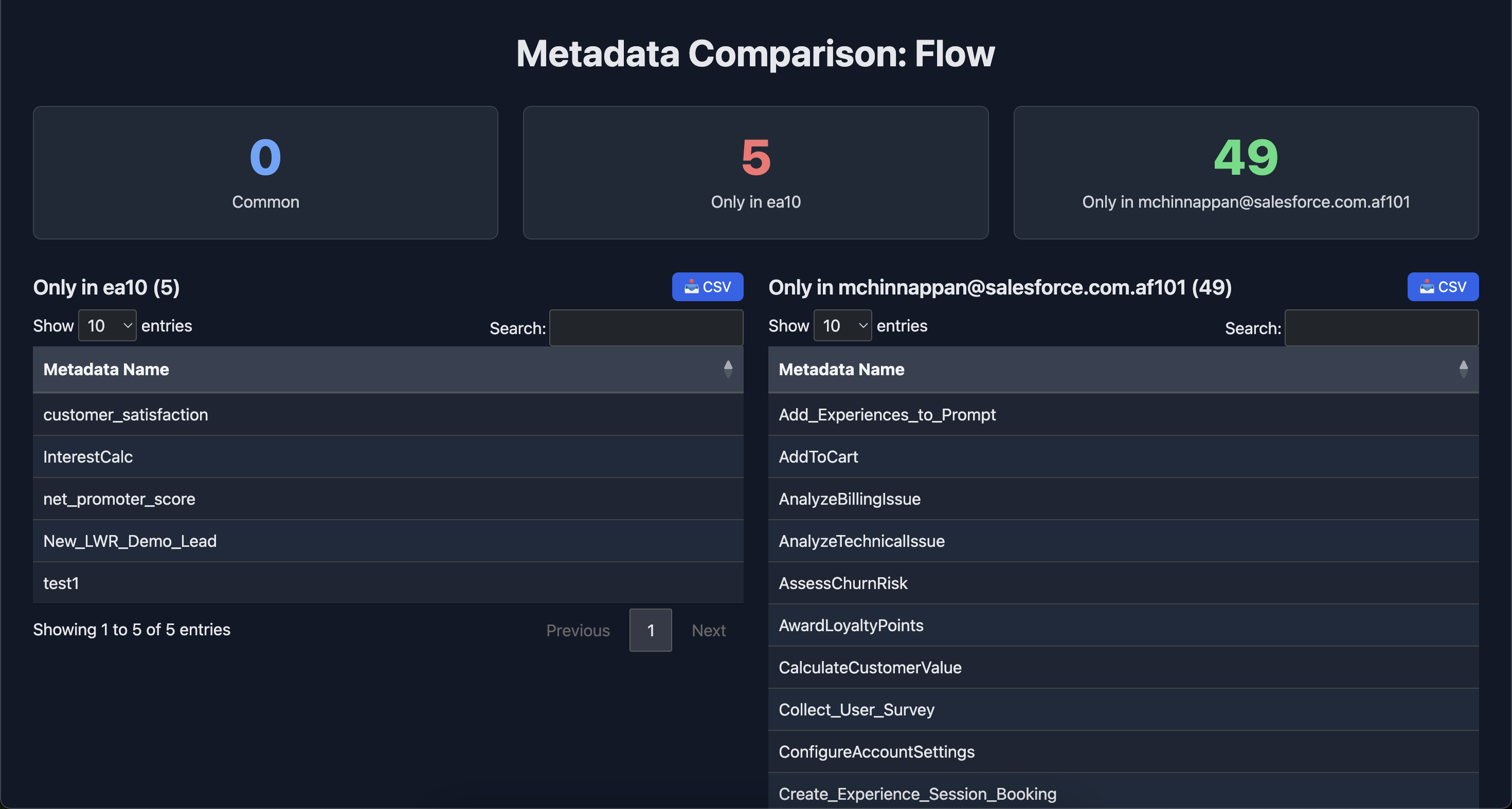
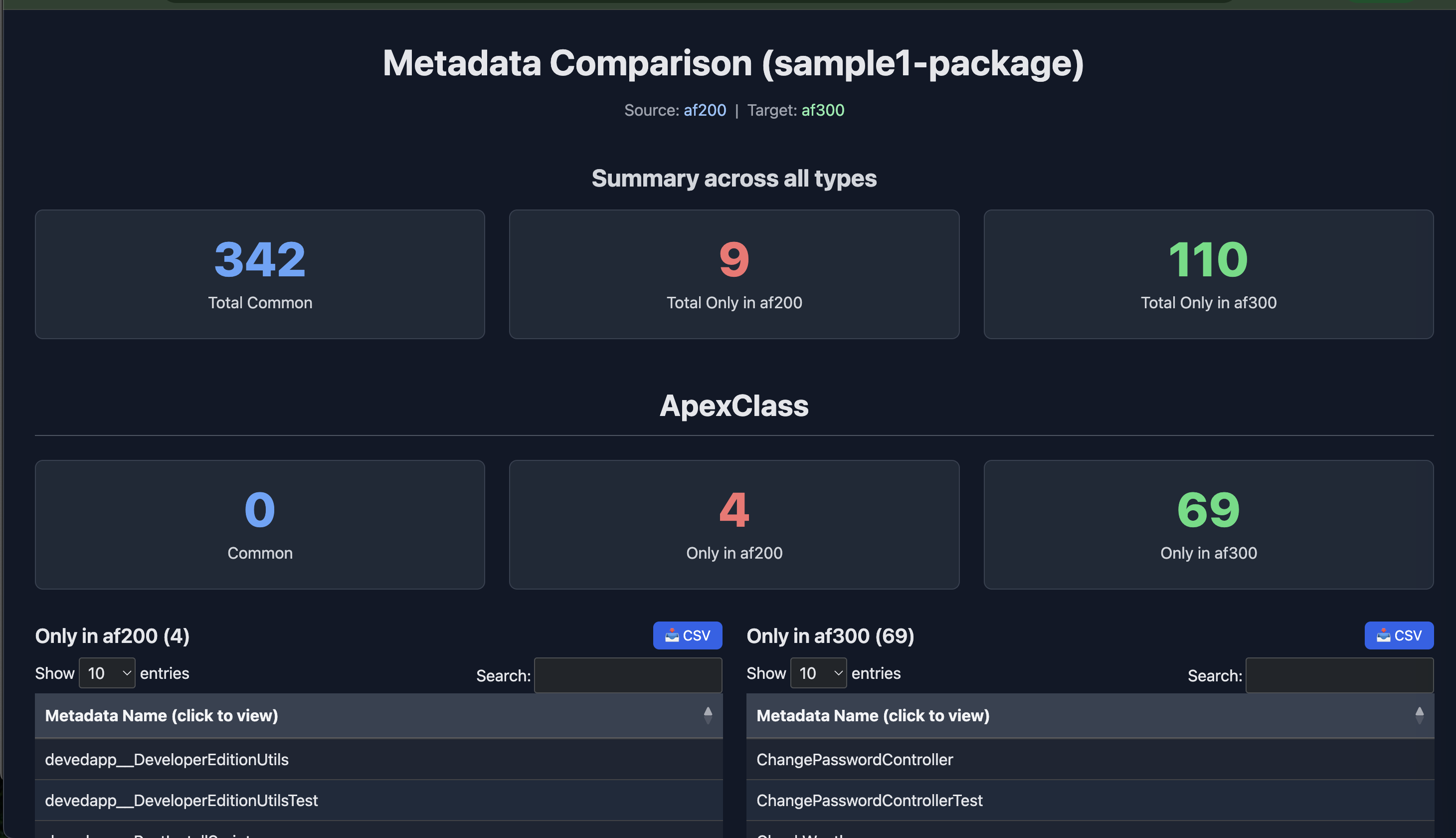
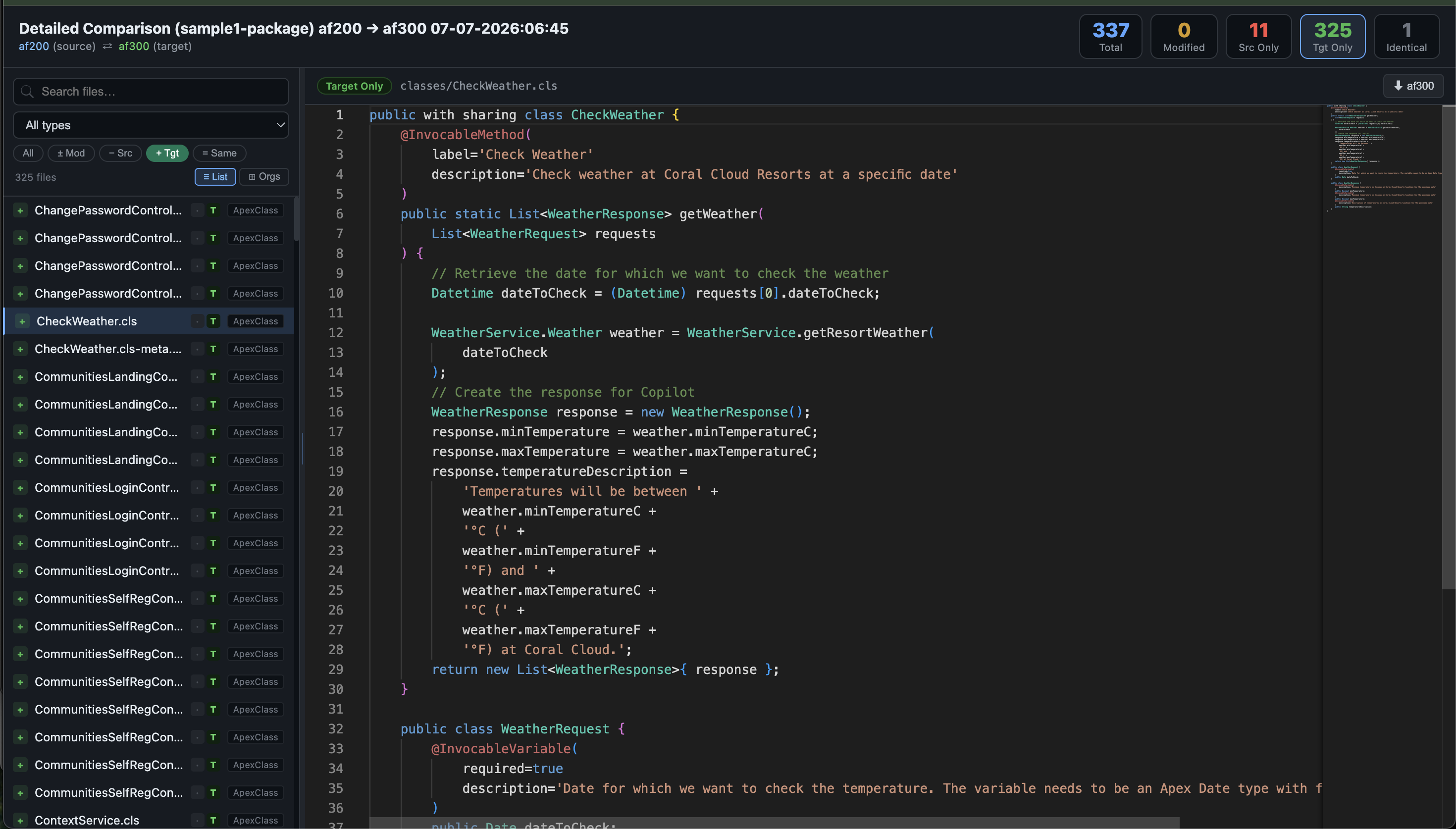
Screenshot
Features
Comparison
- Compare by single metadata type (
-m) or all types in apackage.xml(-x) - Identifies:
- Components common to both orgs
- Components only in the Source org
- Components only in the Target org
- KPI summary tiles with large-font counts (per-type and cross-type totals for package.xml runs)
- Per-type CSV export (written to disk automatically)
Interactive HTML Report
- Dark-themed, DataTables-powered tables with search and column sorting
- Per-table 📥 CSV download buttons in the browser
Monaco Editor Slide-in Panel
Click any row to open a slide-in panel (75% width, Escape to close):
| Row type | Panel behaviour | |---|---| | Only in Source / Only in Target | Viewer — Monaco editor, read-only, syntax-highlighted | | Common | Semantic diff — Monaco diff editor, source (left) vs target (right) |
Viewer panel actions:
- ⬇️ Download — saves the file with the correct extension
Diff panel actions:
- ⬇️
<source-alias>— download source org content - ⬇️
<target-alias>— download target org content - 🔀 Semantic: ON/OFF — toggle between Monaco
advanced(semantic) andlegacydiff algorithm - ⇄ Side-by-side / Inline — toggle layout live
Content fetched live from Salesforce
The CLI starts a local HTTP server. The browser fetches content on demand:
| Metadata type | API used |
|---|---|
| ApexClass, ApexTrigger, ApexPage, ApexComponent | Tooling API — Body field |
| LightningComponentBundle | Tooling API — LightningComponentResource |
| AuraDefinitionBundle | Tooling API — AuraDefinition |
| Flow | Tooling API — Id lookup + full record fetch |
| CustomObject (standard & custom) | REST API — /sobjects/{name}/describe |
| CustomField | Tooling API — Id lookup + full record fetch |
| ValidationRule | Tooling API — Id lookup + full record fetch |
| Layout | Tooling API — Id lookup + full record fetch |
| WorkflowRule | Tooling API — Id lookup + full record fetch |
| Profile, PermissionSet, GlobalValueSet, etc. | Tooling API — Id lookup + full record fetch |
| Everything else | Fallback message with sf project retrieve command |
Authentication
The tool authenticates orgs automatically using the Salesforce CLI. No manual token handling is required.
Token retrieval strategy (tried in order):
| # | Command | When used |
|---|---|---|
| 1 | sf org auth show-access-token -o <alias> | SF CLI 2.x (preferred) |
| 2 | sf org display -o <alias> | SF CLI 2.x fallback |
| 3 | sf force org display -o <alias> | SF CLI 1.x / legacy |
Credentials are stored at ~/.meta-compare/auth.json with 0600 permissions (owner-read/write only). This file is outside the project directory and is never committed to version control.
Prerequisites
- Node.js ≥ 18
- Salesforce CLI (
sf) installed and orgs authenticated viasf org login weborsf org login jwt
Installation
npm install -g mc-sf-meta-compareUsage
Compare a single metadata type
mc-meta-compare compare -s <source-org-alias> -t <target-org-alias> -m ApexClass
mc-meta-compare compare -s <source-org-alias> -t <target-org-alias> -m ApexTrigger
mc-meta-compare compare -s <source-org-alias> -t <target-org-alias> -m Flow
mc-meta-compare compare -s <source-org-alias> -t <target-org-alias> -m CustomObject
mc-meta-compare compare -s <source-org-alias> -t <target-org-alias> -m LightningComponentBundle
Compare all types in a package.xml
mc-meta-compare compare -s <source-org-alias> -t <target-org-alias> -x package.xmlThe report opens automatically in your browser. The process stays alive to serve content requests — press Ctrl+C to exit.
Scheduled / cron runs (-c)
Run any comparison on a recurring schedule using a standard 5-field cron expression:
mc-meta-compare compare -s <source> -t <target> -x package.xml -c "0 8 * * *"The tool runs immediately on start, then repeats according to the schedule. Press Ctrl+C to stop.
Common cron examples:
| Expression | Meaning |
|-------------------|--------------------------------|
| 0 8 * * * | Every day at 08:00 |
| 0 8 * * 1-5 | Weekdays at 08:00 |
| 0 */4 * * * | Every 4 hours |
| */30 * * * * | Every 30 minutes |
| 0 9 * * 1 | Every Monday at 09:00 |
| 0 8,17 * * 1-5 | Weekdays at 08:00 and 17:00 |
Works with all modes — -m, -x, and --detailed --zip:
# Detailed + ZIP, run every weekday morning
mc-meta-compare compare -s qa-org -t uat-org --detailed --zip -x package.xml -c "0 8 * * 1-5"
Each scheduled run produces a fresh timestamped report file. The process stays alive between runs — press Ctrl+C to stop.
Cron syntax: standard 5-field (
minute hour day-of-month month day-of-week). Supported:*, exact values, ranges (1-5), lists (1,3,5), and steps (*/5,1-10/2). No external dependencies — implemented in pure Node.js.
Cron expression reference
The cron expression:
0 8 * * *consists of 5 fields:
┌───────────── Minute (0 - 59)
│ ┌─────────── Hour (0 - 23)
│ │ ┌───────── Day of Month (1 - 31)
│ │ │ ┌─────── Month (1 - 12)
│ │ │ │ ┌───── Day of Week (0 - 7)
│ │ │ │ │      (0 or 7 = Sunday)
│ │ │ │ │
0 8 * * *
Meaning of each field
| Field | Value | Meaning |
|---|---|---|
| Minute | 0 | At minute 0 |
| Hour | 8 | At 8 AM |
| Day of Month | * | Every day of the month |
| Month | * | Every month |
| Day of Week | * | Every day of the week |
Runs at: every day at 8:00 AM.
Examples: Monday 8:00 AM ✅ · Tuesday 8:00 AM ✅ · January 15, 8:00 AM ✅ · December 31, 8:00 AM ✅
Run the job every day at 8:00 AM.
Other common examples
| Cron | Meaning |
|---|---|
| 0 0 * * * | Every day at midnight |
| 30 9 * * 1-5 | 9:30 AM on weekdays |
| */15 * * * * | Every 15 minutes |
| 0 */2 * * * | Every 2 hours |
| 0 8 * * 1 | Every Monday at 8:00 AM |
| 0 8 1 * * | 8:00 AM on the 1st day of every month |
| 0 8 1 1 * | 8:00 AM every January 1st |
-p / --poll <minutes> — polling interval (default 1 minute). Increase for cron expressions with long gaps to reduce CPU usage; decrease for sub-minute-precision testing:
# Poll every 5 minutes (lower CPU for infrequent schedules)
mc-meta-compare compare -s qa-org -t uat-org -x package.xml -c "0 8 * * *" -p 5

# Poll every 0.5 minutes (30 s) for fast schedules during testing
mc-meta-compare compare -s qa-org -t uat-org -x package.xml -c "*/1 * * * *" -p 0.5
Sample package.xml
<?xml version="1.0" encoding="UTF-8"?>
<Package xmlns="http://soap.sforce.com/2006/04/metadata">
    <types>
        <members>*</members>
        <name>ApexClass</name>
    </types>
    <types>
        <members>*</members>
        <name>ApexTrigger</name>
    </types>
    <types>
        <members>*</members>
        <name>CustomObject</name>
    </types>
    <types>
        <members>*</members>
        <name>Flow</name>
    </types>
    <types>
        <members>*</members>
        <name>LightningComponentBundle</name>
    </types>
    <version>64.0</version>
</Package>
View all supported Salesforce metadata types
Detailed file-level comparison (--detailed)
Retrieves metadata from both orgs into local SF projects and performs a file-by-file diff of every retrieved asset.
# Basic detailed comparison
mc-meta-compare compare -s <source-alias> -t <target-alias> --detailed -x package.xml

# With portable ZIP for sharing
mc-meta-compare compare -s <source-alias> -t <target-alias> --detailed --zip -x package.xml
What it does
- Creates
.meta-compare-work/src-projectand.meta-compare-work/target-project - Runs
sf project generatein each - Clears any stale
retrieved/folder from previous runs before each retrieve - Runs
sf project retrieve start -x package.xml --output-dir retrievedfor both orgs - Walks all files under
retrieved/in both projects and classifies each file as:- Modified — exists in both, content differs
- Source Only — only in source org
- Target Only — only in target org
- Identical — exists in both, content is the same
- Generates a fully self-contained HTML report — all file content is embedded, no server required
- If
--zipis passed, also writes a.zipcontaining the HTML for easy sharing
Self-contained & shareable
The --detailed report embeds all source and target file content directly in the HTML. It requires no server, no Node.js, no CLI to view — just a browser.
Add --zip to produce a single portable archive:
mc-meta-compare compare -s qa-org -t uat-org --detailed --zip -x package.xmlThis produces:
metadata-detailed-qa-org-uat-org-07-07-2026-06-13-package.html   ← open directly
metadata-detailed-qa-org-uat-org-07-07-2026-06-13-package.zip    ← send this to anyone
The recipient unzips the file and opens the HTML in any browser — no installation needed.
Note:
--ziprequires--detailed. The ZIP is built using pure Node.js (no external dependencies).
Detailed report UI
- Full-viewport app — top KPI bar, resizable sidebar, Monaco editor pane
- Animated splitter — drag to resize sidebar (180px–600px), turns blue on hover
- Sidebar — List view: filterable file list with:
- 🔍 Text search
- Type dropdown (Flow, ApexClass, CustomObject, etc.) — auto-populated from retrieved files
- Status pills (Modified / Src Only / Tgt Only / Identical) linked to KPI tiles
- Per-row S (source) and T (target) org-presence chips
- Sidebar — ⊞ Orgs view: two-column layout showing source org files on the left and target org files on the right — click any file to open it in the editor
- Editor pane: Monaco viewer (single-org files) or semantic diff editor (modified files)
- 🔀 Semantic ON/OFF toggle (
advancedvslegacydiff algorithm) - ⇄ Side-by-side / Inline toggle
- ⬇️ Per-org download buttons
- 🔀 Semantic ON/OFF toggle (
- ↑/↓ keyboard navigation through the filtered file list
Output filename pattern
metadata-detailed-{source-alias}-{target-alias}-MM-DD-YYYY-HH-MM-{package-name}.html
metadata-detailed-{source-alias}-{target-alias}-MM-DD-YYYY-HH-MM-{package-name}.zip  (--zip)
Example:
metadata-detailed-qa-org-uat-org-07-07-2025-14-32-sample1-package.html
metadata-detailed-qa-org-uat-org-07-07-2025-14-32-sample1-package.zip
Email delivery (-e)
Send the ZIP report by email after each run — one-shot or on a cron schedule.
1. Configure SMTP (once)
mc-meta-compare config smtpThe wizard walks you through each setting and saves them to ~/.meta-compare/smtp.json (mode 0600, never committed to version control):
📧 SMTP configuration wizard
   Settings are saved to /Users/you/.meta-compare/smtp.json (mode 0600)

SMTP host   (e.g. smtp.gmail.com) [smtp.gmail.com]:
SMTP port   (465=SSL, 587=STARTTLS) [587]:
Use SSL?    (y for port 465, n for 587) [n]:
SMTP user   (your email address) []: [email protected]
SMTP pass   (app password / token) []: ••••••••••••••••
From address (leave blank to use user) []:

✅ SMTP config saved to /Users/you/.meta-compare/smtp.json

Send a test email to (leave blank to skip): [email protected]
✅ Test email sent to [email protected]
| Prompt | What to enter |
|---|---|
| SMTP host | smtp.gmail.com (Gmail), smtp.office365.com (Outlook), your corporate SMTP host |
| SMTP port | 587 for STARTTLS (recommended) · 465 for SSL |
| Use SSL? | n for port 587 · y for port 465 |
| SMTP user | Your full email address |
| SMTP pass | App password or token — never your account password |
| From address | Leave blank to use the same address as SMTP user |
Gmail users: you must use an App Password. Go to Google Account → Security → 2-Step Verification → App passwords, generate one, and paste it at the
SMTP passprompt.Outlook / Office 365 users: use
smtp.office365.com, port587, SSLn. Generate an app password or use an OAuth token if your org requires modern authentication.
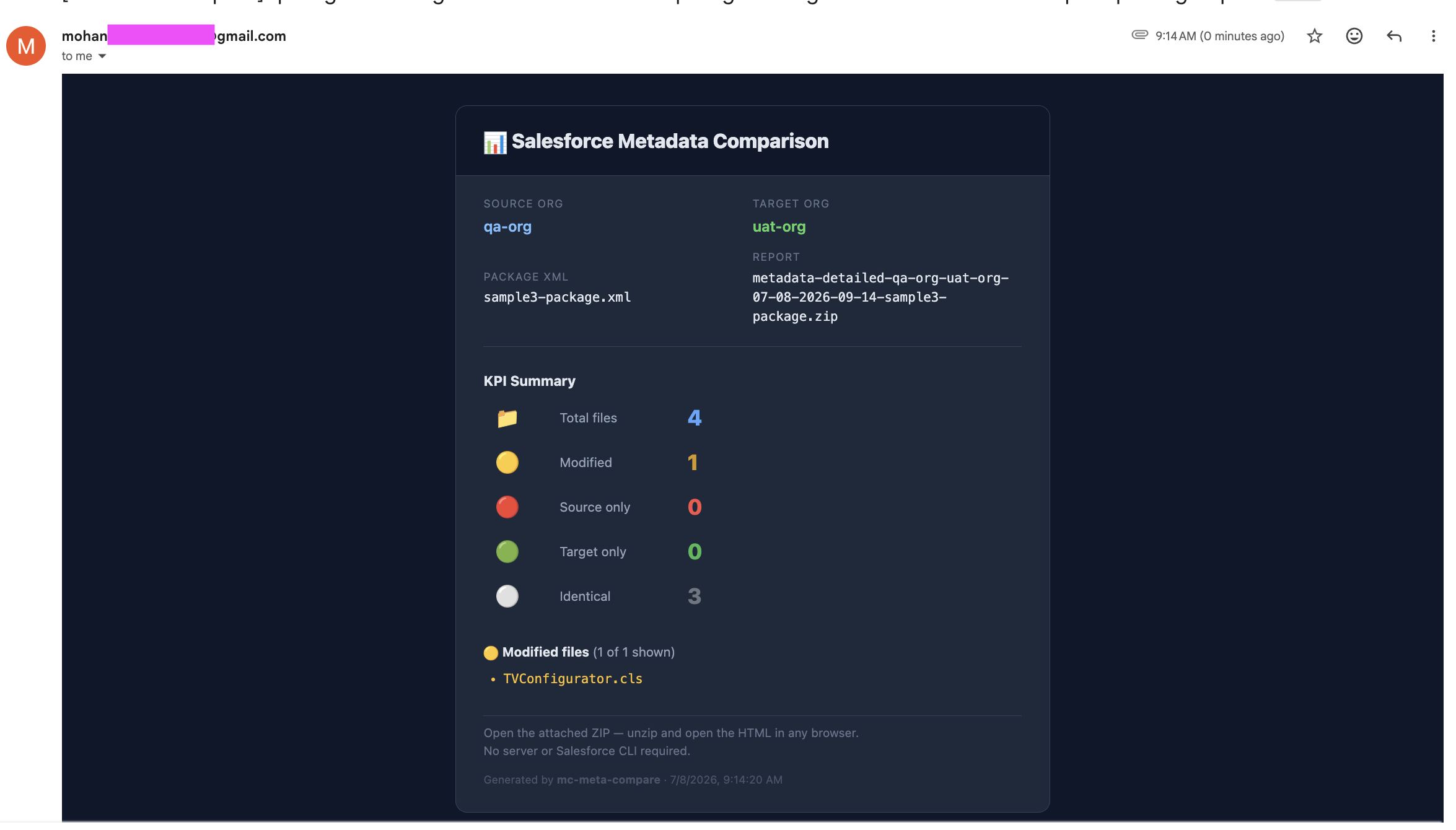
Screenshot of email sent
2. Run with -e
# Single run — email one recipient
mc-meta-compare compare -s qa-org -t uat-org --detailed -x package.xml \
  -e [email protected]

# Multiple recipients (comma-separated)
mc-meta-compare compare -s qa-org -t uat-org --detailed -x package.xml \
  -e "[email protected],[email protected],[email protected]"

# Scheduled — email every weekday morning
mc-meta-compare compare -s qa-org -t uat-org --detailed -x package.xml \
  -e "[email protected]" -c "0 8 * * 1-5"
-e automatically implies --detailed and --zip — no need to specify them separately.
The email includes:
- Subject:
[mc-meta-compare] qa-org → uat-org — metadata-detailed-....zip - Body: source org, target org, package.xml name, instructions to open the HTML
- Attachment: the self-contained ZIP (open in any browser, no server needed)
Slack notifications (--slack)
Post a KPI summary to a Slack channel after each run.
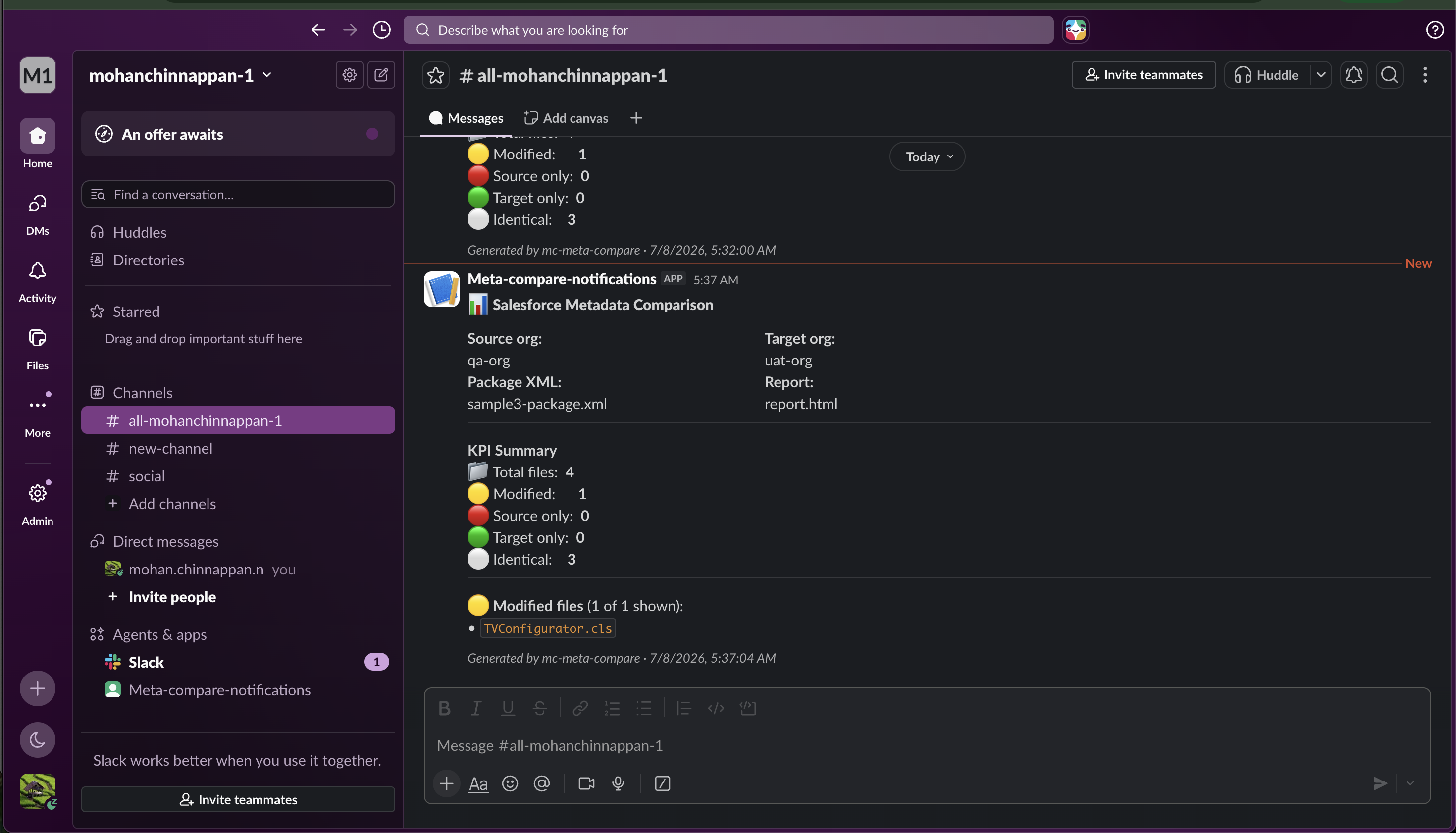
- With Attachment
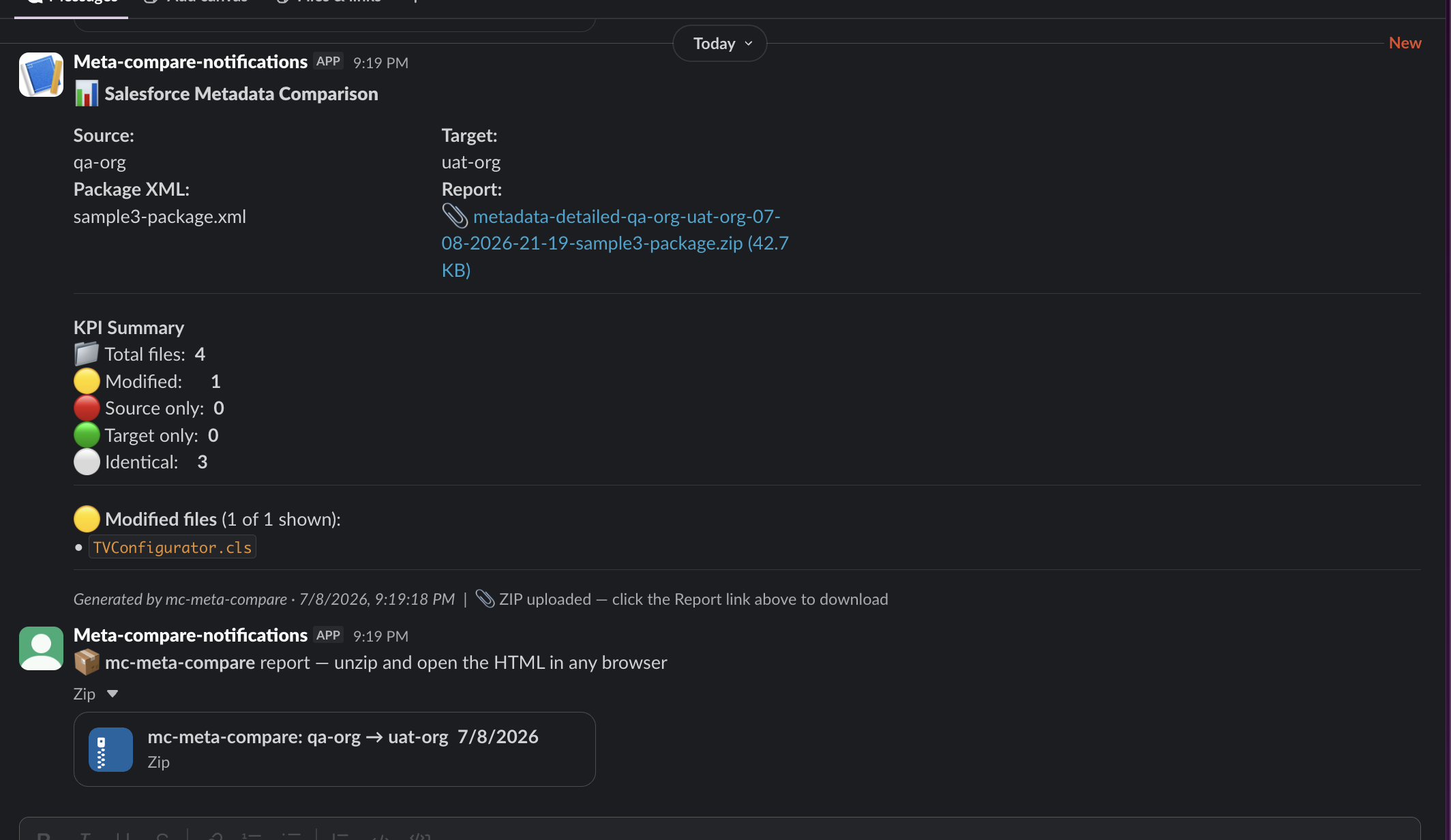
1. Configure Slack (once)
mc-meta-compare config slack💬 Slack configuration wizard
Settings are saved to /Users/you/.meta-compare/slack.json (mode 0600)
How to get a webhook URL:
1. https://api.slack.com/apps → Create New App → From scratch
2. Features → Incoming Webhooks → Activate → Add New Webhook to Workspace
3. Select the channel → copy the Webhook URL
Webhook URL (https://hooks.slack.com/services/...): https://hooks.slack.com/services/T.../B.../...
Default channel name (e.g. #meta-compare-reports) []: #meta-compare-reports
✅ Slack config saved to /Users/you/.meta-compare/slack.json
Send a test message? (y/n) [y]: y
✅ Test message sent.Settings are saved to ~/.meta-compare/slack.json (mode 0600, never committed).
To also upload the ZIP file to the channel (optional), you need a Slack Bot Token. Follow the steps below.
Getting a Slack Bot Token (xoxb-...) for ZIP upload
Step 1 — Create a Slack App
- Go to https://api.slack.com/apps
- Click Create New App → From scratch
- Enter a name (e.g.
mc-meta-compare) and select your workspace - Click Create App
Step 2 — Add the required permission scopes
- In the left sidebar click OAuth & Permissions
- Scroll to Scopes → Bot Token Scopes
- Click Add an OAuth Scope and add:
files:write - (Optional but recommended) Also add
channels:join— this lets the bot join public channels automatically, so you don't need to/inviteit manually
Step 3 — Install the app to your workspace
- Scroll up on the same page to OAuth Tokens for Your Workspace
- Click Install to Workspace (or Reinstall if already installed) → Allow
- Copy the Bot User OAuth Token — it starts with
xoxb-
Step 4 — Invite the bot to your channel
If you added
channels:joinin Step 2, the bot will join public channels automatically on first upload — you can skip this step for public channels.
For private channels, go to the channel in Slack and type:
/invite @Meta-compare-notifications(Use the exact name of your Slack app)
Step 5 — Get the Channel ID
- In Slack, right-click the channel name → View channel details
- Scroll to the bottom — you will see the Channel ID (e.g.
C0123456789) - Copy it
Step 6 — Run the config wizard
mc-meta-compare config slack💬 Slack configuration wizard
...
Bot Token for ZIP upload — xoxb-... (leave blank to skip): xoxb-7890ABCD...
Channel ID for file upload (e.g. C0123456789): C0123456789
✅ Slack config saved to ~/.meta-compare/slack.json
ZIP upload enabled (max 50 MB per file)Size limit: ZIPs larger than 50 MB are skipped automatically with a warning. The KPI notification is always sent regardless of file size.
Permissions needed:
files:writeis required.channels:joinis optional but enables auto-join for public channels. The app does not read any messages or data from your workspace.
2. Run with --slack
--slack automatically implies --detailed and --zip — no need to specify them separately.
# Single run — post KPIs to Slack (ZIP created and uploaded automatically)
mc-meta-compare compare -s qa-org -t uat-org -x package.xml \
  --slack "#meta-compare-reports"

# Combined — email the ZIP and post KPIs to Slack
mc-meta-compare compare -s qa-org -t uat-org -x package.xml \
  -e "[email protected]" --slack "#meta-compare-reports"

# Scheduled — post to Slack every weekday morning
mc-meta-compare compare -s qa-org -t uat-org -x package.xml \
  --slack "#meta-compare-reports" -c "0 8 * * 1-5"
The Slack message contains a structured Block Kit card with:
- Source and target org (or repo branch)
- Package XML name
- Report field — plain filename, or a clickable link to the uploaded ZIP if a Bot Token is configured
- KPI summary (total, modified, source-only, target-only, identical)
- Top 10 modified file names (with
…and N morewhen truncated)
📊 Salesforce Metadata Comparison
─────────────────────────────────
Source:       qa-org          Target:      uat-org
Package XML:  package.xml     Report:      📎 metadata-detailed-....zip (42.7 KB)  ← clickable

KPI Summary
📁 Total files:   4
🟡 Modified:      1
🔴 Source only:   0
🟢 Target only:   0
⚪ Identical:     3

🟡 Modified files (1 of 1 shown):
• `TVConfigurator.cls`

Generated by mc-meta-compare · 07/08/2026, 21:11:49  |  📎 ZIP uploaded — click the Report link above to download
The recipient clicks the Report link in Slack → downloads the ZIP → unzips → opens the HTML in any browser. No server, no Salesforce CLI, no Node.js required.
Note: the webhook URL determines which channel receives the message. The
--slackvalue is displayed in the terminal log only — Slack routing is controlled by the webhook configuration in your Slack app.
Git-based comparison (-g)
Compare two git repositories (or two branches of the same repo) directly — no Salesforce org access required. Useful for comparing sandboxes whose source is stored in version control, or for diffing a feature branch against main before deployment.
Options
| Option | Description |
|---|---|
| -g, --source-git <url> | Source git repo URL (HTTPS or SSH) |
| --target-git <url> | Target git repo URL — defaults to the same repo as -g |
| --source-branch <branch> | Source branch, tag, or commit SHA |
| --target-branch <branch> | Target branch, tag, or commit SHA |
At least one of --source-branch or --target-branch is required. -g implies --detailed; -s / -t org aliases are not needed.
Use -x package.xml to restrict the comparison to specific metadata types — only files whose directory path maps to a type listed in the package.xml are included. Without -x, all files in the repo are compared.
# Compare only the types listed in package.xml
mc-meta-compare compare \
  -g  https://github.com/org/repo.git \
  --source-branch main \
  --target-branch feature/my-branch \
  -x package.xml
Same repo, two branches
# Compare main vs feature branch in the same repo
mc-meta-compare compare \
  -g https://github.com/org/repo.git \
  --source-branch main \
  --target-branch feature/my-branch
Two different repos
# Compare a release tag in one repo vs another repo's develop branch
mc-meta-compare compare \
  -g  https://github.com/org/repo-a.git \
  --target-git https://github.com/org/repo-b.git \
  --source-branch v2.1.0 \
  --target-branch develop
SSH remotes
mc-meta-compare compare \
  -g  [email protected]:org/repo.git \
  --source-branch main \
  --target-branch release/1.5
Local repo paths
You can point -g at a local directory that contains a .git folder — no network access required:
mc-meta-compare compare \
  -g /path/to/local/sfdx-project \
  --source-branch origin/qa \
  --target-branch origin/uat \
  -x package.xml
Each branch gets its own git worktree so source and target are checked out into separate directories simultaneously — there is no mutual overwriting.
Package.xml filtering in git mode
When -x is provided, the comparison is restricted to:
- The metadata types listed in the package.xml (e.g.
ApexClass,Flow) - The specific members named in each type —
*means all members of that type
<!-- Only compare these two Apex classes -->
<types>
    <members>TVConfigurator</members>
    <members>TVPackageController</members>
    <name>ApexClass</name>
</types>
The tool logs which types and members are in scope:
📦 Package.xml filter — types: ApexClass
   ApexClass: TVConfigurator, TVPackageController
🔍 Comparing files (filtered by package.xml)...
Without -x, all files in the repo are compared.
How it works
- For remote URLs: clones into
.meta-compare-work/git/<slug>/repo/once, then runsgit fetch --all --pruneon repeat runs - For local paths: uses the repo in-place (no copy made)
- Creates a
git worktreefor each branch into a separate directory — both checkouts exist on disk simultaneously - Auto-detects the Salesforce source root (
force-app/→src/→ repo root) - Applies the package.xml filter (type + member name) if
-xis given - Runs the same file-by-file diff as
--detailed, producing the identical full-viewport HTML report
Combining with other options
# Git diff + ZIP for sharing
mc-meta-compare compare \
  -g https://github.com/org/repo.git \
  --source-branch main --target-branch develop \
  --zip

# Git diff + email + Slack + daily schedule
mc-meta-compare compare \
  -g https://github.com/org/repo.git \
  --source-branch main --target-branch release/1.5 \
  --zip -e "[email protected]" --slack "#releases" \
  -c "0 9 * * 1"
Tip: the tool caches cloned repos under
.meta-compare-work/git/. On repeat runs it fetches the latest remote state — no full re-clone needed.
Output files
For each metadata type compared, files are written to the current directory:
| File | Contents |
|---|---|
| metadata-compare-<Type>.csv | All members labelled Common / Only in source / Only in target |
| metadata-compare-<Type>.html (or metadata-compare-<pkg>.html) | Interactive KPI + DataTables report |
| metadata-detailed-{src}-{tgt}-{timestamp}-{pkg}.html | Self-contained file-level diff report (--detailed) |
| metadata-detailed-{src}-{tgt}-{timestamp}-{pkg}.zip | Portable ZIP of the HTML for sharing (--detailed --zip) |
| metadata-detailed-git-{src}@{branch}-vs-{tgt}@{branch}-{timestamp}.html | Git-based diff report (-g) |
| metadata-detailed-git-{src}@{branch}-vs-{tgt}@{branch}-{timestamp}.zip | Git-based ZIP (-g --zip) |
All generated HTML, CSV, and ZIP files are listed in
.gitignoreand will not be committed.
All options at a glance
mc-meta-compare compare [options]

  -s, --source <alias>        Source org alias (required unless -g is used)
  -t, --target <alias>        Target org alias (required unless -g is used)
  -m, --metadata <type>       Single metadata type (ApexClass, Flow, etc.)
  -x, --package <path>        package.xml — filter by type and member names
  --detailed                  File-level retrieval diff (requires -x)
  --zip                       Write portable self-contained ZIP
  -g, --source-git <url>      Source git repo URL or local path (implies --detailed)
  --target-git <url>          Target git repo URL (default: same as -g)
  --source-branch <branch>    Source branch / tag / SHA
  --target-branch <branch>    Target branch / tag / SHA
  -e, --email <addresses>     Email ZIP to comma-separated addresses (implies --detailed --zip)
  --slack <channel>           Post KPI summary to Slack (e.g. #meta-compare-reports)
  -c, --cron <expression>     Run on a cron schedule (e.g. "0 8 * * 1-5")
  -p, --poll <minutes>        Cron polling interval in minutes (default: 1)

mc-meta-compare config smtp   Configure SMTP for email delivery
mc-meta-compare config slack  Configure Slack Incoming Webhook
Support this work
If this tool has helped you, please consider donating to one of Mohan's suggested charities:
St. Jude Children's Research Hospital — fighting childhood cancer and other life-threatening diseases Donate to St. Jude
Any charity supporting Developing Countries — organisations providing food, clean water, education, or healthcare to communities in need
Your generosity makes a real difference. Thank you.
Author
Mohan Chinnappan
License
MIT