
mc-sf-template
v1.0.3
Published
Salesforce CLI tool with template processing

Maintainers
 mohanchinnappan
Readme
Salesforce Template CLI
A powerful command-line interface (CLI) and web-based tool for querying Salesforce data and processing Handlebars templates with dynamic content. This tool simplifies the process of authenticating with Salesforce, querying records, and generating customized outputs (e.g., emails, reports) using template files. Ideal for developers and Salesforce administrators who need to automate template-based workflows.
Features
- Salesforce Authentication: Authenticate with Salesforce orgs using the Salesforce CLI.
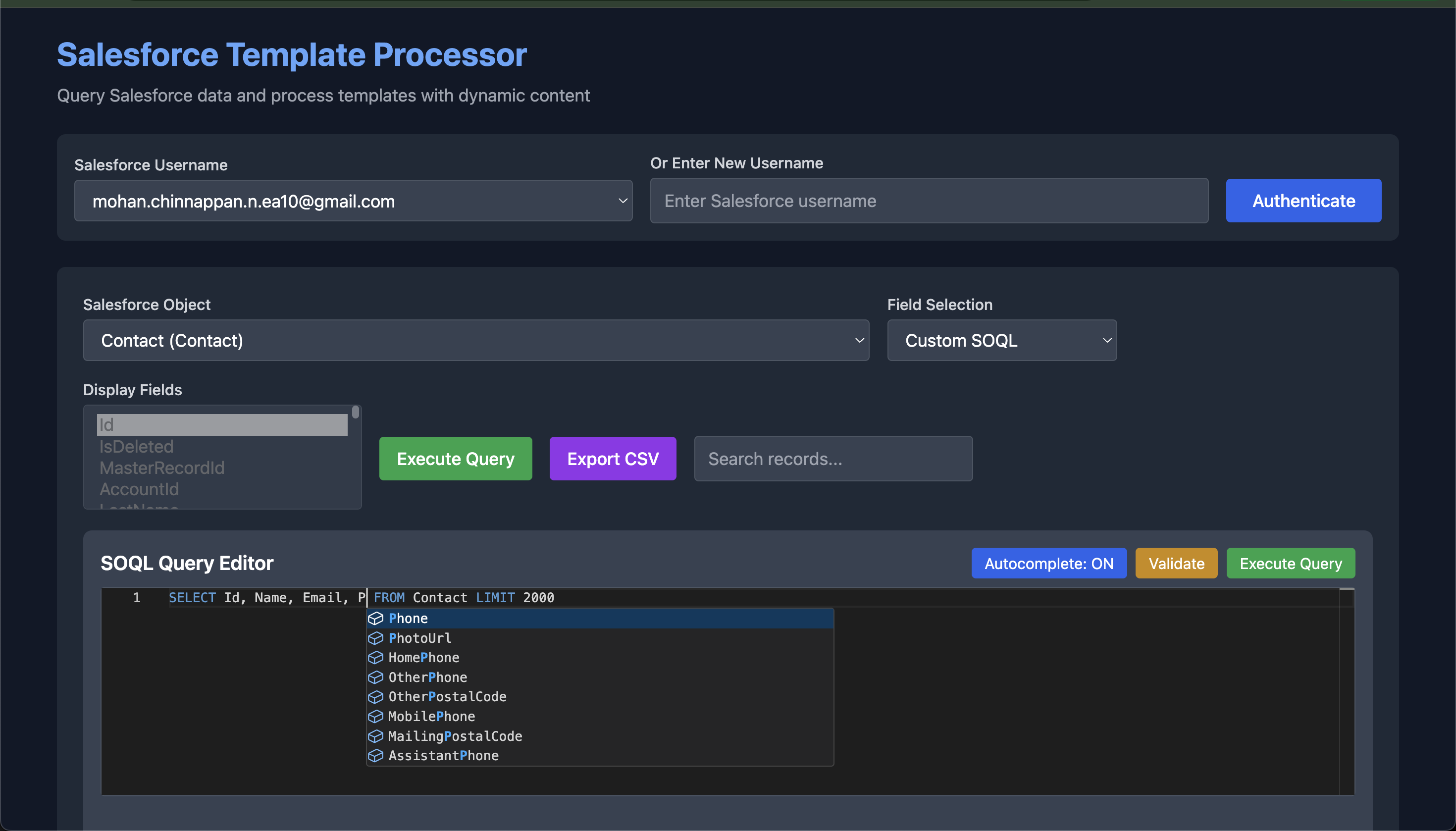
- Dynamic SOQL Queries: Query Salesforce objects with customizable field selection (required fields or all fields).
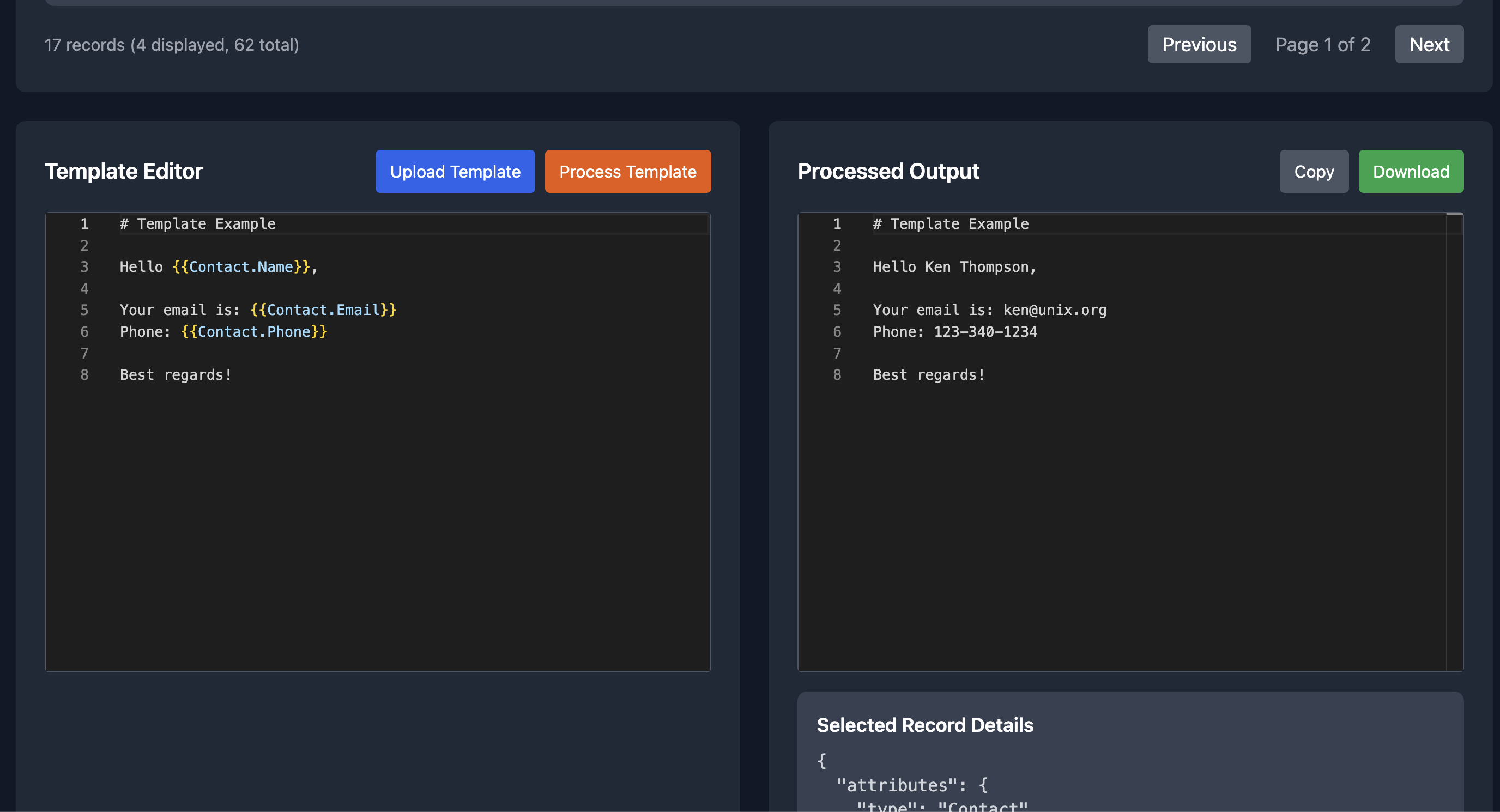
- Handlebars Templating: Process templates with dynamic Salesforce data using Handlebars syntax.
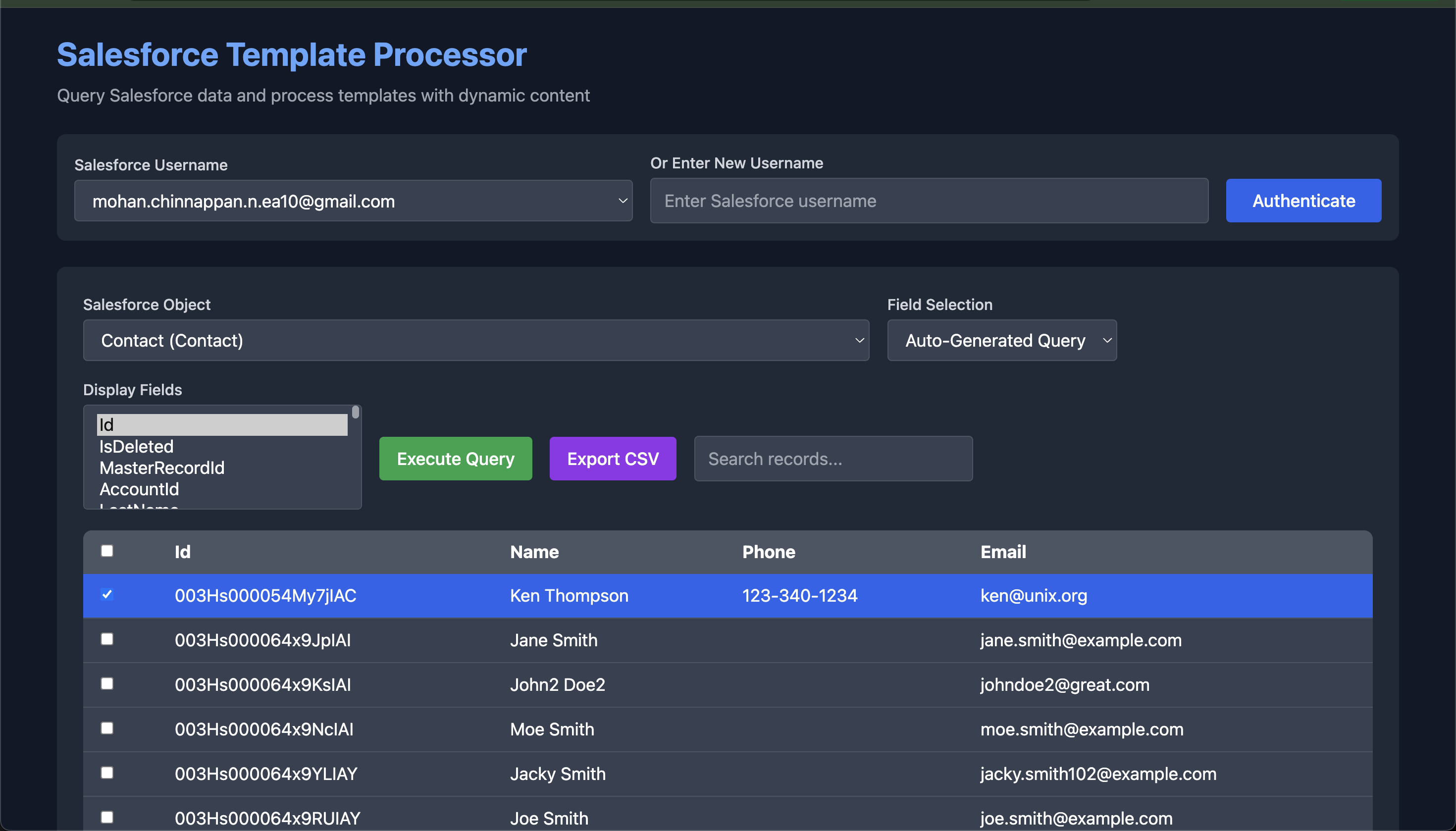
- Web Interface: Interactive UI for selecting objects, fields, and records, with real-time template processing.
- CSV Export: Export queried Salesforce data to CSV for further analysis.
- Field Selection: Choose specific fields to display in the UI table, with support for horizontal scrolling.
- Record Details: View all fields of a selected record in a detailed JSON view.
- Responsive Design: Clean, user-friendly interface built with Tailwind CSS and Monaco Editor.
Installation
npm install -g mc-sf-template Ensure you have the Salesforce CLI installed and configured for authentication:
Prerequisites
- Node.js: Version 18.x or higher.
- Salesforce CLI: Required for authentication with Salesforce orgs.
- Salesforce Org: A Salesforce org with API access and valid credentials.
- Web Browser: For accessing the web interface (e.g., Chrome, Firefox).
Usage
1. Authenticate with Salesforce
Authorize your Salesforce org using the Salesforce CLI:
sf force auth web login -r instanceUrlRegister the org with the CLI tool:
mc-sf-template auth -u <your-username>Example:
mc-sf-template auth -u username 2. Start the Server
Launch the web server to access the UI:
mc-sf-template server -p 3001Open your browser and navigate to http://localhost:3001.
3. Web Interface Workflow
- Authenticate: Select or enter a Salesforce username in the UI to authenticate.
- Select Object: Choose a Salesforce object (e.g.,
Contact,Account) from the dropdown. - Choose Fields:
- Select
Required Fields (Template)for predefined fields (e.g.,Id,Name,Email,PhoneforContact). - Select
All Fieldsto query all non-base64 fields.
- Select
- Display Fields: Use the multi-select dropdown to choose which fields to show in the data table (up to 20 by default).
- Query Records: Click
Query Recordsto fetch up to 200 records. - Process Template:
- Edit or upload a Handlebars template in the left pane (e.g.,
contact_email_template.hbs). - Select a record and click
Process Templateto generate output.
- Edit or upload a Handlebars template in the left pane (e.g.,
- Export or Copy:
- Export queried data to CSV using the
Export CSVbutton. - Copy or download the processed template output.
- Export queried data to CSV using the
Example Template (contact_email_template.hbs):
Hello {{Contact.Name}},

Your email is: {{Contact.Email}}
Phone: {{Contact.Phone}}
Title: {{Contact.Title}}

Best regards!
4. CLI Commands
- Authenticate:
sf-template auth -u <username> - Start Server:
sf-template server -p <port> - Help:
sf-template --help
Configuration
- Port: Specify a custom port with the
-pflag (default: 3000). - Templates: Store Handlebars templates in the
templates/directory or upload via the UI. - Field Limits: The UI displays up to 20 fields by default, but all queried fields are available for templating and CSV export.
Example
Authenticate:
sf force auth web loggin -r instance_url
sf-template auth -u [email protected]
Start the server:
sf-template server -p 3001Open
http://localhost:3001, selectContact, chooseAll Fields, and query records.Select a record, process a template, and export the data to CSV.
Troubleshooting
- Authentication Issues:
- Ensure the Salesforce CLI is configured with
sf org login web. - Verify the username matches the org alias.
- Ensure the Salesforce CLI is configured with
- Missing Fields:
- Select
All Fieldsin the UI to include all non-base64 fields. - Check the
Selected Record Detailssection for all queried fields.
- Select