
metin2-patcher-electron
v0.1.7
Published
A simple metin2 patcher made in Electron with React and TypeScript.


Readme
Metin2-Patcher-Electron

A simple metin2 patcher made in Electron with React and TypeScript.
The file verification is made with SHA256.

Getting Started
Install NodeJS: https://nodejs.org/en/download/
Install Yarn: https://yarnpkg.com/getting-started/install
Clone the repository:
git clone https://github.com/Karbust/Metin2-Patcher-ElectronInstall the dependencies:
yarn installEdit src/config.ts with your own values.
Change resources/icon.png with your own logo (should be at least 256x256).
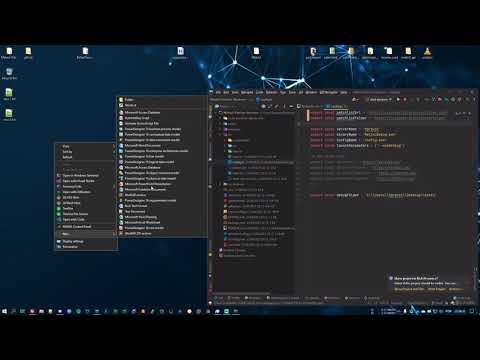
A small video on how to set it up:
Available Commands
| Command | Purpose | | ------ | ------ | | yarn run start | Starts the React App (aka Frontend) in development mode. | | yarn run build | Builds a production ready React bundle. | | yarn run electron-start | Starts the Electron App. | | yarn run electron-pack | Builds a production package of the app. | | yarn run lint | Check for linting errors. | | yarn run lint-fix | Fixing some linting errors. |
About the Patcher
This project was made with the intent of learn more about Electron, something I wanted to do for a while.
If the folders don't exist, they'll be created. If the files don't exist they will be downloaded.
The patcher checks the local files and if their checksum mismatches the remote checksum, they will get downloaded.
This patcher runs the downloads asynchronously, this means it will download multiple files at the same time.
The entire project is made in React and Electron both with TypeScript.
For CSS was used TailwindCSS.
Deploying
After editing everything you must use the command yarn run electron-pack to build the application.
It will build 2 files inside the release folder:
- Metin2 Patcher Electron-X.X.X-win.zip
- metin2_patcher_electron.exe
The first file is the full bundle zipped that can be extracted to the client folder (after removing the 2 unnecessary LINCENSE files). DON'T USE THIS IF YOU ALREADY HAVE THE CEF BROWSER ON THE CLIENT.
The second file is also zipped but will be extract to a temporary folder during runtime (takes about 3 seconds to fully open) and clean after itself when it closes. This is the way if you can't perform the first option.
Development Testing
In case there isn't the possibility to use a local webserver (like Apache with Xampp, or Wampp) it may be necessary update the CORS on your remote server.
For NGINX
Go to the configuration file for the patcher host and add this line:
add_header 'Access-Control-Allow-Origin' 'http://localhost:3000';For Apache
Go to the configuration file for the patcher host and add this line:
Header set Access-Control-Allow-Origin "http://localhost:3000"It may also be needed to activate the headers module:
a2enmod headersRunning on development
First start the frontend (ensure there's nothing running on default port 3000, otherwise a different port will be assigned and the patcher will show a white screen):
yarn run startThen start the electron app:
yarn run electron-startWeb Server
Using this NodeJS script, you shall place the client files inside a folder called files and run the script.
It will generate the JSON file with the names, sizes and checksum hash of the files.


Multi-language
It ships with support for two languages, English (default) and Portuguese. These can be used as examples to add more languages.
To add more languages, you must edit both src\i18n.ts and src_electron\i18n.ts.
Three things are needed, import the translation file (.json) that must go inside the folder localization\ , and add the language on resources and supportedLngs.
Do not edit the placeholders ( {{ }} ) when creating a new language, otherwise it won't work as expected.
To add flags edit the file src\components\Buttons.ts. There are flags for every language that are supported by the official, just need to add the button.
Slider
To use the slider you just need to configure the respective values on src\config.ts. The webserver file should look something like this:
[{
    "image": "img1.png",
    "url": "https://google.com"
}, {
    "image": "img1.png",
    "url": "https://metin2.dev"
}]
Images should have a size of 780x300 pixels.
The image path is relative to the directory defined by src\config.ts variable patchSliderImages.
WebP images should be used instead PNG/JPG/JPEG, since they offer the same quality with a reduced size. Such can be done with a script like this (it will also remove any metadata):
const imagemin = require("imagemin"),
    webp = require("imagemin-webp"),
    outputFolder = __dirname + "/img_webp/";

(async () => {
    await imagemin(['images/*.png}'], {
        destination: outputFolder,
        plugins: [webp({
            lossless: false
        })]
    });

    console.log('PNG images optimized');

    await imagemin(['images/*.{jpg,jpeg}'], {
        destination: outputFolder,
        plugins: [webp({
            quality: 100
        })]
    });

    console.log('JPG/JPEG images optimized');
})();
To use this script you need to install the following packages:
- imagemin
- imagemin-webp
The images should be placed inside a directory called img and the result will be outputted to img_webp directory.
Issues
If you encounter any issue, you should open a New Issue.
License
MIT