
modern-data-table
v3.1.3
Published

Maintainers
 brijesh_vishwakarma
Readme
Modern Data Table

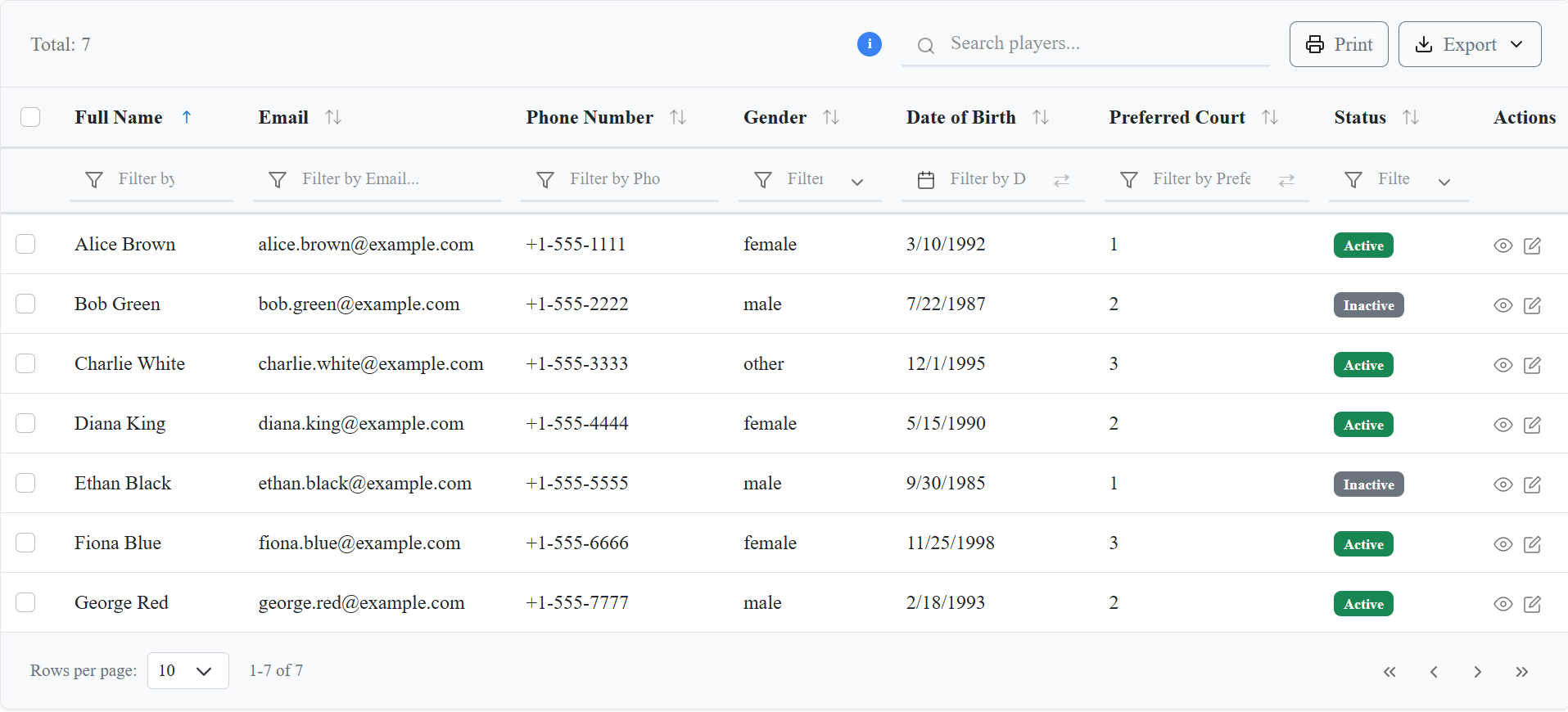
A powerful, responsive, and feature-rich React data table component with advanced filtering, sorting, and export capabilities.
📚 Documentation & Resources
📖 For detailed documentation, licensing information, and guides, refer to the following documentation files:
Available Resources:
- 📋 Usage Guide (USAGE-GUIDE.md) - Comprehensive usage examples and best practices
- 🔧 Troubleshooting Guide (TROUBLESHOOTING.md) - Solutions for common issues
- 📄 License Information (LICENSE) - MIT License details
- 🚀 Migration Guide (MIGRATION-GUIDE.md) - Upgrade instructions
- ⚙️ Workflow Documentation (WORKFLOW.md) - Development and build processes
Note: The source code is private and not publicly accessible to protect intellectual property.
🚀 Features
- 📱 Responsive Design: Works seamlessly on desktop and mobile devices
- 🔍 Advanced Filtering: Multi-column filtering with various data types
- 📊 Sorting: Multi-column sorting with visual indicators
- 📅 Date Range Picker: Built-in date filtering capabilities
- 📤 Export Options: Export to CSV and PDF formats (PDF requires
jspdfinstallation) - 🎨 Customizable Styling: Material UI inspired design with scoped CSS to prevent conflicts
- ⚡ Performance Optimized: Efficient rendering and memory management
- 🔧 TypeScript Support: Full TypeScript definitions included
📦 Installation
Step 1 — Install the package
npm install modern-data-tableStep 2 — Install required peer dependencies
npm install react react-dom react-hot-toastStep 3 — (Optional) Enable PDF export
PDF export needs jspdf. Supported versions: v2, v3, or v4 (same range as jspdf-autotable: ^2 || ^3 || ^4).
Recommended (security): install jspdf v4:
npm install jspdf@^4Or install any supported major:
npm install jspdf
# resolves within peer range ^2 || ^3 || ^4
Without
jspdf, CSV export and all other table features still work. Only Export → PDF needs this step.
Step 4 — Import styles
// Option 1: Standard CSS (may conflict with existing styles)
import 'modern-data-table/dist/styles/CustomTable.css';
import 'modern-data-table/dist/styles/Toast.css';

// Option 2: Scoped CSS (recommended to prevent conflicts)
import 'modern-data-table/dist/styles/CustomTableScoped.css';
import 'modern-data-table/dist/styles/Toast.css';
PDF export troubleshooting
If you see: PDF library not available. Please install jspdf:
- Confirm
jspdfis installed in the same app that usesmodern-data-table(npm ls jspdf) - Prefer
jspdf@^4(e.g.4.2.1) to avoid known security findings in older2.5.xbuilds - Restart your dev server after installing
- Check the browser console for the detailed import error
Upgrade note for apps already on jspdf 2.5.x:[email protected]+ allows jspdf 4. Keep your jspdf 4 upgrade and bump modern-data-table so peer dependency checks pass.
🎨 CSS Styling Options
The Modern Data Table provides two CSS options to accommodate different project needs:
Option 1: Standard CSS
import 'modern-data-table/dist/styles/CustomTable.css';- Use when: You want the table to inherit your project's global styles
- Note: May conflict with existing CSS frameworks or custom styles
Option 2: Scoped CSS (Recommended)
import 'modern-data-table/dist/styles/CustomTableScoped.css';- Use when: You want to prevent style conflicts with existing projects
- Benefits: All styles are scoped to
.modern-data-tableclass, ensuring no conflicts - Recommended for: Production applications and projects with existing CSS frameworks
Both options include the same visual design and functionality. Choose based on your project's styling requirements.
🎯 Quick Start
import React from 'react';
import { DataTable } from 'modern-data-table';

// Helper for date formatting
function dateFormatter(date: string) {
  return new Date(date).toLocaleDateString();
}

const columns = [
  {
    id: "fullName",
    header: "Full Name",
    accessorKey: "fullName",
    sortable: true,
    filterable: true,
    filterType: "text" as const,
  },
  {
    id: "email",
    header: "Email",
    accessorKey: "email",
    sortable: true,
    filterable: true,
    filterType: "text" as const,
  },
  {
    id: "phoneNumber",
    header: "Phone Number",
    accessorKey: "phoneNumber",
    sortable: true,
    filterable: true,
    filterType: "text" as const,
  },
  {
    id: "location",
    header: "Location",
    accessorKey: "location",
    sortable: true,
    filterable: true,
    filterType: "dropdown" as const,
    filterOptions: [
      { label: "San Francisco", value: "San Francisco" },
      { label: "Seattle", value: "Seattle" },
      { label: "Austin", value: "Austin" },
    ],
  },
  {
    id: "gender",
    header: "Gender",
    accessorKey: "gender",
    sortable: true,
    filterable: true,
    filterType: "dropdown" as const,
    filterOptions: [
      { label: "Male", value: "male" },
      { label: "Female", value: "female" },
      { label: "Other", value: "other" },
    ],
  },
  {
    id: "dateOfBirth",
    header: "Date of Birth",
    accessorKey: "dateOfBirth",
    sortable: true,
    filterable: true,
    filterType: "date" as const,
    render: (value: unknown) => <span>{dateFormatter(String(value))}</span>,
  },
  {
    id: "preferredCourt",
    header: "Preferred Court",
    accessorKey: "preferredCourt",
    sortable: true,
    filterable: true,
    filterType: "countRange" as const,
  },
  {
    id: "isActive",
    header: "Status",
    accessorKey: "isActive",
    sortable: true,
    filterable: true,
    filterType: "dropdown" as const,
    filterOptions: [
      { label: "Active", value: true },
      { label: "Inactive", value: false },
    ],
    render: (value: unknown) => (
      <span className={`badge ${value ? "bg-success" : "bg-secondary"}`}>
        {value ? "Active" : "Inactive"}
      </span>
    ),
  },
  {
    id: "createdAt",
    header: "Created At",
    accessorKey: "createdAt",
    sortable: true,
    filterable: true,
    filterType: "date" as const,
    render: (value: unknown) => <span>{dateFormatter(String(value))}</span>,
  },
  {
    id: "actions",
    header: "Actions",
    accessorKey: "actions",
    sortable: false,
    filterable: false,
    render: (_: unknown, row: any) => (
      <div style={{ display: "flex", gap: "8px" }}>
        <button
          className="action-btn"
          title="View Player"
          onClick={() => alert('View player: ' + row.fullName)}
        >
          View
        </button>
        <button
          className="action-btn edit"
          title="Edit Player"
          onClick={() => alert('Edit player: ' + row.fullName)}
        >
          Edit
        </button>
      </div>
    ),
  },
] as const;

const mockData = [
    {
      id: 1,
      fullName: "Alice Brown",
      email: "[email protected]",
      phoneNumber: "+1-555-1111",
      location: "San Francisco",
      gender: "female",
      dateOfBirth: "1992-03-10",
      playingStyle: "aggressive",
      dominantHand: "Right",
      preferredCourt: 1,
      skillLevel: "Advanced",
      isActive: true,
      createdAt: "2023-01-10",
      updatedAt: "2023-06-12",
    },
    {
      id: 2,
      fullName: "Bob Green",
      email: "[email protected]",
      phoneNumber: "+1-555-2222",
      location: "Seattle",
      gender: "male",
      dateOfBirth: "1987-07-22",
      playingStyle: "defensive",
      dominantHand: "Left",
      preferredCourt: 2,
      skillLevel: "Intermediate",
      isActive: false,
      createdAt: "2022-11-05",
      updatedAt: "2023-04-18",
    },
    {
      id: 3,
      fullName: "Charlie White",
      email: "[email protected]",
      phoneNumber: "+1-555-3333",
      location: "Austin",
      gender: "other",
      dateOfBirth: "1995-12-01",
      playingStyle: "all-round",
      dominantHand: "Right",
      preferredCourt: 3,
      skillLevel: "Beginner",
      isActive: true,
      createdAt: "2023-02-20",
      updatedAt: "2023-07-01",
    },
    {
      id: 4,
      fullName: "Diana King",
      email: "[email protected]",
      phoneNumber: "+1-555-4444",
      location: "San Francisco",
      gender: "female",
      dateOfBirth: "1990-05-15",
      playingStyle: "defensive",
      dominantHand: "Left",
      preferredCourt: 2,
      skillLevel: "Intermediate",
      isActive: true,
      createdAt: "2023-03-11",
      updatedAt: "2023-07-15",
    },
    {
      id: 5,
      fullName: "Ethan Black",
      email: "[email protected]",
      phoneNumber: "+1-555-5555",
      location: "Seattle",
      gender: "male",
      dateOfBirth: "1985-09-30",
      playingStyle: "aggressive",
      dominantHand: "Right",
      preferredCourt: 1,
      skillLevel: "Advanced",
      isActive: false,
      createdAt: "2022-12-20",
      updatedAt: "2023-05-10",
    },
    {
      id: 6,
      fullName: "Fiona Blue",
      email: "[email protected]",
      phoneNumber: "+1-555-6666",
      location: "Austin",
      gender: "female",
      dateOfBirth: "1998-11-25",
      playingStyle: "all-round",
      dominantHand: "Left",
      preferredCourt: 3,
      skillLevel: "Beginner",
      isActive: true,
      createdAt: "2023-04-05",
      updatedAt: "2023-08-01",
    },
    {
      id: 7,
      fullName: "George Red",
      email: "[email protected]",
      phoneNumber: "+1-555-7777",
      location: "San Francisco",
      gender: "male",
      dateOfBirth: "1993-02-18",
      playingStyle: "defensive",
      dominantHand: "Right",
      preferredCourt: 2,
      skillLevel: "Intermediate",
      isActive: true,
      createdAt: "2023-05-22",
      updatedAt: "2023-09-10",
    }
];

// --- Comprehensive fetchData Example ---

// Types for demonstration (copy from your DataTable types if needed)
interface DateRange { start?: Date | null; end?: Date | null; }
interface CountRange { min?: number | null; max?: number | null; }
interface SortingState { id: string; desc: boolean; }
interface ColumnFilters { [key: string]: string | DateRange | CountRange | null; }
interface FetchDataParams {
  limit: number;
  skip: number;
  sorting: SortingState[];
  filters: ColumnFilters & { search?: string };
}
interface FetchDataResponse<T> {
  rows: T[];
  total: number;
}

const fetchData = async ({ limit, skip, sorting, filters }: FetchDataParams): Promise<FetchDataResponse<typeof mockData[0]>> => {
  // For demonstration, log all parameters (remove in production)
  console.log("data", limit, skip, sorting, filters);
  let rows = [...mockData];

  // Filtering (text, dropdown, date range, count range)
  if (filters) {
    Object.entries(filters).forEach(([key, value]) => {
      if (key === "search" || value === undefined || value === null || value === "") return;
      // Date range filter
      if (typeof value === "object" && value !== null && ("start" in value || "end" in value)) {
        const { start, end } = value as { start?: string; end?: string };
        rows = rows.filter((row) => {
          const rowDate = new Date(row[key]);
          if (start && end) return rowDate >= new Date(start) && rowDate <= new Date(end);
          if (start) return rowDate >= new Date(start);
          if (end) return rowDate <= new Date(end);
          return true;
        });
      } else if (typeof value === "object" && value !== null && ("min" in value || "max" in value)) {
        // Count range filter
        const { min, max } = value as { min?: number; max?: number };
        rows = rows.filter((row) => {
          const rowValue = Number(row[key]);
          if (min != null && max != null) return rowValue >= min && rowValue <= max;
          if (min != null) return rowValue >= min;
          if (max != null) return rowValue <= max;
          return true;
        });
      } else {
        // Text or dropdown filter
        rows = rows.filter((row) => String(row[key]) === String(value));
      }
    });
  }

  // Global search (example: on fullName and email)
  if (filters && filters.search) {
    const searchLower = String(filters.search).toLowerCase();
    rows = rows.filter(
      (row) =>
        row.fullName.toLowerCase().includes(searchLower) ||
        row.email.toLowerCase().includes(searchLower)
    );
  }

  // Sorting (only first sort for demo)
  if (sorting && sorting.length > 0) {
    const { id, desc } = sorting[0];
    rows = rows.sort((a, b) => {
      if (a[id] < b[id]) return desc ? 1 : -1;
      if (a[id] > b[id]) return desc ? -1 : 1;
      return 0;
    });
  }

  // Pagination
  const pagedRows = rows.slice(skip, skip + limit);
  return { rows: pagedRows, total: rows.length };
};

// --- End Comprehensive fetchData Example ---

const MyComponent = () => (
  <DataTable
    columns={columns}
    fetchData={fetchData}
    defaultSorting={[{ id: "fullName", desc: false }]}
    allowMultipleSorting={false}
    showSearch={true}
    searchPlaceholder="Search players..."
    totalLabel="Players"
    showExportActions={true}
    showRowSelection={true}
    showFooter={true}
  />
);

// Default behavior (no search, no filters)
const DefaultComponent = () => (
  <DataTable
    columns={columns}
    fetchData={fetchData}
  />
);

// Multiple column sorting (opt-in)
const MultipleSortComponent = () => (
  <DataTable
    columns={columns}
    fetchData={fetchData}
    allowMultipleSorting={true}
    showSearch={true}
    searchPlaceholder="Search players..."
    totalLabel="Players"
  />
);

## 🔢 Serial Number Column

The DataTable supports an optional serial number column that automatically displays sequential numbers for each row. Serial numbers are calculated based on the current page and page size, ensuring they remain consistent across pagination.

### Basic Usage

```tsx
<DataTable
  columns={columns}
  fetchData={fetchData}
  showSerialNumber={true}
/>
How Serial Numbers Work
- Default Behavior: Serial numbers are disabled by default (
showSerialNumber={false}) - Calculation: Serial numbers are calculated as
(pageIndex - 1) * pageSize + rowIndex + 1 - Pagination: Numbers continue correctly across pages (e.g., page 1: 1-10, page 2: 11-20)
- Position: The serial number column appears after the row selection column (if enabled) and before your data columns
- Header: The column header displays "S. No."
Example with Serial Numbers
const columns = [
  { id: 'name', header: 'Name', accessorKey: 'name' },
  { id: 'email', header: 'Email', accessorKey: 'email' },
  { id: 'age', header: 'Age', accessorKey: 'age' },
];

<DataTable
  columns={columns}
  fetchData={fetchData}
  showSerialNumber={true}
  showRowSelection={true}
  showSearch={true}
  showExportActions={true}
/>
This will display a table with:
- Row selection checkboxes (if enabled)
- Serial number column (S. No.)
- Your data columns (Name, Email, Age)
Serial Number Alignment
You can customize the alignment of the serial number column content:
// Center alignment (default)
<DataTable
  columns={columns}
  fetchData={fetchData}
  showSerialNumber={true}
  serialNumberAlignment="center"
/>

// Left alignment
<DataTable
  columns={columns}
  fetchData={fetchData}
  showSerialNumber={true}
  serialNumberAlignment="left"
/>

// Right alignment
<DataTable
  columns={columns}
  fetchData={fetchData}
  showSerialNumber={true}
  serialNumberAlignment="right"
/>
Note: The alignment uses custom CSS classes:
left→text-leftcenter→text-centerright→text-right
You can define these classes in your CSS:
.text-left { text-align: left; }
.text-center { text-align: center; }
.text-right { text-align: right; }
Serial Numbers with Filters and Search
Serial numbers work seamlessly with all table features:
- Search: Numbers remain sequential even when search filters the data
- Column Filters: Numbers adjust based on filtered results
- Sorting: Numbers follow the sorted order
- Pagination: Numbers continue correctly across pages
⚡ Dynamic Toast Notifications & Date Filtering
Flexible toast system! The DataTable includes a built-in toast notification system that can be customized or disabled entirely. You can use the built-in toast, provide your own custom toast implementation, or disable toast notifications completely.
Toast Configuration Options
interface ToastConfig {
  showToast?: boolean; // Default: true
  customToast?: (message: string, type?: 'success' | 'error' | 'info' | 'warning') => void;
}
Default Behavior (Built-in Toast)
<DataTable
  columns={columns}
  fetchData={fetchData}
  // Built-in toast is enabled by default
/>
Disable Toast Notifications
<DataTable
  columns={columns}
  fetchData={fetchData}
  toast={{ showToast: false }}
/>
Custom Toast Implementation
import { toast } from 'react-toastify'; // or any toast library

const customToast = (message: string, type: 'success' | 'error' | 'info' | 'warning' = 'info') => {
  toast[type](message);
};

<DataTable
  columns={columns}
  fetchData={fetchData}
  toast={{ customToast }}
/>
Performance Benefit: When
showToast: falseis set, the DataTable component does not include the ToastProvider wrapper, reducing bundle size and improving performance.
No setup required for date filtering! Date filtering is built-in. You do NOT need to install or configure any third-party date picker libraries. Everything works out of the box with DataTable.
🔄 Sorting Behavior
The DataTable supports two sorting modes controlled by the allowMultipleSorting prop:
Single Column Sorting (Default)
<DataTable
  columns={columns}
  fetchData={fetchData}
  // allowMultipleSorting defaults to false
/>- Only one column can be sorted at a time
- Clicking a new column replaces the current sort
- Simpler sorting behavior for users who prefer single-column sorting
- Useful for simpler data tables or when server-side sorting is limited
Multiple Column Sorting (Opt-in)
<DataTable
  columns={columns}
  fetchData={fetchData}
  allowMultipleSorting={true}
/>- Users can sort by multiple columns simultaneously
- Each column maintains its own sort direction (ascending/descending)
- Sort order is preserved when adding new columns to sort
- Visual indicators show all active sort columns
📋 API Reference
DataTable Props
| Prop | Type | Default | Description |
|------|------|---------|-------------|
| columns | Column[] | [] | Array of column configurations |
| fetchData | (params: FetchParams) => Promise<FetchResult> | Required | Function to fetch data |
| defaultSorting | Sorting[] | [] | Default sorting configuration |
| allowMultipleSorting | boolean | false | Enable multiple column sorting (true for multiple columns, false for single column only) |
| showSearch | boolean | false | Enable global search functionality |
| searchPlaceholder | string | "Search..." | Placeholder text for search input |
| totalLabel | string | "Records" | Label for total count display |
| showExportActions | boolean | false | Enable export functionality |
| showRowSelection | boolean | true | Enable row selection |
| showSerialNumber | boolean | false | Show serial number column (S. No.) |
| serialNumberAlignment | 'left' \| 'center' \| 'right' | 'center' | Alignment of serial number column content |
| onRowSelect | (selectedData: any[]) => void | undefined | Callback for row selection |
| selectedRowsActionElement | React.ReactElement | undefined | Custom React element that appears when rows are selected |
| tooltipSearchableAccess | string | null | Tooltip for searchable fields |
| showFooter | boolean | true | Show table footer with pagination |
| showHeaderFilters | boolean | false | Show filter icons in table header (next to sort icons) |
| showBelowFilters | boolean | false | Show filter inputs below table header |
| toast | ToastConfig | { showToast: true } | Toast notification configuration |
Column Configuration
interface Column {
  id: string;                                    // Unique column identifier
  header: string;                               // Display header text
  accessorKey: string;                          // Data property key
  sortable?: boolean;                           // Enable sorting (default: true)
  filterable?: boolean;                         // Enable filtering (default: true)
  filterType?: "text" | "date" | "dropdown" | "countRange"; // Filter type
  filterOptions?: { label: string; value: string }[]; // Options for dropdown filters
  render?: (value: unknown, row: unknown) => React.ReactNode; // Custom render function
}
FetchData Function
interface FetchDataParams {
  limit: number;                                // Number of records to fetch
  skip: number;                                 // Number of records to skip (for pagination)
  sorting: { id: string; desc: boolean }[];     // Current sorting configuration
  filters: Record<string, string | DateRange | CountRange | null> & { search?: string }; // Applied filters
}

interface FetchDataResponse<T> {
  rows: T[];                                    // Array of data records
  total: number;                                // Total number of records (for pagination)
}

// Example implementation:
const fetchData = async ({ limit, skip, sorting, filters }: FetchDataParams): Promise<FetchDataResponse<MyRowType>> => {
  // ... see above for full example ...
};
Tip: Your
fetchDatafunction should handle all filtering, sorting, searching, and pagination logic on the server (or in your data source). The DataTable will pass all relevant parameters. See the example above for a full implementation.
🎨 Advanced Usage
Custom Column Rendering
const columns = [
  {
    id: "status",
    header: "Status",
    accessorKey: "status",
    render: (value, row) => (
      <span className={`badge ${value === 'active' ? 'bg-success' : 'bg-secondary'}`}>
        {value === 'active' ? 'Active' : 'Inactive'}
      </span>
    ),
  },
  {
    id: "actions",
    header: "Actions",
    accessorKey: "actions",
    sortable: false,
    filterable: false,
    render: (value, row) => (
      <div className="flex gap-2">
        <button onClick={() => handleEdit(row)}>Edit</button>
        <button onClick={() => handleDelete(row)}>Delete</button>
      </div>
    ),
  },
];
Date Range Filtering
const columns = [
  {
    id: "createdAt",
    header: "Created Date",
    accessorKey: "createdAt",
    filterType: "date" as const,
    render: (value) => new Date(value).toLocaleDateString(),
  },
];
Header Filter Icons
The DataTable supports two types of filtering interfaces:
- Header Filter Icons: Filter icons displayed next to sort icons in the table header
- Below Header Filters: Traditional filter inputs displayed below the table header
You can control which filtering interface to use with the showHeaderFilters and showBelowFilters props:
// Show both header filter icons and below filters
<DataTable
  columns={columns}
  fetchData={fetchData}
  showHeaderFilters={true}
  showBelowFilters={true}
/>

// Show only header filter icons
<DataTable
  columns={columns}
  fetchData={fetchData}
  showHeaderFilters={true}
  showBelowFilters={false}
/>

// Show only below filters
<DataTable
  columns={columns}
  fetchData={fetchData}
  showHeaderFilters={false}
  showBelowFilters={true}
/>

// Default behavior (no search, no filters shown)
<DataTable
  columns={columns}
  fetchData={fetchData}
  // showSearch defaults to false
  // showHeaderFilters defaults to false
  // showBelowFilters defaults to false
/>
Header Filter Icon Features:
- Filter icons appear next to sort icons in the table header
- Icons show border when no filter is applied
- Icons show filled color when filter is applied
- Clicking the icon opens a dropdown with the appropriate filter type
- Supports all filter types: text, date range, dropdown, and count range
- Dropdowns are positioned intelligently to avoid viewport overflow
Row Selection
const MyComponent = () => {
  const [selectedRows, setSelectedRows] = useState([]);

  const handleRowSelect = (selectedData) => {
    setSelectedRows(selectedData);
    console.log('Selected rows:', selectedData);
  };

  return (
    <DataTable
      columns={columns}
      fetchData={fetchData}
      showRowSelection={true}
      onRowSelect={handleRowSelect}
    />
  );
};
Custom Selected Rows Action Element
You can add a custom React element that appears after the "Reset" button when rows are selected:
const CustomActionElement = (props) => {
  const selectedData = props.value || [];
  const selectedCount = props.count || 0;

  const handleDelete = () => {
    if (confirm(`Delete ${selectedCount} selected items?`)) {
      console.log('Deleting:', selectedData);
    }
  };

  return (
    <div className="d-flex gap-2 ms-2">
      <button
        className="btn btn-warning btn-sm"
        onClick={handleDelete}
      >
        🗑️ Delete ({selectedCount})
      </button>
      <button
        className="btn btn-info btn-sm"
        onClick={() => console.log('Export:', selectedData)}
      >
        📤 Export
      </button>
    </div>
  );
};

<DataTable
  columns={columns}
  fetchData={fetchData}
  showRowSelection={true}
  selectedRowsActionElement={<CustomActionElement />}
/>
Features:
- Appears only when rows are selected
- Positioned after the "Reset" button in the header
- Receives selected data and count via props (
valueandcount) - Complete customization with any React component
- Works on both desktop and mobile layouts
🔧 Dependencies
Peer dependencies declared by this package:
{
  "peerDependencies": {
    "react": "^18.0.0 || ^19.0.0",
    "react-dom": "^18.0.0 || ^19.0.0",
    "react-hot-toast": "^2.5.2",
    "jspdf": "^2 || ^3 || ^4"
  }
}
| Package | Required? | Notes |
|--------|-----------|--------|
| react / react-dom | Yes | React 18 or 19 |
| react-hot-toast | Yes | Used for table toasts |
| jspdf | Only for PDF export | Optional peer — install jspdf@^4 recommended |
Quick install (with PDF):
npm install modern-data-table react react-dom react-hot-toast jspdf@^4Quick install (without PDF):
npm install modern-data-table react react-dom react-hot-toast🎨 Styling
The component includes its own CSS styles. No additional styling is required, but you can customize the appearance using CSS custom properties or by overriding the default styles.
🔒 Security & Code Protection
This package implements comprehensive security measures to protect against reverse engineering:
Protection Features
- Code Obfuscation: Advanced JavaScript obfuscation with multiple protection layers
- Source Map Protection: No source maps are generated or included
- Build Process Security: Multi-stage build with automatic cleanup of sensitive files
- Package Distribution Protection: Only compiled code is distributed
- Legal Protection: License terms prohibit reverse engineering
What's Protected
- Original source code structure and logic
- Variable and function names
- Control flow and implementation details
- String literals and comments
What's Visible (By Design)
- Public API interfaces and component props
- TypeScript type definitions
- CSS styling (required for functionality)
- Package metadata and documentation
📞 Support
If you need help or have questions about this library, feel free to reach out:
- Email: [email protected]
Made with ❤️ by Brijesh Vishwakarma
Note: This component is designed for server-side data fetching. The fetchData function should handle all filtering, sorting, and pagination on the server side for optimal performance.