
mongostage
v1.1.0
Published
MongoDB-branded Docker environments - spawn a stage for demos, workshops, and content creation


Readme
MongoStage
Disclaimer
This is an independent project and is not an official MongoDB product. It is intended for local development, demos, testing, and learning purposes only.
⚠️ Do not use this tool in production environments.
TL;DR - npm install -g mongostage gives you a set of MongoDB-branded Docker containers for local dev, demos, and workshops. Run mongostage to open the TUI, pick an image (bare shell, Node, Python, or one with Claude Code or Grok pre-installed), and you're in a fully configured terminal environment in seconds across Linux, macOS, and Windows (WSL2). Docker will be installed automatically.
Requirements
- Node.js >= 22
- Docker - not required upfront;
mongostage setupinstalls it
Install
npm install -g mongostageQuick start
mongostage setup     # install Docker (first time only)
mongostage           # open the interactive TUI
mongostage connect   # connect to a container from the CLI
Interactive TUI
Running mongostage with no arguments opens an interactive terminal UI. Three pages, navigated with Tab:
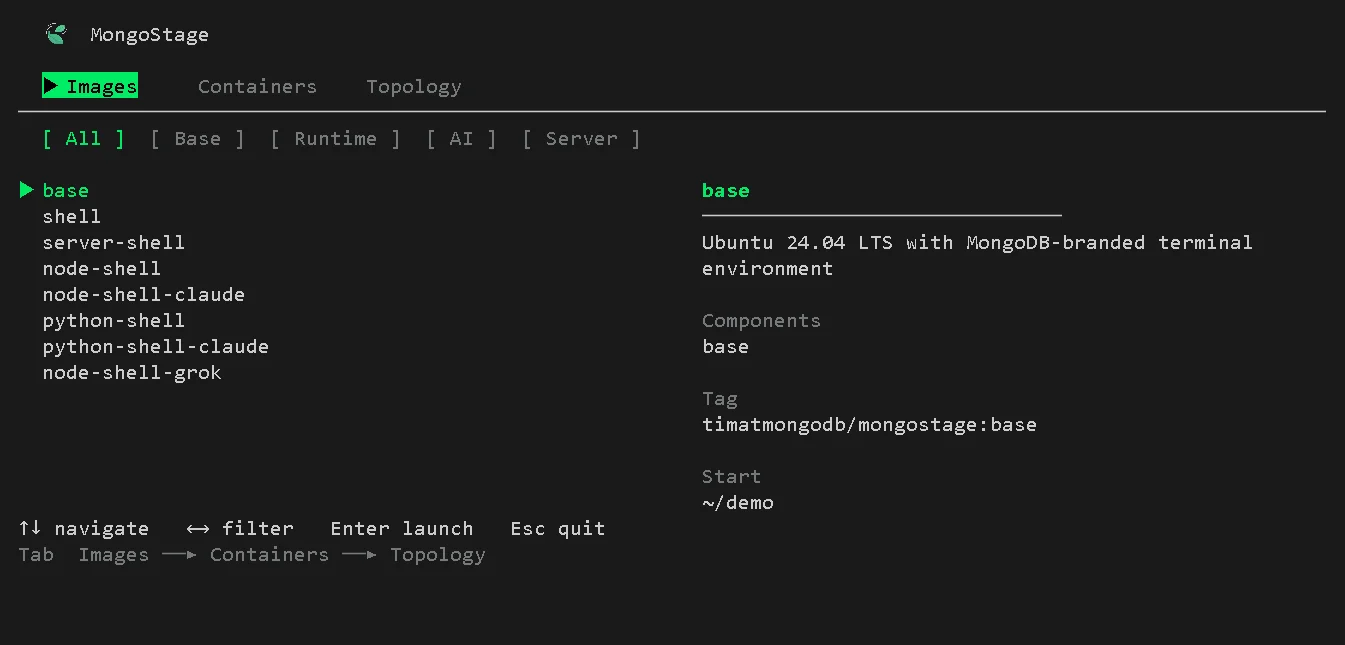
- Images - Browse available images, filter by category (
← →), search by typing, launch withEnter - Containers - View running and stopped containers, stop/start/remove/shell in from a menu
- Topology - Spawn pre-configured multi-container MongoDB setups (standalone, replica set, sharded cluster, with or without Atlas Search)
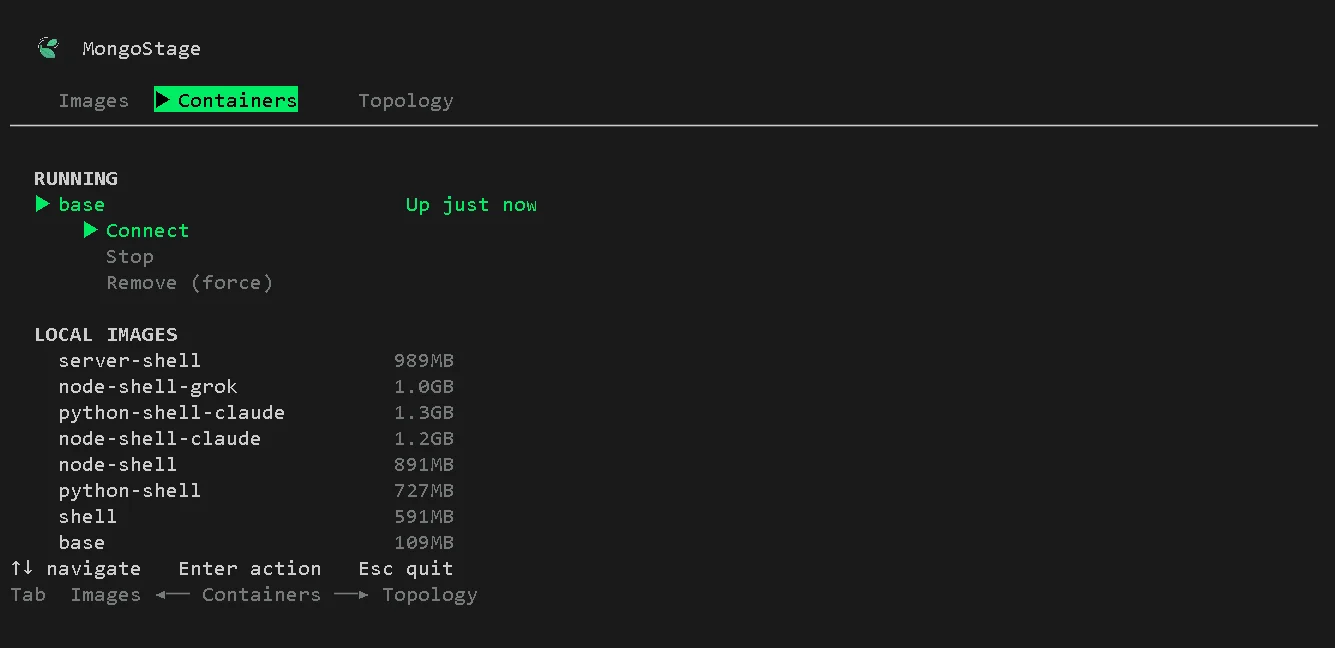
Containers page
The Containers page is where you manage everything that's running - start, stop, remove containers, and pull or delete images.
Pick a container and press Enter - a menu will show where you can choose to (start/stop/remove) the container
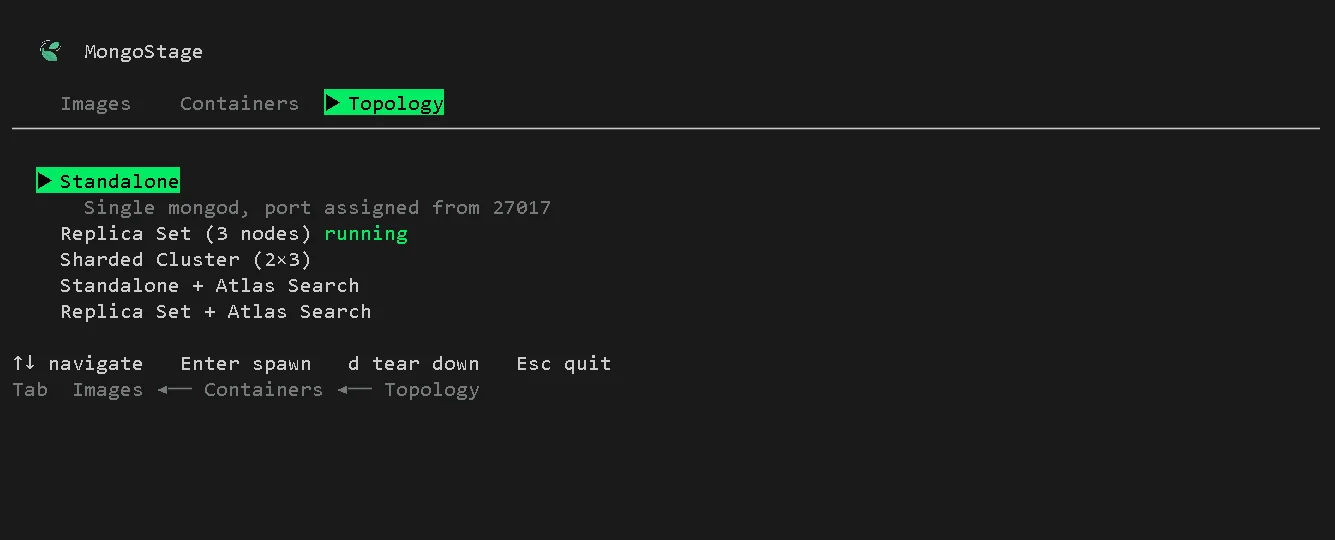
Topology page
Pick a preset and press Enter - mongostage runs docker compose in the background, auto-assigns available ports (starting from 27017), and shows the connection string when it's ready. Press c to copy it to clipboard, d to tear the topology down.
| Preset | Description | |--------|-------------| | Standalone | Single mongod node | | Replica Set (3 nodes) | 3-member replica set | | Sharded Cluster | 2 shards x 3 nodes + config servers + mongos | | Standalone + Atlas Search | Standalone mongod with mongot sidecar | | Replica Set + Atlas Search | 3-node replica set with mongot sidecar |
The terminal environment
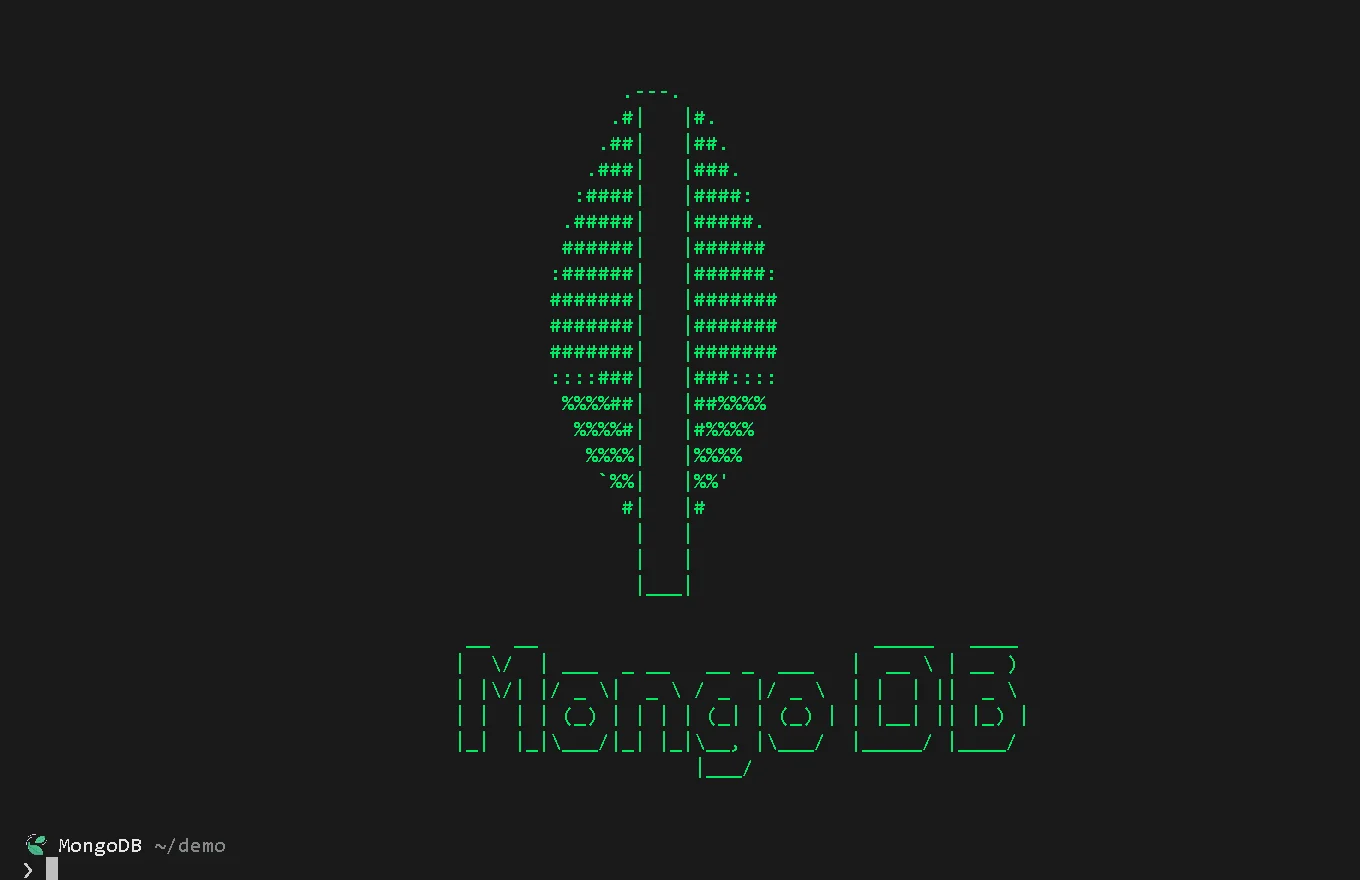
Every container drops you into a branded MongoDB terminal with mongosh, the full shell tooling, and a Starship prompt pre-configured.
Available images
| Tag | Components | Category | Description |
|-----|------------|----------|-------------|
| base | base | base | Ubuntu 24.04 LTS with MongoDB-branded terminal |
| shell | base, shell | shell | base + mongosh, mongoimport, mongoexport, mongodump |
| server-shell | base, server, shell | server | MongoDB Community Server 8.0 + full shell tooling |
| node-shell | base, shell, node | runtime | Node.js 22 LTS + mongosh + shell tools |
| node-shell-claude | base, shell, node, claude | ai | Node.js 22 LTS + mongosh + Claude Code CLI |
| python-shell | base, shell, python | runtime | Python 3.12 + mongosh + shell tools |
| python-shell-claude | base, shell, python, claude | ai | Python 3.12 + mongosh + Claude Code CLI |
| node-shell-grok | base, shell, node, grok | ai | Node.js 22 LTS + mongosh + Grok Build CLI |
All images run as a non-root mongo user and include a Starship prompt.
Use the short tag with any command - node-shell-claude not the full timatmongodb/mongostage:node-shell-claude.
Commands
mongostage connect [image]
Pull and attach to a MongoDB environment. Creates a new container or reattaches to an existing one.
mongostage connect                     # pick image interactively
mongostage connect node-shell-claude   # connect directly
mongostage connect node-shell --fresh  # remove any existing container first
mongostage connect node-shell --name my-env  # custom container name
Options:
| Flag | Description |
|------|-------------|
| --image <tag> | Image slug (alternative to positional arg) |
| --fresh | Remove existing container before creating a new one |
| --name <name> | Custom container name |
mongostage list
List all available images from the registry.
mongostage list                   # all images
mongostage list --filter ai       # only AI images
mongostage list --filter runtime  # Node + Python images
Categories: base, shell, server, runtime, ai
mongostage env
Manage credentials that get injected as environment variables into every container. Stored at ~/.mongostage/.env.
mongostage env set ANTHROPIC_API_KEY=sk-ant-...   # add or overwrite a key
mongostage env list                                # list all keys (values masked)
mongostage env remove ANTHROPIC_API_KEY            # remove one key
mongostage env clear                               # remove all keys (prompts first)
Key format: must match /^[A-Z_][A-Z0-9_]*$/i - letters, digits, underscores only. Values cannot contain newlines.
mongostage timezone
Set the timezone injected into all containers. Stored as TZ in ~/.mongostage/.env.
mongostage timezone set America/New_York   # set a timezone
mongostage timezone set UTC                # use UTC
mongostage timezone show                   # show current setting
Accepts any IANA timezone name. Existing containers must be recreated (mongostage connect --fresh) to pick up the change.
mongostage setup
Install Docker on this machine. Safe to re-run; detects if Docker is already running.
mongostage setupWhat it does per platform:
| Platform | Method | |----------|--------| | Linux / WSL2 | Rootless Docker via get.docker.com, falls back to system install | | macOS | Installs Colima + Docker via Homebrew | | Windows (native) | Installs Docker Desktop via winget |
macOS: Homebrew must be installed before running
mongostage setup. Get it at https://brew.sh
mongostage status
Show all MongoStage containers and disk usage.
mongostage statusmongostage start [image]
Start a stopped container.
mongostage start                  # pick from stopped containers
mongostage start node-shell       # start by slug
mongostage start node-shell --attach  # start and attach to bash
mongostage stop [image]
Stop a running container.
mongostage stop                   # pick from running containers
mongostage stop node-shell        # stop by slug
mongostage stop --all             # stop all running MongoStage containers
mongostage run [image]
Run a container in detached mode (background). Useful for dev servers and CI.
mongostage run node-shell
mongostage run server-shell --port 27017:27017
mongostage run node-shell --mount ~/myproject
mongostage run node-shell --env /path/to/custom.env
Options:
| Flag | Description |
|------|-------------|
| --port <mapping> | Port mapping, e.g. 27017:27017 |
| --mount <path> | Mount a host directory at /home/mongo/myproject |
| --env <file> | Load env vars from a specific file instead of ~/.mongostage/.env |
mongostage remove [image]
Remove a container.
mongostage remove                     # pick from stopped containers
mongostage remove node-shell          # remove by slug
mongostage remove node-shell --force  # stop and remove even if running
mongostage remove --all               # remove all stopped containers
mongostage clean
Remove all stopped MongoStage containers at once.
mongostage clean             # remove stopped containers (prompts first)
mongostage clean --force     # remove all, running or not
mongostage clean --images    # also remove pulled Docker images
Global flags
All commands accept:
| Flag | Description |
|------|-------------|
| --verbose | Print extra output |
| --silent | Suppress all non-error output |
| --version | Print version and exit |
| --help | Print help for a command |
Configuration files
~/.mongostage/.env - credentials
Env vars injected into every container at connect/run time. Managed via mongostage env.
ANTHROPIC_API_KEY=sk-ant-...
OPENAI_API_KEY=sk-...
MONGO_MOUNT=~/myproject
MONGO_WORKDIR=/home/mongo/myproject
Special keys:
| Key | Effect |
|-----|--------|
| MONGO_MOUNT | Host directory to bind-mount into the container |
| MONGO_WORKDIR | Working directory inside the container (default /home/mongo/demo) |
WSL2 users:
MONGO_MOUNTmust be a WSL2-style path like~/myprojector/home/you/project. Windows paths likeC:\Users\...are not supported and will be rejected at connect time.
File permissions are set to 0600 (owner read/write only).
~/.mongostage/config.json - CLI state
Auto-created and updated by mongostage setup. You do not normally edit this file by hand.
{
  "setupComplete": true,
  "os": "linux",
  "dockerMethod": "engine",
  "defaultOrg": "timatmongodb",
  "lastUpdated": "2026-06-17T..."
}
| Field | Values | Description |
|-------|--------|-------------|
| setupComplete | true/false | Whether setup has been run |
| os | linux, mac, windows | Detected OS |
| dockerMethod | engine, colima | How Docker is installed |
| defaultOrg | string | Docker Hub org prefix for images |
The config directory can be overridden with the MONGOSTAGE_CONFIG_DIR environment variable.
Platform notes
macOS - Homebrew is required before running mongostage setup. Docker runs via Colima, a lightweight VM. The setup command installs both automatically once Homebrew is present.
WSL2 - Runs as Linux. MONGO_MOUNT in ~/.mongostage/.env must be a WSL2 path (e.g. ~/project), not a Windows path (C:\Users\...). MongoStage will reject Windows paths with a clear error.
Windows native - Docker Desktop is installed via winget. A machine restart may be required before Docker is usable.
License
Apache 2.0