
n8n-nodes-token-usage
v1.0.0
Published
n8n community node for tracking LLM token usage across multiple providers (OpenAI, Anthropic, Google, and more)

Maintainers
 vladloop
Readme
n8n-nodes-token-usage


Custom n8n nodes for tracking LLM token usage and calculating costs across multiple providers.
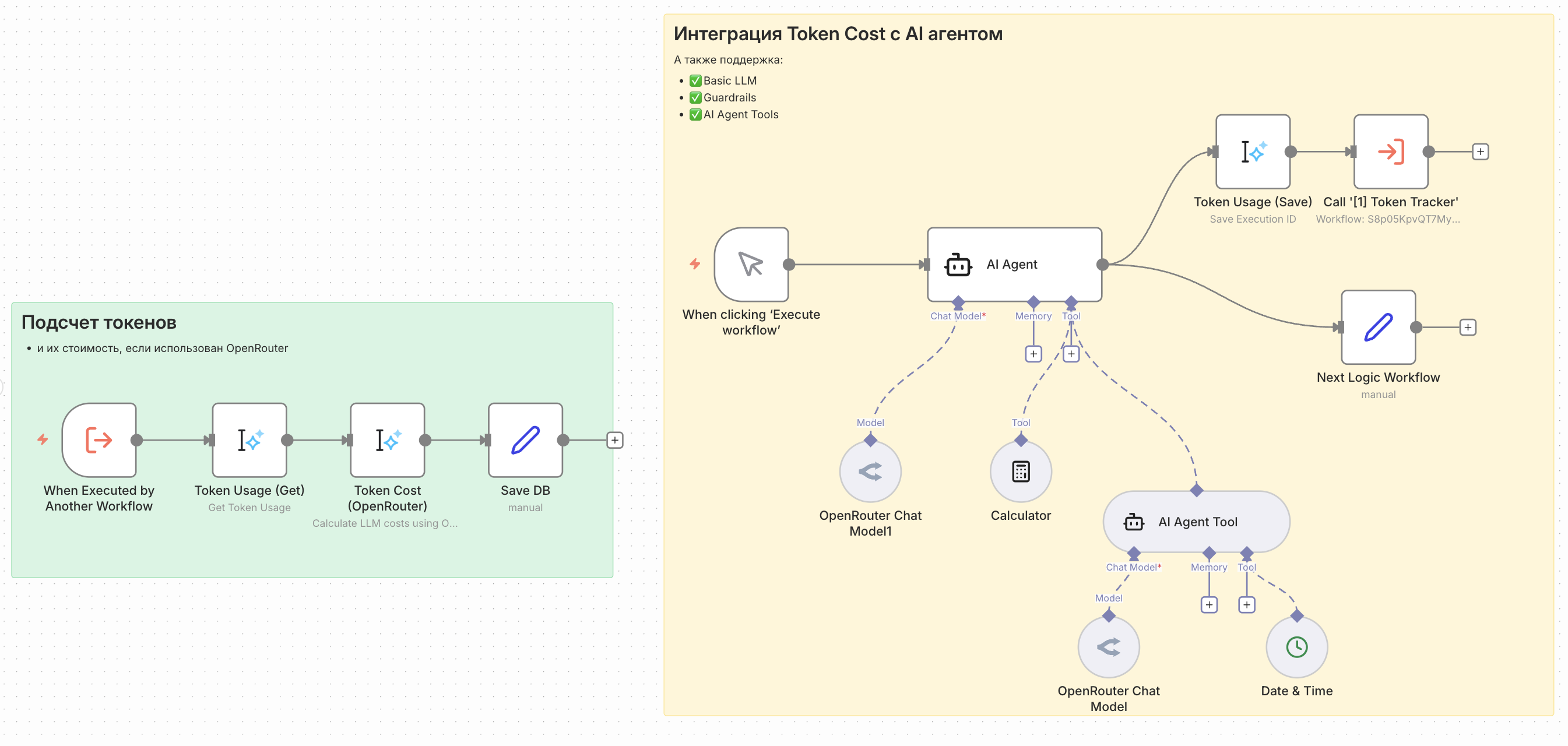
Why this package was created: When using AI models in n8n workflows, it's important to track token usage and costs for budgeting and optimization. This package extracts token usage data from n8n executions via the n8n API and calculates costs using OpenRouter pricing.
Nodes
Token Usage
- Save Execution ID - Captures current execution ID for later token tracking
- Get Token Usage - Fetches token usage data from completed executions via n8n API
- Works with any LLM provider that reports token usage (testing was done only on OpenRouter)
Token Cost (OpenRouter)
- Calculates LLM costs using OpenRouter pricing data
- Returns promptCost, completionCost, and totalCost in USD
- Works ONLY in conjunction with Token Usage (Get Token Usage)
Tested With
This package has been tested with the following n8n AI nodes:
- AI Agent (+tools)
- Basic LLM Chain
- Guardrails
Important: Cost calculation only works when the model name in n8n exactly matches the model ID in OpenRouter (e.g.,
openai/gpt-4o-mini,anthropic/claude-3-sonnet).
Quick Installation
Via Community Nodes (Recommended)
- Open n8n
- Go to Settings > Community Nodes
- Click Install
- Enter
n8n-nodes-token-usage - Click Install
Via Local Development
- Clone the repository
- In the repository, run the following commands:
npm install
npm run build
npm link- In your locally running n8n:
cd ~/.n8n
mkdir custom && cd custom
npm init -y
npm link n8n-nodes-token-usage

# Start n8n
n8n
Setup
For Token Usage
- In n8n, go to Settings > n8n API
- Create an API key
- Create a credential of type n8n API in your workflow
- Enter your API key and base URL (e.g.,
http://localhost:5678)
For Token Cost (OpenRouter)
- Get your API key from OpenRouter
- Create a credential of type OpenRouter API in your workflow
- Enter your API key
Operations
1. Save Execution ID (Default)
Captures the current workflow execution ID. Use this at the end of your main workflow to save the ID for later token tracking.
Output:
{
  "execution_id": "267"
}
2. Get Token Usage
Fetches token usage data from a completed execution. This operation calls the n8n API to retrieve execution data and extracts LLM token usage from ai_languageModel outputs.
Required:
- Execution ID (from the Save operation or any other source)
Output:
{
  "execution_id": "267",
  "totalTokenUsage": {
    "promptTokens": 13,
    "completionTokens": 20,
    "totalTokens": 33
  },
  "llmCalls": [
    {
      "nodeName": "OpenAI Chat Model",
      "tokenUsage": {
        "promptTokens": 13,
        "completionTokens": 20,
        "totalTokens": 33
      },
      "model": "openai/gpt-4o-mini",
      "messages": ["Human: Hello"],
      "estimatedTokens": 8
    }
  ]
}
3. Token Cost (OpenRouter)
Calculates the cost of LLM token usage using OpenRouter pricing data.
Required:
- Input from Token Usage (Get Token Usage)
- OpenRouter API credentials
Output:
{
  "execution_id": "267",
  "totalTokenUsage": {
    "promptTokens": 13,
    "completionTokens": 20,
    "totalTokens": 33
  },
  "llmCalls": [
    {
      "nodeName": "OpenAI Chat Model",
      "tokenUsage": {
        "promptTokens": 13,
        "completionTokens": 20,
        "totalTokens": 33
      },
      "model": "openai/gpt-4o-mini",
      "messages": ["Human: Hello"],
      "estimatedTokens": 8,
      "cost": {
        "promptCost": 0.00000195,
        "completionCost": 0.00000600,
        "totalCost": 0.00000795,
        "currency": "USD"
      }
    }
  ],
  "totalCost": {
    "promptCost": 0.00000195,
    "completionCost": 0.00000600,
    "totalCost": 0.00000795,
    "currency": "USD"
  }
}
Usage Pattern
The recommended pattern is to use a Sub-Workflow:
- Place Token Usage (Save Execution ID) at the end of your main workflow after LLM nodes
- Pass the
execution_idto a Sub-Workflow - In the Sub-Workflow, use Token Usage (Get Token Usage) to fetch token data
- Optionally, connect Token Cost (OpenRouter) to calculate costs
- The Sub-Workflow runs after the main execution completes
Example Workflow
Main Workflow:
[Trigger] → [AI Agent / Chat Model] → [Token Usage (Save)] → [Execute Sub-Workflow]

Sub-Workflow:
[Receive execution_id] → [Token Usage (Get Token Usage)] → [Token Cost (OpenRouter)] → [Google Sheets / Database]
Budget Alerting
[Token Cost (OpenRouter)] → [IF totalCost > threshold] → [Send Slack Alert]Why Use a Sub-Workflow?
The n8n API only returns complete execution data after the execution finishes. By using a Sub-Workflow, you ensure the main execution is complete before fetching token data.
Disclaimer
[!WARNING]
- This package is not affiliated with n8n GmbH or OpenRouter
- Token usage data accuracy depends on the provider's token counting
- Pricing data is fetched from OpenRouter API and may change without notice
- Cost calculation only works when model names exactly match OpenRouter model IDs
- Always verify costs in your provider's dashboard for billing purposes
Documentation
Contributing
Contributions are welcome!
- Fork the repository
- Create a branch for your changes
- Make changes and test them
- Create a Pull Request
Support and Contact
- Author: https://t.me/vlad_loop
- Issues: GitHub Issues
License
MIT License - see LICENSE for details.