
napier-client
v2.708.4
Published
simple web proxy service client
Downloads
50


Readme
Napier Client
Japanese document is here
Napier is on demand proxy system, using websocket.
Napier client is a client for connecting to the Napier server.
Quick start
Install
Command-line client
You can install a command line client like this:
npm install -g napier-clientGUI client
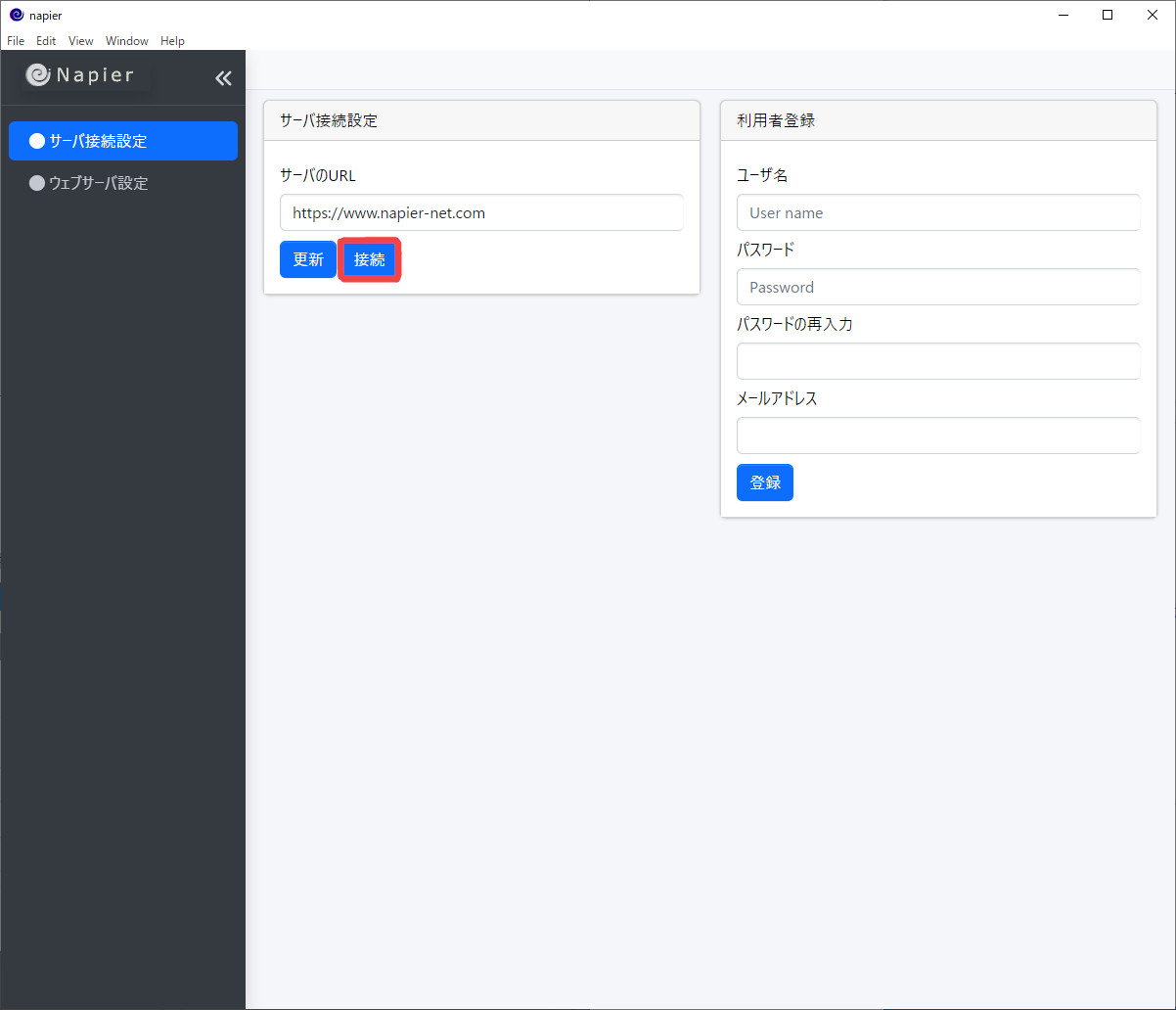 The GUI client is released.
- Windows (x64)
- Mac(x64)
- Mac(arm64)
- Debian(amd64)
- Debian(arm64)
Download and launch the installer to install.
Start up
Start command line client
To connect the client,
$ napier-client <options>Run like.
The boot options are:
Usage: napier-client [options] [profileName]

Arguments:
  profileName                        profile name (default: "default")

Options:
  --config <config filename>         config file
  --user <user>                      user name
  --password <pass>                  password
  --url <url>                        Napier server URL
  --local-port <localPort>           local port
  --re-connect                       re-connect server
  --web-server                       start web server
  --server-config <config filename>  web server config file
  --document-root <path>             web server document root
  --index                            list index
Of these, the ones that must be specified are --user, --password, and --host.
Options specified on the command line are
{
    "url": "https://www.napier-net.com",
    "localPort": 4001,
    "reConnect": true,
    "webServer": false,
    "user": "****",
    "password": "****",
    "documentRoot": "."
}
It is also possible to store it in a file and specify it with --config.
At the end of the command line is the "profile" specification. If not specified, 'default' will be specified.
--web-server will start the embedded web server. A web server with the directory specified by --document-root as the document root will be started and accessible from the outside via the proxy. Note that if --document-root is not specified, the directory where the client is started will be the document root.
Start GUI client
It is the same as starting a normal application.
Options specified in the command line version can be set within the client.
Service site
We have created a service site so you can try it out right away.
You can try it by starting the client after accessing the site and performing user registration. For information on how to use the service site, please access the service site.
Appendix
About the default profile
If you specify the default profile (= if you do not specify a profile), it depends on the server settings how the URL will be proxied, but in normal settings:
(http|https)://<user name>.<server domain name>/(This is the default setting of the server).
For Napier-NET,
(http|https)://<user name>.napier-net.com/For Napier-NET, the HTTPS certificate for the default profile will be that of Napier-NET. This certificate is a wildcard certificate.
About the embedded web server
Specifying --web-server on the command line will start the embedded web server.
The embedded web server configuration is assumed to be in the file specified by --server-config. If not, the default setting will be used.
Currently available are:
| key | meaning | default | |------|-----|-----------| | public | same as documentRoot | '.' | | index | Whether to display the directory index | false | | symlinks | Whether to follow symbolic links | false |
in other words
{
  "public": ".",
  "index": false,
  "symlinks": false
}
It will be the same as if a file written with is specified.
The embedded web server will automatically render HTML renderings for MarkDown files (extension .md).
The embedded web server will open the port specified by localPort. That is, it has local portals in addition to the global portals opened by Napier. You can connect other Napier clients to this port if you want.
The current web server only processes GET, so files cannot be changed or deleted from the outside, but files under documentRoot can be referenced, Don't put files that can't be made public.
This web server is very simple. The usage scene we envision is for exchanging files among friends. If you need a more full-fledged web service, please launch a suitable application separately.