
nilgiriaccessibility
v1.0.15
Published
Automated accessibility testing using Playwright and axe-core and get AI generated Report for accessibility violation

Maintainers
 preethigowda
Readme
nilgiri-accessibility: A Core Component of the Nilgiri Framework
The nilgiri-accessibility module integrates Playwright and Axe Core with AI-driven insights to simplify and enhance web accessibility testing. It scans web pages for WCAG 2.1 compliance issues and generates detailed JSON and HTML reports. With AI-generated insights, it highlights critical accessibility problems, offering actionable solutions to improve your web content.
Perfect for teams aiming to automate, analyze, and enhance their web accessibility workflows with ease.
Prerequisites
Ensure you have Node.js and TypeScript installed on your machine.
- You can download Node.js from here.
- To install TypeScript globally, run the following command:
npm install -g typescript
IDE: This project is written in TypeScript, so use an IDE that supports Node.js, such as VSCode or WebStorm.
AI API Key and Endpoint: The project uses AI for report generation. Make sure you have your AI API key and endpoint ready.
Setup: Install and Run
Note : Below two steps is for Creating new Project , if you alreday project then please ignore the below two steps
Create a New Node.js Project (If Needed)
If you don’t have a Node.js project yet, follow these steps:
Create a new project folder:
mkdir my-accessibility-project && cd my-accessibility-projectInitialize a new Node.js project:
npm init -y- Install the Dependency:
npm install nilgiriaccessibility --save -d
Running the Application
To run the runAccessibilityCheck method, import and call it in your script:
Example: Create new testFile.tsfile and copy paste the below example code ,
replace your 'aiEndpoint', aiApiKey and systemUnderTestUrl with correct values .
import { runAccessibilityCheck } from 'nilgiriaccessibility';

const aiApiKey = 'sk-xxxxxx12345';
const aiEndpoint = 'https://api.openai.com/v1/completions';
const systemUnderTestUrl = 'https://example.com';

runAccessibilityCheck(aiApiKey,aiEndpoint, systemUnderTestUrl)
  .then(() => console.log('Accessibility analysis completed!'))
  .catch(err => console.error('Error during analysis:', err));
Parameters
| Parameter | Type | Description | Example |
|--------------------|--------|-------------------------------------------------------------------------|---------------------------------------------|
| aiEndpoint | string | The endpoint URL of the AI service (e.g., OpenAI API). | 'https://api.openai.com/v1/completions' |
| aiApiKey | string | The API key for authenticating with the AI service. | 'sk-xxxxxx12345' |
| systemUnderTestUrl | string | The URL of the target web page to scan for accessibility issues. | 'https://example.com' |
If you are running your file in Type Script then follow this Step
Steps to Run
- Compile the TypeScript file:
In your terminal, navigate to the project folder and run the following command to compile the TypeScript file:
tsc <your-file-name>.ts
node <your-file-name>.js
Overview
The AI Accessibility Analysis Report provides a comprehensive overview of accessibility violations detected on a webpage. It categorizes issues based on their severity and offers clear guidance on how to fix and test them.
Report Preview
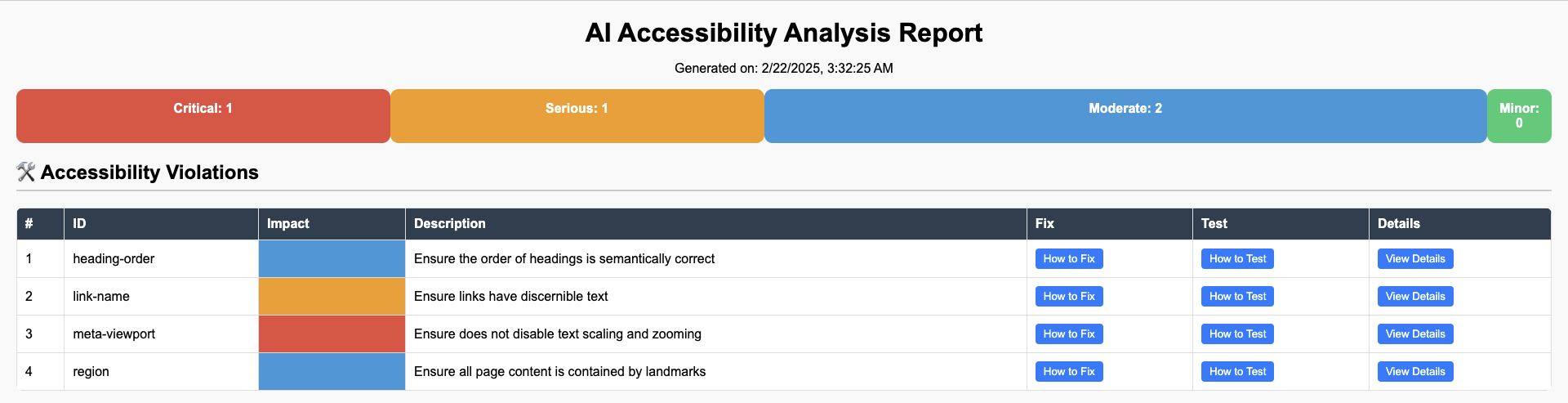
Report Structure
🔹 Summary Section
The report displays a summary of violations in categorized tiles:
- 🟥 Critical - Issues that severely impact accessibility and must be fixed immediately.
- 🟧 Serious - Significant issues that affect usability and should be prioritized.
- 🟦 Moderate - Moderate issues that impact accessibility but may not be urgent.
- 🟩 Minor - Minor issues that should be addressed but have minimal impact.
🔹 Accessibility Violations Table
The detailed table provides the following information for each violation:
- ID - A unique identifier for the issue.
- Impact - Severity level (Critical, Serious, Moderate, Minor).
- Description - A brief explanation of the violation.
- Fix - A button that links to guidance on resolving the issue.
- Test - A button that provides steps to verify the fix.
- Details - Additional in-depth information about the violation.
How to Use
- Run the AI Accessibility Analysis tool on your website.
- Open the generated violation_report.html in your browser.
- Review the violations and follow the suggested fixes to improve accessibility.
📢 Ensuring accessibility not only improves user experience but also makes your application more inclusive!
- Automated accessibility scans using Playwright and Axe Core.
- AI-powered analysis for accessibility insights and suggestions.
- Simple, configurable interface for passing AI endpoint, API key, and SUT URL.
- Generates:
- JSON Report: Contains detailed findings and scan summary.
- HTML Report: A human-readable report with detailed accessibility analysis and solutions.
- Fully compatible with TypeScript and Node.js.
- For any support, please feel free to drop your query at the nilgiri-accessibility GitHub repository.