
node-red-contrib-remote-xy
v1.1.1
Published
A node-red node for interfacing with the Remote XY IoT control panel on Android.


Readme
node-red-contrib-remote-xy
A Node Red node for interfacing with the RemoteXY IoT control panel on Android.
Overview
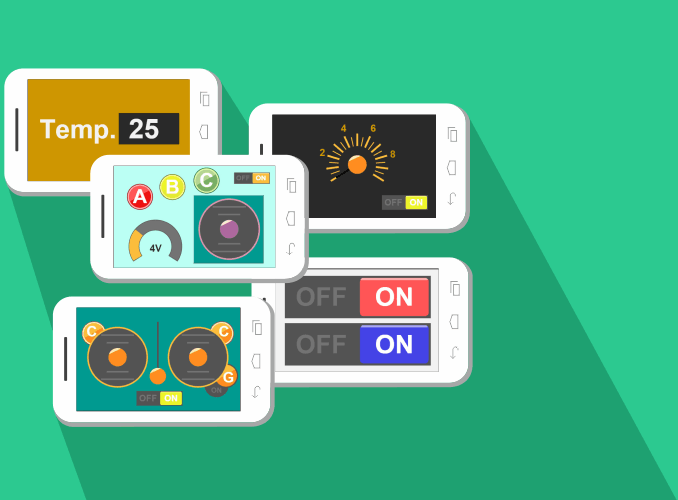
RemoteXY is a graphical dashboard app for Android devices that provides a variety of controls and indicators including sliders, joystick, buttons, gauges, indicators and text fields. The dashboard GUI is designed using the online Remote XY editor which generates the dashboard's configuration in code. When the app connects, it automatically downloads the configuration.
RemoteXY was originally designed as a controller for Arduino projects and the editor generates code for the Arduino family of devices. This node parses the Arduino code and creates a server that mimics the Arduino for the RemoteXY app to connect to. Multiple dashboard configurations can be run on one Node Red instance by using different ports for the server.
Architecture
node-red-contrib-remote-xy consists of a config node for the dashboard and a number of connected input and output nodes. The config node parses the Arduino code generated by the RemoteXY editor and creates a server to handle the connections from the RemoteXY app.
A dashboard configuration consists of a number of input or output variables that are connected to individual dashboard widgets. The input and output nodes correspond to those input and output variables on a particular server. Input nodes generate a Node Red message with the topic set to the input variable name and payload set to the value received from the corresponding dashboard input control. Output variables receive Node Red messages and forward the message payload to the corresponding dashboard indicator.
Configuration
Download and install the RemoteXY app on your Android device. There is a free version for testing and a paid version for production use.
Using the RemoteXY editor, create your dashboard. Input and output variable names can be changed to more meaningful ones to make their use in Node Red clearer.
Click on the Get source code button, then highlight and copy the entire project.ino code.
In Node Red, create either a new input or output RemoteXY node. Double click on it to open the configuration window. In Dashboard field, select 'Add new remote-xy-dashboard' and click on the edit button.
In the remote-xy-dashboard config window, enter a name and port number for the dashboard, and then paste the project.ino code into the project.ino text area. If the dashboard will be used by different flows, select Global context. Press Add to create the config node and return to the input or output node.
In the input or output node config, now select the input or output variable that will be connected to this node. Press OK to create the node and then wire it to your flow.
You can now create additional input and output nodes by selecting the existing remote-xy-dashboard config and variable name.
In the app, create a new Net connection using the Node Red server name and the port number specified in the remote-xy-dashboard config node. The app should automatically download and display the dashboard.
Constraints
The input and output nodes have limitations on the range of data values they can display. Most indicators display either 0..100 or -100..100 ranges except for the LED which displays RGB using the 0..255 range. Controls return values in the range of 0..100 or -100, except for buttons and switches. The Arduino project.ino code documents the range of values accepted or produce for each variable.