
octofriend
v0.0.59
Published
Octo is a small, helpful, zero-telemetry, cephalopod-flavored coding assistant. Octo is your friend.


Readme
Octo is a small, helpful, zero-telemetry, cephalopod-flavored coding assistant. Octo is your friend.
Get Started
npm install --global octofriendAnd then:
octofriend
# or, for short:
octo
About
Octo is a small, helpful, cephalopod-flavored coding assistant that works with any OpenAI-compatible or Anthropic-compatible LLM API, and allows you to switch models at will mid-conversation when a particular model gets stuck. Octo can optionally use (and we recommend using) ML models we custom-trained and open-sourced (1, 2) to automatically handle tool call and code edit failures from the main coding models you're working with: the autofix models work with any coding LLM. Octo works great with Kimi K2.7-Code, GLM-5.2, GPT-5.6, and Claude 5 (although pretty much any agentic coding model will work). Octo wants to help you because Octo is your friend.
Octo has zero telemetry. Using Octo with a privacy-focused LLM provider (may we selfishly recommend Synthetic?) means your code stays yours. But you can also use it with any OpenAI-compatible API provider, with Anthropic, or with local LLMs you run on your own machine.
Enabling web search
By default, Octo will look for Synthetic API keys to use Synthetic's private, zero-data-retention search API to power Octo's web search tool. If you have any Synthetic models configured anywhere in Octo, Octo's search tool will Just Work: even non-Synthetic-hosted models, like Claude, will be able to use Octo's web search tool.
If you don't want to use Synthetic's search API, but you still want to use the
web search tool, you can configure the search config in
~/.config/octofriend/octofriend.json5:
{
  // ...the rest of your config,
  search: {
    url: "some_search_api_url",
    apiEnvVar: "SOME_ENV_VAR_FOR_AUTH"
  },
}
The search tool will make POST requests against the configured URL with the following format, which is compatible with both Synthetic and Exa:
{
  query: "some search query",
}
If you don't configure the search config, and you don't configure any
Synthetic API keys, Octo's harness will automatically hide the web search tool
so Octo doesn't try to call it.
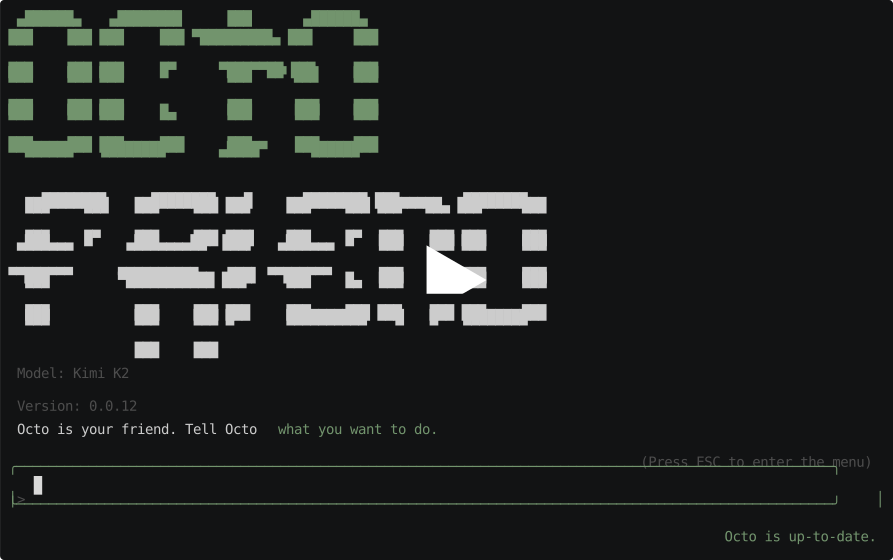
Demo
Sandboxing Octo
Octo has built-in Docker support, and can attach to any Docker container
without needing special configuration or editing the image or container. To
make Octo run inside an existing container you have running — for example, if
you already have a Docker Compose setup — run octo docker connect
your-container-name.
To have Octo launch a Docker image and shut it down when Octo quits, you can run:
# Make sure to add the -- before the docker run args!
octo docker run -- ordinary-docker-run-args
For example, to launch Octo inside an Alpine Linux container:
octo docker run -- -d -i -t alpine /bin/shAll of Octo shell commands and filesystem edits and reads will happen inside
the container. However, Octo will continue to use any MCP servers you have
defined in your config via your host machine (since the MCP servers are
presumably running on your machine, not inside the container), and will make
HTTP requests from your machine as well if it uses the built-in fetch tool,
so that you can use arbitrary containers that may not have wget or curl
installed.
Rules
Octo will look for instruction files named like so:
OCTO.mdCLAUDE.mdAGENTS.md
Octo uses the first one of those it finds: so if you want to have different
instructions for Octo than for Claude, just have an OCTO.md and a
CLAUDE.md, and Octo will ignore your CLAUDE.md.
Octo will search the current directory for rules, and every parent directory,
up until (inclusive of) your home directory. All rule files will be merged: so
if you want project-specific rules as well as general rules to apply
everywhere, you can add an OCTO.md to your project, as well as a global
OCTO.md in your home directory.
If you don't want to clutter your home directory, you can also add a global
rules file in ~/.config/octofriend/OCTO.md.
Skills
Octo supports the Agent Skills spec for giving reusable context-dependent instructions. If you want to give special instructions for Octo to do code reviews, for example, you might write a code review skill file, and Octo will intelligently load the skill when it needs to do code reviews. You can find the full skill spec on the Agent Skills website, but they're essentially just tagged Markdown with optional scripts. Here's a very simple code review skill you might use:
---
name: "pr-review"
description: "Review Github pull requests"
---

To load a Github pull request, run the fetch tool twice:

## First fetch

First, load the URL for the PR to understand the author's intent.

Your fetch tool does not execute JavaScript. Note that parts of the Github UI
may fail without JS; for example, loading comments might say:

    UH OH!
    There was an error while loading"

This is okay and expected. Don't worry about that.

## Second fetch: load the diff

To load the diff for the PR, fetch the PR URL with a `.diff`
attached to the end. For example, to review
`https://github.com/synthetic-lab/octofriend/pull/66`, you should fetch:

`https://github.com/synthetic-lab/octofriend/pull/66.diff`

The diff is the most important part. The author may be incorrect, or have the
right idea but the wrong implementation. Focus on whether there are any bugs or
unexpected behavior.
We automatically detect skills in the following places:
~/.config/agents/skills, for global skill definitions.agents/skills, for skills relative to the current directory Octo is working in. For example, if your company has special guidelines for agents, you can distribute them with your company's repo in an.agents/skillsdirectory.
If there are more directories you want Octo to discover skills from, you can
add them to your ~/.config/octofriend/octofriend.json5 config file like so:
skills: {
  paths: [
    // a list of directory paths containing skills
  ],
},
Connecting Octo to MCP servers
Octo can do a lot out of the box — pretty much anything is possible with enough
Bash — but if you want access to rich data from an MCP server, it'll help Octo
out a lot to just provide the MCP server directly instead of trying to contort
its tentacles into crafting the right Bash-isms. After you run octofriend for
the first time, you'll end up with a config file in
~/.config/octofriend/octofriend.json5. To hook Octo up to your favorite MCP
server, add the following to the config file:
mcpServers: {
  serverName: {
    command: "command-string",
    args: [
      "arguments",
      "to",
      "pass",
    ],
  },
},
For example, to plug Octo into your Linear workspace:
mcpServers: {
  linear: {
    command: "npx",
    args: [ "-y", "mcp-remote", "https://mcp.linear.app/sse" ],
  },
},
Using Octo with local LLMs
If you're a relatively advanced user, you might want to use Octo with local
LLMs. Assuming you already have a local LLM API server set up like ollama or
llama.cpp, using Octo with it is super easy. When adding a model, make sure to
select Add a custom model.... Then it'll prompt you for your API base URL,
which is probably something like: http://localhost:3000, or whatever port
you're running your local LLM server on. After that it'll prompt you for an
environment variable to use as a credential; just use any non-empty environment
variable and it should work (since most local LLM server ignore credentials
anyway).
You can also edit the Octofriend config directly in
~/.config/octofriend/octofriend.json5. Just add the following to your list of
models:
{
  nickname: "The string to show in the UI for your model name",
  baseUrl: "http://localhost:SOME_PORT",
  apiEnvVar: "any non-empty env var",
  model: "The model string used by the API server, e.g. openai/gpt-oss-20b",
}
Debugging
By default, Octo tries to present a pretty clean UI. If you want to see
underlying error messages from APIs or tool calls, run Octo with the
OCTO_VERBOSE environment variable set to any truthy string; for example:
OCTO_VERBOSE=1 octofriendDesktop notifications
There's a hidden "Notifications" menu that only appears if you've configured
desktop notifications. To configure desktop notifications, add a block like
this to your octofriend.json5:
notifications: {
  notifyCommand: "notify-send Octo 'Finished responding!'",
},
Or for macOS:
notifications: {
  notifyCommand: 'osascript -e \'display notification "Octo finished!"\'',
},
This enables the Notifications submenu in the main ctrl-p menu. You can set
it to the following three settings:
- Notify the next time Octo needs input
- Notify any time Octo needs input this session
- Always notify any time Octo needs input
The last option will be persisted to your config file, if you set it.
By default, for the session-level and persistent notifications, Octo will wait 10 seconds before notifying you, and if it receives input during that time it'll skip the notification (so as to not spam you with notifications when you're actively attending to it and chatting). To change the wait time, set:
notifications: {
  notifyCommand: "some command",
  notifyTimeoutMs: 20000, // Or however many milliseconds you want to wait
},
Opting into canary versions
If you want to use unreleased versions of Octo, clone this repo and read the
instructions in canary.sh to install canary-octo in your shell.