
opencode-shortcuts
v0.1.1
Published
A keyboard shortcut cheatsheet and rebinder for the OpenCode v1 and v2 TUI

Maintainers
 prismkitty
Readme
opencode-shortcuts




A keyboard shortcut cheatsheet and rebinder for the OpenCode v1 and v2 TUI.
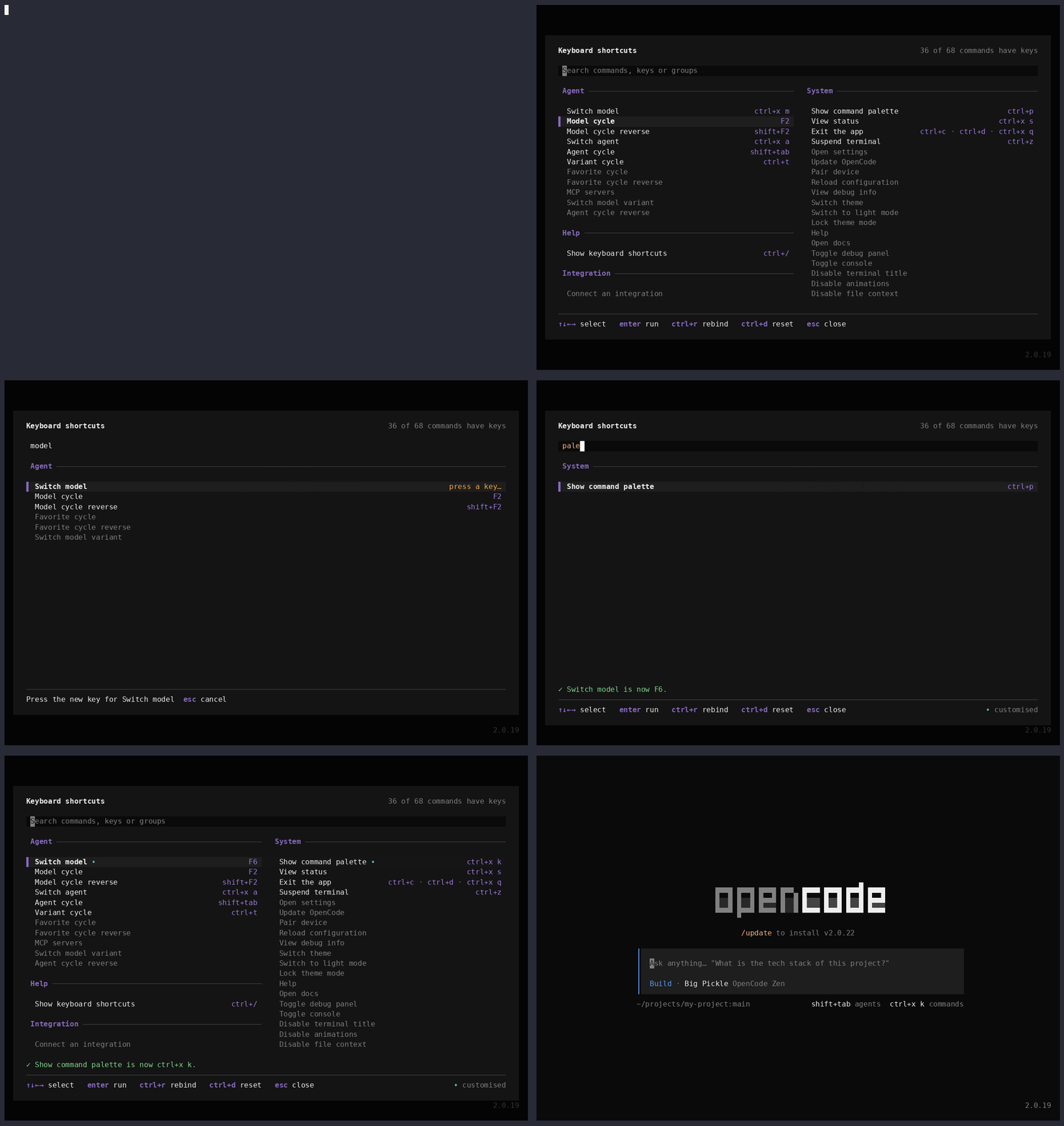
Press ctrl+/ to see every key you can use in the screen you're on, including the ones you've already changed. Pick a command, press ctrl+r, then press the key you want. The plugin writes the key into your config, keeps your comments, and asks what to do when the key already belongs to another command.
Install
Works on OpenCode v2, and on v1 from 1.15.6.
On v2, run opencode plugin add opencode-shortcuts, or add the plugin to the plugins list in ~/.config/opencode/cli.json yourself:
{
  "$schema": "https://opencode.ai/v2/cli.json",
  "plugins": ["opencode-shortcuts"]
}
On v1, add the plugin to the plugin list in ~/.config/opencode/tui.json:
{
  "$schema": "https://opencode.ai/tui.json",
  "plugin": ["opencode-shortcuts"]
}
Restart OpenCode, then press ctrl+/ or type /shortcuts. The cheatsheet is also in the command palette as Show keyboard shortcuts.
To update on v2, run opencode plugin update opencode-shortcuts.
What it does
- Lists every command you can reach from the screen you're on, grouped and in columns sized to your terminal. Open the cheatsheet from the diff viewer, for example, and it shows the diff viewer's keys
- Shows the keys you actually have, including your own overrides from
cli.jsonortui.json, not the defaults - Filters as you type, by name, key, group or command ID
- Runs the selected command on
enteror a click - Rebinds the selected command with
ctrl+r. Press the new key, thenenterto replace the command's keys orshift+enterto add the new key alongside them. Leader sequences work too, and are saved as<leader>k, so they keep working if you change your leader key later - Asks before taking a key from another command. If your new key already runs another command, choose swap to give that command your old key, move to take the key and leave the other command with none, or cancel
- Resets a command you changed back to OpenCode's default with
ctrl+d, after asking - Marks every command you've rebound with a
•
Options
The cheatsheet has three keys of its own: one to open it, one to rebind a command and one to reset a command. You can change any of them by passing options to the plugin.
To pass options on v2, replace the plain "opencode-shortcuts" entry in cli.json with an object that names the package and holds its options. The keys go under keybinds, the same setting name OpenCode uses for its own keys:
{
  "plugins": [
    {
      "package": "opencode-shortcuts",
      "options": {
        "keybinds": {
          "show": "ctrl+/,ctrl+_",
          "record": "ctrl+r",
          "reset": "ctrl+d"
        }
      }
    }
  ]
}
On v1, replace the entry in tui.json with a two-item list: the package name first, then the options:
{
  "plugin": [
    [
      "opencode-shortcuts",
      {
        "keybinds": {
          "show": "ctrl+/,ctrl+_",
          "record": "ctrl+r",
          "reset": "ctrl+d"
        }
      }
    ]
  ]
}
| Keybind | Default | What it does |
| -------- | --------------- | ------------------------------------------------------------------------------------------------------------------------------------------------------------ |
| show | ctrl+/,ctrl+_ | Opens and closes the cheatsheet. Set it to false or "none" to turn the key off, and open the cheatsheet with /shortcuts or the command palette instead |
| record | ctrl+r | Rebinds the selected command. It only works while the cheatsheet is open |
| reset | ctrl+d | Resets the selected command to OpenCode's default. It only works while the cheatsheet is open |
The default show key lists ctrl+_ as well as ctrl+/, because many terminals send the same signal for both. Kitty, and other terminals that support the kitty keyboard protocol, tell them apart. When both keys are bound, the cheatsheet only shows ctrl+/, so the list stays tidy.
You don't have to edit the config by hand to change the show key. Find Show keyboard shortcuts in the cheatsheet and rebind it like any other command, and the plugin writes keybinds.show for you.
How rebinding saves
Rebinding edits keybinds in your config file in place, so comments, formatting and a symlinked file all survive.
On v2 the file is cli.json, and OpenCode reloads it by itself. The plugin then checks that OpenCode really applied the new key. If OpenCode didn't, the plugin puts cli.json back the way it was and tells you.
On v1 the file is your global tui.jsonc if you have one, and tui.json otherwise. v1 reads tui.jsonc last, so its keys win, and saving anywhere else would have no effect.
v1 doesn't reload its config while it runs, so a new key for one of OpenCode's commands takes effect the next time you start OpenCode. Until then, the cheatsheet marks the command with ↻ so you know a restart is waiting. The cheatsheet's own show key is the exception, and changes straight away.
v1 also reads tui.json files in your project folders, after the global one. If a project file sets a key for the same command, the project file wins. The plugin still saves your new key globally, then tells you which project file is overriding it.
Limits
- Only OpenCode's built-in commands can be rebound. OpenCode's
keybindssetting ignores commands that other plugins add, so the cheatsheet shows their keys but can't change them - When a new OpenCode release adds a command, the cheatsheet shows its keys straight away. Rebinding it may have to wait for a plugin update
- Keys that the prompt handles itself, such as
ctrl+aand word movement, aren't registered as commands, so the cheatsheet doesn't list them - The cheatsheet is at most 116 columns wide, which is OpenCode's largest dialog size
shift+enterneeds a terminal that reports it separately fromenter, such as kitty, WezTerm, foot or Ghostty. In other terminals,shift+enteracts likeenterand replaces the command's keys instead of adding to them
Tested with OpenCode 2.0.19, 1.18.34 and 1.15.6.
Contributing
See CONTRIBUTING.md for the dev setup, the code layout and how the npm build works.
More plugins
opencode-background-tasks lists the background shells and subagents still running in your session, in the sidebar.
License
MIT © PrismKitty