
opengraph-io-mcp
v3.0.0
Published
MCP server for OpenGraph.io — fetch web/social data, screenshots, scrape, extract, convert to Markdown, generate images, and audit site SEO & link previews.


Readme
OpenGraph MCP Server (og-mcp)
og‑mcp is a Model‑Context‑Protocol (MCP) server that makes every OpenGraph.io ( https://opengraph.io ) API endpoint available to AI agents (e.g. Anthropic Claude, Cursor, LangGraph) through the standard MCP interface.
Why? If you already use OpenGraph.io to unfurl links, scrape HTML, extract article text, or capture screenshots, you can now give the same capabilities to your autonomous agents without exposing raw API keys.
Global Installation
You can install this package globally via npm:
npm install -g opengraph-io-mcpQuick Install
CLI Installer (Recommended)
The easiest way to configure OpenGraph MCP for any supported client:
# Interactive mode - guides you through setup
npx opengraph-io-mcp-install

# Direct mode - specify client and app ID
npx opengraph-io-mcp-install --client cursor --app-id YOUR_APP_ID
Supported clients: cursor, claude-desktop, windsurf, vscode, zed, jetbrains
Claude Desktop Extension
For Claude Desktop users, you can also download the .mcpb extension for one-click installation from the Releases page.
Authentication
The hosted server at https://mcp.opengraph.io/mcp uses OAuth 2.1. You sign in once in your browser and choose which OpenGraph.io API key to authorize; nothing secret goes into a config file, and you can revoke access from the dashboard at any time. OAuth also unlocks the Open Graph Audit and Link Preview tools.
How it works: when a client connects without credentials, the server answers 401 with a WWW-Authenticate header pointing to
GET /.well-known/oauth-protected-resource
→ { "authorization_servers": ["https://dashboard-api.opengraph.io"] }
The client discovers the authorization server from there and opens https://dashboard.opengraph.io/oauth/consent in your browser. Clients with built in OAuth support need nothing but the URL. Clients that can only launch local commands connect through mcp-remote, a small bridge that runs on your machine and handles the same browser sign in.
The
x-app-idheader is deprecated on the hosted server. It still works for now, and responses to it carry aDeprecationheader, but support is being removed. Move to one of the OAuth setups below. Running the server locally (the stdio transport, the CLI installer, or the Claude Desktop extension) uses your App ID directly and is not affected.
Client Configuration
Every setup below connects to the hosted server with OAuth. The first time a tool is used, your browser opens to sign in.
Claude Code
claude mcp add --transport http opengraph https://mcp.opengraph.io/mcpThen run /mcp inside Claude Code and choose opengraph to sign in.
Claude Desktop
Settings → Connectors → Add custom connector, name it OpenGraph, and enter https://mcp.opengraph.io/mcp. Claude Desktop opens your browser to sign in.
If you prefer the config file (~/Library/Application Support/Claude/claude_desktop_config.json on macOS, %APPDATA%\Claude\claude_desktop_config.json on Windows), use the mcp-remote bridge:
{
  "mcpServers": {
    "opengraph": {
      "command": "npx",
      "args": ["-y", "[email protected]", "https://mcp.opengraph.io/mcp"]
    }
  }
}
Cursor
Config location: ~/.cursor/mcp.json
{
  "mcpServers": {
    "opengraph": {
      "url": "https://mcp.opengraph.io/mcp"
    }
  }
}
VS Code
Config location: .vscode/mcp.json (in your project directory)
{
  "servers": {
    "opengraph": {
      "type": "http",
      "url": "https://mcp.opengraph.io/mcp"
    }
  }
}
Windsurf, JetBrains AI Assistant, Zed and other clients
If your client supports OAuth for remote servers, point it at https://mcp.opengraph.io/mcp with no headers. Otherwise connect through mcp-remote:
Windsurf (~/.codeium/windsurf/mcp_config.json) and JetBrains AI Assistant:
{
  "mcpServers": {
    "opengraph": {
      "command": "npx",
      "args": ["-y", "[email protected]", "https://mcp.opengraph.io/mcp"]
    }
  }
}
Zed (~/.config/zed/settings.json, which uses context_servers):
{
  "context_servers": {
    "opengraph": {
      "command": "npx",
      "args": ["-y", "[email protected]", "https://mcp.opengraph.io/mcp"]
    }
  }
}
mcp-remote stores its sign in under ~/.mcp-auth. Delete that folder to sign out.
Legacy x-app-id header (deprecated)
Only for setups that cannot use OAuth yet, while the hosted server still accepts it. Send your OpenGraph.io App ID as a header; Open Graph Audit and Link Preview tools are not available this way.
{
  "mcpServers": {
    "opengraph": {
      "url": "https://mcp.opengraph.io/mcp",
      "headers": { "x-app-id": "YOUR_OPENGRAPH_APP_ID" }
    }
  }
}
Available Tools
Two authentication tiers: Data and Image Generation tools work with OAuth, and also with a plain App ID when you run the server locally (the stdio transport or the Claude Desktop extension). Open Graph Audit and Link Preview tools require OAuth on the hosted server, since they bill against your organization's plan rather than a single API key.
OpenGraph.io Data Tools
All scraping/metadata tools default to the v3 API which enables auto_render, auto_proxy, and retry by default for higher success rates on complex pages. The query and extract tools use v1.1 (see notes).
| Tool Name | API Endpoint | Description | Documentation |
|-----------|--------------|-------------|---------------|
| Get OG Data | /api/3.0/site/<URL> | Fetch Open Graph metadata, HTML-inferred tags, and hybrid social preview data. Supports use_ai, ai_sanitize, load-more, proxy/retry, and all v3 smart defaults. | Docs |
| Get OG Scrape Data | /api/3.0/scrape/<URL> | Scrape raw HTML with full v3 rendering options including scroll-to-bottom, load-more clicks, and AI sanitization. | Docs |
| Get OG Screenshot | /api/3.0/screenshot/<URL> | Capture a screenshot. Supports full_page, dark_mode, capture_delay, navigationTimeout, hideSelectors, and custom viewport dimensions. | Docs |
| Get OG Query | /api/1.1/query/<URL> | Ask a natural-language question about a page's content. Uses v1.1 (100–200 credits/request) until billing path is updated for v3. | Docs |
| Get OG Extract | /api/1.1/extract/<URL> | Extract specific HTML elements (h1, p, a, img, etc.) by tag name. Stays on v1.1 — no v3 GET route exists for this endpoint. | Docs |
| Get OG Markdown | /api/3.0/markdown/<URL> | Convert any URL's HTML to clean Markdown. Strips nav/ads by default (only_main_content: true) and supports include_tags/exclude_tags selectors. For long pages, pass query with chunking to get back only the relevant passages, ranked, rather than the whole document. include_links/include_images/include_headings return structured link, image, and outline data. Returns page metadata, character and token usage, and — with ai_sanitize — a prompt-injection safety report. | Docs |
Language detection: All tools send accept_lang: auto by default, which mirrors the request's Accept-Language header. Pass an explicit BCP 47 tag (e.g. en-US, fr) to override.
Open Graph Audit & Link Preview Tools
Requires OAuth 2.1 (see Authentication) and a plan that includes Open Graph Audit. These tools are only available over the hosted HTTPS transport — they are not available via the x-app-id header or the stdio/Claude Desktop extension, since they need your organization identity, not just an API key.
| Tool Name | Description |
|-----------|-------------|
| Discover Site URLs | Crawl a domain (sitemap + link discovery) and return every page found, grouped by depth, along with your remaining monthly audit quota. |
| Start Open Graph Audit | Kick off an async, multi-page SEO/social audit. Pass an explicit urls[] list (from discovery, a sitemap, or a codebase route scan) or let the backend crawl the domain itself. Returns an auditId immediately. |
| Get Open Graph Audit Status | Poll an in-progress audit (QUEUED → CRAWLING → SCORING → COMPLETE). |
| Get Open Graph Audit Report | Retrieve the full report once complete: overall score (0–100), an AI-generated executive summary, prioritized fixes, per-page scores, and Open Graph coverage rates. |
| Preview Page Audit | Instant, synchronous single-URL quality check with score + issues. Does not consume audit quota. |
| Get Link Preview | Instant, synchronous check of how a URL will render when shared — returns Facebook, Twitter/X, LinkedIn, and Google preview cards plus a quality score and fix list. Does not consume audit quota. |
| Delete Open Graph Audit | Permanently delete an audit and all of its results. Cannot be undone. |
Monitoring & History Tools
Recurring audits, trend tracking, and change reporting. OAuth required; setMonitoringSchedule additionally requires the Open Graph Audit scheduling entitlement.
| Tool Name | Description |
|-----------|-------------|
| List Websites | Every site the organization has audited, with current score and trend against the previous run, critical issue and regression counts, known page count, and next scheduled run. Pass a websiteId for one in detail. |
| List Open Graph Audits | Past audits, newest first, filterable by domain, status, date range, or website. |
| Get Open Graph Audit Changes | What changed since the previous run — new, fixed, and regressed issues, pages added or removed, and the score delta — plus prioritized issue groups. A regressed issue is one previously verified as fixed that has come back; this is tracked across runs by durable issue identity, not by diffing two lists. |
| Get Monitoring Schedule | A website's recurring-audit settings: frequency, anchored day and time, paused state, next run. |
| Set Monitoring Schedule | Enable, change, or remove recurring audits. Commits ongoing page-quota spend and can trigger alert email. enabled: false deletes the configuration — use paused: true to keep it. Alert recipients are dashboard-only. |
| Get Connection Context | Which organization this connection acts for, and which Open Graph Audit features its plan allows. The organization is chosen during authorization and is what every tool defaults to. |
Fix List Tools
Turn an audit into work a developer can action. OAuth required.
| Tool Name | Description |
|-----------|-------------|
| List Fix Items | Proposed metadata changes and notes saved against an audit, grouped by page, each with an ID. |
| Save Fix Items | Record proposed changes for one page. Overwrites existing items for the same page and field. A blank or unchanged proposedValue is rejected — it means "remove" upstream, so use Delete Fix Item deliberately. |
| Delete Fix Item | Permanently remove one entry. Fix items are hand-authored and are not regenerated by re-auditing. |
| Export Fix Items CSV | The fix list as CSV text for handoff. PDF export is available in the dashboard only. |
| Email Open Graph Audit Report | Email the report with PDF attachments to the authenticated account's own address. Sends real email on every call and is not idempotent; the recipient cannot be chosen. |
Image Generation Tools
| Tool Name | Description | |-----------|-------------| | Generate Image | Create professional images: illustrations, diagrams (Mermaid/D2/Vega), icons, social cards, or QR codes | | Iterate Image | Refine, modify, or create variations of existing generated images | | Inspect Image Session | Retrieve session metadata and asset history for image generation sessions | | Export Image Asset | Export generated image assets as inline base64, with optional disk write when running locally |
Image Generation
The og-mcp server includes powerful AI-driven image generation capabilities, perfect for creating social media cards, architecture diagrams, icons, and more.
Generate Image
Create images from natural language prompts or diagram code.
Supported Image Types (kind):
illustration- General-purpose AI-generated imagesdiagram- Technical diagrams from Mermaid, D2, or Vega syntaxicon- App icons and logossocial-card- OG images optimized for social sharingqr-code- QR codes with optional styling
Preset Aspect Ratios:
- Social:
og-image,twitter-card,twitter-post,linkedin-post,facebook-post,instagram-square,instagram-portrait,instagram-story,youtube-thumbnail - Standard:
wide,square,portrait - Icons:
icon-small,icon-medium,icon-large
Style Presets:
github-dark, github-light, notion, vercel, linear, stripe, neon-cyber, pastel, minimal-mono, corporate, startup, documentation, technical
Diagram Templates:
auth-flow, oauth2-flow, crud-api, microservices, ci-cd, gitflow, database-schema, state-machine, user-journey, cloud-architecture, system-context
Example Usage:
// Generate a social card
generateImage({
  prompt: "A modern tech startup hero image with abstract geometric shapes",
  kind: "social-card",
  aspectRatio: "og-image",
  stylePreset: "vercel",
  brandColors: ["#0070F3", "#000000"]
})

// Generate a diagram from Mermaid syntax
generateImage({
  prompt: "graph TD; A[User] --> B[API]; B --> C[Database]",
  kind: "diagram",
  diagramSyntax: "mermaid",
  stylePreset: "github-dark"
})
Iterate Image
Refine or modify an existing generated image.
Use cases:
- Edit specific parts: "change the background to blue"
- Apply style changes: "make it more minimalist"
- Fix issues: "remove the text", "make the icon larger"
- Crop to specific coordinates
Example:
iterateImage({
  sessionId: "uuid-from-generate",
  assetId: "uuid-from-generate",
  prompt: "Change the primary color to #0033A0 and add a subtle drop shadow"
})
Inspect Image Session
Review session details and find asset IDs for iteration.
Returns:
- Session metadata (creation time, name, status)
- List of all assets with prompts, toolchains, and status
- Parent-child relationships showing iteration history
Example:
inspectImageSession({
  sessionId: "uuid-from-generate"
})
Export Image Asset
Export a generated image asset by session and asset ID. Returns the image inline as base64 along with metadata (format, dimensions, size).
When running locally (stdio transport), you can optionally provide a destinationPath to save the image to disk. On hosted/HTTP transport, the path is ignored and the image is returned inline only.
Files are only written inside one export folder: ~/Downloads/opengraph-mcp by default, or the folder in MCP_EXPORT_DIR. Pass a file name or a path inside that folder; anything outside it is refused, as are hidden files and folders. The extension must match the image type (a name without one gets it added). SVG images are never returned inline, because SVG can carry script; save them to disk instead.
Examples:
// Inline only (works everywhere)
exportImageAsset({
  sessionId: "uuid-from-generate",
  assetId: "uuid-from-generate"
})

// Save to disk (stdio/local only)
exportImageAsset({
  sessionId: "uuid-from-generate",
  assetId: "uuid-from-generate",
  destinationPath: "hero.png"   // saved as ~/Downloads/opengraph-mcp/hero.png
})
Guided Workflows (Prompts)
In addition to tools, the server exposes named prompts — pre-built, multi-step workflows that MCP clients can surface directly to users (e.g. as slash commands) or that agents can invoke by name for a more reliable result than freeform tool-calling.
| Prompt Name | What it does |
|--------------|--------------|
| analyze-webpage | Fetches a page's metadata and readable content in parallel, then summarizes or answers a specific question about it. |
| extract-structured-data | Extracts named fields (title, price, SKU, etc.) from a page using CSS selectors — ideal for ecommerce, job listings, and articles. |
| get-page-content | Converts a URL to clean readable text/Markdown, stripping boilerplate — ready to read or pass to another model. |
| run-site-audit | Full site-audit workflow: asks the user their preferred scope (whole site / core pages / specific section / codebase scan), discovers URLs if needed, starts the audit, polls status, and returns a readable report. Requires OAuth. |
| create-branded-diagram | Guided workflow for creating diagrams (flowchart, sequence, architecture, ER, state) that match your brand identity. |
| iterate-and-refine | Best practices for iterating on a previously generated image to reach the desired result. |
| create-asset-set | Generates a visually consistent set of icons, social cards, diagrams, or illustrations. |
| quick-icon | Quickly generates a single icon with sensible defaults. |
How it works
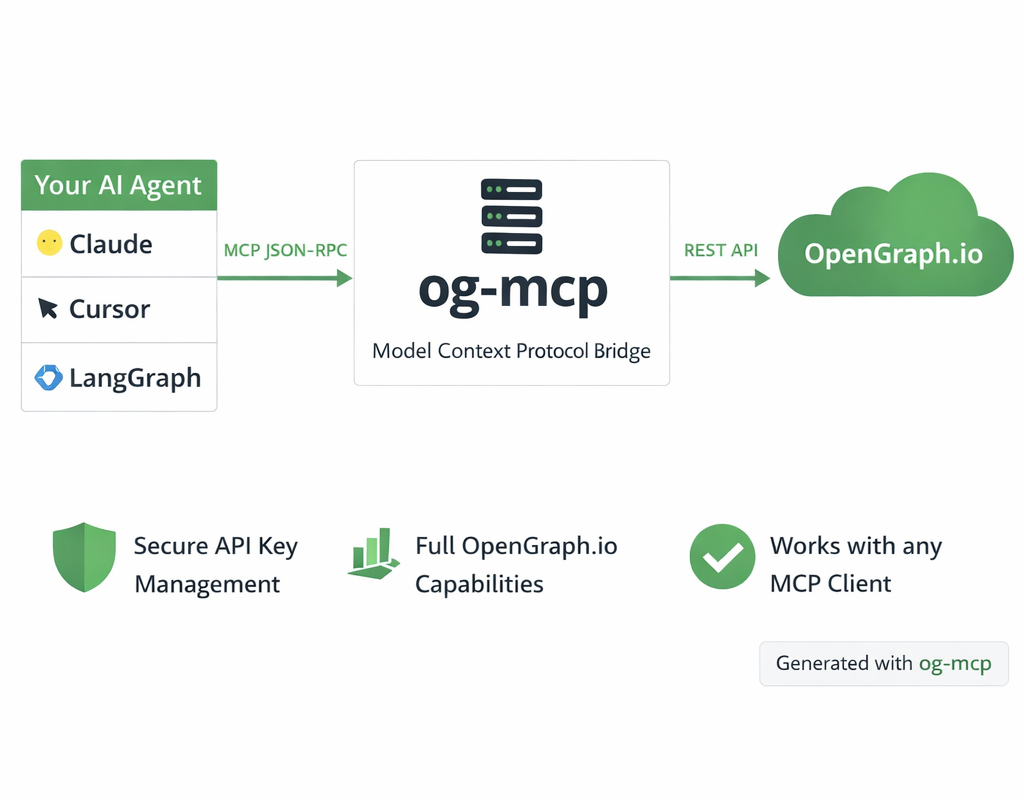 Diagram generated with og-mcp's image generation tools
The og-mcp server acts as a bridge between AI clients (like Claude or other LLMs) and the OpenGraph.io API:
- AI client makes a tool call to one of the available MCP functions
- og-mcp server receives the request and formats it for the OpenGraph.io API
- OpenGraph.io processes the request and returns data
- og-mcp transforms the response into a format suitable for the AI client
- AI client receives the structured data ready for use
This abstraction prevents exposing API keys directly to the AI while providing full access to OpenGraph.io capabilities.
Setup and Running
- Clone this repository
- Install dependencies:
npm install - Build the TypeScript code:
npm run build - Start the server:
npm start
The server will run on port 3010 by default (configurable via PORT environment variable).
Configuration
OAuth 2.1 (hosted HTTP server)
When running the Streamable HTTP server (npm start), set these env vars:
# Required: URL of the apifur-api JWKS endpoint
OAUTH_JWKS_URL=https://dashboard-api.opengraph.io/oauth/jwks.json

# Required: the exact issuer apifur-api signs with (its /.well-known/oauth-authorization-server
# "issuer"). Matched character for character; without it every bearer token is refused.
OAUTH_ISSUER=https://dashboard-api.opengraph.io

# Optional: Expected audience claim (default: https://mcp.opengraph.io/mcp)
OAUTH_AUDIENCE=https://mcp.opengraph.io/mcp

# Optional: Override the canonical MCP resource URL returned in 401 headers
MCP_RESOURCE_URL=https://mcp.opengraph.io/mcp
When OAUTH_JWKS_URL or OAUTH_ISSUER is not set, bearer tokens are refused.
Network
# Interface to listen on (default 127.0.0.1). The Docker image sets 0.0.0.0.
MCP_HOST=127.0.0.1

# Host header values /mcp accepts. Unset: only localhost names while bound to loopback,
# which blocks DNS rebinding; no check when bound to all interfaces.
MCP_ALLOWED_HOSTS=mcp.example.com

# Browser origins allowed to call the server from another site. Unset: none. Desktop and CLI
# clients send no Origin and are unaffected; a client running in a browser page (such as
# MCP Inspector's direct mode) needs its origin listed here.
MCP_ALLOWED_ORIGINS=https://app.example.com
Behind a proxy
New sessions are rate limited per client IP. Set MCP_TRUST_PROXY to the number of proxies in front of the server so the limiter sees the real client address:
# Default 1 (one ingress or load balancer). Use false when clients connect directly,
# or a client could set X-Forwarded-For itself and slip past the limit.
MCP_TRUST_PROXY=1
Logs
The HTTP server writes one JSON line per security event to stderr: auth.rejected (with a reason),
auth.legacy_app_id, session.opened, session.closed, session.forbidden, session.refused,
session.rate_limited, session.credential_expired, server.error and tool.call (tool name and
outcome only). No line ever contains an API key, token or tool argument; keys appear as a 12 character
fingerprint. Events anyone can trigger without a credential are capped at five per address per minute,
with the number dropped reported on the next line.
x-app-id fallback / local dev
Omit the OAuth env vars and use a static App ID instead:
OPENGRAPH_APP_ID=your_app_id_here
# or
APP_ID=your_app_id_here
Over HTTP, an x-app-id header is accepted only when the server opts in:
MCP_ALLOW_LEGACY_APP_ID=trueIt is off by default because the header is an unverified claim of identity. The stdio transport and the Claude Desktop extension do not use it and are unaffected.
Stdio transport
For command-line usage pass the App ID directly:
opengraph-io-mcp --app-id YOUR_APP_IDTransport Options
Stdio Transport (Recommended)
For command-line usage and npm global installation, the server can be run with stdio transport:
npm run start:stdioYou can pass the OpenGraph API key directly via command-line argument:
npm run start:stdio -- --app-id YOUR_APP_IDWhen installed globally:
opengraph-io-mcp --app-id YOUR_APP_IDThis mode allows the server to be invoked directly by other applications that use MCP.
Streamable HTTP Transport
This method runs a web server that can be accessed over HTTP:
npm startThe legacy SSE transport (/sse + /message) has been removed. It had no authentication and
shared a single connection across every client.
Troubleshooting
- If tools aren't showing up, check that the server is running and the URL is correctly configured in Cursor
- Check the server logs for any connection or authorization issues
- Verify that Claude has been instructed to use the specific tools by name