
pcb-marker-desktop
v1.0.0
Published
Gerber PCB marker plotter for Klipper printers

Maintainers
 zufari4
Readme
💡 Why PCB Marker exists
PCB Marker was created with a practical goal: use an existing 3D printer to transfer a PCB layout onto a blank board with a marker.
You have a circuit designed in your PCB editor and a board ready to work on. Export the Gerber files, attach a marker to the printer, and secure the board on the bed. PCB Marker aligns the layout with the board, prepares the drawing route, and lets you check it in a preview and a dry run before the marker touches the surface. Then the printer draws the tracks and pad rings while you follow its progress in the app.
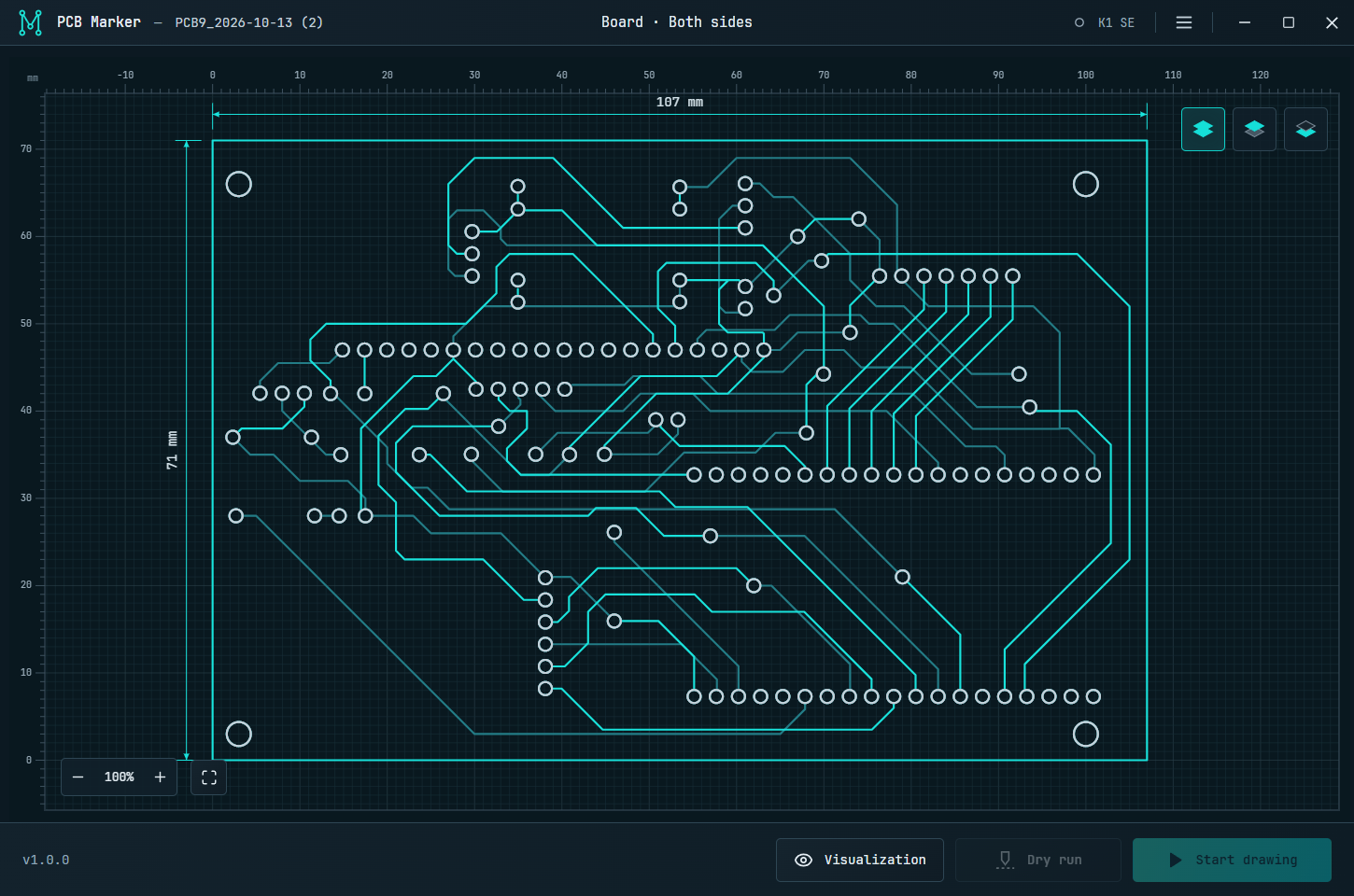
✨ What you can do
- Open Gerber ZIP files — drop an archive into the app or choose Open file from the menu.
- View both sides — switch between top, bottom, or both layers without losing your zoom level.
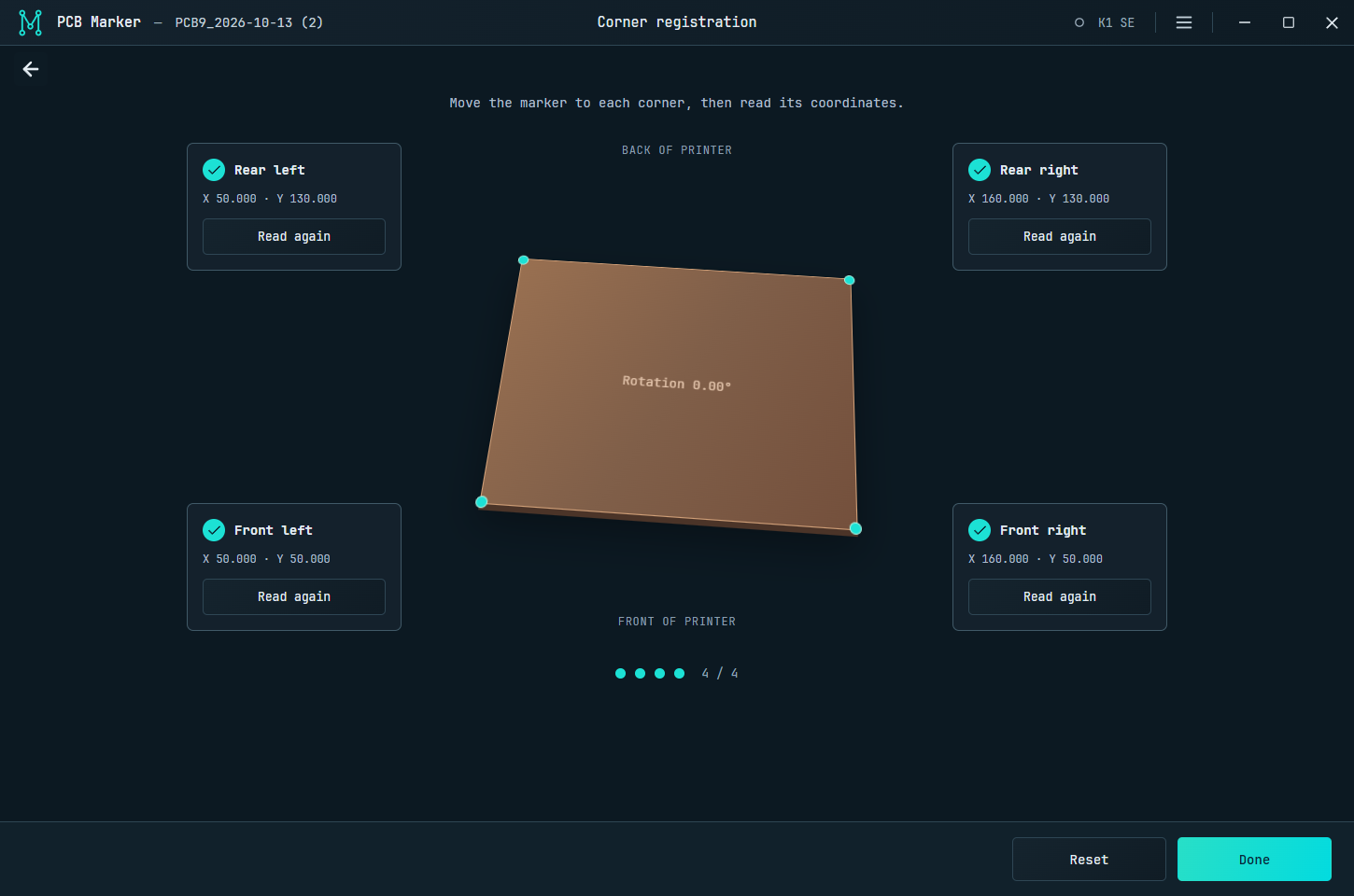
- Align with four corners — account for board position and rotation while keeping a 1:1 scale.
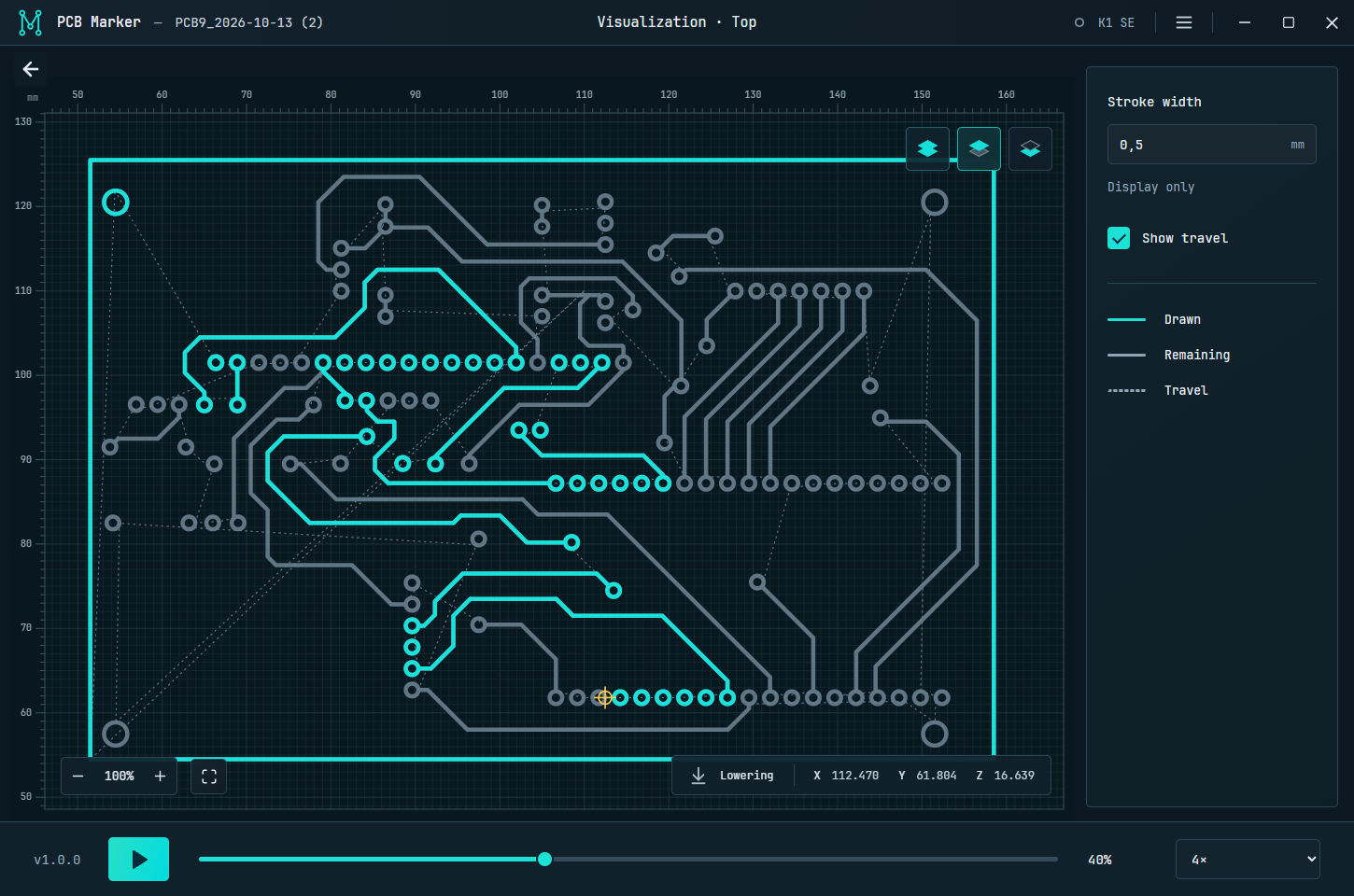
- Preview before drawing — inspect the route and run it above the board without making contact.
- Draw tracks and pad rings — optionally add the board boundaries.
- Follow the progress — see completed paths, marker position, and progress, with pause, resume, and stop close at hand.
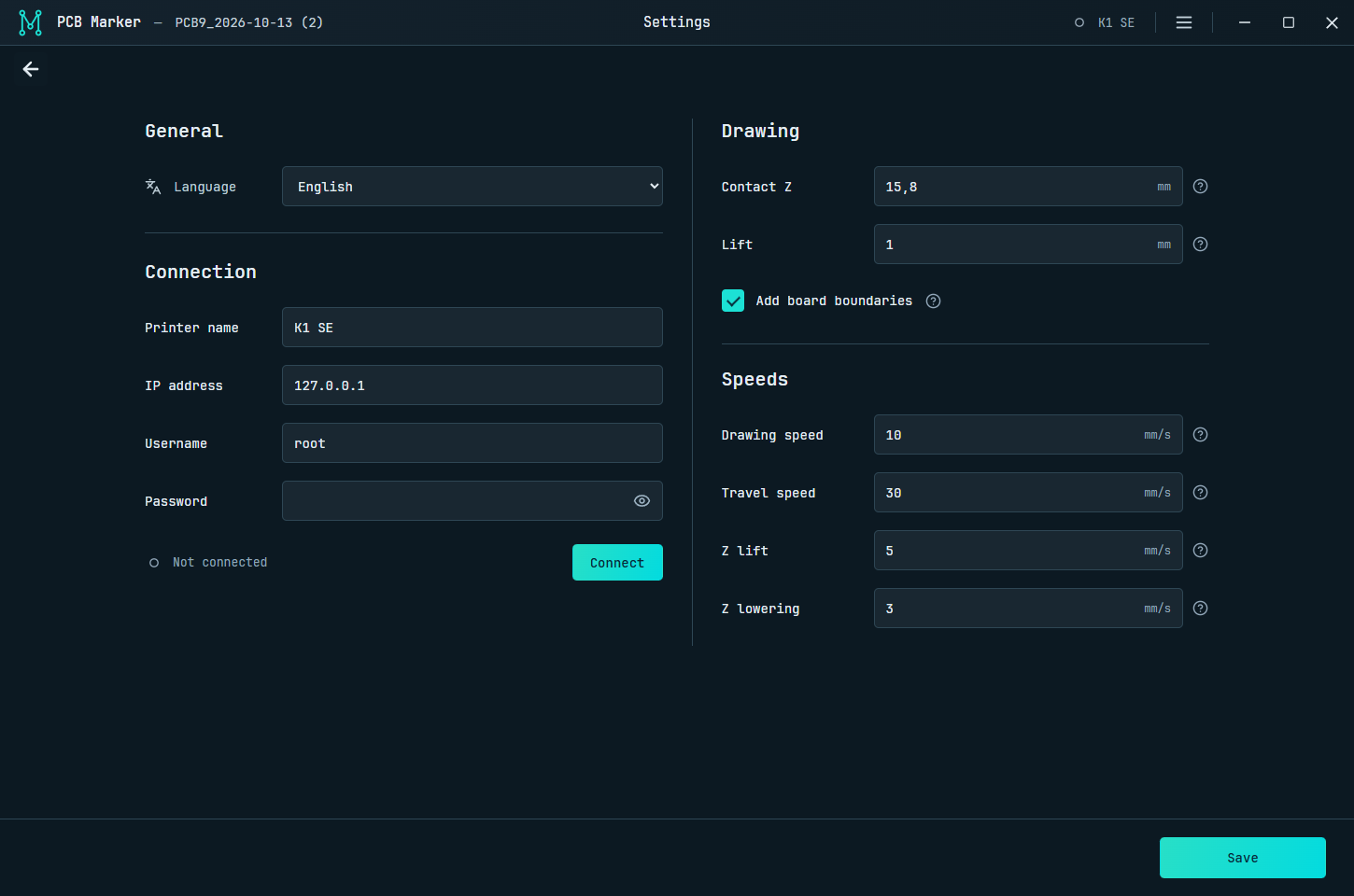
- Tune the motion — set drawing, travel, Z lift, and Z lowering speeds separately.
- Choose your language — English, Russian, or your system language. The included font works offline.
- Export G-code and check for new versions from the menu.
📥 Installation
Windows app
| File | How to use it |
| --- | --- |
| PCB-Marker-Setup.exe | Run the installer and follow the steps |
| PCB-Marker-Windows-x64.zip | Extract the entire archive and open PCB Marker.exe |
The Windows downloads include everything you need — no Python or Node.js installation required. Both versions save settings in your Windows user profile. Builds are currently unsigned, so Windows may display a warning on first launch.
Install with npm
Install pcb-marker-desktop with Node.js 22.12 or newer:
npm install -g pcb-marker-desktop
pcb-marker
This opens the full desktop app. You can also download the .tgz
package from Releases and install it locally:
npm install -g ./pcb-marker-desktop-1.0.0.tgz
pcb-marker
The first npm launch may download the desktop runtime.
🚀 Getting started
- Home the printer with the board and marker clear of its moving parts.
- Open Settings, enter your printer address and SSH credentials, and connect. Set the contact Z and lift height.
- Open a Gerber ZIP from the menu or drag it into the app.
- Open Corner registration, move the marker to each corner, and read its coordinates.
- Choose a board side, inspect Visualization, and perform a Dry run.
- When the alignment is right, select Start drawing.
For a double-sided board, flip it from left to right, like turning a page. Keep the front edge facing the front of the printer, select Bottom, and check the alignment with a dry run before drawing the second side. You can reuse the corner registration if the board remains in the same position.
Register the corners again only if the board position or marker alignment changes. Saved coordinates do not replace homing after the motors have been disabled.
🖼️ A closer look
Settings — connection, drawing, and speeds in one place.
Corner registration — four points and a clear view of your board's position.
Visualization — inspect the marker's route before starting.
🖨️ Compatibility
The initial printer profile targets Creality K1 SE with Klipper and SSH access. Its working area is X/Y: 0–220 mm and Z: 0–250 mm. Other printers need compatibility verification; changing the printer name does not change this profile.
PCB Marker reads top and bottom copper, board outlines, and drill files from Gerber ZIP archives, including common KiCad and EasyEDA layer names. Solid copper regions are not filled. The bottom side is mirrored automatically.
The app does not home the printer automatically. If the connection drops, the printer may continue the job; reconnect to see its state. Progress is an estimate, and completion is confirmed by the printer.
💬 Questions and ideas
Open an issue with your app version, a description, and a screenshot. Keep passwords and private settings out of reports.
About shows the version and author. Check for updates lets you know when a new release is available and links to its download page.
Want to contribute? See the development guide.
Released under the MIT License.