
pixi-console
v5.1.1
Published
An in-canvas developer console for PixiJS v8 — see console.log/warn/error output and uncaught errors right on top of your game, even on mobile devices without devtools.
Downloads
2,749

Maintainers
 jkanchelov
Readme
pixi-console
An in-canvas developer console for PixiJS v8. It shows console.log, warnings and uncaught errors on top of your scene, so you can debug on phones, tablets and TVs without devtools.
▶ Live preview · API reference
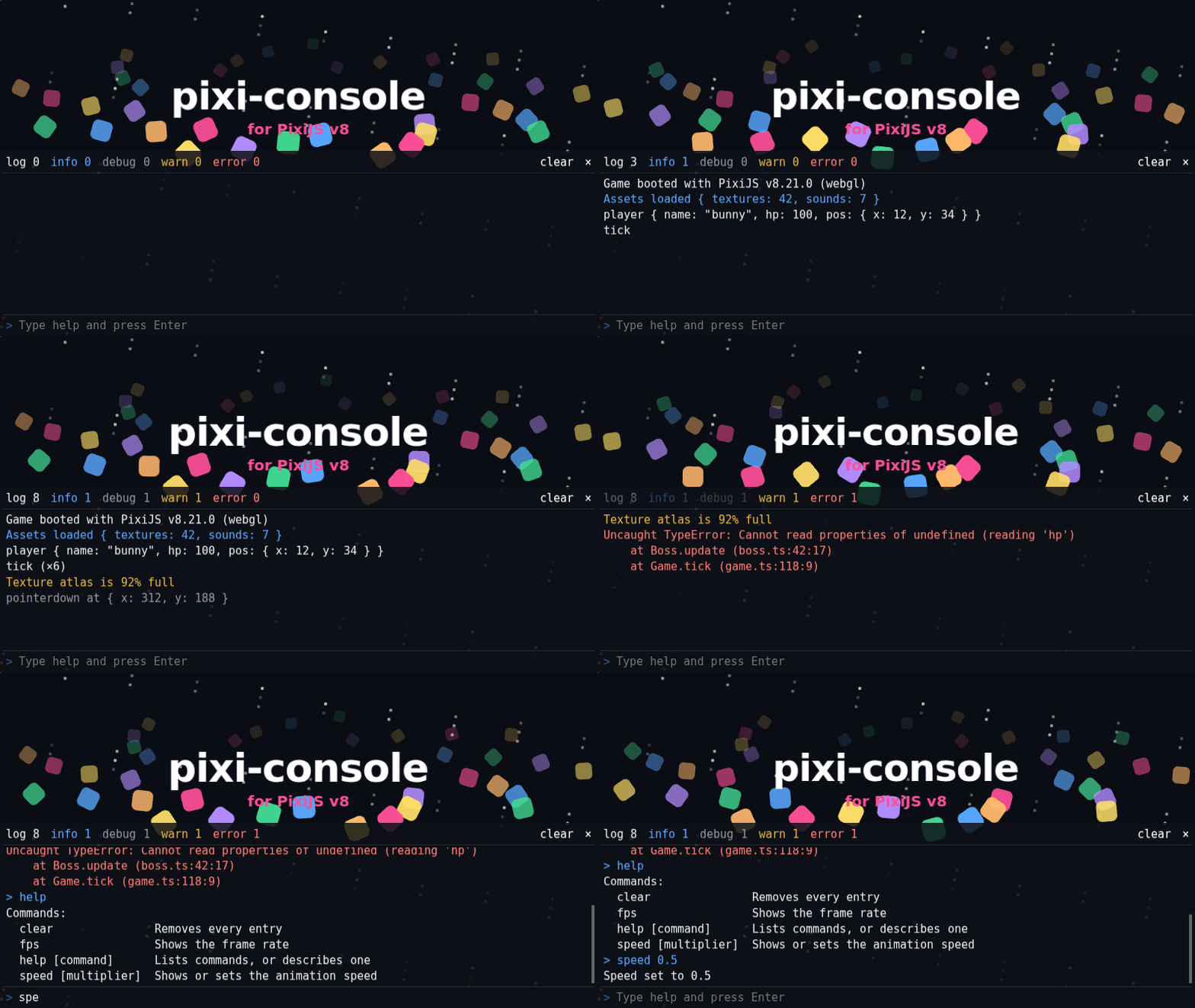
Features
- Captures
log,info,debug,warn,error,console.clear(), uncaught errors and unhandled rejections. Devtools keep working as usual. - Formats output like devtools:
%s %d %osubstitutions, pretty-printed objects (circular references included) and errors with stacks. - Stays fast with thousands of logs. Only the visible lines are drawn, using
BitmapText, and repeated messages collapse intomessage (×12). - Includes a toolbar with level filters and counters. Scroll with the wheel or by dragging. It opens on errors, and ` toggles it.
- Optional command line: run your own commands on the device (
helpandclearbuilt in), and JavaScript in development builds. It's a real text field over the canvas, so phone keyboards, IME and paste just work. autoResizefollows window resizes and orientation changes.- No dependencies besides
pixi.js. Ships ESM, CommonJS and a<script>build, with TypeScript types.
Quick start
npm install pixi-consoleimport { Application } from "pixi.js";
import { PixiConsole } from "pixi-console";
const app = new Application();
await app.init({ resizeTo: window });
document.body.appendChild(app.canvas);
const devConsole = new PixiConsole({ autoResize: { renderer: app.renderer } });
app.stage.addChild(devConsole); // add it last so it renders on top
console.log("Hello from the canvas!", { answer: 42 });
devConsole.show(); // hidden until shown, toggled with ` or an error<script src="https://cdn.jsdelivr.net/npm/pixi.js@8/dist/pixi.min.js"></script>
<script src="https://cdn.jsdelivr.net/npm/pixi-console@5"></script>
<script type="module">
const app = new PIXI.Application();
await app.init({ resizeTo: window });
document.body.appendChild(app.canvas);
const devConsole = new PixiConsole.PixiConsole({ visible: true, autoResize: { renderer: app.renderer } });
app.stage.addChild(devConsole);
</script>With Vite (use your bundler's flag elsewhere, e.g. process.env.NODE_ENV !== "production"):
if (import.meta.env.DEV) {
  const { PixiConsole } = await import("pixi-console");
  app.stage.addChild(new PixiConsole({ autoResize: { renderer: app.renderer } }));
}
Options
Every option is optional. These are the common ones:
| Option | Default | Description |
| ---------------- | ------------- | ------------------------------------------------------------------------------------------------------------------- |
| width/height | 800/400 | Size in pixels. Change it later with resize(). |
| autoResize | null | { renderer, layout? } follows the screen. layout(screen) returns { x?, y?, width, height }. |
| visible | false | Start visible. |
| captureConsole | true | true, false or a list of levels to capture. |
| showOnError | true | Show the console when an error is logged or thrown. |
| toggleKey | "Backquote" | Key that toggles the console, or null. With prompt, it also focuses the command line if nothing else has focus. |
| textRenderer | "bitmap" | "canvas" uses Text, which is better for CJK and colour emoji. |
| prompt | false | Show a command line, see Command line. |
| Option | Default | Description |
| ----------------- | ----------------------- | --------------------------------------------------------------------------------------------------------------- |
| captureErrors | true | Capture uncaught errors and unhandled rejections. |
| captureClear | true | Clear when console.clear() is called. |
| filter | all levels | Levels that are displayed. Command-line input and results are always displayed. |
| maxEntries | 1000 | History size. The oldest entries are dropped first. |
| collapseRepeats | true | Merge consecutive identical messages. |
| timestamps | false | Prefix entries with HH:MM:SS.mmm. |
| format | { depth: 2, … } | depth, indent, maxItems, maxLength for formatting values. |
| fontFamily | Menlo, Consolas, … | Monospace font stack. Load web fonts before creating the console (see below). |
| fontSize | 14 | |
| lineHeight | round(fontSize × 1.4) | |
| resolution | the renderer's | Glyph resolution. |
| padding | 8 | |
| colors | GitHub-dark palette | Text colour per level. |
| backgroundColor | 0x0d1117 | |
| backgroundAlpha | 0.85 | |
| toolbar | true | Level filters with counters, clear and close buttons. |
| interactive | true | Wheel/drag scrolling and buttons. false lets pointer events through to your game, except on the command line. |
| commands | {} | Your commands for the command line, by name. |
| evaluator | null | Runs lines that aren't commands, e.g. createJsEvaluator(). |
Glyphs are drawn with whatever font is available when the console is created. To use a web font, load it first, e.g. await document.fonts.load("14px 'Fira Code'") or Assets.load().
Command line
Set prompt: true to type commands into the console on the device itself. help and clear are built in, and you add your own:
const devConsole = new PixiConsole({
  prompt: true,
  autoResize: { renderer: app.renderer },
  commands: {
    spawn: { usage: "<count>", description: "Spawn enemies", run: ([count = "1"]) => game.spawn(Number(count)) },
  },
});
devConsole.addCommand("fps", () => app.ticker.FPS.toFixed(1));
await devConsole.execute("spawn 3"); // run a line from code- The first word picks the command, case-insensitively. The other words are its arguments, as strings. Quotes group words:
spawn "big boss" 3passes["big boss", "3"]. - The command's return value is printed. Promises are awaited, and errors are printed too.
- Lines that aren't commands go to the
evaluator, if you set one. Wrap a line in parentheses to send it there even when it starts with a command name.
| Key | Action | | --------------------------------- | ------------------------------------ | | Enter | Run the line | | Esc | Clear the line, then leave the field | | ↑ / ↓ | History | | Tab | Complete a command name | | PgUp / PgDn | Scroll the log |
Keys typed into the command line don't reach your game's keydown listeners (only capture-phase ones) or the toggle key. keyup still does, so no key gets stuck. Opening the console with the toggle key focuses the command line when nothing else on the page has focus.
import { createJsEvaluator, PixiConsole } from "pixi-console";

const devConsole = new PixiConsole({
  prompt: true,
  evaluator: import.meta.env.DEV ? createJsEvaluator({ scope: { app } }) : null,
});
Lines then run much like in the devtools console:
- The value of the last statement is printed, and
{ a: 1 }is an object. $_is the previous result, andscopevalues (hereapp) are available by name.varand function declarations persist between lines.letandconstdon't.awaitworks at the top level when the line is a single expression, likeawait Assets.load(url). Any other line with anawait, likevar tex = await …, runs inside an async function: its result isundefinedand its declarations don't persist. WriteglobalThis.tex = await …to keep a value.- Pasted lines are joined into one, so a
//comment hides the rest of the paste.
To reach the variables of one of your modules instead, write the evaluator in that module. A direct eval sees them (but not $_ or scope, which only createJsEvaluator provides):
evaluator: import.meta.env.DEV ? (line) => eval(line) : null,The DEV check keeps the eval, and your bundler's warning about it, out of production builds.
Security and CSP. Whoever can type into the console can run any code in your page, and players can be talked into pasting some (self-XSS). Keep any evaluator (
createJsEvaluatoror your owneval) out of production builds.evalneeds a Content-Security-Policy that allows'unsafe-eval'and doesn't enforce Trusted Types.import "pixi.js/unsafe-eval"doesn't change that. When evaluation is blocked, the console says so and commands keep working. Without an evaluator the command line uses noeval, and pixi-console adds none to bundles that don't importcreateJsEvaluator. Command arguments are whatever was typed: treat them as untrusted input.
Tap the command line to open the on-screen keyboard.
focusPrompt()works from buttons and remotes, but phones only open the keyboard when it runs inside a tap handler.Keep the console in the top half, so the keyboard doesn't cover it:
new PixiConsole({
  prompt: true,
  autoResize: { renderer: app.renderer, layout: (screen) => ({ width: screen.width, height: screen.height / 2 }) },
});
With
resizeTo: window, addinginteractive-widget=resizes-contentto the viewport meta tag also helps: Chrome on Android then shrinks the page, and your canvas, to the space above the keyboard.On TV remotes, Back usually acts as Esc. ↑/↓ past either end of the history move the focus as usual.
Fullscreen a wrapper element, not the canvas: nothing can be drawn over a fullscreen canvas, so the command line would disappear.
The
<input>sits in a<div data-pixi-console>right after your canvas. Style it or add attributes throughpromptElement.pixi.js 8.0–8.6 don't tell the console which canvas it's on: use
autoResizethere.Keep the history across reloads:
devConsole.history = JSON.parse(localStorage.getItem("console-history") ?? "[]");
addEventListener("pagehide", () => localStorage.setItem("console-history", JSON.stringify(devConsole.history)));
The wheel scrolls the log, not the page, also over the command line. Zooming (ctrl+wheel or a trackpad pinch) and sideways scrolling are left to the browser.
If you take an ancestor of a shown console off the stage, or stop rendering, the input stays until you call
hide()ordestroy().
API
PixiConsole is a PixiJS Container. Besides the container API, it has:
devConsole.log("fps", 60).warn("careful").error(new Error("boom")); // log without the browser console
devConsole.print("custom colour", "hotpink");
devConsole.clear();
devConsole.show() / hide() / toggle();
devConsole.scrollUp(3) / scrollDown() / scrollBy(-120) / scrollToTop() / scrollToBottom();
devConsole.resize(1024, 300);
devConsole.filter = ["warn", "error"]; // also: captureConsole, captureErrors, showOnError, toggleKey, autoResize,
// timestamps, collapseRepeats, maxEntries, toolbar, prompt, evaluator
devConsole.entries; // [{ id, level, message, timestamp, count, color?, kind? }]
await devConsole.execute("help"); // run a line as if it was typed, prompt or not
devConsole.addCommand("fps", () => app.ticker.FPS) / removeCommand("fps");
devConsole.focusPrompt() / blurPrompt();
devConsole.history = saved; // lines entered at the prompt, oldest first
devConsole.lastResult; // what the last line returned ($_)
devConsole.destroy(); // restores console and removes every listener
Presses, taps and wheels over an interactive console don't reach objects underneath it. A drag that starts on the console and ends outside it still delivers pointerup and the click/tap to what is underneath.
You can create several consoles at once. The console is a render group of its own: don't cache it, or an ancestor, with cacheAsTexture, or it stops updating. See the API reference for everything else.
Migrating from v4
v5 is a rewrite for PixiJS v8. Stay on pixi-console@4 for PixiJS v6 or v7 (v5 → 3.x, v4 → 2.5.x).
| v4 | v5 |
| ------------------------------------------------- | ----------------------------------------------------------------------- |
| new PixiConsole(new PixiConsoleConfig()) | new PixiConsole({ ...options }) |
| Singleton, getInstance() | Any number of instances. Keep a reference yourself. |
| consoleWidth / consoleHeight options | width / height and resize() |
| fontColor, fontWarningColor, fontErrorColor | colors: { log, info, debug, warn, error } |
| eventsConfig: { log, warn, error } | captureConsole: true \| LogLevel[] |
| stringifyObjects, showCaller | Objects are always formatted. showCaller is removed. |
| print(message, color?, fontSize?) | print(message, color?) |
| clearConsole(), dispose() | clear(), destroy() |
| scrollUp(times, step) | scrollUp(lines), scrollBy(px) |
| isHidden | visible |
| dist/pixi-console.umd.js | dist/pixi-console.iife.js (global PixiConsole, needs global PIXI) |
Contributing
npm install
npx playwright install chromium # once, for the rendering tests
npm run dev                     # playground at http://localhost:5173
npm test                        # unit tests + rendering tests in headless Chromium
npm run lint
npm run typecheck
To use a Chromium you already have instead, point PW_CHROMIUM_PATH at its executable (PW_CHROMIUM_PATH=/usr/bin/chromium npm test).
Every PR that changes the package needs a changeset (npx changeset). Merging the "chore: version packages" PR publishes to npm.