
playwright-cli-select
v1.1.1
Published
Playwright interactive cli prompts to select and run specs, tests or tags

Maintainers
 dbergevin
Readme
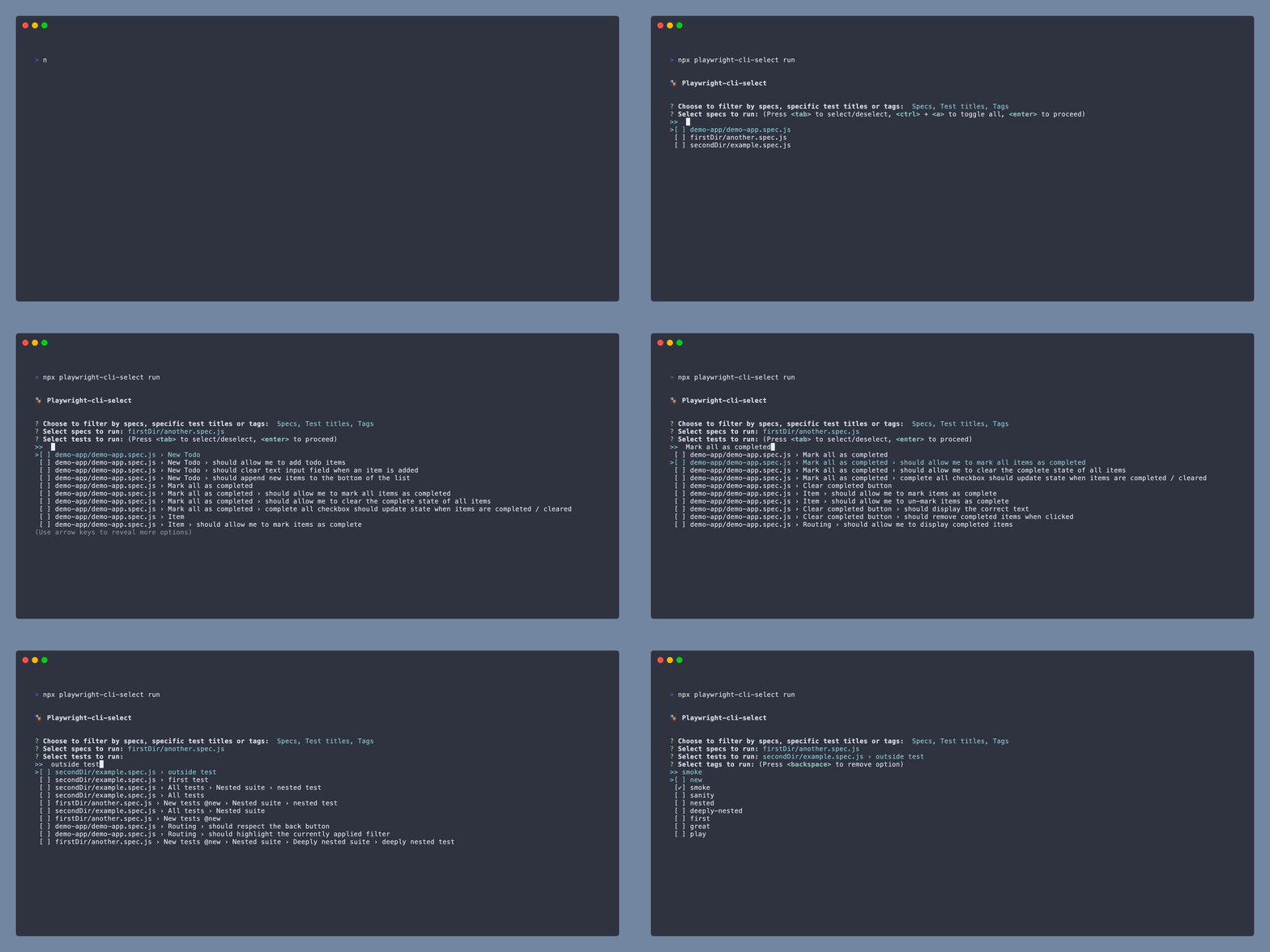
Features
- ❓ New interactive CLI prompts to select and run specs, tests or tags
- 🎭 A new
playwright testcommand to allow user to pass desired arguments
External Resources
Table of Contents
- Installation
- Run mode
- Command line arguments
- UI mode
- Help mode
- Submit focused
- Optional path to test list json
- Using a custom playwright config file
- Setting up a
npmscript - Contributions
Installation
Install the following package:
npm install --save-dev playwright-cli-select
# within your Playwright repository as dev dependency
Or:
npm install -g playwright-cli-select
# global install
Run mode
Run the following command in your Playwright repository:
npx playwright-cli-select runIf you want to skip straight to selecting specs, titles and/or tags:
npx playwright-cli-select run --specs
# skips straight to spec selection
npx playwright-cli-select run --titles
# skips to test title selectionnpx playwright-cli-select run --tags
# skips to tag selectionnpx playwright-cli-select run --titles --tags
# skips to test title selection, followed by tag selection
# Any combination of `--specs`, `--titles` and/or `--tags` parameters is permitted.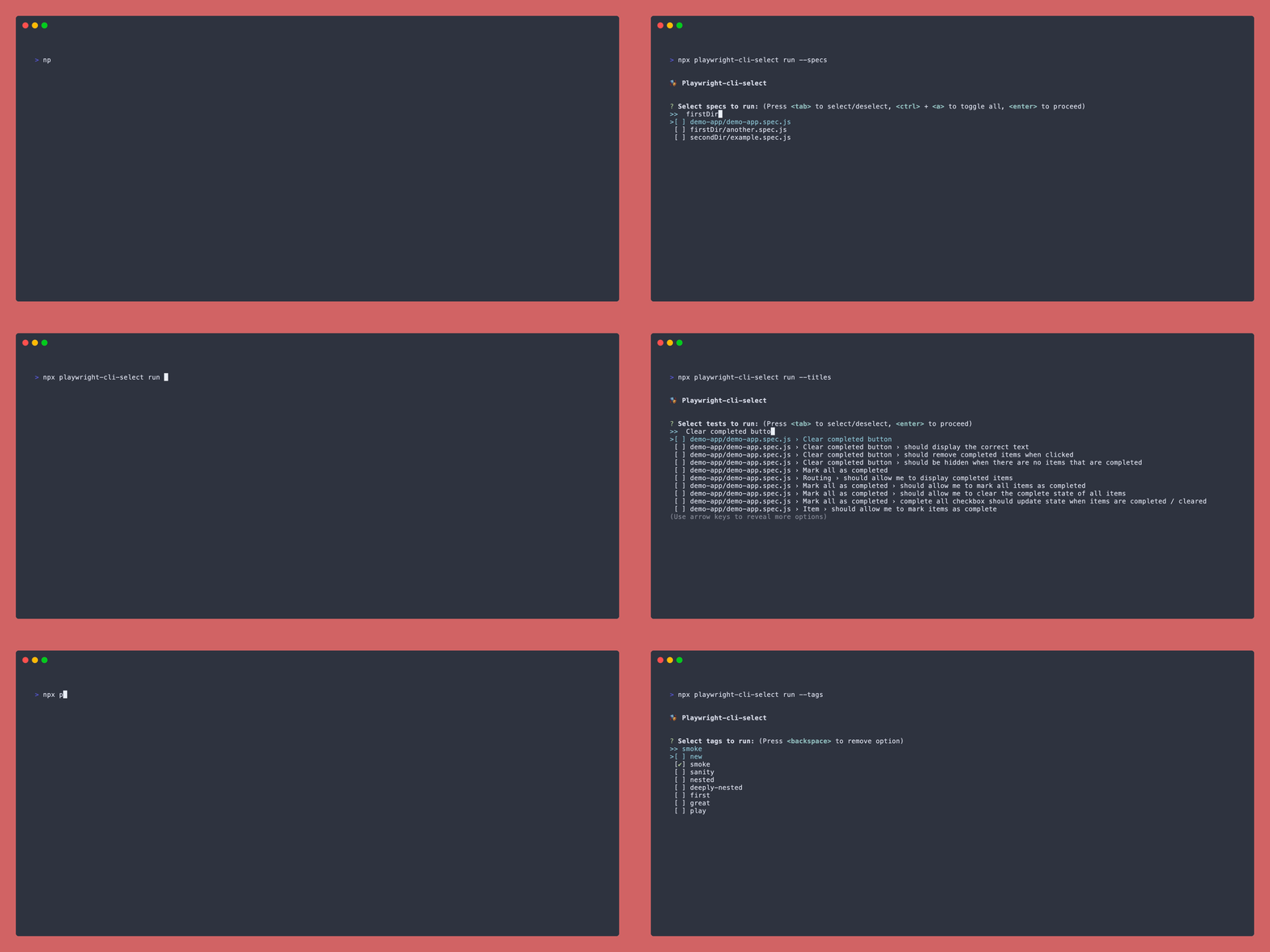
Command line arguments
You can also include more cli arguments similar to npx playwright test:
npx playwright-cli-select run --project firefox webkitUsing last failed
Passing Playwright's --last-failed parameter filters the available selections in each prompt to the last failed tests.
Using this package, you can further drill down on specific tests within the last failed tests:
npx playwright-cli-select run --last-failed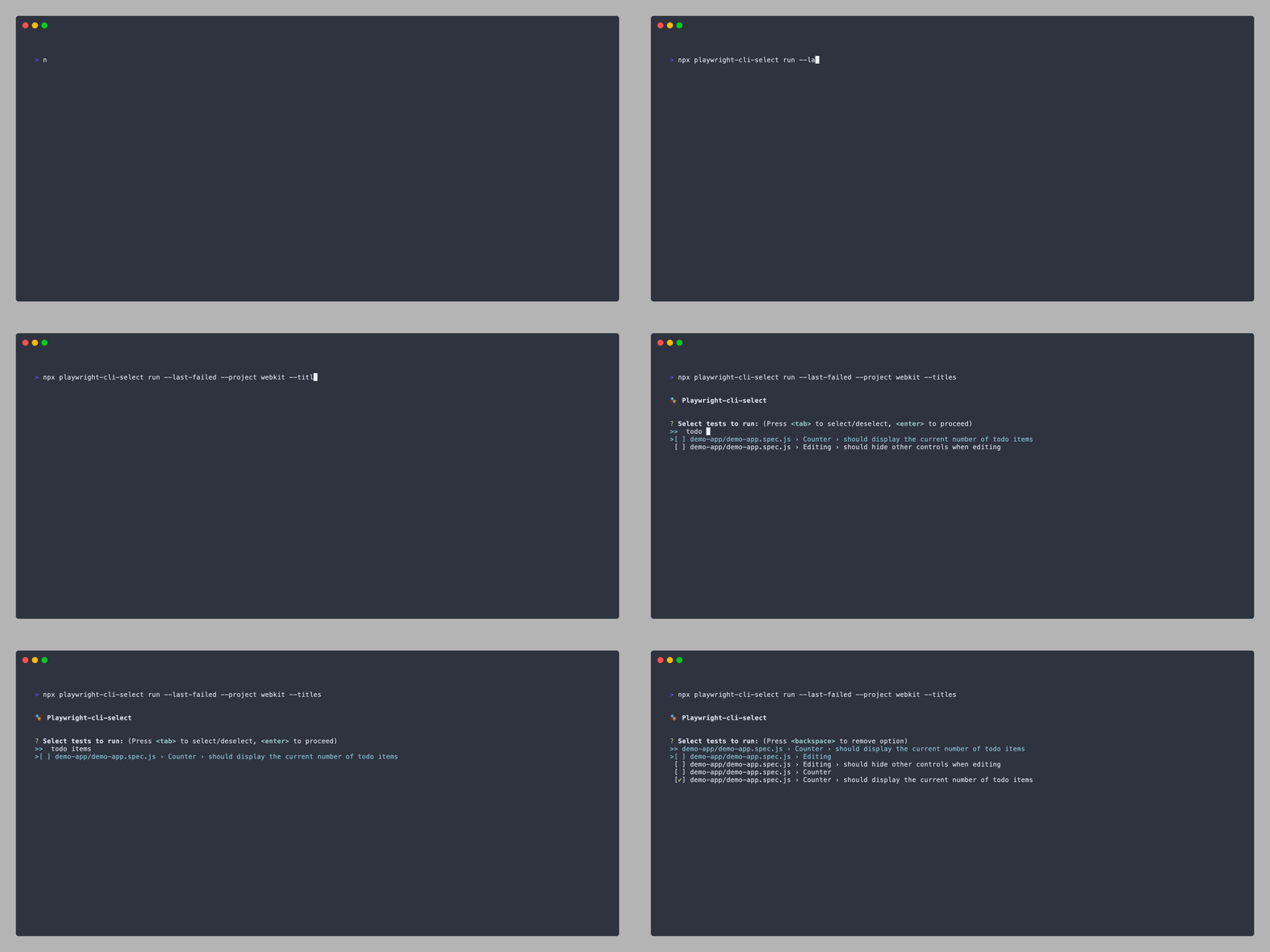
Using only changed
Passing Playwright's --only-changed parameter filters available selections to the changed tests detected.
To specify a specific subset of changed tests rather than running entire changed test files:
npx playwright-cli-select run --only-changed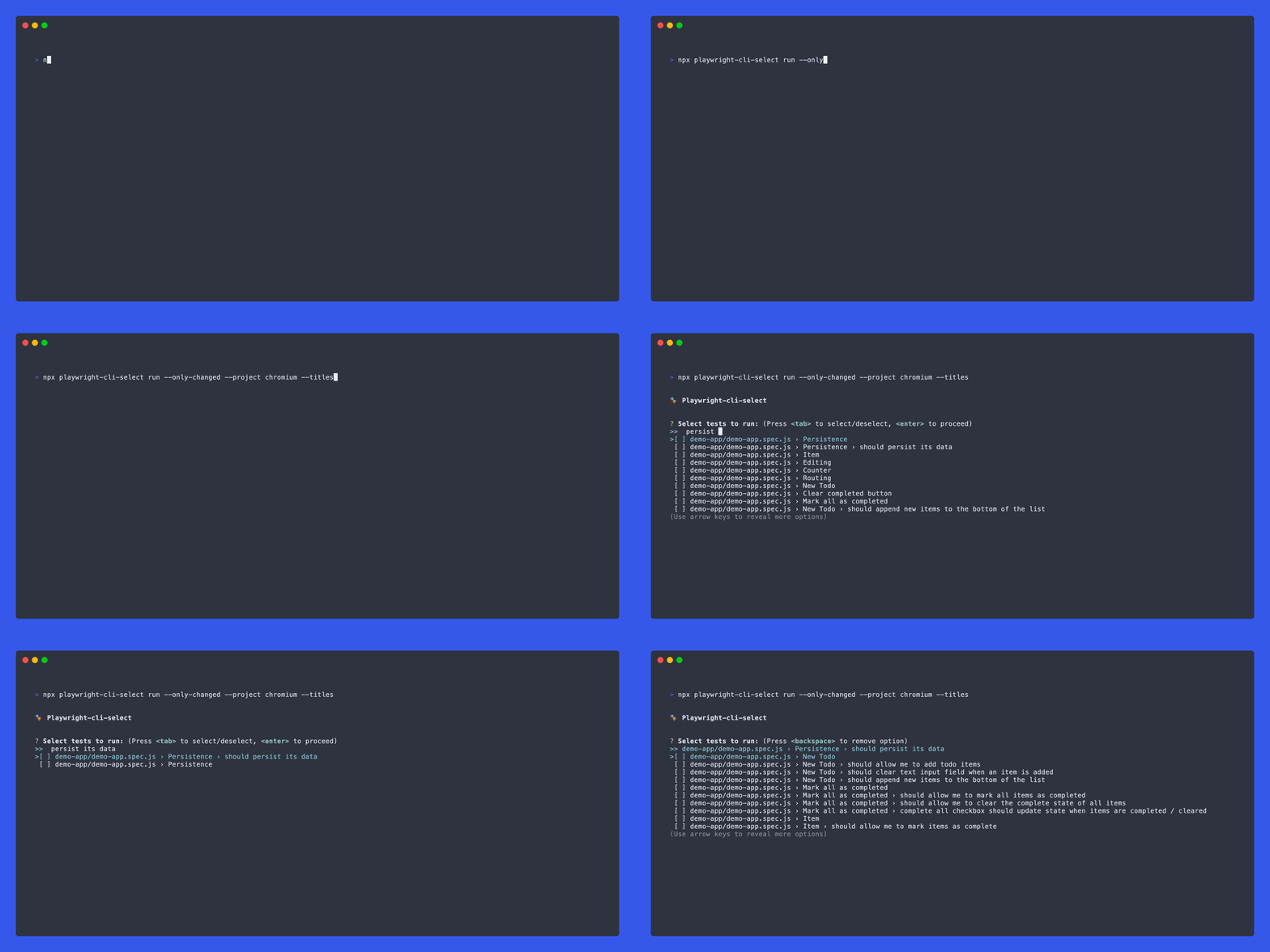
UI mode
You can append the --ui or --headed parameters to open a browser and view selected specs, test titles and/or tags:
npx playwright-cli-select run --uiOr:
npx playwright-cli-select run --titles --headed
# Example of choosing only test titles to run headed
Keyboard controls
| Keys | Action | | :----------------------------: | :-----------------------------: | | Up | Move to selection above current | | Down | Move to selection below current | | Tab | Select current | | Ctrl + a | Select all | | Backspace | Remove selection | | Enter | Proceed | | Ctrl + c | Exit |
Note: You can also filter choices displayed in list by typing
Help mode
To open the cli help menu, pass the --help flag:
npx playwright-cli-select run --help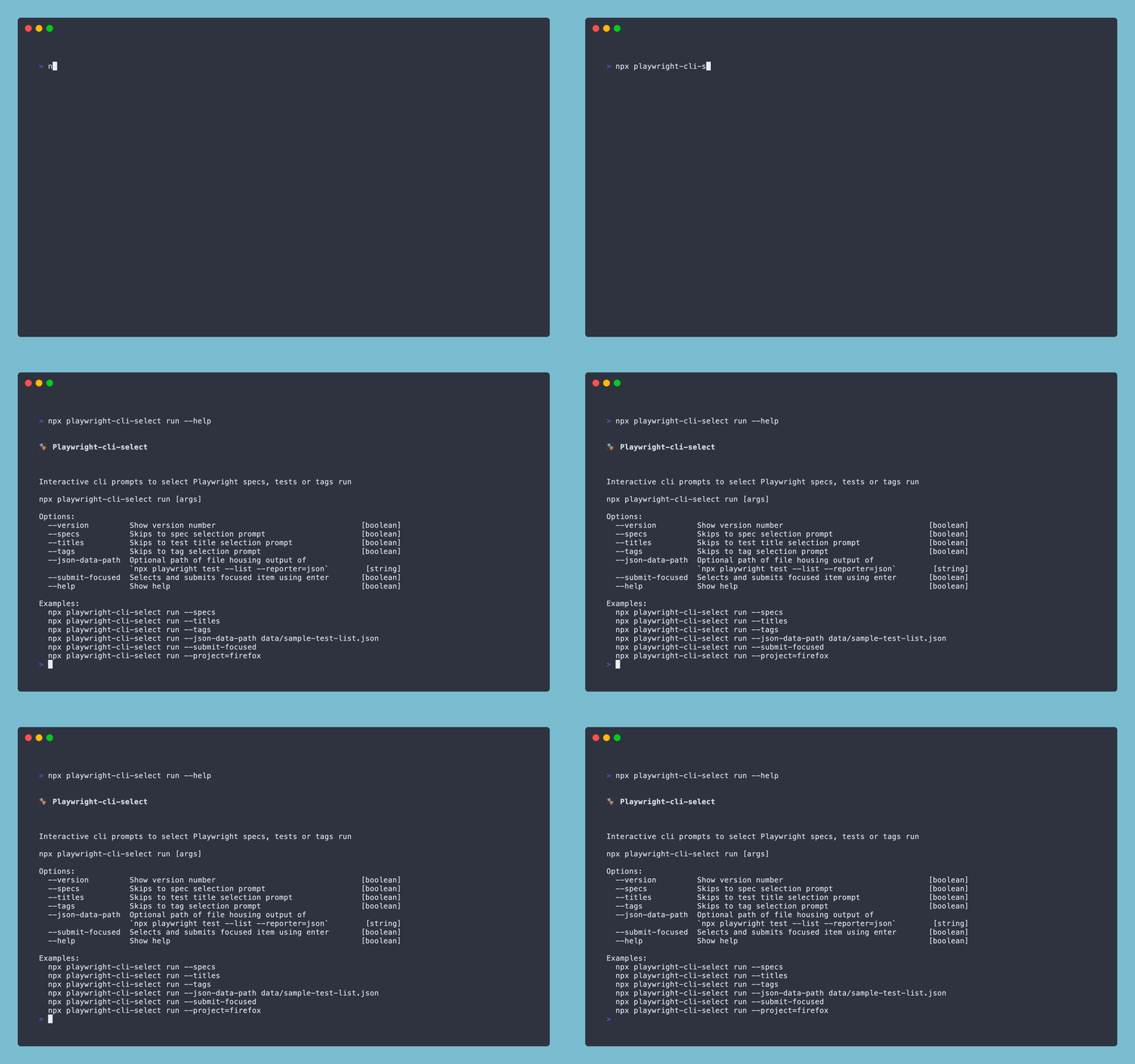
Submit focused
When no other options are already selected, automatically select the currently focused option with Enter.
To enable this feature, pass the following flag:
npx playwright-cli-select run --submit-focusedOptional path to test list json
This package uses the npx playwright test --list --reporter=json command to gather information about Playwright tests.
If you prefer or already house the data from this command in a file, pass the path to the file via the --json-data-path parameter:
npx playwright-cli-select run --json-data-path data/sample-test-list.jsonUsing a custom playwright config file
If you want to use a custom Playwright config, pass it via the -c or --config flag:
npx playwright-cli-select run --config playwright.staging.config.jsOr:
npx playwright-cli-select run -c playwright.dev.config.jsSetting up a npm script
For convenience, you may desire to house the npx command within an npm script in your project's package.json, including any desired cli arguments:
  "scripts": {
    "pw:select": "npx playwright-cli-select run --project=firefox"
  }
Contributions
Feel free to open a pull request or drop any feature request or bug in the issues.
Please see more details in the contributing doc.