
playwright-inline-screenshot
v0.1.1
Published
Inline screenshots for Playwright tests — failed-test screenshots rendered inline in iTerm2 and Buildkite build logs
Downloads
68

Maintainers
 djiit
djiitReadme
playwright-inline-screenshot
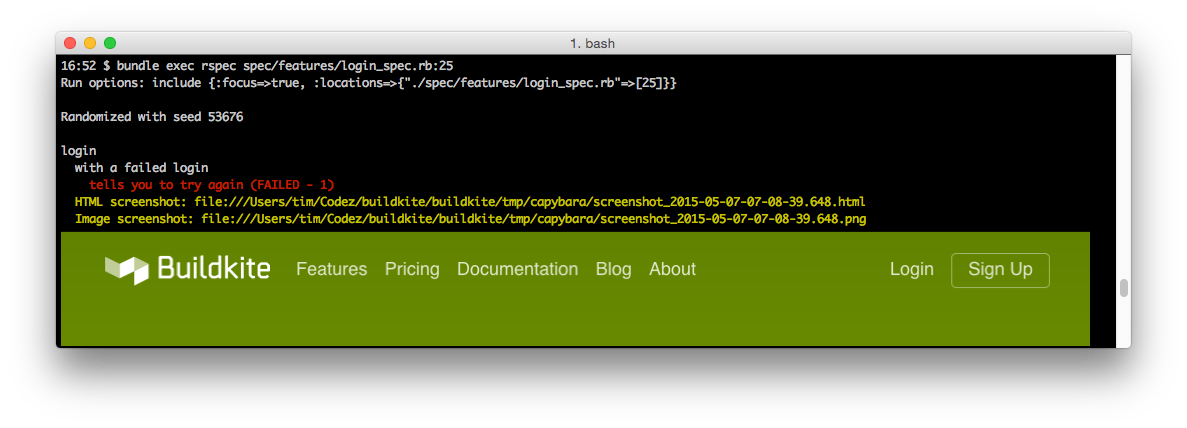
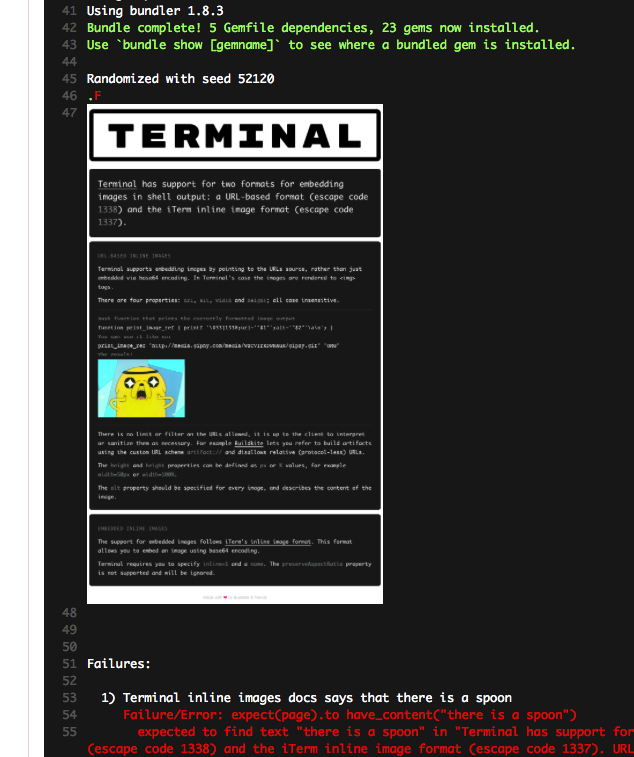
A Playwright port of capybara-inline-screenshot: screenshots from failed tests, rendered inline in your terminal and CI build logs.
In iTerm2:
In Buildkite:
Usage
npm install --save-dev playwright-inline-screenshotScreenshots are provided by Playwright's own failure capture, so enable it and add the reporter to your playwright.config.ts:
import { defineConfig } from "@playwright/test";

export default defineConfig({
  reporter: [["playwright-inline-screenshot"], ["list"]],
  use: {
    screenshot: "only-on-failure",
  },
});
That's it. When a test fails, its screenshot is written to your Playwright outputDir (default test-results/) and an inline image escape sequence is printed to stdout.
Any image/* attachment on a failed test is inlined, so screenshots you capture yourself with await page.screenshot() + testInfo.attach("screenshot", { path }) are rendered too.
API
If you want to inline an image outside of the failure flow (from globalSetup, scripts, etc.):
import { printInlineImage } from "playwright-inline-screenshot";

printInlineImage("tmp/screenshot.png");
Reporter options (all optional):
| Option | Description |
| ------------------ | ------------------------------------------------------------------------------------------------------------ |
| mode | "artifact", "iterm2", or "off" — force a mode instead of auto-detection |
| artifactBaseDir | Directory artifact paths are relative to (default: process.cwd()) — must match your artifact upload base dir |
| printFilePath | Also print a plain-text line naming the screenshot file (default: true) |
Artifact uploads
On CI, the reporter emits the Terminal artifact:// format, which expects the screenshot to be uploaded as a build artifact. Playwright's default output is the test-results/ directory, so the upload pattern is:
# .buildkite/pipeline.yml
steps:
  - command: npx playwright test
    artifact_paths: "test-results/**"
Fallback
Thanks to the wonder of ANSI escape codes, if your terminal client doesn't understand them it will simply ignore them — it'll be just like running Playwright without this reporter.
CI-mode
If the CI environment variable is present, screenshots are output in the Terminal artifact:// format with the expectation that the images are uploaded as build artifacts and inlined by your CI system. You can also force this mode by setting the environment variable PLAYWRIGHT_INLINE_SCREENSHOT=artifact.
If the CI environment variable is not present, screenshots are output in the base64 encoded iTerm2 image format for viewing in a local terminal. You can force this mode with PLAYWRIGHT_INLINE_SCREENSHOT=iterm2, or silence output entirely with PLAYWRIGHT_INLINE_SCREENSHOT=off.
Differences from capybara-inline-screenshot
- Playwright already captures failure screenshots natively (
use: { screenshot: "only-on-failure" }), so this package only needs to do the inlining — there is nothing to include in your tests. - iTerm2 sequences are emitted as a single escape; very large screenshots may be better served by artifact mode.
Releasing
CI runs the build and tests on every push and pull request. Releases publish to npm via trusted publishing (OIDC) — no npm token is stored in the repository.
One-time bootstrap
Trusted publishing can only be configured for a package that already exists on npm, so the first publish is manual:
npm login, then from the repo root:npm publish --access public.- On npmjs.com, open the package → Settings → Trusted publishing, and add a
trusted publisher: provider GitHub, owner
Djiit, repositoryplaywright-inline-screenshot, workflow.github/workflows/release.yml, environment (none).
Cutting a release
- Bump
versioninpackage.jsonand commit. - Push a matching tag:
git tag vX.Y.Z && git push origin vX.Y.Z.
The Release workflow then verifies the tag matches the package version, runs the build and tests, publishes to npm (with provenance, no token), and creates a GitHub release with generated notes.
License
See the LICENSE.md file for license rights and limitations (MIT).