
pulse-dashboard
v1.2.8
Published
A Next.js Dashboard application for real-time monitoring and historical analysis of Playwright test executions, based on playwright-pulse-report. This component provides the UI for visualizing Playwright test results and can be run as a standalone CLI too

Maintainers
 arghajit
Readme
Pulse Dashboard




Pulse Dashboard is a reusable Next.js component and standalone CLI tool designed to provide real-time monitoring and historical analysis of Playwright test executions. It helps development and QA teams to quickly identify issues, track test performance over time, and gain insights into failure patterns.
It can be: Run as a Standalone CLI Tool: Install globally or use with npx to quickly view reports.
[Note: Pulse Dashboard uses playwright-pulse-report generated data]
Key Features
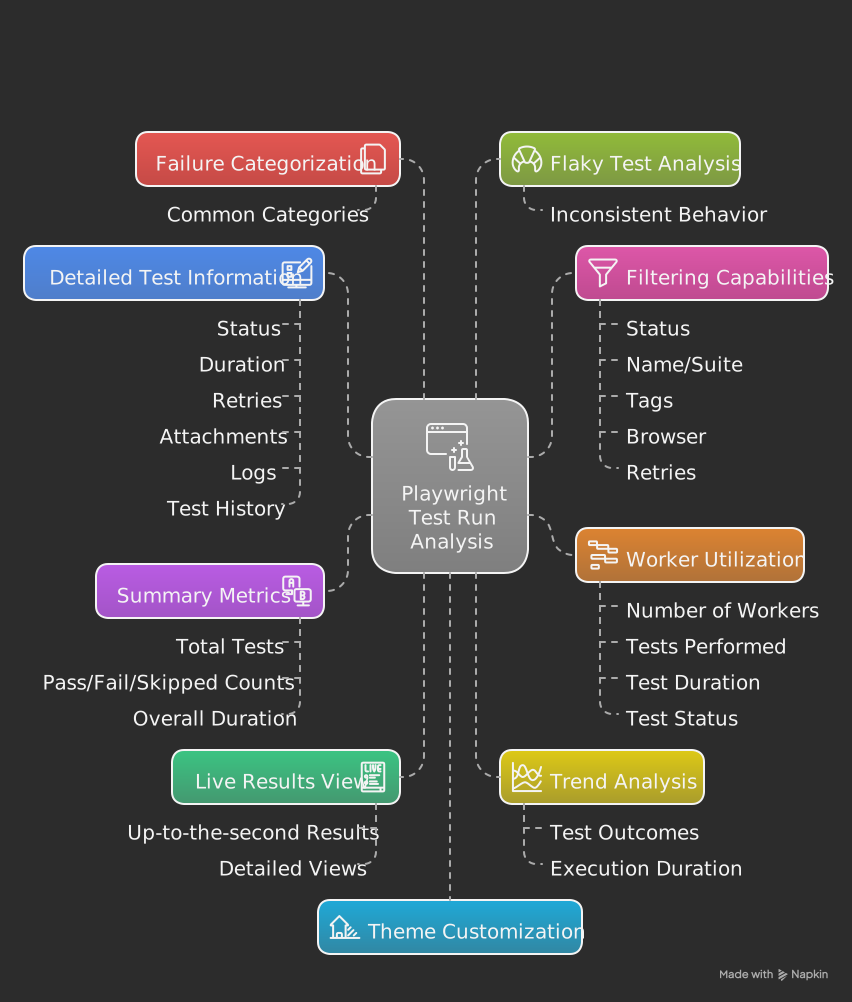
- Real-time Dashboard: View summary metrics (total, passed, failed, skipped, duration), test distribution charts, and system information from the latest test run.
- Test Results: Browse and filter test results by status, name, suite, tags, and browser. View detailed information for each test, including execution steps, error messages, and retries.
- Trend Analysis: Visualize historical data for test outcomes and duration over time to identify patterns and regressions.
- Flaky Test Analysis: Identify tests that have shown inconsistent pass/fail behavior across historical runs.
- Failure Categorization: Group common failure types based on error messages to quickly pinpoint systemic issues.
- Attachment Viewing:
- Screenshots: Displays images captured during test execution (sourced from the
screenshots: string[]field in each test result). - Videos: Allows viewing of video recordings of test runs (sourced from the
videoPath: string[]field). - Trace Files: Provides download links for Playwright trace files for in-depth debugging (sourced from the
tracePath: stringfield). - Other File Types: The UI includes tabs for HTML, PDF, JSON, Text/CSV, and other generic file types. Note: To populate these tabs, your
playwright-pulse-report.jsonwould need to include anattachmentsarray (or similar structured data) within each test result, where each element is an object like{ name: string, path: string, contentType: string }. Currently, these specific tabs are not populated directly from thescreenshots,videoPath, ortracePathfields.
- Screenshots: Displays images captured during test execution (sourced from the
- Export to CSV: Download the current run's test results as a CSV file for external analysis.
- Customizable Theme: Toggle between light and dark modes for optimal viewing.
- Responsive Design: Access the dashboard on various devices.
How to Use Pulse Dashboard
1. As a Standalone CLI Tool (Recommended for quick report viewing)
Install the package globally or use npx to run the dashboard directly.
Prerequisites:
- Node.js and npm/npx installed.
- playwright installed.
- Playwright-pulse-report npm package integrated into the playwright test repository (
playwright-pulse-report.jsonand optionalhistory/trend-*.jsonfiles) organized in apulse-reportdirectory.
Installation & Usage:
Using npx (Recommended for easy, one-time use): Navigate to your project directory that contains the
pulse-reportfolder (with yourplaywright-pulse-report.jsoninside it), and run:npx pulse-dashboardThis will download and run the latest version of Pulse Dashboard without a global installation.
Custom Output Directory Support: If you're using a custom output directory in your
playwright-pulse-reportconfiguration, Pulse Dashboard will automatically detect it from yourplaywright.config.ts/jsfile. Alternatively, you can specify it explicitly:npx pulse-dashboard --output-dir custom-report-folder # OR using short form npx pulse-dashboard -o custom-report-folderCustom Port Configuration: You can specify a custom port for the dashboard server using either a CLI flag or environment variable. This is especially useful for Docker, cloud deployments, CI environments, or shared servers:
# Using CLI flag
npx pulse-dashboard --port 8080
# OR using short form
npx pulse-dashboard -p 8080

# Using environment variable
PORT=8080 npx pulse-dashboard

# Combining custom output directory and port
npx pulse-dashboard --output-dir custom-report --port 3000

# In Docker/CI environments
PORT=8080 npx pulse-dashboard -o /app/reports
Port Precedence: CLI flag (
--port) > Environment variable (PORT) > Default (9002)[NOTE: user does not need to navigate inside
pulse-reportfolder]Global Installation (if you use it frequently):
npm install -g pulse-dashboardThen, navigate to your project directory that contains the
pulse-reportfolder (not insidepulse-reportfolder) and run:npm run pulse-dashboard
The dashboard will start on the specified port (default: http://localhost:9002) and serve data from the pulse-report directory located in your current working directory.
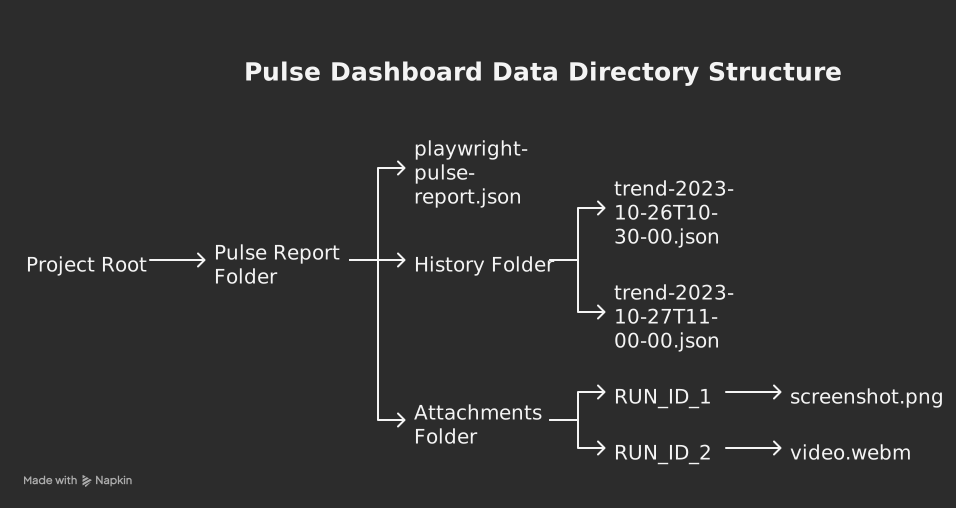
Data Directory Structure for CLI Usage:
When you run pulse-dashboard or npx pulse-dashboard, it expects the following structure in the directory from where you run the command:
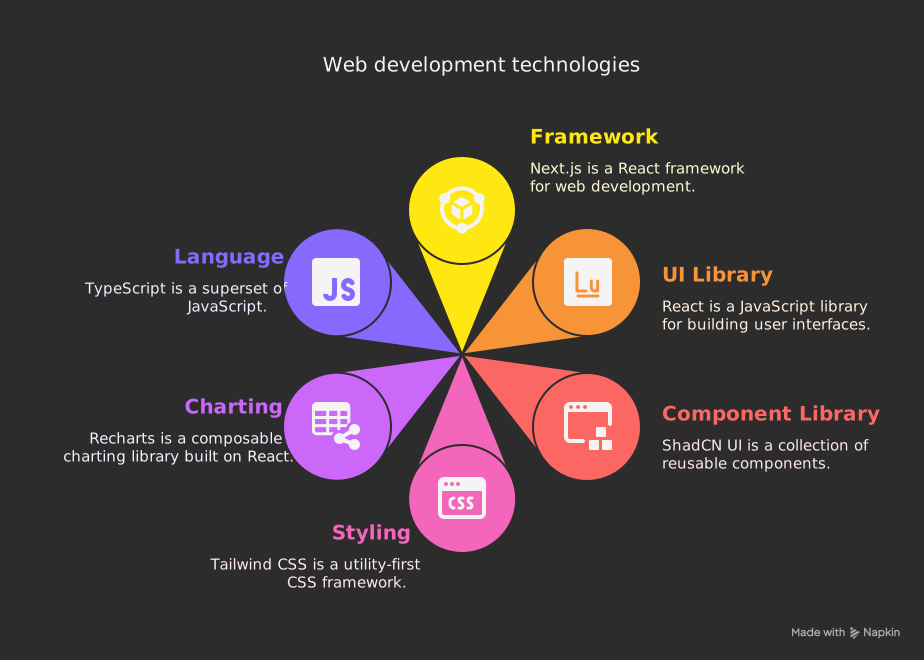
Technical Stack (of this Dashboard Project/Component Package)
NPM Scripts (for developing this project)
npm run pulse-dashboard: Starts the Next.js development server for standalone source viewing.
Thank You
Special Thanks to @Suman Vishwakarma for continuous UAT feedback and @Sagnik Ghosh for continuous development related help.
View the Live Documentation
License
This project is licensed under the MIT License.