
pushtodisplay
v0.1.18
Published
PushToDisplay CLI and MCP server — send real-time updates to display boards from your terminal or AI agents

Maintainers
 sourceshipper
Readme
pushtodisplay
Command-line interface and MCP server for Push To Display — send real-time updates to display boards from your terminal or AI agents.
Get the app
Turn any screen into a live display board — get Push to Display on iOS and Android.


Install
Run directly with npx (no install needed):
npx pushtodisplay --helpOr install globally:
npm install -g pushtodisplayRequires Node.js 18+. See the PushToDisplay documentation for guides, use cases, and API details.
Quick start
# Log in (opens browser)
pushtodisplay auth login

# Send an update (uses your default board)
pushtodisplay send "Hello, Display!"

# Send to a specific board
pushtodisplay send -b <board-id> "Deploy completed"

# List your boards
pushtodisplay boards list
Authentication
Log in with your Push To Display account — the same account you use in the mobile app.
Browser login (default)
pushtodisplay auth loginOpens your browser. Sign in and the CLI receives your credentials automatically.
Device code login (headless)
For machines without a browser — SSH sessions, containers, or remote servers:
pushtodisplay auth login --device-codeThe CLI prints a URL and a one-time code. Open the URL on any device, enter the code, and approve the login.
Credentials are stored in your OS keychain (macOS Keychain, Linux libsecret, Windows Credential Manager). Falls back to ~/.config/pushtodisplay/ if the keychain is unavailable.
# Check auth status
pushtodisplay auth status

# Machine-readable status for scripts/agents (exit 0 = authenticated)
pushtodisplay auth status --json

# Log out (clear stored credentials)
pushtodisplay auth logout
auth status reports effective auth: an expired access token is still
reported as authenticated when a valid refresh token can renew it transparently
(a will refresh automatically note is shown instead of the raw token expiry).
It exits 0 when authenticated and 1 when not, so it is safe to gate
scripts on it.
{
  "authenticated": true,
  "method": "oauth",
  "accessTokenExpired": true,
  "canRefresh": true,
  "sessionExpiresAt": "2026-06-01T00:00:00.000Z"
}
Commands
send
Send a display update to a board.
# Simple text
pushtodisplay send -b my-board-id "Deploy succeeded"

# Styled text
pushtodisplay send -b my-board-id "Status" --size large --weight bold --color "#00FF00"

# Multiple blocks
pushtodisplay send -b my-board-id "Build:" "passing" --color "#22C55E"

# Panel targeting with layout options
pushtodisplay send -b my-board-id --panel 2 "Right panel content"
pushtodisplay send -b my-board-id --panel 1 --full-panel --density compact --align-x center "Alert"

# Per-block styling with JSON (repeatable)
pushtodisplay send -b my-board-id \
  --block '{"text": "API Health", "size": "large", "weight": "bold"}' \
  --block '{"text": "Uptime: 99.97%", "color": "#22C55E"}'

# Pipe a full JSON payload from stdin
echo '{"boardId":"my-board-id","blocks":[{"text":"From pipe"}]}' | pushtodisplay send --stdin
If no -b flag is provided, the server uses your default board.
Style flags
| Flag | Values | Description |
| -------------- | ----------------------------- | ---------------- |
| -s, --size | small, medium, large | Text size |
| -w, --weight | regular, semibold, bold | Font weight |
| -c, --color | Hex color (#RRGGBB) | Text color |
| --background | Hex color (#RRGGBB) | Background color |
Panel flags
| Flag | Values | Description |
| -------------- | --------------------------------- | -------------------------- |
| -p, --panel | 1–4 | Target panel number |
| --full-panel | — | Fill the entire panel area |
| --density | compact, standard, spacious | Content spacing |
| --align-x | start, center, end | Horizontal alignment |
| --align-y | start, center, end | Vertical alignment |
Other flags
| Flag | Description |
| ---------------- | --------------------------------- |
| -b, --board | Board ID |
| --block <json> | Styled block as JSON (repeatable) |
| --stdin | Read full JSON request from stdin |
boards
pushtodisplay boards list              # List all boards
pushtodisplay boards get <id>          # Get board details
pushtodisplay boards create -n "Name"  # Create a board
pushtodisplay boards create -n "Dash" -l 4  # Create with a layout
pushtodisplay boards delete <id>       # Delete a board
Create options:
| Flag | Description |
| ------------------- | --------------------- |
| -n, --name | Board name (required) |
| -d, --description | Board description |
| -l, --layout | Layout ID |
devices
pushtodisplay devices list # List active device-board streamsconfig
pushtodisplay config              # Show current configuration
pushtodisplay config show         # Same as above
JSON output
Add --json to any command for machine-readable output:
pushtodisplay boards list --json
pushtodisplay send -b my-board "test" --json
Configuration
Configuration is resolved in order: environment variables → config file → defaults.
| Env var | Description | Default |
| ----------------- | ----------------- | ------------------------------------ |
| PTD_API_URL | API endpoint | https://api.pushtodisplay.com |
| PTD_SERVICE_URL | Service endpoint | https://services.pushtodisplay.com |
| PTD_IDP_URL | Identity provider | https://idp.pushtodisplay.com |
| PTD_CONFIG_DIR | Config directory | ~/.config/pushtodisplay |
MCP server
The CLI includes a built-in Model Context Protocol server, giving AI agents (Claude, Cursor, VS Code Copilot, and others) direct access to your display boards.
The MCP server inherits your CLI session — if you've run pushtodisplay auth login, it authenticates automatically.
Setup
Claude Code
claude mcp add pushtodisplay -- npx pushtodisplay mcpClaude Desktop
Add to ~/Library/Application Support/Claude/claude_desktop_config.json (macOS) or %APPDATA%\Claude\claude_desktop_config.json (Windows):
{
  "mcpServers": {
    "pushtodisplay": {
      "command": "npx",
      "args": ["pushtodisplay", "mcp"]
    }
  }
}
Cursor
Open Settings → MCP Servers → Add Server, or edit .cursor/mcp.json:
{
  "mcpServers": {
    "pushtodisplay": {
      "command": "npx",
      "args": ["pushtodisplay", "mcp"]
    }
  }
}
VS Code (GitHub Copilot)
Add to .vscode/mcp.json:
{
  "servers": {
    "pushtodisplay": {
      "command": "npx",
      "args": ["pushtodisplay", "mcp"]
    }
  }
}
Other MCP clients
Any MCP client that supports stdio transport can use Push To Display. The server command is:
npx pushtodisplay mcpAvailable MCP tools
| Tool | Description |
| --------------------------------- | --------------------------------------------- |
| pushtodisplay_send_update | Send content to a board |
| pushtodisplay_list_boards | List all boards |
| pushtodisplay_get_board | Get details of a board |
| pushtodisplay_create_board | Create a new board |
| pushtodisplay_update_board | Update a board's name, description, or layout |
| pushtodisplay_set_default_board | Set a board as your default |
| pushtodisplay_delete_board | Delete a board permanently |
| pushtodisplay_list_devices | List active device connections |
Commands at a glance
| Command | Description |
| -------------------- | ------------------------------- |
| auth login | Log in (browser or device code) |
| auth logout | Remove stored credentials |
| auth status | Show current auth status |
| send [text...] | Send a display update |
| boards list | List your boards |
| boards get <id> | Get board details |
| boards create | Create a new board |
| boards delete <id> | Delete a board |
| devices list | List active device connections |
| config | Show current configuration |
| mcp | Start the MCP server |
API key authentication
For CI/CD pipelines and scripts where interactive login isn't available, you can authenticate with an API key. Create one from the mobile app or the web portal. API keys start with pt_.
# Via environment variable
export PTD_API_KEY=pt_your_key_here
pushtodisplay send "From CI"

# Or store in keychain
pushtodisplay auth login --api-key pt_your_key_here
Note: API key auth only supports the
sendcommand. Useauth loginfor full access to boards, devices, and config management.
Screenshots
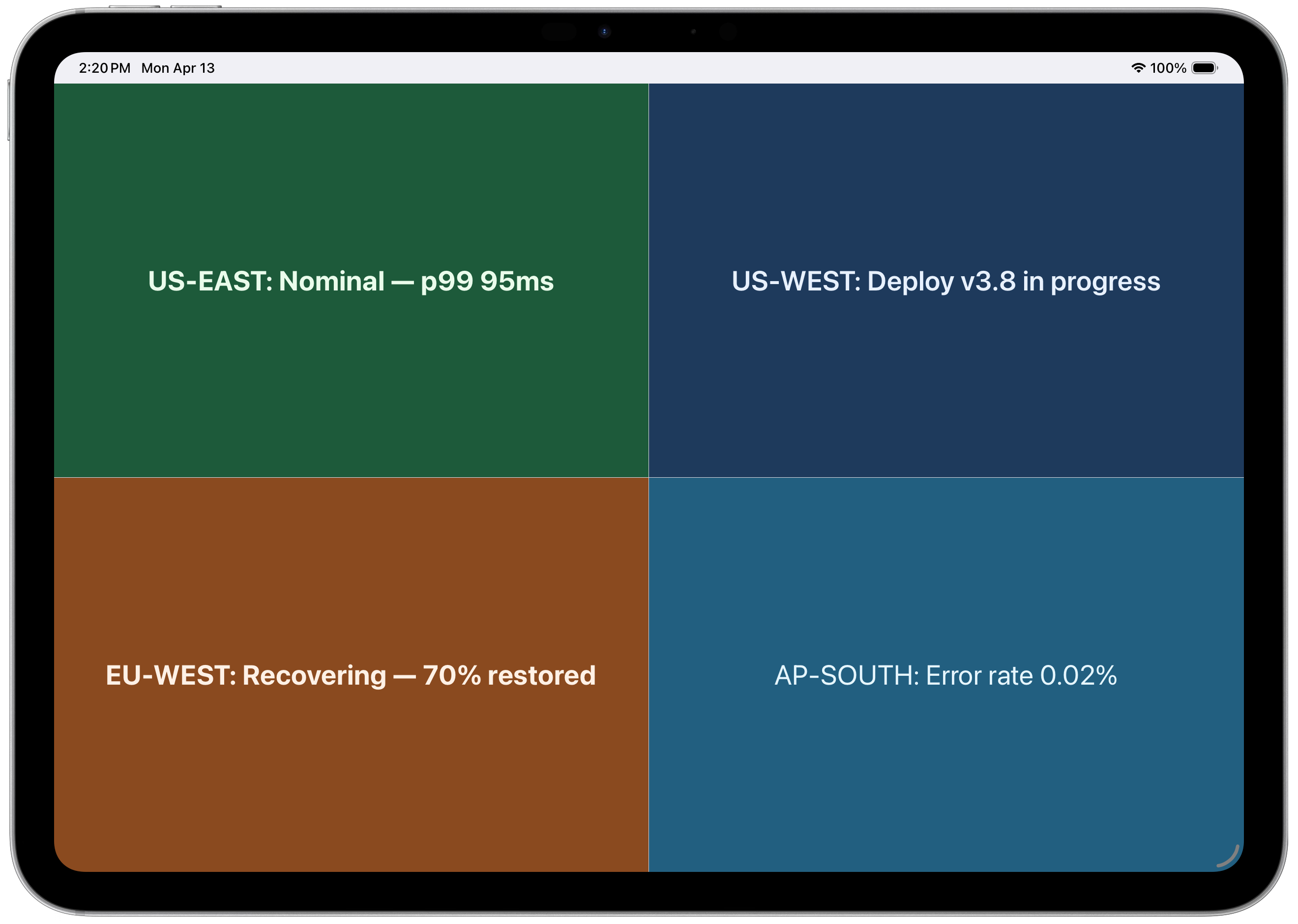
4-panel layout — regional status at a glance
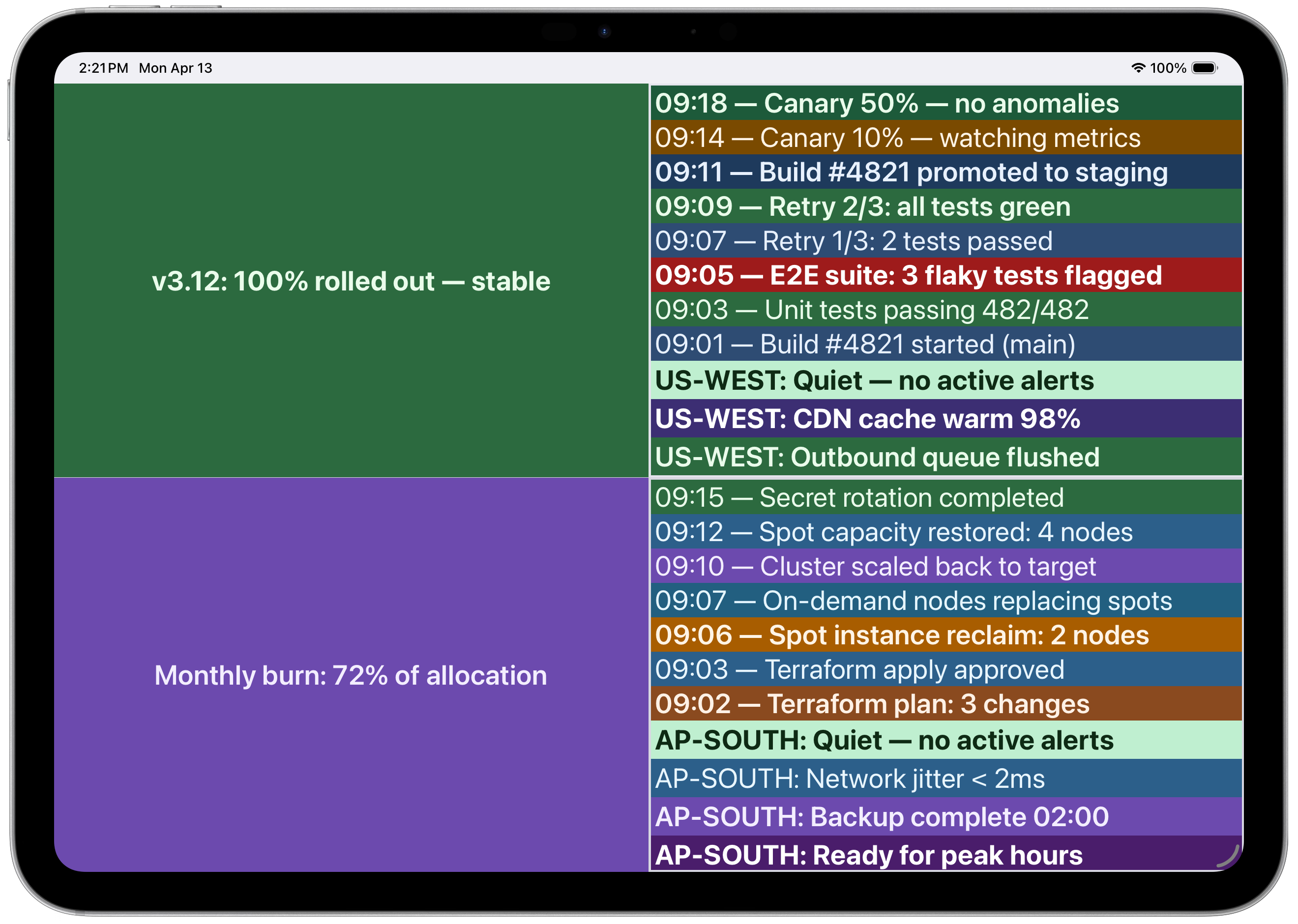 Multi-panel with CI/CD pipeline and infrastructure logs
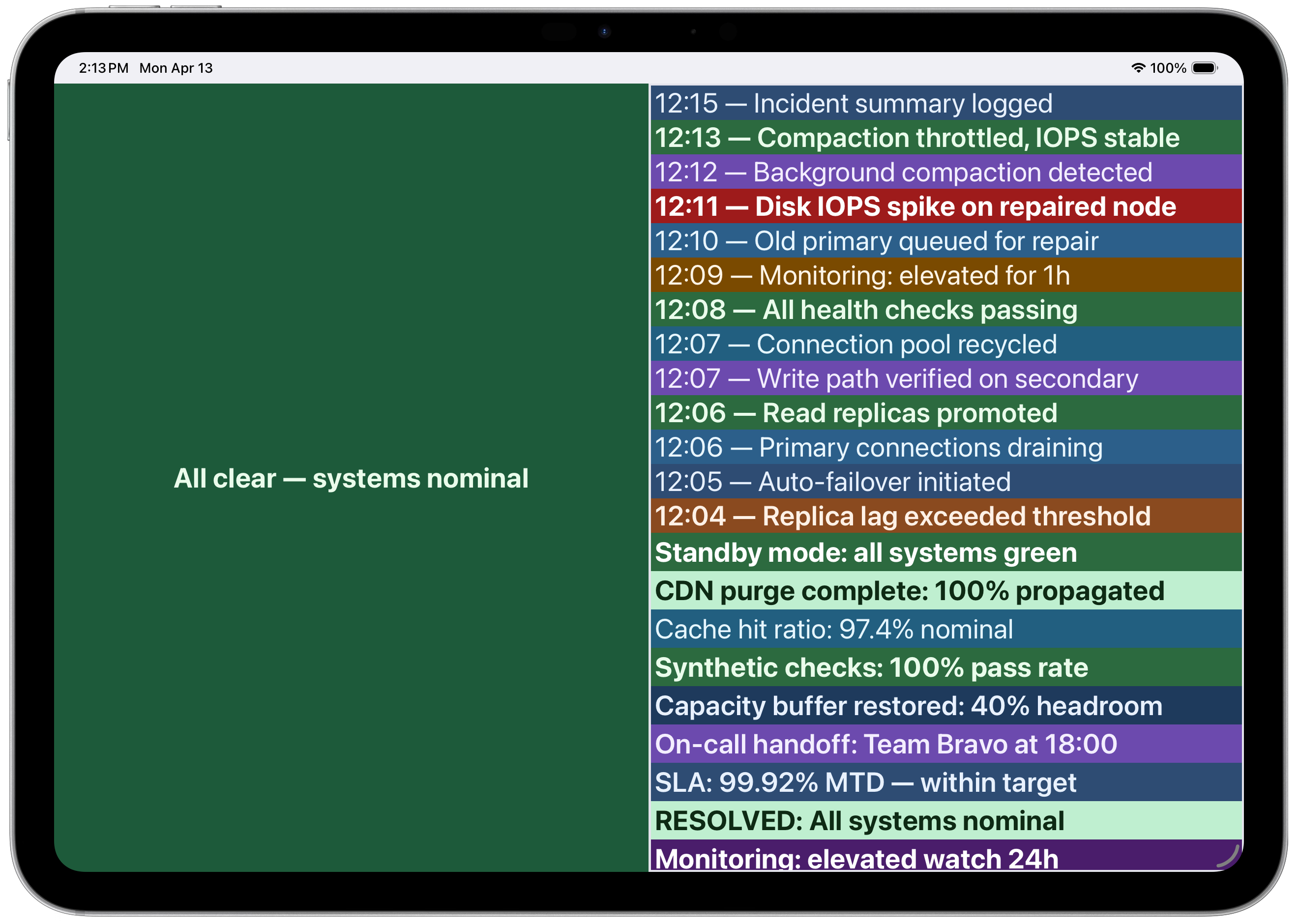 Incident timeline with color-coded severity