
pw-space
v1.2.1
Published
To make it easy for you to get started with GitLab, here's a list of recommended next steps.


Readme
Pw-space
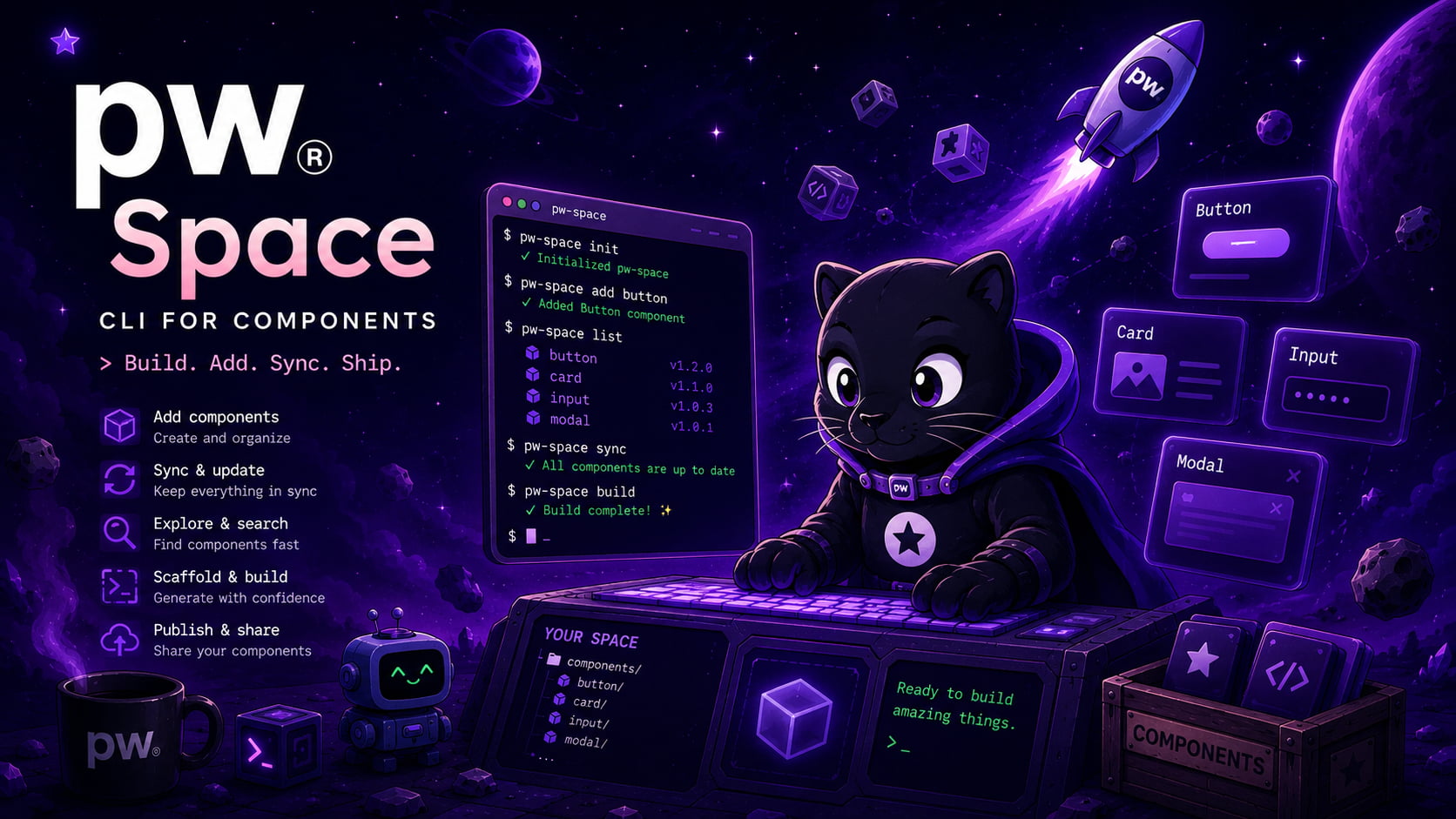
pw-space is a CLI application for working with a Paraweb component module library.
It gives you a local GUI for browsing and managing modules, and a headless CLI for scripting the same workflows (downloading modules/sets, generating manifests, browsing the library) without a browser — handy for automation and CI.
The module library ecosystem is based on paraweb.space.
Requirements
- Node.js 18 or newer
Overview
This package provides:
- a GUI, opened locally, for interactively managing your module library
- a headless CLI covering the same core operations (download, list, generate manifests) for scripting and CI, without opening a browser after the initial login
- tooling for working with a module library connected to the Paraweb platform, including support for multiple GitLab template repositories per project
Run with npx
npx pw-spaceWith no arguments, this starts the local GUI (see GUI below). Every other CLI capability is available as a subcommand — see CLI Commands.
Authentication
You need an authorized account on paraweb.space to use either the GUI or the CLI.
The GUI and the headless CLI keep separate sessions:
- The GUI authenticates in the browser tab it opens (the session lives there).
- The CLI has its own session, established once via
pw-space loginand stored locally on disk — it's independent of any GUI login and is what the headless commands below use.
pw-space login briefly opens your system browser for the GitLab OAuth consent screen, then
returns control to the terminal. It needs port 4999 free to receive the redirect — close the
GUI first if it's running. Use pw-space logout to clear the stored CLI session.
GUI
Running pw-space (or pw-space gui explicitly) starts a local GUI server, intended to
simplify common module library operations with a more visual workflow than the CLI commands
alone.
CLI Commands
All commands below (except gui) require a CLI session — run pw-space login first — and are
meant to be run from inside a pw-space project directory (one containing
.pw-space/manifest.json), the same way you'd normally use the GUI from that project.
pw-space login / pw-space logout
Establish or clear the CLI's own GitLab session (see Authentication).
pw-space init
Scaffolds a new pw-space project from the astro-template — the CLI counterpart to the GUI's "create project" flow.
pw-space init --name my-project --path ./my-project--name <name>— project name; defaults to the target directory's own name if omitted--path <path>— target directory; defaults to the current directory--repo-id <id>— GitLab template repo id; defaults to666--storybook-url <url>— Storybook URL override for this project (optional)--non-interactive— fail instead of prompting for--repo-id/--storybook-url(the name still falls back to the directory name rather than failing)
pw-space download-module <name>
Downloads a module — and, recursively, any of its declared module dependencies — into the current project.
pw-space download-module buttonIf a module in that dependency tree is already installed, the command stops and asks what to do with it — see Handling conflicts below. Flags:
--overwrite <names...>— pre-approve overwriting these already-installed modules--skip <names...>— pre-approve leaving these already-installed modules untouched--overwrite-all— auto-confirm every conflict as an overwrite, no prompts--non-interactive— fail on any unapproved conflict instead of prompting (for CI)
pw-space download-set <name>
Same as download-module, but for a named module set (a curated group of modules) — same
flags, same conflict handling, applied across every module in the set.
pw-space download-set landing-pagepw-space add-manifest
Creates a manifest.json for a local module — prompts for name, version, description, status,
type, environment, and Storybook path, or takes each as a flag to skip the prompt.
pw-space add-manifest \
  --name button --version 1.0.0 --storybook-path /storybook/button \
  --status stable --type component --environment client server \
--non-interactive--name,--description,--version,--storybook-path,--status,--type,--environment <env...>,--sets <names...>— any field passed as a flag skips its prompt;--versiondefaults to1.0.0if omitted--non-interactive— fail instead of prompting for any field not passed as a flag
If a module with the same name already exists in the library, this doesn't block creating the local manifest — it's a common case when iterating on a new version of an already-published module — the command just prints a warning and proceeds.
pw-space list-modules
Lists modules available in the project's template library.
pw-space list-modules --query button--query <text>— filter by name--page <n>— page number (20 per page)--json— print raw JSON instead of a table (for scripting)
pw-space list-sets
Lists the module sets available in the library, with their member modules. Same
--query/--page/--json flags as list-modules.
pw-space list-local-modules
Lists modules already present in the current project.
pw-space list-local-modules --missing-manifestSame --query/--page/--json flags, plus:
--missing-manifest— only show modules that don't have amanifest.jsonyet (useful before runningadd-manifest)
pw-space show-module <name>
Prints full manifest details for one library module — version, dependencies, devDependencies, moduleDependencies, Storybook path, status/type/environment, and which sets it belongs to.
pw-space show-module button --jsonHandling conflicts when downloading
download-module/download-set never silently overwrite an already-installed module. When one
is found, you're asked to choose:
- Overwrite — replace it with the library's current version (and re-check its own dependencies, since they may have changed)
- Skip — leave it exactly as it is and continue with everything else being downloaded, instead of aborting the whole command
- Cancel — stop the whole operation; nothing on disk has been touched yet at that point
Conflicts are resolved one at a time. Nothing is written to your project until every conflict in the current run has been resolved.
Scripting / CI usage
The CLI is designed to be script-friendly:
pw-space login
pw-space download-module button --overwrite-all
pw-space list-local-modules --json | jq '.data[].name'
Use --json on the list-* commands for machine-readable output, and --non-interactive on
download-module/download-set so an unapproved conflict fails the run instead of hanging on a
prompt that has no terminal to answer it.
Environment variables
PW_SPACE_AUTH_SERVICE_URL— overrides the auth servicepw-space login/logouttalk to. Only needed if you're pointing the CLI at a non-default (e.g. self-hosted or staging) auth service.
Local Development
Install dependencies:
npm installRun tests:
npm testBuild the package:
npm run buildLicense
ISC