
react-dnd-crop
v1.1.10
Published
React custom Drag and drop with Cropper

Maintainers
 sowndapan
Readme
React Drag And Drop With Cropper
Demo
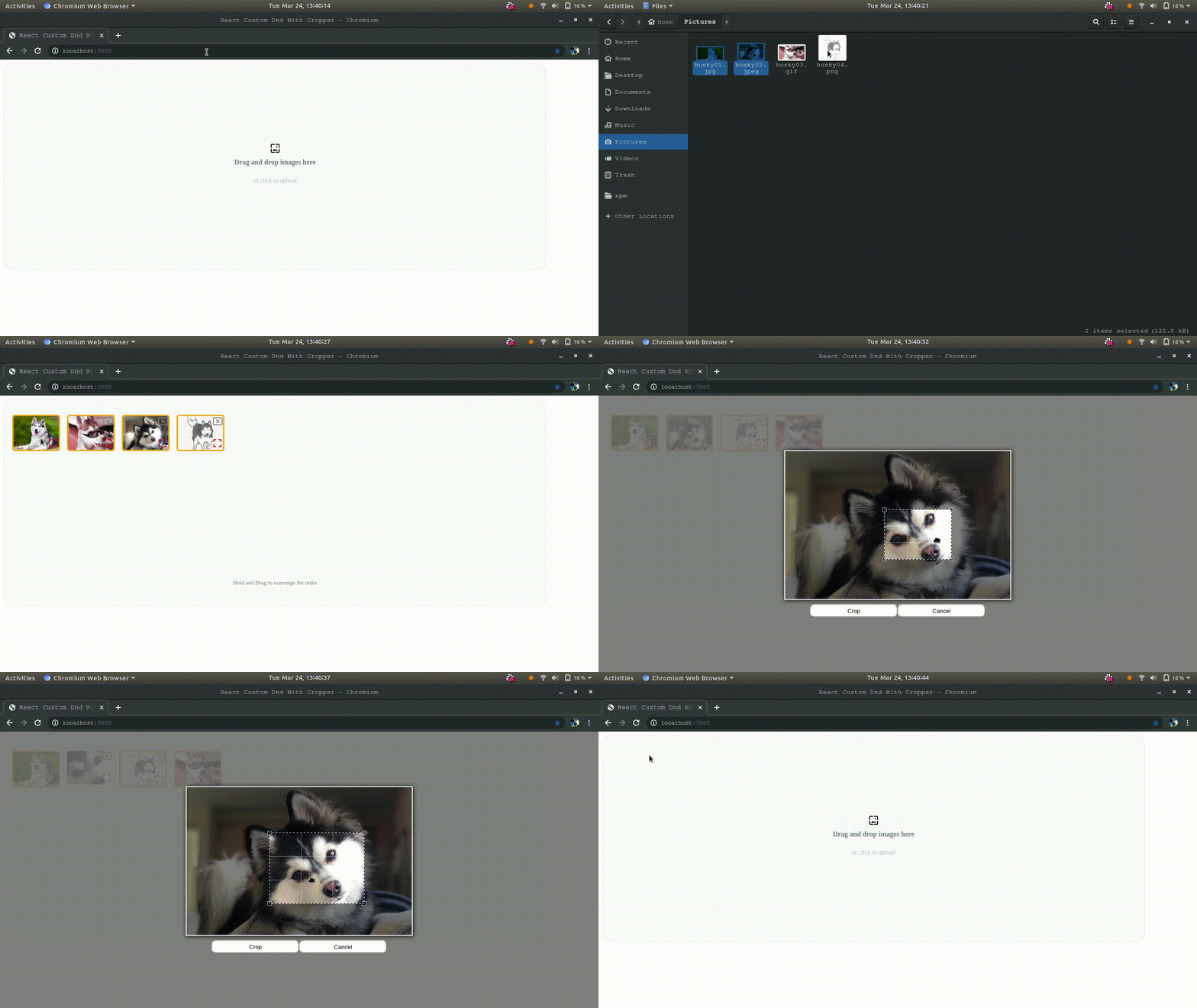
Tabel of Contents
- Features
- Installation
- Usage
- Example
- Props
- Quick Example
Features
- Responsive (you can use pixels or percentages).
- Upload / Browse images.
- Crop with custom crop size and can be disabled.
- Free Crop is also avilable.
- No Document Manipulation.
- Standard image formats are accepted.
- Images with Errors are highlighted with different color.
- Drag and Drop can be done both row and colomn wise.
- Customizable images and buttons.
Installation
npm i react-custom-dnd --saveUsage
import Dnd from "react-custom-dnd";Example
function DndDemo() {
  const callback = payload => {
    if (payload.error) return console.log(payload.error);
    console.log(payload);
  };
  return <Dnd callback={callback} />;
}
Props
Except Callback all the props are optional
Callback
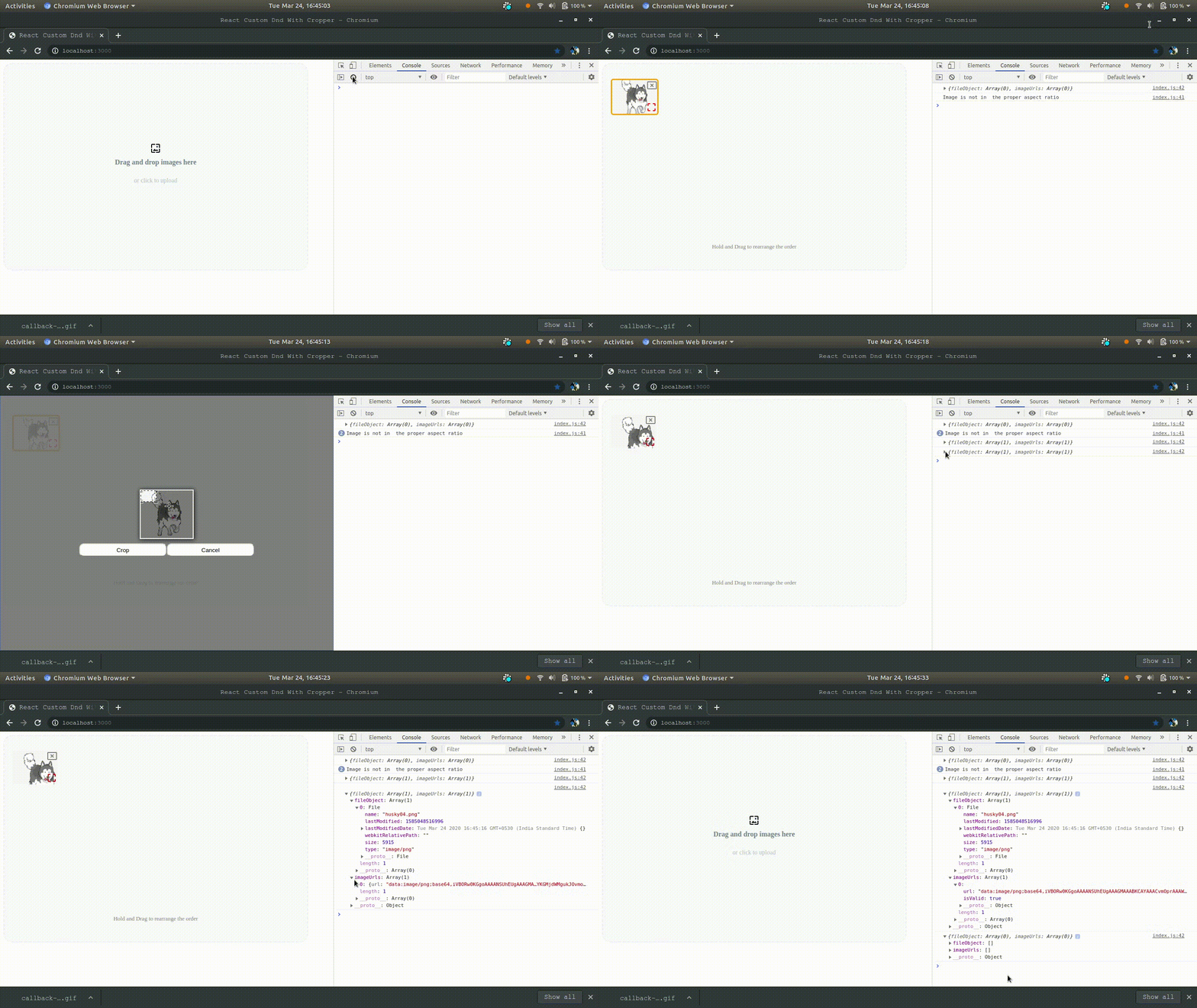
Callback is invoked when onMouseOut React Event occur on the Dnd.
const callback = payload => {
  if (payload.error) return console.log(payload.error);
  console.log(payload);
};
Normal Response
After all the required validation (like crop ratio,image type etc,.) are done the payload will contain
payload: {
  fileObject: [],//contains file object of the images uploaded,
  imageUrls:[],//contains the data url of the image uploaded
}
Error Response
payload: {
  error: ""; // Error like crop ratio,image type, etc,.
}
CallBack Demo
Crop
To enable Crop use crop props, by default false
<Dnd crop />or
<Dnd crop = true />you can disable it by passing props crop = false
<Dnd crop = false />or
<Dnd />Crop Ratio
Crop ratio helps to crop the image in a required aspect ratio.
const cropRatio = {
  unit: "%",
  width: 30,
  aspect: 5 / 3 //aspect ratio is 5/3
};

/*
Default value involves
  unit: "%"
  width: 30
  aspect: 4 / 3
*/

<Dnd cropRatio={cropRatio} />;
It works fine even unit and width is not mentioned.
const cropRatio = {
  unit: "%",
  width: 30
};
If aspect ratio is not given default will be 4:3
Free Crop
If freeCrop is enabled, you can crop in any ratio but crop validation is not done. By default false
<Dnd freeCrop={true}>Crop preview
Mentioning unit and width (By Default)

By default Crop is initiated
Without mentioning unit and width
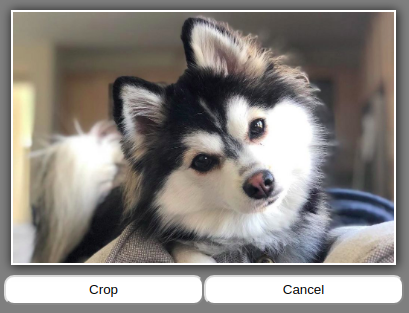
You have to initiate the crop here.
Maximum Image Uploads
Maximum images that can be uploaded. Default value is 12.
<Dnd maxImageUpload = 12 />MimeType
The MimeTypes can be mentioned with seperator / like jpeg/png.
By default it supports jpeg/jpg/gif/png
<Dnd mimeType="png/jpeg/jpg/gif" />MimeType Example
<Dnd mimeType="png" />               //If you want to upload only png
<Dnd mimeType="png/jpg" />           //If you want to upload png and jpg
//like so...
Label and Sub Label
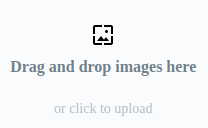
Default Label is Drag and drop images here.
<Dnd label="Drag and drop images here" subLabel="or click to upload" />Label Preview
Message
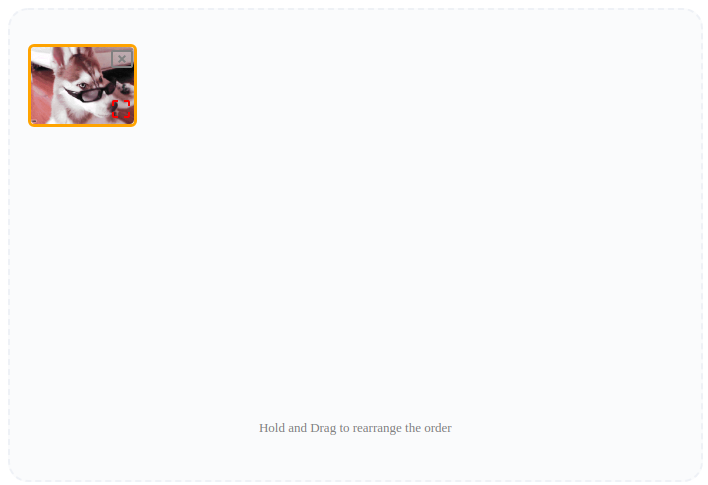
Default Message is Hold and Drag to rearrange the order.
<Dnd message="Hold and Drag to rearrange the order" />Message Preview
Error Messages
Error Messages includes
const errorMessages = {
  maxImageUpload: "You Cant Upload More than 3 images",
  imageFormat: "This image Format is not Supported",
  aspectRatio: "Image is not in  the proper aspect ratio"
};
/*
Default Error Messages
  maxImageUpload: "You Cant Upload More than 12 Files"
  imageFormat: "Only Jpeg/Jpg/Png/Gif Allowed"
  aspectRatio: "Image is not in  the proper aspect ratio"
*/
<Dnd errorMessages={errorMessages} />;
these messages will return in payload.
Icons
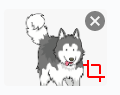
You can change label,cancel and crop icons
const icons = {
  labelIcon: , // Your icon goes here
  cancelIcon: , // Your icon goes here
  cropIcon:  // Your icon goes here
};

<Dnd icons={icons} />;
Icons preview (By Default)

Button Value
Button values includes Crop and Cancel by default.You can change that by using buttonvalues props.
const buttonvalue = {
  cancelButton: "Cancel", //optionl
  cropButton: "Confrim" // required
};
/*
  cancelButton: "Cancel",
  cropButton: "Crop"
*/

<Dnd buttonvalue={buttonvalue} />;
Button preview 1
 ;
;
const buttonvalue = {
  cropButton: "Confrim"
};
/*
  cancelButton: "Cancel",
  cropButton: "Crop"
*/

<Dnd buttonvalue={buttonvalue} />;
Button preview 2
 ;
;
Styles
const style = {
  //styles
}

<Dnd style={style} />
Styles you can change
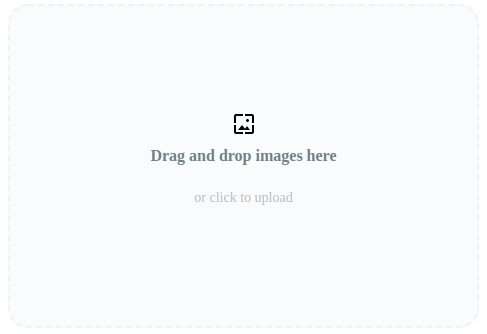
Drag and Drop Area Styles
You can only change width and height
 DRAG_AND_DROP_AREA: {
    width: "60%", // width of the drag and drop area
    height: "300px" // height of the drag and drop area
  }
Drag and Drop Area preview
Message Styles
You can only change top, fontsize, color
  DRAG_AND_DROP_MESSAGE: {
    top: "400px",
    fontSize: "small", //font size of the message
    color: "grey" // color of the message
  }
Message preview
Crop and Cancel Button Styles
You can add any styles, they are not fixed
Note : The styles you provide here may affect the Crop Modal
 CROP_BUTTON: {
    background: "green", // background of the crop button
    color: "white", // color of the crop button
    width: "200px" //  width of the crop button
  },
  CANCEL_BUTTON: {
    background: "red", //background of the cancel button
    color: "white", //color of the cancel button
    width: "200px" //width of the cancel button
  },
Crop and Cancel Button preview

Crop and Cancel Icon Styles
You can only change these properties.
  DRAG_AND_DROP_AREA_ITEM_CANCEL_ICON: {
    color: "grey",
    float: " right",
    top: "",
    bottom: "",
    left: "",
    right: "",
    cursor: "pointer",
    position:"relative"
  },
  DRAG_AND_DROP_AREA_ITEM_CROP_ICON: {
    color: "red",
    float: " right",
    top: "50px",
    bottom: "",
    left: "23px",
    right: "",
    cursor: "pointer",
    position:"relative"
  },
Crop and Cancel Icon preview
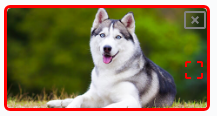
Drag And Drop Area Item Styles
You can only change these properties. The red border around it refers that the image is not in the proper aspect ratio
  DRAG_AND_DROP_AREA_ITEM: {
      width: "200px",
      height: "100px",
      margin: "8px",
      textAlign: "center",
      borderRadius: "6px"
  }
  DRAG_AND_DROP_AREA_ITEM_ERROR: {
    border: "3px solid red" // If image is not in the proper aspect ratio the border will change to given color
  }
Drag And Drop Area Item preview
Entire Style Object
You can change the styles, otherwise the default styles will appear.
const style = {
  DRAG_AND_DROP_AREA: {
    width: "90%", // width of the drag and drop area
    height: "450px" // height of the drag and drop area
  },
  DRAG_AND_DROP_MESSAGE: {
    top: "400px",
    fontSize: "small", //font size of the message
    color: "grey" // color of the message
  },
  CROP_BUTTON: {
    background: "green", // background of the crop button
    color: "white", // color of the crop button
    width: "200px" //  width of the crop button
  },
  CANCEL_BUTTON: {
    background: "red", //background of the cancel button
    color: "white", //color of the cancel button
    width: "200px" //width of the cancel button
  },
  DRAG_AND_DROP_AREA_ITEM_CANCEL_ICON: {
    color: "grey",
    float: " right",
    top: "",
    bottom: "",
    left: "",
    right: "",
    cursor: "pointer"
  },
  DRAG_AND_DROP_AREA_ITEM_CROP_ICON: {
    color: "red",
    float: " right",
    top: "50px",
    bottom: "",
    left: "23px",
    right: "",
    cursor: "pointer"
  },
  DRAG_AND_DROP_AREA_ITEM: {
    width: "103px",
    height: "77px",
    margin: "8px",
    textAlign: "center",
    borderRadius: "6px"
  },
  DRAG_AND_DROP_AREA_ITEM_ERROR: {
    border: "3px solid red" // If image is not in the proper aspect ratio the border will change to given color
  }
};
Quick Example
In the following Example, Material UI Icons are used.
import React from "react";
import { render } from "react-dom";
import Dnd from "../src";
import CancelPresentationIcon from "@material-ui/icons/CancelPresentation";
import WallpaperIcon from "@material-ui/icons/Wallpaper";
import CropFreeIcon from "@material-ui/icons/CropFree";

const DemoComponent = () => {
  const callback = payload => {
    if (payload.error) return console.log(payload.error);
    console.log(payload);
  };
  const cropRatio = {
    unit: "%",
    width: 30,
    aspect: 4 / 3
  };
  const maxImageUpload = 20;
  const buttonvalue = {
    cancelButton: "Cancel",
    cropButton: "Crop"
  };
  const style = {
    DRAG_AND_DROP_AREA: {
      width: "60%",
      height: "300px"
    },
    DRAG_AND_DROP_MESSAGE: {
      top: "250px",
      fontSize: "small",
      color: "grey"
    },
    CROP_BUTTON: {
      background: "green",
      color: "white",
      width: "200px"
    },
    CANCEL_BUTTON: {
      background: "red",
      color: "white",
      width: "200px"
    },
    DRAG_AND_DROP_AREA_ITEM_CANCEL_ICON: {
      color: "grey",
      float: " right",
      top: "",
      bottom: "",
      left: "",
      right: "",
      cursor: "pointer"
    },
    DRAG_AND_DROP_AREA_ITEM_CROP_ICON: {
      color: "red",
      float: " right",
      top: "50px",
      bottom: "",
      left: "23px",
      right: "",
      cursor: "pointer"
    },
    DRAG_AND_DROP_AREA_ITEM: {
      width: "200px",
      height: "100px",
      margin: "8px",
      textAlign: "center",
      borderRadius: "6px"
    },
    DRAG_AND_DROP_AREA_ITEM_ERROR: {
      border: "3px solid red"
    }
  };
  const errorMessage = {
    maxImageUpload: "You Cant Upload More than 3 images",
    imageFormat: "This image Format is not Supported",
    aspectRatio: "Image is not in  the proper aspect ratio"
  };
  const icons = {
    labelIcon: <WallpaperIcon />,
    cancelIcon: <CancelPresentationIcon />,
    cropIcon: <CropFreeIcon />
  };
  return (
    <Dnd
      callback={callback}
      maxImageUpload={maxImageUpload}
      mimeType="png/jpeg/jpg/gif"
      label="Drag and drop images here"
      subLabel="or click to upload"
      message="Hold and Drag to rearrange the order"
      errorMessages={errorMessage}
      crop
      cropRatio={cropRatio}
      icons={icons}
      buttonvalue={buttonvalue}
      style={style}
    />
  );
};

export default DemoComponent;