
react-json-view-next
v2.0.0
Published
Interactive JSON viewer component for React 19 with Base16 theming and strict TypeScript

Maintainers
 jericbas
Readme


react-json-view-next
🚧 Under Construction: This package is newly modernized and upgraded (React 19 support, TypeScript rewrite, tree-shakeable plugin architecture, and automated CI/CD pipelines). There might still be some unexpected issues or edge cases—if you run into anything, please feel free to open an issue or submit a pull request!
🚀 Live Storybook Demo & Documentation: https://jericbas.github.io/react-json-view-next/
ℹ️ Repository & Versioning Note:
- Version 1 (
v1.x): Represents the original repository (mac-s-g/react-json-view) created by Mac Gainor. The original codebase and final release (v1.21.3) are preserved on themainbranch and tagged asv1.21.3.- Version 2 (
v2.x): Represents this modernized continuation (react-json-view-next), starting at2.0.0and rewritten from the ground up for React 19, strict TypeScript, modular tree-shakeable plugins, and high-performance rendering.
RJV is a React component for displaying and editing javascript arrays and JSON objects.
This component provides a responsive interface for displaying arrays or JSON in a web browser. NPM offers a distribution of the source that's transpiled to ES5; so you can include this component with any web-based javascript application.
- 📖 Storybook Demo: https://jericbas.github.io/react-json-view-next/
- 📘 Props Reference: Storybook Props Documentation
Implementation Example
Using <JsonViewer /> with strict TypeScript:
import { JsonViewer, type JsonViewerProps } from 'react-json-view-next';

const props: JsonViewerProps = {
  src: my_json_object,
  theme: 'monokai',
  collapsed: false,
  onSelect: select => console.log('Selected node:', select)
};

// Use the lightweight read-only core component
<JsonViewer {...props} />;
Default import compatibility:
import ReactJson from 'react-json-view-next';

// use the component in your app!
<ReactJson src={my_json_object} />;
Plugin Slot Architecture
<JsonViewer /> features a decoupled plugin system providing structured slots:
renderRowActions: Inject contextual buttons and action triggers into individual variable and object rows.renderValue: Intercept value rendering (e.g., custom URL linkifiers, color chips, badges).renderRootOverlay: Render toolbars, status indicators, and modal overlays at the root level.renderTree: Intercept or wrap the entire JSON tree renderer.
Example plugin:
import { JsonViewer, type JsonViewPlugin } from 'react-json-view-next';

const linkifierPlugin: JsonViewPlugin = {
  name: 'url-linkifier',
  renderValue: ({ variable, defaultRender }) => {
    if (typeof variable.value === 'string' && variable.value.startsWith('http')) {
      return (
        <a href={variable.value} target="_blank" rel="noreferrer">
          {variable.value} ↗
        </a>
      );
    }
    return defaultRender();
  }
};

<JsonViewer src={my_json_object} plugins={[linkifierPlugin]} />;
Built-in Tree-Shakeable Plugins
Clipboard Plugin (react-json-view-next/plugins/clipboard)
Enable copy-to-clipboard functionality on primitive and container rows without bundling any editor/mutation code:
import { JsonViewer } from 'react-json-view-next';
import { withClipboard } from 'react-json-view-next/plugins/clipboard';

// Default: copies JSON-stringified value
<JsonViewer src={my_json_object} plugins={[withClipboard()]} />;

// Copy property path (e.g., "user.profile.name" or "items[0]")
<JsonViewer src={my_json_object} plugins={[withClipboard({ copyPath: true })]} />;

// Custom format function or copy callback
<JsonViewer
  src={my_json_object}
  plugins={[
    withClipboard({
      format: ({ path, value }) => `${path}=${JSON.stringify(value)}`,
      callback: copy => console.log('Copied:', copy)
    })
  ]}
/>;
Editor Plugin (react-json-view-next/plugins/editor)
Enable interactive editing, key additions, and deletions without bundling unused modules:
import { JsonViewer } from 'react-json-view-next';
import { withEditor, withEdit, withAdd, withDelete } from 'react-json-view-next/plugins/editor';

// Full editor suite (Edit, Add, Delete)
<JsonViewer
  src={my_json_object}
  plugins={[
    withEditor({
      onEdit: edit => console.log('Edited:', edit),
      onAdd: add => console.log('Added:', add),
      onDelete: del => console.log('Deleted:', del)
    })
  ]}
/>;

// Granular: enable only edit functionality
<JsonViewer src={my_json_object} plugins={[withEdit(edit => console.log(edit))]} />;

// Custom validation rule (returning false triggers validation failure banner)
<JsonViewer
  src={my_json_object}
  plugins={[
    withEditor({
      validationMessage: 'Value cannot be empty',
      onEdit: edit => (edit.new_value !== '' ? true : false)
    })
  ]}
/>;
Search Plugin (react-json-view-next/plugins/search)
Enable interactive key/value search, substring highlighting, and JSONPath querying:
import { JsonViewer } from 'react-json-view-next';
import { withSearch } from 'react-json-view-next/plugins/search';

<JsonViewer
  src={my_json_object}
  plugins={[
    withSearch({
      placeholder: 'Search keys, values, or $.path...',
      caseSensitive: false,
      highlightColor: '#ffd700'
    })
  ]}
/>;
Virtualization Plugin (react-json-view-next/plugins/virtual)
Effortlessly render massive datasets (100k+ nodes) with virtual windowing:
import { JsonViewer } from 'react-json-view-next';
import { withVirtualizer } from 'react-json-view-next/plugins/virtual';

<JsonViewer
  src={large_100k_dataset}
  plugins={[
    withVirtualizer({
      itemHeight: 24,
      maxHeight: 450,
      overscan: 5
    })
  ]}
/>;
Async Data Fetching with React 19 use() & <Suspense>
With React 19, react-json-view-next natively unwraps asynchronous Promise<object> values passed directly to the src prop using React's use() hook! Wrap your <ReactJson /> component in a React <Suspense> boundary to display a fallback while the data is loading:
import React, { Suspense } from 'react';
import ReactJson from 'react-json-view-next';

// Fetch promise
const jsonPromise = fetch('https://api.example.com/data').then(res => res.json());

function AsyncJsonViewer() {
  return (
    <Suspense fallback={<div>Loading JSON data...</div>}>
      <ReactJson src={jsonPromise} theme="monokai" />
    </Suspense>
  );
}
Output Examples
Default Theme
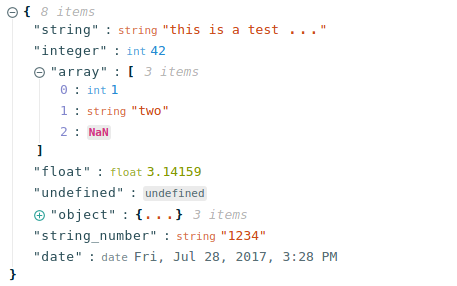
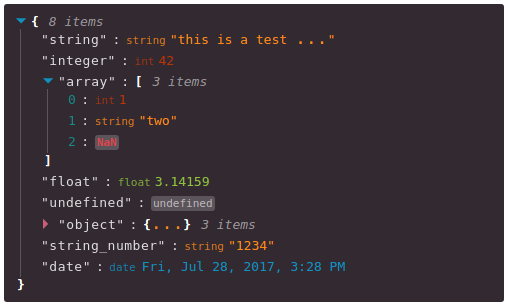
Hopscotch Theme, with Triangle Icons:
Installation Instructions
Install this component with NPM. RJV requires React 19+ (react and react-dom ^19.0.0 as peer dependencies).
npm install --save react-json-view-nextEnsure you have React 19+ installed in your project:
npm install react@^19.0.0 react-dom@^19.0.0Or add to your package.json config file:
"dependencies": {
    "react": "^19.0.0",
    "react-dom": "^19.0.0",
    "react-json-view-next": "latest"
}
Props & Documentation
For the complete and interactive props reference, callbacks guide, and live component playground, please visit our Storybook Documentation.
Features
onEdit,onAddandonDeleteprops allow users to edit thesrcvariable- Object, array, string and function values can be collapsed and expanded
- Object and array nodes display length
- Object and array nodes support a "Copy to Clipboard" feature
- String values can be truncated after a specified length
- Arrays can be subgrouped after a specified length
- Base-16 Theme Support
- When
onEditis enabled:Ctrl/Cmd+ClickEdit ModeCtrl/Cmd+EnterSubmit
Customizing Style
Stock Themes
RJV now supports base-16 themes!
You can specify a theme name or object when you instantiate your rjv component.
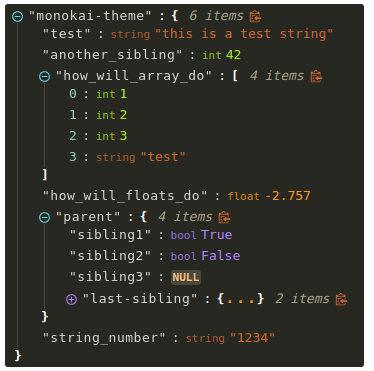
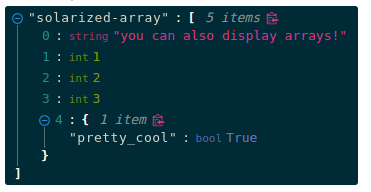
<ReactJson src={my_important_json} theme="monokai" />;Check out the list of supported themes in the Storybook demo. A custom "rjv-default" theme applies by default.
Monokai theme example
Solarized theme example
Use Your Own Theme
You can supply your own base-16 theme object.
To better understand custom themes, take a look at my example implementation and the base-16 theme styling guidelines.
onEdit, onAdd and onDelete Interaction
Pass callback methods to onEdit, onAdd and onDelete props. Your method will be invoked when a user attempts to update your src object.
The following object will be passed to your method:
{
    updated_src: src, //new src value
    name: name, //new var name
    namespace: namespace, //list, namespace indicating var location
    new_value: new_value, //new variable value
    existing_value: existing_value, //existing variable value
}
Returning false from a callback method will prevent the src from being affected.
Contributing to the source code
Run Storybook (Interactive Demo & Documentation)
# clone this repository
git clone [email protected]:jericbas/react-json-view-next.git && cd react-json-view-next
# install dependencies
npm install
# start the Storybook dev server with hot reloading
npm run storybook
Storybook will start the local development server at http://localhost:6006 with interactive docs and stories.
Run the Production Library Build
# build the library (generates ESM, CJS, and .d.ts in packages/react-json-view-next/dist/)
npm run build
Run the Storybook Static Build
# build the static Storybook documentation site (into packages/storybook/storybook-static/)
npm run build:storybook
Testing
# Run unit and component test suite via Vitest
npm test

# Run tests in watch mode
npm run test:watch

# Run tests with coverage
npm run test:coverage

# Run End-to-End tests via Playwright
npm run test:e2e
Linting & Formatting (Biome)
# Check formatting and lint rules with Biome
npm run check

# Automatically format and fix issues
npm run check:write
A zero-dependency Git pre-commit hook in .githooks/pre-commit runs biome check and tsc --noEmit automatically on staged files before each commit.
Migration Guide (v1 -> v2)
Note on Versioning: Version 1 (
v1.x) refers to the original mac-s-g/react-json-view repository (final releasev1.21.3). Version 2 (v2.x) begins withreact-json-view-nextstarting atv2.0.0, delivering complete React 19 support, strict TypeScript definitions, and tree-shakeable plugins.
Zero-Code-Change Drop-in Bridge (react-json-view-next/compat)
If you are upgrading from legacy react-json-view v1 and want 100% backward compatibility without changing any props (onEdit, onAdd, onDelete, enableClipboard, Base16 string themes), simply change your import:
// Before (v1)
import ReactJson from 'react-json-view';

// After (v2 zero-code-change drop-in)
import ReactJson from 'react-json-view-next/compat';

<ReactJson
  src={data}
  theme="monokai"
  enableClipboard={true}
  onEdit={edit => console.log(edit)}
  onAdd={add => console.log(add)}
  onDelete={del => console.log(del)}
/>;
Migration Table: Core vs Plugins vs Compat
| Feature / Prop | Legacy (v1) | Core (react-json-view-next) | Recommended Modern Approach (v2) | Compat (react-json-view-next/compat) |
| ------------------------------------------- | ----------------------------------- | -------------------------------------- | ------------------------------------------------------------------------------------------------ | --------------------------------------------------------- |
| JSON Tree Viewing | Built-in | Built-in (<JsonViewer />) | <JsonViewer src={data} /> | <ReactJsonCompat src={data} /> |
| Clipboard (enableClipboard) | Prop enableClipboard | Excluded for tree-shaking | plugins={[withClipboard()]} from react-json-view-next/plugins/clipboard | Prop enableClipboard (auto-wired) |
| Editing (onEdit, onAdd, onDelete) | Props onEdit, onAdd, onDelete | Excluded for tree-shaking | plugins={[withEditor({ onEdit, onAdd, onDelete })]} from react-json-view-next/plugins/editor | Props onEdit, onAdd, onDelete (auto-wired) |
| Themes (Base16 / Custom) | 40+ themes bundled | Zero-config rjv-default & rjv-grey | import { monokai } from 'react-json-view-next/themes' or custom ThemeObject | String theme names (e.g. theme="monokai") auto-resolved |
| Bundle Size | ~150 kB+ | ~15 kB (gzipped ~4 kB) | Pay only for plugins & themes you use | ~35 kB (bundles editor + clipboard + themes) |