
react-native-gizwits-baidu-map
v1.1.2
Published
1.1.2 支持16kb页面大小 \1.0.72 修复ios poi.tags nil问题 \n 1.0.58,更新iOS s.dependency 'BaiduMapKit', '6.5.1'\n s.dependency 'BMKLocationKit', '2.0.2',iOS地图SDK隐私合规接口添加 更新安卓maven库;\n针对react-native EventEmitter 移除once方法修改调整Geolocation.js \n Baidu Map SDK modules and
Downloads
44


Readme
react-native-gizwits-baidu-map

百度地图 React Native 封装库,支持 Android 和 iOS 平台。
📋 目录
简介
react-native-gizwits-baidu-map 是基于百度地图官方 SDK 封装的 React Native 组件库,提供了完整的地图展示、定位、搜索、路线规划等功能。
分支说明
- master:支持 react-native 0.61+ 版本,Android 使用 androidx
- 1.0.x:支持 react-native 0.60 及 0.50,Android 未使用 androidx
SDK 版本
- Android:使用百度地图 SDK v7.6.6,包含以下模块:
- 基础定位
- 基础地图(含室内图)
- 检索功能、LBS云检索
- 计算工具
- iOS:使用 BaiduMapKit 6.5.1 和 BMKLocationKit 2.0.2
使用示例
完整示例项目:https://github.com/lovebing/react-native-baidu-map-examples
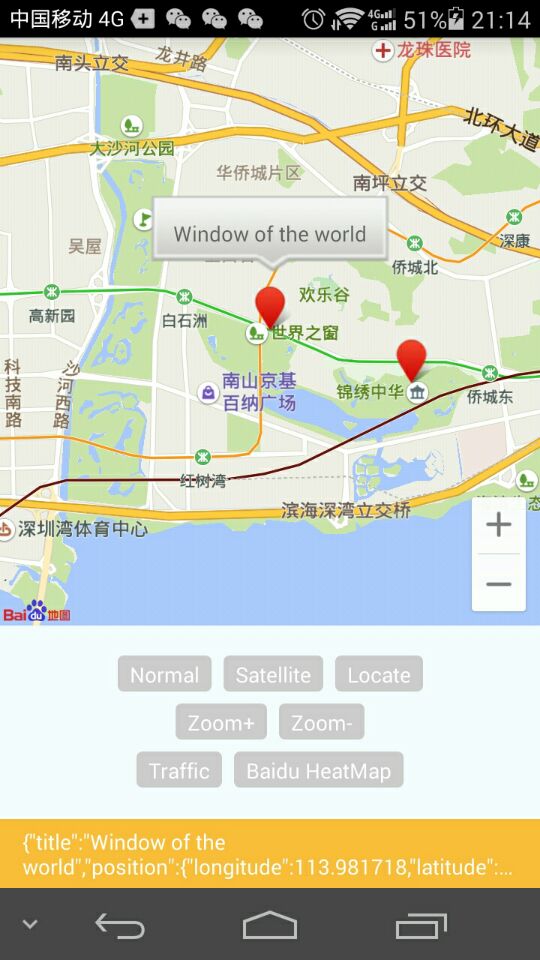
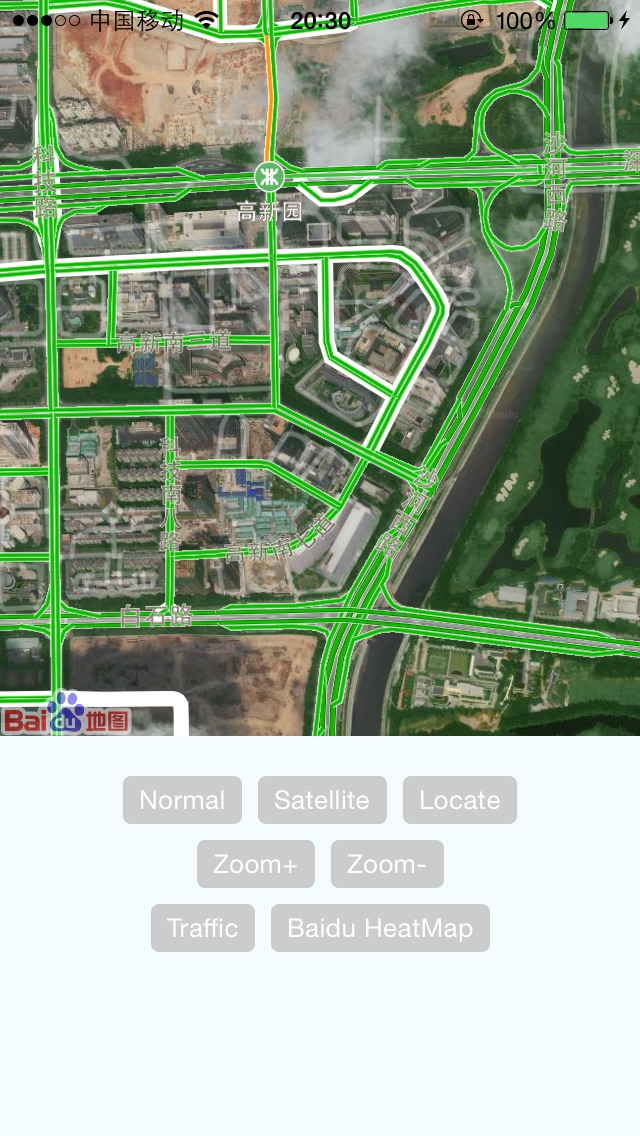
功能特性
- ✅ 地图展示(普通地图、卫星图)
- ✅ 地图交互(缩放、拖拽、点击事件)
- ✅ 多种覆盖物(标记点、折线、多边形、圆形、弧线、文本、热力图)
- ✅ 点聚合功能
- ✅ 定位服务(单次定位、持续定位、逆地理编码、地理编码)
- ✅ POI 搜索(城市内搜索、周边搜索)
- ✅ POI 建议搜索
- ✅ 路线规划(驾车路线)
- ✅ 距离计算
- ✅ 调起百度地图客户端(导航、路线规划)
- ✅ 坐标转换(支持 bd09ll 和 gcj02)
- ✅ 自定义标记图标
- ✅ 信息窗口(InfoWindow)
环境要求
JavaScript 环境
- Node.js: 12+
- React Native: 0.61.2+
Android 环境
- Android SDK: API 28+
- Gradle: 4.10.1+
- Android Studio: 3.1.3+
iOS 环境
- XCode: 11.3+
- CocoaPods: 最新版本
安装
使用 npm
npm install react-native-gizwits-baidu-map使用 yarn
yarn add react-native-gizwits-baidu-mapAndroid 配置
- 在
android/settings.gradle中添加:
include ':react-native-gizwits-baidu-map'
project(':react-native-gizwits-baidu-map').projectDir = new File(rootProject.projectDir, '../node_modules/react-native-gizwits-baidu-map/android')- 在
android/app/build.gradle的dependencies中添加:
dependencies {
    implementation project(':react-native-gizwits-baidu-map')
}- 在
MainApplication.java中注册模块:
import org.lovebing.reactnative.baidumap.BaiduMapPackage;

public class MainApplication extends Application implements ReactApplication {
    @Override
    protected List<ReactPackage> getPackages() {
        return Arrays.asList(
            new MainReactPackage(),
            new BaiduMapPackage() // 添加这一行
        );
    }
}
iOS 配置
在项目根目录执行:
cd ios && pod install初始化配置
Android 配置
1. 添加权限
在 android/app/src/main/AndroidManifest.xml 中添加必要的权限:
    <uses-permission android:name="android.permission.INTERNET" />
    <uses-permission android:name="android.permission.ACCESS_NETWORK_STATE" />
    <uses-permission android:name="android.permission.WRITE_EXTERNAL_STORAGE" />
    <uses-permission android:name="android.permission.ACCESS_COARSE_LOCATION" />
    <uses-permission android:name="android.permission.ACCESS_FINE_LOCATION" />
2. 配置 API Key
在 <application> 标签内添加:
<meta-data
        android:name="com.baidu.lbsapi.API_KEY"
android:value="YOUR_API_KEY" />注意:请将
YOUR_API_KEY替换为你在百度地图开放平台申请的 API Key。
3. 动态权限申请(Android 6.0+)
对于 Android 6.0 及以上版本,需要在运行时申请定位权限。建议使用 react-native-permissions 等库来处理权限申请。
iOS 配置
1. 初始化 SDK
在应用启动时(如 App.js 或 index.js)调用:
import { BaiduMapManager } from 'react-native-gizwits-baidu-map';

// iOS 初始化 SDK
BaiduMapManager.initSDK('YOUR_API_KEY');
2. 配置 Info.plist
在 ios/YourApp/Info.plist 中添加定位权限说明:
<key>NSLocationWhenInUseUsageDescription</key>
<string>需要使用您的位置信息</string>
<key>NSLocationAlwaysUsageDescription</key>
<string>需要使用您的位置信息</string>
3. 配置 URL Scheme(用于调起百度地图客户端)
在 Info.plist 中添加:
<key>LSApplicationQueriesSchemes</key>
<array>
    <string>baidumap</string>
</array>
快速开始
基础示例
import React, { Component } from 'react';
import { View, StyleSheet } from 'react-native';
import { MapView, MapTypes } from 'react-native-gizwits-baidu-map';

export default class MapExample extends Component {
  render() {
    return (
      <View style={styles.container}>
        <MapView
          style={styles.map}
          mapType={MapTypes.NORMAL}
          zoom={15}
          center={{
            latitude: 39.915,
            longitude: 116.404
          }}
          onMapClick={(e) => {
            console.log('地图点击:', e);
          }}
        />
      </View>
    );
  }
}

const styles = StyleSheet.create({
  container: {
    flex: 1
  },
  map: {
    flex: 1
  }
});
API 文档
MapView
地图视图组件,用于展示百度地图。
Props
| 属性 | 类型 | 默认值 | 说明 | 平台 |
|------|------|--------|------|------|
| zoomControlsVisible | boolean | true | 是否显示缩放控件 | Android |
| trafficEnabled | boolean | false | 是否显示实时路况 | 全部 |
| baiduHeatMapEnabled | boolean | false | 是否显示百度热力图 | 全部 |
| zoomGesturesEnabled | boolean | true | 是否允许手势缩放 | 全部 |
| scrollGesturesEnabled | boolean | true | 是否允许拖动 | 全部 |
| mapType | number | 1 | 地图类型:0-空白,1-普通,2-卫星 | 全部 |
| zoom | number | 10 | 地图缩放级别(3-21) | 全部 |
| showsUserLocation | boolean | false | 是否显示用户位置 | 全部 |
| locationData | object | null | 定位信息 {latitude: number, longitude: number} | 全部 |
| center | object | null | 地图中心点 {latitude: number, longitude: number} | 全部 |
| onMapStatusChangeStart | function | - | 地图状态开始改变时触发 | Android |
| onMapStatusChange | function | - | 地图状态改变时触发 | 全部 |
| onMapStatusChangeFinish | function | - | 地图状态改变结束时触发 | Android |
| onMapLoaded | function | - | 地图加载完成时触发 | 全部 |
| onMapClick | function | - | 地图点击事件 | 全部 |
| onMapDoubleClick | function | - | 地图双击事件 | 全部 |
| onMarkerClick | function | - | 标记点点击事件 | 全部 |
| onMapPoiClick | function | - | POI 点击事件 | 全部 |
事件回调参数
onMapStatusChange
{
  overlook: number,        // 俯仰角
  target: {
    latitude: number,      // 纬度
    longitude: number,     // 经度
    zoom: number          // 缩放级别
  }
}
onMapClick
{
  latitude: number,
  longitude: number
}
onMarkerClick
{
  position: {
    latitude: number,
    longitude: number
  },
  title?: string
}
MapTypes
import { MapTypes } from 'react-native-gizwits-baidu-map';

MapTypes.NONE      // 0 - 空白地图
MapTypes.NORMAL    // 1 - 普通地图
MapTypes.SATELLITE // 2 - 卫星地图
Overlay 覆盖物
覆盖物用于在地图上添加各种图形和标记。
导入覆盖物组件
import { Overlay } from 'react-native-gizwits-baidu-map';

const { Marker, Cluster, Arc, Circle, Polyline, Polygon, Text, InfoWindow, HeatMap, MarkerIcon } = Overlay;
Marker 标记点
在地图上添加标记点。
Props
| 属性 | 类型 | 默认值 | 说明 | 平台 |
|------|------|--------|------|------|
| title | string | - | 标记标题,如果没有 InfoWindow,将根据 title 生成 | 全部 |
| titleOffsetY | number | -80 | title 作为 InfoWindow 展示的 y 轴偏移量 | Android |
| location | object | {latitude: 0, longitude: 0} | 标记位置 | 全部 |
| perspective | boolean | - | 是否使用透视效果 | Android |
| flat | boolean | - | 是否平贴地图 | Android |
| rotate | number | 0 | 旋转角度(度) | Android |
| icon | ImageSourcePropType | - | 自定义图标,同 <Image> 的 source 属性 | 全部 |
| alpha | number | 1 | 透明度(0-1) | Android |
| animateType | string | - | 动画效果:drop/grow/jump(iOS 仅支持 drop) | 全部 |
| pinColor | string | 'red' | 大头针颜色:red/green/purple | iOS |
| onClick | function | - | 点击事件回调 | 全部 |
示例
<MapView>
  {/* 基础标记点 */}
  <Overlay.Marker
    location={{ latitude: 39.915, longitude: 116.404 }}
    title="天安门"
  />

  {/* 自定义图标 */}
  <Overlay.Marker
    location={{ latitude: 39.915, longitude: 116.404 }}
    icon={{ uri: 'https://example.com/marker.png' }}
    rotate={45}
  />

  {/* 带信息窗口的标记点 */}
  <Overlay.Marker location={{ latitude: 39.915, longitude: 116.404 }}>
    <Overlay.InfoWindow offsetY={-50}>
      <View style={{ padding: 10, backgroundColor: 'white' }}>
        <Text>自定义信息窗口</Text>
            </View>
    </Overlay.InfoWindow>
  </Overlay.Marker>

  {/* 使用 View 作为图标 */}
  <Overlay.Marker location={{ latitude: 39.915, longitude: 116.404 }}>
    <Overlay.MarkerIcon style={{ width: 40, height: 40 }}>
      <View style={{ backgroundColor: 'red', borderRadius: 20 }}>
        <Text style={{ color: 'white' }}>ABC</Text>
      </View>
    </Overlay.MarkerIcon>
  </Overlay.Marker>
</MapView>
Cluster 点聚合
将多个标记点聚合显示。
Props
继承 View 的所有属性。
示例
<MapView>
  <Overlay.Cluster>
    <Overlay.Marker location={{ latitude: 39.915, longitude: 116.404 }} />
    <Overlay.Marker location={{ latitude: 39.916, longitude: 116.405 }} />
    <Overlay.Marker location={{ latitude: 39.917, longitude: 116.406 }} />
    <Overlay.Marker location={{ latitude: 39.918, longitude: 116.407 }} />
  </Overlay.Cluster>
</MapView>
Arc 弧线
在地图上绘制弧线。
Props
| 属性 | 类型 | 默认值 | 说明 | 平台 |
|------|------|--------|------|------|
| stroke | object | {width: 5, color: 'AA000000'} | 线条样式 | 全部 |
| points | array | - | 三个点的坐标数组,长度必须为 3 | 全部 |
| dash | boolean | false | 是否为虚线 | iOS |
颜色格式说明
- 6 位:
RRGGBB(如FF0000表示红色) - 8 位:
AARRGGBB(如AAFF0000表示半透明红色)
示例
<MapView>
  <Overlay.Arc
    stroke={{ width: 5, color: 'FF0000' }}
    points={[
      { latitude: 39.915, longitude: 116.404 },
      { latitude: 39.920, longitude: 116.410 },
      { latitude: 39.925, longitude: 116.415 }
    ]}
  />
</MapView>
Circle 圆形
在地图上绘制圆形。
Props
| 属性 | 类型 | 默认值 | 说明 | 平台 |
|------|------|--------|------|------|
| radius | number | 1400 | 半径(米) | 全部 |
| fillColor | string | '000000FF' | 填充颜色 | 全部 |
| stroke | object | {width: 5, color: 'AA000000'} | 边框样式 | 全部 |
| center | object | - | 圆心坐标 | 全部 |
示例
<MapView>
  <Overlay.Circle
    center={{ latitude: 39.915, longitude: 116.404 }}
    radius={1000}
    fillColor="AAFF0000"
    stroke={{ width: 3, color: 'FF0000' }}
  />
</MapView>
Polyline 折线
在地图上绘制折线。
Props
| 属性 | 类型 | 默认值 | 说明 | 平台 |
|------|------|--------|------|------|
| points | array | - | 坐标点数组 | 全部 |
| stroke | object | {width: 5, color: 'AA000000'} | 线条样式 | 全部 |
示例
<MapView>
  <Overlay.Polyline
    points={[
      { latitude: 39.915, longitude: 116.404 },
      { latitude: 39.920, longitude: 116.410 },
      { latitude: 39.925, longitude: 116.415 }
    ]}
    stroke={{ width: 5, color: 'FF0000' }}
  />
</MapView>
Polygon 多边形
在地图上绘制多边形。
Props
| 属性 | 类型 | 默认值 | 说明 | 平台 |
|------|------|--------|------|------|
| points | array | - | 坐标点数组 | 全部 |
| fillColor | string | 'AAFFFF00' | 填充颜色 | 全部 |
| stroke | object | {width: 5, color: 'AA00FF00'} | 边框样式 | 全部 |
示例
<MapView>
  <Overlay.Polygon
    points={[
      { latitude: 39.915, longitude: 116.404 },
      { latitude: 39.920, longitude: 116.404 },
      { latitude: 39.920, longitude: 116.410 },
      { latitude: 39.915, longitude: 116.410 }
    ]}
    fillColor="AAFFFF00"
    stroke={{ width: 3, color: 'FF00FF00' }}
  />
</MapView>
Text 文本
在地图上添加文本标注。
Props
| 属性 | 类型 | 默认值 | 说明 | 平台 |
|------|------|--------|------|------|
| text | string | - | 文本内容 | 全部 |
| fontSize | number | - | 字体大小 | 全部 |
| fontColor | string | - | 字体颜色 | 全部 |
| bgColor | string | - | 背景颜色 | 全部 |
| rotate | number | - | 旋转角度(度) | 全部 |
| location | object | - | 文本位置 | 全部 |
示例
<MapView>
  <Overlay.Text
    text="天安门"
    fontSize={16}
    fontColor="FF0000"
    bgColor="FFFFFF"
    location={{ latitude: 39.915, longitude: 116.404 }}
  />
</MapView>
InfoWindow 信息窗口
标记点的信息窗口,必须作为 Marker 的子组件。
Props
| 属性 | 类型 | 默认值 | 说明 | 平台 |
|------|------|--------|------|------|
| offsetY | number | 0 | 相对于标记点在 y 轴的偏移量 | Android |
示例
<MapView>
  <Overlay.Marker location={{ latitude: 39.915, longitude: 116.404 }}>
    <Overlay.InfoWindow offsetY={-50}>
      <View style={{ padding: 10, backgroundColor: 'white', borderRadius: 5 }}>
        <Text style={{ fontSize: 16, fontWeight: 'bold' }}>天安门</Text>
        <Text style={{ fontSize: 12, color: '#666' }}>北京市东城区</Text>
      </View>
    </Overlay.InfoWindow>
  </Overlay.Marker>
</MapView>
HeatMap 热力图
在地图上显示热力图。
Props
| 属性 | 类型 | 默认值 | 说明 | 平台 |
|------|------|--------|------|------|
| points | array | - | 热力点坐标数组 | 全部 |
| gradient | object | - | 颜色渐变配置 | 全部 |
gradient 格式
{
  colors: ['66FF00', 'FF0000'],      // 颜色数组
  startPoints: [0.2, 1.0]            // 对应的起始点(0-1)
}
示例
<MapView>
  <Overlay.HeatMap
    points={[
      { latitude: 39.915, longitude: 116.404 },
      { latitude: 39.920, longitude: 116.410 },
      // ... 更多点
    ]}
    gradient={{
      colors: ['66FF00', 'FF0000'],
      startPoints: [0.2, 1.0]
    }}
  />
</MapView>
Geolocation 定位服务
提供定位、地理编码、逆地理编码等功能。
导入
import { Geolocation } from 'react-native-gizwits-baidu-map';方法
getCurrentPosition
获取当前定位信息。
参数
coorType(可选):'bd09ll'或'gcj02',默认为'bd09ll'
返回值
Promise<{
  latitude: number,        // 纬度
  longitude: number,       // 经度
  address: string,         // 完整地址
  province: string,        // 省份
  cityCode: string,        // 城市代码
  city: string,           // 城市
  district: string,        // 区县
  streetName: string,      // 街道名称
  streetNumber: string,    // 街道号码
  // Android 额外字段
  direction?: number,      // 方向角
  altitude?: number,       // 海拔
  radius?: number,         // 精度半径
  countryCode?: string,    // 国家代码
  country?: string,        // 国家
  street?: string,         // 街道
  buildingId?: string,     // 建筑物ID
  buildingName?: string    // 建筑物名称
}>
示例
try {
  const location = await Geolocation.getCurrentPosition('bd09ll');
  console.log('当前位置:', location);
} catch (error) {
  console.error('定位失败:', error);
}
startLocating
开始持续定位。
参数
listener: 定位更新回调函数coorType(可选):'bd09ll'或'gcj02',默认为'bd09ll'
示例
Geolocation.startLocating((location) => {
  console.log('位置更新:', location);
}, 'bd09ll');
stopLocating
停止持续定位。
示例
Geolocation.stopLocating();reverseGeoCode
逆地理编码:根据经纬度获取地址信息。
参数
lat: 纬度lng: 经度
返回值
Promise<{
  address: string,
  province: string,
  cityCode: string,
  city: string,
  district: string,
  streetName: string,
  streetNumber: string
}>
示例
try {
  const result = await Geolocation.reverseGeoCode(39.915, 116.404);
  console.log('地址:', result.address);
} catch (error) {
  console.error('逆地理编码失败:', error);
}
reverseGeoCodeGPS
GPS 坐标逆地理编码:将 GPS 坐标转换为百度坐标并获取地址信息。
参数
lat: GPS 纬度lng: GPS 经度
返回值
同 reverseGeoCode
示例
try {
  const result = await Geolocation.reverseGeoCodeGPS(39.915, 116.404);
  console.log('地址:', result.address);
} catch (error) {
  console.error('逆地理编码失败:', error);
}
geocode
地理编码:根据地址获取经纬度。
参数
city: 城市名称addr: 详细地址
返回值
Promise<{
  latitude: number,
  longitude: number
}>
示例
try {
  const location = await Geolocation.geocode('北京市', '天安门广场');
  console.log('坐标:', location);
} catch (error) {
  console.error('地理编码失败:', error);
}
setCoordType
设置坐标系类型。
参数
coordType:'bd09ll'或'gcj02'
示例
Geolocation.setCoordType('bd09ll');getCoordType
获取当前坐标系类型。
返回值
Promise<'bd09ll' | 'gcj02'>示例
const coordType = await Geolocation.getCoordType();
console.log('当前坐标系:', coordType);
convertCoordinate
坐标转换。
参数
coordType: 目标坐标系类型'bd09ll'或'gcj02'sourceLatLng: 源坐标{latitude: number, longitude: number}
返回值
Promise<{
  latitude: number,
  longitude: number
}>
示例
try {
  const converted = await Geolocation.convertCoordinate('bd09ll', {
    latitude: 39.915,
    longitude: 116.404
  });
  console.log('转换后的坐标:', converted);
} catch (error) {
  console.error('坐标转换失败:', error);
}
PoiSearch POI 搜索
提供 POI(兴趣点)搜索功能。
导入
import { PoiSearch } from 'react-native-gizwits-baidu-map';方法
searchInCity
在城市内搜索 POI。
参数
city: 城市名称keyword: 搜索关键词pageIndex: 页码,从 0 开始,默认0pageSize: 每页数量,默认10cityLimit: 是否限制在城市内,默认falsescope: 检索结果详细程度,1-基本信息,2-详细信息,默认1
返回值
Promise<{
  total: number,           // 总结果数
  pageIndex: number,       // 当前页码
  pageSize: number,        // 每页数量
  poiList: Array<{        // POI 列表
    uid: string,           // POI ID
    name: string,          // 名称
    address: string,       // 地址
    city: string,          // 城市
    phone: string,         // 电话
    postCode: string,      // 邮编
    location: {            // 坐标
      latitude: number,
      longitude: number
    },
    // ... 其他字段
  }>
}>
示例
try {
  const result = await PoiSearch.searchInCity('北京', '餐厅', 0, 10, true, 1);
  console.log('找到', result.total, '个结果');
  result.poiList.forEach(poi => {
    console.log(poi.name, poi.address);
  });
} catch (error) {
  console.error('搜索失败:', error);
}
searchNearby
在指定位置周边搜索 POI。
参数
keyword: 搜索关键词latLng: 中心点坐标{latitude: number, longitude: number}radius: 搜索半径(米)pageIndex: 页码,从 0 开始,默认0pageSize: 每页数量,默认10cityLimit: 是否限制在城市内,默认falsescope: 检索结果详细程度,1-基本信息,2-详细信息,默认1
返回值
同 searchInCity
示例
try {
  const result = await PoiSearch.searchNearby(
    '餐厅',
    { latitude: 39.915, longitude: 116.404 },
    1000,  // 1 公里范围内
    0,
    10,
    false,
    1
  );
  console.log('找到', result.total, '个结果');
} catch (error) {
  console.error('搜索失败:', error);
}
PoiSugSearch POI 建议搜索
提供 POI 建议搜索(自动完成)功能。
导入
import { PoiSugSearch } from 'react-native-gizwits-baidu-map';方法
requestSuggestion
获取搜索建议。
参数
keyword: 搜索关键词city: 城市名称cityLimit: 是否限制在城市内,默认false
返回值
Promise<{
  suggestionList: Array<{
    key: string,           // 关键词
    city: string,          // 城市
    district: string,      // 区县
    pt: {                  // 坐标
      latitude: number,
      longitude: number
    },
    // ... 其他字段
  }>
}>
示例
try {
  const result = await PoiSugSearch.requestSuggestion('天安门', '北京', true);
  result.suggestionList.forEach(item => {
    console.log(item.key, item.city);
  });
} catch (error) {
  console.error('建议搜索失败:', error);
}
RoutePlanSearch 路线规划
提供路线规划功能。
导入
import { RoutePlanSearch } from 'react-native-gizwits-baidu-map';方法
drivingSearch
驾车路线规划。
参数
from: 起点坐标{latitude: number, longitude: number}to: 终点坐标{latitude: number, longitude: number}
返回值
Promise<{
  routes: Array<{
    distance: number,      // 距离(米)
    duration: number,      // 时间(秒)
    steps: Array<{         // 路线步骤
      distance: number,
      duration: number,
      instruction: string, // 导航指令
      path: Array<{        // 路径点
        latitude: number,
        longitude: number
      }>
    }>
  }>
}>
示例
try {
  const result = await RoutePlanSearch.drivingSearch(
    { latitude: 39.915, longitude: 116.404 },  // 起点
    { latitude: 39.920, longitude: 116.410 }  // 终点
  );
  if (result.routes && result.routes.length > 0) {
    const route = result.routes[0];
    console.log('距离:', route.distance, '米');
    console.log('时间:', route.duration, '秒');
  }
} catch (error) {
  console.error('路线规划失败:', error);
}
GetDistance 距离计算
计算两个坐标点之间的距离。
导入
import { GetDistance } from 'react-native-gizwits-baidu-map';方法
getLocationDistance
计算两点之间的距离。
参数
location1: 第一个坐标点{latitude: number, longitude: number}location2: 第二个坐标点{latitude: number, longitude: number}
返回值
Promise<{
  distance: number  // 距离(米)
}>
示例
try {
  const result = await GetDistance.getLocationDistance(
    { latitude: 39.915, longitude: 116.404 },
    { latitude: 39.920, longitude: 116.410 }
  );
  console.log('距离:', result.distance, '米');
} catch (error) {
  console.error('距离计算失败:', error);
}
MapApp 调起百度地图客户端
调起百度地图客户端进行导航和路线规划。
导入
import { MapApp } from 'react-native-gizwits-baidu-map';方法
openDrivingRoute
调起百度地图客户端进行驾车路线规划。
参数
start: 起点{latitude: number, longitude: number, name: string}end: 终点{latitude: number, longitude: number, name: string}
示例
MapApp.openDrivingRoute(
  { latitude: 39.915, longitude: 116.404, name: '起点' },
  { latitude: 39.920, longitude: 116.410, name: '终点' }
);
openTransitRoute
调起百度地图客户端进行公交路线规划。
参数
start: 起点{latitude: number, longitude: number, name: string}end: 终点{latitude: number, longitude: number, name: string}
示例
MapApp.openTransitRoute(
  { latitude: 39.915, longitude: 116.404, name: '起点' },
  { latitude: 39.920, longitude: 116.410, name: '终点' }
);
openWalkNavi
调起百度地图客户端进行步行导航。
参数
start: 起点{latitude: number, longitude: number, name: string}end: 终点{latitude: number, longitude: number, name: string}
示例
MapApp.openWalkNavi(
  { latitude: 39.915, longitude: 116.404, name: '起点' },
  { latitude: 39.920, longitude: 116.410, name: '终点' }
);注意:iOS 需要在
Info.plist中配置LSApplicationQueriesSchemes,否则无法调起百度地图客户端。
BaiduMapManager 管理工具
提供 SDK 初始化和权限检查等功能。
导入
import { BaiduMapManager } from 'react-native-gizwits-baidu-map';方法
initSDK
初始化 SDK(仅 iOS,Android 在 AndroidManifest.xml 中配置)。
参数
apiKey: 百度地图 API Key
示例
// 在应用启动时调用(仅 iOS)
BaiduMapManager.initSDK('YOUR_API_KEY');
hasLocationPermission
检查是否有定位权限。
返回值
Promise<boolean>示例
const hasPermission = await BaiduMapManager.hasLocationPermission();
if (!hasPermission) {
  // 请求定位权限
}
示例代码
完整示例:地图 + 定位 + 标记点
import React, { Component } from 'react';
import { View, StyleSheet, Alert } from 'react-native';
import {
  MapView,
  MapTypes,
  Geolocation,
  Overlay
} from 'react-native-gizwits-baidu-map';

export default class MapExample extends Component {
  state = {
    location: null,
    markers: []
  };

  componentDidMount() {
    this.getCurrentLocation();
  }

  getCurrentLocation = async () => {
    try {
      const location = await Geolocation.getCurrentPosition('bd09ll');
      this.setState({ location });
    } catch (error) {
      Alert.alert('定位失败', error.message);
    }
  };

  handleMapClick = (e) => {
    const { latitude, longitude } = e;
    this.setState({
      markers: [
        ...this.state.markers,
        { latitude, longitude }
      ]
    });
  };

  render() {
    const { location, markers } = this.state;

    return (
      <View style={styles.container}>
        <MapView
          style={styles.map}
          mapType={MapTypes.NORMAL}
          zoom={15}
          center={location}
          showsUserLocation={true}
          locationData={location}
          onMapClick={this.handleMapClick}
        >
          {markers.map((marker, index) => (
            <Overlay.Marker
              key={index}
              location={marker}
              title={`标记点 ${index + 1}`}
            />
          ))}
        </MapView>
      </View>
    );
  }
}

const styles = StyleSheet.create({
  container: {
    flex: 1
  },
  map: {
    flex: 1
  }
});
示例:POI 搜索并显示
import React, { Component } from 'react';
import { View, StyleSheet, TextInput, Button, FlatList } from 'react-native';
import { MapView, PoiSearch, Overlay } from 'react-native-gizwits-baidu-map';

export default class PoiSearchExample extends Component {
  state = {
    keyword: '',
    pois: [],
    selectedPoi: null
  };

  searchPoi = async () => {
    try {
      const result = await PoiSearch.searchInCity('北京', this.state.keyword, 0, 20, true, 1);
      this.setState({ pois: result.poiList });
    } catch (error) {
      console.error('搜索失败:', error);
    }
  };

  render() {
    const { pois, selectedPoi } = this.state;

    return (
      <View style={styles.container}>
        <View style={styles.searchBar}>
          <TextInput
            style={styles.input}
            placeholder="搜索 POI"
            value={this.state.keyword}
            onChangeText={(text) => this.setState({ keyword: text })}
          />
          <Button title="搜索" onPress={this.searchPoi} />
        </View>

        <MapView style={styles.map}>
          {pois.map((poi, index) => (
            <Overlay.Marker
              key={poi.uid || index}
              location={poi.location}
              title={poi.name}
              onClick={() => this.setState({ selectedPoi: poi })}
            />
          ))}
        </MapView>

        {selectedPoi && (
          <View style={styles.info}>
            <Text>{selectedPoi.name}</Text>
            <Text>{selectedPoi.address}</Text>
          </View>
        )}
      </View>
    );
  }
}

const styles = StyleSheet.create({
  container: {
    flex: 1
  },
  searchBar: {
    flexDirection: 'row',
    padding: 10
  },
  input: {
    flex: 1,
    borderWidth: 1,
    borderColor: '#ccc',
    padding: 8,
    marginRight: 10
  },
  map: {
    flex: 1
  },
  info: {
    padding: 10,
    backgroundColor: 'white'
  }
});
常见问题
1. Android 地图不显示
可能原因:
- API Key 未正确配置
- 权限未申请
- 网络连接问题
解决方法:
- 检查
AndroidManifest.xml中的 API Key 配置 - 确保已申请定位和网络权限
- 检查网络连接
2. iOS 地图不显示
可能原因:
- 未调用
BaiduMapManager.initSDK() - API Key 错误
- CocoaPods 未正确安装
解决方法:
- 确保在应用启动时调用了
BaiduMapManager.initSDK('YOUR_API_KEY') - 检查 API Key 是否正确
- 运行
cd ios && pod install
3. 定位失败
可能原因:
- 未申请定位权限
- 定位服务未开启
- API Key 权限不足
解决方法:
- 检查并申请定位权限
- 确保设备定位服务已开启
- 检查百度地图控制台中的 API Key 权限设置
4. 坐标偏移问题
说明:
百度地图使用 bd09ll 坐标系,如果使用 GPS 坐标(wgs84)或其他坐标系,需要进行坐标转换。
解决方法:
使用 Geolocation.convertCoordinate() 进行坐标转换。
5. 开发测试时不能使用 npm link
React Native 不支持软链接,不能使用 npm link 安装本地包。建议直接修改 node_modules 或使用 yarn link 的替代方案。
更新日志
1.1.2
- 支持 16kb 页面大小
1.0.72
- 修复 iOS POI tags nil 问题
1.0.70
- iOS MapView 内存优化
1.0.68
- Geolocation 增加
setCoordType和getCoordType方法
1.0.65
- iOS 增加设置坐标系类型、获取坐标系类型以及坐标转换
- iOS 增加 RoutePlanSearchModule,增加
drivingSearch方法 - iOS 增加实现
openPoiNearbySearch和openPoiDetialsPage
1.0.64
- Android 增加设置坐标系类型、获取坐标系类型以及坐标转换
1.0.61
- iOS 设置 circle 功能优化,颜色转换方法调整
1.0.59
- 增加 PoiSearch SuggestionSearch
1.0.58
- 增加 MapApp 方法:
openDrivingRoute、openTransitRoute、openWalkNavi
1.0.57
- Android 优化 PoiSearch 两个方法,
loadIndex替换为pageIndex,增加pageSize
1.0.56
- Android 增加 RoutePlanSearchModule,增加
drivingSearch方法
1.0.55
- Android marker 图标大小适应分辨率
1.0.54
- 更新 iOS
BaiduMapKit到 6.5.1 - 更新 iOS
BMKLocationKit到 2.0.2 - iOS 地图 SDK 隐私合规接口添加
- 更新 Android maven 库
- 针对 react-native EventEmitter 移除 once 方法修改调整 Geolocation.js
1.0.53
- Android marker 更新自定义图标
1.0.52
- Android 增加 PoiSugSearch
- Android 增加 PoiSearch
1.0.51
- Android 百度 SDK 版本升级到 v7.5.2
- Android 增加
initSDK方法,可以在 JS 中设置 API Key
贡献
欢迎提交 Issue 和 Pull Request!
开发说明
React Native 不支持软链接,不能使用 npm link 安装本地包。开发时建议:
- 直接修改
node_modules中的代码进行测试 - 或使用其他方式(如
yarn link的替代方案)
许可证
MIT
鸣谢
- 百度地图开放平台
- React Native Maps - Marker icon 实现参考

在线交流
QQ 群:561086908