
react-native-huawei-analytics
v1.0.1
Published
react native huawei analytics
Downloads
39

Maintainers
 gokartgo
Readme
Huawei Analytics Android
not support in ios and windows because huawei is android phone
Integrating
Setup In Android React Native Project
1. Add agconnect-services.json ( Path android/app )
- download agconnect-services.json from
- Login to AppGallery Connect and select My apps.
- Click Application is your want to use agconnect-services.json
- Go to Develop > Overview.
- Path of App information area, Click agconnect-services.json for download file
2. Add the Maven repository address and AppGallery Connect service dependencies in the build.gradle file of your project ( Path: android/build.gradle )
1. maven {url 'http://developer.huawei.com/repo/'}
2. classpath 'com.huawei.agconnect:agcp:1.2.0.300'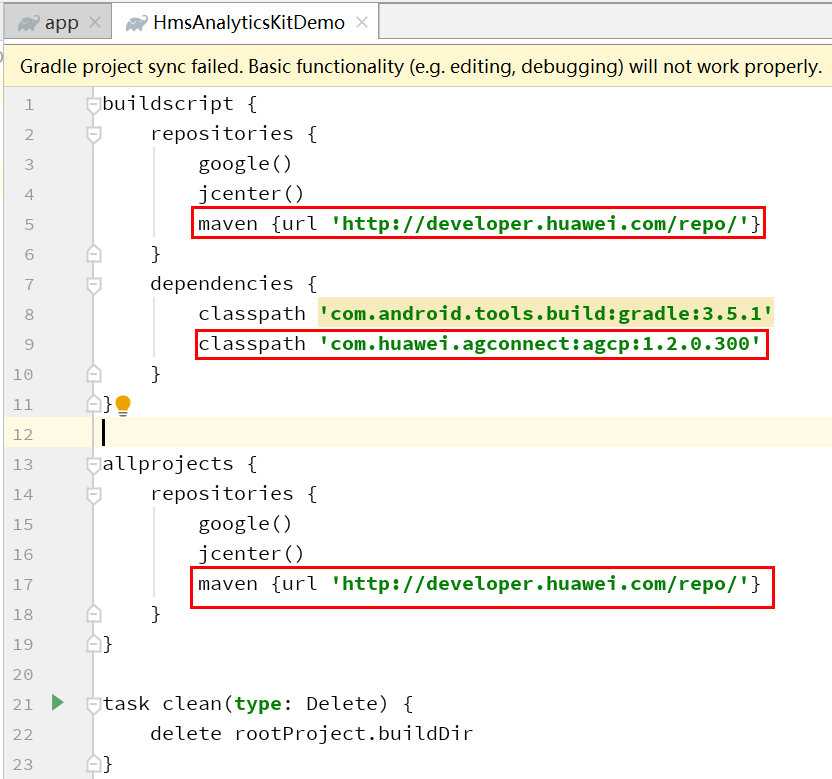
3. Add the plug-in configuration and SDK version in the build.gradle file in the app directory ( Path: android/app/build.gradle)
1. apply plugin: 'com.huawei.agconnect' ( must add after line apply plugin: "com.android.application" )
2. implementation 'com.huawei.hms:hianalytics:4.0.1.300' ( if you use lib react-native-huawei-analytics this implement not to use)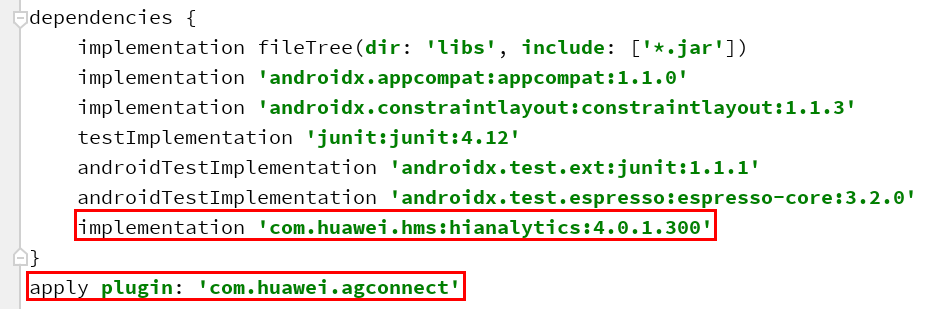
Add Library
1. add lib react-native-huawei-analytics
- yarn add react-native-huawei-analytics
the method is set same firebase analytics
Example
import HuaweiAnalytics from 'react-native-huawei-analytics' HuaweiAnalytics.logEvent('name',{ key: value }) HuaweiAnalytics.setAnalyticsCollectionEnabled( boolean ) HuaweiAnalytics.setCurrentScreen('screenName','screenClassOverride') HuaweiAnalytics.setUserId('userId') HuaweiAnalytics.setUserProperty('name','value') HuaweiAnalytics.setUserProperties({name: value}) ( work same setUserProperty but only type input is different )
path of logEvent
- {key: value} we will setup in Analytics
- Login to AppGallery Connect after that select Analytics
- Click to Application we want to set key value
- go to Advanced Analysis > Meta manage > Event

number 5 is create new event
number 4 is add parameter of that event
after click number 4 modal will show
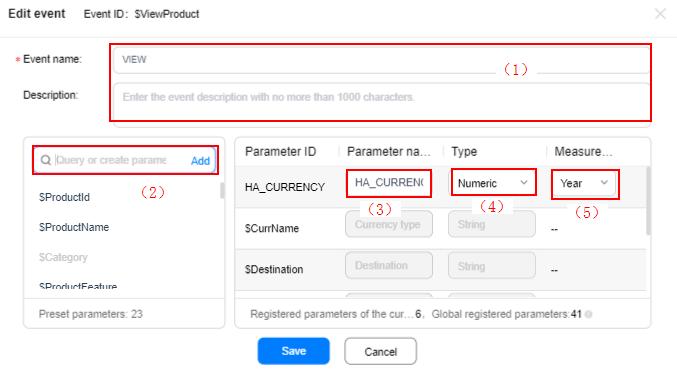
- input the parameter name in input and click Add button after that set Parameter name and Type after finish all click Save button (maybe wait 1 day for use parameter you have setup)
Credit
https://developer.huawei.com/consumer/en/doc/development/HMS-Guides/Development-Guide#h1-6-accessing-analytics
react-native-huawei-analytics
Getting started
$ npm install react-native-huawei-analytics --save
Mostly automatic installation
$ react-native link react-native-huawei-analytics
Manual installation
Android
- Open up
android/app/src/main/java/[...]/MainActivity.java
- Add
import com.reactlibrary.RNReactNativeHuaweiAnalyticsPackage;to the imports at the top of the file - Add
new RNReactNativeHuaweiAnalyticsPackage()to the list returned by thegetPackages()method
- Append the following lines to
android/settings.gradle:include ':react-native-huawei-analytics' project(':react-native-huawei-analytics').projectDir = new File(rootProject.projectDir, '../node_modules/react-native-huawei-analytics/android') - Insert the following lines inside the dependencies block in
android/app/build.gradle:compile project(':react-native-huawei-analytics')
Usage
import HuaweiAnalytics from 'react-native-huawei-analytics'
HuaweiAnalytics.logEvent('name',{ key: value })
HuaweiAnalytics.setAnalyticsCollectionEnabled( boolean )
HuaweiAnalytics.setCurrentScreen('screenName','screenClassOverride')
HuaweiAnalytics.setUserId('userId')
HuaweiAnalytics.setUserProperty('name','value')
HuaweiAnalytics.setUserProperties({name: value}) ( เหมือน setUserProperty แค่ input ต่างกัน