
react-native-ssl-manager
v2.2.0
Published
React Native SSL Pinning provides seamless SSL certificate pinning integration for enhanced network security in React Native apps. This module enables developers to easily implement and manage certificate pinning, protecting applications against man-in-th

Maintainers
 huymobile
Readme
react-native-ssl-manager



SSL certificate pinning for React Native & Expo.
Pin your API certificates so the app refuses connections that don’t match — including traffic through Charles, Proxyman, or other MITM proxies.
// After install + ssl_config.json + native rebuild:
// fetch / axios to pinned hosts are protected automatically.
import { isSSLManagerAvailable } from 'react-native-ssl-manager'

console.log(isSSLManagerAvailable()) // true after a native rebuild
Features
- 🔒 Certificate / public-key pinning for your API hosts
- ⚡ Zero JS required for normal traffic — pins apply at app launch
- 📱 iOS (TrustKit) + Android (Network Security Config + OkHttp)
- 🧩 Expo config plugin — prebuild copies config into native projects
- 🛠️ CLI — extract pins, verify drift in CI, monorepo helpers
- 🛰️ Optional OTA pin updates (signed Ed25519 bundles)
- 🧪 Audit mode — report mismatches without blocking (safe rollout)
- ⚙️ Built as a Nitro Module (New Architecture)
[!IMPORTANT] v2 requires the New Architecture and peer dependency
react-native-nitro-modules(≥ 0.35).
Changingssl_config.jsonalways needs a native rebuild — Metro reload is not enough.
Coming from v1? JS API is unchanged →MIGRATION.md.
Requirements
| | Minimum |
|---|---|
| React Native | 0.75+ (New Architecture) |
| react-native-nitro-modules | ≥ 0.35 |
| Expo | SDK 52+ (New Architecture) |
| iOS | 13+ |
| Android | API 21+ |
| Node | 18+ |
Installation
React Native (CLI)
npm install react-native-ssl-manager react-native-nitro-modules
cd ios && pod install
Expo
npx expo install react-native-ssl-manager react-native-nitro-modulesAdd the config plugin to app.json / app.config.js:
{
  "expo": {
    "plugins": [
      ["react-native-ssl-manager", { "sslConfigPath": "./ssl_config.json" }]
    ]
  }
}
Then generate native projects and run a development build (not Expo Go):
npx expo prebuild
npx expo run:ios
# or
npx expo run:android
pnpm / monorepos: install in the app package (the one that builds the binary), not only the workspace root. See Monorepo & pnpm.
Setup
1. Create ssl_config.json
In your app root (next to package.json / app.json):
npx react-native-ssl-manager pins api.example.comPaste the output into ssl_config.json:
{
  "sha256Keys": {
    "api.example.com": [
      "sha256/AAAAAAAAAAAAAAAAAAAAAAAAAAAAAAAAAAAAAAAAAAA=",
      "sha256/BBBBBBBBBBBBBBBBBBBBBBBBBBBBBBBBBBBBBBBBBBB="
    ]
  }
}
Rules
- Host only:
api.example.com— nothttps://… - At least two pins per domain (current + backup) so a cert rotation doesn’t lock users out
- Use real pins from the CLI for production — placeholders won’t protect anything
2. Rebuild
# Expo
npx expo prebuild
npx expo run:ios   # or run:android

# Bare RN
cd ios && pod install && cd ..
npx react-native run-ios
After that, pinning is on at launch for fetch / axios and other covered stacks. You don’t wrap each request.
3. Verify
# Pins still match the live server? (great for CI)
npx react-native-ssl-manager verify
import { isSSLManagerAvailable, getPinnedDomains } from 'react-native-ssl-manager'
isSSLManagerAvailable() // must be true after native rebuild
await getPinnedDomains() // e.g. ['api.example.com']Sanity check with Proxyman / Charles
| Pinning | MITM proxy | Your API | |---------|------------|----------| | ON (default) | On | Should fail TLS | | OFF | On | May succeed (proxy can inspect) | | ON | Off | Should succeed if pins match |
On iOS, after setUseSSLPinning(…), force-quit and reopen the app so TrustKit fully applies.
Usage (optional JS API)
Most apps never call the JS API for day-to-day traffic. Use it for debug toggles, listeners, or runtime config.
import {
  isSSLManagerAvailable,
  setUseSSLPinning,
  getUseSSLPinning,
  setSSLConfig,
  getPinnedDomains,
  addPinningFailureListener,
} from 'react-native-ssl-manager'

if (!isSSLManagerAvailable()) {
  // Native module not linked → rebuild the app
}

await setUseSSLPinning(true)          // default is already true
const on = await getUseSSLPinning()
const domains = await getPinnedDomains()

const stop = addPinningFailureListener((event) => {
  // { host, enforced, servedPins, message, timestamp }
  console.warn('pin failure', event)
})
// later: stop()
Audit mode (safe rollout)
Report mismatches without blocking:
{
  "sha256Keys": {
    "api.example.com": ["sha256/CURRENT...=", "sha256/BACKUP...="]
  },
  "domains": {
    "api.example.com": { "enforcePinning": false }
  }
}
Switch "enforcePinning": true when ready.
Config reference
{
  "sha256Keys": {
    "api.example.com": ["sha256/AAAA...=", "sha256/BBBB...="]
  },
  "domains": {
    "api.example.com": {
      "enforcePinning": true,
      "expirationDate": "2027-12-31",
      "includeSubdomains": true
    }
  },
  "reportUris": ["https://example.com/pin-failures"]
}
| Field | Default | Description |
|-------|---------|-------------|
| enforcePinning | true | false = audit only |
| expirationDate | — | YYYY-MM-DD; after this date, pin fails open |
| includeSubdomains | true | Apply pins to subdomains |
| reportUris | — | Optional HTTPS failure report endpoints |
Plugin options (Expo)
| Option | Default | Description |
|--------|---------|-------------|
| sslConfigPath | ssl_config.json | Path relative to app root |
| enableAndroid | true | NSC + assets |
| enableIOS | true | Bundle config into the iOS app |
CLI
npx react-native-ssl-manager <command>
# alias: ssl-manager
| Command | Purpose |
|---------|---------|
| pins <host> | Print live SPKI pins + config snippet |
| pins --pem cert.pem | Pin from a local PEM |
| verify [--config …] | Fail CI when live chain matches none of the pins |
| keygen / sign | Author signed OTA pin bundles |
What’s covered?
| Stack | Platform | Covered |
|-------|----------|---------|
| fetch / axios | iOS | ✅ TrustKit |
| URLSession libs | iOS | ✅ |
| fetch / axios | Android | ✅ OkHttp + NSC |
| Coil / Glide / Ktor (OkHttp) | Android | ✅ |
| Android WebView | Android | ✅ NSC |
| Cronet | Android | ⚠️ Best-effort |
| Custom TrustManager / Ktor CIO | Android | ❌ |
Common mistakes
| Mistake | Fix |
|---------|-----|
| Only Metro reload after editing pins | Rebuild native app |
| Missing react-native-nitro-modules | Install peer + rebuild |
| New Architecture disabled | Enable New Arch (v2 requirement) |
| Single pin per host | Always ship ≥ 2 pins |
| https:// in domain key | Use host only: api.example.com |
| Expo without config plugin | Add plugin → prebuild → run |
| pnpm: installed only at monorepo root | Install in the app package |
| iOS toggle seems ignored | Force-quit and reopen |
Monorepo & pnpm
Install into the package that builds the native app:
pnpm add react-native-ssl-manager react-native-nitro-modules --filter your-app
cd apps/your-app
# ssl_config.json + Expo plugin live here
npx expo prebuild --clean
The postinstall step detects monorepo / pnpm-isolated node_modules and skips
the brittle Gradle apply from line automatically. You can opt out entirely:
# Skip postinstall (e.g. CI, or you wire Gradle up yourself)
export SSL_MANAGER_SKIP_POSTINSTALL=1
Bare Android (no Expo) in a monorepo: reference the plugin by resolved path
in android/app/build.gradle — require.resolve works across pnpm/hoisted
layouts:
apply from: new File(
  ["node", "-e", "process.stdout.write(require.resolve('react-native-ssl-manager/package.json'))"]
    .execute().text.trim(),
  "../android/ssl-pinning-setup.gradle"
)
Troubleshooting
| Symptom | Likely fix |
|---------|------------|
| isSSLManagerAvailable() is false | Link Nitro, enable New Arch, rebuild |
| All pinned calls fail after cert rotate | pins + update config + rebuild (or OTA) |
| iOS pin toggle does nothing | Kill app and relaunch |
| Expo Xcode error adding ssl_config.json | Upgrade library; npx expo prebuild --clean |
| Metro fails on Android debug | Keep localhost / 10.0.2.2 cleartext in NSC |
| pnpm Android path issues | Use the Expo plugin, or the resolved-path Gradle snippet; skip postinstall |
API
| API | Description |
|-----|-------------|
| isSSLManagerAvailable(): boolean | Native module linked? |
| setUseSSLPinning(boolean): Promise<void> | On/off (iOS: next launch) |
| getUseSSLPinning(): Promise<boolean> | Current flag (default true) |
| setSSLConfig(config \| string): Promise<void> | Runtime config (iOS: next launch) |
| getPinnedDomains(): Promise<string[]> | Active domains |
| addPinningFailureListener(fn): () => void | Subscribe; returns unsubscribe |
| updatePinsFromUrl(url, { publicKey }): Promise<OtaResult> | Fetch + verify + apply a signed OTA bundle |
| applySignedPinBundle(bundle, { publicKey }): Promise<OtaResult> | Verify + apply a bundle you already fetched |
| isExpired(date, now): boolean | Helper: has a YYYY-MM-DD expirationDate passed? |
interface SslPinningConfig {
  sha256Keys: { [domain: string]: string[] }
  domains?: {
    [domain: string]: {
      enforcePinning?: boolean
      expirationDate?: string // YYYY-MM-DD
      includeSubdomains?: boolean
    }
  }
  reportUris?: string[]
}

interface PinningFailureEvent {
  host: string
  enforced: boolean
  servedPins: string[]
  message: string
  timestamp: number
}
Advanced
Rotate pins without shipping an app update. You publish a small JSON bundle, signed with an Ed25519 key; the app fetches it and applies it only if the signature (and freshness) check out. The private key stays offline — only the public key is embedded in the app.
Step 1 — generate a keypair once (offline / CI secret):
npx react-native-ssl-manager keygen
# → writes ssl-manager-ota.key.pem (PRIVATE — keep it out of git)
# → prints the public key (base64) to embed in the app
Step 2 — sign your config into a bundle (in CI, on each rotation):
npx react-native-ssl-manager sign \
  --config ssl_config.json \
  --key ssl-manager-ota.key.pem \
  --expires-in 30d \
  --out ssl-pins-bundle.json
# host ssl-pins-bundle.json on any HTTPS URL (CDN, S3, your API)
The bundle is just signed JSON — nothing secret, safe to serve publicly:
{
  "payload": "<base64 of the JSON below>",
  "signature": "<base64 Ed25519 signature over the payload bytes>"
}
// the decoded payload
{
"version": 1,
"issuedAt": "2026-07-21T10:00:00.000Z",
"expiresAt": "2026-08-20T10:00:00.000Z", // optional
"config": { "sha256Keys": { "api.example.com": ["sha256/…=", "sha256/…="] } }
}Step 3 — apply it from the app:
import { updatePinsFromUrl } from 'react-native-ssl-manager'

await updatePinsFromUrl('https://cdn.example.com/ssl-pins-bundle.json', {
  publicKey: 'Z8S8T6o…=',        // from `keygen` — safe to ship in the app
  maxAgeMs: 7 * 24 * 3600 * 1000, // also reject bundles older than 7 days
})
updatePinsFromUrl = fetch → verify → apply. If you'd rather control the
networking (caching, retries, a bundle delivered over your own channel or a push
payload), fetch the bundle yourself and call the verify-and-apply half directly:
import { applySignedPinBundle } from 'react-native-ssl-manager'

const bundle = await myTransport.getPinBundle() // { payload, signature }
await applySignedPinBundle(bundle, { publicKey: 'Z8S8T6o…=' })
Both verify the Ed25519 signature against publicKey, then check freshness
(expiresAt / maxAgeMs) and reject a bundle older than the last one applied
this session (anti-rollback). On any failure the active config is left
untouched and the call rejects with an OtaError.code:
| Code | Meaning |
|------|---------|
| OTA_FETCH_FAILED | Couldn't download the bundle (network / HTTP error) |
| OTA_INVALID_BUNDLE | Malformed JSON / base64 |
| OTA_INVALID_SIGNATURE | Signature doesn't match publicKey |
| OTA_EXPIRED | Past expiresAt, or older than maxAgeMs |
| OTA_ROLLBACK | Older than the bundle already applied this session |
Lower level still?
verifyOtaBundle(bundle, { publicKey })(from the same package) verifies and returns the config without touching pinning, so you can apply it yourself viasetSSLConfig(config). That's the exact seam if you prefer your own crypto/transport around a plainsetSSLConfig.
These sound similar but are unrelated:
domains.<host>.expirationDate(inssl_config.json) is a per-domain fail-open date: after it passes, pinning for that host stops being enforced so an abandoned install never bricks. The exportedisExpired(date, now)helper just tells you whether such a date has passed — use it for your own UI / telemetry, e.g. to nudge a rotation:import { isExpired } from 'react-native-ssl-manager' const expiresOn = '2026-12-31' if (isExpired(expiresOn, Date.now())) { // pinning for this domain has failed open — fetch fresh pins await updatePinsFromUrl(BUNDLE_URL, { publicKey: OTA_PUBLIC_KEY }) }OTA freshness (
expiresAt/maxAgeMson a signed bundle) is about how old an OTA update may be beforeupdatePinsFromUrlrefuses it. It has nothing to do with a domain'sexpirationDate.
In short: isExpired inspects your config; maxAgeMs/expiresAt gate an
OTA bundle.
- iOS: TrustKit initializes at launch (
+load) and swizzlesURLSession. - Android: Network Security Config (build-time XML) + OkHttp
CertificatePinnervia early startup. - Config is bundled at build time (Expo plugin / Gradle / pod scripts) → always rebuild after pin changes.
import com.usesslpinning.PinnedOkHttpClient

val client = PinnedOkHttpClient.getInstance(context)
Glide:
@GlideModule
class MyAppGlideModule : AppGlideModule() {
  override fun registerComponents(context: Context, glide: Glide, registry: Registry) {
    val client = PinnedOkHttpClient.getInstance(context)
    registry.replace(GlideUrl::class.java, InputStream::class.java, OkHttpUrlLoader.Factory(client))
  }
}
Coil:
val imageLoader = ImageLoader.Builder(context)
  .okHttpClient { PinnedOkHttpClient.getInstance(context) }
  .build()
Ktor (OkHttp engine):
val httpClient = HttpClient(OkHttp) {
  engine { preconfigured = PinnedOkHttpClient.getInstance(context) }
}
Ktor CIO is not covered (own TLS stack).
JS setUseSSLPinning(false) is too late if TrustKit already started.
await device.launchApp({
  newInstance: true,
  launchArgs: { RNSSLManagerDisabled: true },
})
Also: Info.plist RNSSLManagerDisabled, env RN_SSL_MANAGER_DISABLED=1.
openssl s_client -connect api.example.com:443 -servername api.example.com < /dev/null 2>/dev/null \
  | openssl x509 -pubkey -noout \
  | openssl pkey -pubin -outform der \
  | openssl dgst -sha256 -binary \
  | openssl enc -base64
Prefix with sha256/.
- Cronet may use its own TLS stack; prefer
CronetEngine.Builder.addPublicKeyPins()for hard guarantees. - Custom TrustManager bypasses Android Network Security Config.
- Complex custom URLSessionDelegate / other swizzlers on iOS may conflict with TrustKit.
Demo
| iOS | Android |
|-----|---------|
| 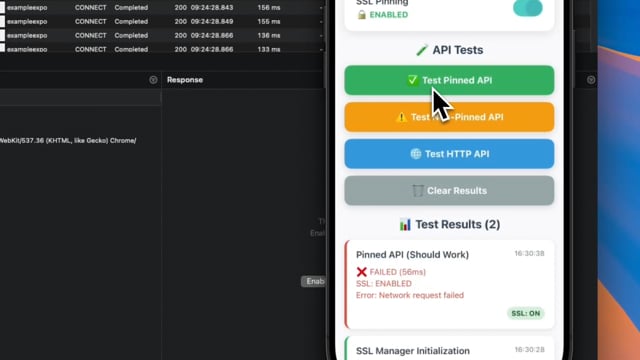 |
| 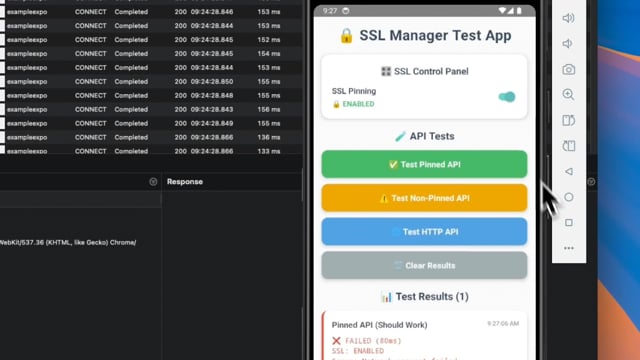 |
|
Contributing
git clone https://github.com/huytdps13400/react-native-ssl-manager.git
cd react-native-ssl-manager
yarn install
yarn test
See CONTRIBUTING.md.
License
MIT