
react-native-xeno
v3.3.1
Published
React Native SDK for Xeno Ecosystem
Downloads
117


Readme
react-native-xeno
React Native SDK for Xeno Ecosystem
How to use
- Add this in your
package.json
react-native-xeno: $latest_versionUsing with React Native Expo
If your app is built with Expo (managed or development client), follow Xeno's official Expo integration guide to ensure compatibility, and EAS build support.
Using with React Native CLI
If you're using the standard React Native CLI (non-Expo), follow the steps below to configure the Xeno SDK for both Android and iOS platforms.
Platform wise configuration
Android
1- Configure Xeno in application class
- If you don't have Application class , create one
XenoApplication : Application()- Add below line in onCreate method
package com.getxeno.com.android.example

import android.app.Application
import com.xenoreactnative.XenoReactNativeInitializer
import com.xenoreactnative.model.XenoConfigReactNative

class XenoApplication : Application() {
    override fun onCreate() {
        super.onCreate()

        XenoReactNativeInitializer.configure(
            application = this,
            config = XenoConfigReactNative(
                apiKey = "YOUR_XENO_API_KEY",
                isDebug = true,
                notificationSmallIcon = R.drawable.ic_notification_icon_small
            )
        )
    }
}
2- Configure application's manifest.xml
- Add Notification Permission
<uses-permission android:name="android.permission.POST_NOTIFICATIONS" />
- Then Add this
XenoApplicationapplication class
<application
	android:name=".XenoApplication"
	android:icon="@mipmap/ic_launcher"
	android:label="Xeno Example">
	<activity android:name=".MainActivity"/>
</application>
iOS
1- Configure Xeno in AppDelegate
Option A: Swift AppDelegate
import UIKit
import ReactNativeXeno
import XenoIos

@main
class AppDelegate: UIResponder, UIApplicationDelegate {

    func application(
        _ application: UIApplication,
        didFinishLaunchingWithOptions launchOptions: [UIApplication.LaunchOptionsKey: Any]?
    ) -> Bool {

        XenoReactNativeInitializer.configure(
            config: XenoConfigReactNative(apiKey: "YOUR_XENO_API_KEY", isDebug: false),
            launchOptions: launchOptions
        )

        return true
    }
}
Option B: Objective-C AppDelegate
AppDelegate.m:
#import "AppDelegate.h"
#import <ReactNativeXeno/XenoReactNativeInitializerObjc.h>

@implementation AppDelegate

- (BOOL)application:(UIApplication *)application didFinishLaunchingWithOptions:(NSDictionary *)launchOptions {

    [XenoReactNativeInitializerObjc initializeSdkWithApplication:application
                                                          apiKey:@"YOUR_XENO_API_KEY"
                                                         isDebug:NO
                                                   launchOptions:launchOptions];

    return YES;
}

@end
2- Enable Push Notification
- Open Project is xcode
- Select
Runnerfrom left tile - Then select
Signing & Capabilitiestab - Then click on
+ Capabilities - Then search for
Push Notificationsand click on thePush Notificationsfrom search to add.
- Select
Note : This (step 1) can be skipped in case already completed
3- Add this in application's info.plist
<key>UIBackgroundModes</key>

<array>
	<string>fetch</string>
	<string>remote-notification</string>
</array>
Note : This (step2) can be skipped in case already completed
4- Enable IOS to receive Image in Notifications
Visit here for more details - Add a notification service extension
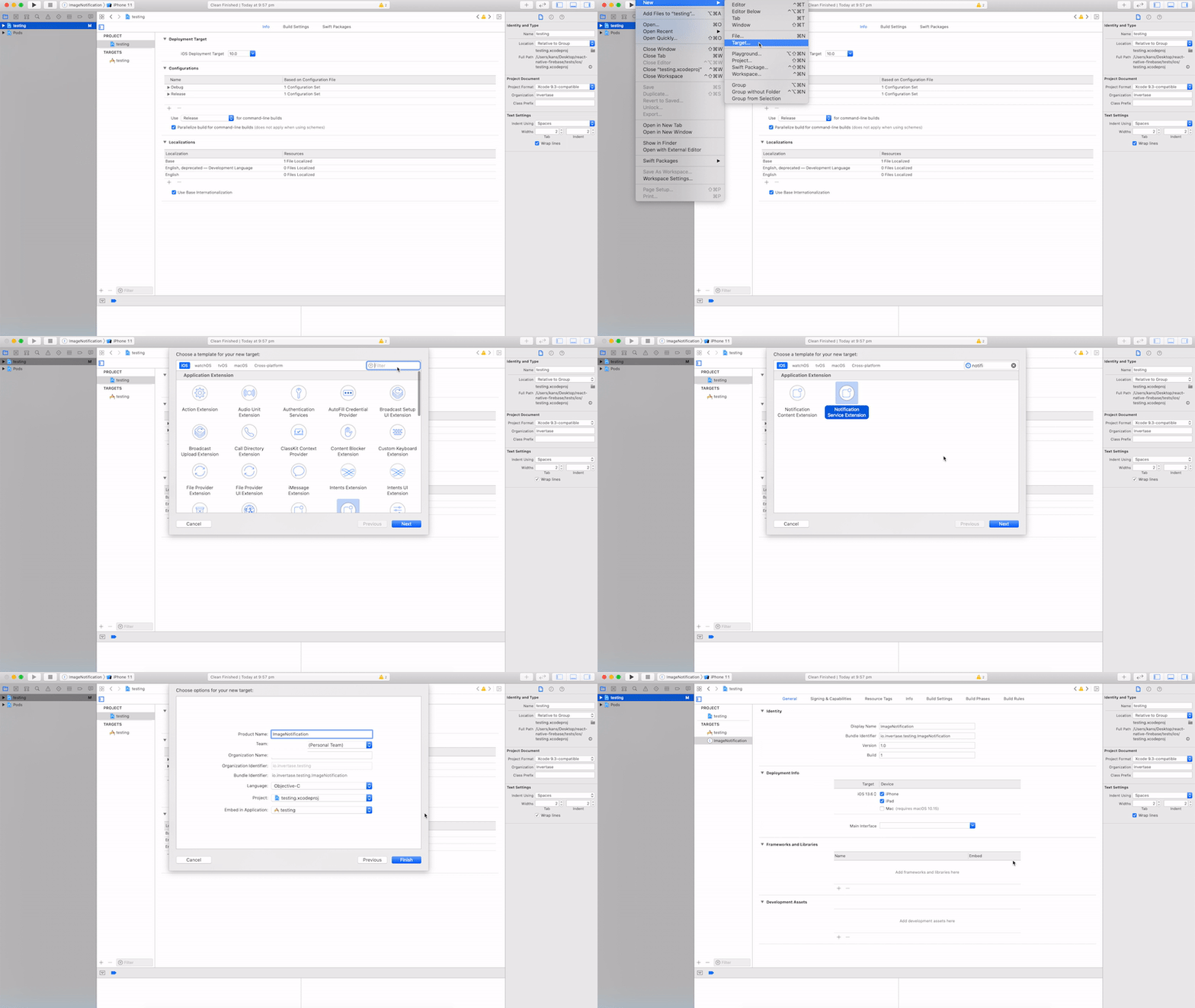
- From Xcode top menu go to: File > New > Target...
- A modal will present a list of possible targets, scroll down or use the filter to select
Notification Service Extension. Press Next. - Add a product name (use
ImageNotificationto follow along) and click Finish - Enable the scheme by clicking Activate
Add target to the Podfile Ensure that your new extension has access to Firebase/Messaging pod by adding it in the Podfile:
- From the Navigator open the Podfile: Pods > Podfile
- Scroll down to the bottom of the file and add
target 'ImageNotification' do use_frameworks! :linkage => :static pod 'Firebase/Messaging' end - Install or update your pods using
pod installfrom theiosfolder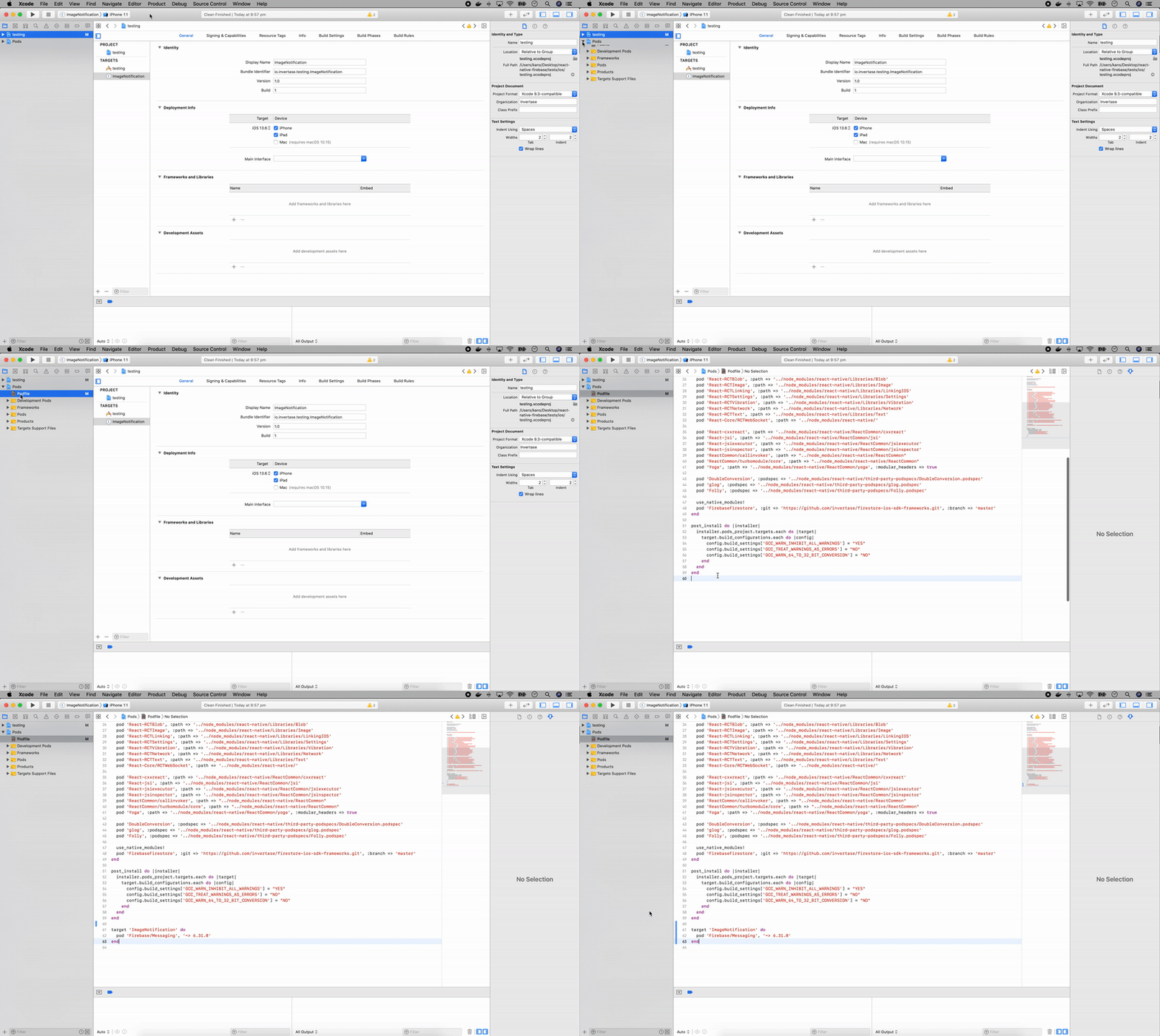
- Use the extension helper (Objective-C) At this point everything should still be running normally. This is the final step which is invoking the extension helper.
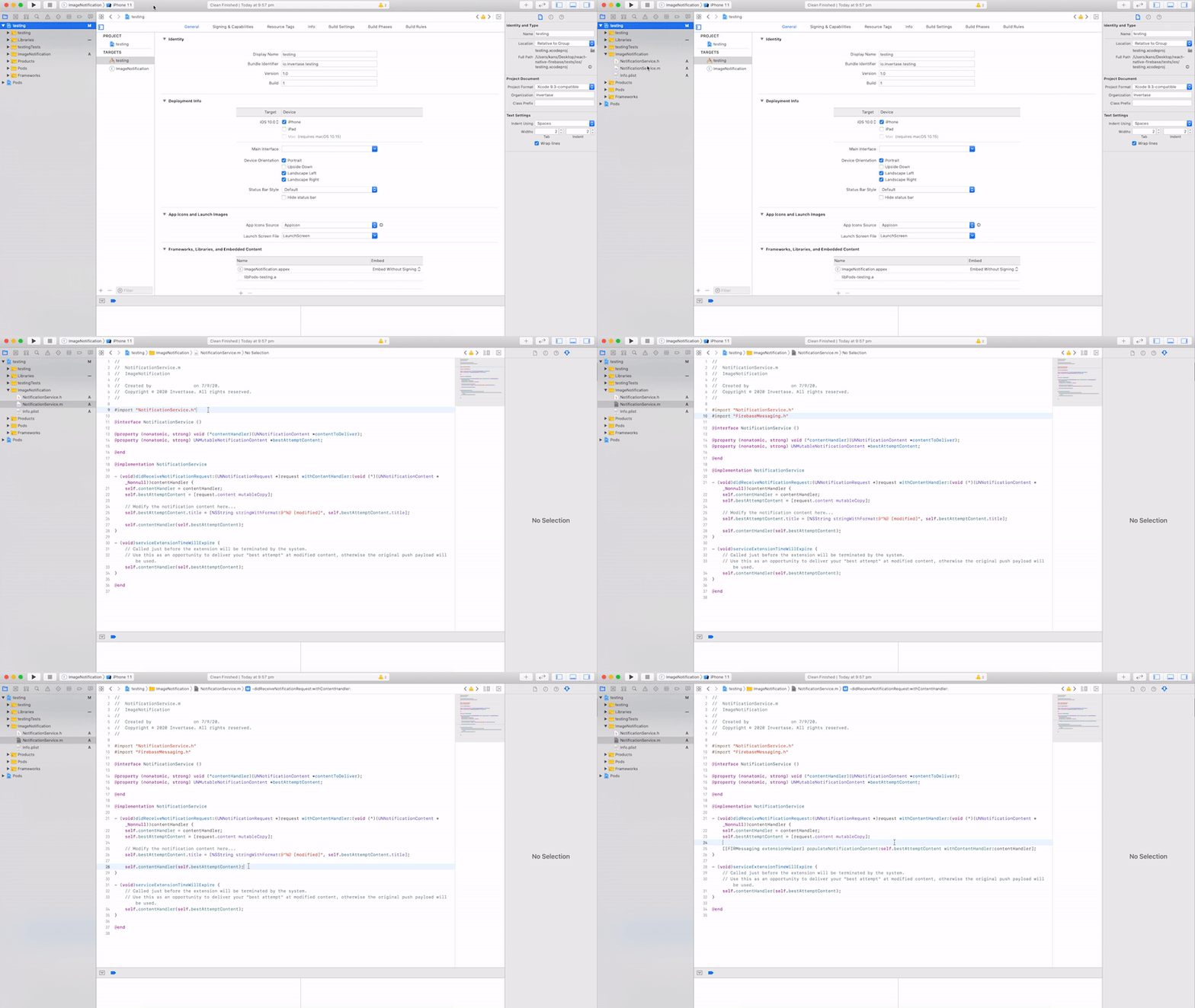
- From the navigator select your
ImageNotificationextension - Open the
NotificationService.mfile - At the top of the file import
FirebaseMessaging.hright after theNotificationService.has shown below
#import "NotificationService.h"
#import "FirebaseMessaging.h"
- Then replace everything from line 25 to 28 with the extension helper
// Modify the notification content here...

- self.bestAttemptContent.title = [NSString stringWithFormat:@"%@ [modified]", self.bestAttemptContent.title]; - self.contentHandler(self.bestAttemptContent);

+ [[FIRMessaging extensionHelper] populateNotificationContent:self.bestAttemptContent withContentHandler:contentHandler];
Note : This (step 3) can be skipped in case already completed
Setting User Context to Xeno SDK
import XenoSdk from "react-native-xeno";


await XenoSdk.setUser({
    countryCode: "+91",
    phone: "9999999999",
    name: "User full name",
    email: "[email protected]"
});
Requesting Notification Permission on your application's main screen.
- This will show a popup to the user asking for permission to send notifications.
- This will handle the user's response and update the user's notification permission status in Xeno-SDK.
- If you will not pass
contextandconfigthen it will show the default popup and will handle the user's response and update the user's notification permission status in Xeno-SDK.
import { useEffect } from 'react';
import XenoSdk from "react-native-xeno";

useEffect(() => {
  const requestPermission = async () => {
    await XenoSdk.requestNotificationPermission({
        title: 'Stay in the know!',
        body: 'Enable push notifications and never miss a thing.',
        primaryButtonText: 'Enable Notifications',
        primaryButtonRadius: 6,
        secondaryButtonText: 'Not Now',
        decoration: {
          radius: 12,
          backgroundColor: '#FFFFFF',
          primaryColor: '#0000FF',
          secondaryColor: '#808080',
        },
      });
  };

  setTimeout(requestPermission, 0);
}, []);
Submitting FCM Device Token to Xeno SDK
import XenoSdk from "react-native-xeno";


const sendFcmTokenToXeno = async () => {
  const fcmDeviceToken = await messaging().getToken();

  if (fcmDeviceToken) {
    await XenoSdk.updateDeviceToken(fcmDeviceToken);
  }
};
Handle Incoming Push Messages
import messaging from '@react-native-firebase/messaging';

import XenoSdk from "react-native-xeno";


useEffect(() => {
  const unsubscribe = messaging().onMessage(async remoteMessage => {
		/// onMessageReceived has 2 arguments, 'remoteMessage'
    /// remoteMessage : received message from Firebase messaging
    /// true/false based on you want to display notifications or not
    XenoSdk.onMessageReceived(remoteMessage, true);
  });

  return unsubscribe; // Clean up listener on unmount
}, []);
Handling Deep Links
import XenoSdk from "react-native-xeno";

// Handle case when app is launched by tapping on a notification
XenoSdk.getInitialDeeplink().then((deeplink) {
    // TODO: Redirect to some screen based on deeplink
});

// Handle case when app is in foreground and a notification is tapped
XenoSdk.listenDeeplink().listen((deeplink) {
    // TODO: Redirect to some screen based on deeplink
});
Capturing Events
Track user interactions and custom events in your app using the captureEvent method:
import XenoSdk from "react-native-xeno";

// Event with custom data
await XenoSdk.captureEvent('button_clicked', {
    screen_name: 'home_screen',
    button_id: 'login_button',
    timestamp: Date.now()
});
In-App Campaigns
Xeno can show in-app popups (modal, banner, fullscreen) triggered by session start, screen navigation, or custom events. Campaigns are fetched and evaluated entirely on device — you only need to tell the SDK which screen is in focus.
Call setInAppContext + showInApp when a screen gains focus, and resetInAppContext
when it loses focus. The context names must match the screen value configured on the
campaign in the Xeno dashboard.
import { useFocusEffect } from '@react-navigation/native';
import { useCallback } from 'react';
import XenoSdk from 'react-native-xeno';

function ProductScreen() {
  useFocusEffect(
    useCallback(() => {
      XenoSdk.setInAppContext(['ProductDetail']);
      XenoSdk.showInApp();

      return () => {
        XenoSdk.resetInAppContext();
      };
    }, [])
  );

  // ...
}- Session-start campaigns are shown automatically once the SDK has a user/session.
- Custom-event campaigns fire automatically whenever you call
captureEvent(...)— no extra call needed.
Handling CTA actions
When a user taps a CTA inside a popup, the SDK routes it based on the action:
| CTA action | Who handles it | How |
|------------|----------------|-----|
| DEEP_LINK | SDK → your deeplink handler | Delivered through listenDeeplink — the same handler you already use for push deeplinks. No extra code. |
| RICH_LANDING | SDK | Opened automatically in an in-app browser (Custom Tab / SFSafariViewController). |
| SCREEN | You | Delivered via addInAppListener as a clicked event — navigate within your RN navigator using event.value. |
So DEEP_LINK redirection is handled by your existing deeplink listener:
XenoSdk.listenDeeplink(console, (deeplink) => {
  // fired for BOTH push notification deeplinks AND in-app DEEP_LINK CTAs
  navigateFromDeeplink(deeplink.deeplink);
});
And SCREEN navigation is handled via the in-app listener:
import XenoSdk from 'react-native-xeno';

const unsubscribe = XenoSdk.addInAppListener((event) => {
  // event.type: 'shown' | 'clicked' | 'dismissed'
  if (event.type === 'clicked' && event.action === 'SCREEN') {
    // event.value is the screen identifier configured on the campaign
    navigation.navigate(event.value);
  }
});

// later
unsubscribe();
In-app callbacks are delivered on both Android and iOS.