
remote-scrcpy
v1.0.7
Published
Web-based remote control for Android devices powered by scrcpy


Readme
remote-scrcpy
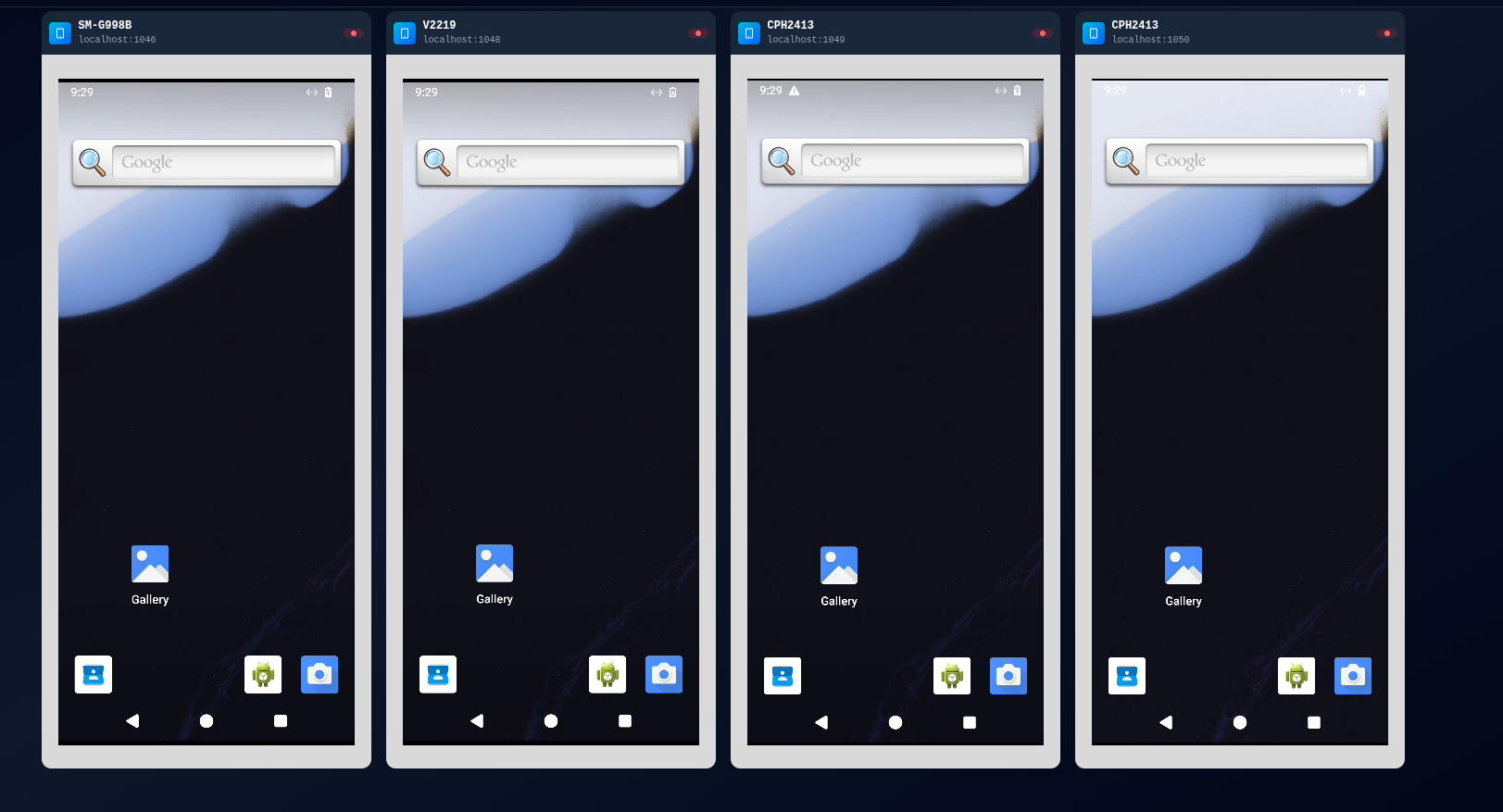
Web-based remote control for Android devices powered by scrcpy.
Author
trinhminhieu
Description
remote-scrcpy is a web client for Genymobile/scrcpy that enables remote Android device control through a web browser. It provides smooth H.264 video streaming with low latency and full device interaction capabilities.
Features
- Real-time Screen Mirroring: Smooth H.264 video streaming with multiple decoder options
- Full Device Control: Touch, swipe, keyboard input, and more
- Multiple Decoder Support:
- H264 Converter (MSE Player) - Best quality, 60fps
- Broadway.js - Software decoder with WebAssembly
- Tiny H264 - Lightweight software decoder
- WebCodecs - Hardware-accelerated decoding (Chrome/Edge)
- Web-based Interface: No client installation required
- Low Latency: Optimized for real-time interaction
- Multi-device Support: Control multiple Android devices simultaneously
Requirements
Browser
- WebSockets support
- Media Source Extensions and H.264 decoding
- WebWorkers
- WebAssembly
Server
- Node.js v20+
- node-gyp (installation guide)
adbexecutable in PATH
Android Device
- Android 5.0+ (API 21+)
- ADB debugging enabled
- Additional option may be required for keyboard/mouse control
Installation
Windows Prerequisites
On Windows, you need to install build tools first:
# Option 1: Install windows-build-tools (Recommended)
npm install --global windows-build-tools

# Option 2: Install Visual Studio Build Tools manually
# Download from: https://visualstudio.microsoft.com/downloads/
# Select "Desktop development with C++" workload
From npm (Recommended)
# Install globally
npm install -g remote-scrcpy

# Run
remote-scrcpy
From source
# Clone the repository
git clone https://github.com/trinhminhieu/remote-scrcpy.git
cd remote-scrcpy

# Install dependencies
npm install

# Build and start
npm start
The server will start on http://localhost:8009
Quick Start Examples
Check out the examples directory for ready-to-use code:
- basic-server.js - Simplest server setup
- express-integration.js - Express app integration
- react-component.jsx - React component
- pm2-ecosystem.config.js - PM2 deployment
- docker-compose.yml - Docker setup
- nginx.conf - Nginx reverse proxy
See examples/README.md for detailed usage instructions.
Usage
Standalone Server
Run remote-scrcpy as a standalone server for device streaming:
# Install globally
npm install -g remote-scrcpy

# Start the server
remote-scrcpy

# Or with custom port
PORT=8009 remote-scrcpy
The server will start on http://localhost:8009 by default.
Access the web interface:
- Open
http://localhost:8009in your browser - Select your device from the list
- Choose a video decoder (H264 Converter recommended)
- Start controlling your device
Integration into Your Project
You can integrate remote-scrcpy into your own Node.js/Express application:
1. Install as a dependency
npm install remote-scrcpy2. Basic Integration
const express = require('express');
const path = require('path');

const app = express();
const PORT = 3000;

// Serve remote-scrcpy static files
app.use('/scrcpy', express.static(
  path.join(require.resolve('remote-scrcpy'), '../public')
));

// Your other routes
app.get('/', (req, res) => {
  res.send('My App with remote-scrcpy integration');
});

app.listen(PORT, () => {
  console.log(`Server running on http://localhost:${PORT}`);
  console.log(`Access remote-scrcpy at http://localhost:${PORT}/scrcpy`);
});
3. Programmatic Server Start
Start remote-scrcpy server programmatically:
const { spawn } = require('child_process');
const path = require('path');

// Start remote-scrcpy server
const scrcpyPath = path.join(
  require.resolve('remote-scrcpy'),
  '../index.js'
);

const scrcpyServer = spawn('node', [scrcpyPath], {
  stdio: 'inherit',
  env: { ...process.env, PORT: '8009' }
});

scrcpyServer.on('error', (err) => {
  console.error('Failed to start remote-scrcpy:', err);
});

// Cleanup on exit
process.on('exit', () => {
  scrcpyServer.kill();
});
Remote Server Deployment
Deploy remote-scrcpy on a dedicated server for centralized device management:
Server Setup (Device Server)
Install on server with ADB access:
npm install -g remote-scrcpyConnect Android devices:
# USB devices are auto-detected
# For network devices:
adb connect 192.168.1.100:5555
Start the server:
# Basic
remote-scrcpy

# With custom port and host
PORT=8009 HOST=0.0.0.0 remote-scrcpy

# Production with PM2
pm2 start remote-scrcpy --name "device-server"
Configure firewall:
# Allow port 8009
sudo ufw allow 8009/tcp
Client Setup (Web UI)
Connect your web application to the remote server:
Option A: Direct iframe embed
<iframe
  src="http://your-server:8009/embed.html?udid=device-id&player=mse"
  width="100%"
  height="100%"
  allow="autoplay"
></iframe>
Option B: React/Vue component
function DeviceStream({ deviceId }) {
  const scrcpyUrl = process.env.REACT_APP_SCRCPY_URL || 'http://localhost:8009';
  const embedUrl = `${scrcpyUrl}/embed.html?udid=${deviceId}&player=mse`;

  return (
    <iframe
      src={embedUrl}
      style={{ width: '100%', height: '100%', border: 'none' }}
      allow="autoplay"
    />
  );
}
Option C: Proxy through your backend
// In your Express app
const { createProxyMiddleware } = require('http-proxy-middleware');

app.use('/device-stream', createProxyMiddleware({
  target: 'http://your-device-server:8009',
  changeOrigin: true,
  ws: true, // Enable WebSocket proxying
}));
URL Parameters
Customize the stream with URL parameters:
http://localhost:8009/embed.html?udid=DEVICE_ID&player=PLAYER_TYPEParameters:
udid: Device identifier (required)- Format:
<ip>:<port>for network devices (e.g.,192.168.1.100:5555) - Format:
<serial>for USB devices (e.g.,emulator-5554)
- Format:
player: Video decoder (optional, default:mse)mse- H264 Converter (recommended, best quality, 60fps)broadway- Broadway.js (software decoder, WebAssembly)tinyh264- Tiny H264 (lightweight software decoder)webcodecs- WebCodecs (hardware-accelerated, Chrome/Edge only)
Examples:
# USB device with MSE player
http://localhost:8009/embed.html?udid=emulator-5554&player=mse

# Network device with Broadway player
http://localhost:8009/embed.html?udid=192.168.1.100:5555&player=broadway

# Auto-stream (no device selection UI)
http://localhost:8009/autostream.html?udid=device-id&player=mse
Configuration
You can customize the build by editing build.config.override.json:
{
  "INCLUDE_GOOG": true,
  "USE_H264_CONVERTER": true,
  "USE_BROADWAY": true,
  "USE_TINY_H264": true,
  "USE_WEBCODECS": true
}
Environment Variables
PORT: Server port (default: 8009)HOST: Server host (default: localhost)NODE_ENV: Environment mode (development/production)
Examples
# Custom port
PORT=9000 remote-scrcpy

# Listen on all interfaces (for remote access)
HOST=0.0.0.0 PORT=8009 remote-scrcpy

# Production mode
NODE_ENV=production remote-scrcpy
Deployment Guide
Production Deployment with PM2
Install PM2:
npm install -g pm2Create ecosystem file (
ecosystem.config.js):module.exports = { apps: [{ name: 'remote-scrcpy', script: 'remote-scrcpy', instances: 1, autorestart: true, watch: false, max_memory_restart: '1G', env: { NODE_ENV: 'production', PORT: 8009, HOST: '0.0.0.0' } }] };Start with PM2:
pm2 start ecosystem.config.js
pm2 save
pm2 startup
Docker Deployment
Create a Dockerfile:
FROM node:20-slim

# Install ADB
RUN apt-get update && apt-get install -y \
    android-tools-adb \
    && rm -rf /var/lib/apt/lists/*

# Install remote-scrcpy
RUN npm install -g remote-scrcpy

# Expose port
EXPOSE 8009

# Start server
CMD ["remote-scrcpy"]
Build and run:
docker build -t remote-scrcpy .
docker run -d -p 8009:8009 --privileged -v /dev/bus/usb:/dev/bus/usb remote-scrcpy
Nginx Reverse Proxy
Configure Nginx for HTTPS and WebSocket support:
upstream remote_scrcpy {
    server localhost:8009;
}

server {
    listen 80;
    server_name your-domain.com;

    location / {
        proxy_pass http://remote_scrcpy;
        proxy_http_version 1.1;
        proxy_set_header Upgrade $http_upgrade;
        proxy_set_header Connection "upgrade";
        proxy_set_header Host $host;
        proxy_set_header X-Real-IP $remote_addr;
        proxy_set_header X-Forwarded-For $proxy_add_x_forwarded_for;
        proxy_set_header X-Forwarded-Proto $scheme;

        # WebSocket timeout
        proxy_read_timeout 86400;
    }
}
Systemd Service
Create /etc/systemd/system/remote-scrcpy.service:
[Unit]
Description=remote-scrcpy Android Device Streaming
After=network.target

[Service]
Type=simple
User=your-user
WorkingDirectory=/home/your-user
Environment="PORT=8009"
Environment="HOST=0.0.0.0"
Environment="NODE_ENV=production"
ExecStart=/usr/bin/remote-scrcpy
Restart=always
RestartSec=10

[Install]
WantedBy=multi-user.target
Enable and start:
sudo systemctl enable remote-scrcpy
sudo systemctl start remote-scrcpy
sudo systemctl status remote-scrcpy
Development
# Development build with hot reload
npm run dist:dev

# Production build
npm run dist:prod
Architecture
remote-scrcpy consists of:
- Frontend: React-based web interface with video decoders
- Backend: Node.js server with WebSocket support
- scrcpy: Modified version with WebSocket integration
Security Notice
⚠️ Important Security Considerations:
- No encryption between browser and server by default
- No authorization mechanism
- Suitable for local network use only
- For production use, configure HTTPS and implement authentication
Security Best Practices
- Use HTTPS: Always use HTTPS in production with valid SSL certificates
- Implement Authentication: Add authentication layer (OAuth, JWT, etc.)
- Firewall Rules: Restrict access to trusted IPs only
- Network Isolation: Run on isolated network segment
- Regular Updates: Keep dependencies updated for security patches
Example: Basic Authentication with Nginx
server {
    listen 443 ssl;
    server_name your-domain.com;

    ssl_certificate /path/to/cert.pem;
    ssl_certificate_key /path/to/key.pem;

    auth_basic "Restricted Access";
    auth_basic_user_file /etc/nginx/.htpasswd;

    location / {
        proxy_pass http://localhost:8009;
        # ... other proxy settings
    }
}
Troubleshooting
Devices not showing up
Check ADB connection:
adb devicesVerify ADB is in PATH:
which adb  # Linux/Mac
where adb  # Windows
Enable USB debugging on Android device:
- Settings → About Phone → Tap "Build Number" 7 times
- Settings → Developer Options → Enable "USB Debugging"
For network devices:
# Enable TCP/IP mode on device
adb tcpip 5555

# Connect from computer
adb connect <device-ip>:5555
Video stream not working
Check browser compatibility:
- Chrome/Edge: All decoders supported
- Firefox: Broadway and TinyH264 only
- Safari: Limited support
Try different decoder:
- MSE (H264 Converter): Best quality but requires browser support
- Broadway: Software decoder, works everywhere
- TinyH264: Lightweight alternative
Check WebSocket connection:
- Open browser DevTools → Network tab
- Look for WebSocket connections
- Check for errors
Verify device screen is on:
adb shell dumpsys power | grep "Display Power"
High latency or lag
- Use wired connection instead of WiFi when possible
- Reduce video quality in device settings
- Close other applications using bandwidth
- Check CPU usage on server
- Use MSE decoder for hardware acceleration
Port already in use
# Find process using port 8009
lsof -i :8009  # Linux/Mac
netstat -ano | findstr :8009  # Windows

# Kill the process or use different port
PORT=8001 remote-scrcpy
Permission denied (ADB)
Linux:
# Add user to plugdev group
sudo usermod -aG plugdev $USER

# Create udev rules
sudo nano /etc/udev/rules.d/51-android.rules
# Add: SUBSYSTEM=="usb", ATTR{idVendor}=="<vendor-id>", MODE="0666", GROUP="plugdev"

# Reload rules
sudo udevadm control --reload-rules
Windows:
- Install Android USB drivers from device manufacturer
- Run as Administrator if needed
Performance Optimization
Server-side
Use production mode:
NODE_ENV=production remote-scrcpyIncrease Node.js memory:
NODE_OPTIONS="--max-old-space-size=4096" remote-scrcpyEnable compression in Nginx/Apache
Use PM2 cluster mode for multiple CPU cores:
// ecosystem.config.js
module.exports = {
  apps: [{
    name: 'remote-scrcpy',
    script: 'remote-scrcpy',
    instances: 'max',  // Use all CPU cores
    exec_mode: 'cluster'
  }]
};
Client-side
- Use MSE decoder for hardware acceleration
- Close unused tabs to free resources
- Use Chrome/Edge for best performance
- Disable browser extensions that may interfere
Best Practices
For Development
- Use
localhostfor testing - Enable hot reload with
npm run dist:dev - Check browser console for errors
- Use Chrome DevTools for debugging
For Production
- Deploy behind reverse proxy (Nginx/Apache)
- Enable HTTPS with valid certificates
- Implement authentication and authorization
- Set up monitoring and logging
- Use process manager (PM2/systemd)
- Configure firewall rules
- Regular backups and updates
- Load balancing for high traffic
For Multiple Devices
- Use descriptive device names
- Organize devices by location/purpose
- Implement device access control
- Monitor device health and connectivity
- Set up automated device reconnection
Credits
- Original scrcpy by Genymobile
- Video decoders: Broadway.js, TinyH264, h264-converter
License
See LICENSE file for details.
Contributing
Contributions are welcome! Please feel free to submit a Pull Request.
Support
For issues and questions, please open an issue on GitHub.
Author: trinhminhieu
Project: remote-scrcpy
Year: 2026