
retro-pong-game
v5.3.0
Published
A retro-style Pong game for the browser. You can drop it onto any web page in a easy way.

Maintainers
 chris-schardijn
Readme
retro-pong-game





A retro-style Pong game that runs in any browser. Drop it onto your website with a single constructor call. No frameworks, no extra configuration required.
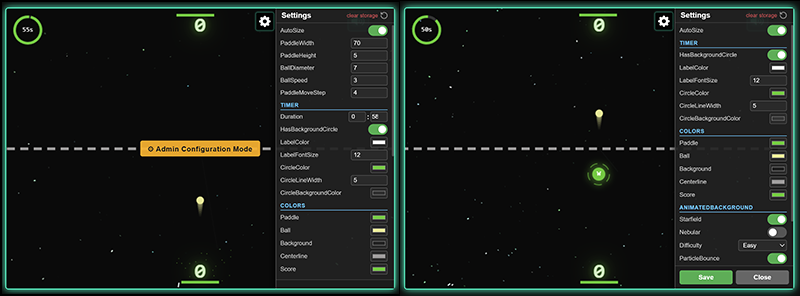
- Animated starfield or nebular background
- Particle effects on paddle hits
- Countdown timer with configurable duration
- Adaptive AI difficulty (auto-adjusts after scoring streaks)
- Local 2-player multiplayer mode on one keyboard
- Power-ups and power-downs that randomly appear in the field
- Angled wall obstacles that deflect the ball in unexpected directions
- Sea mines that explode on contact and award a point to the opposite player
- In-game settings panel (changes saved to
localStorage) - Stereo-panned sound effects
- Fully configurable colors, sizes, and speeds
- Type hints included for editors and TypeScript projects (ships with
.d.tsdeclarations)
How to play
You control the bottom paddle using the arrow keys (or A / D). The top paddle is the AI opponent in single-player mode, or a second human player when gameMode is set to "multiplayer".
Goal: score as many points as possible before the timer runs out. A point is scored when the ball passes the opponent's paddle and exits through their side of the field. The player with the most points when the timer reaches zero wins.
Controls:
| Key | Action |
| --- | --- |
| A / D | Move paddle left / right (Player 1 in multiplayer) |
| ← / → Arrow keys | Move paddle left / right (Player 2 in multiplayer, or combined in single-player) |
| P or Space | Pause / resume |
| B | Cycle ball image |
Scoring streaks affect the AI: if you score three times in a row the AI gets harder; if the AI scores three times in a row it gets easier, so the game stays competitive.
Power-ups and power-downs appear randomly in the field every 12 seconds. Steer the ball into them to activate the effect. Power-ups (bright solid circles) give you a temporary advantage. Power-downs (dark circles with a rotating dashed ring) make the game harder for a few seconds. See Power-ups & power-downs for the full list.
A glowing cyan wall obstacle also appears periodically — when the ball hits it, it deflects at an angle determined by the wall's orientation. See Obstacles.
A sea mine spawns randomly in the field and sits there silently. If the ball touches it, the mine explodes and a point is awarded to the opposite player — the one who did not hit the mine. After an explosion the ball restarts from the paddle of the player who earned the point, giving them the serve. Mines disappear automatically after 10 seconds if not triggered. See Mines.
Installation
npm install retro-pong-gameQuick start
1. Add a container element to your HTML
<div id="game"></div>The game appends a <canvas> inside this element automatically.
2. Import and create the game
New to this package? Start with isAdmin: true to configure everything visually first.
Fun tip: press
Bduring any game to cycle the ball through some images. Press again to go to the next image; one more press after the last image clears it back to a plain ball.
import { PongGame } from 'retro-pong-game';

const game = new PongGame({ isAdmin: true }, '#game');
Open the settings panel (gear icon), adjust colors, sizes, and speeds live, then click Copy at the bottom to export your config as JSON. Paste it into your constructor and remove isAdmin:
const game = new PongGame(
  {
    /* paste your copied config here */
  },
  '#game'
);
If you already know your config, pass it directly:
const game = new PongGame(
  {
    canvasWidth: 600,
    canvasHeight: 400,
    hasSound: true,
    colors: {
      background: '#1a1a2e',
      paddle: '#e94560',
      ball: '#e94560',
    },
  },
  '#game'
);
3. Clean up
Call destroy() before removing the element from the page:
game.destroy();CDN (no npm required)
<!DOCTYPE html>
<html lang="en">
<head>
  <meta charset="UTF-8" />
  <title>Pong</title>
</head>
<body>
  <div id="game"></div>

  <script src="https://unpkg.com/retro-pong-game/dist/pong-game.umd.js"></script>
  <script>
    const game = new PongGame.PongGame(
      { canvasWidth: 600, canvasHeight: 400 },
      '#game'
    );
  </script>
</body>
</html>
Self-hosting: all audio and image assets are bundled inline in the JS file. You only need to serve a single file —
pong-game.umd.js(orpong-game.es.jsfor ES modules). CDN providers (unpkg, jsDelivr) work out of the box as well.
Framework examples
React
import { useEffect, useRef } from 'react';
import { PongGame } from 'retro-pong-game';

export default function PongWidget() {
  const gameRef = useRef(null);

  useEffect(() => {
    gameRef.current = new PongGame(
      { canvasWidth: 600, canvasHeight: 400 },
      '#pong-container'
    );

    return () => {
      gameRef.current?.destroy();
    };
  }, []);

  return <div id="pong-container" />;
}
Vue 3
<template>
  <div id="pong-container" />
</template>

<script setup>
import { onMounted, onBeforeUnmount } from 'vue';
import { PongGame } from 'retro-pong-game';

let game = null;

onMounted(() => {
  game = new PongGame({ canvasWidth: 600, canvasHeight: 400 }, '#pong-container');
});

onBeforeUnmount(() => {
  game?.destroy();
});
</script>
Vanilla HTML + ES modules
<div id="game"></div>

<script type="module">
  import { PongGame } from '/node_modules/retro-pong-game/dist/pong-game.es.js';

  const game = new PongGame({ canvasWidth: 600, canvasHeight: 400 }, '#game');
</script>
TypeScript / editor autocomplete
The package is written in JavaScript but ships with type declarations (.d.ts), so TypeScript projects and editors with IntelliSense get full autocomplete on every config option. Import PongGameConfig to get type checking on the config object:
import { PongGame, PongGameConfig } from 'retro-pong-game';

const config: PongGameConfig = {
  sizeMode: "fixed",
  canvasWidth: 400,
  canvasHeight: 500,
  paddleWidth: 70,
  paddleHeight: 10,
  ballDiameter: 7,
  ballSpeed: 3,
  paddleMoveStep: 4,
  timer: {
    duration: '1:30',
    hasBackgroundCircle: true,
    labelColor: '#ffffff',
    labelFontSize: 12,
    circleColor: '#62cb31',
    circleLineWidth: 5,
    circleBackgroundColor: '#333',
  },
  colors: {
    paddle: '#4daae8',
    ball: '#ff7a59',
    background: '#222',
    centerline: '#9e9c9c',
    score: '#9e9c9c',
  },
  animatedBackground: {
    starfield: true,
    nebular: false,
  },
  difficultyLevel: 1,
  particleBounce: true,
  particleConfig: {
    particlesCount: 20,
  },
  hasSound: true,
  onSoundToggle: (enabled: boolean) => {
    // enabled = true  → sound is ON
    // enabled = false → sound is OFF (muted)
    console.log('Sound toggled:', enabled);
  },
};

const game = new PongGame(config, '#game');
Configuration
All options are optional. Omitted values fall back to built-in defaults.
new PongGame(config, selector)The config is deep-merged in this order (later layers win):
- Built-in defaults
- Config you pass to the constructor
- Settings the player saved through the in-game settings panel (
localStorage)
PongGameConfig
| Option | Type | Default | Description |
|---|---|---|---|
| sizeMode | "responsive" | "auto" | "fixed" | "responsive" | Controls how the canvas sizes itself. "responsive" fills the container and auto-resizes on container changes (uses ResizeObserver). "auto" fills the container once at startup then stays fixed. "fixed" uses the exact canvasWidth and canvasHeight values and never auto-resizes. |
| canvasWidth | number | 400 | Canvas width in px (only used when sizeMode is "fixed") |
| canvasHeight | number | 300 | Canvas height in px (only used when sizeMode is "fixed") |
| paddleWidth | number | 84 | Paddle width in px |
| paddleHeight | number | 7 | Paddle height in px |
| ballDiameter | number | 8 | Ball diameter in px |
| ballSpeed | number | 3 | Starting ball speed (px per frame) |
| playerPaddleSpeed | number | 4 | Player paddle speed while an arrow key is held (px per frame) |
| computerPaddleSpeed | number | 4 | Computer paddle speed while an arrow key is held (px per frame). Overridden by gameMode presets when both are set |
| gameMode | string | "easy" | Game mode: "easy", "medium", "hard", "extreme" for single-player vs AI, or "multiplayer" for local 2-player on one keyboard |
| difficultyLevel | number | 1 | Starting AI difficulty; higher = faster and more precise AI. Overridden by gameMode when both are set. Ignored in multiplayer |
| player1Name | string | "Player 1" | Name shown above the bottom paddle and used in multiplayer high scores |
| player2Name | string | "Player 2" | Name shown above the top paddle and used in multiplayer high scores |
| particleBounce | boolean | true | Particle burst when the ball hits a paddle |
| powerUps | boolean | true | Enable power-ups and power-downs that randomly appear in the field |
| obstacles | boolean | true | Enable the angled wall obstacle that randomly appears in the field and deflects the ball |
| mines | boolean | true | Enable sea mines that randomly appear in the field and explode on contact |
| isMultiplayer | boolean | false | Enable local 2-player mode on one keyboard. When true, overrides gameMode to "multiplayer" and shows both player names |
| hasSound | boolean | true | Enable sound effects |
| ballImage | string | "" | URL of a custom image to display on the ball from game start. Clipped to a circle and rotated with the ball. Pressing B still cycles through built-in images. |
| showSettings | boolean | true | Show the gear icon that opens the in-game settings panel. Set to false to lock the settings from players |
| isAdmin | boolean | false | Unlock difficulty and timing controls in the settings panel, plus a JSON export of the current config (see Admin mode) |
| testPowerupsAndDowns | boolean | false | Enable test mode that cycles through all power-ups and power-downs one by one (see Test mode) |
| onSoundToggle | (enabled: boolean) => void | - | Called when the player toggles the sound icon |
| timer | TimerConfig | see below | Countdown timer settings |
| colors | ColorConfig | see below | Colors for game elements |
| animatedBackground | AnimatedBackgroundConfig | see below | Background animation |
| particleConfig | ParticleConfig | see below | Particle effect settings |
TimerConfig
| Option | Type | Default | Description |
|---|---|---|---|
| duration | string | "2:00" | Match duration in "M:SS" format |
| hasBackgroundCircle | boolean | true | Show a circular progress ring around the timer |
| labelColor | string | "#ffffff" | Timer text color |
| labelFontSize | number | 12 | Timer text size in px |
| circleColor | string | "#62cb31" | Countdown ring stroke color |
| circleLineWidth | number | 5 | Countdown ring line width in px |
| circleBackgroundColor | string | "#333" | Countdown ring background track color |
ColorConfig
| Option | Type | Default | Description |
|---|---|---|---|
| paddle | string | "#62cb31" | Paddle color |
| ball | string | "#e6e990" | Ball color |
| background | string | "#000" | Canvas background color |
| centerline | string | "#9e9c9c" | Center dividing line color |
| score | string | "#62cb31" | Score text color |
AnimatedBackgroundConfig
| Option | Type | Default | Description |
|---|---|---|---|
| starfield | boolean | true | Scrolling starfield effect |
| nebular | boolean | false | Scrolling nebular cloud effect |
| animateDashedLine | boolean | true | Animate the dashed center line. When true the dashes scroll across the screen; false draws a static dashed line |
Enable at most one background effect at a time.
ParticleConfig
| Option | Type | Default | Description |
|---|---|---|---|
| particlesCount | number | 20 | Number of particles spawned per paddle hit |
Methods
// Control the user paddle programmatically (e.g. on-screen buttons, touch)
game.pressLeft();    // start moving paddle left
game.releaseLeft();  // stop  moving paddle left
game.pressRight();   // start moving paddle right
game.releaseRight(); // stop  moving paddle right

// Enable or disable sound effects
game.toggleSound(true);
game.toggleSound(false);

// Check if sound is currently enabled
game.hasSound(); // → boolean

// Cycle the ball image (same as pressing B)
game.cycleBallImage();

// Pause or resume the game (same as pressing P or Space)
game.togglePause();

// Adjust AI difficulty manually
game.increaseDifficulty();
game.decreaseDifficulty();

// Resize the canvas when the container changes size
window.addEventListener('resize', () => game.resizeGame());

// Get the internal SoundHelper for advanced audio control
const soundHelper = game.getSoundHelper();

// Tear down the game completely (always call before unmounting)
game.destroy();
Paddle control example
Use pressLeft / releaseLeft / pressRight / releaseRight to wire on-screen buttons for touch or mouse control:
function wireButton(btn, pressFn, releaseFn) {
  btn.addEventListener('pointerdown', (e) => {
    e.preventDefault();
    btn.setPointerCapture(e.pointerId);
    pressFn();
  });
  btn.addEventListener('pointerup',     releaseFn);
  btn.addEventListener('pointercancel', releaseFn);
}

const game = new PongGame(config, '#my-pong');

wireButton(document.getElementById('btn-left'),
  () => game.pressLeft(),  () => game.releaseLeft());
wireButton(document.getElementById('btn-right'),
  () => game.pressRight(), () => game.releaseRight());
Keyboard controls
Single player: both A / D and ← / → arrow keys control the bottom paddle. The top paddle is the AI opponent.
Multiplayer (gameMode: "multiplayer"):
| Key | Player | Action |
| --- | --- | --- |
| A / D | Player 1 (bottom) | Move paddle left / right |
| ← / → Arrow keys | Player 2 (top) | Move paddle left / right |
| P or Space | Both | Pause / resume |
| B | Both | Cycle ball image |
In single-player mode both sets of keys move the bottom paddle for convenience.
Power-ups & power-downs
Every 12 seconds a glowing item appears somewhere in the middle of the field. Hit it with the ball to activate its effect. The item then disappears and a new one spawns 12 seconds later.
How to tell them apart
| Visual | Type | | --- | --- | | Bright solid circle — slow pulsing outer ring | Power-up — helps you | | Dark circle with rotating dashed ring — fast flickering | Power-down — hurts you |
Power-ups (beneficial)
| Icon | Color | Effect | Duration | | --- | --- | --- | --- | | Animated paddle (wide) | Green | The paddle of the player who hits it becomes twice as wide. If you hit it, your paddle grows; if the opponent hits it, their paddle grows. | 6 s | | Animated ball (slow) | Cyan | Ball speed is reduced by ~55% | 5 s | | Animated snowflake | Orange | The opponent's paddle freezes. Whoever hits the ball into the powerup freezes the other player — if you hit it, the computer/Player 2 freezes; if the opponent hits it, you freeze. Works both in single-player and multiplayer. | 6 s | | Animated paddle (fast) | Yellow | The paddle of the player who hits it moves faster. If you hit it, you get the speed boost; if the opponent hits it, they get it. | 5 s | | Animated magnet | Purple | The paddle of the player who hits it attracts the ball when it is close, making returns easier. If you hit it, your paddle gets the magnetic pull; if the opponent hits it, they get it. | 6 s | | Animated ghost eye | Orange | The opponent's paddle becomes invisible, making it harder to track their position. Whoever hits the ball into it makes the other player's paddle disappear. | 5 s | | Crystal ball | Cyaan | Shows a dashed magic prediction line from the opponent's paddle to yours, including wall and obstacle bounces. The line appears when the ball hits the opponent's paddle and disappears when the ball reaches yours. Helps you aim returns by showing exactly where the ball will land. | Ball travel time |
Power-downs (detrimental)
| Icon | Color | Effect | Duration | | --- | --- | --- | --- | | Animated paddle (narrow) | Red | The paddle of the player who hits it shrinks to half its normal width. If you hit it, your paddle shrinks; if the opponent hits it, their paddle shrinks. | 5 s | | Animated ball (fast) | Orange-red | Ball speed increases by 80% | 5 s | | Animated gravity arrow | Dark purple | The ball is pulled downward by gravity, making it harder to defend near your goal. Affects both players. | 5 s | | Animated crossed arrows | Dark orange | Your paddle controls are inverted (left becomes right and vice versa) for the duration. Affects the player who hit the ball into the item. | 4 s |
A flash message appears on screen when an effect activates (e.g. "OPPONENT FROZEN!" or "NARROW PADDLE!") and fades out over the effect's duration so you always know what is active.
Power-ups and power-downs can be disabled via the in-game settings panel (toggle Power-ups) or through the config option powerUps: false.
Obstacles
Every 8 seconds a glowing cyan wall segment appears somewhere in the middle of the field at a random angle. When the ball hits it, it deflects at a physically correct angle just like bouncing off a real angled surface. The wall stays visible for 10 seconds (flickering during the final 3 seconds as a warning), then disappears and respawns at a new position and angle after another 8 seconds.
The obstacle gives both players something unexpected to navigate around and can send the ball into hard-to-reach corners, which keeps long rallies interesting.
Obstacles can be disabled via the config option obstacles: false.
Mines
Every 8 seconds a sea mine appears somewhere in the middle of the field. It looks like a floating spiked metal ball with a glowing red center. The mine stays visible for 10 seconds (flickering during the final 3 seconds as a warning), then disappears on its own if no one hits it.
When the ball touches the mine:
- The mine explodes with an expanding orange shockwave and sparks
- A point is awarded to the player whose paddle did not send the ball into the mine (the opposite player)
- The ball restarts from the paddle of the player who earned the point, giving them the serve
- Play continues immediately without a pause
Mines can be disabled via the config option mines: false.
Settings panel
The game includes a built-in settings panel (gear icon in the corner of the canvas). Players can change colors, background effects, and particle settings. All changes are saved to localStorage and restored automatically on the next visit.
To reset all saved settings back to defaults:
localStorage.removeItem('chriscreativecode.com-retro-pong-game');Admin mode
isAdmin: true is the recommended starting point when you are setting up the game for the first time. It unlocks the full settings panel so you can configure everything visually before committing to a config object.
const game = new PongGame({ isAdmin: true }, '#game');Workflow:
- Start the game with
isAdmin: true - Open the settings panel (gear icon) — you will see all configurable fields including sizes, speeds, colors, timer, and difficulty
- Adjust the values and watch the changes live
- Scroll to the bottom of the panel and click Copy to copy the full config as JSON
- Paste the JSON into your constructor and remove
isAdmin
In admin mode the settings panel exposes:
- Difficulty fields —
ballSpeed,paddleMoveStep,paddleWidth,paddleHeight,ballDiameter,difficultyLevel - Timer duration —
timer.duration(changing match length affects scoring opportunities) - Config JSON export — a read-only textarea at the bottom of the panel showing the full current config as JSON, with a Copy button
Without isAdmin, these fields are hidden from players so they cannot alter the game balance. Do not ship isAdmin: true to end users.
Test mode
testPowerupsAndDowns: true enables a special development mode that cycles through all power-ups and power-downs one by one so you can visually verify each effect works correctly.
const game = new PongGame({ testPowerupsAndDowns: true }, '#game');How it works:
- The game starts with obstacles, mines, particles and sound disabled to keep the test clean
- A power-up or power-down is spawned at the center of the canvas
- The ball is served toward it automatically so you can see the effect activate
- A label at the top of the screen shows which item is being tested (e.g.
Testing: WIDE_PADDLE (1/10)) - After 8 seconds all effects are cleared and the next item in the queue spawns
- Once all 10 items have been tested, the label reads
TEST COMPLETE — alle 10 power-ups/downs getest!
Controls during test mode:
| Key | Action |
| --- | --- |
| Arrow keys / A D | Move the bottom paddle (as usual) |
| T | Toggle serve direction between Player 1 (bottom) and Computer (top) |
Pressing T changes which player serves the ball toward the power-up. This is useful for effects that depend on which player hits the item (for example, FREEZE_OPPONENT freezes the other player, so serving from the computer side freezes your paddle and lets you see the ice overlay).
Test queue order:
- CRYSTAL_BALL (power-up - cyaan) — new
- WIDE_PADDLE (power-up - green)
- SLOW_BALL (power-up - cyan)
- FREEZE_OPPONENT (power-up - orange)
- FAST_PADDLE (power-up - yellow)
- MAGNET_PADDLE (power-up - purple)
- INVISOR_PADDLE (power-up - orange)
- NARROW_PADDLE (power-down - red)
- FAST_BALL (power-down - orange-red)
- GRAVITY_BALL (power-down - dark purple)
- INVERT_CONTROLS (power-down - dark orange)
This mode is intended for development and QA only. Do not enable it in production.
Canvas sizing (sizeMode)
The sizeMode option replaces the old autoSize and autoResize flags. It accepts one of three values:
| Value | Canvas at startup | Auto-resizes on container change | When to use |
|---|---|---|---|
| "responsive" | Fills container | Yes (ResizeObserver) | Default. Best for responsive layouts where the container may change size at any time (e.g. window resize, CSS flex/grid changes). |
| "auto" | Fills container | No | Canvas fills the container once at startup, then keeps that size. Useful when the container has a fixed size and you want to avoid the overhead of a ResizeObserver. |
| "fixed" | Uses canvasWidth / canvasHeight | No | Exact pixel dimensions. Use this when you need a specific canvas size regardless of the container. |
Examples
Responsive (recommended for responsive layouts:
const game = new PongGame(
  { sizeMode: 'responsive' },
  '#game'
);
The container must have a CSS-defined size (width and height). For example, to fill the viewport:
#game {
  width: 100%;
  height: 100vh;
}
Fixed canvas dimensions:
const game = new PongGame(
  { sizeMode: 'fixed', canvasWidth: 640, canvasHeight: 480 },
  '#game'
);
Manual resize trigger (if you need custom resize logic):
window.addEventListener('resize', () => game.resizeGame());Migrating from autoSize / autoResize
If you're upgrading from a previous version that used autoSize and autoResize, the old options still work (they're mapped automatically). However, the recommended approach is to switch to sizeMode:
autoSize: true, autoResize: true→sizeMode: "responsive"autoSize: true, autoResize: false→sizeMode: "auto"autoSize: false, autoResize: false→sizeMode: "fixed"
Troubleshooting
Upgrading from an older version
If you previously had an older version installed on your site and are upgrading to a newer version, you may run into issues caused by stale data in localStorage. To fix this, clear the saved game data in your browser.
Option 1 — Clear all site data (quickest)
- Open the page in Chrome
- Press
F12to open DevTools - Go to Application
- Click Clear site data
Option 2 — Remove only the game's localStorage entry (recommended if you have other data on the page)
- Open DevTools (
F12) and go to Application → Local Storage - Find the key
chriscreativecode.com-retro-pong-game - Select that row and delete it (right-click → Delete, or press the Delete key)
After clearing the entry the game will start fresh with default settings on the next page load.
Browser support
All modern browsers with HTML Canvas support (Chrome, Firefox, Safari, Edge). When importing the ES module build, a bundler (Vite, Webpack, esbuild, Parcel) is recommended for production use.
License
MIT © Chris Schardijn
Changelog
v5.3.0
New features
- New crystal ball power-up: collect it to see a dashed magic prediction line that shows the ball's trajectory from the opponent's paddle to yours, including wall and obstacle bounces. The line appears when the ball hits the opponent's paddle and disappears when the ball reaches yours. Helps you aim returns by showing exactly where the ball will land
- New
testPowerupsAndDownsconfig option for development: enables a sequential test mode that spawns all 11 power-ups and power-downs one by one at the center of the canvas. The ball is served automatically toward each item so you can verify every effect visually. Disables obstacles, mines, particles and sound during testing - Press
Tduring test mode to toggle the serve direction between the bottom and top paddle. Useful for effects like FREEZE_OPPONENT that need to hit the correct player - Paddle width changes (wide/narrow power-ups) now animate smoothly with an easeOutCubic transition instead of snapping instantly
Bug fixes
- Fixed crystal ball prediction line creation: the line now correctly simulates the ball's actual post-reflection direction instead of using the stored power-up direction, so the prediction path is accurate regardless of which player activated the power-up
- Fixed crystal ball prediction line not being drawn when the ball hits the opponent's paddle — the
isOpponentHitcondition now fires on the correct paddle hit (first paddle hit after power-up collection) while using the ball's current velocity for the simulation - The magnet power-up effect now correctly pulls the ball toward the paddle without causing it to miss the target in test mode
- Freeze paddle visual overlay now displays correctly and the effect is more reliable
- Opponent paddle visibility is properly restored after the invisible paddle effect expires in test mode
User.setPlayerPaddleSpeedconverted to an arrow function so it correctly overrides the Player base class stubspeedTracker.playerPaddleSpeedis now synced with the config value on init, so the FAST_PADDLE speed boost applies correctly from the start- Test mode forces
cfg.powerUps = trueto override a potentialfalsevalue from localStorage - Test mode step 5 (MAGNET_PADDLE) serves the ball straight up so it hits the power-up first before reaching the paddle
- Paddle width is now correctly reset to its original value on game restart, preventing the wide/narrow power-up effect from carrying over into a new game
v5.2.2
Bug fixes
- Fixed a crash that occurred when the browser's localStorage contained corrupted or invalid JSON data. The game now recovers gracefully by clearing the bad entry and continuing with default settings instead of throwing an error
- Fixed a memory leak where the AI speed tracker event listener was added on every game restart but never cleaned up. After many restarts this caused multiple listeners firing at the same time, which could affect AI paddle speed updates
- Fixed a visual glitch on the game over screen where buttons appeared highlighted on arrival if the player had hovered over them at the end of the previous game
- Fixed a potential NaN value in the stereo sound panning calculation that could occur when the canvas had not yet been sized
v5.2.0
New features
- High scores fully redesigned with difficulty columns for singleplayer, a two-line row format for multiplayer, larger text, and scroll support
- High Scores toggle button added to the settings panel to show or hide scores without ending the game
- Settings panel now fires a
PANEL_OPENEDevent when it expands playerPaddleSpeedandcomputerPaddleSpeedare now separate configurable settings- Difficulty controls are hidden in multiplayer mode
Bug fixes
- Ball reflection rewritten with correct mirror physics and paddle velocity
- Mine collision tunneling fixed using swept line-segment detection
- FAST_PADDLE power-up velocity boost now works correctly per player
- Ball speed stays in sync with
SpeedTracker - Computer paddle speed is now correctly capped to user paddle speed
- Difficulty preset is applied before init so the settings panel shows the correct values
- High Scores button toggles correctly without causing a frozen frame
Style
- Multiplayer score display uses 4-digit padding for consistency
- Renamed SOLO SCORES to SINGLEPLAYER SCORES
- Settings panel widened from 220px to 264px
v5.1.1
- Fixed WIDE_CPU power-up ("C"): the computer or player 2 paddle now always gets wider when this power-up is activated, regardless of which player sent the ball.
- Fixed FAST_PADDLE power-up for the computer: the speed boost now correctly applies to the computer paddle so it visibly moves faster during the effect.
v5.1.0
- New side walls: two 8 px walls are drawn in the paddle color, positioned 5 px from the left and right canvas edges. The ball bounces off the inner edge of each wall and spawns colored particles on impact. Wall dimensions are configurable via
wall.widthandwall.offset - Paddle movement is now clamped to the inner edge of the side walls so paddles can no longer slide behind them
- Difficulty is now defined by named presets (
"easy","medium","hard","extreme") instead of a formula. Each preset sets explicit values for ball speed, paddle speed and AI precision. Selecting a preset in the admin panel auto-fills the individual speed fields - The game over screen in multiplayer now shows the winner and loser by name. The high scores panel also defaults to the multiplayer tab when a multiplayer game ends
- The computer AI can now reach extreme corner positions. Previously it would stop short when the ball was heading for a corner. A tighter dead zone and reduced noise kick in for those situations
- The Freeze opponent power-up now correctly freezes the opponent in multiplayer mode. Previously it had no effect on player 2
- The ball no longer keeps spinning visually after a game ends
- Exiting admin mode now properly closes the settings panel. The admin flag is no longer saved to localStorage so it does not carry over between sessions
- The correct scoring sound now plays when player 2 scores in multiplayer mode
- Multiplayer high scores now display the actual player names instead of generic labels
- Pressing pause after a game ends no longer restarts the game unexpectedly
- The
ballDiametersetting from the initial config is now correctly applied on game start - Power-up effects are now applied to the right player depending on the ball direction
- Switching between single player and multiplayer mode via the settings panel no longer causes the top paddle to disappear or the game to break
- The difficulty dropdown now correctly hides and resets when switching to multiplayer, and reappears when switching back to single player
- Player 2's name now shows up on the paddle immediately after typing it in the settings panel when switching to multiplayer mode
v5.0.0
- New sea mines field item: the mine explodes on ball contact, awards a point to the opposing player, and the ball restarts from the scoring player's paddle. Configurable via
mines: false - New angled wall obstacles that deflect the ball at physically correct angles. Configurable via
obstacles: false - New power-ups and power-downs that randomly appear in the field (wide paddle, slow ball, frozen opponent, speed boost and more). Configurable via
powerUps: false - New local 2-player multiplayer mode on one keyboard:
gameMode: "multiplayer"orisMultiplayer: true - New
gameModeconfig option ("easy","medium","hard","extreme","multiplayer") replaces baredifficultyLevelfor mode selection - New
animateDashedLineoption inAnimatedBackgroundConfigto animate or freeze the center dashed line sizeModereplaces the oldautoSize/autoResizeflags (old flags still work via automatic mapping)- In-game GAMEPLAY button opens a quick-start modal with rules, field-item overview, and power-up legend
- Settings panel redesigned with section-based layout and game mode dropdown
- Player names configurable via
player1Name/player2Name; used in multiplayer high scores - Mine explosion sound effect added
v4.2.0
- New
ballImageconfig option: pass a URL to display a custom image on the ball from game start, clipped to a circle and rotating with the ball - New public methods
cycleBallImage()andtogglePause()for programmatic control - Ball image cycle reduced to three images (face, Star Wars logo, beer)
- All audio and image assets are now bundled inline in the JS file — self-hosted setups no longer need to serve extra files alongside the JS
- Demo: on-screen P (pause) and B (cycle image) buttons added for mobile play; buttons light up on keyboard press as well
v4.1.0
- Performance improvements across rendering components (ball, particles, nebular, starfield, score)
- Fixed a localStorage compatibility bug that could cause stale or incompatible settings to break the game after an upgrade
- Sound effects normalized to equal perceived loudness, silence-cropped, and re-encoded at optimized bitrates
- Unused OGG audio files removed from the package