
rn-bounces-swiper
v1.0.5
Published
支持安卓和ios效果相同的react-native轮播图,实现淘宝详情页banner的效果。 由react-native-super-swiper改动更灵活


Readme
rn-bounces-swiper 实现淘宝详情页banner图片轮播弹跳后跳转的效果
支持安卓和ios效果相同的react-native轮播图,实现淘宝详情页banner的效果。 由react-native-super-swiper改动更灵活
效果图
ios:
右键-》复制图片地址 -》在新标签页中打开图片即可查看
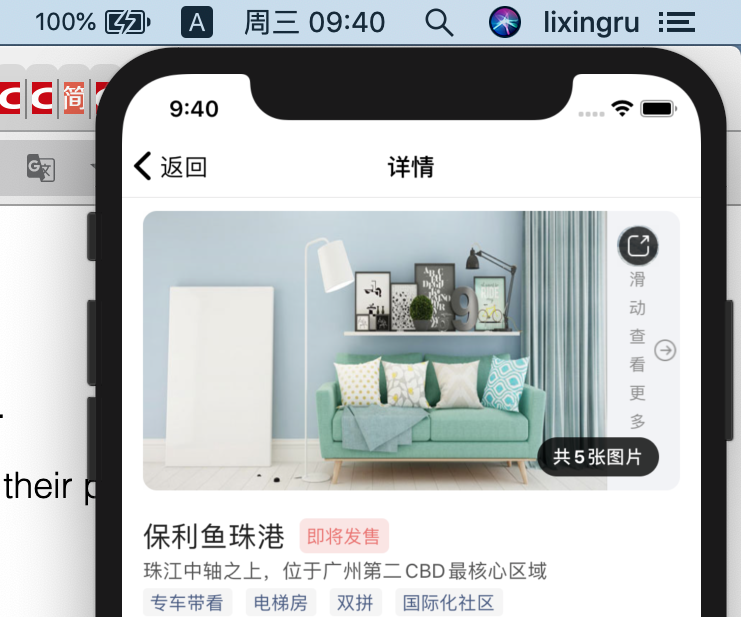
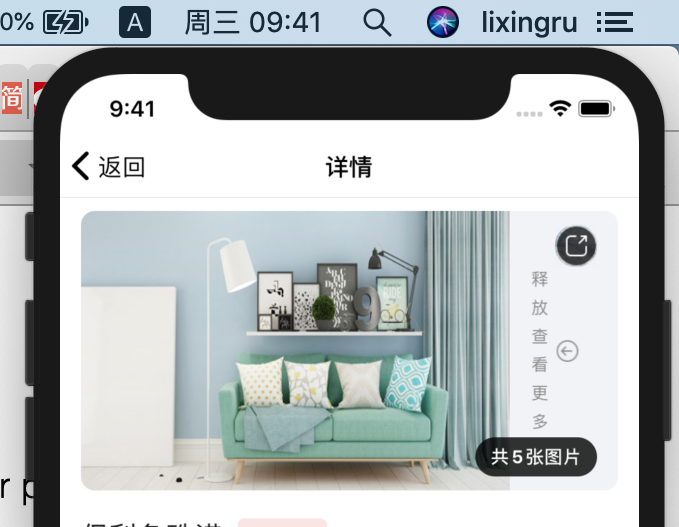
项目说明
2020-08-19 by winwardz and lixingru 图片轮播弹跳后跳转组件 博客地址:https://www.cnblogs.com/itgezhu/p/12809681.html 原地址:https://github.com/WinwardZ/react-native-super-swiper/
目录结构描述
rn-bounces-swiper
├── Readme.md                   // help
├── index.js                    // 入口文件
├── icon                        // 旋转图标目录
└── package.json                // 记录项目信息文件
环境依赖(当前使用)
react-native 0.55.4
npm 6.9.0(*用于下载包*)
下载安装
1.运行 npm install rn-bounces-swiper --save
安装的同时,将信息写入package.json中项目路径dependencies字段中,如果有package.json文件时,直接使用npm install方法就可以根据dependencies配置安装所有的依赖包,这样代码提交到github时,就不用提交node_modules这个文件夹了。

2.检查项目中根目录的node_modules里是否已有rn-bounces-swiper文件夹,如果有代表已经下载安装成功,接下来可以引用了
使用例子
1. 在需要使用轮播至最后一张弹跳跳转组件的页面引用
import RnBouncesSwiper from 'react-native-super-swiper'

2、在render中使用RnBouncesSwiper


/**
 * 2020-08-19
 * 图片轮播弹跳后跳转组件
 */


import React, {Component} from 'react';
import {
  StyleSheet,
  Text,
  View,
  Image,
  Dimensions,
  TouchableOpacity,
  ImageBackground
} from 'react-native';
import RnBouncesSwiper from 'react-native-super-swiper'

const { width } = Dimensions.get('window');
const sharePhoto = require('./../../resources/cHomeTab/icon/sharePhoto.png');
const seeMorePhoto_01 = require('./../../resources/cHomeTab/icon/seeMorePhoto_01.png');

export default class RnBouncesSwiper extends Component {

    constructor(props) {
        super(props);
        this.state = {

          bannerData:[
            {type: "C", pictureUrl: "https://aikf.hopechina.com/image/bigimg.jpg"},
            {type: "C", pictureUrl: "https://aikf.hopechina.com/image/bigimg.jpg"},
            {type: "C", pictureUrl: "https://aikf.hopechina.com/image/bigimg.jpg"},
            {type: "C", pictureUrl: "https://aikf.hopechina.com/image/bigimg.jpg"},
            {type: "C", pictureUrl: "https://aikf.hopechina.com/image/bigimg.jpg"},
          ]
        }
    }

    componentDidMount() {

    }


  // 释放
  _onRelease = () => {
    console.log("释放") ,this.props.navigation.navigate('Login')
  };

  render() {
    const {bannerData,} = this.state;
    return (
      <View style={{backgroundColor:'#ffffff'}}>
        <View style={styles.container}>
            <RnBouncesSwiper
                onChange={this.onChange}// 改变时触发
                isAndroid={false}
                loadMoreOptions={{
                  enableLoadMore: true,
                  distance: 3,
                  initText: "滑动查看更多",
                  releaseText: "释放查看更多",
                  onArrive: () => { console.log("到达") },
                  onRelease: this._onRelease,
                  renderLoadMoreView: () => {}
                }} //加载更多 相关配置  enableLoadMore: PropTypes.bool, // 是否开启加载更多  onArrive: PropTypes.func, // 到达回调   onRelease: PropTypes.func, // 到达后释放回调 distance:PropTypes.number(可拖拽区域为 屏幕宽度/distance)  text:加载更多文案
                onScroll={this.onScroll}// 滑动时触发
                onBeginDrag={this.onBeginDrag} // 滑动拖拽开始时触发
                onEndDrag={this.onEndDrag}// 滑动拖拽结束时触发
                bouncesIcon={seeMorePhoto_01}//弹跳图标设置
                >
                  {
                    (bannerData||[]).map((item,index)=>
                      // (<View style={styles.slide} key={index} >
                      //   {/* <ImageBackground resizeMode='stretch' style={styles.image} source={{uri: item.pictureUrl}} >
                      //     <TouchableOpacity onPress={() => {this.props.navigation.navigate('Home')}} activeOpacity={0.5} style={[styles.image,{zIndex:100}]}></TouchableOpacity>
                      //   </ImageBackground> */}

                      // </View>
                      // )
                      (<TouchableOpacity  key={index} onPress={() => {this.props.navigation.navigate('Home')}} activeOpacity={0.5} style={styles.slide}>
                            <Image resizeMode='stretch' style={styles.image} source={{uri: item.pictureUrl}} />
                          </TouchableOpacity>)
                    )
                  }
            </RnBouncesSwiper>
          <View  style={styles.textcontainer}>
            <Text style={styles.photoCount}>共5张图片</Text>
          </View>
          <TouchableOpacity
            onPress={() => {

            }}
            activeOpacity={0.5}//触摸时完全不透明,值越小越透明
            style={styles.shareIcon}
          >
              <Image source={sharePhoto} style={styles.sharePhotoIcon}/>
          </TouchableOpacity>
        </View>
      </View>

    );
  }
}

const styles = StyleSheet.create({
  container: {
    height: 200,
    width:width-30,
    marginLeft:15,
    marginRight:15,
    borderRadius:10,
    overflow:'hidden',
    marginTop:10,
    backgroundColor:'#f2f3f6'
  },
  slide: {
    width:width-30,
    justifyContent: 'center',
    backgroundColor: 'transparent'
  },
  slides:{
   flexDirection:'row'
  },
  image: {
    flex: 1,
    height:200,
    },
  shareIcon:{
    position:"absolute",
    top:10,
    right:10,
    width:35,
    height:35,
  },
  sharePhotoIcon:{
    width:30,
    height:30,
    borderRadius:14
  },
  textcontainer:{
    position:"absolute",
    bottom:10,
    right:15,
    backgroundColor:'rgba(0, 0, 0, 0.8)',//背景透明
    padding:5,
    paddingLeft:10,
    paddingRight:10,
    borderWidth: 1,
    borderRadius:15,
    borderColor:0
  },
  photoCount: {
    color: "white",
    fontSize: 13,
    fontWeight: "bold",
  },
});