
senangwebs-chatbot
v1.3.2
Published
Lightweight JavaScript library with OpenRouter API integration for AI-powered conversations.
Downloads
284

Maintainers
 a-hakim
Readme
SenangWebs Chatbot (SWC)
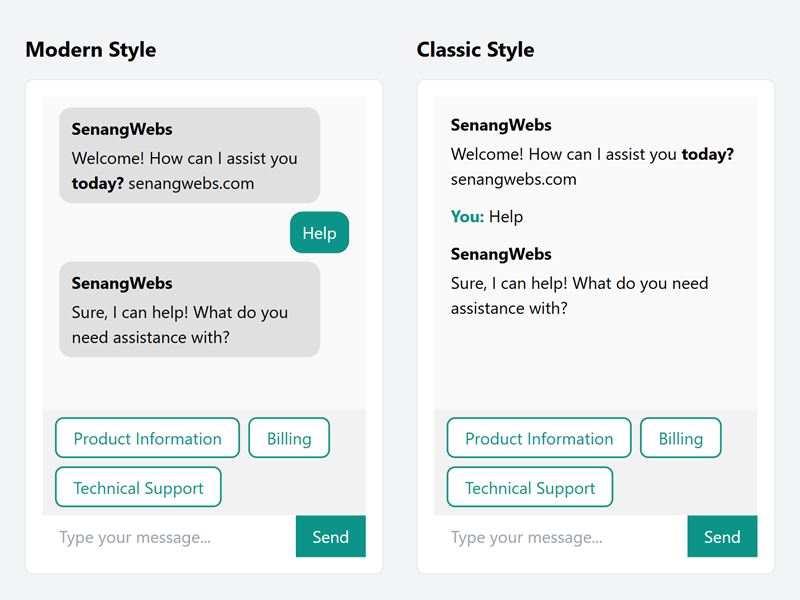
SenangWebs Chatbot is a lightweight JavaScript library that enables easy integration of a customizable chatbot into your website. With minimal setup, you can add an interactive customer support feature powered by AI or keyword-based responses to your web pages, enhancing user engagement and support capabilities.
Features
Core Features
- Easy to integrate with existing projects
- Customizable chatbot interface
- Themeable with custom colors
- Modern and classic chat display styles
- Typing indicator with customizable delay
- Smooth scrolling and fade-in animations
- Efficient performance
- Responsive and works on all modern browsers
Conversation Modes
- Keyword-Only Mode - Traditional keyword-based responses with partial matching
- AI-Only Mode - Pure AI-powered conversations using OpenRouter API
- Hybrid Mode - Intelligent fallback: keywords first, AI when no match found
AI Capabilities (OpenRouter Integration)
- Multiple AI Models - Support for GPT-3.5, GPT-4, Claude, Llama, and more
- Streaming Responses - Real-time token-by-token text generation
- Context Management - Maintains conversation history for coherent dialogues
- Smart Keyword Fallback - Seamlessly switches between keyword and AI responses
- Stop Generation - User can interrupt AI responses mid-stream
- Customizable System Prompts - Define AI personality and behavior
- Proxy Support - Secure API key handling via backend proxies
Data Management
- Chat history management - Export, import, and restore conversations
- Declarative history loading - Load chat history via data attributes
- External knowledge base - Load conversation flows from JSON files
- Custom events - Listen to history operations and AI events
Installation
Using npm
npm install senangwebs-chatbotImport the JavaScript bundle and stylesheet from the package:
import * as SWC from "senangwebs-chatbot";
import "senangwebs-chatbot/dist/swc.css";

const { initializeChatbot, SenangWebsChatbot, defaultKnowledgeBase } = SWC;
The package ships readable and minified browser assets:
dist/swc.css, dist/swc.min.css, dist/swc.js, and dist/swc.min.js.
For CommonJS:
const { initializeChatbot, SenangWebsChatbot, defaultKnowledgeBase } = require("senangwebs-chatbot");Using a CDN
You can include SenangWebs Chatbot directly in your HTML file using unpkg:
<link
  rel="stylesheet"
  href="https://unpkg.com/senangwebs-chatbot@latest/dist/swc.min.css"
/>
<script src="https://unpkg.com/senangwebs-chatbot@latest/dist/swc.min.js"></script>
Basic Usage
1. Keyword-Only Mode (Traditional)
- Include the SenangWebs Chatbot CSS and JavaScript files in your HTML:
<link rel="stylesheet" href="path/to/swc.css" />
<script src="path/to/swc.js"></script>- Add the chatbot container to your HTML:
<div
  data-swc
  data-swc-theme-color="#ff6600"
  data-swc-bot-name="SenangWebs"
  data-swc-chat-display="modern"
  data-swc-reply-duration="500"
></div>- Initialize the chatbot:
The chatbot will initialize automatically when the DOM is fully loaded. If you need to initialize it manually or with a custom knowledge base, you can do so in your JavaScript code:
document.addEventListener("DOMContentLoaded", function () {
  // Use default knowledge base
  initializeChatbot();

  // Or use a custom knowledge base
  const customKnowledgeBase = [
    // Your custom knowledge base here
  ];
  initializeChatbot(customKnowledgeBase);
});
2. AI-Powered Mode (OpenRouter Integration)
Enable AI-powered conversations using OpenRouter API:
<div
  data-swc
  data-swc-theme-color="#0D9488"
  data-swc-bot-name="AI Assistant"
  data-swc-chat-display="modern"
  data-swc-api-mode="ai-only"
  data-swc-api-key="sk-or-v1-..."
  data-swc-api-model="openai/gpt-3.5-turbo"
  data-swc-api-streaming="true"
  data-swc-system-prompt="You are a helpful customer support assistant. Be concise and friendly."
></div>
3. Hybrid Mode (Best of Both Worlds)
Combine keyword matching with AI fallback for optimal responses:
<div
  data-swc
  data-swc-theme-color="#6366F1"
  data-swc-bot-name="Smart Bot"
  data-swc-chat-display="modern"
  data-swc-api-mode="hybrid"
  data-swc-api-key="sk-or-v1-..."
  data-swc-api-model="openai/gpt-3.5-turbo"
  data-swc-hybrid-threshold="0.3"
></div>
How Hybrid Mode Works:
- User sends a message
- Chatbot checks keyword knowledge base first
- If good match found (score > threshold), uses keyword response
- If no good match, falls back to AI
- Seamless experience for users
Advanced Usage: External JSON Knowledge Base
You can use an external JSON file to define your chatbot's knowledge base. This allows for easier management and updating of the chatbot's responses without modifying the main code.
- Create a JSON file for your knowledge base (e.g.,
knowledge-base.json):
{
  "knowledgeBase": [
    {
      "id": "welcome",
      "keyword": ["hello", "hi", "hey", "start"],
      "reply": "Welcome to SenangWebs Chatbot! How can I assist you today?",
      "options": [
        { "label": "Product Information", "reply_id": "product_info" },
        { "label": "Pricing", "reply_id": "pricing" },
        { "label": "Support", "reply_id": "support" }
      ]
    }
    // Add more nodes as needed
  ]
}- Use the following HTML and JavaScript to load and use the external knowledge base:
<!DOCTYPE html>
<html lang="en">
  <head>
    <meta charset="UTF-8" />
    <meta name="viewport" content="width=device-width, initial-scale=1.0" />
    <title>SenangWebs Chatbot Example</title>
    <link
      rel="stylesheet"
      href="https://unpkg.com/senangwebs-chatbot@latest/dist/swc.css"
    />
    <script src="https://unpkg.com/senangwebs-chatbot@latest/dist/swc.js"></script>
  </head>
  <body>
    <div
      id="chatbot-container"
      data-swc
      data-swc-theme-color="#4CAF50"
      data-swc-bot-name="SenangBot"
      data-swc-chat-display="modern"
      data-swc-reply-duration="800"
    ></div>

    <script>
      document.addEventListener("DOMContentLoaded", function () {
        fetch("knowledge-base.json")
          .then((response) => response.json())
          .then((data) => {
            initializeChatbot(data.knowledgeBase);
          })
          .catch((error) => {
            console.error("Error loading knowledge base:", error);
            // Initialize with default knowledge base if there's an error
            initializeChatbot();
          });
      });
    </script>
  </body>
</html>
This example demonstrates how to load an external JSON file and use it to initialize the chatbot. If the JSON file fails to load, it falls back to the default knowledge base.
Configuration Options
Chatbot Container Attributes
Basic Attributes
data-swc: Indicates that this element should be initialized as a chatbotdata-swc-theme-color: Sets the primary color for the chatbot interface (e.g., "#ff6600")data-swc-bot-name: Sets the name of the chatbot (e.g., "SenangWebs")data-swc-chat-display: Sets the chat display style ("modern" or "classic")data-swc-reply-duration: Sets the delay (in milliseconds) before the bot repliesdata-swc-load: Loads chat history from a JSON file path or inline JSON string
AI/API Attributes
data-swc-api-mode: Conversation mode - "keyword-only", "ai-only", or "hybrid" (default: "keyword-only")data-swc-api-key: OpenRouter API key (required for AI modes)data-swc-api-model: AI model to use (e.g., "openai/gpt-3.5-turbo")data-swc-api-streaming: Enable streaming responses (true/false, default: true)data-swc-system-prompt: Custom system prompt for AI personalitydata-swc-api-base-url: Custom OpenRouter-compatible API root or proxy endpoint (default: OpenRouter)data-swc-api-max-tokens: Maximum tokens in AI response (default: 500)data-swc-api-temperature: AI creativity level 0-2 (default: 0.7)data-swc-hybrid-threshold: Keyword match threshold for hybrid mode (default: 0.3)data-swc-context-max-messages: Number of messages to keep in context (default: 10)
Supported AI Models
The chatbot supports all OpenRouter-compatible models, including:
OpenAI Models:
openai/gpt-3.5-turbo- Fast and cost-effectiveopenai/gpt-4-turbo- Most capable, higher costopenai/gpt-4- Balanced performance
Anthropic Claude:
anthropic/claude-3-haiku- Fast and efficientanthropic/claude-3-sonnet- Balancedanthropic/claude-3-opus- Most capable
Open Source Models:
meta-llama/llama-3-8b-instruct- Free, good performancemeta-llama/llama-3-70b-instruct- More capablenvidia/nemotron-nano-12b-v2-vl:free- Free with vision
And many more! Check OpenRouter Models for the full list.
Knowledge Base Structure
The knowledge base is an array of objects with the following structure:
{
  id: 'unique_id',
  keyword: ['keyword1', 'keyword2'],
  reply: 'Chatbot response',
  options: [
    { label: 'Option 1', reply_id: 'next_response_id' },
    { label: 'Option 2', reply_id: 'another_response_id' }
  ]
}id: A unique identifier for the conversation nodekeyword: An array of keywords that trigger this response. The chatbot will match full or partial keywords in the user's input.reply: The chatbot's response textoptions: (Optional) An array of follow-up options for the user to choose from
Note: The chatbot uses a flexible keyword matching system. It will match full keywords, partial keywords, and even consider multiple keyword matches in a single user input. This allows for more natural conversation flow and better handling of variations in user input.
Chat History Management
SenangWebs Chatbot includes powerful chat history features that allow you to save, load, and restore conversations.
History API
Access the chatbot instance to manage history:
const chatbotElement = document.querySelector("[data-swc]");
const chatbot = chatbotElement.chatbotInstance;

// Export history as JSON string
const historyJSON = chatbot.exportHistory();

// Load history from JSON string or object
chatbot.loadHistory(historyData);

// Clear all history
chatbot.clearHistory();

// Get current history
const history = chatbot.getHistory();
Declarative History Loading
Load chat history directly via HTML data attributes:
Load from external JSON file:
<div
  data-swc
  data-swc-load="./path/to/history.json"
  data-swc-theme-color="#ff6600"
></div>
Load from inline JSON:
<div
  data-swc
  data-swc-load='{"version":"1.0","messages":[...]}'
  data-swc-theme-color="#ff6600"
></div>
History Data Structure
The chat history is stored in the following JSON format:
{
  "version": "1.0",
  "timestamp": "2024-11-02T10:30:00.000Z",
  "botName": "SenangWebs",
  "themeColor": "#ff6600",
  "messages": [
    {
      "id": "msg-1730545800000-abc",
      "timestamp": "2024-11-02T10:30:00.000Z",
      "type": "bot",
      "content": "<p>Welcome message</p>",
      "nodeId": "welcome",
      "options": [{ "label": "Option 1", "reply_id": "node_1" }]
    },
    {
      "id": "msg-1730545810000-def",
      "timestamp": "2024-11-02T10:30:10.000Z",
      "type": "user",
      "content": "User response"
    }
  ],
  "currentNodeId": "welcome"
}
Secure API Key Management
⚠️ IMPORTANT: Never expose your OpenRouter API key in client-side code in production!
For production use, implement a backend proxy server to handle API requests securely:
Option 1: Node.js Proxy (Express)
// server.js
const express = require("express");
const app = express();

app.use(express.json());
app.use((req, res, next) => {
  res.header("Access-Control-Allow-Origin", "*");
  next();
});

app.post("/api/chat", async (req, res) => {
  const response = await fetch(
    "https://openrouter.ai/api/v1/chat/completions",
    {
      method: "POST",
      headers: {
        Authorization: `Bearer ${process.env.OPENROUTER_API_KEY}`,
        "Content-Type": "application/json",
      },
      body: JSON.stringify(req.body),
    }
  );

  const data = await response.json();
  res.json(data);
});

app.listen(3000);
Option 2: PHP Proxy
<?php
header('Access-Control-Allow-Origin: *');
header('Content-Type: application/json');

$apiKey = getenv('OPENROUTER_API_KEY');
$input = json_decode(file_get_contents('php://input'), true);

$ch = curl_init('https://openrouter.ai/api/v1/chat/completions');
curl_setopt($ch, CURLOPT_RETURNTRANSFER, true);
curl_setopt($ch, CURLOPT_POST, true);
curl_setopt($ch, CURLOPT_HTTPHEADER, [
    'Authorization: Bearer ' . $apiKey,
    'Content-Type: application/json'
]);
curl_setopt($ch, CURLOPT_POSTFIELDS, json_encode($input));

echo curl_exec($ch);
curl_close($ch);
Option 3: Cloudflare Workers
export default {
  async fetch(request) {
    const response = await fetch(
      "https://openrouter.ai/api/v1/chat/completions",
      {
        method: "POST",
        headers: {
          Authorization: `Bearer ${env.OPENROUTER_API_KEY}`,
          "Content-Type": "application/json",
        },
        body: await request.text(),
      }
    );

    return new Response(await response.text(), {
      headers: { "Access-Control-Allow-Origin": "*" },
    });
  },
};
Using Proxy in Chatbot
<div
  data-swc
  data-swc-api-mode="ai-only"
  data-swc-api-base-url="https://your-domain.com/api/chat"
></div>
See examples/proxy-servers/ for complete implementation examples.
Custom Events
The chatbot dispatches custom events for various operations:
History Events
// Listen for history export
chatbotElement.addEventListener("swc:history-exported", (e) => {
  console.log("History exported:", e.detail.history);
});

// Listen for history load
chatbotElement.addEventListener("swc:history-loaded", (e) => {
  console.log("History loaded:", e.detail.messageCount);
});

// Listen for history clear
chatbotElement.addEventListener("swc:history-cleared", () => {
  console.log("History cleared");
});
AI responses can be observed through the handleInput callback hooks: onStart, onChunk, onComplete, and onError.
API Reference
SenangWebsChatbot Class
const chatbot = new SenangWebsChatbot(knowledgeBase, botMetadata, apiConfig);Parameters:
knowledgeBase(Array): Array of conversation nodes for keyword matchingbotMetadata(Object): Bot configuration (name, theme color, etc.)apiConfig(Object): API configuration for AI features
Methods:
handleInput(input)- Process user text inputhandleOptionSelection(replyId)- Process button clickexportHistory()- Export chat history as JSON stringloadHistory(data)- Load chat history from JSONclearHistory()- Clear all chat historygetHistory()- Get current history objectgetAPIStatus()- Get API configuration and response statuscancelAIResponse()- Stop ongoing AI generation
OpenRouterAPI Class
const api = new OpenRouterAPI({
  apiKey: "sk-or-v1-...",
  model: "openai/gpt-3.5-turbo",
  maxTokens: 500,
  temperature: 0.7,
  streaming: true,
});
Methods:
sendMessage(messages, onStream, onComplete, onError)- Send chat completion requestcancel()- Abort ongoing API requestgetModelInfo()- Get model, token, and temperature settings
ContextManager Class
const context = new ContextManager({ maxMessages: 10 });Methods:
addMessage(role, content)- Add message to contextgetContext()- Get formatted context for APIclear()- Clear all contextgetStats()- Get message, token, and limit statistics
Examples
The examples/ directory contains several demonstration pages:
Basic Examples
1. Simple Chatbot (examples/basic/01-simple-chatbot.html)
Traditional keyword-based chatbot with conversation flows and options.
2. Basic Showcase (examples/index.html)
Demonstrates modern and classic display styles, theme customization, and basic functionality.
Advanced Features
3. Chat History Demo (examples/advanced-features/01-chat-history.html)
Interactive demonstration of chat history features:
- Export conversations as JSON files
- Import and restore from JSON files
- Clear conversation history
- Save/load to/from LocalStorage
- Real-time event logging
4. External Knowledge Base (examples/advanced-features/02-external-knowledge-base.html)
Shows how to load conversation flows from external JSON files for easier content management.
API Integration Examples
5. AI-Only Mode (examples/api-integration/01-ai-only-mode.html)
Pure AI-powered chatbot using OpenRouter API with streaming responses.
6. Hybrid Mode (examples/api-integration/02-hybrid-mode.html)
Intelligent fallback system combining keyword matching with AI responses.
7. Interactive Testing (examples/api-integration/03-interactive-testing.html)
Full-featured testing environment with:
- API key configuration
- Model selection (GPT, Claude, Llama, etc.)
- Mode switching (keyword/AI/hybrid)
- Real-time testing interface
8. Secure Proxy Setup (examples/api-integration/04-secure-proxy-setup.html)
Production-ready proxy implementation examples:
- Node.js Express proxy
- PHP proxy
- Cloudflare Workers proxy
- API key security best practices
Running Examples
To run the examples locally:
# Using Python
python -m http.server 8000

# Using Node.js (http-server)
npx http-server

# Using PHP
php -S localhost:8000
Then navigate to http://localhost:8000/examples/
Customization
You can customize the chatbot's appearance by modifying the CSS file or overriding styles in your own stylesheet. The chatbot's primary color and other visual aspects can be set using the data attributes on the container element.
To create a custom knowledge base, follow the structure outlined in the Configuration Options section.
Custom Styling Example
/* Override chatbot colors */
[data-swc] {
  --swc-theme-color: #6366f1;
  --swc-border-radius: 12px;
}

/* Customize message bubbles */
.swc-message-bot {
  background: linear-gradient(135deg, #667eea 0%, #764ba2 100%);
}

/* Customize input area */
.swc-input-area {
  border-top: 2px solid #e5e7eb;
  padding: 20px;
}
Performance Considerations
Keyword Mode
- Instant responses (no API calls)
- No external dependencies
- Works offline
- Best for FAQ and guided conversations
AI Mode
- Network latency (1-3 seconds typical)
- API costs per request
- Requires internet connection
- Best for open-ended conversations
Hybrid Mode
- Best of both worlds
- Fast keyword responses when possible
- AI fallback for complex queries
- Optimal user experience with cost efficiency
Troubleshooting
Common Issues
AI responses not working:
- Check API key is valid
- Verify
data-swc-api-modeis set to "ai-only" or "hybrid" - Check browser console for errors
- Ensure CORS is configured if using custom proxy
Streaming not working:
- Verify
data-swc-api-streaming="true" - Check browser supports ReadableStream API
- Some proxies may buffer responses
Keyword matching too strict:
- Lower
data-swc-hybrid-threshold(default: 0.3) - Add more keyword variations to knowledge base
- Use partial keywords for better matching
High API costs:
- Use hybrid mode instead of ai-only
- Reduce
data-swc-api-max-tokens - Use cheaper models (gpt-3.5-turbo)
- Implement rate limiting in proxy
Browser Support
SenangWebs Chatbot works on all modern browsers, including:
- Chrome 90+
- Firefox 88+
- Safari 14+
- Edge 90+
- Opera 76+
Note: Streaming responses require browsers with ReadableStream support (all modern browsers).
Contributing
Contributions are welcome! Please feel free to submit a Pull Request.
Development Setup
# Clone repository
git clone https://github.com/a-hakim/senangwebs-chatbot.git

# Install dependencies
npm install

# Build for production
npm run build

# Development mode with watch
npm run dev
License
MIT License
Security
⚠️ Security Best Practices:
- Never commit API keys to version control
- Always use environment variables for sensitive data
- Implement backend proxies for production deployments
- Rate limit API requests to prevent abuse
- Validate and sanitize user inputs
- Use HTTPS for all communications
For security issues, please email security concerns through GitHub's private vulnerability reporting feature.