
senangwebs-one
v2.0.4
Published
A web-based code editor and live previewer, inspired by Glitch and CodePen.

Maintainers
 a-hakim
Readme
SenangWebs One (SWO)
SenangWebs One (SWO) is a versatile, embeddable web development environment that provides a live HTML/CSS/JS code editor, a real-time preview pane, and an integrated console. It's designed for quick prototyping, live demonstrations, and educational purposes, allowing users to see their code changes reflected instantly.


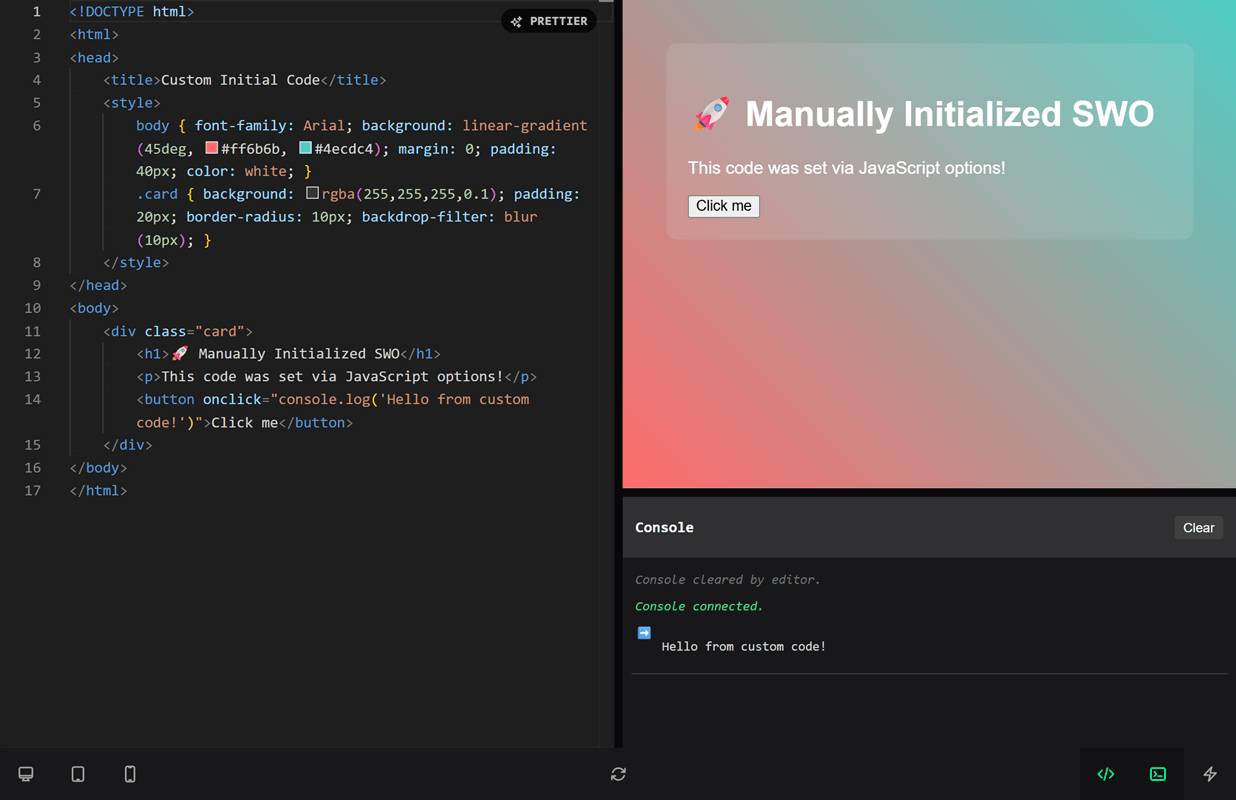
Features
- Live Code Editor: A rich editing experience with syntax highlighting, auto-completion, and modern editor features.
- Real-time Preview: Instantly see changes to HTML, CSS, and JavaScript in a sandboxed iframe with automatic refresh on code changes.
- Integrated Console: Captures
console.log,console.error,console.warn,console.info, andconsole.debugfrom the preview iframe and displays them within the SWO interface. - Error Handling: Automatically captures unhandled JavaScript errors and promise rejections from the preview.
- Responsive Device Toggles: Quickly switch preview dimensions to simulate desktop (100%), tablet (1070px), and mobile (390px × 844px) views.
- Resizable Panes: Adjust the layout by dragging resize handles between editor/preview and preview/console panes.
- Code Formatting: Built-in "Prettier" button using js-beautify for HTML formatting.
- Persistent Code: Automatically saves code to
localStoragewith customizable storage keys for continuity across sessions. - Toggle UI Elements: Show/hide the code editor and console panes independently for flexible layouts.
- Open in New Tab: Preview your creation in a full browser tab with popup handling.
- Easy Integration: Initialize via simple data attributes or JavaScript constructor.
- Multiple Instances: Run multiple isolated SWO editors on the same page; each console only receives messages from its own preview.
- Modern Look & Feel: Styled with a clean, dark theme optimized for coding.
Examples
- https://unpkg.com/senangwebs-one@latest/examples/index-auto-init.html
- https://unpkg.com/senangwebs-one@latest/examples/index-js-init.html
Installation
Using a CDN (Recommended)
For the quickest setup, include SenangWebs One's CSS and JavaScript files from unpkg:
<!DOCTYPE html>
<html lang="en">
  <head>
    <meta charset="UTF-8" />
    <title>My SWO Project</title>

    <!-- SWO Library CSS -->
    <link rel="stylesheet" href="https://unpkg.com/senangwebs-one@latest/dist/swo.min.css" />

    <style>
      html, body { height: 100%; margin: 0; overflow: hidden; }
      #my-swo-editor { height: 100vh; }
    </style>
  </head>
  <body>
    <div id="my-swo-editor" data-swo>
      <!-- SWO will populate this -->
    </div>

    <!-- SWO Library JS (includes js-beautify and icons) -->
    <script src="https://unpkg.com/senangwebs-one@latest/dist/swo.min.js"></script>
  </body>
</html>
That's it! No additional dependencies needed.
Building from Source
If you prefer to host files locally or customize the build:
git clone <repository-url>
cd senangwebs-one
npm install
npm run build
This generates dist/swo.min.js and dist/swo.min.css.
Usage
SWO can be initialized in two ways:
1. Using Data Attributes (Auto-Initialization)
Simply add the data-swo attribute to a container element. SWO will automatically find and initialize itself on this element when the page loads.
<div
  id="editor-container"
  data-swo
  data-swo-storage-key="my-project-code"
  style="height: 600px; border: 1px solid #ccc;"
>
  <!-- SWO will populate this -->
</div>
Available Data Attributes:
data-swo: (Required) Marks the container element for SWO initialization.data-swo-code: (Optional) A string of HTML code to load initially. If not provided, default demo code is used. Note: For complex initial code, JavaScript initialization is recommended.data-swo-storage-key: (Optional) A custom key forlocalStorage. If not provided, a unique key is automatically generated for each instance.
2. Using JavaScript Initialization
For more control, you can initialize SWO programmatically.
<div id="my-custom-editor" style="height: 100vh;"></div>

<script src="https://unpkg.com/senangwebs-one@latest/dist/swo.min.js"></script>
<script>
  document.addEventListener("DOMContentLoaded", function () {
    // Simple inline code (for basic content)
    new SWO("#my-custom-editor", {
      code: "<h1>Hello World!</h1><p>Edit me!</p>",
      storageKey: "my-project-code",
    });
  });
</script>
Important: When using inline code strings, avoid including complete HTML documents with closing tags like
</body>,</script>, or</html>. Some dev servers (like Live Server) may misinterpret these tags and inject code into your JavaScript, causing syntax errors. For complex HTML with script tags, use the fetch approach below.
For complex initial code (especially with <script> tags), fetch from a separate file:
<script>
  document.addEventListener("DOMContentLoaded", async function () {
    const response = await fetch("./my-template.html");
    const initialCode = await response.text();

    new SWO("#my-custom-editor", {
      code: initialCode,
      storageKey: "my-project-code",
    });
  });
</script>
Constructor:
new SWO(targetElementOrSelector, options)
targetElementOrSelector: A DOM element or a CSS selector string for the container where SWO will be rendered.options(Object, Optional):code(String): Initial HTML code to load into the editor. Defaults to a demo HTML structure with interactive examples.storageKey(String): Custom key forlocalStorageto save and load editor content. Defaults to a unique generated key per instance (e.g.,senangwebs-one-editor-content-abc123).
Public Methods
After creating an SWO instance, you can call these methods programmatically:
const editor = new SWO("#my-editor", { code: "<h1>Hello World</h1>" });

// Update the preview manually
editor.updatePreview();

// Format the code in the editor
editor.formatCode();

// Open preview in new tab
editor.openPreviewInNewTab();

// Toggle UI elements
editor.toggleCodeEditor();
editor.toggleConsole();

// Change device preview size
editor.resizePreviewDevice("768px", "1024px"); // Custom size
editor.resizePreviewDevice("100%", "100%"); // Desktop
editor.resizePreviewDevice("1070px", "100%"); // Tablet
editor.resizePreviewDevice("390px", "844px"); // Mobile

// Clean up the instance
editor.destroy();
Available Methods:
updatePreview(): Manually refresh the preview iframeformatCode(): Format the HTML code using js-beautify (requires js-beautify library)openPreviewInNewTab(): Open current preview in a new browser tabtoggleCodeEditor(): Show/hide the code editor panetoggleConsole(): Show/hide the console paneresizePreviewDevice(width, height): Set custom preview dimensionsdestroy(): Clean up the instance, preview resources, and global event listeners
Each instance filters console messages by its own preview iframe. This prevents logs from one editor appearing in another editor's console when multiple SWO instances share a page.
Interface Overview
- Code Editor (Left Pane): A powerful editor for writing HTML, CSS (inline
<style>tags), and JavaScript (inline<script>tags).- Prettier Button: Formats the HTML code in the editor using js-beautify.
- Features: Syntax highlighting, auto-completion, error detection, and VS Code-like editing experience.
- Vertical Resize Handle: Drag to adjust the width ratio between editor and preview/console panes.
- Right Pane:
- Preview Pane (Top): Displays the live rendering of your code in a sandboxed iframe.
- Auto-refresh: Updates automatically when code changes (300ms debounce).
- Device simulation: Responsive viewport switching for desktop, tablet, and mobile.
- Horizontal Resize Handle: Visible when console is open. Drag to adjust height ratio between preview and console.
- Console (Bottom):
- Captures and displays
console.log,console.warn,console.error,console.info, andconsole.debugmessages. - Shows unhandled JavaScript errors and promise rejections.
- Clear Button: Clears the console output.
- Visual indicators: Different icons and colors for each message type.
- Captures and displays
- Preview Pane (Top): Displays the live rendering of your code in a sandboxed iframe.
- Control Bar (Bottom):
- Device Toggles:
- Desktop (Monitor icon): 100% width preview
- Tablet (Tablet icon): 1070px max width preview
- Mobile (Phone icon): 390px × 844px preview (iPhone dimensions)
- Refresh Preview (Sync icon): Manually re-renders the preview iframe.
- Toggle Code Editor (Code icon): Show/hide the entire code editor pane.
- Toggle Console (Terminal icon): Show/hide the console pane.
- Open in New Tab (Bolt icon): Opens the current preview in a new browser tab with popup blocking detection.
- Device Toggles:
Console Bridge
SWO includes an intelligent console bridge that automatically captures all console output from your preview code:
- Automatic Integration: The console bridge is automatically injected into your preview iframe
- Complete Coverage: Captures
console.log,console.error,console.warn,console.info,console.debug, andconsole.clear - Error Handling: Automatically catches unhandled JavaScript errors and promise rejections
- Object Serialization: Intelligently handles complex objects, circular references, DOM elements, and functions
- Visual Feedback: Each message type has distinct styling and icons for easy identification
- Security: Uses secure postMessage communication between iframe and parent window
Browser Support
SenangWebs One is designed to work on all modern browsers that support ES6+ features:
- Chrome 60+ (recommended)
- Firefox 55+
- Safari 11+
- Edge 79+ (Chromium-based)
Note: Internet Explorer is not supported due to ES6+ requirements.
Troubleshooting
Console Not Working
If console messages aren't appearing:
- Check Browser Console: Look for any security or CORS errors
- Iframe Restrictions: Some browser security settings may block iframe communication
- Content Security Policy: Ensure your CSP allows iframe execution and postMessage
Performance Issues
For better performance with large code:
- Debouncing: SWO automatically debounces preview updates (300ms)
- Multiple Instances: Each instance uses unique storage keys automatically
- Memory: Call
destroy()method when removing SWO instances to prevent memory leaks
Contributing
Contributions, issues, and feature requests are welcome! Please feel free to:
- Fork the repository and submit a Pull Request.
- Open an issue for bugs or suggestions.
License
MIT License
Acknowledgments
- Inspired by various online code playgrounds like CodePen, JSFiddle, and Glitch.
- Built with amazing open-source libraries:
- JS-Beautify - Code formatting functionality
- SenangStart Icons - Icons and UI elements