
server-studio
v1.2.7
Published
A tiny dashboard for your local dev servers. One click to run, stop and open them, with one permanent port per project.

Maintainers
 mahdicreates
Readme
Server Studio


A small dashboard for the local dev servers you actually run.
If you work on more than three or four projects, you know the routine. You want to show someone the
staging build, and first you have to remember which folder it lives in, then whether it starts with
npm run dev or yarn start or php -S, then which port it landed on last time, then why that port
is now busy because something else grabbed it a week ago.
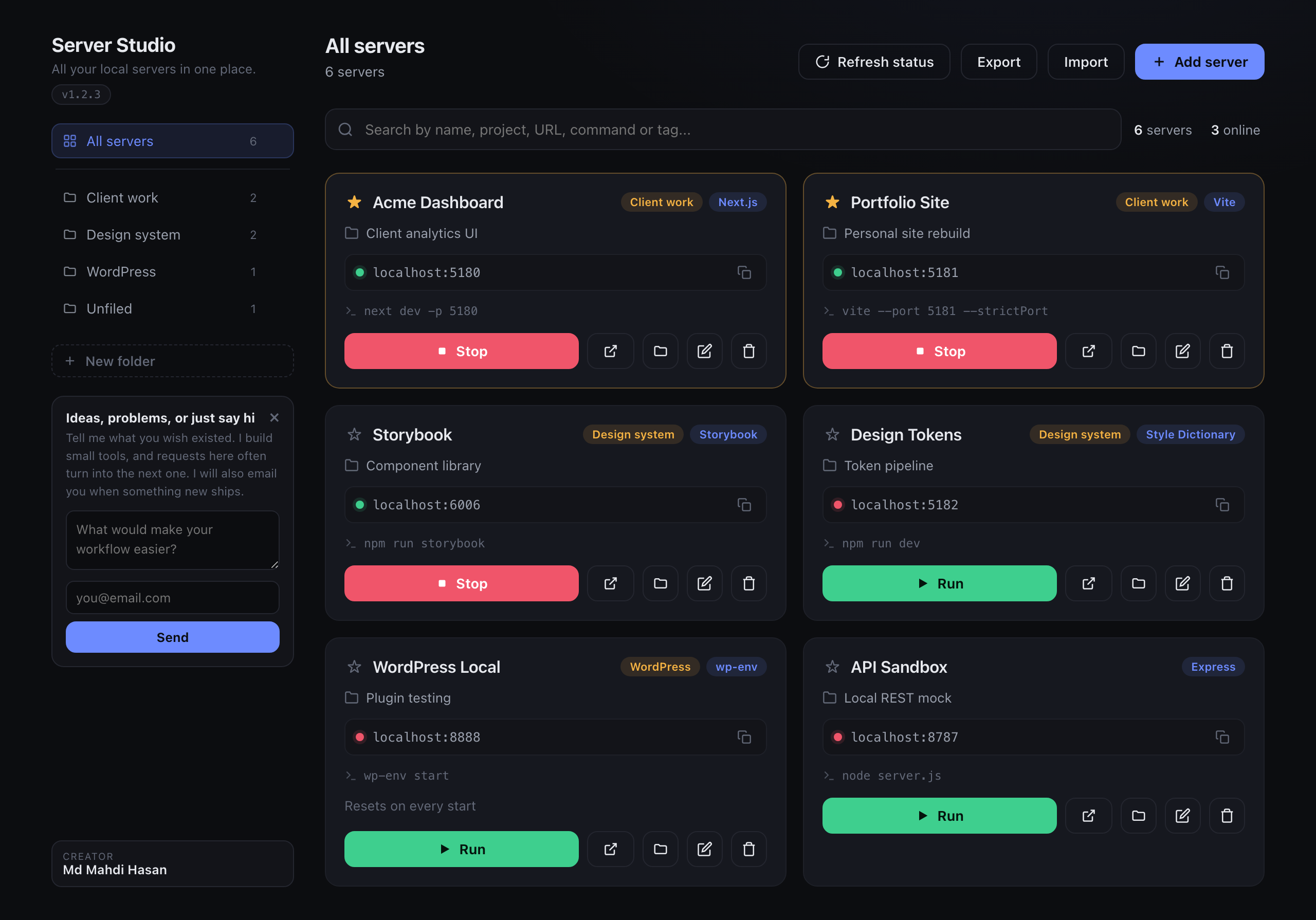
Server Studio gives every project a card holding its folder, its run command and its URL. Click Run and it opens a real terminal window in the right directory with the right command. Click the URL and the browser opens. The card also shows a live dot for whether that port is currently up, so you can see what is running without checking.
The other half is the port rule: each project keeps one permanent port that nothing else is allowed to take. A saved card is worthless if the port drifts, so the app hands out a unique one and you bake it into the project config. Six months later the card still works.
Node.js is the only requirement. No npm install inside the app, no Electron, no background daemon.
Install
npm install -g server-studioThat is the whole thing. A global install sets up the app and the skill for you.
If you would rather not install globally, this does the same without leaving anything behind:
npx server-studio installInstalling this as a project dependency deliberately does not set anything up, since that would write outside the package on a machine that only wanted the library.
macOS
install copies the app to /Applications and installs the Claude Code skill. Then open it from
Applications, or:
open -a "Server Studio"Windows and Linux
There is no app bundle to install, so run the dashboard directly:
npx server-studio startIt serves the same dashboard at http://localhost:4587 and opens your browser. Run
npx server-studio install --no-app first if you also want the Claude Code skill.
To remove it again:
npx server-studio uninstallYour saved servers are kept. Add --purge if you want those deleted too.
| Option | What it does |
|---|---|
| --no-app | Skip the Mac app, install only the skill |
| --no-skill | Skip the skill, install only the app |
| --dry-run | Print what would happen, change nothing |
| --purge | Uninstall only: also delete your saved server list |
Using it
Add your first server
Click Add server. Only the name matters, everything else can be filled in later.
| Field | What it does | Example |
|---|---|---|
| Name | Card title, and what you search by | Acme Dashboard |
| Project | A line of context for future you | Client analytics UI |
| Folder | Which folder it lives in, chosen from the sidebar list | Web app |
| Project folder | Where the run command executes. Browse opens a folder picker | ~/Sites/acme |
| Run command | Exactly what you would type to start it | npm run dev |
| URL / Address | Where it serves. A bare port works and becomes localhost:PORT | 5181 |
| Tag | Small label on the card, usually the stack | Next.js |
| Notes | Anything you will forget | Seed data resets on restart |
Run, stop, open
Each card has five controls:
| Control | What happens |
|---|---|
| Run / Stop | One button that follows the live status. Green Run opens a terminal, cds into the folder and runs the command. Once the port answers it turns into a red Stop, which kills whatever holds that port |
| Open in browser | Opens the card's URL |
| Move to folder | Pick a folder, or drag the card onto one in the sidebar |
| Edit | Change any field |
| Delete | Removes the card. Does not touch the project itself |
If a card has no project folder set, Run refuses instead of running the command in your home directory, and says so on the card.
The icon inside the URL box copies the address to your clipboard.
The dot next to the URL is live status: green means that port is currently accepting connections, red means nothing is there. It re-checks every 12 seconds, and Refresh status forces it.
Click the star to pin a card to the top. The search box matches name, project, URL, command, tag,
folder and notes at once, so searching wordpress or 5181 or vite all find the right card.
Folders
The sidebar lists your folders. Click one to see only its servers, click All servers to go back. New folder creates one, and the pencil beside a folder renames it, or deletes it if you clear the name. Deleting a folder never deletes servers, they move to Unfiled.
A server lives in one folder. Move it with the folder button on the card, by dragging the card onto a folder in the sidebar, or from the Folder field in Edit.
Upgrading from an older version? Categories became folders automatically the first time you open the dashboard, and nothing is lost.
The one permanent port rule
This is the part that makes saved cards stay useful, and it needs one step from you.
When you add a project, give it a port nothing else uses, then force the dev server to always use that exact port. Most tools will silently pick a different one if the port is busy, which is what makes a saved entry go stale. Use the strict option so it fails loudly instead:
| Tool | How to pin the port |
|---|---|
| Vite | server: { port: 5181, strictPort: true } in vite.config, or vite --port 5181 --strictPort |
| Next.js | next dev -p 5181 |
| Astro | astro dev --port 5181 |
| create-react-app | PORT=5181 react-scripts start |
| Express / plain Node | process.env.PORT || 5181 |
| PHP | php -S localhost:5181 |
Then put that same port in both the run command and the URL on the card.
When two cards share a port, both show a port clash · fix badge. Clicking it moves one of them
to a free port. If the project's dev script is one it recognises, it also writes the new port into
that project's package.json, showing you the exact before and after first and keeping a backup, so
the card and the project stay in agreement. Anything it cannot parse safely is refused rather than
guessed at, and only the card changes.
Adding a server on a port another card already uses offers you a free one before saving.
Let Claude do it for you
If you installed the skill, you never have to add cards by hand. Ask Claude Code to build something with a dev server and it registers the project itself, picks a port no other project is using, and writes that port into the config with the strict flag set.
You can also just ask:
save this server to Server Studio
To do it manually, or from a script:
node ~/.claude/skills/server-studio/register-server.js \
  --name "Acme Dashboard" \
  --cwd "$PWD" \
  --command "npm run dev" \
  --assign
--assign picks a free port and prints it, so you know what to write into the config. Re-running it
for a project that already exists updates the other fields but keeps the port locked, which is the
whole point.
Using it from any editor or script
The Claude skill is a convenience wrapper, not the mechanism. Registering a server is a plain command with no AI involved, so any tool that can run a shell command can use it. That includes Cursor, Copilot, Windsurf, a Makefile, a shell alias, or you:
server-studio add --name "Portfolio Site" --cwd "$PWD" --command "npm run dev" --folder "Client work" --assign--assign picks a port nothing else uses and prints PORT <n>, so a script can read that line and
write the port into the project config. --folder files it under that folder, creating the folder if
it does not exist yet. Re-running for the same project updates its fields and keeps its port locked,
which is what makes this safe to call from a build step.
Run server-studio add with no arguments for the full list of fields.
Staying up to date
The version sits under the app name in the sidebar. When a newer release is on npm it turns green and becomes a button: click it, confirm, and the update runs in a terminal window. Restart Server Studio when it finishes. Your saved servers and folders are never touched by an update.
Coming from 1.1.1 or older? That badge did not exist yet, so there is no button in your copy. Update once by hand and every update after that is a click:
npm install -g server-studioBackups
Export saves your whole list to server-studio-backup.json. Import loads one back.
Note that Import replaces your entire list rather than merging into it, so export first if you have anything you care about.
What's in the box
The app, a dashboard served at 127.0.0.1:4587.
The Claude Code skill, so Claude can register servers for you. It wraps
server-studio add, which works on its own from any tool.
The Cowork plugin, the same skill as a /server-studio command. The installer copies it next to
your data file and prints the path, then you open that file to install it. To rebuild it from source,
run npm run build:plugin.
Platform support
| | macOS | Windows | Linux |
|---|---|---|---|
| Dashboard | yes | yes | yes |
| Installable app | yes | run with start | run with start |
| Run in a terminal | Terminal | Command Prompt | first of x-terminal-emulator, gnome-terminal, konsole, xfce4-terminal, xterm |
| Stop a port | lsof + kill | netstat + taskkill | lsof + kill |
| Browse for a folder | native dialog | native dialog | needs zenity, otherwise type the path |
The suite runs on macOS, Linux and Windows in CI, on Node 18 and 22. That covers the installer, the data paths, the dashboard, the security checks and the plugin build on all three.
Opening a terminal window is tested for real too, not just in theory: CI calls it, then checks the command actually ran in the right folder. Linux gets a desktop from Xvfb with xterm, Windows runs it directly, and macOS is verified by hand since its runners have no scriptable Terminal.
The Browse button opens a native dialog, so CI opens it for real on all three platforms and cancels it, checking the app gets a clean cancel rather than hanging. A machine with no picker installed is covered too, and reports cancelled instead of erroring.
The one step no machine can do is click a folder and confirm, so the path that returns a chosen directory is exercised by hand rather than by CI. If Browse ever misbehaves on your system, type the path into the field instead. Nothing else depends on it.
What it sends
No usage tracking, no analytics, no account, no profile. Server Studio makes exactly two outbound requests, and neither carries anything about you that you did not type yourself.
The update check. On launch it fetches registry.npmjs.org/server-studio/latest to see
whether a newer version exists. That is a plain read of a public URL, the same one npm view
hits. No id, no version of yours, nothing identifying is sent.
The email box in the sidebar. Entirely opt-in and completely silent unless you type an
address and press send. When you do, that address and your message go to mahdicreates.com,
the author's own site, so he can reply and let you know when something ships. Nothing else is
attached.
That is the whole list. Your projects, folder paths, run commands, ports and notes never leave your machine, and there is no install counter of any kind.
Versions 1.2.0 to 1.2.4 shipped an anonymous install counter that was never switched on. The endpoint came from an environment variable with no default, so no published build ever sent a ping and no collector was ever deployed. It was removed outright in 1.2.5.
Your data
Saved servers live in one file:
| macOS | ~/Library/Application Support/Server Studio/data.json |
|---|---|
| Windows | %APPDATA%\Server Studio\data.json |
| Linux | ~/.config/server-studio/data.json |
It sits outside the app bundle, so installing, updating and uninstalling never touch it. Point
SERVER_STUDIO_DATA_DIR somewhere else to use a different file, which is handy for testing against
a throwaway list.
Security
The app runs shell commands you saved, so it is deliberately locked to your own machine:
- It binds to
127.0.0.1only and is never reachable from the network. - Every write requires
Content-Type: application/json, which blocks form-based CSRF from any site you happen to have open. - Requests carrying a foreign
Originare rejected, and preflights are refused.
Treat the run command on a card the way you would treat a line you are about to paste into your own terminal, because that is exactly what it becomes.
Forking this
Two values point at the author's own services. If you fork this, change them or your users' signups arrive in someone else's inbox:
| What | Where | Why |
|---|---|---|
| SERVER_STUDIO_SUBSCRIBE_URL | src/telemetry.js | Defaults to mahdicreates.com. Point it at your own endpoint, or set it empty to remove the sidebar box entirely |
The creator credit in the sidebar is ordinary MIT-licensed source. You are free to change it, same as any other part.
Development
npm run build:plugin   # rebuild dist/server-studio.plugin from skill/
npm test               # install into a temp folder and check the result
skill/ is the single source of truth for the skill. The plugin is built from it, so the two
cannot drift apart.
To run the app against a throwaway server list:
SERVER_STUDIO_DATA_DIR=/tmp/ss-test node src/server.jssrc/ holds the dashboard and the per-OS shims in platform.js, and is the only copy of that
code. On macOS the installer copies it into the app bundle, so the bundle never holds a stale
version.
Changelog
See CHANGELOG.md.
License
MIT