
sf-bulk-upsert
v1.0.2
Published
Salesforce Bulk Upsert Tool with Web UI
Downloads
34

Maintainers
 mohanchinnappan
Readme
Salesforce Bulk Upsert Tool
A modern web-based tool for performing bulk upsert operations on Salesforce objects using CSV files.
Features
- 🎯 Smart Object Search - Search and select any Salesforce object
- 📤 Drag & Drop CSV Upload - Easy file uploading with drag-and-drop support
- 🔑 External ID Field Selection - Choose from recommended external ID fields or any matching field
- ⚡ Bulk Upsert Operations - Insert new records and update existing ones in a single operation
- 📊 Real-time Progress Tracking - Monitor job status with automatic polling
- 📈 Detailed Results - View success and failure records with full details
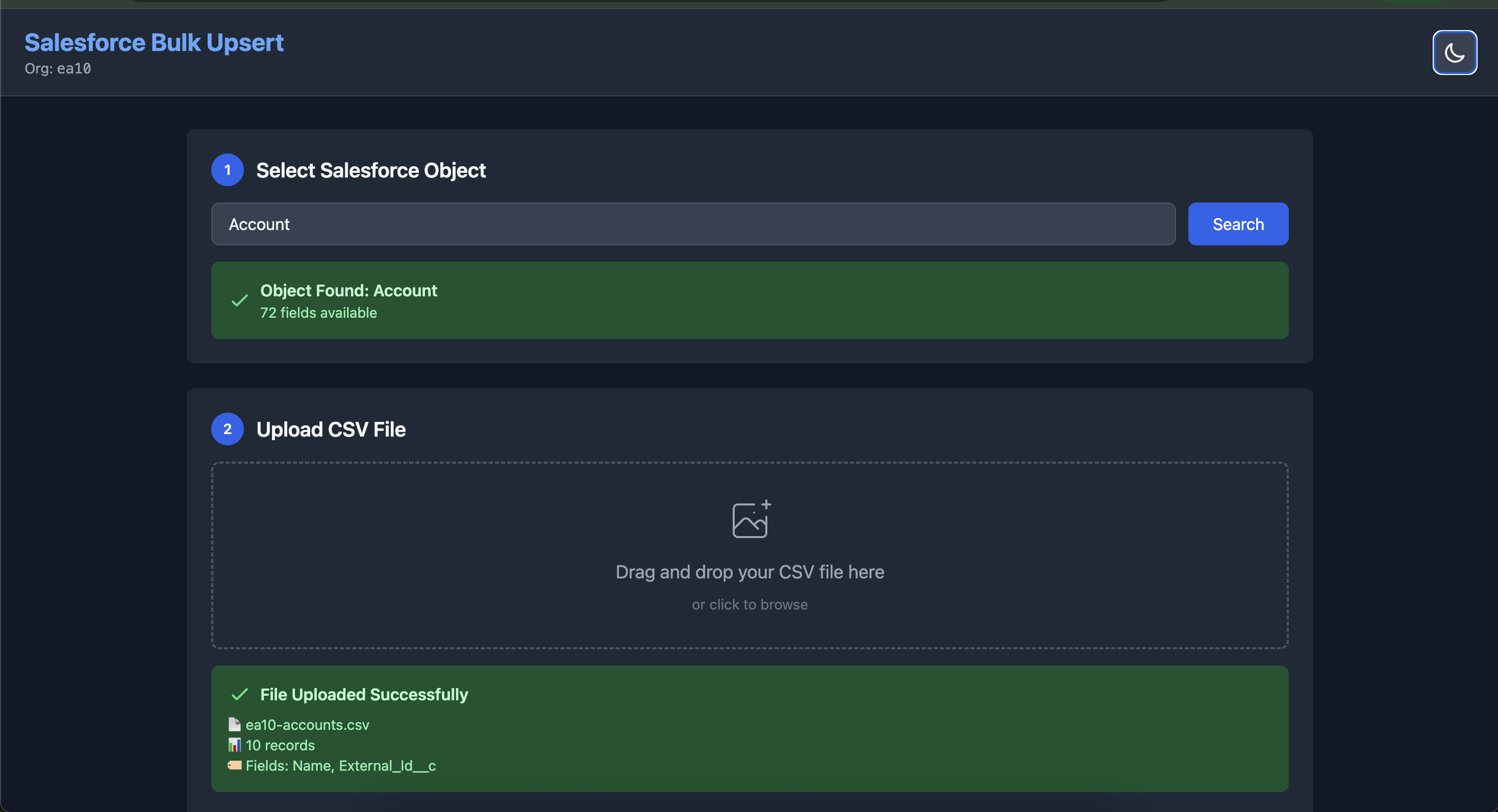
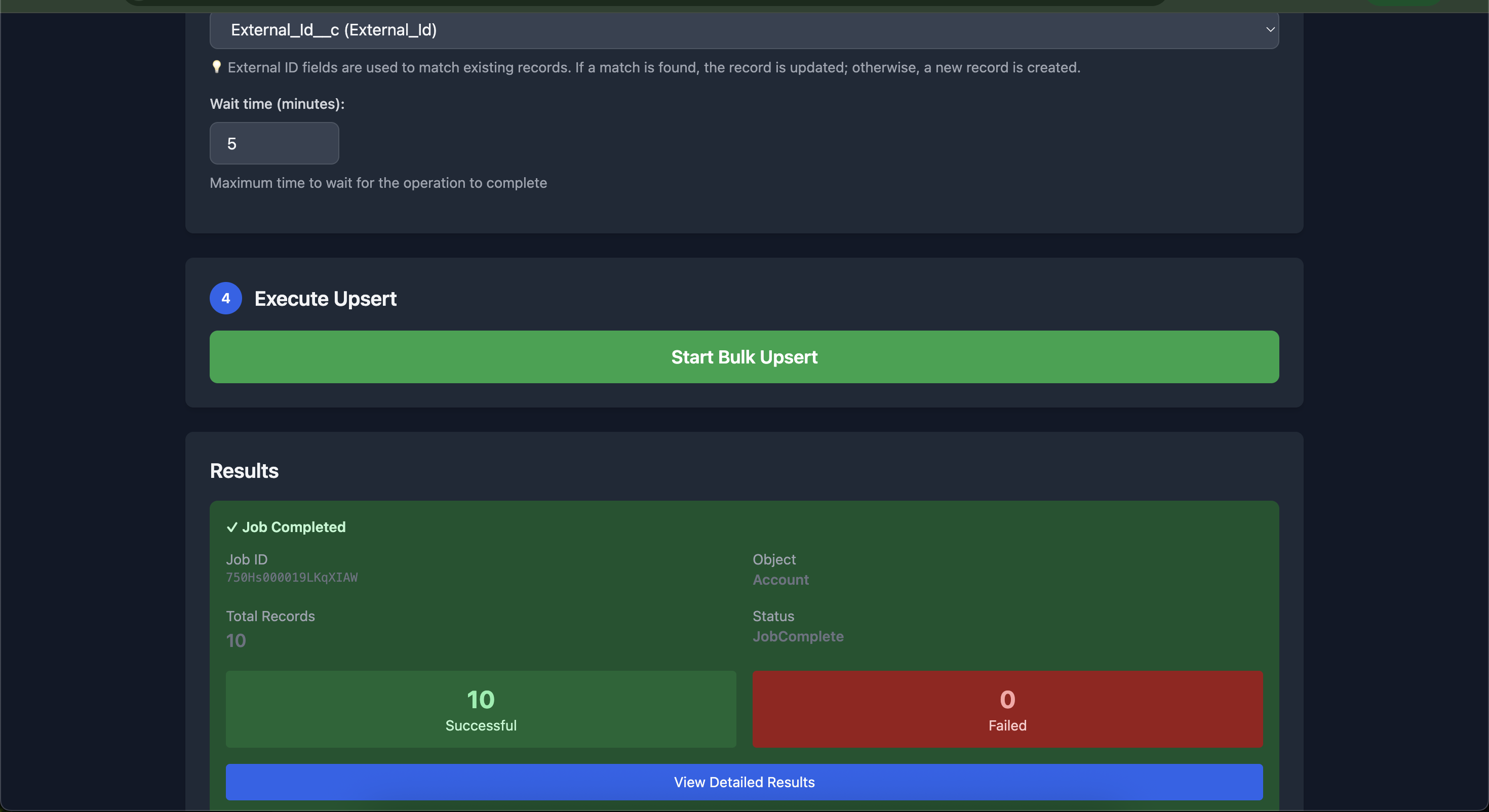
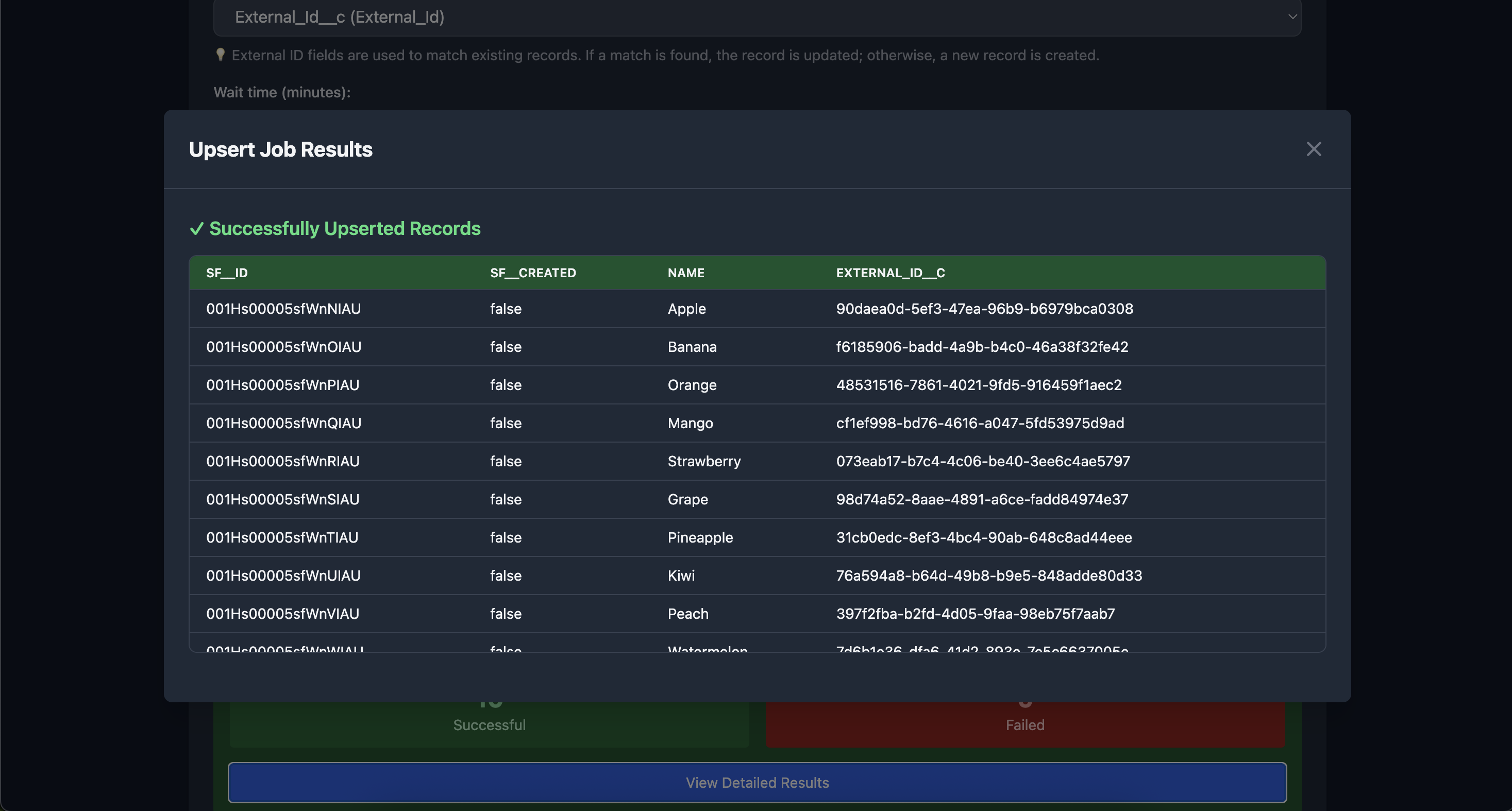
Screenshots
Prerequisites
- Node.js 14.0.0 or higher
- Salesforce CLI (
sf) installed and configured - Authenticated Salesforce org
Installation
npm install -g sf-bulk-upsert Usage
Start the tool by providing your Salesforce org username or alias:
sf-bulk-upsert start --org [email protected]Or using an alias:
sf-bulk-upsert start --org MyOrgAliasOptions
-o, --org <username>- Required. Salesforce org username or alias-p, --port <number>- Port number for web server (default: 3000)
Example
sf-bulk-upsert start --org mydevorg --port 8080How to Use
Select Salesforce Object
- Enter the API name of the object (e.g., Account, Contact, Custom__c)
- Click "Search" to load the object
Upload CSV File
- Drag and drop your CSV file or click to browse
- The tool will analyze the file and show record count and field names
Select External ID Field
- Choose which field to use for matching existing records
- Fields marked as External ID in Salesforce are recommended
- You can also use any field that exists in both your CSV and the object
Execute Upsert
- Set the wait time (how long to wait for the operation to complete)
- Click "Start Bulk Upsert"
- Monitor the progress in real-time
View Results
- See summary of successful and failed records
- Click "View Detailed Results" for complete information
- Export results if needed
CSV File Requirements
- Must be a valid CSV file with headers
- Headers should match Salesforce field API names
- The External ID field must be present in the CSV
- Maximum file size: 50MB
Example CSV Format
Email,FirstName,LastName,Company
[email protected],John,Doe,Acme Corp
[email protected],Jane,Smith,Tech Inc
Fruits data
Name,External_Id__c
Apple,90daea0d-5ef3-47ea-96b9-b6979bca0308
Banana,f6185906-badd-4a9b-b4c0-46a38f32fe42
Orange,48531516-7861-4021-9fd5-916459f1aec2
Mango,cf1ef998-bd76-4616-a047-5fd53975d9ad
Strawberry,073eab17-b7c4-4c06-be40-3ee6c4ae5797
Grape,98d74a52-8aae-4891-a6ce-fadd84974e37
Pineapple,31cb0edc-8ef3-4bc4-90ab-648c8ad44eee
Kiwi,76a594a8-b64d-49b8-b9e5-848adde80d33
Peach,397f2fba-b2fd-4d05-9faa-98eb75f7aab7
Watermelon,7d6b1e36-dfa6-41d2-893e-7e5c6637005e
How Upsert Works
- External ID Field: The field used to match existing records
- Update: If a record with the same External ID exists, it will be updated
- Insert: If no matching record is found, a new record will be created
Common External ID Fields
- Account: AccountNumber, External_ID__c
- Contact: Email, External_ID__c
- Custom Objects: Any field marked as "External ID" in field settings
Underlying Salesforce CLI Command
The tool uses this command:
sf data upsert bulk --sobject <Object> --file <file.csv> --external-id <Field> --wait <minutes> --target-org <username>Troubleshooting
"Object not found"
- Verify the object API name is correct
- Ensure you have read access to the object
"Field not found"
- Check that CSV headers match Salesforce field API names exactly
- Field names are case-sensitive
"Timeout error"
- Increase the wait time for large operations
- Check your network connection
"External ID field not found"
- Ensure the field exists in both the CSV and the Salesforce object
- For custom External ID fields, verify they're marked as "External ID" in Salesforce
How to kill a server running on a port
#!/usr/bin/env bash

set -euo pipefail

PORT=${1:-}

if [[ -z "$PORT" ]]; then
  echo "❌ Usage: $0 <port>"
  exit 1
fi

if ! [[ "$PORT" =~ ^[0-9]+$ ]]; then
  echo "❌ Invalid port: $PORT"
  exit 1
fi

echo "🔍 Checking for process on port $PORT..."

PID=$(lsof -ti tcp:"$PORT")

if [[ -z "$PID" ]]; then
  echo "✅ No process is running on port $PORT"
  exit 0
fi

echo "⚠️ Process(es) found on port $PORT: $PID"
echo "🛑 Killing process(es)..."

kill -9 $PID

echo "✅ Port $PORT is now free"
License
MIT (c) Mohan Chinnappan
Author
Mohan Chinnappan
Related Tools
- sf-bulk-delete - Bulk delete records from Salesforce