
sf-external-id-manager
v1.0.2
Published
Salesforce External ID field manager with beautiful reporting

Maintainers
 mohanchinnappan
Readme
🚀 Salesforce External ID Manager
A powerful Node.js CLI tool that manages External ID fields in Salesforce objects and generates beautiful interactive reports with ERD diagrams and schema details.


✨ Features
- 🔍 Automatic Field Detection - Checks if
External_Id__cfield exists in your Salesforce object - ⚡ Smart Field Creation - Creates and deploys the External ID field if missing
- 📊 Beautiful Reports - Generates stunning HTML reports with dark theme
- 🎨 ERD Visualization - Interactive Entity Relationship Diagrams
- 📈 Interactive Data Tables - Search, sort, and paginate through schema details
- 💾 Export Options - Save SVG diagrams and CSV schema files
- 🌙 Dark Theme - Eye-friendly interface using Tailwind CSS
Screenshots
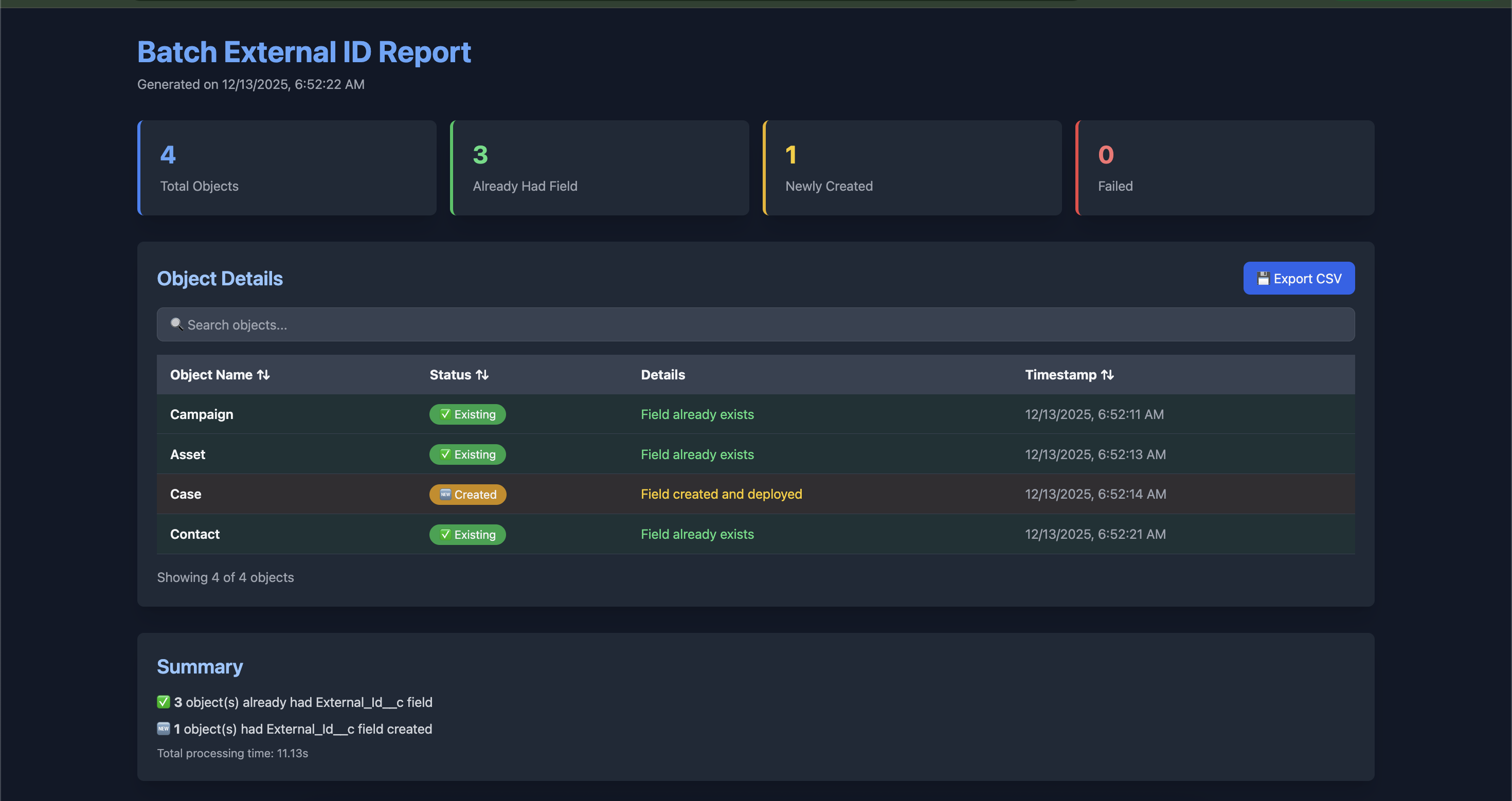
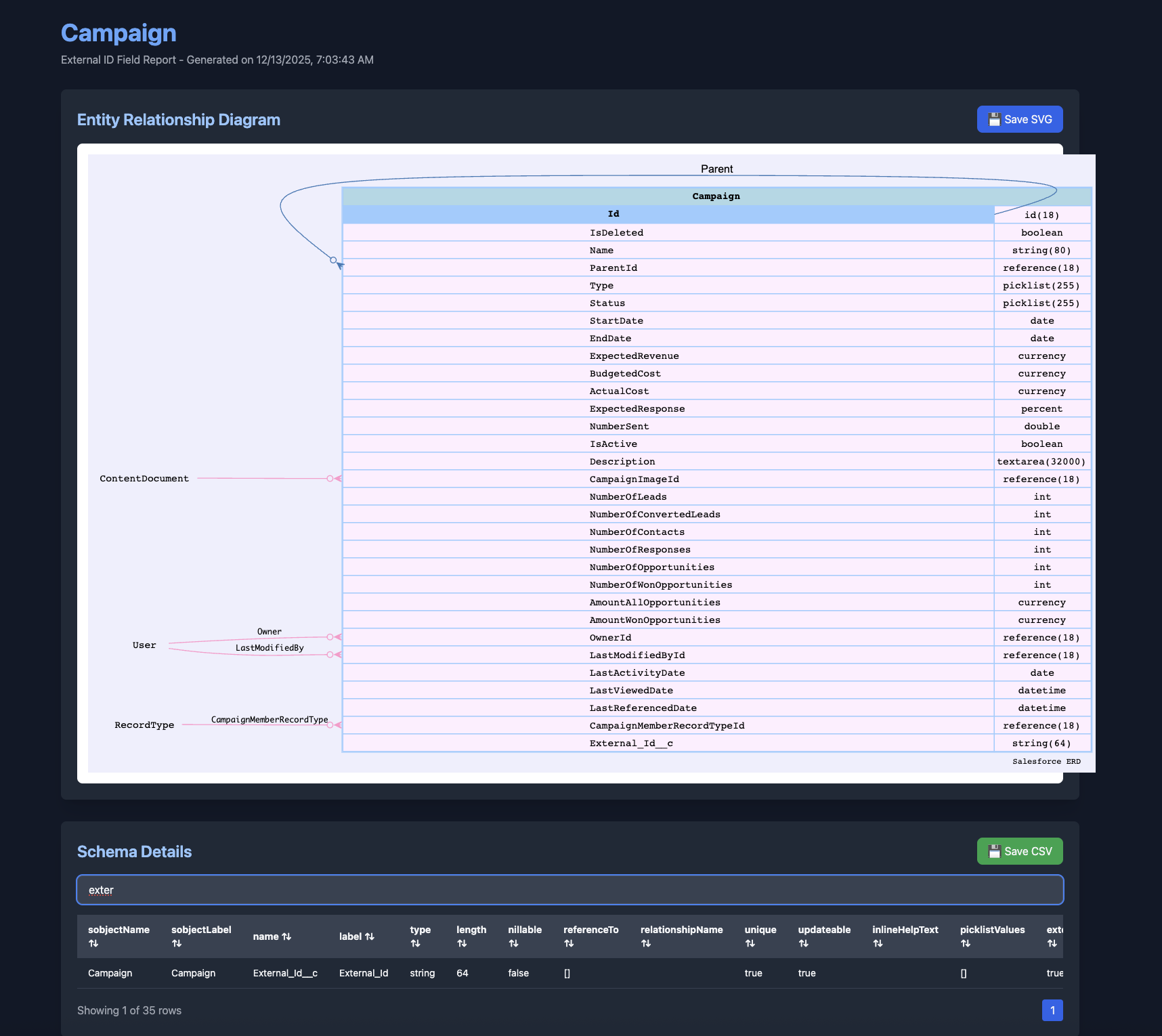
📋 Prerequisites
- Node.js >= 14.0.0
- Salesforce CLI (
sfcommand) - sf-mohanc plugin for metadata describe functionality
Install Salesforce CLI Plugin
sf plugins install sfdx-mohanc-pluginsMake sure you have a SFDX project
- If required you can create one:
#Generate a project called "mywork":
sf project generate --name mywork
🔧 Installation
npm install -g sf-external-id-manager Now use from anywhere
sf-external-id -s Campaign -o myorg -p ~/projects/myproject🎯 Usage
Single Object Mode
sf-external-id -s <sObject> -o <username> -p <project-path>Example:
sf-external-id -s Campaign -o ea10 -p ~/projects/ea10/ea10Batch Mode (Multiple Objects)
sf-external-id -s <sObject1>,<sObject2>,<sObject3> -o <username> -p <project-path>Example:
sf-external-id -s Campaign,Account,Contact,Lead -o ea10 -p ~/projects/ea10/ea10In batch mode, the tool will:
- Process all objects sequentially
- Check each object for the External_Id__c field
- Create the field where it's missing
- Generate a comprehensive batch report (no ERD/schema in batch mode)
- Show summary statistics
Options
| Option | Alias | Description | Required |
|--------|-------|-------------|----------|
| --sobject | -s | Salesforce sObject name (comma-separated for batch mode) | ✅ Yes |
| --username | -o | Salesforce org username or alias | ✅ Yes |
| --project-path | -p | Path to your SFDX project directory | ✅ Yes |
📖 What It Does
Single Object Mode
When processing a single object, the tool:
1. Field Detection
Checks if the External_Id__c field exists in your specified sObject with the following properties:
- Type: Text(64)
- External ID: ✓
- Unique: ✓
- Required: ✓
- Case Sensitive: ✗
2. Field Creation (if needed)
If the field doesn't exist, the tool will:
- Create the field metadata file in your SFDX project
- Generate a deployment package
- Deploy to your Salesforce org
- Wait for deployment completion
3. Report Generation
Generates a comprehensive HTML report containing:
- ERD Diagram: Visual representation of your object relationships
- Schema Table: Interactive table with all field details including:
- Field names
- Data types
- Properties (required, unique, external ID, etc.)
- Descriptions
Batch Mode
When processing multiple objects (comma-separated), the tool:
1. Sequential Processing
- Processes each object one by one
- Checks for External_Id__c field existence
- Creates the field if missing
- Tracks success/failure for each object
2. Batch Report Generation
Generates a summary HTML report with:
- Statistics Dashboard: Total objects, existing fields, newly created, failed
- Object Details Table: Status of each object with timestamps
- Interactive Features: Search, sort, and export to CSV
- Summary Section: Overall processing results and timing
Note: Batch mode does not generate ERD diagrams or detailed schema tables to optimize performance.
📂 Output Structure
Single Object Mode
After running the tool in single object mode, you'll find:
your-sfdx-project/
├── force-app/
│   └── main/
│       └── default/
│           └── objects/
│               └── YourObject/
│                   └── fields/
│                       └── External_Id__c.field-meta.xml
├── extId_pkg.xml
└── reports/
    ├── YourObject.svg           # ERD diagram
    ├── YourObject.csv           # Schema CSV
    └── YourObject_report.html   # Interactive report
Batch Mode
After running the tool in batch mode, you'll find:
your-sfdx-project/
├── force-app/
│   └── main/
│       └── default/
│           └── objects/
│               ├── Object1/
│               │   └── fields/
│               │       └── External_Id__c.field-meta.xml
│               ├── Object2/
│               │   └── fields/
│               │       └── External_Id__c.field-meta.xml
│               └── ...
├── extId_pkg.xml
└── reports/
    └── batch_external_id_report.html   # Batch summary report
🎨 Interactive Report Features
Single Object Report
The generated HTML report includes:
🔍 Search Functionality
- Real-time search across all columns
- Instant filtering as you type
📊 Sortable Columns
- Click any column header to sort
- Toggle between ascending/descending order
📄 Pagination
- 50 rows per page
- Easy navigation between pages
- Row count display
💾 Export Options
- Save SVG: Download the ERD diagram
- Save CSV: Export the schema data
Batch Report
The batch report includes:
📊 Statistics Dashboard
- Total objects processed
- Objects with existing External_Id__c
- Newly created fields
- Failed operations
🔍 Interactive Table
- Search across all objects
- Sort by object name, status, or timestamp
- Color-coded status badges (✅ Existing, 🆕 Created, ❌ Failed)
💾 Export Options
- Export CSV: Download the complete batch results
📈 Summary Section
- Detailed breakdown of results
- Total processing time
- Operation timestamps
🌙 Both Reports Feature
- Beautiful, eye-friendly dark interface
- Powered by Tailwind CSS
- Fully responsive design
🔍 Example Workflow
Single Object Example
# Step 1: Run the tool
sf-external-id -s Campaign -o ea10 -p ~/projects/ea10/ea10

# Output:
# 🚀 Salesforce External ID Manager
# ================================
#
# Username: ea10
# Project Path: ~/projects/ea10/ea10
# Mode: 🎯 Single Object
# sObject: Campaign
#
# 🔍 Checking for External_Id__c field in Campaign...
# ❌ External_Id__c field not found
#
# 📝 Creating External_Id__c field for Campaign...
# ✅ Field metadata file created
# ✅ Package.xml created
#
# 🚀 Deploying to org...
# ✅ External_Id__c field deployed successfully!
#
# 📊 Generating report for Campaign...
# 🎨 Generating ERD and schema...
#
# ✅ Report generated: ~/projects/ea10/ea10/reports/Campaign_report.html
# 📁 Files created:
#    - ~/projects/ea10/ea10/reports/Campaign.svg
#    - ~/projects/ea10/ea10/reports/Campaign.csv
#    - ~/projects/ea10/ea10/reports/Campaign_report.html
#
# 🎉 Process completed successfully!
# 👉 Open the report: ~/projects/ea10/ea10/reports/Campaign_report.html
Batch Mode Example
# Step 1: Run the tool for multiple objects
sf-external-id -s Campaign,Account,Contact,Lead -o ea10 -p ~/projects/ea10/ea10

# Output:
# 🚀 Salesforce External ID Manager
# ================================
#
# Username: ea10
# Project Path: ~/projects/ea10/ea10
# Mode: 📦 Batch (4 objects)
# Objects: Campaign, Account, Contact, Lead
#
# 📦 Batch Mode: Processing 4 object(s)...
# ============================================================
#
# [1/4] Processing: Campaign
# 🔍 Checking for External_Id__c field in Campaign...
# ✅ Campaign: External_Id__c field already exists
#
# [2/4] Processing: Account
# 🔍 Checking for External_Id__c field in Account...
# ❌ Account: External_Id__c field not found - creating...
# 📝 Creating External_Id__c field for Account...
# 🚀 Deploying to org...
# ✅ Account: External_Id__c field created successfully
#
# [3/4] Processing: Contact
# 🔍 Checking for External_Id__c field in Contact...
# ✅ Contact: External_Id__c field already exists
#
# [4/4] Processing: Lead
# 🔍 Checking for External_Id__c field in Lead...
# ❌ Lead: External_Id__c field not found - creating...
# 📝 Creating External_Id__c field for Lead...
# 🚀 Deploying to org...
# ✅ Lead: External_Id__c field created successfully
#
# ============================================================
# 📊 Batch Processing Complete
# ============================================================
#
# ✅ Already had External_Id__c: 2
# 🆕 Newly created External_Id__c: 2
#
# 📊 Generating batch report...
# ✅ Batch report generated: ~/projects/ea10/ea10/reports/batch_external_id_report.html
#
# 🎉 Process completed successfully!
# 👉 Open the batch report: ~/projects/ea10/ea10/reports/batch_external_id_report.html
🛠️ Technical Details
External_Id__c Field Specification
<?xml version="1.0" encoding="UTF-8"?>
<CustomField xmlns="http://soap.sforce.com/2006/04/metadata">
    <fullName>External_Id__c</fullName>
    <caseSensitive>false</caseSensitive>
    <description>For migration purposes</description>
    <externalId>true</externalId>
    <label>External_Id</label>
    <length>64</length>
    <required>true</required>
    <trackHistory>false</trackHistory>
    <type>Text</type>
    <unique>true</unique>
</CustomField>
📝 License
This project is licensed under the MIT License. (c) Mohan Chinnappan
🐛 Troubleshooting
Command not found: sf
Make sure Salesforce CLI is installed:
npm install -g @salesforce/cliCommand not found: sf mohanc
Install the sf-mohanc plugin:
sf plugins install sfdx-mohanc-pluginsDeployment failed
Ensure you're authenticated to the Salesforce org:
sf org list
sf org login web -a ea10
Made with ❤️ for the Salesforce community