
sf-metadata-selector
v1.0.5
Published
A beautiful, interactive CLI tool for browsing, selecting, and generating package.xml files for Salesforce metadata retrieval with search, save/load, and wildcard support
Downloads
18

Maintainers
 mohanchinnappan
Readme
Salesforce Metadata Selector CLI
A beautiful, interactive Node.js CLI tool that helps you browse, select, and generate
package.xmlfiles for Salesforce metadata retrieval.
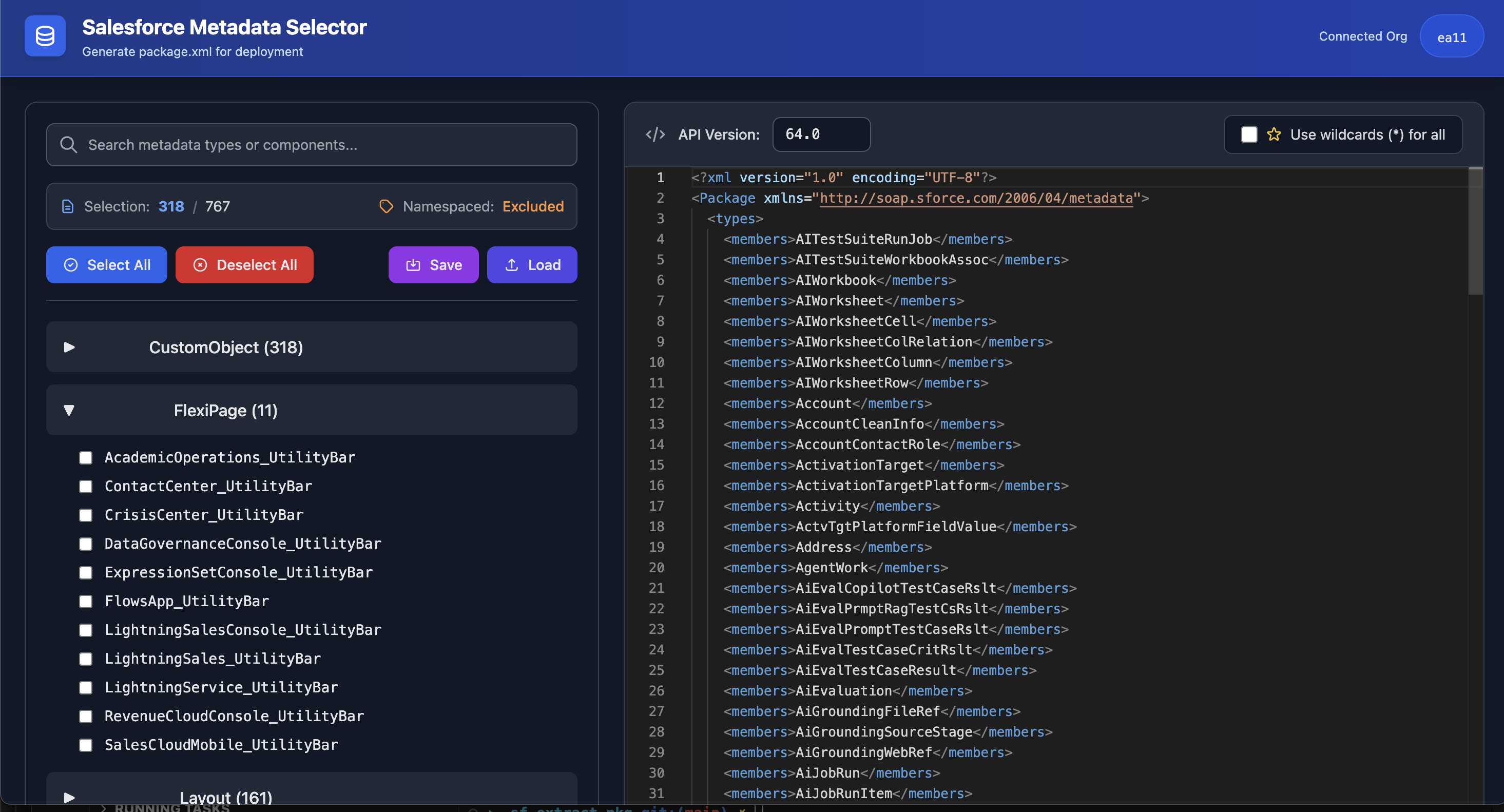
It connects to your Salesforce org via the Salesforce CLI (sf), lists all available metadata components, and provides a dark-themed web interface (using Tailwind CSS + Monaco Editor) where you can:
- 🔍 Search and filter metadata types and components in real-time
- ✅ Select/deselect individual components or entire types
- 💾 Save and load selections as JSON for reuse
- 🎯 Use wildcards (
*) for entire metadata types - 🎨 Customize API version dynamically
- 📊 Track selection counts in real-time
- ⌨️ Keyboard shortcuts for common actions
- 🚫 Filter namespaced components (exclude by default, include with flag)
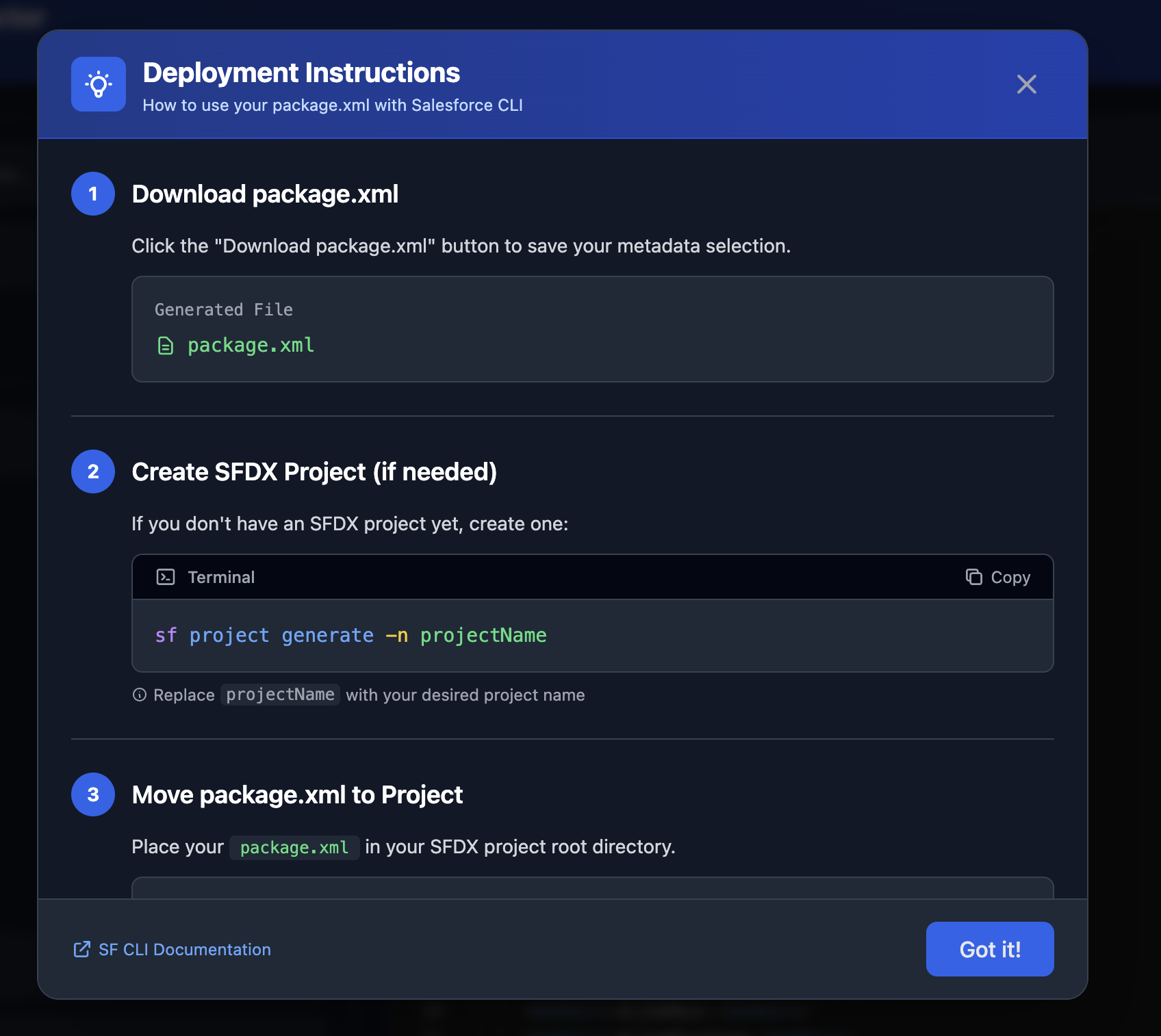
- 📥 Download the final
package.xmlwith one click
Screenshot
✨ New Features
🔍 Search & Filter
- Real-time search across all metadata types and component names
- Highlight matching components for easy visibility
- Auto-hide non-matching items to focus your selection
💾 Save & Load Selections
- Export selections to JSON file for backup or sharing
- Import selections to quickly restore previous work
- Saves API version and wildcard preferences
🎯 Wildcard Support
- Toggle wildcard mode to use
*for entire metadata types - Automatically uses
*when all components of a type are selected - Reduces package.xml size for large deployments
📊 Selection Counter
- Real-time counter showing selected vs. total components
- Helps track your selection progress
- Updates instantly as you select/deselect
⌨️ Keyboard Shortcuts
Ctrl+S/Cmd+S- Download package.xml- Easy navigation with keyboard accessibility
🎨 Custom API Version
- Editable API version field (defaults to 60.0 or your specified version)
- Updates package.xml in real-time
- Supports all Salesforce API versions
📈 Progress Indicator
- Shows percentage progress while fetching metadata
- Better feedback during long-running operations
📋 Features
- Lists all metadata types using
sf org list metadata-types - Fetches components per type with
sf org list metadata - Dark theme UI with Monaco Editor for real-time
package.xmlpreview - Per-type Select All / Deselect All buttons
- Global Select All / Deselect All
- Namespaced components filtering (exclude by default, include with
--include-namespaced) - Prevents
ENOBUFSerrors with increased buffer sizes - Generates a standalone HTML file
🔧 Requirements
- Node.js ≥ 16
- Salesforce CLI (
sf) installed and authenticated - npm to install dependencies
📦 Installation
npm install -g sf-metadata-selector
🚀 Usage
Basic Usage
# Excludes namespaced components by default
./sf-metadata-ui.js -o myOrgAlias

# Include namespaced components (managed package items, etc.)
./sf-metadata-ui.js -o myOrgAlias --include-namespaced

# Specify API version
./sf-metadata-ui.js -o myOrgAlias --api-version 65.0

# Custom output filename
./sf-metadata-ui.js -o myOrgAlias --output my-selector.html

# Using username instead of alias
./sf-metadata-ui.js -o [email protected]
Command Options
Options:
  -o, --org <alias|username>     Salesforce org alias or username (required)
  --include-namespaced           Include components with namespace prefix
  --api-version <version>        API version for package.xml (default: 60.0)
  --output <filename>            Output HTML filename (default: sf-metadata-selector.html)
  -h, --help                     Display help for command
📖 How It Works
- Connects to your org using
sf org display - Discovers metadata types with
sf org list metadata-types - Lists components for each type with
sf org list metadata(with progress indicator) - Filters out namespaced components unless
--include-namespacedis used - Generates a rich HTML interface:
- Left panel: searchable metadata types + checkboxes + controls
- Right panel: Monaco Editor showing real-time
package.xml
- Download button creates
package.xmlready for deployment
🎯 Usage Tips
Searching
- Type in the search box to filter by metadata type or component name
- Matching items are highlighted
- Non-matching items are hidden
Saving Selections
- Select your desired components
- Click 💾 Save button
- Save the JSON file to your computer
- Later, click 📂 Load to restore selections
Using Wildcards
- Select all components you want for a metadata type
- Enable "Use wildcards (*) for all" checkbox
- Types with all components selected will use
*instead of listing each member - Great for CustomObject, ApexClass, etc.
Keyboard Navigation
- Use
Tabto navigate between controls Spaceto toggle checkboxesCtrl+S(orCmd+Son Mac) to download package.xml
📄 Example Generated package.xml
Without Wildcards
<?xml version="1.0" encoding="UTF-8"?>
<Package xmlns="http://soap.sforce.com/2006/04/metadata">
  <types>
    <members>Account</members>
    <members>Contact</members>
    <members>CustomObject__c</members>
    <name>CustomObject</name>
  </types>
  <types>
    <members>MyController</members>
    <members>MyUtility</members>
    <name>ApexClass</name>
  </types>
  <version>64.0</version>
</Package>
With Wildcards (all components selected)
<?xml version="1.0" encoding="UTF-8"?>
<Package xmlns="http://soap.sforce.com/2006/04/metadata">
  <types>
    <members>*</members>
    <name>CustomObject</name>
  </types>
  <types>
    <members>*</members>
    <name>ApexClass</name>
  </types>
  <version>60.0</version>
</Package>
🛠️ Troubleshooting
ENOBUFS Error
Already mitigated with larger maxBuffer (10–20 MB). If still occurring on very large orgs:
- Use
--include-namespaced falseto reduce component count - Split retrieval into multiple package.xml files
- Increase buffer in the script if needed
No Components Shown
- Ensure the org alias/username is authenticated:
sf org list - Check that you have permissions to view metadata
- Try running with
--include-namespacedto see if components are namespaced
package.xml Not Updating
- Refresh the HTML page
- Check browser console (F12) for JavaScript errors
- Ensure Monaco Editor loaded correctly
Command Not Found
- Make sure
sfCLI is installed and in your PATH - Run
sf --versionto verify installation - See Salesforce CLI Setup Guide
Search Not Working
- Clear the search box to see all components
- Search is case-insensitive
- Try searching for partial names
Load Selection Failed
- Ensure the JSON file is from this tool's Save feature
- Check that the file isn't corrupted
- Verify JSON syntax if manually edited
🎨 UI Features
Left Panel
- Search box - Real-time filtering
- Selection counter - Shows X / Total selected
- Namespace indicator - Shows if namespaced components are included/excluded
- Action buttons - Select All, Deselect All, Save, Load
- Collapsible sections - Click to expand/collapse metadata types
- Per-type controls - Select/Deselect All for each type
- Highlight on search - Matching items highlighted in blue
Right Panel
- API Version input - Change version on the fly
- Wildcard toggle - Enable/disable wildcard mode
- Monaco Editor - Syntax-highlighted XML editor
- Download button - One-click package.xml download
- Keyboard hint - Shows Ctrl+S shortcut
🔮 Future Enhancements
Potential features for future versions:
- [ ] Metadata comparison between orgs
- [ ] Dependency analysis to show related components
- [ ] Multiple package.xml generation (e.g., split by feature)
- [ ] Recent selections history
- [ ] Preset filters (e.g., "All Apex", "All Objects")
- [ ] Diff view against existing package.xml
- [ ] Cloud storage integration for selections
- [ ] Batch operations across multiple orgs
- [ ] Component descriptions on hover
Testing
# Test with your org
./sf-metadata-ui.js -o yourOrgAlias

# Test with different options
./sf-metadata-ui.js -o yourOrg --include-namespaced --api-version 59.0
📄 License
MIT License (c) Mohan Chinnappan
Built with ❤️ for Salesforce developers