
sf-persona-mapper
v1.0.0
Published
Salesforce Persona to Permission Set Group Mapper — CLI tool with web UI

Maintainers
 mohanchinnappan
Readme
SF Persona Mapper ☁️
A Node.js CLI tool with a full-featured web UI for managing Salesforce Persona → Profile + Permission Set Group mappings. Designed for Salesforce architects and admins who need a structured, shareable way to document who gets what access — and why.
Pulls Profiles, Permission Set Groups, and permission details live from your org via the Salesforce CLI. No database required; all data persists to local JSON files.
Demo
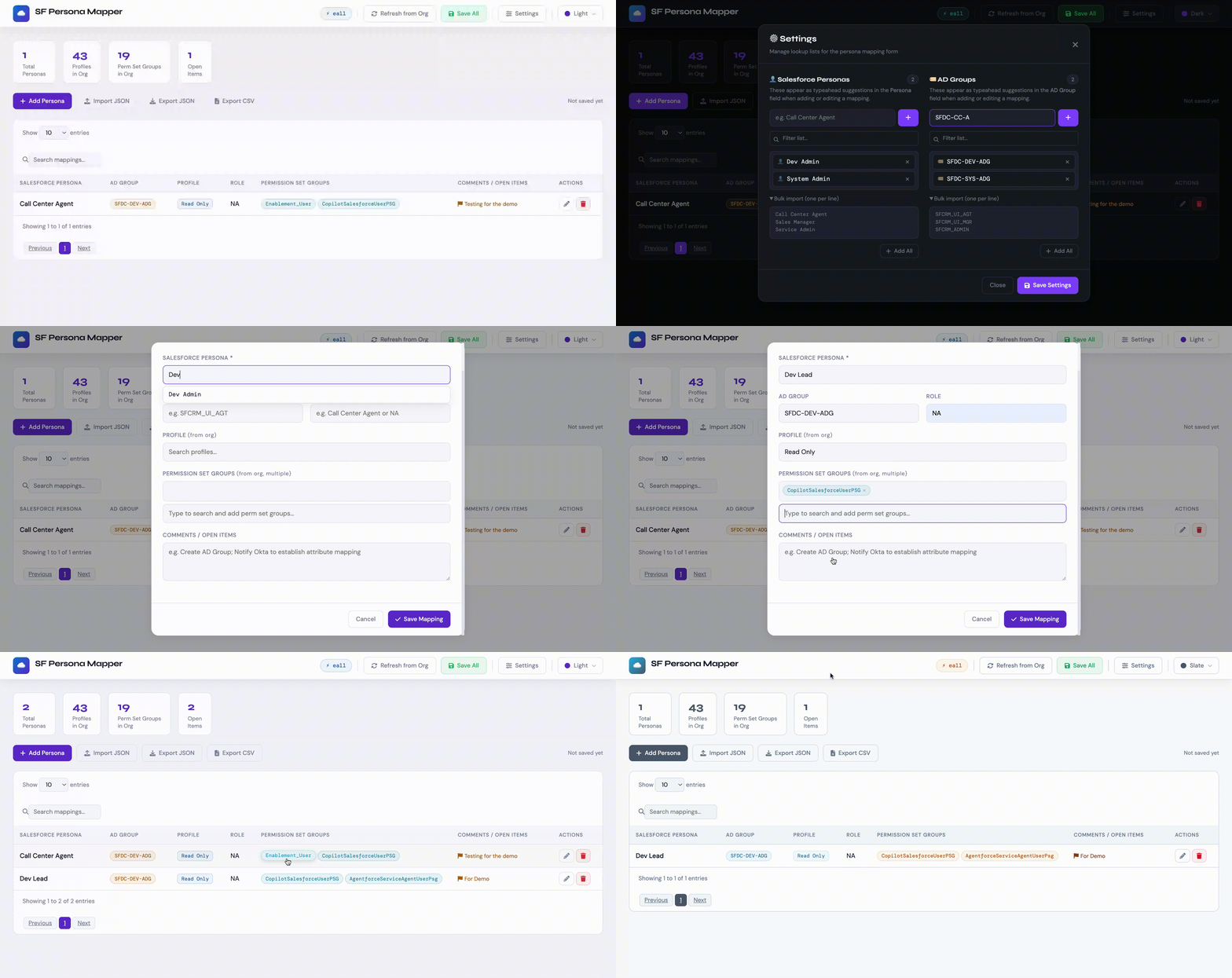
Table of Contents
Prerequisites
- Node.js >= 16
- Salesforce CLI —
sfinstalled and authenticated against your target org
To verify your CLI is ready:
sf org display --target-org <your-org-alias>Installation
npm install -g sf-persona-mapper
Quick Start
sf-persona-mapper serve --org my-sandboxOpen http://localhost:3000 in your browser. On startup the server pre-fetches Profiles and Permission Set Groups from the org in the background — you'll see counts appear in the stats bar as they load.
CLI Reference
serve — Start the web UI
sf-persona-mapper serve -o <org> [options]| Flag | Alias | Description | Default |
|------|-------|-------------|---------|
| --org <username> | -o | Salesforce org username or alias (required) | — |
| --port <port> | -p | Port for the local web server | 3000 |
| --mapping <file> | -m | Path to the JSON mapping file | ./persona-mapping.json |
Examples:
# Basic usage
sf-persona-mapper serve -o my-sandbox

# Custom port and mapping file
sf-persona-mapper serve -o prod-org --port 4000 --mapping ./mappings/prod-personas.json

# Using a full org username
sf-persona-mapper serve -o [email protected]
export — Print mappings to stdout
sf-persona-mapper export [options]| Flag | Alias | Description | Default |
|------|-------|-------------|---------|
| --mapping <file> | -m | Path to the JSON mapping file | ./persona-mapping.json |
| --format <format> | -f | Output format: json or csv | json |
Examples:
# Print as JSON
sf-persona-mapper export

# Pipe CSV to a file
sf-persona-mapper export --format csv > personas.csv

# Use a specific mapping file
sf-persona-mapper export -m ./mappings/prod.json -f csv
Web UI
Dashboard
The main screen shows four stat cards at the top:
| Card | What it shows | |------|---------------| | Total Personas | Number of rows in the current mapping file | | Profiles in Org | Profiles fetched from the connected Salesforce org | | Perm Set Groups in Org | Permission Set Groups fetched from the org | | Open Items | Rows that have content in the Comments / Open Items field |
Below the stats, a DataTable lists all persona mappings with sortable columns, a global search box, and configurable page size (5 / 10 / 25 / 50 / 100 rows).
Adding & Editing Mappings
Click + Add Persona (or the ✏️ pencil icon on any row) to open the mapping form. All fields support typeahead suggestions:
| Field | Source of suggestions | |-------|-----------------------| | Salesforce Persona | Your custom list in Settings | | AD Group | Your custom list in Settings | | Profile | Live from Salesforce org | | Permission Set Groups | Live from Salesforce org — multi-select with removable pill UI |
The Role and Comments / Open Items fields are free-text. Comments are flagged with a 🚩 icon in the table and counted in the Open Items stat.
Permission Detail Popup
Click any Profile chip or Permission Set Group pill in the table to open a live permission detail panel for that item.
Data is fetched on demand from the org via the Salesforce CLI and cached for the session. The popup shows:
Object Permissions tab — a full CRUD matrix for every object the Profile or PSG has access to:
| Column | Meaning | |--------|---------| | Read | Can view records | | Create | Can create new records | | Edit | Can edit existing records | | Delete | Can delete records | | View All | Can see all records regardless of sharing | | Modify All | Can edit/delete all records regardless of sharing |
A search bar filters the object list in real time.
System Permissions tab — shows the 9 key system permissions tracked:
- API Enabled
- Author Apex
- Customize Application
- Data Export
- Manage Users
- Modify All Data
- View All Data
- Run Reports
- View Setup
For Permission Set Groups, the popup also lists the component Permission Sets that make up the group, and merges permissions across all of them (any permission granted by any member set is shown as enabled).
Settings
Click ⚙️ Settings in the header to manage lookup lists used by the mapping form.
Salesforce Personas
A curated list of persona names that appear as typeahead suggestions in the Persona field. Add entries one at a time or use the Bulk Import textarea to paste many at once (one per line). Entries are stored alphabetically.
AD Groups
A curated list of Active Directory group names that appear as typeahead suggestions in the AD Group field. Same management interface as personas.
Both lists are saved to a settings file on disk (see File Formats) when you click Save Settings. They are loaded automatically on next startup.
Import & Export
Import JSON
Click Import JSON to open the import dialog, which supports two methods:
- Upload File — drag and drop a
.jsonfile onto the drop zone, or click to browse. The dialog validates the file immediately and shows a count of mappings found. - Paste JSON — paste raw JSON into the textarea. Validation runs as you type.
Two import modes are available:
| Mode | Behaviour | |------|-----------| | Merge | Rows with matching IDs are updated; new IDs are appended | | Replace All | Current mappings are discarded and replaced entirely |
Export
| Button | Output |
|--------|--------|
| Export JSON | Downloads persona-mapping.json with the full data structure |
| Export CSV | Downloads persona-mapping.csv with one row per persona |
Save All
The Save All button in the header writes the current state of all mappings back to the JSON file on disk. The timestamp of the last save is shown next to the button.
Themes
Click the Theme button in the top-right header to open the theme picker. Six themes are available:
| Theme | Character | |-------|-----------| | Dark | Deep navy background, cyan and violet accents — the default | | Light | Clean white surfaces with blue and violet accents | | Forest | Dark green background with emerald and gold highlights | | Rose | Warm blush surfaces with coral and rose accents | | Midnight | True OLED black with electric blue accents | | Slate | Cool professional gray with amber and sky-blue accents |
The selected theme is saved to localStorage and applied before first paint to prevent any flash.
File Formats
Mapping File
Default path: ./persona-mapping.json
 {
  "version": "1.0",
  "mappings": [
    {
      "id": "id-7dhv2r5kmz4mlsfy4eo",
      "persona": "CallCenterAgent",
      "adGroup": "SF-AD-CCA-1",
      "profile": "Anypoint Integration",
      "role": "NA",
      "permSetGroups": [
        "CopilotSalesforceUserPSG",
        "AgentforceServiceAgentUserPsg"
      ],
      "comments": "test"
    }
  ]
}
| Field | Type | Description |
|-------|------|-------------|
| id | string | Unique ID, auto-generated on creation |
| persona | string | Human-readable persona name |
| adGroup | string | Active Directory group name |
| profile | string | Salesforce Profile name |
| role | string | Salesforce Role name, or NA |
| permSetGroups | string[] | List of Permission Set Group names |
| comments | string | Open items or notes |
Settings File
Automatically created alongside the mapping file, e.g. ./persona-mapping-settings.json. You can edit this manually if needed.
{
  "personas": [
    "Call Center Agent",
    "Fulfillment User",
    "Sales Manager",
    "Service Admin"
  ],
  "adGroups": [
    "SFCRM_ADMIN",
    "SFCRM_UI_AGT",
    "SFCRM_UI_MGR"
  ]
}
API Reference
The server exposes a REST API on the same port as the UI. All endpoints return JSON.
| Method | Endpoint | Description |
|--------|----------|-------------|
| GET | /api/info | Returns org alias and mapping file path |
| GET | /api/sf/profiles | All Profiles from the org (cached) |
| GET | /api/sf/permsetgroups | All Permission Set Groups from the org (cached) |
| GET | /api/sf/permsets | All Permission Sets from the org (cached) |
| POST | /api/sf/refresh | Clears the SF data cache; next request re-fetches |
| GET | /api/sf/permissions/profile/:name | Object & system permissions for a Profile |
| GET | /api/sf/permissions/psg/:name | Merged object & system permissions for a PSG |
| GET | /api/mappings | Load the full mapping file |
| POST | /api/mappings | Save the full mapping file |
| PUT | /api/mappings/:id | Update a single mapping row |
| DELETE | /api/mappings/:id | Delete a single mapping row |
| GET | /api/settings | Load the settings file |
| POST | /api/settings | Save the settings file |
Permission detail endpoints cache results per session. Clearing the SF data cache (via POST /api/sf/refresh or the Refresh from Org button) also clears the permission detail cache.