
sf-user-inactivator
v1.0.2
Published
Salesforce User Inactivation Tool with Web UI
Downloads
255

Maintainers
 mohanchinnappan
Readme
Salesforce User Inactivation Tool
A powerful Node.js CLI tool with a beautiful dark-themed web UI for managing user inactivation across multiple Salesforce orgs.
Features
- 🎨 Modern Dark UI - Beautiful Tailwind CSS interface with dark theme
- 📊 Three-Panel Layout - Users, Orgs, and Status panels with resizable splitters
- 🔍 User Search - Quick search functionality for filtering users
- ✅ Selective Inactivation - Choose specific user/org combinations
- 📈 Real-time Status - Live updates and detailed reports
- 🚀 SF CLI Integration - Uses official Salesforce CLI for operations
Screenshots
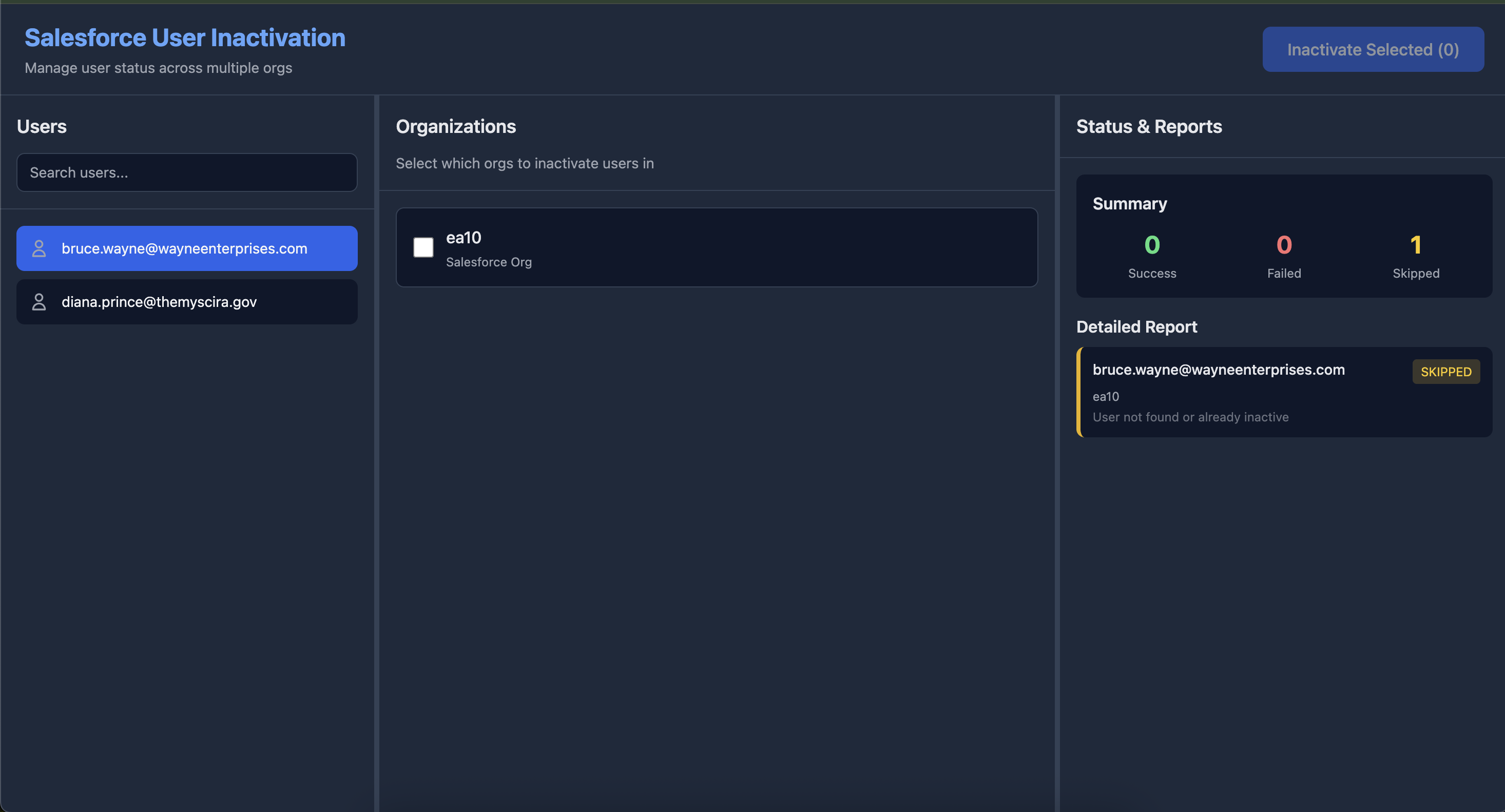
Prerequisites
- Node.js (v16 or higher)
- Salesforce CLI (
sf) installed and configured - Authenticated Salesforce orgs
Installation
npm install -g sf-user-inactivator
Usage
Prepare Your CSV File
Create a CSV file with user emails. The tool accepts various column names:
email
[email protected]
[email protected]
Or:
Email,Name
[email protected],John Doe
[email protected],Jane Smith
Run the Tool
sf-user-inactive -o [email protected] [email protected] -u users.csv

# With custom port
sf-user-inactive -o [email protected] -u users.csv -p 8080
Command Options
-o, --orgs <usernames...>- Salesforce org usernames (space-separated, required)-u, --users <file>- Path to CSV file with user emails (required)-p, --port <number>- Port for web UI (default: 3000)
How to Use the Web UI
- Select a User - Click on a user email in the left panel
- Choose Orgs - Check the boxes for orgs where you want to inactivate the user
- Review Selections - The button shows total selections count
- Inactivate - Click "Inactivate Selected" and confirm
- View Report - Check the right panel for detailed results
UI Features
- Resizable Panels - Drag the vertical splitters to adjust panel widths
- User Search - Type in the search box to filter users
- Status Indicators - Color-coded success/error/skipped status
- Detailed Reports - See exactly what happened with each operation
How It Works
- The tool queries each org for the specified user using SOQL
- If the user exists and is active, it updates the
IsActivefield tofalse - Results are displayed with success/error/skipped status
- Users already inactive or not found are skipped
Example Workflow
# 1. Create users CSV
echo "email\[email protected]\[email protected]" > users.csv

# 2. Run the tool
sf-inactive -o [email protected] [email protected] -u users.csv

# 3. Browser opens automatically at http://localhost:3000
# 4. Use the UI to manage inactivations
Report Format
The status panel shows:
- Summary: Count of successful, failed, and skipped operations
- Detailed Report: Each operation with:
- User email
- Target org
- Status (success/error/skipped)
- Detailed message
Error Handling
The tool handles:
- Users not found in orgs
- Users already inactive
- Network/connection errors
- Invalid org credentials
- CSV parsing errors
Tips
- Authenticate all orgs before running:
sf org login web - Use org aliases for easier management:
sf alias set [email protected] - Test with a small CSV first to verify connectivity
- Keep the browser window open while operations are running
Security Notes
- The tool only inactivates users, never deletes them
- Requires proper Salesforce CLI authentication
- All operations use official SF CLI commands
- Web UI is local-only (localhost)
Troubleshooting
"User not found or already inactive"
- The user doesn't exist in that org, or is already inactive
"Command failed"
- Check SF CLI is installed:
sf --version - Verify org authentication:
sf org list
CSV not loading
- Ensure CSV has proper headers (email/Email/EMAIL)
- Check file path is correct
License
- MIT (c) Mohan Chinnappan