
sf-user-manager
v2.0.0
Published
Salesforce User Management CLI with Web UI - Salesforce CLI Integration

Maintainers
 mohanchinnappan
Readme
Salesforce User Manager CLI
A powerful Node.js CLI tool with a modern web interface for managing Salesforce user creation in bulk using real Salesforce CLI commands.
Features
- 🎨 Dark-themed UI with Tailwind CSS
- 📊 Three-pane layout with resizable splitters
- ✅ Bulk user selection with checkboxes
- 🔄 Real-time status updates and logging
- 🚀 Real Salesforce CLI integration for user creation
- 📝 CSV import with optional and required fields (command-line or UI upload)
- 💾 Export status and logs to CSV and TXT files
- ✔️ User verification to check created users
- 🔍 Duplicate detection before creation
- 💡 Persistent user IDs after creation
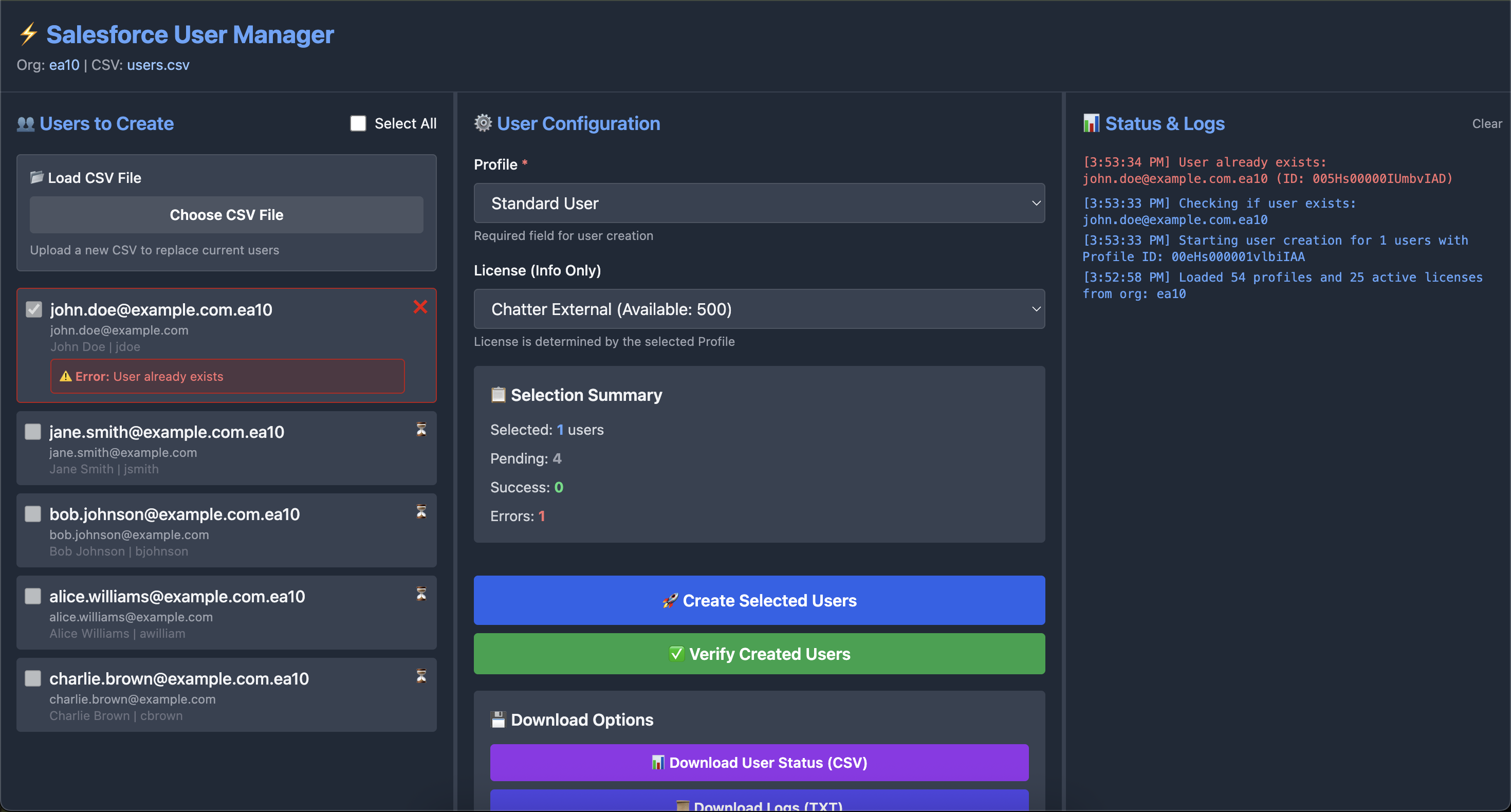
Screenshots
Installation
npm install -g sf-user-manager
Prerequisites
- Node.js v14 or higher
- Salesforce CLI installed and configured (
sfcommand available) - Authenticated Salesforce org with
sf org login webor similar - Proper permissions to create users in target org
Usage
# Basic usage with CSV file
sf-user-mgr -o your-org-username -i users.csv

# Start without CSV (upload from UI)
sf-user-mgr -o your-org-username

# Custom port
sf-user-mgr -o your-org-username -i users.csv -p 8080
V2 - generates anon apex class for this
sf-user-mgr -o [email protected] -i users.csv --apex createUsers.cls
CSV Format
Required Columns
username- Email-format username for the user (example: [email protected])email- Email address
Optional Columns (with defaults)
firstName- First name (default: extracted from username)lastName- Last name (default: extracted from username or "User")alias- User alias (default: first 8 chars of username)timeZoneSidKey- Timezone (default: "America/New_York")localeSidKey- Locale (default: "en_US")emailEncodingKey- Email encoding (default: "UTF-8")languageLocaleKey- Language (default: "en_US")
Example CSV
username,email,firstName,lastName,alias,timeZoneSidKey,localeSidKey,emailEncodingKey,languageLocaleKey
[email protected],[email protected],John,Doe,jdoe,America/New_York,en_US,UTF-8,en_US
[email protected],[email protected],Jane,Smith,jsmith,America/Los_Angeles,en_US,UTF-8,en_US
[email protected],[email protected],Bob,Johnson,bjohnson,America/Chicago,en_US,UTF-8,en_US
[email protected],[email protected],Alice,Williams,awilliam,America/Denver,en_US,UTF-8,en_US
[email protected],[email protected],Charlie,Brown,cbrown,America/New_York,en_US,UTF-8,en_US
Minimal CSV (using defaults)
username,email
[email protected],[email protected]
[email protected],[email protected]
UI Layout
Left Pane: User List (30% width, resizable)
- View all users from CSV with detailed information
- CSV Upload Button - Upload a new CSV file to replace current users
- Select individual users via checkboxes
- "Select All" option for bulk selection
- Real-time status indicators:
- ⏳ Pending (gray)
- ⚙️ Processing (blue, pulsing)
- ✅ Success (green) with Salesforce User ID
- ❌ Error (red) with error message
- Display user details: username, email, first name, last name, alias
Center Pane: Configuration (40% width, resizable)
- Profile Selection (Required)
- Dropdown populated from target org
- Must be selected before user creation
- License Information (Info only)
- Shows available licenses
- Displays remaining capacity
- License is actually determined by Profile
- Selection Summary
- Count of selected users
- Count by status (pending, success, error)
- Action Buttons
- Create Selected Users (with confirmation)
- Verify Created Users (queries Salesforce)
- Download Options
- 📊 Download User Status (CSV) - Export all users with status, IDs, and errors
- 📜 Download Logs (TXT) - Export complete log history with commands
Right Pane: Status & Logs (30% width, resizable)
- Real-time log stream with timestamps
- Color-coded messages:
- 🔵 Info (blue)
- 🟢 Success (green)
- 🔴 Error (red)
- Shows executed Salesforce CLI commands for transparency
- Auto-scroll to latest logs
- Clear logs button
- Shows up to 100 most recent log entries
Resizable Splitters
- Drag the vertical dividers between panes to resize
- Minimum width of 200px per pane
- Customizable layout for your workflow preferences
Command Line Options
| Option | Alias | Description | Required |
|--------|-------|-------------|----------|
| --org | -o | Salesforce org username or alias | Yes |
| --input | -i | Path to input CSV file | No* |
| --port | -p | Web server port (default: 3000) | No |
*The -i option is now optional. You can start the tool without a CSV and upload one through the UI.
How It Works
Salesforce Commands
Query Profiles:
sf data query -q "SELECT Id, Name FROM Profile ORDER BY Name" -o <org> -r csvQuery Licenses:
sf data query -q "SELECT Id, Name, Status, TotalLicenses, UsedLicenses FROM UserLicense WHERE Status = 'Active'" -o <org> -r csvCheck User Exists:
sf data query -q "SELECT Id, Username FROM User WHERE Username='<username>'" -o <org> -r csvCreate User:
sf data create record -s User -v "Username=<username> Email=<email> FirstName=<firstName> LastName=<lastName> Alias=<alias> ProfileId=<profileId> TimeZoneSidKey=<tz> LocaleSidKey=<locale> EmailEncodingKey=<encoding> LanguageLocaleKey=<lang>" -o <org> --jsonVerify User:
sf data query -q "SELECT Id, Username, IsActive, Profile.Name FROM User WHERE Id='<userId>'" -o <org> -r csv
User Creation Flow
- Load CSV file (via command-line
-ioption or upload through UI) - Query Salesforce for available Profiles and Licenses
- User selects which users to create and which Profile to assign
- For each selected user:
- Check if user already exists (duplicate detection)
- Create user using
sf data create recordcommand - Capture Salesforce User ID from response
- Update status in real-time
- Optionally verify all created users
- Download status report (CSV) or logs (TXT) for record-keeping
Features in Detail
CSV Upload
- Upload CSV files directly from the web interface
- Replace current user list with newly uploaded data
- No need to restart the application
- Validates CSV format before processing
- Shows current loaded CSV filename in header
Download Options
- User Status CSV: Exports username, email, name, alias, status, User ID, and error messages
- Logs TXT: Exports timestamped logs with all executed Salesforce CLI commands
- Files include timestamps in filename for easy organization
- Perfect for audit trails and record-keeping
Duplicate Detection
Before creating each user, the tool checks if a user with that username already exists in the org. If found, it skips creation and logs an error.
Error Handling
- Invalid CSV format
- Missing required fields
- Salesforce CLI errors
- Network issues
- Insufficient permissions
- All errors are logged with details and exact commands executed
Real-time Updates
- Status updates every 2 seconds during processing
- Logs refresh automatically
- Processing animation on active operations
- Disabled checkboxes during processing
- Command visibility in logs for debugging
User Experience
- Confirmation dialog before creating users
- Progress indication during bulk operations
- Detailed error messages for troubleshooting
- Success confirmation with Salesforce IDs
- Browser auto-opens on startup
- No page refresh needed - fully interactive SPA
Common Salesforce TimeZones
America/New_York- Eastern TimeAmerica/Chicago- Central TimeAmerica/Denver- Mountain TimeAmerica/Los_Angeles- Pacific TimeAmerica/Phoenix- ArizonaEurope/London- GMTEurope/Paris- CETAsia/Tokyo- JST
Troubleshooting
"SF CLI Error" messages
- Ensure Salesforce CLI is installed:
sf --version - Verify org is authenticated:
sf org list - Check permissions to create users
- Review executed commands in the logs pane
"User already exists"
- Use the verify button to check existing users
- Update CSV to remove duplicates
- Download status CSV to identify which users already exist
"Profile is required"
- Select a profile from the dropdown before clicking create
No profiles/licenses loaded
- Verify org authentication
- Check network connectivity
- Ensure proper permissions
CSV upload fails
- Check CSV format (must have
usernameandemailcolumns) - Ensure file is valid CSV format
- Check browser console for detailed error messages
Security Notes
- Users are created with the fields provided
- No default password is set (users must reset on first login)
- Ensure CSV files with user data are kept secure
- Validate target org before running bulk operations
- Downloaded status files contain sensitive user information - handle appropriately
- Uploaded CSV files are temporarily stored and immediately deleted after processing
License
MIT (c) Mohan Chinnappan