
sg-avatar
v0.0.3
Published
sg-avatar-component


Readme
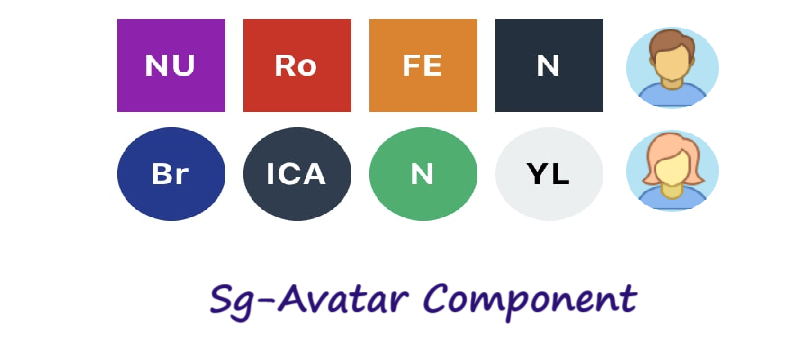
Sg-Avatar Component
This package is used to add the avatar easily in your applications.
Getting Started
Use the below command to add your package in your application
npm i sg-avataryou can consume it in your application as shown below:
<sg-avatar name="John Smith"></sg-avatar>Options
| Property | Attribute | Type | Description |
| ------------- | ---------------- | --------- | :-----------------------------------------------------------------: |
| name | name | string | (Required) The name used to generate initials. |
| avatar | face or initial| string | (Optional) Used to Specify the type of avatar (Face or Initial), Default: initial |
| background | background | string | (Optional) Used to specify background color of the avatar (Face or Initial), Default: f0e9e9 |
| color | color | string | (Optional) Hex color for the font, without the hash (#). Default: 8b5d5d |
| fontSize | font-size | number | (Optional) Font size for initial avatar in percentage of size. Between 0.1 and 1. Default: 0.5 |
| length | length | number | (Optional) Length of the generated initials. Default: 2 |
| rounded | rounded | boolean | (Optional) Boolean specifying if the returned image should be a circle. Default: false |
| size | size | number | (Optional) Avatar image size in pixels. Between: 16 and 512. Default: 64 |
| datasrc | datasrc | string | (Required) Specifies the path to the image, Use along with avatar = 'face' attribute. |
| sex | sex | string | (Optional) Used to specify the sex of the avatar image, Default: female |
Example:
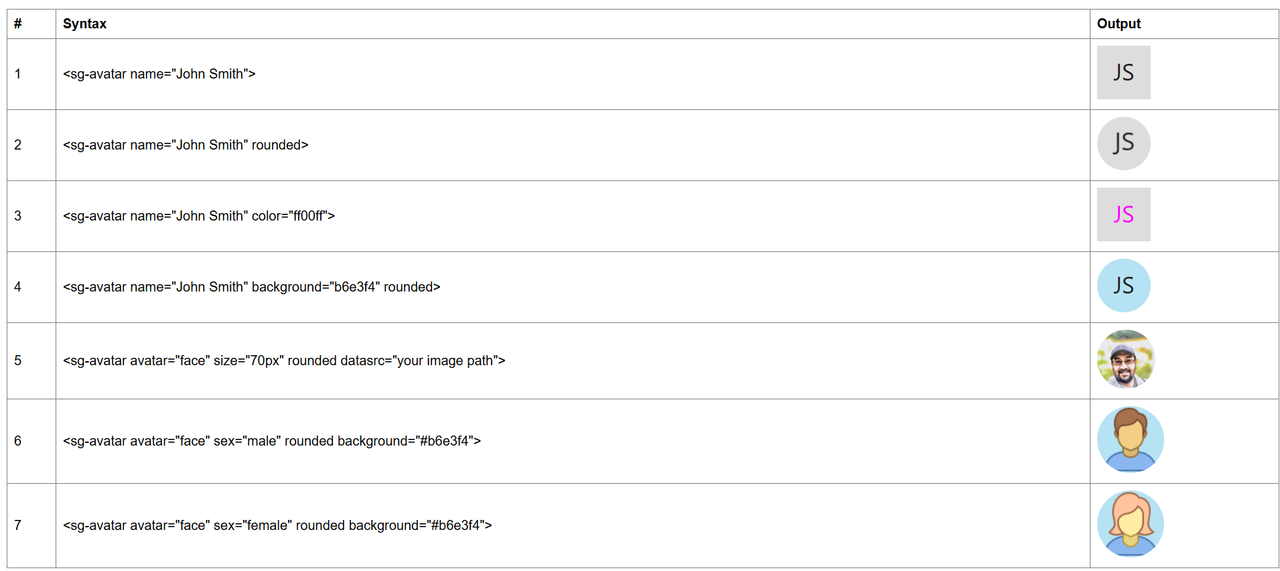
Usage
Now we will see how to integrate this libiary in your applications.
Angular
Add an import to main.js
import { defineCustomElements} from '../node_modules/sg-avatar/loader';And somewhere near the bottom we'll call this function.
defineCustomElements();Configure the angular.json file. You’ll add this configuration under the projects > yourProjectName > architect > build > options > assets section:
"input": "node_modules/sg-avatar/dist/components/assets/",
"output": "/assets/"
This will copy the images from the component into your application assets folder.
Next, in app.module.ts add the CUSTOM_ELEMENTS_SCHEMA.
import {CUSTOM_ELEMENTS_SCHEMA} from `@angular/core`;and then
schemas: [
    CUSTOM_ELEMENTS_SCHEMA
]
Your app.module.ts should look like this:
import { NgModule, CUSTOM_ELEMENTS_SCHEMA } from '@angular/core';

@NgModule({
  declarations: [],
  imports: [],
  schemas: [ CUSTOM_ELEMENTS_SCHEMA],
  providers: [],
  bootstrap: [AppComponent]
})

export class AppModule { }
Please Note: schemas: [ CUSTOM_ELEMENTS_SCHEMA ] need to be added to each component where you are using custom HTML tags.
Now, in app.component.html you utilize your new custom element.
<sg-avatar name="John Smith"></sg-avatar>React
Now we'll add an import to index.js
import { defineCustomElements} from '../node_modules/sg-avatar/loader';And somewhere near the bottom we'll call this function.
defineCustomElements();Install the following package to Copying assets from a component node module
npm install --save-dev copy-webpack-pluginNow, Update your webpack configuration (webpack.config.js):
const CopyWebpackPlugin = require('copy-webpack-plugin');

module.exports = {
  // ... other webpack config
  plugins: [
    new CopyWebpackPlugin({
      patterns: [
        {
          from: node_modules/sg-avatar/dist/components/assets/',
          to: 'assets'
        }
      ]
    })
  ]
};
Next, in app.js you utilize your new custom element
function App() {
  return (
    <div className="App">
      <header className="App-header">
        <img src={logo} className="App-logo" alt="logo" />
            <sg-avatar name="John Smith"></sg-avatar>
      </header>
    </div>
  );
}
Vue
Add defineCustomElements to one of our main files. Specifically main.js for Vue.
import { defineCustomElements} from '../node_modules/sg-avatar/loader';And somewhere near the bottom we'll call this function.
defineCustomElements();Now, to copy the images from the component node_module into your application use
the following command
npm i vite-plugin-static-copyAdd viteStaticCopy plugin to vite.config.js / vite.config.ts and add the
component assets location as shown below.
import { viteStaticCopy } from 'vite-plugin-static-copy'

export default {
  plugins: [
    viteStaticCopy({
      targets: [
        {
          src: 'node_modules/sg-avatar/dist/components/assets/*',
          dest: 'assets'
        }
      ]
    })
  ]
}
Next, in App.Vue you consume the custom element.
<template>
  <div id="app">
    <img alt="Vue logo" src="./assets/logo.png">
    <sg-avatar name="John Smith"></sg-avatar>
  </div>
</template>

<script>
export default {
  name: 'App',
}
</script>
Please Note: If you are using multiple component then you can define the defineCustomElements as shown below:
import { defineCustomElements as defineCustomElements1} from '../node_modules/sg-copyright/loader';
import { defineCustomElements as defineCustomElements2} from '../node_modules/sg-avatar/loader';
.
.
.
defineCustomElements1();
defineCustomElements2();