
sg-image-viewer
v0.0.5
Published
sg-image-viewer component


Readme

Sg-Image-Viewer Component
An image viewer is a component used to displays images in a gallery or slideshow format. They can be used in web applications or mobile apps.
Getting Started
Use the below command to add your package in your application
npm i sg-image-vieweryou can consume it in your application as shown below:
<sg-image-viewer imageList="JSON-Array-Data"></sg-image-viewer>
Options
| Property | Attribute | Type | Description |
| ------------- | ---------------- | --------- | :-----------------------------------------------------------------: |
| imageList | imageList | array list | (Required) It is used to load the image data as an Json Array object. ##Example: imageList='[{"url": "https://i.ibb.co/wBYDxLq/beach.jpg", "title": "Beach Houses", "description": "House"}, {"url": "https://i.ibb.co/gM5NNJX/butterfly.jpg", "title": "Butterfly", "description": "wildlife"}]' Pleases Note that Json object with 3 properties 1) url 2) title 3) description |
| mode | mode| string | (Optional) It is used to display images in responsive and visually appealing format, There are 2 types of mode 1) gallery 2) carousel Default: gallery |
| gallery-style | gallery-style | string | (Optional) It is used to represent the style of the display, There are 2 styles for gallery mode 1) flexbox and 2) grid. There are 1 style for carosuel mode 1) slide |
| header | header | boolean | (Optional) Enable and disable the headers, Default: false |
| header-title | header-title | string | (Optional) Is is used to display the title of the header |
| isvue | isvue | boolean | (Optional) For Angular and React application, (Required) For Vue application Default: false |
Example:
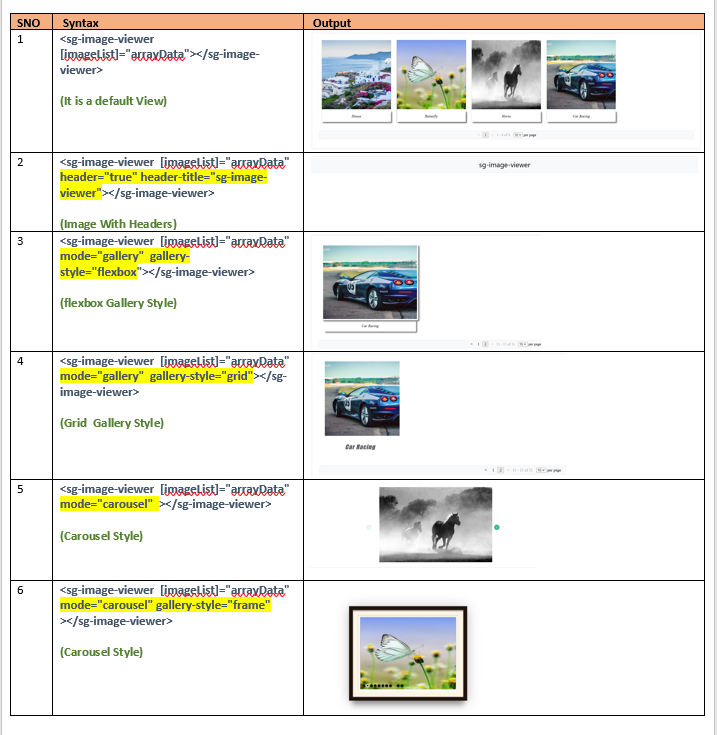
Usage
Now we will see how to integrate this libiary in your applications.
Angular
Step 1: Add an import to main.ts
import { defineCustomElements} from '../node_modules/sg-image-viewer/loader';And somewhere near the bottom we'll call this function.
defineCustomElements();Step 2: Next, in app.module.ts add the CUSTOM_ELEMENTS_SCHEMA.
import {CUSTOM_ELEMENTS_SCHEMA} from `@angular/core`;and then
schemas: [
    CUSTOM_ELEMENTS_SCHEMA
]
Your app.module.ts should look like this:
import { NgModule, CUSTOM_ELEMENTS_SCHEMA } from '@angular/core';

@NgModule({
  declarations: [],
  imports: [],
  schemas: [ CUSTOM_ELEMENTS_SCHEMA],
  providers: [],
  bootstrap: [AppComponent]
})

export class AppModule { }
Please Note: schemas: [ CUSTOM_ELEMENTS_SCHEMA ] need to be added to each component where you are using custom HTML tags.
Step 3: Declare the arrayData: In your Angular component's TypeScript file, declare the arrayData that you are passing.
 arrayData  =[{"url": "https://i.ibb.co/10fFGkZ/car-race.jpg", "title": "Car Racing", "description":"Car Racing"} ,
    {"url": "https://i.ibb.co/gM5NNJX/butterfly.jpg", "title": "Butterfly", "description":"Butterfly"},
    {"url": "https://i.ibb.co/ygqHsHV/coffee-milk.jpg", "title": "Coffee with Milk", "description":"Coffee with Milk"}];
  imageList  =this.arrayData ;
Step 4: Now, in app.component.html you utilize your new custom element.
<sg-image-viewer [imageList]="arrayData"></sg-image-viewer>React
Step 1:
Now we'll add an import to index.js
import { defineCustomElements} from '../node_modules/sg-image-viewer/loader';And somewhere near the bottom we'll call this function.
defineCustomElements();Step 2:
Next, in app.js Pass the json array and utilize the new custom element,
function App() {
  const arrayData  =[{"url":
    {"url": "https://i.ibb.co/gM5NNJX/butterfly.jpg", "title": "Butterfly", "description":"Butterfly"},
    {"url": "https://i.ibb.co/ygqHsHV/coffee-milk.jpg", "title": "Coffee with Milk", "description":"Coffee with Milk"},
    {"url": "https://i.ibb.co/7XqwsLw/fox.jpg", "title": "Fox", "description":"Fox"},
    ];
  return (
    <div className="App">
       <sg-image-viewer imageList={arrayData}></sg-image-viewer>
    </div>
  );
}
Vue
Add defineCustomElements to one of our main files. Specifically main.js for Vue.
import { defineCustomElements} from '../node_modules/sg-image-viewer/loader';And somewhere near the bottom we'll call this function.
defineCustomElements();Next, in App.Vue you consume the custom element.
<template>
  <div>
   <sg-image-viewer :image-list="JSON.stringify(arrayData)" isvue></sg-image-viewer>
  </div>
</template>

<script>
    export default {
      data() {
        return {
        arrayData:[
            {"url": "https://i.ibb.co/gM5NNJX/butterfly.jpg", "title": "Butterfly", "description":"Butterfly"},
            {"url": "https://i.ibb.co/VYYPZGk/salmon.jpg", "title": "Salmon ", "description":"Salmon"},
            {"url": "https://i.ibb.co/10fFGkZ/car-race.jpg", "title": "Car Racing", "description":"Car Racing"}
           ]
      }
   }
};
</script>
Please Note: If you are using multiple component then you can define the defineCustomElements as shown below:
import { defineCustomElements as defineCustomElements1} from '../node_modules/sg-copyright/loader';
import { defineCustomElements as defineCustomElements2} from '../node_modules/sg-avatar/loader';
import { defineCustomElements as defineCustomElements3} from '../node_modules/sg-json-table/loader';
import { defineCustomElements as defineCustomElements4} from '../node_modules/sg-image-viewer/loader';
.
.
.
defineCustomElements1();
defineCustomElements2();
defineCustomElements3();
defineCustomElements4();
Click Here for Vue application live demo.