
signalk-portainer
v0.1.2
Published
Signal K plugin that manages Portainer CE over its HTTP API
Downloads
749

Maintainers
 kgustafs
Readme
signalk-portainer

A Signal K server plugin that manages Portainer CE over its HTTP API — containers, stacks, images, volumes and networks — and publishes container health into the Signal K data model.
Portainer may run on the same machine as the Signal K server or on any other reachable host, and several Portainer instances may be configured at once (boat and shore, for example). Each has its own address, credentials and TLS settings; which Docker environment it works against is chosen in the panel rather than typed into the configuration.
The plugin talks to Portainer server-side, so no token reaches the browser and
there is no CORS, mixed-content or self-signed-certificate interstitial to work
around. It exposes a small REST facade under /plugins/signalk-portainer/api/*,
protected by Signal K's own authentication, and on top of that:
- an embedded panel in the Signal K admin UI for day-to-day container work, including a log viewer and a terminal;
- Signal K deltas publishing container state under
system.docker.<instance>.*; - watchdog notifications raising a Signal K alarm when a container that should be running is not;
- PUT handlers so any Signal K client can start, stop or restart a container.
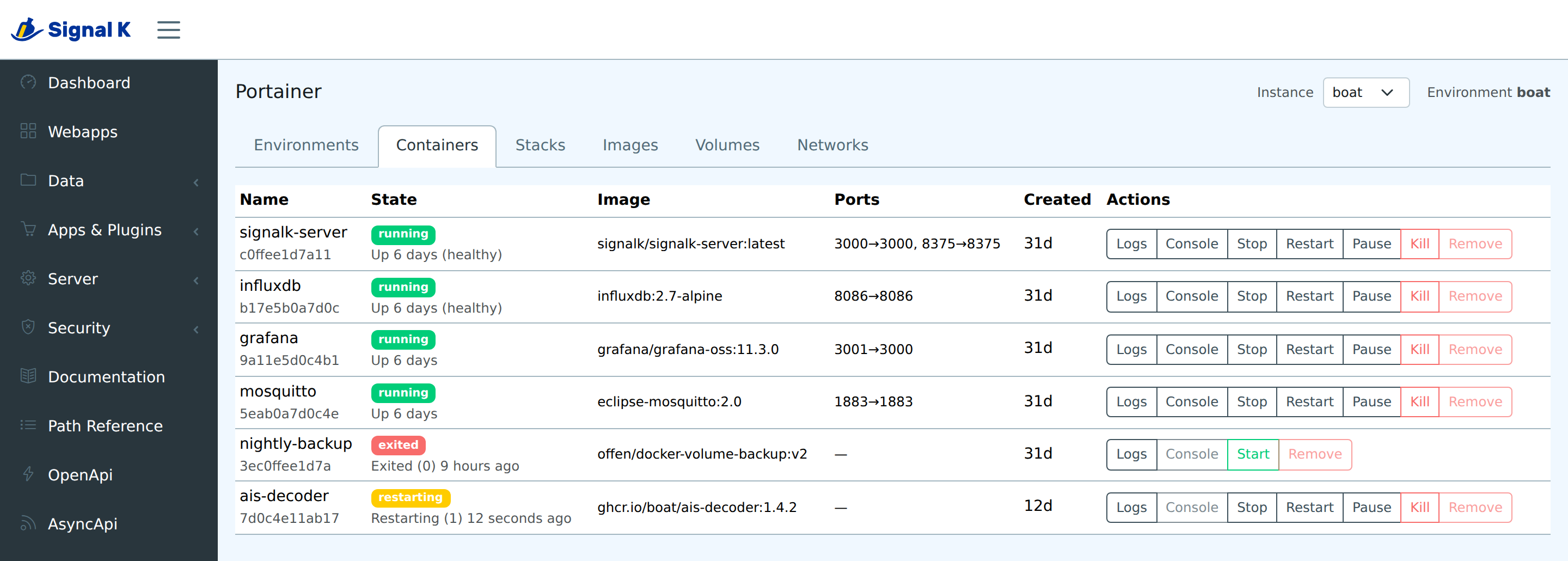
The screenshots are taken with two Portainers configured, which is why the header carries an Instance selector: that control appears only where there is more than one, so an installation with a single Portainer — the usual case — shows the panel without it.
Requirements
- Signal K server running on Node.js 22 or newer.
- Portainer CE 2.x, reachable from the Signal K server.
Node 20 platforms — Venus OS / Cerbo GX among them — are out of scope.
Installing
Install from Appstore → Available in the Signal K admin UI, like any other plugin, then restart Signal K and enable Portainer under Server → Plugin Config.
To install from a checkout instead:
npm install && npm run build && npm pack
cd ~/.signalk && npm install /path/to/signalk-portainer-0.1.2.tgz
Running Portainer
If there is no Portainer on the boat yet, this is enough of one. Put it in a
directory of its own as docker-compose.yml and run docker compose up -d:
services:
  portainer:
    image: portainer/portainer-ce:lts
    container_name: portainer
    restart: unless-stopped
    command: -H unix:///var/run/docker.sock
    ports:
      # HTTPS, published to this machine only: the plugin reaches Portainer
      # from the Signal K server, and no browser ever talks to it directly.
      - '127.0.0.1:9443:9443'
      # - '127.0.0.1:9000:9000'   # plain HTTP instead, if the certificate is more trouble than it is worth
      # - '8000:8000'             # the Edge agent tunnel, which does have to be reachable
    volumes:
      - /var/run/docker.sock:/var/run/docker.sock
      - ./data:/data
The address for step 1 is then https://localhost:9443,
and the certificate it answers with is Portainer's own self-signed one, which
is what step 3 is about. What it publishes
under in Signal K comes from the Compose labels rather than from
container_name:, which the plugin never reads: the key is
<project>_<service>, and Compose names the project after the directory the
file sits in — so a directory called portainer gives
system.docker.<instance>.containers.portainer_portainer.state. Renaming that
directory moves the paths; renaming the container does not.
What that file does: runs Portainer's current long-term release — lts follows
the long-term channel rather than a fixed version, so name an exact tag or
digest where a rebuild has to come back identical — restarts it unless you stop
it yourself, and publishes its HTTPS port to this machine only, which is all the
plugin needs to reach it. Portainer's database lives in ./data, beside the
compose file. /var/run/docker.sock is how it manages Docker, and passing it in
gives the container root-equivalent control of the host; that is true of any
Portainer installation, and it is why this plugin's destructive and
self-management switches stay off until you turn them on. The two commented
lines add plain HTTP and the Edge agent tunnel.
If Signal K itself runs in a container, localhost inside it is not the host:
put both on the same compose network and use https://portainer:9443, or give
the plugin the host's own address on the network they share.
Configuration
Everything is configured from the plugin's own page in the Signal K admin UI.
1. Add an instance
Give it a name — it is path-safe, and renaming it moves that instance's Signal
K paths — then the address Portainer answers on, as one field:
https://localhost:9443, http://192.168.1.10:9000, or
https://portainer.example.com for one behind a proxy on the usual port. Add
several entries for several Portainers; the panel then shows an Instance
selector in its header, which is absent while there is only one to work with.
The screenshots on this page are taken with a boat and a shore server
configured, so they have it.
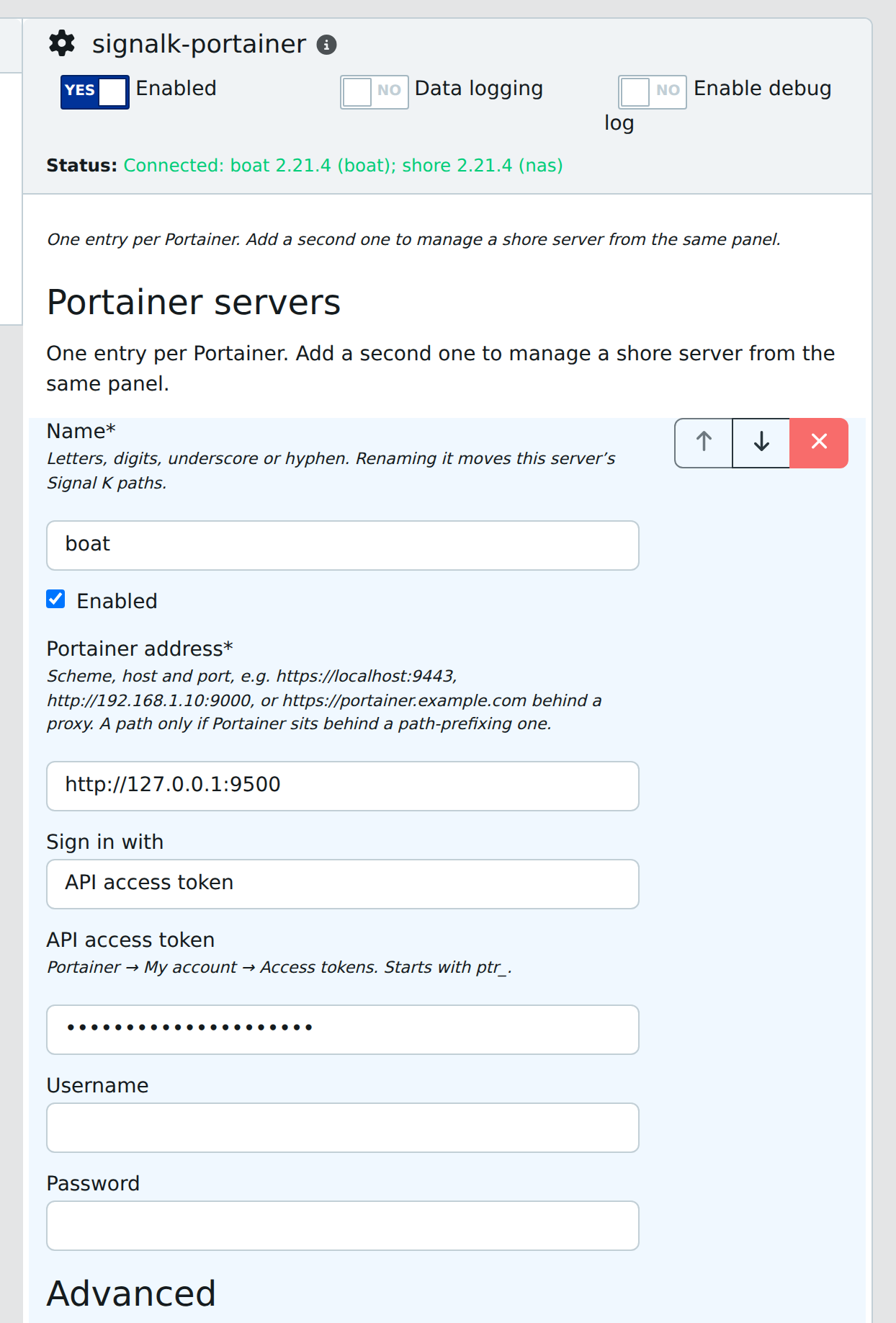
2. Give it a credential
Either an API access token from Portainer → My account → Access tokens
(these start with ptr_), or a username and password. Either way the credential
stays on the server; the browser never receives one.
Scope it before you mint it. A Portainer access token carries the whole of its
owner's privileges — a token made by an administrator can do anything an
administrator can, on every environment that Portainer fronts, and this plugin
is only one of the things that could then use it. Create a Portainer user
limited to the environments this boat actually needs, give it no more than the
role those environments call for, and mint the token as that user. The
credential is stored in the plugin's own options file,
~/.signalk/plugin-config-data/signalk-portainer.json, readable by whatever the
Signal K server runs as.
3. Deal with the certificate
Under Advanced. Portainer's default certificate is self-signed, so pick one of:
- paste its CA into CA certificate (PEM) — the option to prefer;
- set TLS servername override when connecting by IP to a certificate issued for a hostname;
- or turn Verify TLS certificate off for that instance, if you cannot supply a CA.
The request timeout lives there too; it has to be between 1000 and 120000 ms, and a value outside that is refused rather than quietly corrected — that instance is dropped with the reason in the plugin status, since a timeout past Node's own timer limit fails every request at once and reports it as a timeout, which is true and useless. Nothing else in that block needs touching on a normal setup.
4. Pick an environment, in the panel
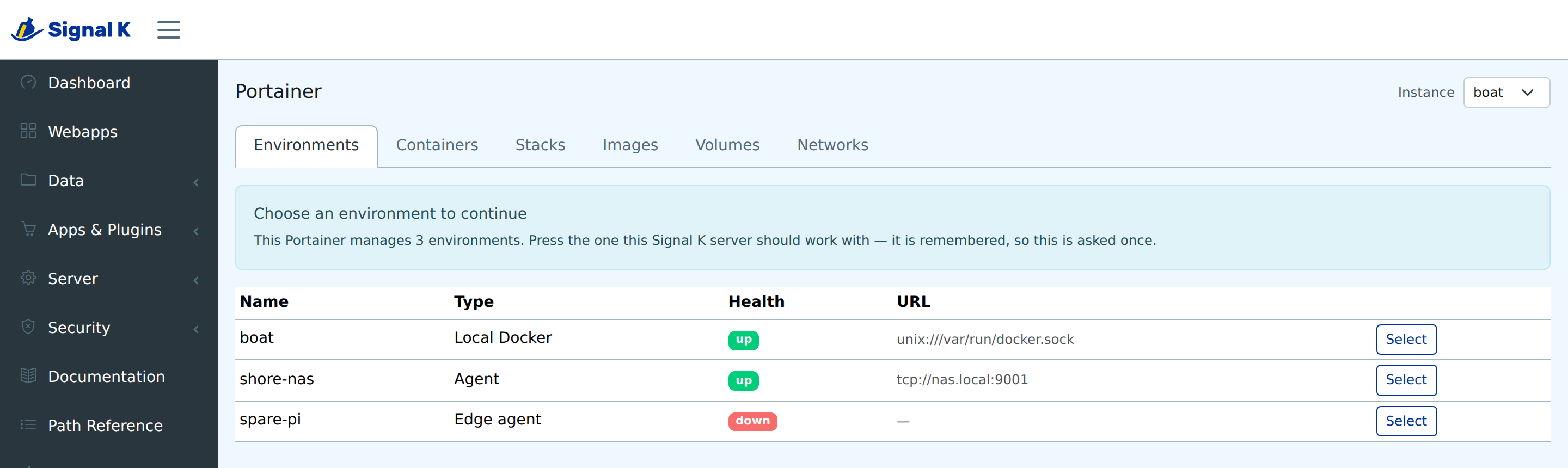
Not here. The panel opens on its Environments tab; press the row for the Docker host this Signal K server should work with, and the plugin writes the choice back into its own configuration, where it survives a restart. A Portainer with exactly one environment selects it without being asked.
5. Decide what the plugin may do
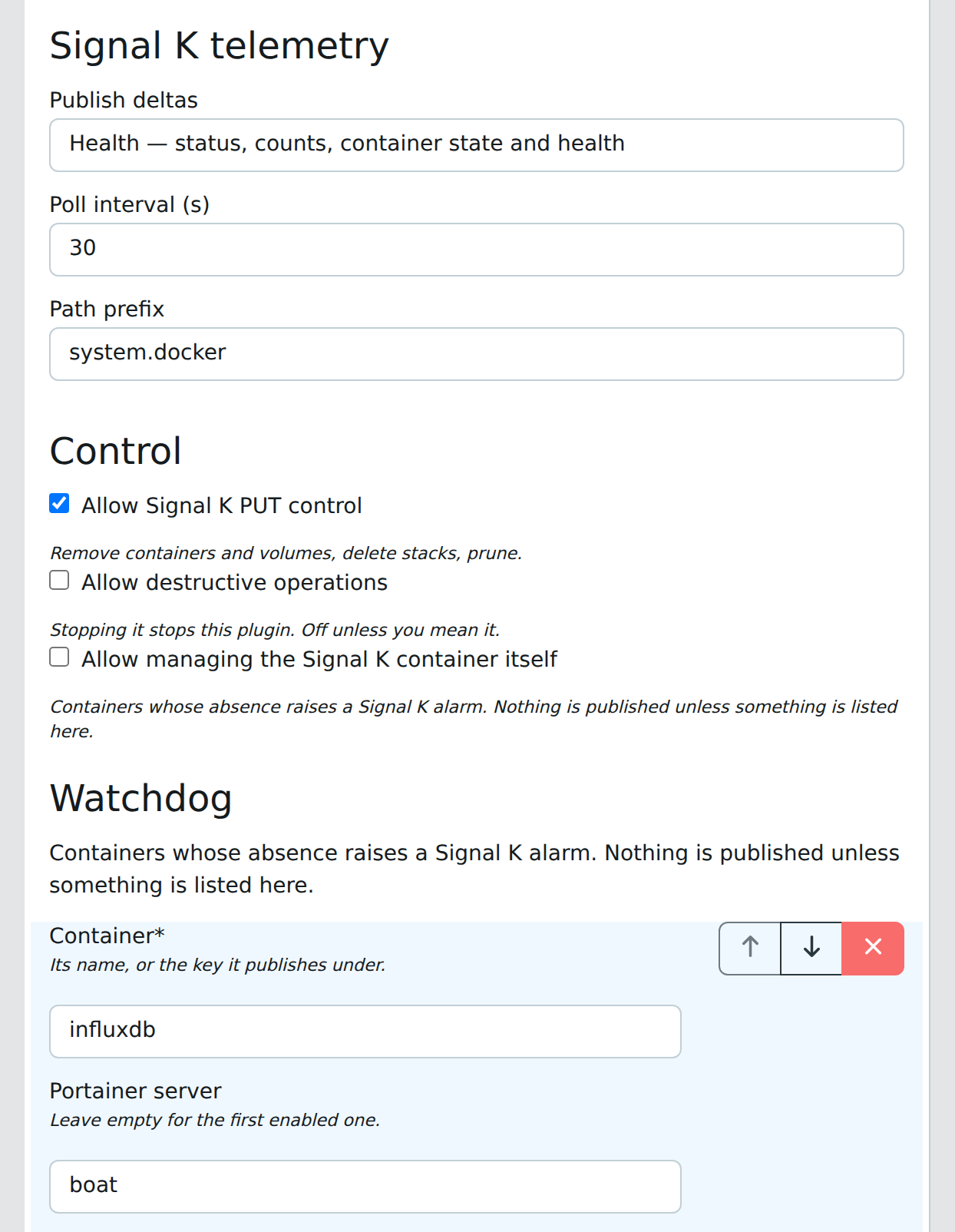
Three independent switches, each enforced server-side however the panel behaves:
| Setting | Default | What it allows | | -------------------------------------------- | ------- | ----------------------------------------------------------------------------- | | Allow Signal K PUT control | on | any mutation at all — lifecycle, stacks, the console | | Allow destructive operations | off | removing containers and volumes, deleting stacks, deleting and pruning images | | Allow managing the Signal K container itself | off | acting on the container Signal K runs in, which can stop this page |
6. Choose what to publish
Deltas are off, health or full, on a configurable poll interval — held
between 5 and 3600 seconds, since a poll faster than that is a busy loop on a
Raspberry Pi and one slower is indistinguishable from none. Add a watchdog entry
for any container whose absence should raise a Signal K alarm.
Using the panel
The plugin adds a Portainer panel to the Signal K admin UI with tables for environments, containers, stacks, images, volumes and networks — plus services and nodes when the environment is a Swarm, and an instance selector in the header when more than one Portainer is configured. It polls every 10 seconds, and shows facade errors with their hint rather than an empty table.
Environments
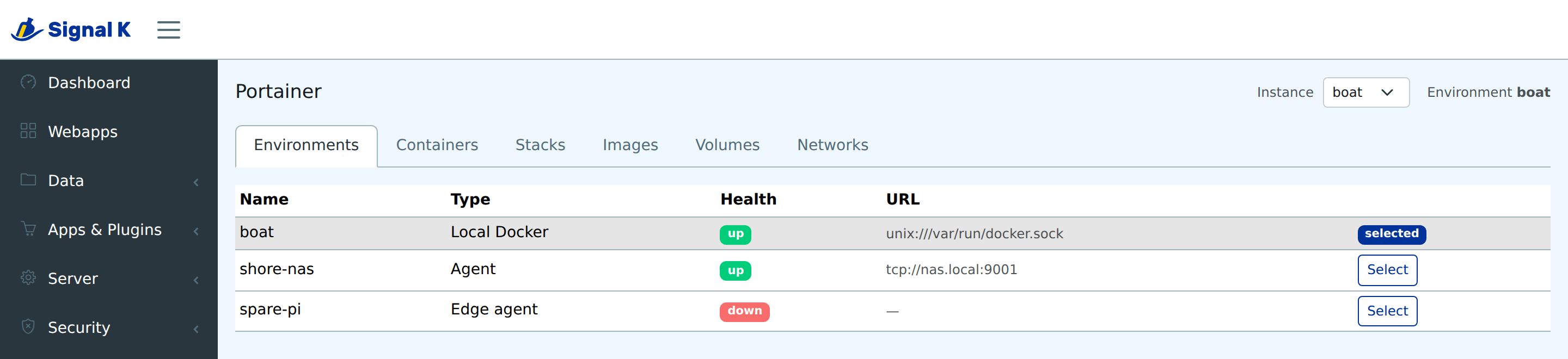
Where the panel opens, since which Docker host it is working against is the first thing to establish. Each row says what the environment is, where it lives and whether it is answering; pressing one selects it, and the header then names the one in use. The choice is saved server-side, so the delta poller and the watchdog follow it too. Until a Portainer with several environments has been answered, the other tabs say so rather than showing another host's containers.
Containers
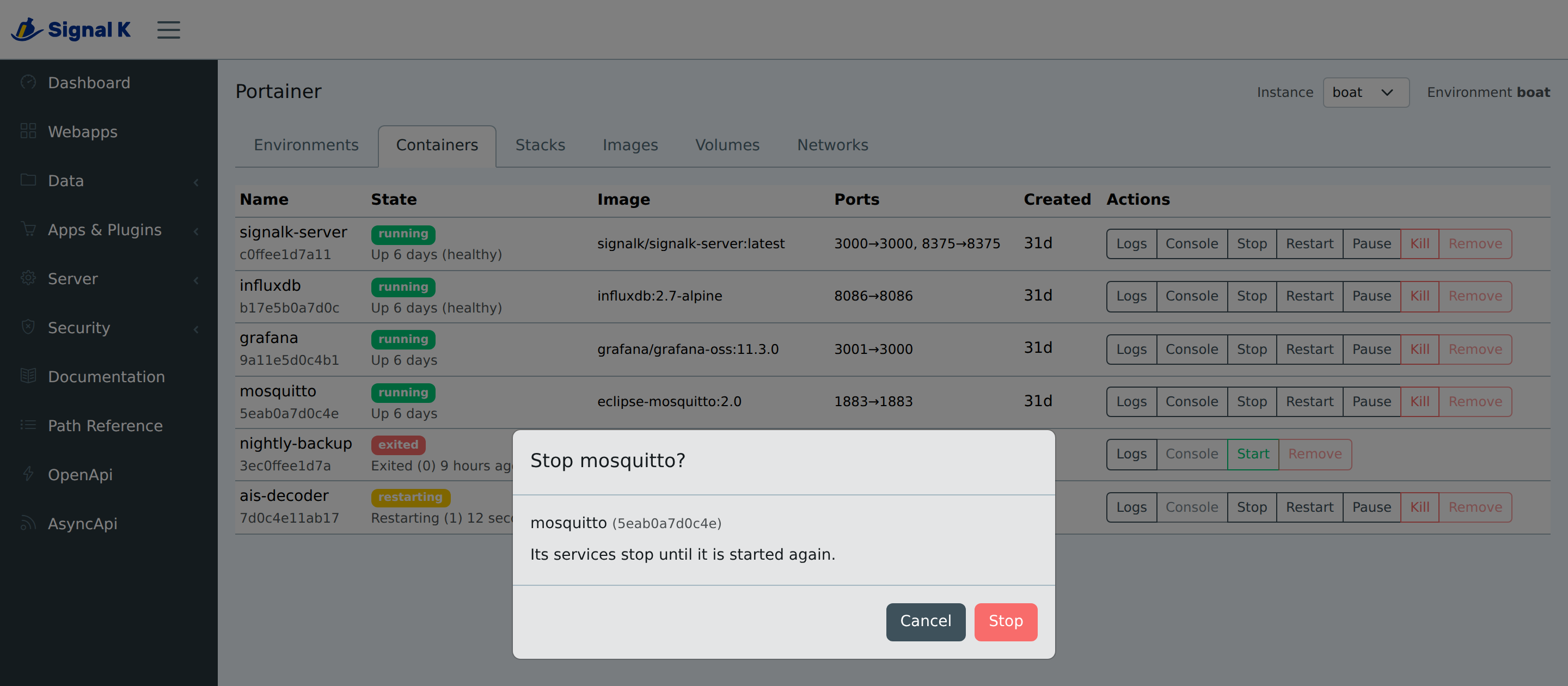
Start, stop, restart, pause, resume, kill and remove, each behind the guards described below, and each offered only where it applies — a paused container is offered Resume rather than Start, since Docker would refuse the one the word does not describe. Everything except starting and resuming asks for confirmation in a dialog that names the container and says what the action does to it; those two are the actions whose worst case is that nothing happens. The container Signal K itself runs in is labelled as such and its buttons are disabled. A button the configuration does not allow is disabled, with the setting to change as its tooltip, rather than left to fail on click.
Logs
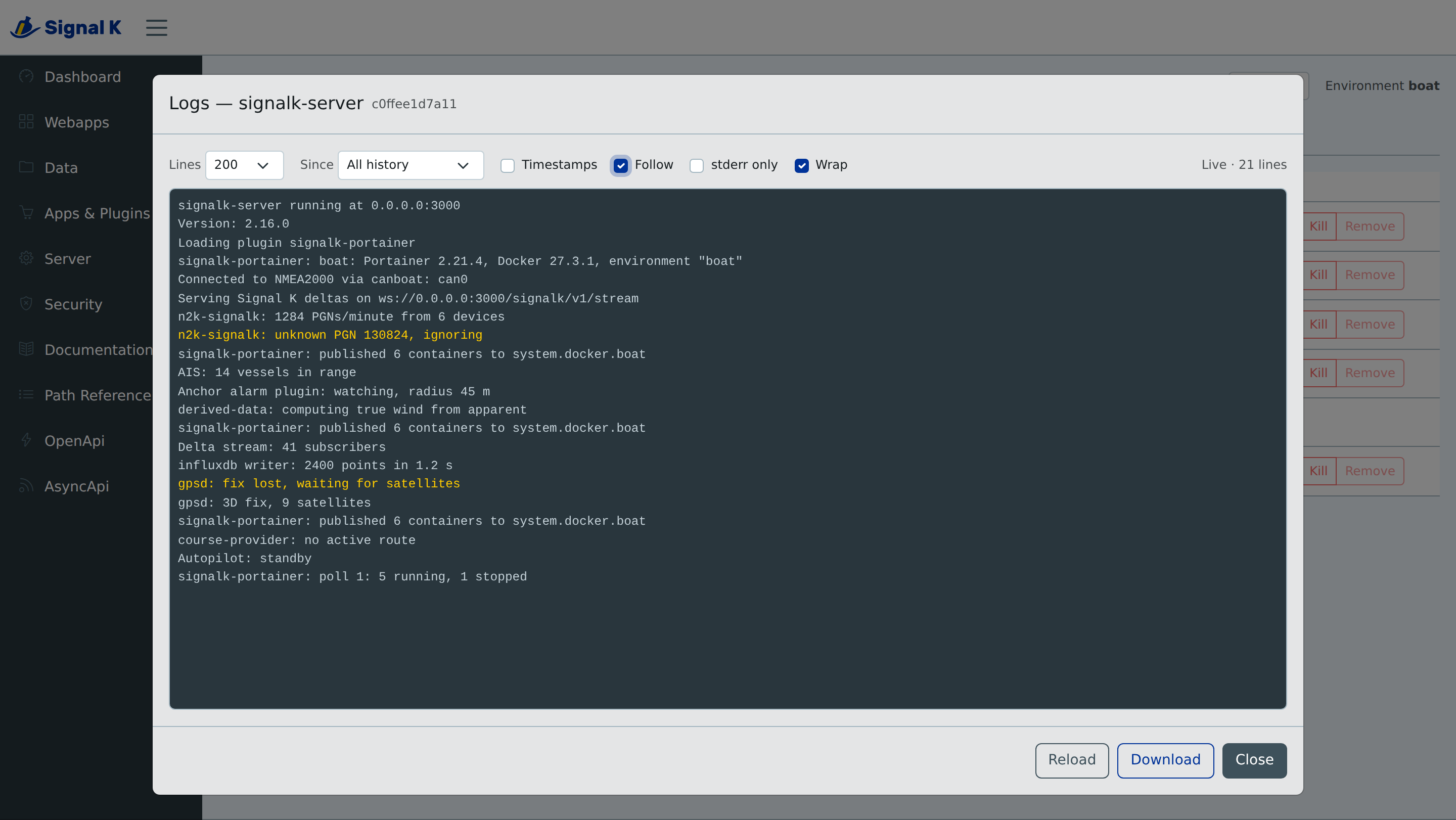
Open the log viewer from any container row, a stopped one included. Choose how many lines to start from and how far back to reach, turn timestamps on, and turn Follow on to watch it live. stderr is coloured apart from ordinary output and can be shown on its own, and what is on screen can be downloaded as a text file. The buffer holds the last 5000 lines, and the view follows the tail only while you are already at the bottom of it.
Streaming uses Server-Sent Events, so it inherits the Signal K session cookie
and reconnects on its own. A container started without a TTY has its stdout and
stderr demultiplexed, so each line arrives labelled with the stream it came
from; a container started with a TTY has no such separation — Docker merges
stderr into stdout before the plugin sees it — so every line from one of those
is labelled stdout.
At most 3 streams may be open per container and 8 in total, so forgotten browser tabs cannot exhaust file descriptors on a small machine.
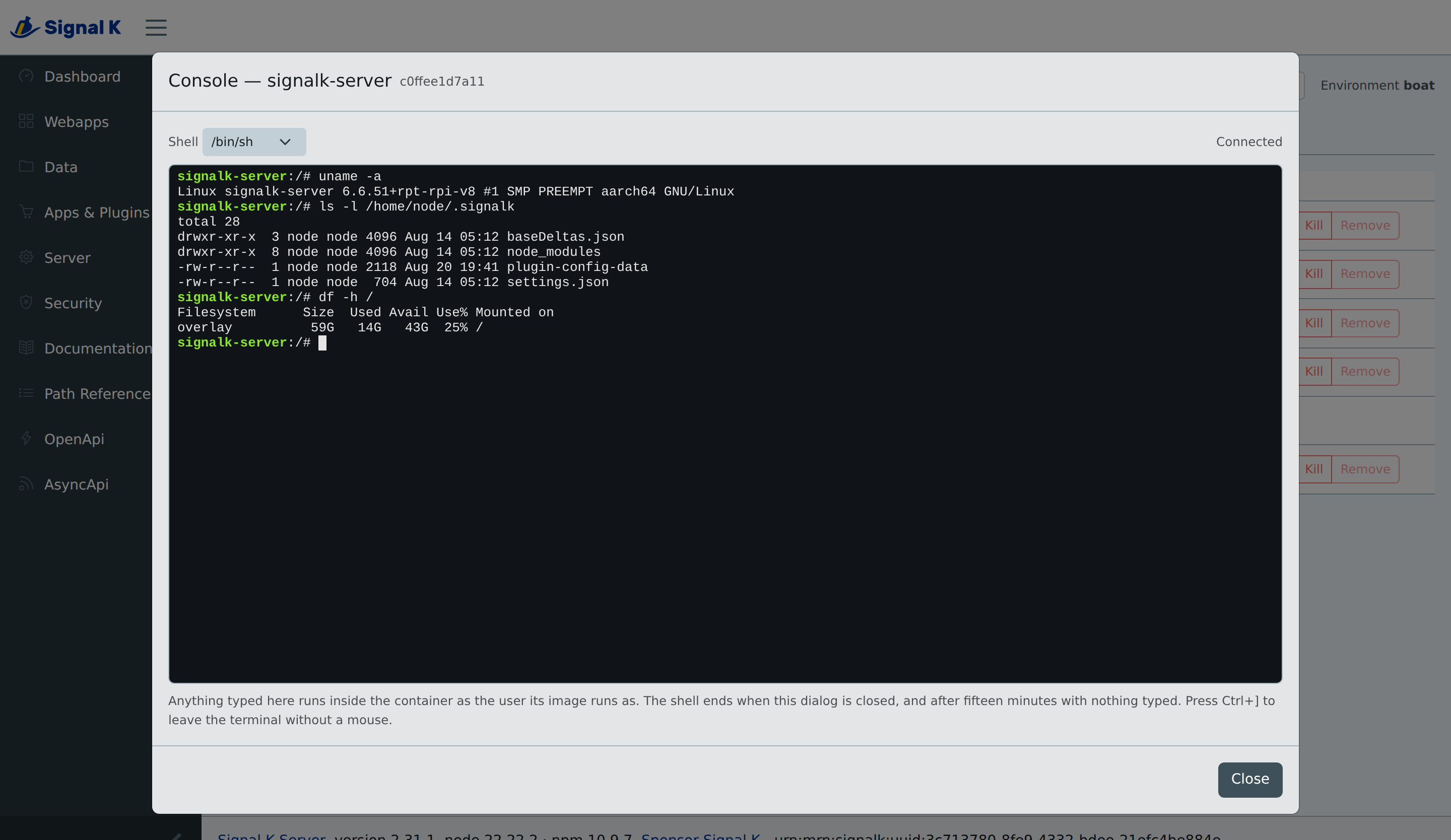
Console
Console opens a shell in a dialog — /bin/sh, /bin/bash or /bin/ash,
picked before it starts. The button is disabled, with the reason as its tooltip,
for a container that is not running and for the Signal K container. Where no
shell can be opened at all — while control is off, and on a Signal K server that
cannot serve a plugin WebSocket — it is absent altogether rather than disabled,
because a permanently dead button is only clutter; GET /control says which of
the two it is.
The terminal takes the keyboard once the shell is connected, including Tab, and
Escape belongs to the shell rather than the dialog — so Ctrl+], the same
break-out key telnet and docker attach use, moves focus back to Close.
At most 3 shells may be open at once, 2 per container, and one nobody has touched for 15 minutes is closed. Closing the dialog, switching instance or stopping the plugin closes the shell.
The terminal is xterm.js, loaded in its own chunk the first time somebody opens a shell, so a panel that never does never downloads it.
Stacks
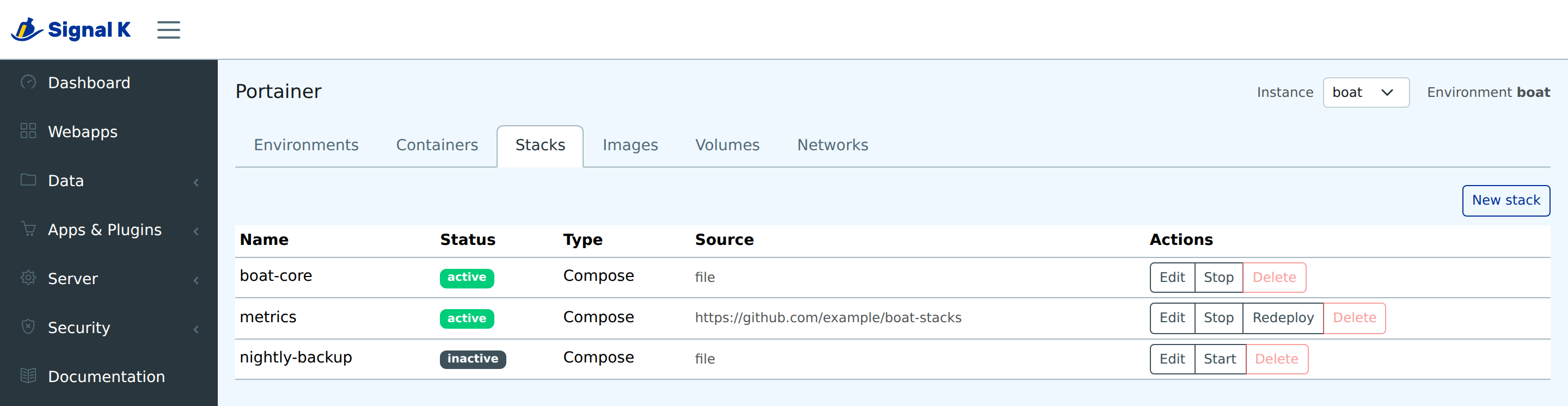
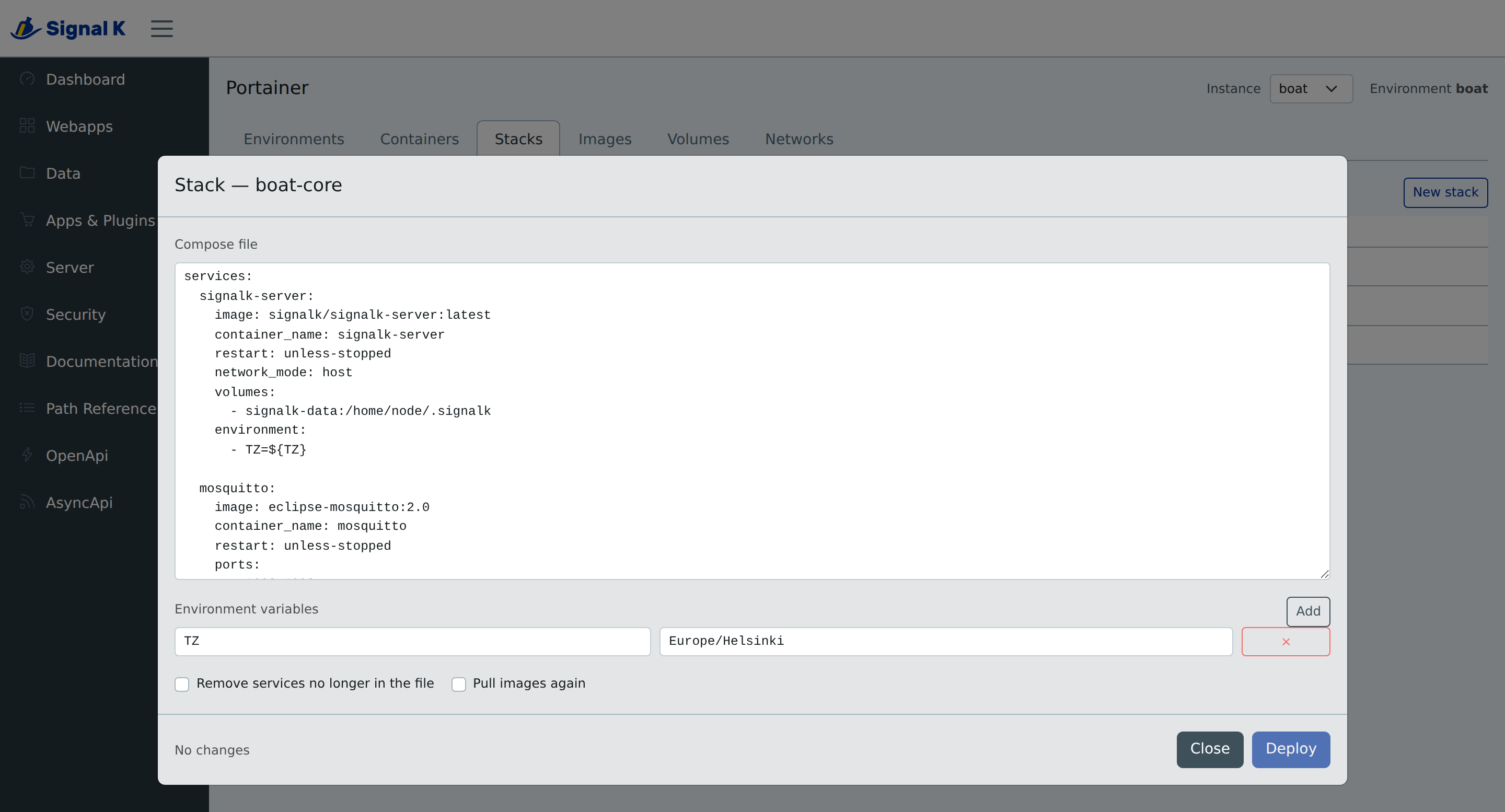
Each row offers what applies to it: a running stack is stopped and a stopped one started, never both, and Redeploy appears only for a stack that has a repository. Edit opens the compose file and the stack's environment variables side by side, with toggles for pruning and re-pulling, and a Deploy that stays disabled until something changes. New stack creates one from a file or from a repository. Destructive and disruptive stack actions are confirmed first, in a dialog that names the stack. The delete dialog says plainly that the stack's volumes are left in place: Portainer CE offers no way to remove them with the stack, so that is a separate step in Portainer itself. A failed deploy leaves the editor open with the file still in it.
A stack deployed from a repository is shown read-only, and the facade refuses a
file deploy over it as well: deploying one would detach the stack from git, so
change the file in git and redeploy instead. Updating a file-based stack drops
any auto-update Portainer had on it, and the answer says so. prune is always
sent explicitly and defaults to off; turning it on needs Allow destructive
operations, because pruning removes whatever the new file stopped naming.
Images
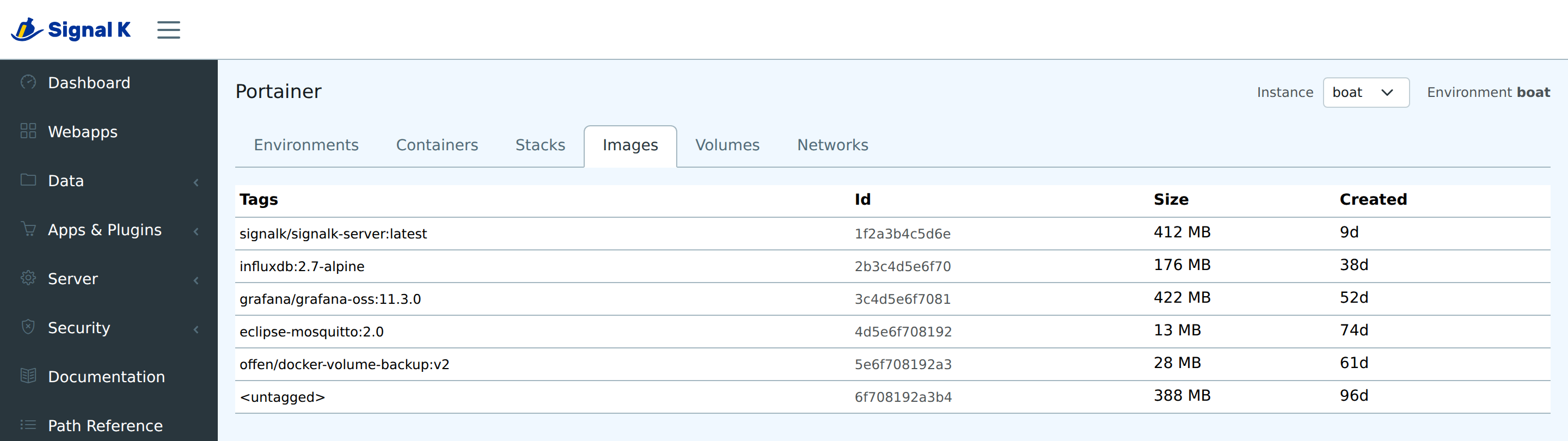
The one inventory the panel will change, and the reason is disk. A season of
redeploys on a Raspberry Pi fills an SD card with layers nothing can be deployed
from, and a full card takes Signal K down with it. Above the table sit the image
count, what the layers cost and what a prune would free — Docker's own figures,
taken from /system/df rather than summed from the rows, because two images
built on one base share those layers and adding both sizes counts them twice.
That read is made when the tab is opened and again after a prune, not on the
ten-second poll: it walks the layer store, which is seconds of work each time.
Reclaim space deletes untagged layers, which nothing could deploy from. A checkbox widens it to every image no container is using — off by default, because that set includes the previous tag of anything recently updated, and getting one back means pulling it again over whatever connection the boat has. A row's Delete removes one image by id, and says first if a container is holding it or several tags point at it. Both need Allow destructive operations.
Nothing is forced. Docker refuses to remove an image any container references, stopped ones included, and that refusal is what keeps the image Signal K itself runs from out of reach — the plugin never has to work out which one that is. An image carrying several tags is refused for the same kind of reason: deleting it by id would take every tag with it, so the tags are dropped in Portainer first.
Volumes and networks stay read-only. A deleted volume is the one loss
nothing here can undo — no restart brings the data back — and a network detached
from a running container leaves it reporting running while being unreachable,
with a shell on the host as the way out. An image is the one of the three that
can be fetched again, which is why it is the one worth freeing space from.
Portainer's own UI remains the place for the other two.
Signal K integration
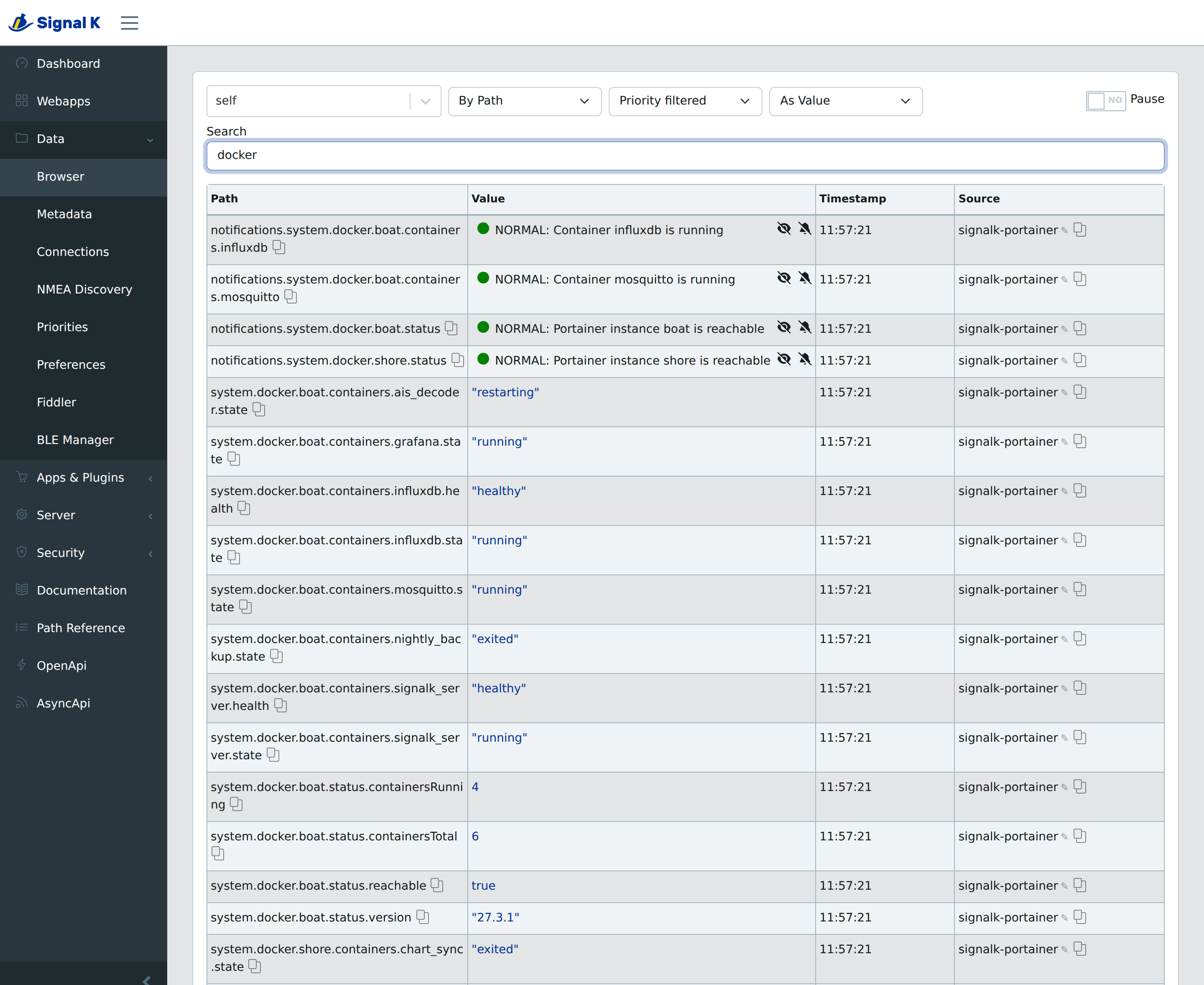
Delta paths
system.docker.<instance>.status.reachable            boolean
system.docker.<instance>.status.version              string   (Docker version)
system.docker.<instance>.status.containersRunning    number
system.docker.<instance>.status.containersTotal      number
system.docker.<instance>.containers.<key>.state      running | exited | paused | …
system.docker.<instance>.containers.<key>.health     healthy | unhealthy | starting
system.docker.<instance>.containers.<key>.image      string   (full level)
system.docker.<instance>.containers.<key>.name       string   (full level)
system.docker.<instance>.containers.<key>.id         string   (full level)
The prefix system.docker is configurable. Paths carry Signal K metadata, so
dashboards render labelled values rather than bare numbers.
How much is published is a choice:
| Level | Publishes |
| -------- | ---------------------------------------------------------------------------------------------- |
| off | nothing — and no polling either, unless a watchdog is configured or PUT control is on |
| health | instance reachability and version, running/total counts, and each container's state and health |
| full | the above plus each container's image, name and short id |
off still polls in those two cases because both are fed by the poll: the
watchdog cannot tell that a container is missing without looking, and the PUT
paths are discovered from what a poll finds rather than from the configuration.
The values are then built and dropped rather than sent. Allow Signal K PUT
control is on by default, so the stock configuration with deltas off is still
polling on its interval.
health is the default: it is what a dashboard and the watchdog need, without
carrying an image name and a container id for every container through the delta
stream on every poll.
<key> prefers the compose project and service (signalk_influxdb), then the
Swarm service name, then the container name, then the short id — so docker
compose up recreating a container does not move its paths and take every
dashboard gauge with it. Two containers that would normalise to the same key get
the short id appended.
A container that disappears has its paths published once as null and then
dropped, so a dashboard clears instead of showing a gauge for something that no
longer exists. Stopping the plugin clears them the same way. An unreachable
instance publishes status.reachable: false and says nothing about containers —
a failed poll knows nothing about the environment, and "0 running" would read as
every container being down.
Notifications
notifications.system.docker.<instance>.status               instance reachability
notifications.system.docker.<instance>.containers.<key>     a watched container
List the containers that must be running under Watchdog, and one that is not raises a standard Signal K notification — so the chartplotter beeps at 3am instead of the crew finding a gap in the track next morning. It is cleared automatically when the container comes back. An unreachable Portainer raises one alarm of its own rather than one per container: a network blip is not evidence that anything stopped.
Alarms are raised on the transition, not on every poll. Nothing is published here unless the watchdog lists something. A watch names its container however you know it: the container name, the normalised path key, a compose service key, or an id prefix — of at least 6 characters, since a shorter one matches whatever happens to start with it. An instance has to fail two consecutive polls before it is called unreachable: a shore Portainer over a marina or LTE link drops a poll now and then, and an operator woken by a false alarm learns to ignore the channel that raised it.
PUT control
Writing running, stopped or restart to a container's
…containers.<key>.state path starts, stops or restarts it, so a dashboard
button or an automation rule can do what the panel does. PUT handlers are
registered only when Allow Signal K PUT control is set, are subject to the
same self-protection as everything else, and answer PENDING until Docker
finishes.
A path exists only once a poll has found the container it belongs to. The keys come from Docker's own labels rather than from the configuration, so nothing can be registered before the first successful poll, and a container the plugin has never seen has no path — a write aimed at one is answered 404 rather than reaching Docker.
REST API
The facade lives under /plugins/signalk-portainer/api/, is authenticated by
Signal K, and is refused when the browser says the request came from another
site — see Behind a reverse proxy for what that check
needs from a proxy in front of Signal K. Almost every route takes ?instance=<name>, defaulting to the first
enabled instance (/instances and /health span them all, and
/console/resize takes its instance from the session):
| Route | Returns |
| ------------------------------------------ | ----------------------------------------------------------------------------------------------------- |
| GET /instances | configured instances and which is default |
| GET /health | reachability, version and capabilities per instance |
| GET /environments | environments with health, and which is selected |
| PUT /environment | choose this instance's environment: body { id } |
| GET /capabilities | swarm support, swarm id, Docker and Portainer versions |
| GET /containers | container list (?all=true to include stopped) |
| GET /containers/:id | container inspect |
| GET /containers/:id/logs | log lines (?tail= ?since= ?timestamps=) |
| GET /containers/:id/logs/stream | the same, live, as Server-Sent Events |
| GET /stacks | stacks belonging to this environment |
| GET /stacks/:id/file | the stack's compose file |
| POST /stacks | create from content or from repositoryUrl |
| POST /stacks/:id/:action | start · stop · redeploy (?prune= needs destructive, ?pullImage=) |
| PUT /stacks/:id | deploy a new compose file and environment (prune needs destructive; refused for a git-backed stack) |
| DELETE /stacks/:id | delete — Portainer CE cannot remove a stack's volumes with it |
| GET /images /volumes /networks /df | inventory and disk usage |
| DELETE /images/:reference | remove one image by id or tag — never forced, so Docker still refuses one in use |
| POST /images/prune | reclaim space (?all=true widens it from untagged layers to every unused image) |
| GET /swarm/services /swarm/nodes | 404 unless the daemon is a swarm |
| GET /control | what the UI may offer, and whether self-protection is active |
| POST /containers/:id/:action | start · stop · restart · kill · pause · unpause |
| POST /containers/:id/exec | a console ticket, redeemed on ws://…/plugins/signalk-portainer/console?ticket= |
| POST /console/resize | { session, cols, rows } — the size of an open console's terminal |
| DELETE /containers/:id | remove (?force= ?removeVolumes=) |
tail bounds the history a log request starts from — 200 lines by default, 5000
at most.
PUT /environment answers { selected, name, persisted }, with a warning when
persisted is false: the choice is live either way, but a server that offers a
plugin no way to save its options cannot carry it across a restart. It is what
step 4 of the configuration writes.
The routes that take a body — the environment choice and the stack writes — read it as JSON and stop at 512 kb, answering 413 rather than reading further. That is a compose file's worth of room and not an upload endpoint's, so a very large compose file is refused instead of becoming a way to exhaust the memory of a Signal K server on a Raspberry Pi.
The console is a WebSocket relay rather than a proxy. Signal K hands a plugin the raw WebSocket upgrade to authenticate itself, and a session cookie is the wrong thing to trust there, because upgrades are not subject to CORS. So an admin-authenticated POST creates the exec instance and returns a single-use ticket, valid for 30 seconds and bound to exactly that shell; the socket presents the ticket, and a socket without one is closed. The exec command is a list of arguments, never a string to be split, so nothing a request contains reaches a shell as text.
Behind a reverse proxy
Signal K is often published through nginx, Caddy or Traefik rather than exposed directly, and the panel asks three things of whatever sits in front of it: WebSocket upgrades for the console, unbuffered responses for live logs, and enough of the original request to tell the admin UI's own writes from another site's.
The third is the one that bites. Every write — picking an environment, starting
a container, deploying a stack — is refused with 403 Refusing a request from
another site if the proxy hides where the request came from. Current browsers
send Sec-Fetch-Site, which is the browser's own verdict about the address the
operator actually used, so a proxy cannot spoil it and those writes work
through any of them. Browsers too old to send one (Safari before 16.4, Firefox
before 90) send only Origin, and that is compared against Host,
X-Forwarded-Proto, X-Forwarded-Host, X-Forwarded-Port and Forwarded —
so forward those and the comparison lands. A refusal names both addresses in
the plugin's log, on the server's Log page, which is the fastest way to see
which header is missing.
nginx, with Signal K on 127.0.0.1:3000:
# At http level, beside the other map directives.
map $http_upgrade $connection_upgrade {
    default upgrade;
    ''      close;
}

location / {
    proxy_pass http://127.0.0.1:3000;
    proxy_http_version 1.1;

    # The console is a WebSocket; without these the upgrade is answered 400.
    proxy_set_header Upgrade $http_upgrade;
    proxy_set_header Connection $connection_upgrade;

    # $http_host rather than the much-copied $host: it keeps the port the
    # browser used, which is the part an Origin carries and $host drops.
    proxy_set_header Host $http_host;
    proxy_set_header X-Real-IP $remote_addr;
    proxy_set_header X-Forwarded-For $proxy_add_x_forwarded_for;
    proxy_set_header X-Forwarded-Proto $scheme;
    proxy_set_header X-Forwarded-Host $http_host;
    proxy_set_header X-Forwarded-Port $server_port;

    # Live logs are Server-Sent Events: buffering holds every line back until
    # the stream ends, and a log stream does not end.
    proxy_buffering off;
    proxy_read_timeout 1h;
}
Caddy needs none of this — reverse_proxy 127.0.0.1:3000 forwards the host,
sets the X-Forwarded-* headers, upgrades WebSockets and streams by default.
Traefik likewise, as long as no middleware rewrites the Host header.
Whatever sits in front, it is Signal K's own admin authentication that guards these routes; a proxy that adds its own does no harm, and one that strips the session cookie breaks the panel entirely.
Safety guards
Three independent checks, each enforced server-side regardless of what the UI offers:
- Control disabled — every mutating route returns 403 unless Allow Signal K PUT control is set.
- Destructive disabled — removal additionally requires Allow destructive
operations.
removeVolumesdefaults to false, so a container's data is never destroyed by implication, and an image prune stays narrow — untagged layers only — unless?all=trueasks for the wide one. - Self-protection — the plugin identifies the container it runs in and refuses to start, stop, restart, kill or remove it, and refuses to stop, update, redeploy or delete the stack that contains it. Creating a stack whose name is that same compose project is refused too: Docker keys a project by its name, so deploying one from a file that does not mention Signal K would have Docker remove Signal K from it. Stopping that container stops Signal K, the admin UI and the plugin issuing the request, leaving no way back except a shell on the host. Override with Allow managing the Signal K container itself.
The stack check reads the compose project and swarm namespace labels off the containers themselves, and counts a Signal K container that is currently stopped: down is not gone.
Identification reads /proc/self/cgroup, falls back to /proc/self/mountinfo
(cgroup v2 often hides the id), then to the hostname, which Docker defaults to
the short container id. If the plugin is containerised but cannot identify
itself — a custom --hostname under cgroup v2 with no bind mounts — it says so
in GET /control rather than implying a protection it cannot provide.
Docker accepts a container name wherever an id goes, so a reference that is not already our id is inspected and the guard applied to the canonical id Docker reports. A reference that cannot be resolved is never mutated: not knowing what it points at is not the same as knowing it is safe.
Every mutation the REST facade accepts, and every refusal it makes, is logged
through app.debug — enable the plugin on the server's Log page to keep the
trail. The Signal K PUT path is quieter: it logs each write that reached Docker
and each error that came back, but a refusal there — control disabled, an
unknown container, the Signal K container itself — is answered FAILED with its
reason and not written to the log.
Who may write
The REST facade is reached through Signal K's own plugin routes, which are admin-only, so a non-admin account cannot use it at all. Signal K PUT handlers are authorised separately, by the server's own PUT security, and that admits readwrite clients as well as administrators. The handler signature Signal K passes — context, path, value, callback — carries no principal, so the plugin cannot tell one caller from another and cannot narrow it.
The consequence is worth stating plainly rather than discovering: with Allow
Signal K PUT control on, any readwrite client or device — a dashboard, a
script, an automation rule holding a readwrite token — can start, stop or
restart a container by writing to its …state path, including containers the
same account would be refused over REST. Self-protection still holds: the
container running Signal K is refused whoever asks. If that is not the access
model you want on this boat, leave PUT control off; the panel and the facade
keep working, and only the delta-path writes go away.
Between those two extremes there is Containers a Signal K PUT may control. Left empty — the default — every container is writable, which is the behaviour described above. List containers in it and only those get a PUT handler at all; everything else has no writable path for any client to write to. Each entry takes a container's name, the key it publishes under, or an id prefix of at least six characters, and an optional server name that defaults to the first enabled one. So a boat that wants a dashboard button for its AIS logger can list that one container and leave the database and the broker unreachable, without turning PUT control off altogether.
An entry whose server name matches no configured instance is kept, not dropped — an allowlist that empties itself allows everything again — so it simply matches nothing, and the plugin status names it. Check there if a container you listed has no writable path.
Signal K's own ACLs are the other lever, and they are finer than anything the
plugin can offer: checkACL matches a context and a path pattern and can grant
put to named subjects, so an ACL over system.docker.* restricts container
writes to the accounts you choose. ACLs are ignored entirely when none are
configured, which is the default, so this only applies once you have set some
up.
Development
npm install        # install dependencies
npm run lint       # eslint
npm run format:check
npm test           # unit tests, no network required, 80% coverage enforced
npm run build      # emits dist/
These same commands run in CI via the Signal K project's shared
plugin-ci
reusable workflow, on Node 22 and 24 across Linux x64, Linux arm64, macOS and
Windows. It additionally validates the plugin entry point and schema, the
start/stop/restart lifecycle, deprecated server API usage, npm pack completeness
and App Store compatibility.
Background reading:
docs/plan.md— architecture, configuration schema, Signal K integration and the design decisions behind them.docs/portainer-api.md— reference of the Portainer CE 2.x API surface the plugin uses.docs/signalk-webapp.md— the Signal K embedded webapp contract: Module Federation, the fixed./AppPanelname and React singleton sharing.CHANGELOG.md— what is in each release.
License
MIT — see LICENSE.