
skywind
v0.5.4
Published
<a name="readme-top"></a>
Downloads
48


Readme
About The Project
Skywind makes it easy to create web pages with Server Side Rendering and Javascript. Its simplicity and low dependencies allow it to be run on any node server. Skywind allows you to granulate your pages into small components that can be reused anywhere on your website.
It has a very intuitive, powerful and easy to learn routing system, it also allows you to create APIs using node's HTTP module.
Getting Started
Skywind has a starter template called Create Skywind App, which we will use to start our first project.
Create a project
To create our first project we must have node and npm installed, we will go to the folder where we want to create our project and execute the following command:
- npx
npx create-skywind-app@latest my-project
Installation
When the project template finishes its installation, we must go to that folder and then install the dependencies with the following command:
- npm
npm install
After installing the dependencies, we must build the application using the following command:
- npm
npm run build
And finally we can start our development server.
- npm
npm run dev
Usage
After executing all the commands and starting the development server we can appreciate a folder structure a bit peculiar.
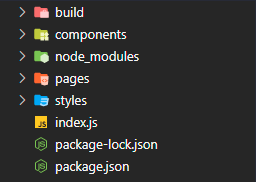
Pages Folder
The Pages folder is the most important of all, it is the folder that gives life to the whole Framework and it is indispensable for the construction of any web page with Skywind.
As already mentioned, the pages folder is not a simple folder since it defines the routing of the whole project.
When starting the project, this folder has an index.js, an api folder and inside the api folder another index.js. Every folder or file inside the pages folder is automatically converted into a route. Example: if we have a store folder and inside a product.js file, our website will have a /store/product path just by creating the files and folders.
As mentioned, the pages folder has inside an api folder, all files and folders outside the api folder will be able to render HTML, and all files and folders inside api will be treated as endpoints having access to Request and Response.
Skywind Templates
All files inside the pages folder and outside the api folder are treated as Skywind Templates.
Skywind Templates are files capable of executing javascript on the server side and returning HTML code that will be sent to the client to render a web page.
<>
    <html>
        <head></head>
        <body>
            <h1>This is the index</h1>
        </body>
    </html>
</>
All Skywind is divided into two parts, the Javascript code and the HTML code, to refer to HTML code you must use the following symbols <></>, all HTML code within these symbols will be sent to the client.
If we want to use javascript code, we must do it before the HTML, as follows.
const hello = 'Hello world';

<>
    <html>
        <head></head>
        <body>
            <h1>This is the index</h1>
            <p>${hello}</p>
        </body>
    </html>
</>
To interpolate values inside the HTML we can do it using the Template Strings syntax "${}".
If we need to render one HTML or another depending on a condition, we can use the Javascript ternary operator as follows:
const hello = 'Hello world';
const bool = true;

<>
    <html>
        <head></head>
        <body>
            <h1>This is the index</h1>
            <p>${hello}</p>
            ${bool ? <><p>Hello</p></> : <><p>World</p></>}
        </body>
    </html>
</>
We must remember that all HTML code must be wrapped in <></>.
Components
The components are also Skywind Templates, the difference of calling them components is that these can be saved in any folder of the project (We recommend using the components folder that comes by default with create-skywind-app) except the pages folder and can be reused in different pages or other components.
These components only have one rule when creating them, the name of the file will be the name of the component and this name must have its first letter in capital letters, let's see an example of a component.
// components/Button.js

const { content } = props;

<>
    <button>${content}</button>
</>
// pages/index.js
import Button from '../components/Button.js'
const hello = 'Hello world';
const bool = false;
<>
<html>
<head></head>
<body>
<h1>This is the index</h1>
<p>${hello}</p>
${bool ? <><p>Hello</p></> : <><p>World</p></>}
<Button content="This is a button with props"/>
</body>
</html>
</>We have created a Button.js component and we have implemented it in our main page.
The first thing we created was the component like any other Skywind Template, the only difference is that we are getting a value from a props object that we don't have information about yet, but don't worry, it will make sense soon.
The second thing we have done was to import the Button component to our main page and we have implemented it as an HTML tag. This is how the components we create are implemented.
If we look closely, in the implementation of the Button component we can see that we are passing it a content property that has a value of "This is a button with props", which is the same property that we are getting from the props object in Button.js. Any property that we pass to the component can be retrieved in the component using the props object.
If the value of the property that we want to pass to the component is a string, we can use the quotation marks directly after the =, but if it is a different value we must use {} and inside these we must place the value.
// pages/index.js

import Button from '../components/Button.js'

const hello = 'Hello world';
const bool = false;

<>
    <html>
        <head></head>
        <body>
            <h1>This is the index</h1>
            <p>${hello}</p>
            ${bool ? <><p>Hello</p></> : <><p>World</p></>}
            <Button content={hello}/>
        </body>
    </html>
</>
Styles
In the root of the project there is another folder that we have not mentioned, which is the Styles folder, this folder is also indispensable for Skywind, since in this folder we must add all the css files that will be used in the project.
After adding the css files in the folder we must import them in our components and pages. To avoid confusing local imports, component imports and style imports, Skywind provides a method called importStylesheet, which imports a css stylesheet to our components and pages. This method must be used through the Skywind class. In the root of the project there is another folder that we have not mentioned, which is the Styles folder, this folder is also indispensable for Skywind, since in this folder we must add all the css files that will be used in the project.
After adding the css files in the folder we must import them in our components and pages. To avoid confusing local imports, component imports and style imports, Skywind provides a method called importStylesheet, which imports a css stylesheet to our components and pages. This method must be used through the Skywind class.
h1 {
    color:aquamarine;
}
// pages/index.js
import Skywind from "skywind"
import Button from '../components/Button.js'
Skywind.importStylesheet('index.css');
const hello = 'Hello world';
const bool = false;
<>
<html>
<head></head>
<body>
<h1>This is the index</h1>
<p>${hello}</p>
${bool ? <><p>Hello</p></> : <><p>World</p></>}
<Button content="This is a button with props"/>
</body>
</html>
</>It is worth mentioning that the path specified in the importStylesheet method must take the styles folder as a starting reference, since Skywind will look for such files directly in the styles folder.
API Folder
Inside the pages folder there is another folder named api, this folder has a particular treatment in the project, since all the files inside it are not taken as Skywind Templates, but as endpoints with access to Request and Response.
// pages/api/index.js

export default function home(req, res) {
    res.setHeader('Content-Type', 'application/json');
    res.end(JSON.stringify({ a: 67 }));
}
Any file inside the api folder must have a function that must be exported by default, this function has access to two parameters request and response, which come from node's HTTP module.
Build Folder
In the root of our project there is a last folder with the name of build.
The purpose of Skywind Templates is to facilitate and shorten the construction of web pages, but these templates are not valid javascript code for the server. Skywind for this runs a compiler to convert the code of Skywind Templates to valid javascript code, and this construction generates it in the build folder.
If we pay attention to our index.js file in the root of the project we notice that this file is the entry point and it only executes a method called compile.
// index.js

import Skywind, {Compiler} from 'skywind';

Compiler.compile(process.cwd())
But if we look at the index.js in the build folder we find a different method.
// build/index.js

import Skywind from 'skywind';

Skywind.createApp('localhost', process.env.PORT, process.cwd())
In the build folder a createApp method is executed which has the objective of raising the server and all the web that we have built but with the exception that the code that is in the build folder is valid code for Javascript.
Every time we make a change in our project, the compiler will run and modify the build folder, starting a new server with the latest changes in our code.
It is necessary to emphasize that the folder build will be the one that we will use to upload to our web server, since this one contains all the valid code for any node server.
Contact
Francesco Alterio - [email protected]
Repo: https://github.com/francescoalterio/skywind/
Portfolio: https://francescoalterio.vercel.app/