
smt-studio
v3.0.1
Published
Salesforce Data Migration Studio - A tool to simplify Salesforce data migration tasks.


Readme
Salesforce Migration Studio
A modern web-based interface for Salesforce data migration — with real-time monitoring, AI-assisted analysis, data comparison, deletion candidate detection, guided tour, context-sensitive help, and export capabilities.
Screenshots
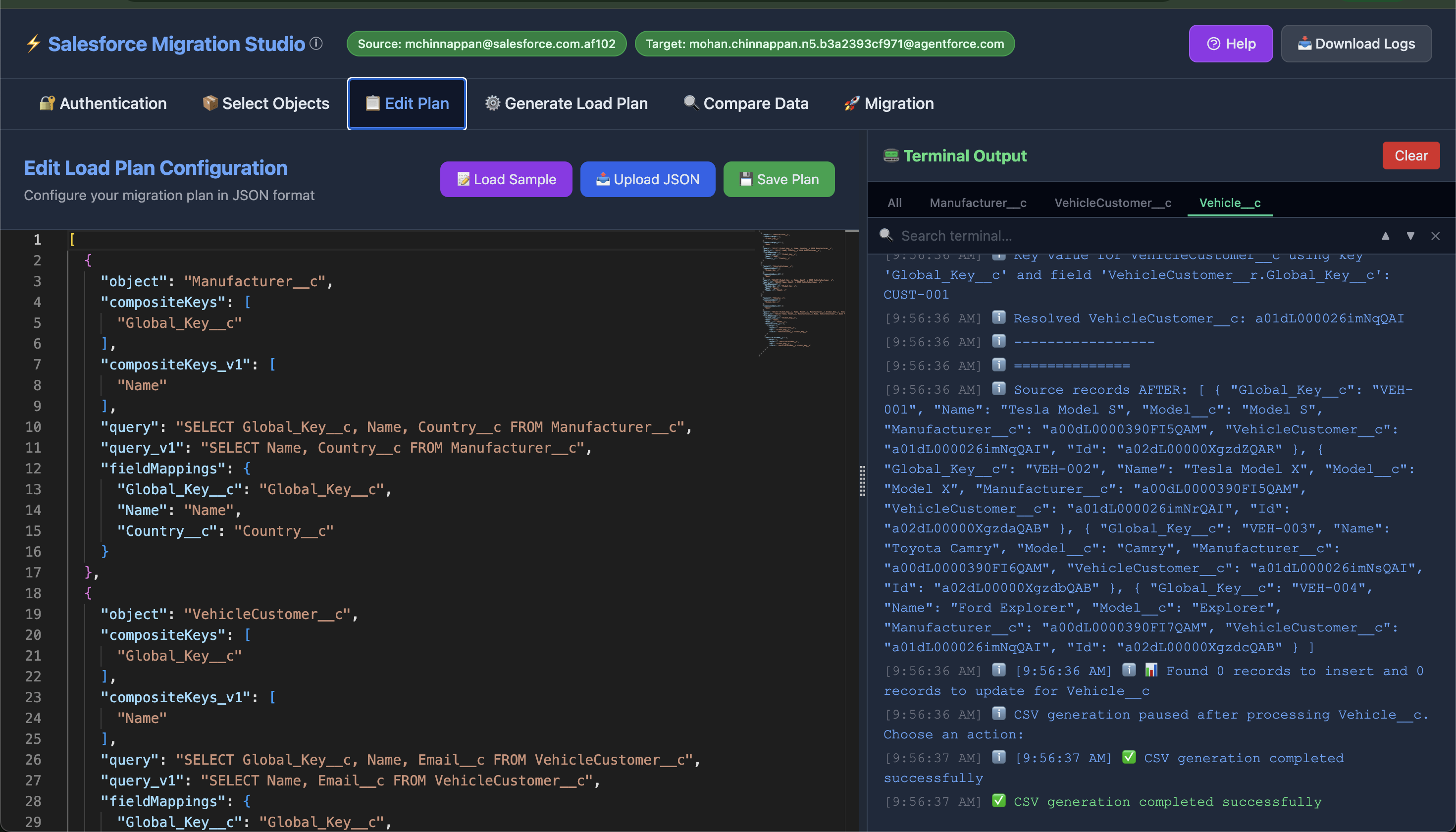
Edit Load Plan
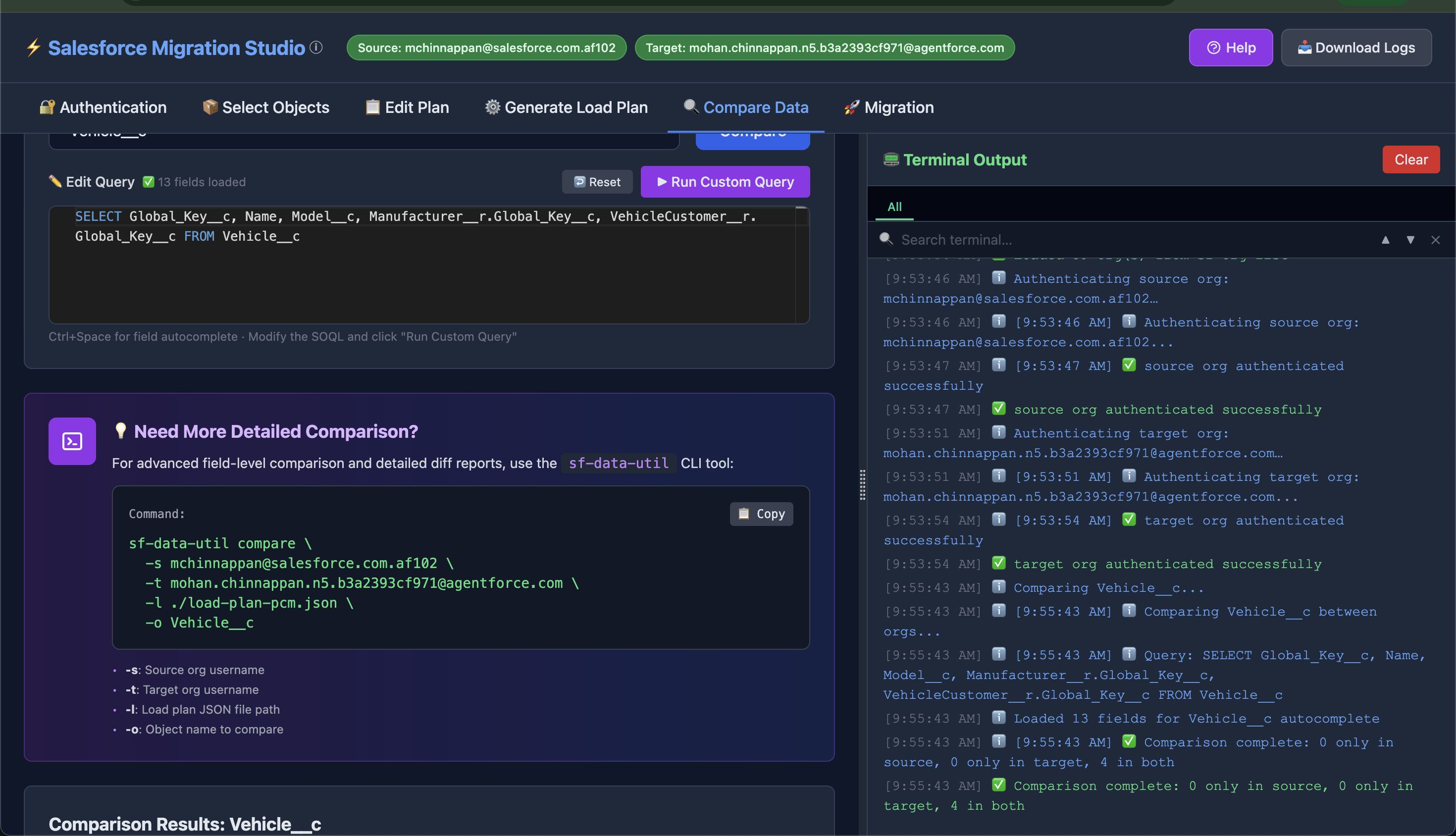
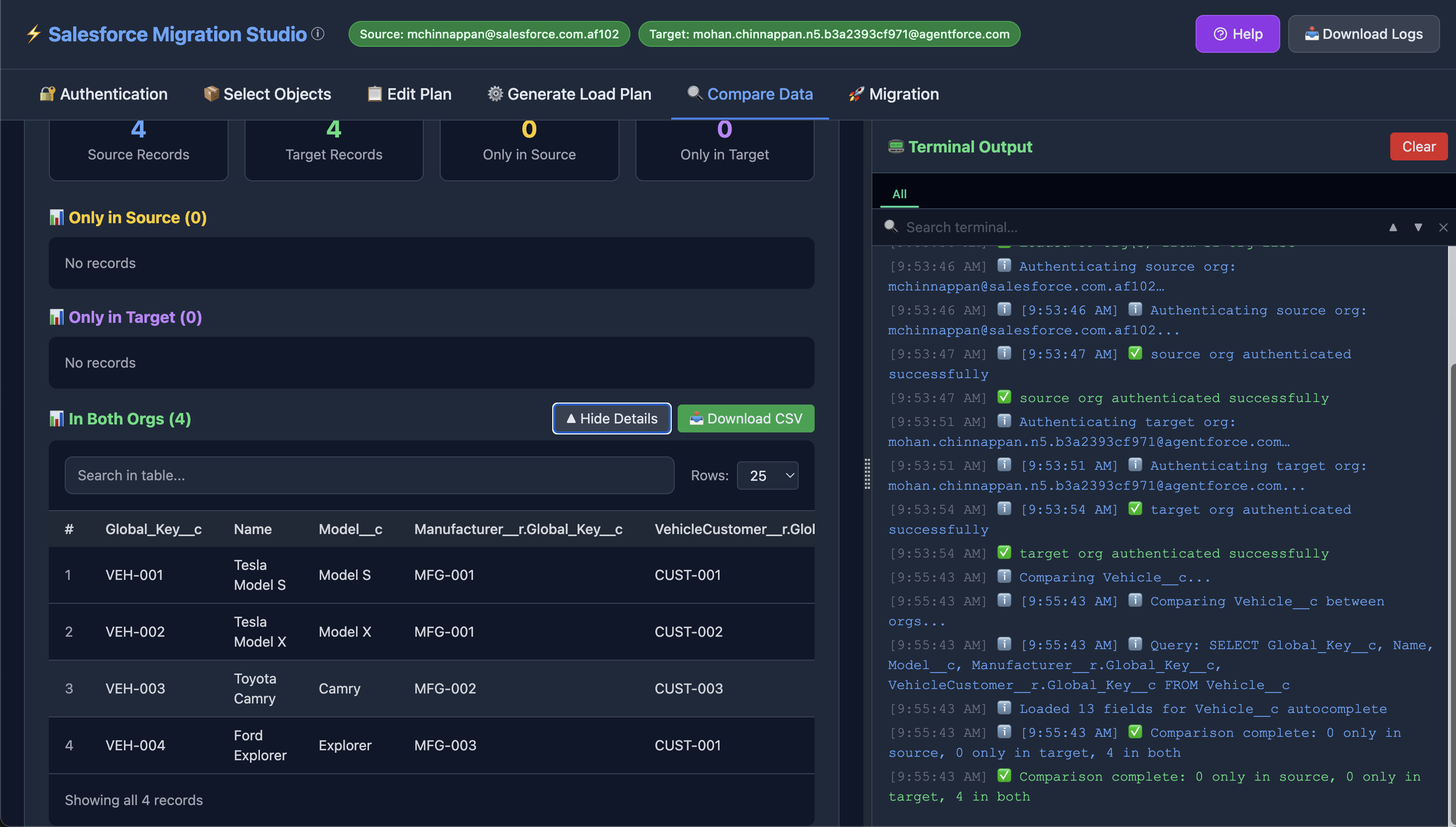
Compare Org Data
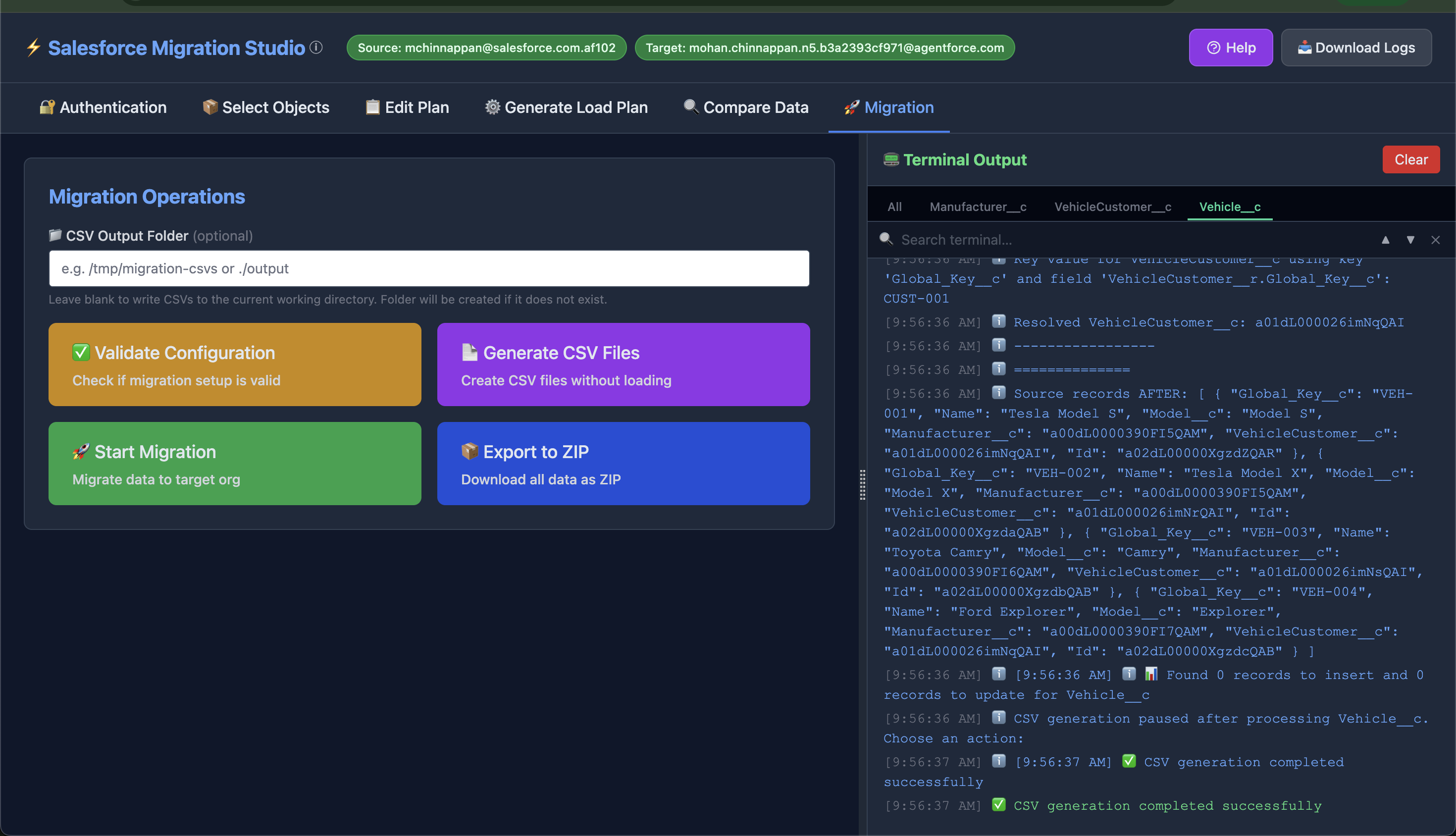
CSV Generation
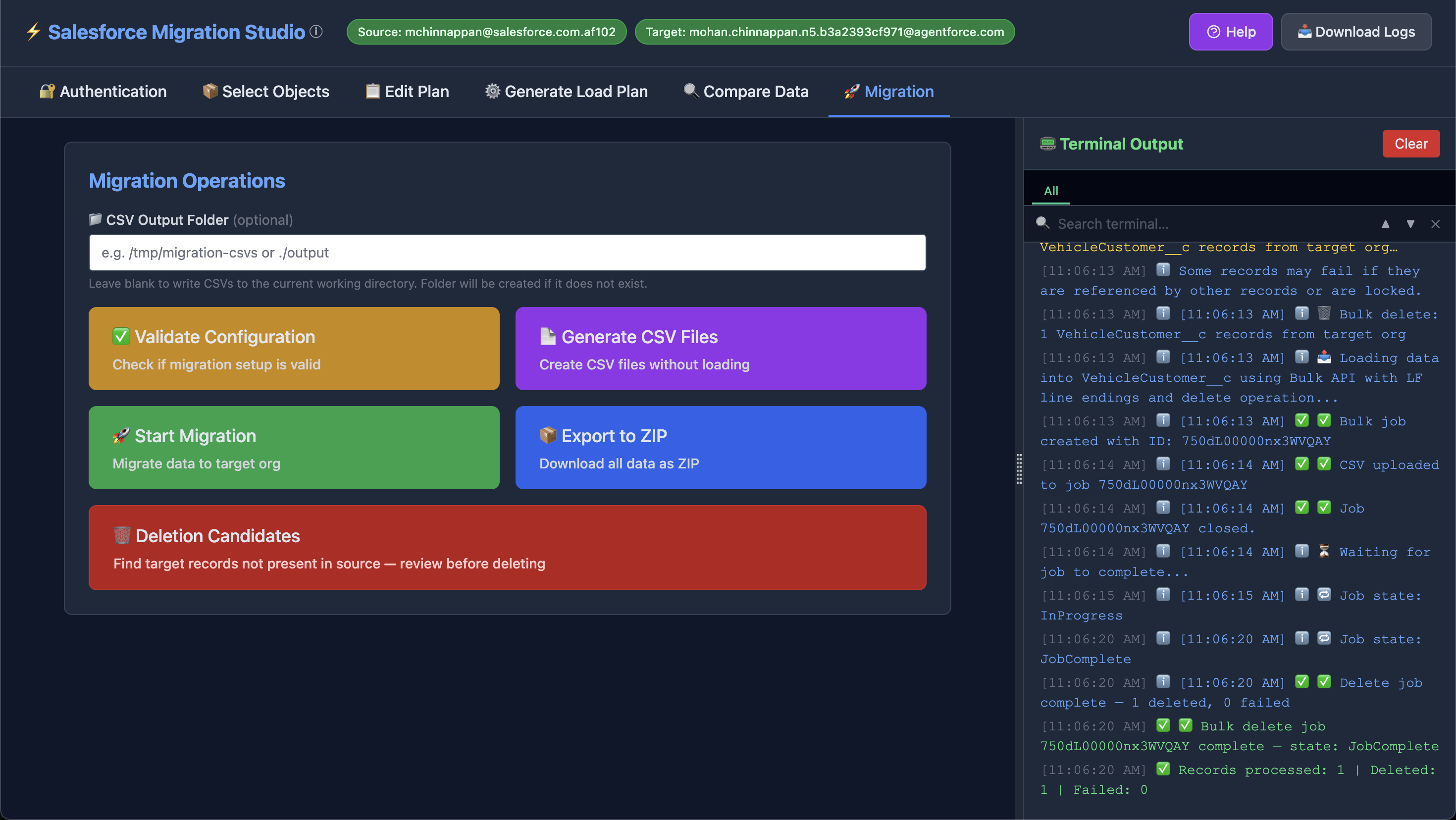
Data Deletion in Target Org
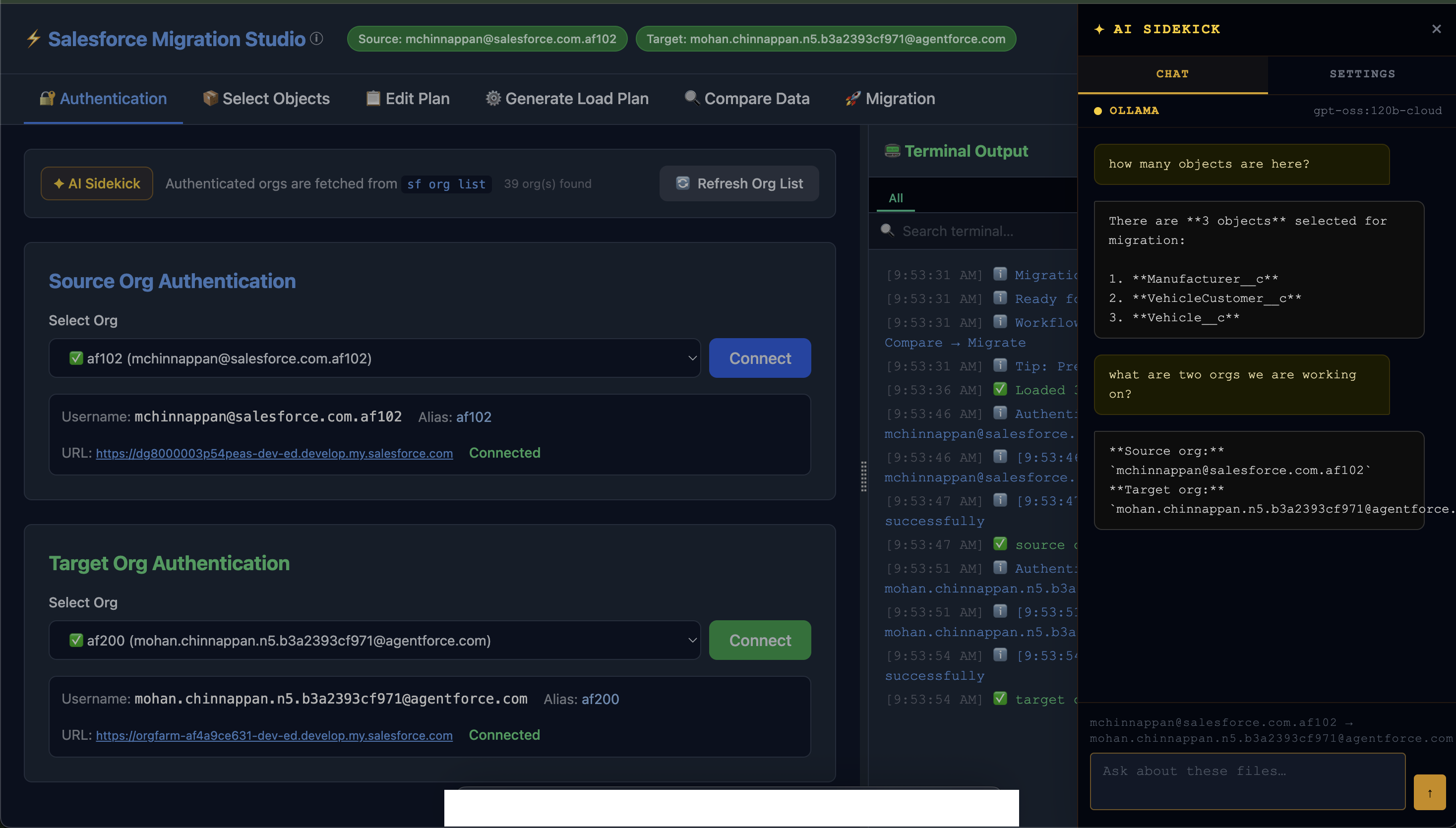
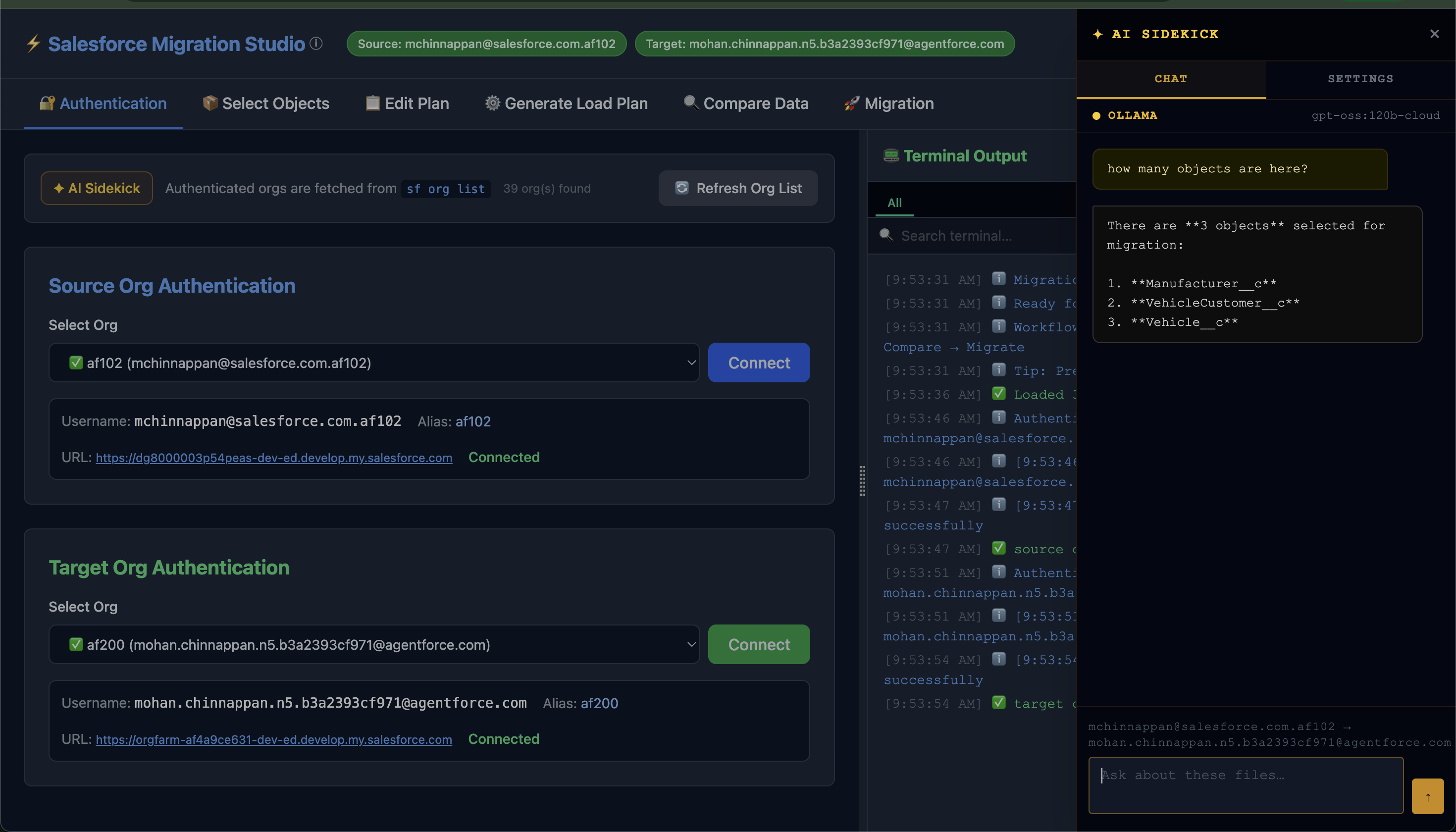
AI SideKick
🌟 Features
🎨 Modern Web Interface
- Dark Theme: Professional dark mode UI built with Tailwind CSS
- Tab-Based Navigation: Organized workflow across 6 main sections
- Split Pane Layout: Resizable Monaco editor on left, real-time terminal on right
- Splash Screen: Animated startup screen loads org list in the background before the app appears
- Custom Dialogs: All confirmation and pause prompts are in-app modals (no browser
alert/confirm)
🔐 Authentication
- Authenticate source and target Salesforce orgs via Salesforce CLI (
sf) - Searchable org dropdown: filter by alias or username with live search; orgs grouped by type (Production / Sandbox / Scratch)
- Smart token retrieval: uses
sf org auth show-access-tokenon newer SF CLI versions; automatically falls back tosf org displayfor older versions - Token-method badge: green pill shows
sf org auth show-access-token(secure); amber pill showssf org display (legacy)— so you always know which path was used - Visual connection status card with alias, URL, and connected status
📦 Object Selection
- Search Functionality: Quickly find objects in large load plans (
Ctrl+Kto focus) - Bulk Selection: Select All / Deselect All respects the active search filter
- Visual Indicators: Shows single-step vs multi-step objects
- Keyboard Shortcuts:
Ctrl+K/Cmd+Kto focus search,Escapeto clear
📋 Load Plan Management
- Monaco Editor: Full VS Code editing experience with JSON syntax highlighting
- File Upload: Load existing migration plans (
.json) - Sample Plans: Quick-start with pre-built configurations
- Auto-formatting: JSON validation and formatting on paste/type
- Tracked Filename: Server remembers your uploaded filename for CLI command generation
⚙️ Generate Load Plan
Fully in-process — no external binary or CLI tool required. Uses the Salesforce REST API directly via the org's access token.
- Describes any Salesforce object from an authenticated org
- Always generates a Type 1 plan (relationship composite keys, e.g.
Parent.Name) - Generates a Type 2 plan (Global_Key__c as sole composite key) when the object has the field
- Field Summary table — every field listed with type, whether it is in the query/mappings, and exclusion reason (Auto Number, Formula, non-updatable)
- Copy / Download / Load directly into the Edit Plan editor
Options (all optional):
| Option | What it does |
|---|---|
| Ignore OwnerId | Strips OwnerId and Owner.Name from query and field mappings |
| Use Global_Key__c | Sets compositeKeys to ["Global_Key__c"]; uses it as lookup key for referenced objects that also have the field |
| Global_Key__c != NULL | Appends WHERE Global_Key__c != NULL to the SOQL (requires Use Global_Key__c) |
🔍 Data Comparison
- SOQL Editor: Monaco-powered query editor with field autocomplete (via
sf sobject describe) - Visual Tables: Compare records between source and target orgs
- Advanced Features: Column sorting, search, pagination (10/25/50/100 rows), nested field support
- Four Categories: Only in Source · Only in Target · Value Differences · In Both
- Value Differences: Records present in both orgs where at least one field value differs — diff cells highlighted with
→ new value (was: old value). Download CSV produces an update-ready file. - Export: Download any category as CSV
- CLI Helper: Personalized
sf-data-utilcommand with your actual credentials
🚀 Migration Operations
- Validate Configuration: Check object/field accessibility before touching data
- Generate CSV Files: Write insert/update CSVs without loading to target. Null source fields are written as
#N/A(unquoted) in update CSVs — the Bulk API v2 token to explicitly null a field. - Start Migration: Full migration with real-time progress; confirms via in-app dialog
- Export to ZIP: Download source + target data as a compressed archive
- Deletion Candidates (requires
--allow-delete): Find target records absent from source — one object at a time, paginated table with direct target-org record links, CSV download, and optional Bulk API 2.0 delete with confirmation modal - CSV Output Folder: Optional path for all generated CSVs and
all.zip - Verbose Logging Toggle: Live switch — equivalent to
--verbose, no server restart required - Per-Object Pause: After each object a modal popup lets you Continue or Stop
📦 Large Volume Support
- SOQL pagination:
runSOQLQueryAllRecordsfollowsnextRecordsUrlautomatically — handles any record count - Chunked Bulk uploads: CSV files are split into batches of ≤ 100k rows; each chunk is a separate Bulk API v2 job
- Poll timeout: Bulk job polling times out after 30 minutes with the Job ID for manual lookup
- CSV parser: CLI-path queries use
csv-parsewith a 256 MB buffer — no crashes on large datasets
📟 Real-time Terminal
- Live logs with color coding: info / success / warning / error
- Per-Object Tabs: A tab is created for each object; auto-switches during runs; "All" tab always available
- Search: Live highlight as you type, navigate matches with ▲▼ or Enter / Shift+Enter, Escape to clear
- Timestamps on every entry
- Download logs as
.txt
🧭 Guided Tour
- Launch from the 🧭 Tour button in the header (or from inside the Help panel)
- 9-step spotlight tour covering every feature in workflow order
- Each step highlights the relevant UI element with an indigo ring, auto-switches to the correct tab, and shows a positioned card with title, description, and step counter
- Navigate with Next / Back buttons or ← → arrow keys; Esc exits at any time
❓ Context-Sensitive Help
- Press Help or the
?key on any tab to open the panel pre-loaded with help for that tab - Tab nav inside the panel lets you jump to any section (Auth / Objects / Plan / Generate / Compare / Migrate / Shortcuts)
- "Guided Tour" button inside the panel launches the tour directly
- Keyboard shortcuts reference always available under the ⌨️ Shortcuts tab
✦ AI Sidekick (opt-in)
- Slide-in panel with CHAT and SETTINGS tabs
- Supports Ollama (local), Claude by Anthropic, OpenAI, xAI (Grok), Google Gemini
- Ollama model list fetched live from
/api/tags - Context-aware system prompt: source org, target org, selected objects, full load plan injected automatically
- Multi-turn conversation history
- Enable with
--enable-aiserver flag
🚀 Quick Start
Prerequisites
- Node.js v14 or higher
- Salesforce CLI (
sf) - Authenticated Salesforce orgs
Installation
npm install -g smt-studio📖 Usage Guide
Step 1 — Authenticate Orgs
- Open the 🔐 Authentication tab
- Click Refresh Org List — orgs are loaded from
sf org list - Use the searchable dropdown to select the source org → Connect
- After connecting, check the token-method badge — green =
show-access-token(new CLI), amber =org display(legacy fallback) - Repeat for the target org — header badges turn green ✅ when both are connected
Step 2 — Select Objects
- Open the 📦 Select Objects tab
- Use the search box (
Ctrl+K/Cmd+K), then Select All or pick individually - Click Next: Edit Plan →
Step 3 — Configure Load Plan
- Open the 📋 Edit Plan tab
- Load a Sample, Upload a JSON file, or use ⚙️ Generate Load Plan to auto-build one
- Edit in the Monaco editor, then 💾 Save Plan
Step 4 — Generate Load Plan (optional)
- Open the ⚙️ Generate Load Plan tab
- Select an org and type/search an object API name
- Set options as needed: Ignore OwnerId, Use Global_Key__c, Global_Key__c != NULL
- Click Generate — Type 1 plan always produced; Type 2 produced automatically if the object has
Global_Key__c - Review the Field Summary table below the editors
- Click 📥 Load into Editor to send the plan to the Edit Plan tab
Step 5 — Compare Data (recommended)
- Open the 🔍 Compare Data tab
- Select an object, optionally edit the SOQL query, click Compare
- Review the four category tables and download CSVs as needed
Step 6 — Execute Migration
- Open the 🚀 Migration tab
- (Optional) Enter a CSV Output Folder — leave blank to use the current working directory
- Choose an operation:
| Button | What it does |
|---|---|
| ✅ Validate Configuration | Checks object/field accessibility — no data touched |
| 📄 Generate CSV Files | Writes insert/update CSVs (#N/A for null fields), nothing loaded to target |
| 🚀 Start Migration | Full migration with confirmation dialog |
| 📦 Export to ZIP | Downloads source + target data as all.zip |
| 🔍 Verbose Logging | Toggle switch — enables detailed logs live (same as --verbose) |
| 🗑️ Deletion Candidates | Visible only with --allow-delete — finds target records absent from source |
- After each object a Processing Paused popup appears — click ▶ Continue or ⛔ Stop
- Monitor progress in the terminal; switch per-object tabs or search logs
Deletion Candidates Workflow (requires --allow-delete)
Start server with: smt-studio --allow-delete
- Click 🗑️ Deletion Candidates on the Migration tab
- Select one object from the dropdown
- Click 🔍 Find Candidates
- Review the table —
Idvalues link directly to the target org record - Click 📥 Download CSV to save a backup before taking any action
- Click 🗑️ Delete from Target → confirm in the modal to trigger a Bulk API 2.0 delete job
AI Sidekick (requires --enable-ai)
- Start the server with
smt-studio --enable-ai - Click ✦ AI Sidekick in the top nav
- Open SETTINGS, pick a provider, enter credentials / select model
- Switch to CHAT and ask anything about your migration
💻 Command Line Options
smt-studio  --help

# Custom port
smt-studio  --port 8080

# Bind to all interfaces
smt-studio  --host 0.0.0.0

# Default CSV output folder for all operations
smt-studio  --csv-output-folder /tmp/migration-csvs

# Enable AI Sidekick
smt-studio  --enable-ai

# Don't auto-open browser
smt-studio  --no-open

# Verbose logging (detailed field-resolution and query logs)
smt-studio  --verbose

# Enable Deletion Candidates feature and /api/bulk-delete endpoint
smt-studio  --allow-delete

# Combine
smt-studio  -p 8080 --host 0.0.0.0 --csv-output-folder ./output --enable-ai --allow-delete -v

smt-studio  -p 3333 --csv-output-folder ~/my-smt-csv-output --enable-ai --allow-delete
🖥️ Pure CLI Mode (No Web UI)
In addition to the web UI server, smt-studio supports a cli subcommand that runs migration operations directly from the terminal — no browser required.
Syntax
smt-studio cli \
  -s <source-org-username> \
  -t <target-org-username> \
  -l <load-plan.json> \
  [--object <ObjectName | ALL>] \
  -o <gen-csv-file | migrate> \
  [--csv-output-folder <path>] \
  [-v]
Options
| Flag | Required | Description |
|---|---|---|
| -s, --source <username> | ✅ | Source org username or alias |
| -t, --target <username> | ✅ | Target org username or alias |
| -l, --load-plan <file> | ✅ | Path to the load-plan JSON file |
| --object <name> | | Object to process — use ALL or omit to process every object in the plan |
| -o, --operation <op> | ✅ | gen-csv-file — generate CSVs only; migrate — full migration |
| --csv-output-folder <path> | | Folder for generated CSV files (auto-created; defaults to current directory) |
| -v, --verbose | | Enable detailed field-resolution and query logs |
Examples
# Generate insert/update CSVs for a single object
smt-studio cli \
  -s my-source-org \
  -t my-target-org \
  -l ~/load-plan/vehicle-load-plan.json \
  --object VehicleCustomer__c \
  -o gen-csv-file \
  --csv-output-folder ~/smt-csvs

# Full migration — all objects in the plan
smt-studio cli \
  -s my-source-org \
  -t my-target-org \
  -l ~/load-plan/vehicle-load-plan.json \
  -o migrate
Notes
- Org credentials are resolved via
sf org auth show-access-token(new CLI) orsf org display(legacy fallback) — both orgs must be authenticated with the Salesforce CLI before running. - The per-object Continue / Stop pause dialog is skipped in CLI mode — all selected objects are processed sequentially without interruption.
- Configuration is not persisted to
~/.migrationrcin CLI mode. - Exit code
0on success,1on any error.
🎯 Sample Load Plan Format
[
  {
    "object": "Manufacturer__c",
    "compositeKeys": ["Global_Key__c"],
    "compositeKeys_v1": ["Name"],
    "query": "SELECT Global_Key__c, Name, Country__c FROM Manufacturer__c",
    "query_v1": "SELECT Name, Country__c FROM Manufacturer__c",
    "fieldMappings": {
      "Global_Key__c": "Global_Key__c",
      "Name": "Name",
      "Country__c": "Country__c"
    }
  },
  {
    "object": "Vehicle__c",
    "compositeKeys": ["Global_Key__c"],
    "compositeKeys_v1": ["Name"],
    "query": "SELECT Global_Key__c, Name, Model__c, Manufacturer__r.Global_Key__c FROM Vehicle__c",
    "query_v1": "SELECT Name, Model__c, Manufacturer__r.Name FROM Vehicle__c",
    "fieldMappings": {
      "Global_Key__c": "Global_Key__c",
      "Name": "Name",
      "Model__c": "Model__c",
      "Manufacturer__c": {
        "lookup": {
          "object": "Manufacturer__c",
          "key": "Global_Key__c",
          "field": "Manufacturer__r.Global_Key__c"
        }
      }
    }
  }
]
🔌 REST API Reference
| Method | Endpoint | Description |
|---|---|---|
| GET | /api/config | Get current configuration |
| PUT | /api/selected-objects | Update selected objects |
| POST | /api/auth | Authenticate source or target org |
| POST | /api/load-plan | Save load plan JSON |
| POST | /api/load-plan/file | Upload plan file (multipart) |
| POST | /api/validate | Validate configuration |
| POST | /api/migrate | Start migration (csvOutputFolder in body) |
| POST | /api/generate-csv | Generate CSV files (csvOutputFolder in body) |
| POST | /api/generate-plan-cli | Generate load plan via sf-load-plan-generator CLI |
| POST | /api/export | Export data to ZIP (csvOutputFolder in body) |
| POST | /api/compare | Compare object data between orgs (returns valueDiff) |
| POST | /api/compare/custom | Compare with a custom SOQL query (returns valueDiff) |
| POST | /api/deletion-candidates | Records in target not in source for one object |
| POST | /api/bulk-delete | Delete Ids from target via Bulk API 2.0 (requires --allow-delete) |
| GET | /api/allow-delete | Whether --allow-delete is active |
| GET | /api/verbose | Whether verbose logging is active |
| POST | /api/verbose | Set verbose logging on/off at runtime |
| GET | /api/orgs | List authenticated orgs via sf org list |
| GET | /api/sobjects | List SObject API names for an org |
| GET | /api/describe/:sobject | Describe a Salesforce object's fields |
| GET | /api/download/:filename | Download a generated file |
| GET | /api/ai/status | Whether AI Sidekick is enabled |
| GET | /api/ai/ollama/tags | Proxy Ollama /api/tags for model list |
| POST | /api/ai/chat | Unified AI chat proxy (all providers) |
🔄 WebSocket Events (Socket.IO)
Server → Client
| Event | Payload | When |
|---|---|---|
| terminal | { timestamp, message } | Any console.log in server process |
| object-start | { objectName } | Processing begins for an object (creates terminal tab) |
| pause-prompt | { objectName, message, context } | After each object is processed |
| migration-complete | { success, error? } | Migration finishes or fails |
| csv-generation-complete | { success, error? } | CSV generation finishes or fails |
| export-complete | { success, error? } | Export finishes or fails |
Client → Server
| Event | Payload | When |
|---|---|---|
| pause-response | { action: 'continue' \| 'stop' } | User clicks Continue or Stop in the popup |
🛠️ Configuration Storage
Persisted to ~/.migrationrc:
{
  "sourceConnection": { "instanceUrl": "...", "accessToken": "...", "username": "..." },
  "targetConnection": { "instanceUrl": "...", "accessToken": "...", "username": "..." },
  "loadPlan": [ ... ],
  "selectedObjects": [ "Account", "Contact" ],
  "loadPlanFilename": "my-migration.json"
}
⚠️ Never commit
.migrationrcto version control — it contains access tokens.
⌨️ Keyboard Shortcuts
| Shortcut | Where | Action |
|---|---|---|
| ? | Anywhere (outside input) | Open context-sensitive Help panel |
| Ctrl+K / Cmd+K | Select Objects tab | Focus object search |
| Escape | Object search | Clear search |
| Enter | Terminal search | Next match |
| Shift+Enter | Terminal search | Previous match |
| Escape | Terminal search | Clear search |
| Enter | AI Sidekick chat | Send message |
| Shift+Enter | AI Sidekick chat | New line |
| Ctrl+Space | Monaco editor | Autocomplete |
| Ctrl+F | Monaco editor | Find |
| Alt+Shift+F | Monaco editor | Format JSON |
| → | Guided tour | Next step |
| ← | Guided tour | Previous step |
| Escape | Guided tour | End tour |
🔁 CI/CD Integration
The smt-studio cli subcommand is designed to run headlessly — no browser, no interactive prompts, and a clean exit code (0 success / 1 failure).
Prerequisites in the pipeline agent
npm install -g @salesforce/cli
npm install -g smt-studio

# Authenticate orgs using JWT (non-interactive, CI-safe)
sf org login jwt \
  --client-id  $SF_CLIENT_ID \
  --jwt-key-file server.key \
  --username   $SF_SOURCE_USERNAME \
  --alias      source-org

sf org login jwt \
  --client-id  $SF_CLIENT_ID \
  --jwt-key-file server.key \
  --username   $SF_TARGET_USERNAME \
  --alias      target-org
Store
SF_CLIENT_ID,SF_SOURCE_USERNAME,SF_TARGET_USERNAME, and the private key as encrypted secrets in your CI platform.
GitHub Actions
name: Salesforce Data Migration
on:
  workflow_dispatch:
    inputs:
      object:
        description: 'Object to migrate (ALL or specific API name)'
        default: 'ALL'
      operation:
        description: 'gen-csv-file | migrate'
        default: 'gen-csv-file'
jobs:
  migrate:
    runs-on: ubuntu-latest
    steps:
      - uses: actions/checkout@v4
      - uses: actions/setup-node@v4
        with: { node-version: '20' }
      - run: npm install -g @salesforce/cli smt-studio
      - run: echo "${{ secrets.SF_JWT_KEY }}" > server.key
      - run: sf org login jwt --client-id ${{ secrets.SF_CLIENT_ID }} --jwt-key-file server.key --username ${{ secrets.SF_SOURCE_USERNAME }} --alias source-org
      - run: sf org login jwt --client-id ${{ secrets.SF_CLIENT_ID }} --jwt-key-file server.key --username ${{ secrets.SF_TARGET_USERNAME }} --alias target-org
      - run: |
          smt-studio cli \
            -s source-org -t target-org \
            -l load-plan/vehicle-load-plan.json \
            --object "${{ github.event.inputs.object }}" \
            -o "${{ github.event.inputs.operation }}" \
            --csv-output-folder ./migration-output
      - uses: actions/upload-artifact@v4
        if: always()
        with:
          name: migration-csvs
          path: migration-output/
CI/CD Best Practices
| Concern | Recommendation |
|---|---|
| Secrets | Use platform secret stores. Never hardcode usernames or keys. |
| JWT auth | Prefer sf org login jwt — non-interactive and works in headless agents. |
| Load plan versioning | Commit load-plan/*.json to the repository so migrations are reproducible. |
| CSV artifacts | Always upload generated CSVs as build artifacts for auditing. |
| Dry-run gate | Run gen-csv-file first; only proceed to migrate after approval. |
| Exit codes | smt-studio cli exits 0 on success and 1 on error — use this to fail the pipeline. |
| Verbose logs | Add -v for detailed field-resolution logs in the build output. |
🚀 Copado DevOps Integration
smt-studio cli can be embedded into Copado pipelines using Copado Functions or a custom Job Step backed by a self-hosted runner.
See the full Copado integration guide in the previous version of this README or the project wiki.
🔒 Security Notes
- Local use only by default (
localhostbinding) - Use
--host 0.0.0.0only on trusted networks - Access tokens are stored in
~/.migrationrc— protect this file - Add
.migrationrcto.gitignore - AI provider API keys are held in browser memory only — never stored by the server
- For public-facing deployments, put a reverse proxy with HTTPS in front
🐛 Troubleshooting
Port already in use
smt-studio -p 3001Salesforce CLI not found
npm install -g @salesforce/cli
sf version
Access token is [REDACTED] / 401 errors
# Newer SF CLI redacts tokens in sf org display.
# smt-studio automatically uses sf org auth show-access-token instead.
# If you still see 401, verify the org is connected:
sf org display -o your-alias
Re-authenticate an org
sf org login web --alias my-org
sf org list
Ollama models not loading in AI Sidekick
curl http://localhost:11434/api/tags
# Then refresh the Base URL field in AI Sidekick Settings
Deletion Candidates button not visible
smt-studio --allow-deleteUpdate CSV not clearing null fields in target
The CSV must contain #N/A (unquoted) for fields that should be set to null. Salesforce Bulk API v2 treats an empty cell as "leave unchanged". The app writes #N/A automatically — do not open the CSV in a spreadsheet before loading.
AI Sidekick button not visible
smt-studio --enable-ai📝 Version
Version: 3.0.0
Author: Mohan Chinnappan
📄 License
MIT