
sovendus-integration-scripts-gtm
v2.0.0
Published
Sovendus Integration Scripts used by our GTM tag - checkout the docs at developer-hub.sovendus.com
Downloads
18

Maintainers
 sovendus_marcus
Readme
Sovendus Google Tag Manager Template for Voucher Network and Checkout Benefits Integration
[!WARNING] Note that GTM gets blocked by adblockers, we highly recommend you to use either a plugin or integrate us directly, as we/you will lose 5% - 10% of the traffic.
This guide will show you how to set up and implement Sovendus on your website using GTM, providing an alternative to directly integrating Sovendus into your website code.
Instructions
- Install the Sovendus plug-in on your website.
- Edit the plug-in to add any desired parameters and define the trigger for it to appear.
- Add a div container to your website where you want the Sovendus Offers to be displayed.
Here's how to do it
Step 1
Log in to the GTM account for the site that you would like to implement Sovendus on.
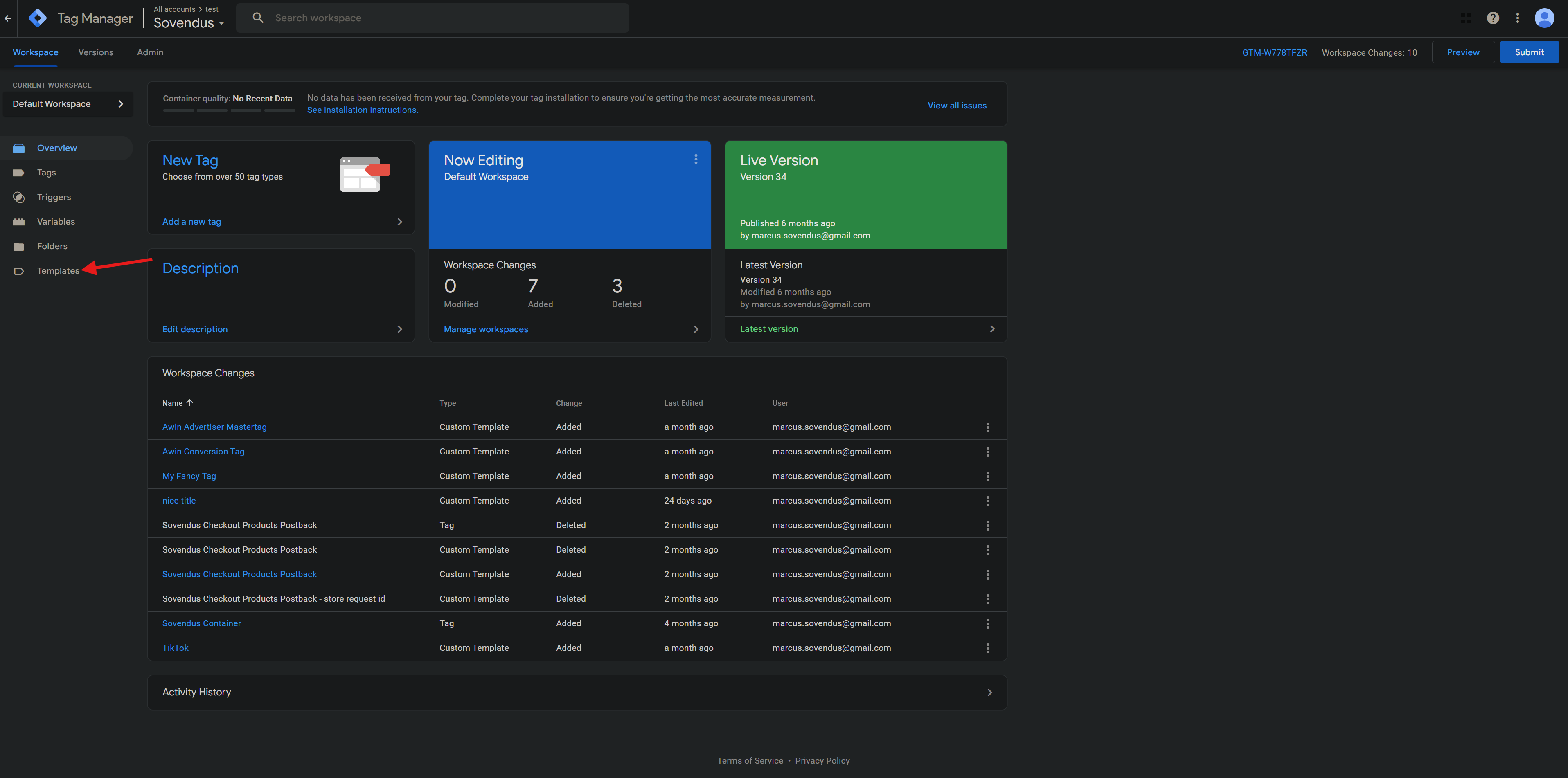
Step 2
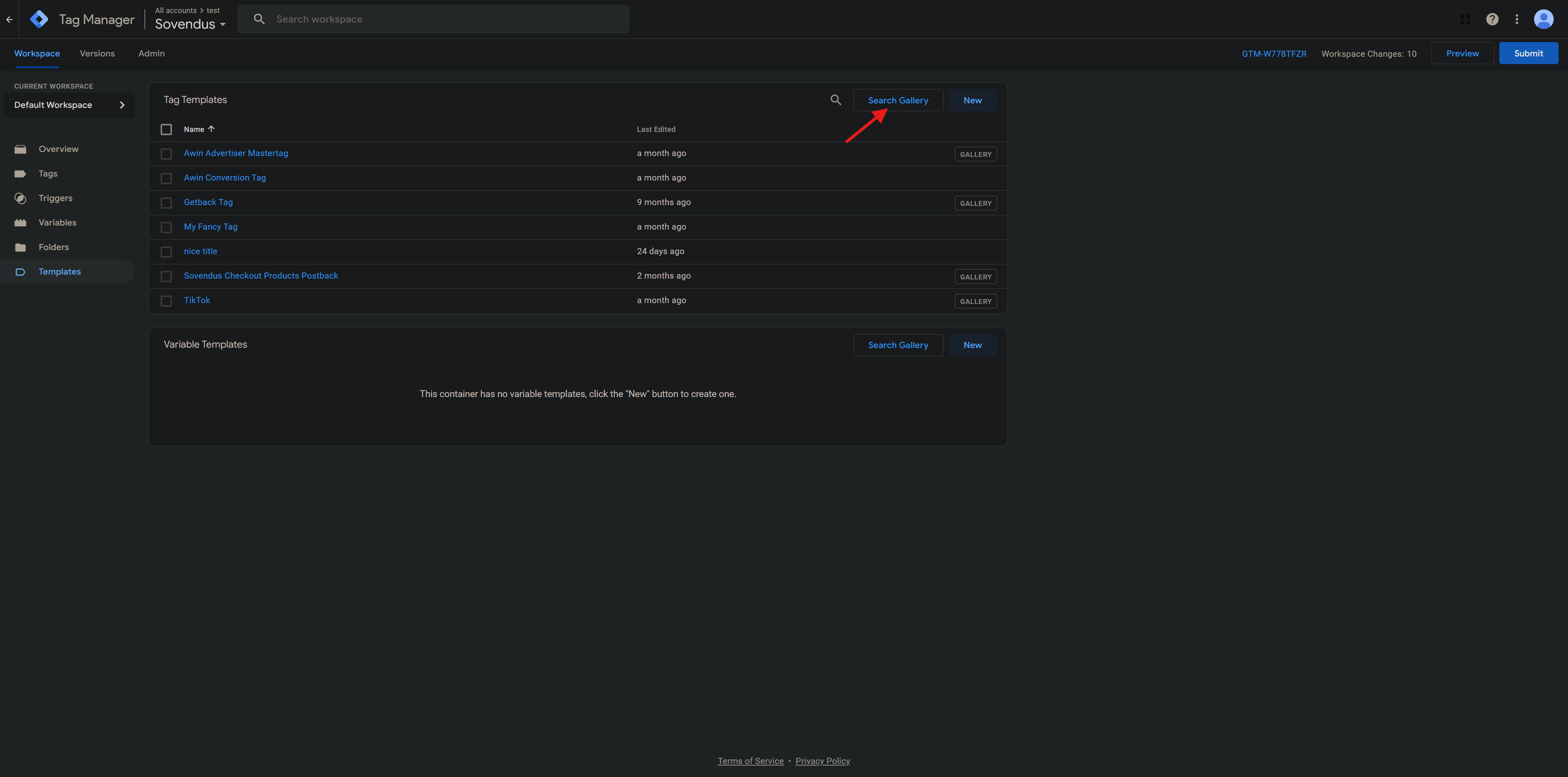
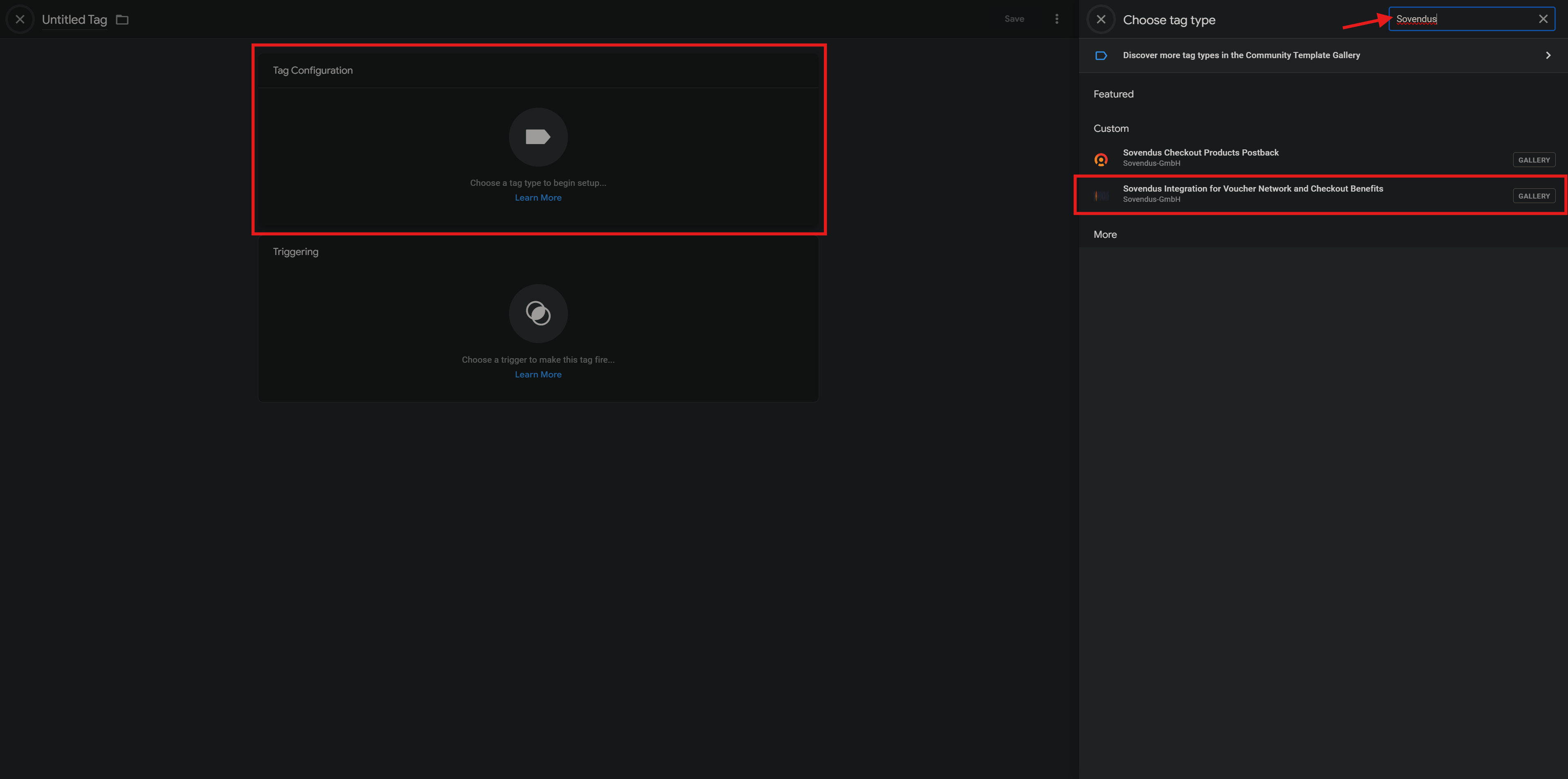
Go to the "Gallery" section of your GTM account. In the search field, type "Sovendus" and press enter. This will bring up a list of Sovendus templates available for use. You should see multiple templates, please select the template called "Sovendus Integration for Voucher Network and Checkout Benefits".
Step 3
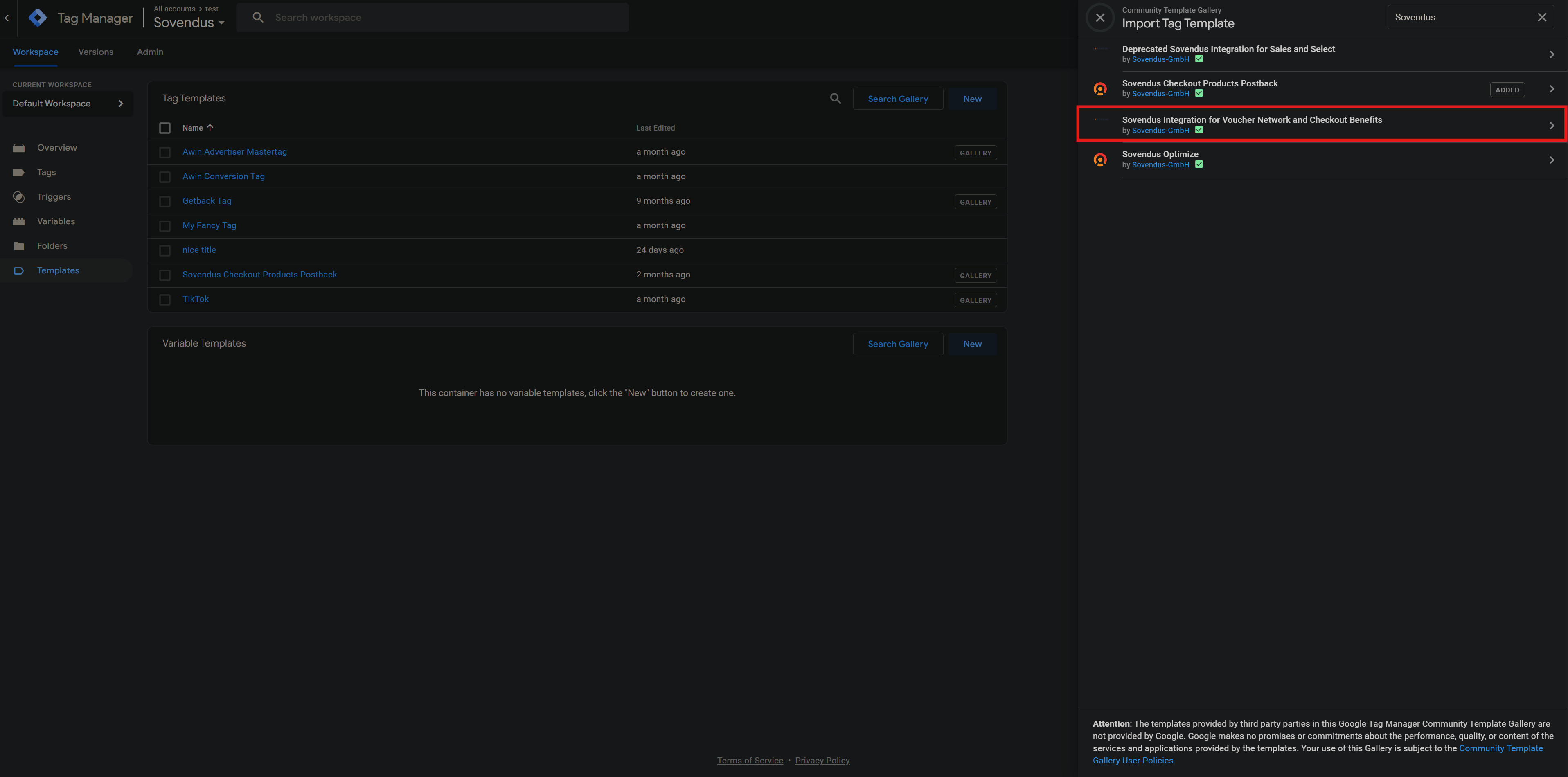
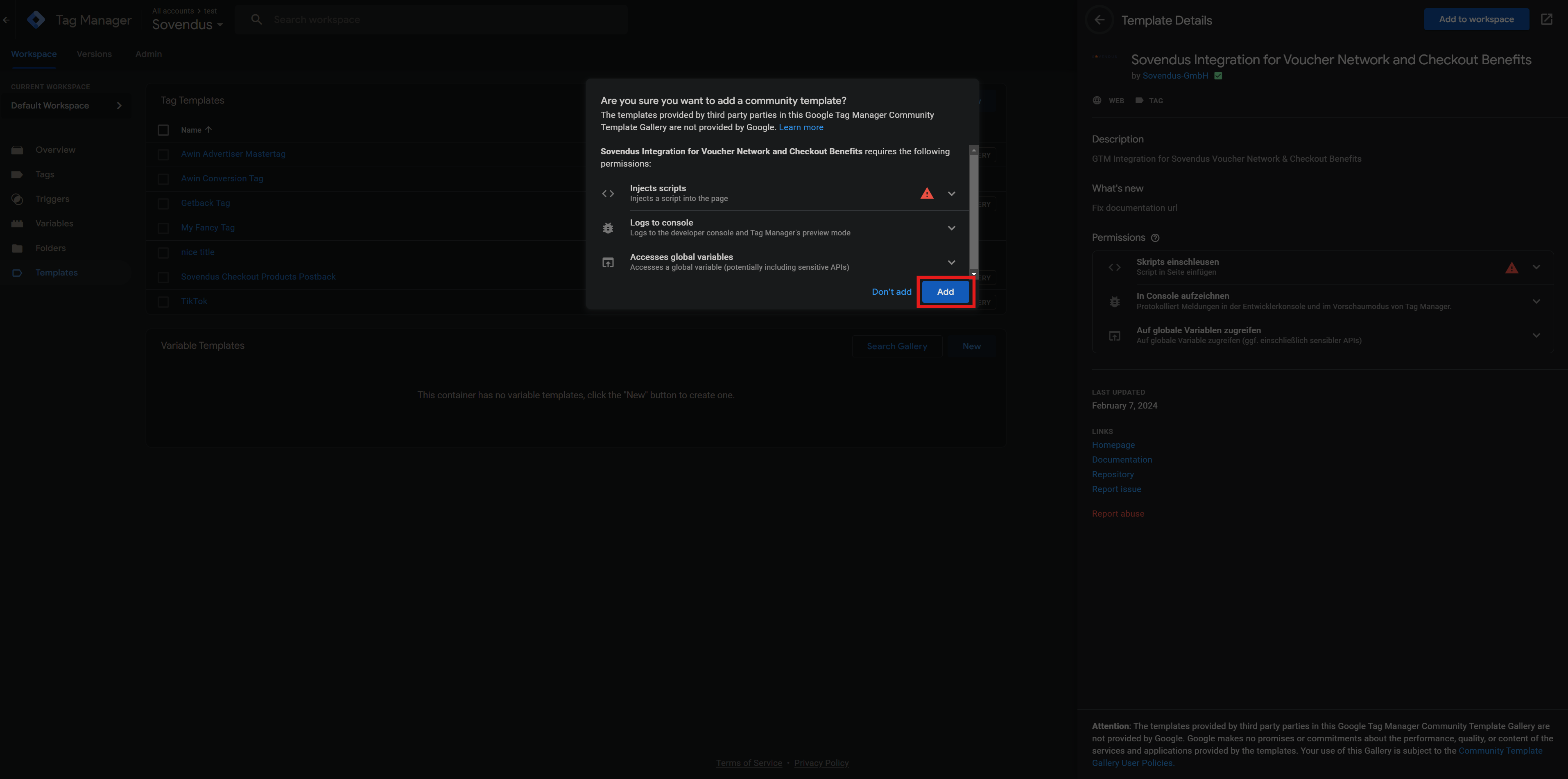
Click on the "Add to workspace" button to begin the installation process. Please follow any prompts that
may appear during the installation process to complete the integration.
Step 4
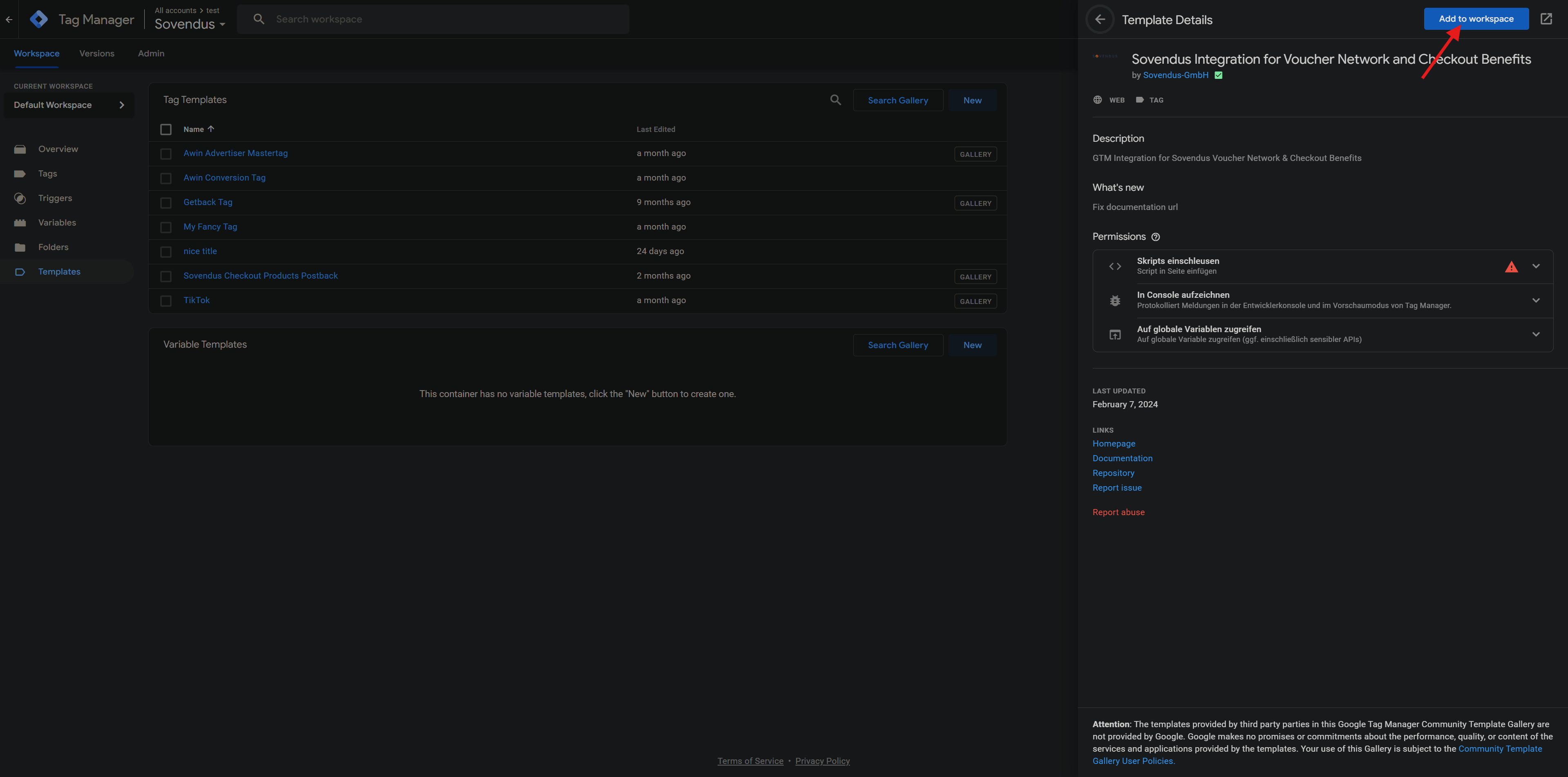
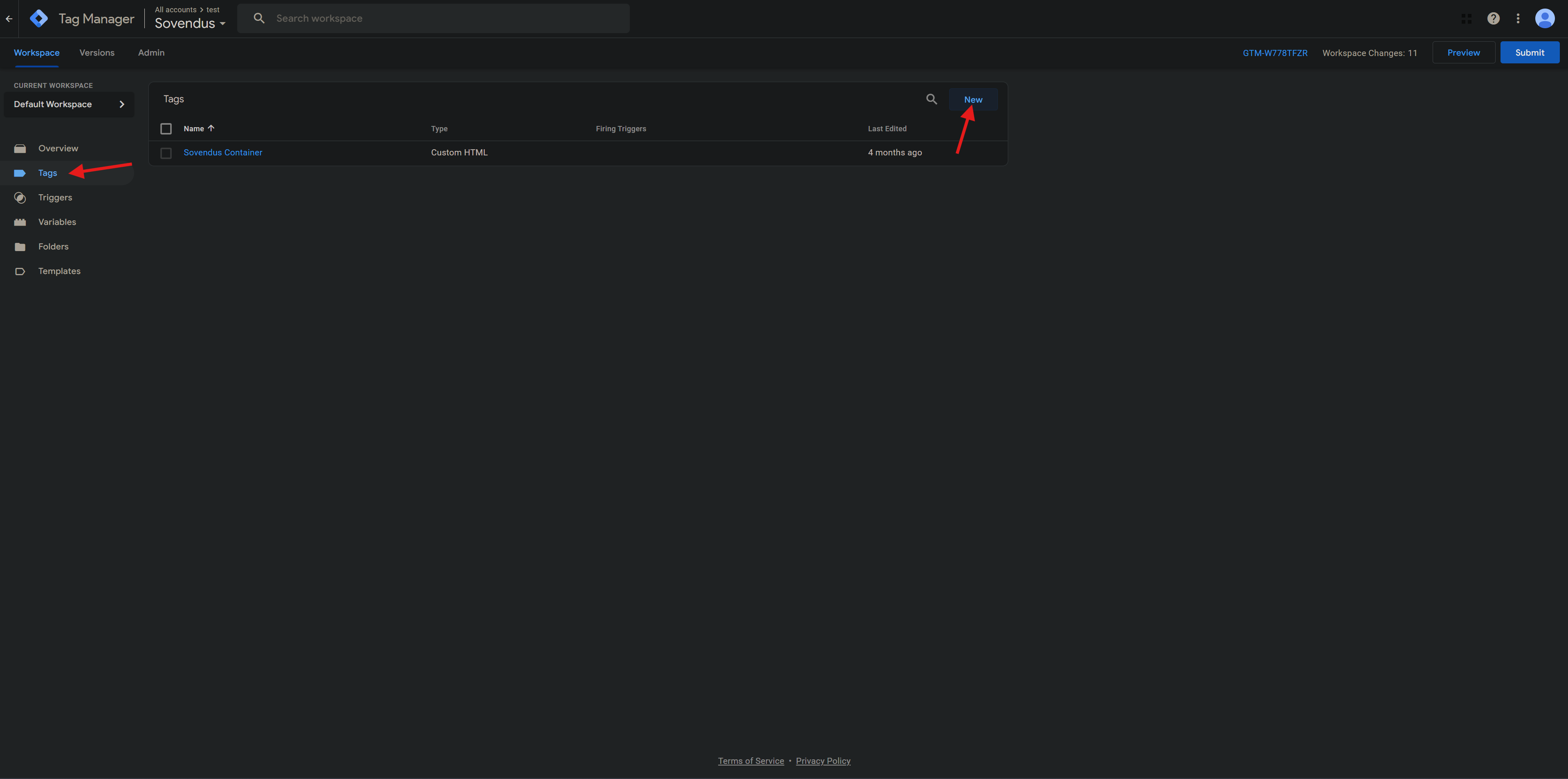
To edit the Sovendus template that you have installed, navigate to the "Tags" section of your GTM account. In this section, you will see a list of all the tags that have been set up for your website. Locate the Sovendus template in this list and click on it to edit.
Be sure to carefully review the template and make any necessary changes before saving and publishing your updates. It is important to note that any changes you make to the template will affect how Sovendus functions on your website, so be sure to thoroughly test your changes before publishing them.
Step 5
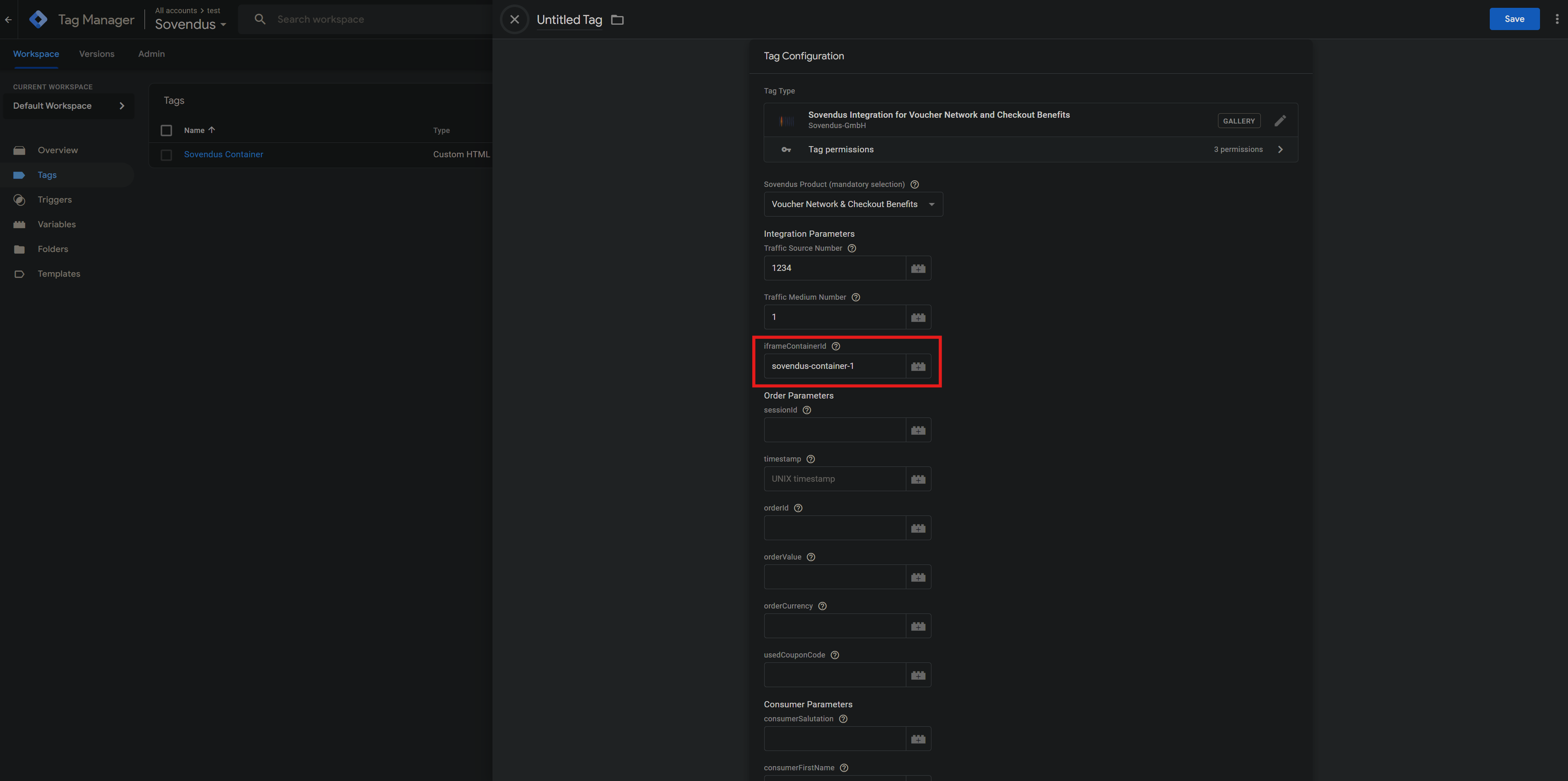
It is necessary to transmit certain information to Sovendus. For an extensive explanation of why and when certain information is transmitted to Sovendus, please refer to the Sovendus data protection documentati- on.
The following variables are needed. Please check in your GTM data layer if they are already defined. If they are not, they should be added to the data layer.
These information are treated in accordance with the privacy policy and are not disclosed to third parties:
- trafficSourceNumber: The Traffic Source Number is used to assign your shop in our system. You can find it at the very beginning of the document in the grey box.
- trafficMediumNumber: The Traffic Medium Number is used to assign your integration in our system (for example, if you have multiple integrations within one shop). You can find it at the very beginning of the document in the grey box
- sessionID: The customer's session ID is used to detect accidental duplicate requests. Please hash the session ID for security purposes before using it.
- Timestamp: The timestamp is used to cause requests to our system to expire after a certain amount of time. Please provide us with the Unix timestamp.
- orderId: The order ID uniquely identifies orders and helps to recognize multiple requests to our server system. We also need this data when it comes to billing questions.
- orderValue: The order value is for billing purposes, please submit it with two decimal places and a dot as the decimal separator.
- orderCurrency: Order currency according to ISO 4217 (http://en.wikipedia.org/wiki/ISO_4217)
- usedCouponCode: The code of the redeemed voucher is used to track the success rate and enables automated invoicing.
- iframeContainerId: This determines at which position on the page the generated iframe should be implemented.
- consumerSalutation: This is needed to match gender to appropriate offers and is also used to pre-fill the input forms.
- consumerFirstName, consumerLastName: This is used to pre-fill the input forms and needed to filter for products that are not appropriate.
- consumerEmail: The e-mail address is used to pre-fill input forms. It should be transmitted as plain text, Sovendus will hash the e-mail address to take possible objections to advertising into account.
- consumerCountry: This data is used to display matching national offers. Please transmit country code according to ISO 3166-1 alpha-2: https://en.wikipedia.org/wiki/ISO_3166-1_alpha-2#DE
- consumerZipcode: This data is used to display local offers and is used to pre-fill input forms.
Step 6
In the "Triggering" section, select the trigger that will cause the div container to be displayed on your website e.g. on the Thank-you page of your checkout process.
To add a trigger for the thank-you page, please follow these steps:
- Click the "Triggers" tab in the left sidebar, then click the "New" button.
- In the trigger configuration panel that appears, give your trigger a name that describes what it does, such as "Thank-You Page Trigger".
- Under the "Trigger Configuration" section, select "Page View" as the trigger type. Under the "This trigger fires on" section, select "Some Page Views" from the dropdown menu.
- In the "Fire this trigger when" section, specify the conditions that will cause the trigger to fire. In this case, you will want to select "Page Path" from the dropdown menu and set the "contains" operator. Then, enter the URL of your thank-you page in the value field. For example, if your thank-you page is at example.com/thank-you, you would enter /thank-you in the value field.
- Click the "Save" button to create the trigger. Now, any Google Tag Manager tags that are associated with this trigger will fire on the thank-you page whenever the trigger conditions are met.
Step 7
To determine where the Sovendus banner will be displayed, you will need to define a div container with a unique ID. Add the div container directly to the Thank-you page:
This involves modifying the HTML code of your Thank-you page to include the div container. You can do this by editing the HTML code directly or by using a page builder or other tool that allows you to add custom HTML to your page.
After making the changes to your shop, make sure the ID of the div container on your Thank-you page, aligns with the iframeContainerId in the Sovendus tag configuration.
That's it! You should now have Sovendus properly integrated with GTM on your website.
Additional steps for Switzerland
For Switzerland it is also required to complete the following steps.
Go to tags and create a new tag
Select Custom HTML as the Tag type
Copy and paste the following code into the HTML text area:
<script>
  var script = document.createElement("script");
  script.type = "text/javascript";
  script.async = true;
  script.src = "https://api.sovendus.com/js/landing.js";
  document.body.appendChild(script);
</script>
As a trigger add one that only triggers on the home page / the page where user will land coming from the Sovendus Voucher Network