
storybook-addon-playwright
v8.0.2
Published
An addon to visually test the stories in the multiple browsers within storybook environment

Maintainers
 cyrus-d
Readme
storybook-addon-playwright
An addon to visually test stories across multiple browsers within the Storybook environment.
Addon will not work in a Storybook static build, but screenshots can be tested against static build files.
This package has been tested with the React framework only and may not work with other frameworks.
Works with Component Story Format (CSF) only.
Compatibility
| Package | Version | | ---------- | ---------- | | storybook | ^10 | | playwright | ~1.59 | | Node.js | >= 24.15.0 |
Motivation
Being able to make components that feel and look the same in all browsers has always been a challenge. It requires developers to keep switching between browsers and visually checking components. It is also important to track changes and detect regressions as quickly as possible. With the help of Playwright and Storybook, this addon makes it possible to visually check components and be notified of changes — all in one place.
Example
storybook-addon-playwright-example
Getting Started
Install the package:
pnpm add -D storybook-addon-playwrightConfiguration
1. Register the addon
Within .storybook/main.ts:
const config = {
  stories: ['../**/*.stories.@(js|jsx|mjs|ts|tsx)'],
  addons: ['storybook-addon-playwright'],
};

export default config;
2. Configure the middleware
Within .storybook/middleware.mjs, initialise your Playwright browsers asynchronously, call setConfig immediately, and wait for readiness inside getPage. This keeps setup safe.
import { setConfig } from 'storybook-addon-playwright/configs';
import addonMiddleware from 'storybook-addon-playwright/middleware';
import * as playwright from 'playwright';

const browsers = {};

// Initialise browsers asynchronously.
const ready = (async () => {
  browsers.chromium = await playwright.chromium.launch();
  browsers.firefox = await playwright.firefox.launch();
  browsers.webkit = await playwright.webkit.launch();
})();

setConfig({
  storybookEndpoint: 'http://localhost:6006/',
  getPage: async (browserType, options) => {
    await ready;
    return await browsers[browserType].newPage(options);
  },
  afterScreenshot: async (page) => {
    await page.close();
  },
});

export default function middleware(router) {
  addonMiddleware(router);
}
Story Readiness Before Screenshot
By default, the addon waits for Storybook to settle by checking #storybook-root before taking screenshots. This behavior is enabled by default because waitForStoryRender is true. Set waitForStoryRender: false to disable it.
If your story needs an extra selector wait, do it explicitly in beforeScreenshot:
setConfig({
  storybookEndpoint: 'http://localhost:6006/',
  getPage: async (browserType, options) => {
    await ready;
    return await browsers[browserType].newPage(options);
  },
  beforeScreenshot: async (page, data) => {
    await page
      .frameLocator('iframe')
      .locator('.my-selector')
      .waitFor({ state: 'visible', timeout: 10000 });
  },
  afterScreenshot: async (page) => {
    await page.close();
  },
});
This keeps the readiness logic in your config instead of relying on framework-specific mounting code.
setConfig Options
For a full list of available options with detailed descriptions, see the Config interface in src/typings/config.ts.
Every option is documented with a JSDoc comment explaining its purpose, parameters, and usage.
AI prompt helper for getScreenshotTitle
The AI helper is exported from storybook-addon-playwright/ai as createScreenshotTitlePrompt(data, options) so you can build a strict LLM prompt for title generation and reuse it across projects.
The helper is designed for small models too. It asks the model to:
- parse the provided data as JSON,
- understand each field,
- generate a concise title,
- return JSON only in this shape:
{ "title": "..." }.
Example:
import { createScreenshotTitlePrompt } from 'storybook-addon-playwright/ai';
import { setConfig } from 'storybook-addon-playwright/configs';

async function askLlm(prompt) {
  // Call your LLM provider here and return parsed JSON.
  // The model response must match: { title: string }
  return { title: 'Button / primary / loading' };
}

setConfig({
  storybookEndpoint: 'http://localhost:6006/',
  getPage: async () => {
    throw new Error('Example only: implement getPage');
  },
  getScreenshotTitle: async (data) => {
    const prompt = createScreenshotTitlePrompt(data, {
      maxTitleLength: 72,
      fallbackTitle: 'Should render correctly.',
      includeBrowserType: true,
      includeStoryId: false,
    });

    const result = await askLlm(prompt);
    return result.title;
  },
});
How it works
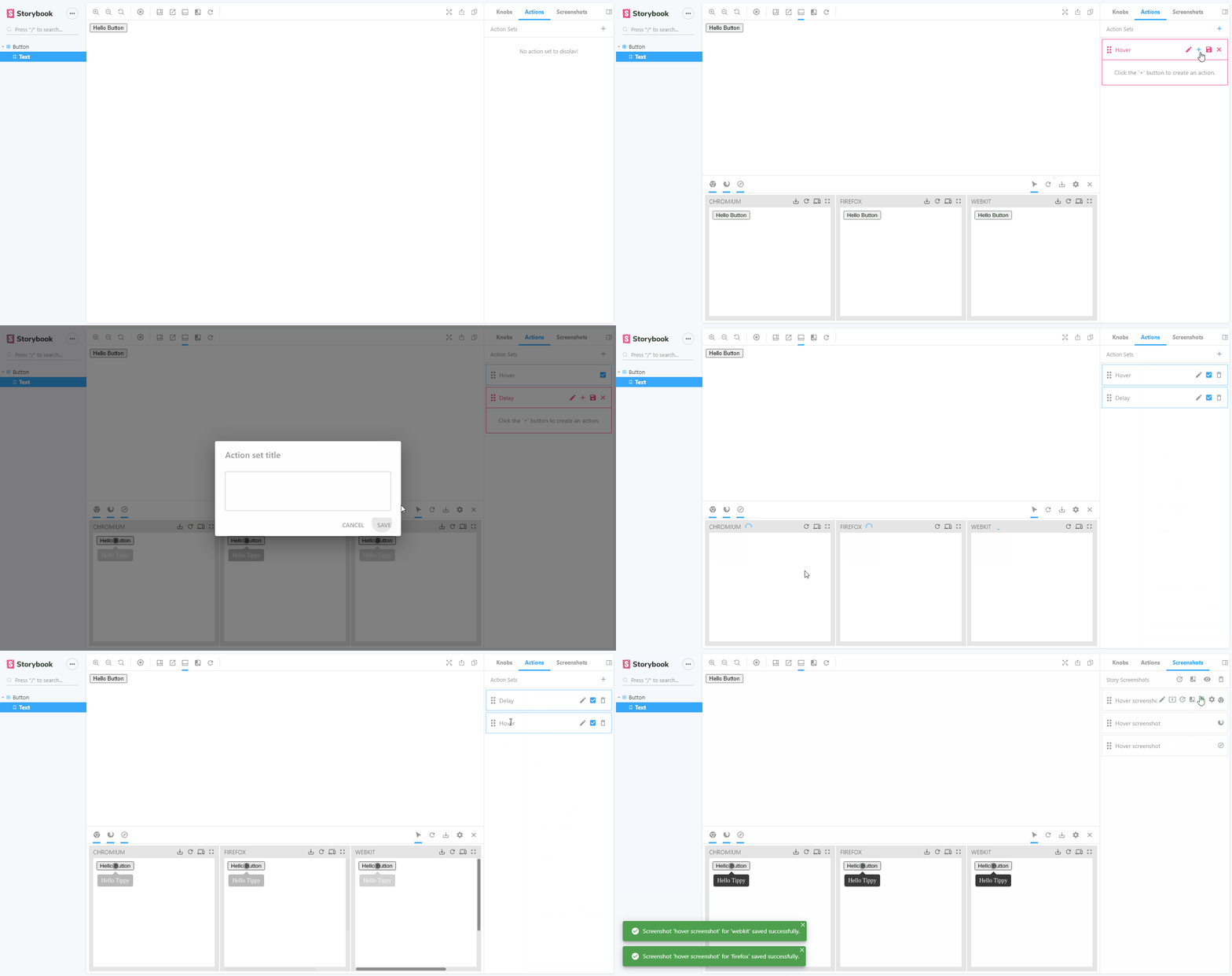
The addon is an interface between Playwright and Storybook stories. It executes user-defined action sequences on the Playwright page provided in the configuration.
Action sets are saved as JSON files next to the story file, so they persist across reloads.
The addon consists of three panels:
- Action list panel
- Screenshots list panel
- Screenshots preview panel
Args
The addon stores Storybook controls state in args inside screenshot settings. When Playwright loads a story it rebuilds the args query string from this saved state.
Older screenshot files that used a
knobsfield and stored inpropsare still read as a fallback. Use the migration CLI to upgrade them.
Action list panel
The action panel acts as a playground. It holds the list of action sets created by the user for a specific story. Selecting an action set executes it on the Playwright page.
An action set can contain one or more actions. Actions correspond to Playwright Page methods such as click, mouse.move, etc.
Screenshots list panel
This panel holds previously saved screenshots. From here you can delete, edit, or reorder screenshots.
Screenshots preview panel
The preview panel shows the latest screenshots taken by Playwright. It can display screenshots from all supported browsers or a subset. You can save screenshots and change settings such as width and height.
Screenshots are stored in a folder named __screenshots__ next to the story file.
Utility helpers
The package also exposes small internal utilities from storybook-addon-playwright/utils. One of them is BrowserManager, which helps you create and reuse Playwright browser instances by browser type and index.
import { BrowserManager } from 'storybook-addon-playwright/utils';
import { chromium, firefox, webkit } from 'playwright';

const manager = new BrowserManager({
  browserCount: {
    chromium: 1,
    firefox: 1,
    webkit: 1,
  },
  createBrowser: async (browserType) => {
    const browserTypeMap = {
      chromium,
      firefox,
      webkit,
    };

    return await browserTypeMap[browserType].launch();
  },
  isBrowserConnected: (browser) => browser.isConnected(),
});

await manager.loadBrowsers();

const { browser, index } = await manager.getBrowser('chromium');
const page = await browser.newPage();

// Reset every cached browser before the next run if needed.
await manager.resetBrowsers();
Add or extend Playwright page methods
Pass a customActionSchema object to setConfig to expose additional methods in the Add Actions menu of the Actions panel.
This property follows JSON Schema rules with one additional property named
parameters. A clear understanding of JSON Schema is required.
Example — add a coloured box to the page:
import { setConfig } from 'storybook-addon-playwright/configs';
import addonMiddleware from 'storybook-addon-playwright/middleware';
import * as playwright from 'playwright';

async function addBox(position) {
  await this.evaluate((pos) => {
    if (!pos) return;
    const div = document.createElement('div');
    div.style.backgroundColor = '#009EEA';
    div.style.width = '200px';
    div.style.height = '200px';
    div.style.position = 'absolute';
    div.style.top = pos.y + 'px';
    div.style.left = pos.x + 'px';
    document.body.append(div);
  }, position);
}

const browsers = {};
const ready = (async () => {
  browsers.chromium = await playwright.chromium.launch();
  browsers.firefox = await playwright.firefox.launch();
  browsers.webkit = await playwright.webkit.launch();
})();

setConfig({
  storybookEndpoint: 'http://localhost:6006/',
  getPage: async (browserType, options) => {
    await ready;
    const page = await browsers[browserType].newPage(options);
    page.addBox = addBox;
    return page;
  },
  afterScreenshot: async (page) => {
    await page.close();
  },
  customActionSchema: {
    addBox: {
      type: 'promise',
      parameters: {
        position: {
          type: 'object',
          properties: {
            x: { type: 'number' },
            y: { type: 'number' },
          },
          required: ['x', 'y'],
        },
      },
    },
  },
});

export default function middleware(router) {
  addonMiddleware(router);
}
Additional Page Methods
The following custom methods are automatically added to every Playwright page:
Mouse & interaction
| Method | Description |
| ------------------------------------------------------------------------ | ----------------------------------------------------------------------------------------- |
| clearInput(selector, options?) | Focuses the element matching selector, clears its value, and triggers an input event. |
| mouseDownOnSelector(selector, point?, options?) | Performs a mousedown at the center of the element matching selector. |
| mouseMoveToSelector(selector, point?, options?) | Moves the mouse to the center of the element matching selector. |
| mouseFromTo(from, to, options?) | Performs a full mouse down → move → up sequence between two page positions. |
| dragDropSelector(selector, to, mouseDownRelativeToSelector?, options?) | Grabs the element matching selector and drops it at the given position. |
| setSelectorSize(selector, width?, height?) | Sets the width and/or height of the element matching selector. |
| scrollSelector(selector, scrollProperty) | Sets scrollLeft and/or scrollTop on the element matching selector. |
| selectorMouseWheel(selector, eventInitDict?) | Dispatches a WheelEvent on the element matching selector. |
Touch events
| Method | Description |
| ----------------------------------------------------------------------------------------------------- | -------------------------------------------------------------------------------------------------- |
| touchStart(selector, page?, screen?, client?, options?) | Dispatches a touchstart event on the element matching selector. |
| touchMove(selector, page?, screen?, client?, options?) | Dispatches a touchmove event on the element matching selector. |
| touchEnd(selector, page?, screen?, client?, options?) | Dispatches a touchend event on the element matching selector. |
| touchCancel(selector, page?, screen?, client?, options?) | Dispatches a touchcancel event on the element matching selector. |
| touchFromTo(selector, pageFrom?, pageTo?, clientFrom?, clientTo?, screenFrom?, screenTo?, options?) | Dispatches touchstart → touchmove → touchend in sequence on the element matching selector. |
Screenshots
| Method | Description |
| -------------------------------------------------------------------- | ---------------------------------------------------------------------------------------------------------------------------------------------------------------------------------------------------------- |
| takeScreenshot(stitchOptions?) | Takes a screenshot at the current point in an action sequence. All intermediate screenshots are merged with the final screenshot. |
| takeScreenshotAll(stitchOptions?) | Takes a screenshot after every subsequent action. All screenshots are merged at the end. |
| takeElementScreenshot(selector, options?) | Takes a screenshot cropped to the element matching selector. Pass options.offset (px) to inset every side of the element for a more focused capture (positive crops inward, negative expands outward). |
| takeScreenshotOptions(mergeType?, stitchOptions?, overlayOptions?) | Sets global screenshot merge options for the current action set. Only one instance per action set is allowed. |
MCP server (AI assistants)
The package ships a local Model Context Protocol
server that teaches AI coding assistants how to author visual/screenshot
regression tests for this addon — the *.stories.playwright.json file format,
the action catalog, selector strategy, focused element screenshots, and
browserOptions / screenshotOptions.
It is published as its own tiny package,
storybook-addon-playwright-mcp — nothing to install, and it
works whether or not the addon is present:
{
  "mcpServers": {
    "storybook-playwright-screenshots": {
      "command": "npx",
      "args": ["-y", "storybook-addon-playwright-mcp"],
    },
  },
}
For Claude Code:
claude mcp add storybook-playwright-screenshots -- npx -y storybook-addon-playwright-mcpThe addon also exposes the same server as a storybook-addon-playwright-mcp
bin of this package (separate from the addon's own CLI), so projects that already
depend on the addon resolve it from node_modules/.bin with no download — that
is what npx picks up first when it runs in such a project.
The server is intentionally scoped: it tells the assistant to consult it only when you ask to add a story screenshot / visual test or generate Playwright screenshots. See the MCP server documentation for details.
Generating baseline images (CLI)
Once you (or an assistant) have authored a *.stories.playwright.json file, you
can generate its baseline images from the command line instead of clicking
through the addon panel:
# every screenshot in the file
npx storybook-addon-playwright generate stories/Button.stories.playwright.json

# a single story
npx storybook-addon-playwright generate stories/Button.stories.playwright.json --story components-button--default

# a different Storybook origin (default http://localhost:6006)
npx storybook-addon-playwright generate stories/Button.stories.playwright.json --url http://localhost:9009
generate renders each screenshot against a running Storybook dev server
(that process owns the browser and config via the middleware)
and writes any missing baseline PNGs on first run. Notes:
- The file path is matched relative to the Storybook project root, so run the command from that root.
- It exits non-zero only when an existing baseline fails to match; missing baselines are simply created.
- If Storybook is not running it prints the manual steps and exits
0(it is not an error) — start Storybook (npm run storybook) and re-run, or Save from the addon panel.
Under the hood this posts to the addon's local tRPC endpoint
(screenshot.testScreenshots). For CI, prefer the toMatchScreenshots /
runImageDiff helpers below.
Testing
Screenshots saved by the addon can be regression-tested in your test suite. The addon exports three primary helpers:
toMatchScreenshots— a custom matcher that loads every*.playwright.jsonfile and compares screenshots against saved baselines usingjest-image-snapshot.runImageDiff— a standalone function that runs the same diff programmatically and returns results without a test framework matcher.getScreenshots— a lower-level helper that iterates screenshots and calls a callback with each buffer, for use with any assertion library.
Setup with Vitest
Add a setup file to vitest.config.ts:
import { defineConfig } from 'vitest/config';

export default defineConfig({
  test: {
    globals: true,
    setupFiles: ['./vitest.setup.ts'],
  },
});
Within vitest.setup.ts:
import playwright from 'playwright';
import { setConfig } from 'storybook-addon-playwright/configs';
import { toMatchScreenshots } from 'storybook-addon-playwright';

expect.extend({ toMatchScreenshots });

const browsers: Record<string, any> = {};

beforeAll(async () => {
  browsers.chromium = await playwright.chromium.launch();
  browsers.firefox = await playwright.firefox.launch();
  browsers.webkit = await playwright.webkit.launch();

  setConfig({
    storybookEndpoint: 'http://localhost:6006/', // or './storybook-static'
    storyRenderTimeout: 30000,
    getPage: async (browserType, options) => {
      return await browsers[browserType].newPage(options);
    },
    afterScreenshot: async (page) => {
      await page.close();
    },
  });
});

afterAll(async () => {
  await Promise.all(Object.values(browsers).map((b) => b.close()));
});
Setup with Jest
Add an ESM setup file to jest.config.mjs:
export default {
  setupFilesAfterEnv: ['./jest.setup.mjs'],
};
Within jest.setup.mjs:
import * as playwright from 'playwright';
import { setConfig } from 'storybook-addon-playwright/configs';
import { toMatchScreenshots } from 'storybook-addon-playwright';

expect.extend({ toMatchScreenshots });

let browsers = {};

beforeAll(async () => {
  browsers = {
    chromium: await playwright.chromium.launch(),
    firefox: await playwright.firefox.launch(),
    webkit: await playwright.webkit.launch(),
  };
  setConfig({
    storybookEndpoint: 'http://localhost:6006/', // or './storybook-static'
    storyRenderTimeout: 30000,
    getPage: async (browserType, options) => {
      return await browsers[browserType].newPage(options);
    },
    afterScreenshot: async (page) => {
      await page.close();
    },
  });
});

afterAll(async () => {
  await Promise.all(Object.values(browsers).map((b) => b.close()));
});
Using toMatchScreenshots
Pass '*' to test all *.playwright.json files found in the project, or pass a path relative to the test file to target a specific one:
describe('screenshot regression', () => {
  it('should match all saved screenshots', async () => {
    await expect('*').toMatchScreenshots();
  }, 60_000);

  it('should match a specific story file', async () => {
    await expect('Button.stories.playwright.json').toMatchScreenshots();
  }, 30_000);
});
Set an appropriate timeout. Screenshot capture across multiple browsers can take tens of seconds.
Using runImageDiff
Use runImageDiff when you want the diff results as a plain array rather than a matcher assertion:
import { runImageDiff } from 'storybook-addon-playwright';

const results = await runImageDiff('*');
const failures = results.filter((r) => !r.pass);
console.log(`${failures.length} screenshot(s) failed.`);
Using getScreenshots with a custom assertion
import { getScreenshots } from 'storybook-addon-playwright';
import { toMatchImageSnapshot } from 'jest-image-snapshot';

expect.extend({ toMatchImageSnapshot });

describe('manual screenshot test', () => {
  it('should pass image diff', async () => {
    await getScreenshots({
      playwrightJsonPath: '*',
      requestId: 'my-run',
      onScreenshotReady: (screenshotBuffer, baselineScreenshotPath) => {
        expect(screenshotBuffer).toMatchImageSnapshot({
          customSnapshotIdentifier: baselineScreenshotPath.screenshotIdentifier,
          customSnapshotsDir: baselineScreenshotPath.screenshotsDir,
        });
      },
    });
  }, 60_000);
});
TypeScript
The package ships typings/global.d.ts which augments Vitest's Assertion interface with toMatchScreenshots and toMatchImageSnapshot. Reference it in your tsconfig.json:
{
  "compilerOptions": {
    "types": ["vitest/globals", "storybook-addon-playwright/typings/global"]
  }
}
Or add a triple-slash reference in any .d.ts file in your project:
/// <reference types="storybook-addon-playwright/typings/global" />Migration
Run migration from the CLI to upgrade older screenshot files from the deprecated props field to args:
npx storybook-addon-playwright migrate props-to-argsThis command scans all *.playwright.json files and migrates screenshot settings from props to args.
When args already exists it is kept as-is and only props is removed.