
strapi-identity
v0.7.4
Published
Strapi plugin to add missing features to the strapi auth system

Maintainers
 link2twenty
Readme
Strapi Plugin Strapi Identity
Detailed Multi-Factor Authentication (MFA) plugin for Strapi v5+. Secure your Strapi Admin panel with TOTP-based 2FA, fully integrated into the Strapi interface.
Features
- MFA Login Interception: Seamlessly integrates with the default Strapi login flow.
- TOTP Compatibility: Works with all major authenticator apps (Google Authenticator, Authy, 1Password, etc.).
- Recovery Codes: Generates secure recovery codes for emergency access.
- Email Passcode: Option to receive a one-time passcode via email as an alternative MFA method.
- Enforced mode: Prevent a user from accessing the CMS until 2FA is setup on their account.
- Native UI Integration:
- Matches Strapi's design system.
- Profile integration for easy setup.
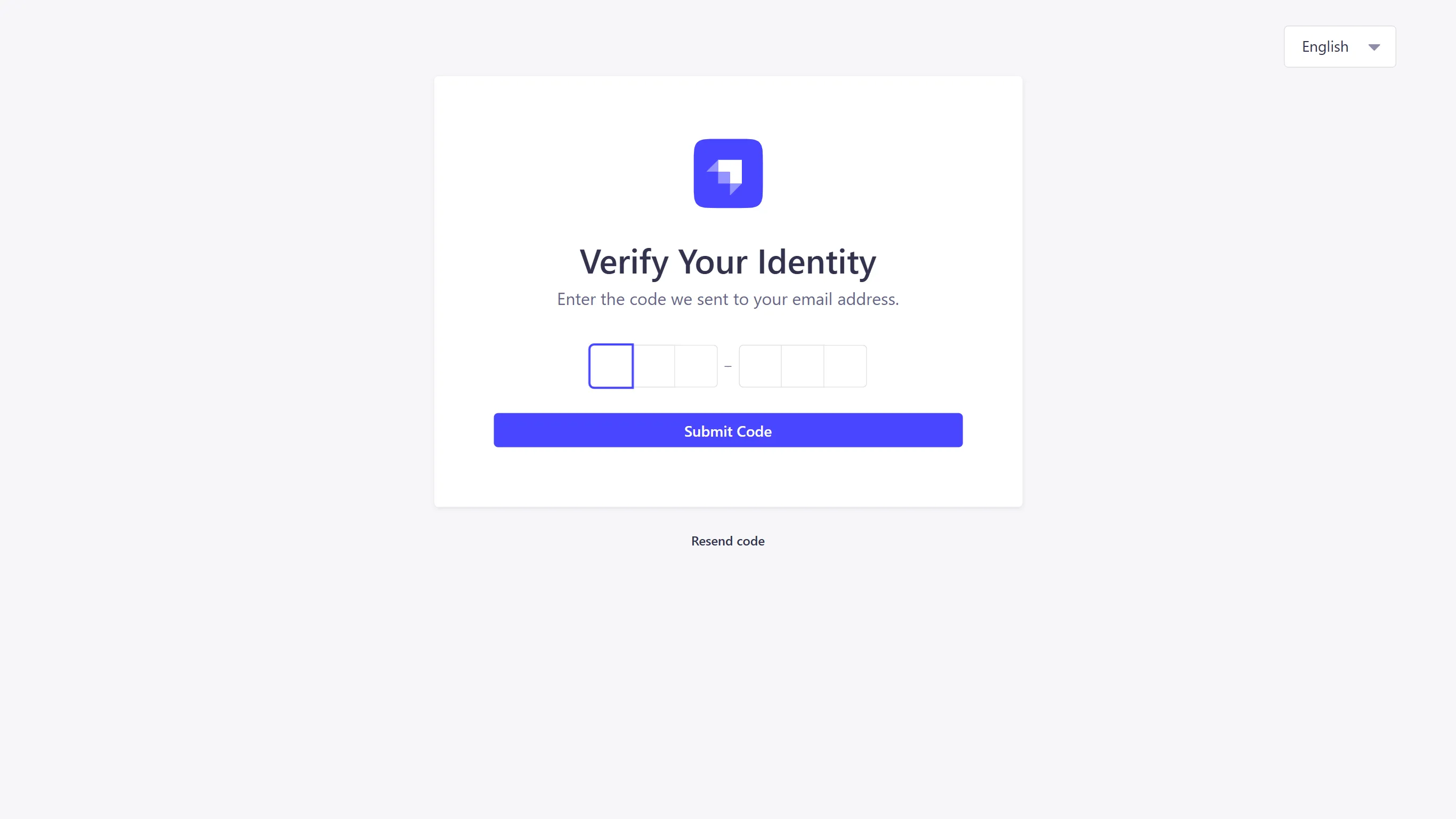
- Dedicated verification page.
- Global Configuration:
- Enable/Disable globally.
- Custom "Issuer" name for authenticator apps.
- Role-Based Access Control: Granular permissions for managing plugin settings.
- Multi-language Support: Fully localized interface.
Installation
To install this plugin, you'll need to include it in your Strapi project.
- Install the dependency:
npm install strapi-identity
# or
yarn add strapi-identity- Enable the plugin in
config/plugins.ts:
export default {
  // ...
  'strapi-identity': {
    enabled: true,
  },
  // ...
};- Build the admin panel:
npm run build- Restart Strapi:
npm run developConfiguration
Access the global settings via the admin panel: Settings -> Global Settings -> Strapi Identify Settings
| Option | Description | | ----------- | ------------------------------------------------------------------------------------------ | | Enabled | Master switch to enable or disable the MFA interception logic globally. | | Enforce | Force all users to set up MFA before accessing the dashboard. | | Issuer | The name that appears in the authenticator app (e.g., "My Project"). Defaults to "Strapi". |
Permissions
Go to Settings -> Administration Panel -> Roles to configure who can manage these settings:
plugins::strapi-identity.settings.read: View configuration.plugins::strapi-identity.settings.update: Modify configuration.
User Guide
Setting up MFA (User)
- Log in to the Strapi Admin panel.
- Click on your User Profile avatar in the top-right corner.
- Click Profile.
- In the "Two-Factor Authentication" section, toggle the switch to Enable Two-Factor Authentication.
- A modal will appear:
- Scan the QR Code with your authenticator app.
- Enter the 6-digit code displayed in your app.
- Save your Recovery Codes in a safe place. You will not see them again!
- Click Finish.
Signing In
- Enter your Email and Password on the standard Strapi login page.
- If credentials are correct and MFA is enabled, you will be redirected to the Verification Page.
- Enter the code from your authenticator app.
- Upon success, you will be redirected to the dashboard.
Admin Reset (Super Admin)
Administrators with the settings.update permission can reset MFA for other users:
- Navigate to Settings -> Administration Panel -> Users.
- Click the Edit (pencil) icon for the user you wish to manage.
- Locate the Two-Factor Authentication section in the user form.
- If MFA is enabled for that user, click the Reset button.
- This will disable 2FA for the user, allowing them to log in with just their password and set up MFA again.
Roadmap & Status
Below is the implementation status of planned features.
- [x] MFA Login: Intercepts admin login securely.
- [x] Recovery Codes: Backup access method.
- [x] TOTP App Compatibility: Standard RFC 6238 implementation.
- [x] Integrated Setup Screen: User-friendly wizard in profile settings.
- [x] MFA Page Matches Theme: Consistent UI/UX.
- [x] Custom Issuer: Configurable app label.
- [x] Multi-language Support: i18n ready.
- [x] Admin Reset: Allow super-admins to reset MFA for other users who lost access.
- [x] Email Passcode: Alternative MFA method via Email.
- [x] Enforced Mode: Mandatory MFA for all users.