
supa-login
v1.0.3
Published
A good-looking, reusable React component for Supabase authentication.

Maintainers
 notfawkes
Readme
Supa Login
A good-looking, reusable React component for Supabase authentication.
Preview
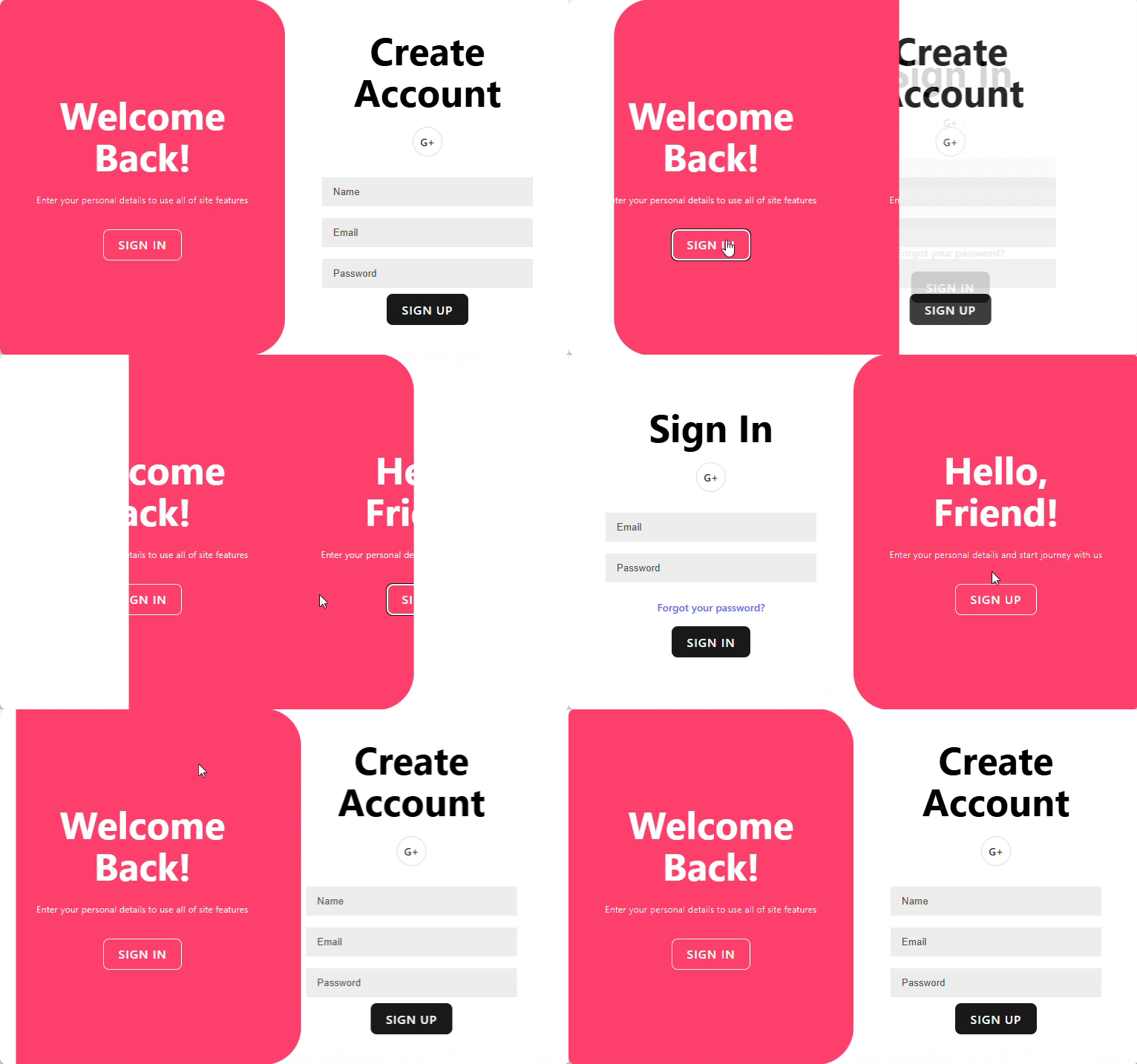
Installation
npm install supa-loginUsage
import AuthUI from 'supa-login';
import { createClient } from '@supabase/supabase-js';

const supabase = createClient('YOUR_SUPABASE_URL', 'YOUR_SUPABASE_ANON_KEY');

function App() {
  return (
    <AuthUI supabaseClient={supabase} />
  );
}
Features
- Login and Signup forms
- Social login with Google
- Easy to integrate
- Customizable (soon!)
Configuration
Before you can use supa-login, you need to configure your Supabase project to enable Google authentication.
1. Getting Your Supabase Credentials
Every Supabase project has a unique URL and a set of API keys.
Go to your Supabase project dashboard.
In the left sidebar, navigate to Settings.
Click on API.
Here you will find your Project URL and your Project API Keys. You'll need the
anonpublickey.Copy these values into your
.envfile:VITE_SUPABASE_URL="YOUR_SUPABASE_URL" VITE_SUPABASE_ANON_KEY="YOUR_SUPABASE_ANON_KEY"
Or else
Just click on the Connect button which is in top and navigate to App Frameworks tab
2. Setting Up Google Authentication
Enable the Google Provider in Supabase:
- In your Supabase project dashboard, go to Authentication (the user icon).
- Click on Providers in the sidebar.
- Find Google in the list and enable it.
Get Your Google Client ID and Secret:
- Go to the Google Cloud Console.
- Create a new project or select an existing one.
- Navigate to APIs & Services > Credentials.
- Click Create Credentials and select OAuth client ID.
- Choose Web application as the application type.
- Under Authorized redirect URIs, you must add the callback URL from your Supabase Google provider settings. It will look like this:
https://<YOUR_PROJECT_REFERENCE_ID>.supabase.co/auth/v1/callbackNote: You will get this callback URL under Authentication > SignIn/Providers > Google - Click Create. You will now see your Client ID and Client Secret.
Add Google Credentials to Supabase:
- Go back to the Google provider settings in your Supabase dashboard. Authentication > SignIn/Providers > Google
- Copy the Client ID and Client Secret from the Google Cloud Console and paste them into the respective fields in Supabase.
- Click Save.
Development
To run the development server:
- Clone the repository.
- Install dependencies:
npm install - Create a
.envfile as described in the Configuration section above. - Start the development server:
npm run dev
Building the library
To build the library for production, run:
npm run buildThis will create the distributable files in the dist folder.