
syncthis
v1.1.1
Published
Automatic directory synchronization via Git

Maintainers
 mischah
Readme


syncthis
Automatic directory synchronization via Git.
Commits, pulls, and pushes your changes on a configurable schedule — no manual git commands needed. Runs as a background service managed by your OS.
Primary use case: Keep your Obsidian vault in sync across multiple devices.
Smart Conflict Resolution
When the same file is edited on two devices, syncthis detects the conflict and lets you resolve it interactively — with a word-level diff and per-hunk granularity:
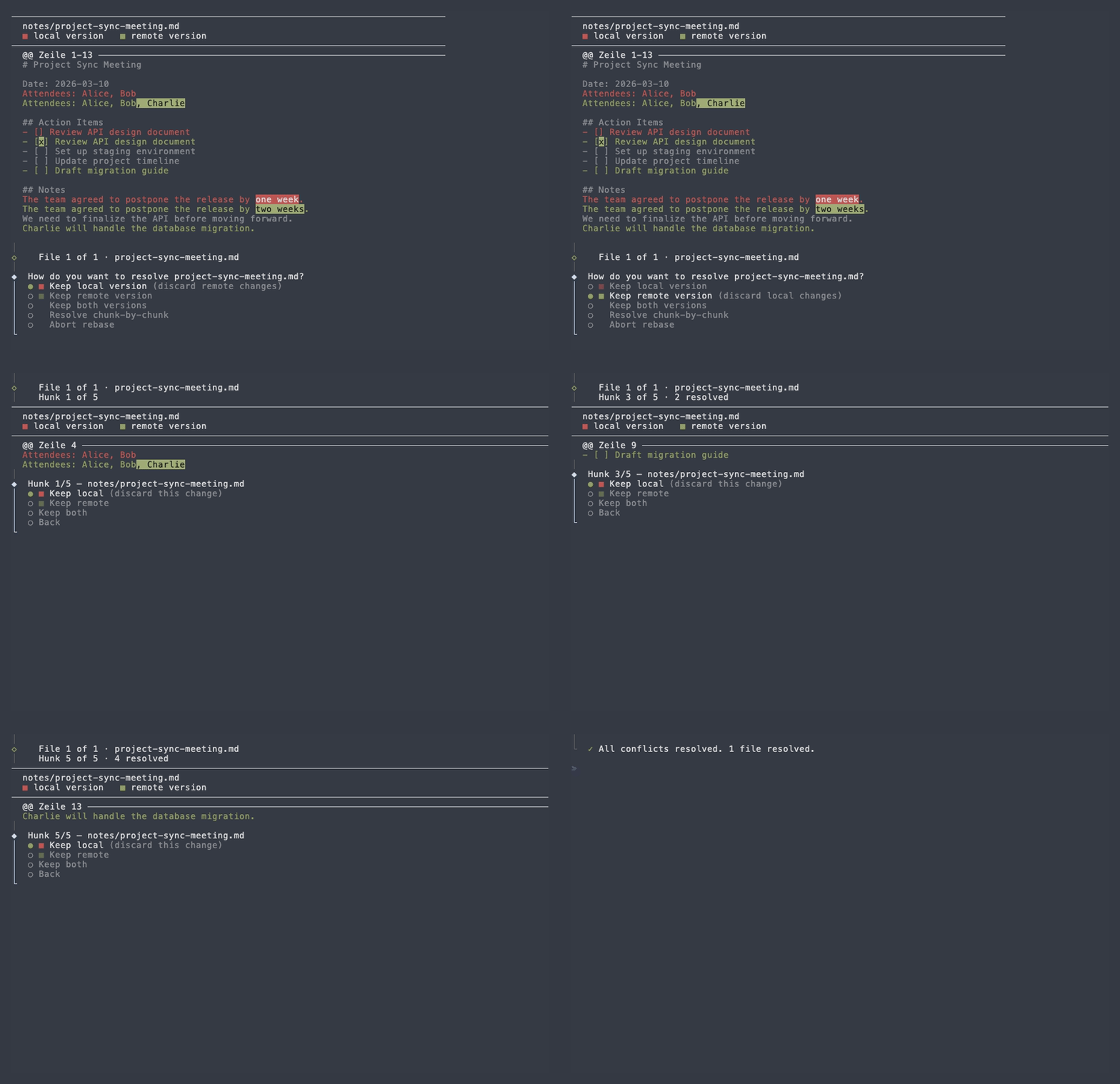
Table of Contents
Quick Start for Obsidian Users
Not a developer? This section is for you. Brand new to Git and the terminal? Follow our step-by-step guide instead. If you're comfortable with the terminal, skip to Installation.
What syncthis does: It runs in the background and automatically commits and syncs your Obsidian vault to a private Git repository (e.g. on GitHub). This keeps your notes in sync across all your devices — without any manual steps.
Prerequisites:
- Git installed — check with
git --versionin your terminal. If missing, download it here. - Node.js 20+ installed — check with
node --version. If missing, download it here. - A private GitHub repository created for your vault (e.g.
github.com/yourname/my-vault). See Creating a repository — make sure to select Private. - SSH access to GitHub configured — follow GitHub's SSH guide if you haven't done this yet.
Setup (one-time, takes ~2 minutes). Open a terminal (macOS: Terminal.app via Spotlight; Linux: Ctrl+Alt+T) and run:
# 1. Install syncthis
npm install -g syncthis

# 2. Go to your vault folder
cd /path/to/your/obsidian-vault

# 3. Initialize — links your vault to your GitHub repo
syncthis init --remote [email protected]:yourname/my-vault.git

# 4. Start syncing in the background (every 5 minutes by default)
syncthis start
That's it. You can close the terminal — syncthis runs as a background service managed by your OS. On your other devices, repeat steps 2–4 using --clone instead of --remote:
# On your second device: clone and start syncing
syncthis init --clone [email protected]:yourname/my-vault.git --path /path/to/vault
syncthis start
Check the status anytime:
syncthis statusStop syncing:
syncthis stopInstallation
npm install -g syncthisOr run without installing:
npx syncthis init --remote [email protected]:yourname/vault.gitRequirements: Node.js ≥ 20.0.0, Git installed and accessible in PATH.
Supported platforms: macOS (launchd), Linux (systemd).
Commands
syncthis init
Initializes a directory for syncing. Two modes:
syncthis init --remote [email protected]:user/vault.git   # link existing directory
syncthis init --clone [email protected]:user/vault.git    # clone from remote
For all options run
syncthis init --helpor see the CLI Reference.
syncthis start
Installs (if needed) and starts the background sync service.
syncthis start                    # current directory
syncthis start --path ~/vault
syncthis start --interval 60      # sync every 60 seconds
syncthis start --all              # start all registered services
syncthis start --foreground       # run attached to terminal (debug)
For all options run
syncthis start --helpor see the CLI Reference.
syncthis stop
Stops the background sync service. The service stays installed and can be restarted with syncthis start.
syncthis stop
syncthis stop --all
syncthis status
Shows the current sync status: config, Git info, service state, and health summary.
syncthis status
syncthis status --all
syncthis health
Shows whether the service is actively syncing — not just that the process is alive.
syncthis health
syncthis health --all
| Status | Meaning |
|--------|---------|
| healthy | Process running, last sync successful, not overdue |
| degraded | Process running but sync overdue or consecutive failures |
| unhealthy | Process not running, ≥5 consecutive failures, or stuck conflict |
syncthis list
Lists all registered syncthis services on the system.
syncthis listsyncthis logs
Shows the sync log output.
syncthis logs                    # Last 50 lines
syncthis logs --follow           # Live output (Ctrl+C to stop)
syncthis uninstall
Stops and completely removes the service from the OS. Your files and logs are not deleted.
syncthis uninstall
syncthis uninstall --all
syncthis resolve
Interactively resolves a paused rebase conflict (used with the ask conflict strategy in background mode).
syncthis resolveMachine-readable output (--json)
Pass --json to any command (except resolve and logs) for structured JSON output — useful for scripting.
syncthis status --json | jq '.data.service.status'Configuration
syncthis init creates a .syncthis.json in the synced directory:
{
  "remote": "[email protected]:user/vault.git",
  "branch": "main",
  "cron": "*/5 * * * *",
  "interval": null,
  "onConflict": "auto-both"
}
| Field | Type | Default | Description |
|-------|------|---------|-------------|
| remote | string | — | Remote repository URL |
| branch | string | "main" | Branch to sync |
| cron | string | null | "*/5 * * * *" | Cron expression |
| interval | number | null | null | Interval in seconds (≥ 10) |
| onConflict | string | "auto-both" | Conflict strategy: auto-both, auto-newest, stop, ask |
Exactly one of cron or interval must be set. CLI flags always override the config file.
Conflict strategies: auto-both (default) keeps both versions as a conflict copy. See Conflict Strategies for full details.
Logging
Logs are written to both stdout and .syncthis/logs/syncthis.log in the synced directory. Control verbosity with --log-level debug|info|warn|error.
Use syncthis logs or syncthis logs --follow as a shortcut to read them.
Documentation
- CLI Reference — All commands and flags
- Conflict Strategies — Full conflict strategy docs
- How It Works — Sync cycle diagram, service lifecycle
- Development — Dev setup, project structure, tech stack
- Obsidian Setup Guide — Step-by-step for new users
Desktop App
A desktop GUI is also available — see the syncthis repository for details.
Support
If you find syncthis useful, consider supporting its development: