
taepdf
v2.4.5
Published
Browser-based HTML-to-PDF engine that captures your page's exact rendered layout and turns it into a real, pixel-perfect PDF – no server, no headless browser.
Downloads
268

Maintainers
 silly-tae
Readme
taepdf
Font engine: taetype – a pure Rust/WASM font engine (decode, instance, subset, shape TTF, OTF, TTC, and WOFF2).
A browser-based HTML-to-PDF engine powered by Rust and WebAssembly. You design your document as HTML and CSS, taepdf captures the exact layout your browser renders, and turns it into a PDF – pixel for pixel.
No server. No headless browser. No approximation. What the browser shows is what the PDF contains.
npm install taepdfPreview
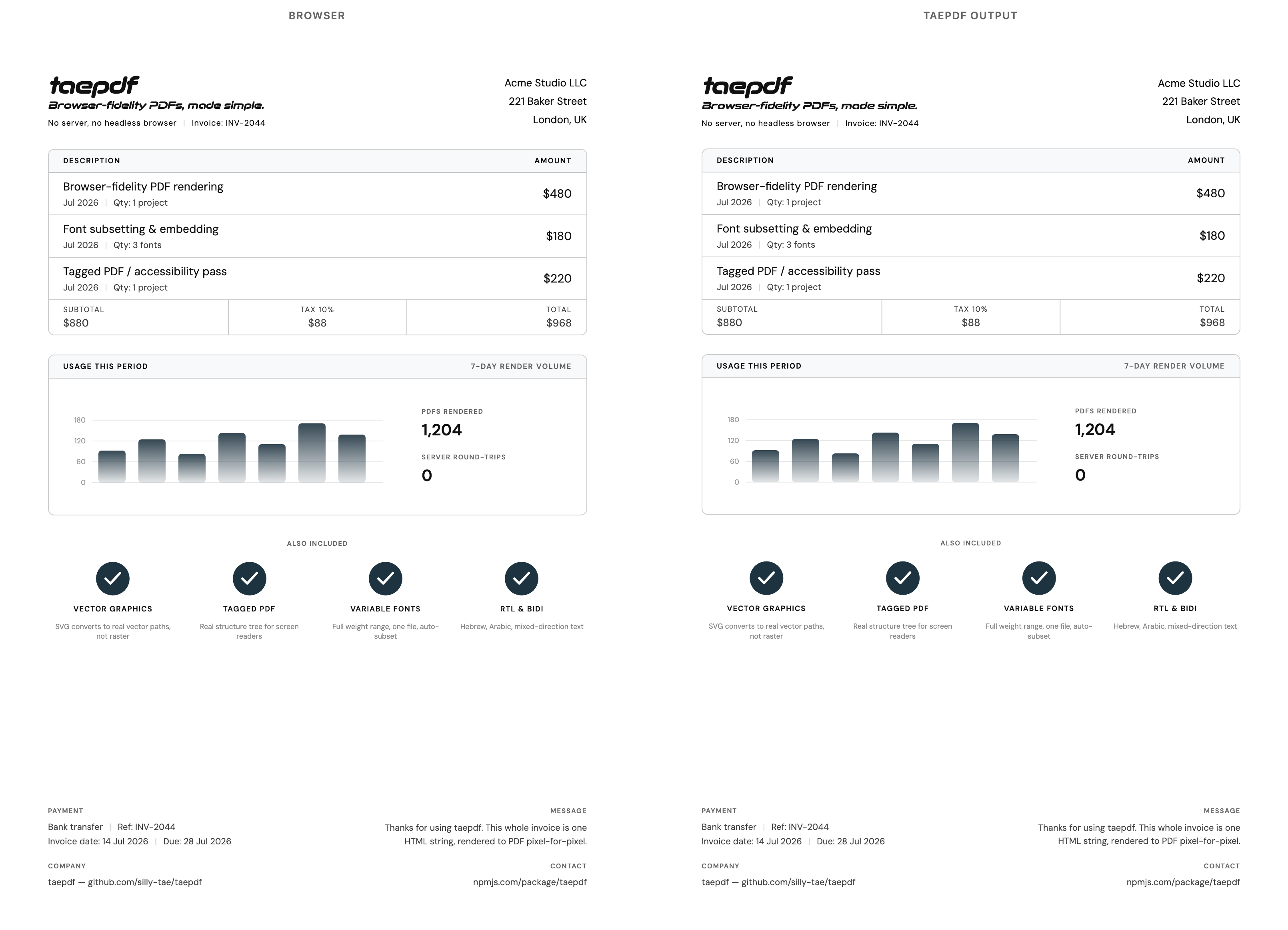
Left is a live Chrome screenshot of the HTML. Right is that exact same HTML, rendered by taepdf's PDF engine and rasterized back to an image for this comparison. Real output, not a mockup – run npm run gen-preview to reproduce it yourself.
Table of contents
- Preview
- How it works
- Limitations
- Installation
- Quick start
- API reference
- Page sizes and orientation
- Templates
- Live preview
- Document structure and navigation
- Pagination and page breaks
- Vertical writing mode and right-to-left text
- Interactive forms
- Accessibility and PDF/A
- Images
- SVG and vector graphics
- Dynamic filenames
- The download utility pattern
- Framework integration
- PDF permissions
- Security best practices
- Mobile
- WYSIWYG
- TypeScript types
- Complete examples
- Troubleshooting
- Used by
How it works
When you call pdf.download(), taepdf:
- Injects your HTML into a hidden container in the current page
- Reads every element's exact position, size, color, font, and style directly from the browser DOM using
getBoundingClientRect()andgetComputedStyle() - Passes that data to a Rust/WASM engine that reconstructs the layout as a real PDF file
- Triggers a file download in the browser
Because it reads from the live DOM, the output is exact. There is no font metric estimation, no layout engine to re-implement, and no gap between what you see and what you get.
Limitations
Understanding these upfront will save you time.
Browser only
taepdf runs entirely in the browser. It depends on the DOM – specifically getBoundingClientRect(), getComputedStyle(), and document.createElement() – which do not exist outside a browser engine.
It cannot be used in:
- Node.js or Bun
- Electron or Tauri desktop apps (even though they have a JS runtime, the rendering context matters)
- Server-side rendering – SSR builds that run on the server will fail to import or execute it
- CLI tools, scripts, or any non-browser environment
If you're using a meta-framework like SvelteKit, Next.js, Nuxt, or Remix, you must ensure the import and any calls to taepdf only happen on the client side. See the Framework integration section for exactly how to do this.
ESM only
The package ships as native ES modules, matching its browser-only nature. Every modern bundler (Vite, webpack 5+, esbuild, Next.js, SvelteKit, Nuxt) handles this without any configuration. There is no CommonJS build.
Installation
npm install taepdfThat's it. No copying source files, no editing tsconfig.json, no path aliases.
import pdf from 'taepdf'That single import is all you need. The engine starts warming up automatically the moment this line runs.
What you do not need to do
- No WASM file setup or configuration
- No engine initialisation calls
- No font loading or registration boilerplate
- No renderer imports
- No build plugins
- No path aliases or tsconfig changes
- No hand-written HTML-escape helper –
escapeHtml()is exported, see Escaping HTML - No duplicate
@font-facedeclaration for the live preview – see Live preview
Suggested project structure
taepdf only provides the engine – you still write two small files of your own per document type: a template (data in, HTML string out) and an export utility (wires the template into pdf.download(), with a double-click guard and loading state).
Scaffold the template file with:
npx taepdfThis creates src/pdf/documentTemplate.ts – a minimal, working template (the same one shown in Basic structure below) you edit to fit your own document. It never overwrites an existing file; run it again after deleting the file if you want a fresh copy. Pass a path to scaffold somewhere else: npx taepdf src/lib/pdf.
src/
  pdf/
    documentTemplate.ts   ← your template: buildDocumentHTML(data) => string (npx taepdf creates this)
    pdfUtils.ts             ← your download utility: downloadInvoice(data, callbacks) (you create this)
There's no scaffold command for pdfUtils.ts – copy it directly from The download utility pattern below, since what belongs in it (which callbacks, what state) is closely tied to your own app's UI, not something a generic template can guess at.
The template file is the one thing every other piece of your app imports and calls – your preview component calls it and passes the result to previewHTML(), your export button's utility calls it and passes the result to pdf.download(). See Live preview for why this means you never design the document twice.
Quick start
Here is the minimum working example – a one-page PDF with a heading and a paragraph:
import pdf from 'taepdf'

const html = `
  <style>
    .page { font-family: sans-serif; padding: 40pt; color: #111; }
    .page * { box-sizing: border-box; margin: 0; padding: 0; }
  </style>
  <div class="page">
    <h1>Hello, PDF</h1>
    <p>This is my first document.</p>
  </div>
`

await pdf.download(html, 'A4', 'hello.pdf')
Run this in the browser and a file named hello.pdf will download immediately.
API reference
pdf.download(html, size, filename, security?, extras?)
Renders the HTML string and downloads it as a PDF file. This is the main method you will use.
await pdf.download(html, 'A4', 'invoice.pdf')| Parameter | Type | Required | Description |
|---|---|---|---|
| html | string | Yes | The HTML string to render. Include a <style> block for any custom CSS – it's not required, but a document with no styling at all is rarely what you want. |
| size | PageSize | Yes | Page size as a string or custom object. See Page sizes and orientation. |
| filename | string | Yes | The name of the downloaded file, including .pdf. |
| security | SecurityOption | No | Encryption preset or custom config. See PDF permissions. |
| extras | RenderExtras | No | Orientation, metadata, bookmarks, headers/footers, tagging, PDF/A. See the relevant sections below. |
pdf.render(html, size, security?, extras?)
Renders the HTML and returns the raw PDF as a Uint8Array instead of downloading it. Use this when you need to upload the PDF to a server, show it in an <iframe>, or process the bytes yourself.
const bytes = await pdf.render(html, 'A4')

// Show in an iframe
const blob = new Blob([bytes], { type: 'application/pdf' })
const url  = URL.createObjectURL(blob)
iframeEl.src = url
pdf.warmup()
taepdf automatically starts loading its WASM engine the moment the module is imported – you do not need to call this. warmup() simply returns a promise that resolves when the engine is fully ready.
You would only call this if you need to explicitly wait for the engine before doing something – for example, enabling an export button only after the engine is loaded:
// Disable the button while the engine loads
button.disabled = true
await pdf.warmup()
button.disabled = false
In most apps you will never need this. By the time a user clicks "Export", the engine has already been loading in the background since the page opened.
pdf.name(str)
Converts any string into a safe filename segment. It replaces whitespace with underscores and removes characters that are invalid in file paths – quotes, slashes, and other filesystem-unsafe punctuation.
pdf.name('John Doe')             // → 'John_Doe'
pdf.name('Acme Studio / 2026')   // → 'Acme_Studio__2026'
pdf.name('Rechnung #0042')       // → 'Rechnung_0042'
pdf.name('  spaces  ')           // → 'spaces'
pdf.name('田中太郎')              // → '田中太郎' (letters from any script are kept, not just ASCII)
pdf.name('José García')          // → 'José_García'
Always use this on any value from user input that ends up in the filename.
escapeHtml(str)
Escapes a string for safe interpolation into HTML text content or a quoted attribute value. Named export, imported alongside the default pdf object:
import pdf, { escapeHtml } from 'taepdf'
escapeHtml(`O'Brien & Sons <b>"bold"</b>`)
// → "O'Brien & Sons <b>"bold"</b>"See Escaping HTML for when and why to use it.
Page sizes and orientation
Pass a string as the size argument. Sizes are case-sensitive.
| String | Width × Height | Common use |
|---|---|---|
| 'A4' | 595 × 842pt | Europe, international standard |
| 'A3' | 842 × 1191pt | Large format, posters |
| 'A5' | 420 × 595pt | Booklets, small documents |
| 'Letter' | 612 × 792pt | United States standard |
| 'Legal' | 612 × 1008pt | US legal documents |
| 'Tabloid' | 792 × 1224pt | US large format |
await pdf.download(html, 'A4',     'doc.pdf')
await pdf.download(html, 'Letter', 'doc.pdf')
await pdf.download(html, 'A5',     'doc.pdf')
For a custom size, pass an object with width and height in points (pt):
await pdf.download(html, { width: 300, height: 500 }, 'custom.pdf')A custom size with a non-finite, zero, or negative width/height throws immediately with a clear error, rather than silently producing a broken PDF (or hanging).
Landscape orientation – pass orientation: 'landscape' in the extras argument. This swaps width and height for you; no need to build a custom size object yourself:
await pdf.download(html, 'A4', 'landscape.pdf', undefined, { orientation: 'landscape' })previewHTML takes orientation differently – its third argument is a single PageConfig object ({ size, orientation? }), not a separate extras argument, since previewHTML has no extras parameter at all:
previewHTML(html, container, { size: 'A4', orientation: 'landscape' })1 inch = 72pt. Use
ptunits in your CSS to get exact 1:1 sizing without any conversion.
Templates
A template is a TypeScript function that takes your data and returns an HTML string. That string contains both the HTML structure and a <style> block with the CSS. taepdf receives the final string and renders it – it does not care how you built it.
Basic structure
import { escapeHtml } from 'taepdf'

export function buildDocumentHTML(data: MyData): string {
  return `
    <style>
      .page {
        box-sizing: border-box;
        font-family: Inter, sans-serif;
        color: #111;
        padding: 56pt 62pt;
      }
      .page *, .page *::before, .page *::after {
        box-sizing: inherit;
        margin: 0;
        padding: 0;
      }
    </style>
    <div class="page">
      <h1>${escapeHtml(data.title)}</h1>
      <p>${escapeHtml(data.body)}</p>
    </div>
  `
}
You call this function, pass the returned HTML to pdf.download(), and you're done.
Escaping HTML
escapeHtml() is exported directly from the package – no need to write your own. Always call it on any string that comes from user input before inserting it into the HTML. Without it:
- A name like
O'Brien & Sonswill produce malformed HTML - A value containing
<or>will break the template structure - In theory, an attacker could inject arbitrary HTML
Numbers and booleans are safe to interpolate directly – they cannot contain special HTML characters.
// safe -- number
`<td>${item.qty}</td>`

// safe -- boolean
`<div class="${isActive ? 'active' : ''}">`

// must escape -- string from user
`<td>${escapeHtml(item.description)}</td>`
`<div class="name">${escapeHtml(user.fullName)}</div>`
escapeHtml() also escapes quote characters (" and '), so it's safe to use inside attribute values too:
`<div title="${escapeHtml(user.bio)}">`CSS
Every CSS feature your browser supports works in taepdf:
- Flexbox and CSS Grid
border-radius,box-shadow,opacity- CSS gradients (linear, radial, and conic) – including gradient stops with partial alpha; a translucent-to-transparent fade renders as a real fade, not flattened to one opaque color
border-image(9-slice, including gradient sources – see Images)- CSS counters (
counter-reset/counter-increment/counter-set) and list markers (::marker, everylist-style-type) text-transform,letter-spacing,white-space,text-overflow: ellipsis,hyphens: auto::first-letterand::first-lineoutline(width, style, color, offset – grows outward with a rounded box's own corner radius)mix-blend-mode(multiply,screen,overlay,darken,lighten,color-dodge,color-burn,hard-light,soft-light,difference,exclusion,hue,saturation,color,luminosity)box-decoration-break: clone(an inline element wrapped across multiple lines, or a block element split across pages, paints each fragment as its own complete box – full border/radius on every side – instead of one shape sliced at the break)- Custom properties (
--my-var) @font-facefor custom fontscalc(),min(),max(),clamp()- Multi-column layouts
- Pseudo-elements (
::before,::after) - 2D transforms (
rotate,scale,skew,matrix), filters, masks,clip-path– see Filters and masks for what filters/masks actually rasterize to position: fixed(see Headers and footers – it repeats correctly on every page)
3D transforms are not supported. matrix3d(), perspective(), rotate3d(), and similar have no safe 2D equivalent to fall back to, so an element using any of them renders completely untransformed (a console warning tells you when this happens) rather than risk a wrong-looking projection.
mix-blend-mode applies per paint operation, not per isolated stacking-context group. PDF has no direct equivalent of CSS's group-isolation-based blend compositing – the nearest ancestor's blend mode applies each time something paints, which matches the common case (one blended element over its background) but can diverge from the browser for deeply nested or stacked blended elements.
Use pt (points) for sizing. Font sizes, padding, margin, gap, border-width – all of these in pt translate directly into the PDF without any conversion math.
.page     { padding: 56pt 62pt; }
.heading  { font-size: 22pt; font-weight: 700; }
.body     { font-size: 9pt; line-height: 1.5; }
.divider  { border-top: 0.5pt solid #e0e0e0; }
Scope everything to a wrapper class
This is the single most important CSS rule in taepdf. Never use body, *, or html selectors in your template CSS.
When taepdf measures your layout, it injects the template HTML directly into the live browser page. Any selector that matches the whole document – *, body, html – will also match your app's own elements and cause your app's styling to break or shift.
/* bad -- leaks out of the template and into your app */
* { box-sizing: border-box; margin: 0; padding: 0; }
body { font-family: Inter, sans-serif; background: white; }

/* good -- fully contained */
.page { box-sizing: border-box; font-family: Inter, sans-serif; }
.page *, .page *::before, .page *::after {
  box-sizing: inherit;
  margin: 0;
  padding: 0;
}
Give your root wrapper a specific class name (.page, .invoice, .cv-doc, etc.) and prefix every other selector with it.
Filters and masks
filter and mask-image have no PDF operator equivalent, so an element using either is rasterized – its entire subtree (box, text, children) is painted to an offscreen canvas and embedded as one flattened image, with the filter/mask effect baked in.
This works well for the common case (a decorative box, an icon, a simple label), but the rasterizer is intentionally simple, not a full layout engine, so it has real limits:
- Text has no wrapping or multi-line layout. Each text node paints as a single line, vertically centered in its box. A multi-line paragraph inside a filtered or masked element collapses onto one line instead of wrapping.
- Background gradients are not reproduced. A gradient background falls back to the element's plain
background-color(or nothing, if unset). - Only the top border is read. Border width, style, and color are taken from the top side and applied uniformly to all four sides – a box with different per-side borders paints as if every side matched the top one.
filterandmask-imagetogether only apply the filter. If an element has both set, the mask is silently skipped rather than combined with the filtered result.
If you need pixel-perfect text or a gradient background under a filter or mask, restructure the template so the filter/mask applies to a plain decorative element (a box, an icon) rather than one containing real text or a gradient.
background-clip: text (the "gradient text" trick, usually paired with color: transparent or -webkit-text-fill-color: transparent) has the same underlying problem for a different reason: a PDF box fill can't be clipped to glyph outlines. Instead of the real gradient, the text renders in a flat, solid color – the gradient's first color stop for a gradient background, the element's own plain background-color when there's no gradient (a url() image background falls back to this too, not to the image itself), or black as a last-resort default if neither is set.
How templates are parsed and sanitized
Your HTML string is parsed with the browser's own DOMParser – never assigned to innerHTML, never executed. This is what makes it safe to render even before every string has been individually escaped: nothing in the parsed result can ever run as script.
As part of that same parsing pass, taepdf automatically removes:
<script>tags, entirely- Any
on*event handler attribute (onclick,onerror, etc.) javascript:,data:, andvbscript:URLs inhrefattributes<link rel="stylesheet">– external stylesheets are not fetched; inline your CSS in a<style>block instead (a console warning tells you if one was removed)@importinside a<style>block – inline the imported stylesheet's contents instead (also warned)<object>,<embed>,<iframe>,<video>, and<audio>tags, entirely, with no console warning – none of these have a PDF equivalent to fall back to
None of this requires configuration – it happens on every render()/download()/previewHTML() call, unconditionally.
Two more guarantees that follow from the same mechanism, so you don't have to think about them:
- Your
<style>block can go anywhere in the template string. The browser's own HTML parser can silently relocate a<style>tag into the parsed document's<head>depending on where it sits in the markup – a well-knownDOMParserquirk. taepdf collects styles from both the parsed head and body before injecting them, so this relocation never causes your CSS to go missing, regardless of where you wrote the<style>tag. - Two templates using the same class name never collide. Every call gets its own internal CSS scope – reusing
.boxor.headeracross an invoice template and a CV template (even a live preview and an export running back to back) never lets one template's rule apply to the other's markup. This is also what makes the "scope everything to a wrapper class" rule above actually hold: a straybody/:root/htmlselector in your CSS is automatically confined to your own template's container instead of reaching your app, rather than silently depending on you never making that mistake.
Fonts
Declare fonts with @font-face inside your template's <style> block. Point src at the font file in your project's public folder.
<style>
@font-face {
  font-family: 'Inter';
  src: url('/fonts/inter-var.woff2') format('woff2');
  font-weight: 100 900;
  font-style: normal;
}
.page { font-family: Inter, sans-serif; }
</style>
taepdf handles everything automatically:
- Detects the font in your CSS
- Fetches it and figures out its real format from the file's own contents – not from the
format()hint or the file extension, so that part of the@font-facerule is only for the browser's own benefit - Decompresses it if needed (WOFF2 decompression runs inside the WASM engine, not the browser's own Streams API, so it works consistently across every browser)
- Registers it with the PDF engine
- Subsets it – only the characters actually used in the document are embedded in the PDF, keeping file sizes small
WOFF2, TTF, OTF, and TTC (font collection) files all work, with no configuration difference between them – point src at whichever one you already have. You do not need to convert a .ttf to .woff2 just for taepdf's sake (WOFF2 is still worth using for its own sake – it's a much smaller download for the browser).
Variable fonts work. A single variable font file covering a full weight range (e.g. 100–900) is supported and recommended.
Multiple fonts work. Declare as many @font-face blocks as you need – for example, a separate block for italic or a second typeface for headings.
The font must be accessible from the browser. The url() in @font-face is fetched by the browser, so it must be in your public folder and served over HTTP (or HTTPS). Local file paths (C:\fonts\...) do not work.
A character your font doesn't have falls back automatically. If your font-family's first choice can't render a given character (an emoji, a CJK character in a Latin-only font), taepdf tries the rest of your declared font-family list first, then falls through to any other font registered anywhere in the document, before giving up on that one character. You don't need to declare a fallback font explicitly for this to happen – it always tries.
Color/emoji glyphs render correctly but are not selectable text. A font's own color glyphs (COLR or a bitmap strike) draw as a real, correctly-colored picture in the PDF, but the underlying text-layer reference for that glyph is metrics-only – position and spacing, not a selectable character. Surrounding plain text is unaffected; only the emoji/color glyph itself can't be selected, copied, or searched.
Ruled lines
Do not use <hr> for horizontal dividers. <hr> has browser-specific default styles – particularly on mobile Safari – that make it behave inconsistently and can cause it to disappear in the exported PDF.
Use a <div> with a border-top instead:
.rule {
  border: none;
  border-top: 0.5pt solid #d2d2d2;
  height: 0;
  margin: 0;
}
<div class="rule"></div>This is reliable on every browser and every device.
Links and phone numbers
Mobile browsers (iOS Safari in particular) automatically detect phone numbers, email addresses, and sometimes URLs in plain text, and wrap them in <a> tags with blue styling. taepdf captures whatever color is rendered, so without a reset, your PDF will have unexpected blue text.
Add this to your template CSS:
.page a { color: inherit; text-decoration: none; }This applies to all <a> elements inside the template, whether you added them or the browser did.
An <a href="https://..."> produces a real, clickable link annotation in the PDF. An <a href="#anchorId"> produces a real internal jump-to link – see Bookmarks and internal links.
Only http://, https://, mailto:, and #fragment hrefs become a real clickable link annotation. <a href="tel:+1..."> (or any other URI scheme) still renders as plain text – the same region isn't clickable in the PDF, even though it works as tap-to-call in the browser.
i18n and translation strings
If you use a translation system (i18n), store raw characters in your translation strings – not HTML entities.
// wrong -- the & is already escaped
{ 'label': 'Sales & Marketing' }

// correct -- raw character, escapeHtml() will handle it
{ 'label': 'Sales & Marketing' }
escapeHtml() encodes & to & when building the HTML. If the string is already & and then escapeHtml() runs on it, the result is &amp; – which renders literally as & in the PDF instead of &.
Live preview
taepdf includes a built-in preview renderer. It takes the same HTML string your template produces and renders it as paginated page cards directly in the browser – exactly what the PDF will contain, without exporting first.
import pdf, { previewHTML } from 'taepdf'

const container = document.getElementById('preview')!
const html      = buildInvoiceHTML(data)

// Render the preview into a container element
previewHTML(html, container, { size: 'A4' })

// Export the exact same HTML – no second template, no duplication
await pdf.download(html, 'A4', 'invoice.pdf')
previewHTML(html, container, config) renders each page as a white card with a subtle shadow, stacked vertically inside the container. The template function is the single source of truth – the same call drives both the preview and the export. There is no second design and no duplication.
There is no separate "preview version" and "export version" of a document to build or keep in sync. Your template function (buildInvoiceHTML, or whatever you call it) is the only place the document's design lives. Both the live preview and the real export just call it and hand the resulting string to a different taepdf function – previewHTML for an on-screen preview, pdf.download/pdf.render for the real file. If you change the template, both update automatically, because there is only one template to change. A minimal component-style wiring:
import pdf, { previewHTML } from 'taepdf'
import { buildInvoiceHTML } from './invoiceTemplate.js'

function renderPreview() {
  previewHTML(buildInvoiceHTML(invoiceData), previewContainer, { size: 'A4' })
}

// call once on load, and again every time invoiceData changes (see Reactive updates below)
renderPreview()

exportButton.addEventListener('click', async () => {
  await pdf.download(buildInvoiceHTML(invoiceData), 'A4', 'invoice.pdf')
})
buildInvoiceHTML is called twice here – once for the preview, once for the export – but it is the exact same function both times, with no branching inside it for "am I being previewed or exported." If you use the download utility pattern instead of calling pdf.download directly, the wiring is identical – just swap the click handler's body for a call to your downloadInvoice() utility.
Scaling
A4 is 794px wide at screen resolution (96dpi). Use the zoom property to scale the preview down to fit your panel, and recompute with a ResizeObserver when the container resizes:
const applyScale = () => {
  const avail = panel.clientWidth
  container.style.zoom = avail < 794 ? String(avail / 794) : ''
}
applyScale()
const ro = new ResizeObserver(applyScale)
ro.observe(panel)
Reactive updates
When data changes, call previewHTML again with the new HTML string – the swap is atomic and flicker-free. For input-driven previews where the user is typing into form fields, debounce with requestAnimationFrame so rapid changes only trigger one render per frame:
let raf: number | null = null

function updatePreview() {
  if (raf !== null) cancelAnimationFrame(raf)
  raf = requestAnimationFrame(() => {
    previewHTML(buildInvoiceHTML(data), container, { size: 'A4' })
    raf = null
  })
}
Fonts just work
Declare @font-face once, in your template – the same declaration used for PDF embedding. previewHTML detects it, loads it into the browser's real font set the first time it's used, and reuses that across every subsequent call and every other preview on the page. There is nothing else to configure: no second @font-face declaration in your app's global CSS, no flash of fallback text, and no repeated network fetch on every re-render.
Without a preview
If you don't need a live preview, skip previewHTML entirely. Call pdf.download() directly:
await pdf.download(buildInvoiceHTML(data), 'A4', 'invoice.pdf')Same template function, same output, no preview step.
Document structure and navigation
Metadata, bookmarks, and headers/footers are all passed through the same extras argument as pdf.download()/pdf.render()'s last parameter.
await pdf.download(html, 'A4', 'report.pdf', undefined, {
  metadata:  { title: 'Q4 Report', author: 'Acme Inc.' },
  bookmarks: [{ title: 'Summary', page: 1 }, { title: 'Details', page: 2 }],
  header:    (page, total) => `<div style="font-size:8pt;text-align:right;">Page ${page} of ${total}</div>`,
})
Metadata
Standard PDF document properties, visible in any PDF viewer's document info panel:
extras: {
  metadata: {
    title:    'Q4 Sales Report',
    author:   'Acme Inc.',
    subject:  'Quarterly performance summary',
    keywords: ['sales', 'q4', '2026'],
    creator:  'Acme Internal Tools',
    language: 'en-US',
  }
}
Every field is optional.
Bookmarks and internal links
Pass a bookmarks array to build a real PDF outline (the panel most viewers show on the left):
extras: {
  bookmarks: [
    { title: 'Introduction', page: 1 },
    { title: 'Section 1',    page: 2, level: 1 },
    { title: 'Section 1.1',  page: 3, level: 2 },
    { title: 'Section 2',    page: 5, level: 1 },
  ]
}
level (default 0) controls nesting depth in the outline tree – a bookmark at level: 2 becomes a child of the nearest preceding bookmark at level: 1.
Add y (in pt, measured from the page's top edge) to scroll to a specific vertical position on that page instead of jumping straight to its top:
{ title: 'Section 2', page: 5, y: 220 }For a clickable in-document link (a table of contents, a "back to top" link), give the target element a real id and point an <a> at it with a # prefix:
<h2 id="section-2">Section 2</h2>
...
<a href="#section-2">Jump to Section 2</a>
This produces a real internal jump-to-page link in the PDF, not just a browser-only anchor.
Headers and footers
header and footer are functions that receive the current page number and the total page count, and return an HTML string – rendered in a fixed band at the top or bottom of every page:
extras: {
  header: (page, total) => `
    <div style="font-size:8pt;color:#888;border-bottom:0.5pt solid #ddd;padding-bottom:4pt;">
      Acme Inc. – Confidential
    </div>
  `,
  footer: (page, total) => `
    <div style="font-size:8pt;color:#888;text-align:center;">
      Page ${page} of ${total}
    </div>
  `,
}
The header/footer band's height is measured automatically from its own content, and the main content area shrinks to make room for it – you don't need to add manual top/bottom padding to your page template to avoid overlap.
That height is measured once, from a single representative page, not per page. taepdf renders your header/footer callback once (as if it were page 1 of 1) to measure how tall its content actually is, then reuses that same height for every page. Ordinary page-number digit-count differences ("Page 1 of 1" vs. "Page 250 of 250") don't change a template's wrapped line height in practice, so this is not something to worry about in the typical case. If your header or footer's content is designed to genuinely vary in height from page to page (not just digit count – conditionally showing an extra line on some pages, for example), keep in mind that only the first-page measurement is used: taller content on a later page is clipped to that original height rather than growing the band or overflowing into your main content.
If a header or footer uses a custom font, declare @font-face for it inside that same header/footer string. Each callback's returned HTML is parsed and its fonts registered independently from your main template – a font declared only in the main template's <style> block is not automatically available inside header/footer, and vice versa.
position: fixed content placed directly in your main template (not inside header/footer) repeats on every page too, anchored at its own position on the page – useful for a watermark or a background stamp that isn't tied to the page-number logic header/footer provide. This repeats correctly both in the real PDF export and in previewHTML's on-screen preview.
Pagination and page breaks
Automatic pagination
Content taller than one page continues onto additional pages automatically – there's nothing to configure for the common case. taepdf reproduces standard browser print behavior for how content actually splits, rather than just cutting wherever a page boundary happens to fall.
Never split without warning
These are never sliced across a page boundary – if one would cross, it's pushed whole onto the next page instead:
- Images,
<canvas>, and inline<svg> - Table rows (
<tr>) - Flex and grid containers (the whole container moves together, not individual items within it)
- Any element with
break-inside: avoidorbreak-inside: avoid-page
Explicit break control
break-before / break-after force a page break immediately before or after any element – useful for "always start this section on its own page":
.chapter { break-before: page; }Accepted values: page, always, left, right – taepdf treats all four the same way (a single fresh page); it does not distinguish left-hand from right-hand pages for double-sided printing. This works on any element, not just specific tags, and it forces a break even on content that's nowhere near overflowing a page on its own (a single short paragraph with break-before: page still starts a new page).
The older page-break-before / page-break-after / page-break-inside property names work identically – browsers alias them to the modern break-* properties automatically, and taepdf reads the resolved computed value either way.
Widows and orphans
Standard CSS orphans and widows are honored on the nearest paragraph, list item, table cell, or similar text-bearing block – both default to 2, matching the CSS specification's own default:
p { orphans: 3; widows: 3; }orphans– the minimum number of lines that must stay together at the bottom of a page before a break. If a paragraph would otherwise be split leaving fewer than this many lines above the break, and no earlier split point can satisfy it either, the whole paragraph moves to the next page instead of splitting.widows– the minimum number of lines that must carry over together to the top of the next page. If a natural break would leave fewer than this many lines after it, the split point moves earlier so at least this many lines move as a group.
Table headers repeat across pages
A <thead>'s rows repeat automatically at the top of every page a table's body spans, matching what browsers already do when printing – no configuration needed.
One real styling limitation worth knowing: the repeated header rows on pages after the first are plain <tr> clones, not wrapped in a second <thead> element (wrapping them in a real <thead>, or giving them display: table-header-group, would pull them to the very top of the table per the CSS table layout algorithm – exactly the opposite of "appear at this page break"). This means a CSS rule scoped through the thead ancestor, like:
/* only ever styles the row on the FIRST page – repeated copies don't match */
thead th { background: #eee; }
will only style the original row, not the repeated copies on later pages. Style header cells directly instead, so the rule matches every copy:
/* matches every copy, first page and repeated */
th { background: #eee; }
/* or, if you need to be more specific than a bare tag selector */
.table-header-cell { background: #eee; }
Vertical writing mode and right-to-left text
Right-to-left and bidirectional text
Set dir="rtl" (or CSS direction: rtl) on any element to lay its text out right-to-left:
<p dir="rtl">שלום עולם</p>Full Unicode Bidi Algorithm resolution comes from the browser's own layout, not a reimplementation – a line mixing right-to-left script (Hebrew, Arabic) with an embedded left-to-right run (an English brand name, a phone number) resolves and positions each word exactly as the browser itself lays it out, reading each word's own already-correct position directly from the DOM rather than re-deriving bidi ordering from scratch.
Vertical writing mode
writing-mode: vertical-rl or writing-mode: vertical-lr on a block lays its text out top-to-bottom in a column instead of left-to-right in a line:
.column { writing-mode: vertical-rl; }vertical-rl– columns progress right to left (traditional Japanese/Chinese book layout)vertical-lr– columns progress left to right
Glyphs are drawn upright within the column, not rotated 90° – the correct rendering for real vertical CJK text, and matching how real PDF viewers and print output expect a vertical-writing-mode document to look.
Scope of what's supported: plain colored text down a column. The following are not applied specifically to vertical text (a deliberate, documented scope cut, since combining vertical writing with any of these is rare in practice): text-decoration (underline/overline/line-through), text-shadow, text-overflow: ellipsis, and ::first-letter/::first-line. A vertical column is also expected to fit within a single page – content that would need to continue into a second page isn't specially split the way horizontal text's page breaks are.
There is no separate flag or CSS-like text meant only for taepdf here – both of these are standard CSS properties your browser already implements; taepdf reads the same computed values the browser itself uses to lay the content out.
Interactive forms
Real <input>, <textarea>, and <select> elements in your template become real, fillable PDF form fields (AcroForm) – no extra API, just write the elements.
<style>
  input, textarea, select { font-family: Inter, sans-serif; font-size: 10pt; }
</style>
<label>Name <input type="text" name="fullName" value="Jane Doe"></label>
<label>Comments <textarea name="comments">Pre-filled text</textarea></label>
<label>
  Country
  <select name="country">
    <option value="us" selected>United States</option>
    <option value="ca">Canada</option>
  </select>
</label>
<label><input type="checkbox" name="subscribe" checked> Subscribe to updates</label>
The element's current value (or checked state) becomes the field's initial value in the PDF, and it also prints statically in the same spot – so the field looks right even in a viewer that doesn't render form widgets.
Supported input types: text, email, tel, url, number, password, search (or no type attribute at all), plus checkbox and radio. Other input types (date, color, range, file, and similar) have no PDF form-field equivalent and currently produce no visible output at all – avoid them in export templates, or wrap the value in a plain <div> instead.
Give every field's font-family an explicit value. Browsers apply their own default control font to form elements rather than inheriting the page's font – an input with no font-family declared anywhere on it (directly or inherited) won't resolve a usable font for its PDF appearance.
Radio buttons don't have true group exclusivity in the PDF. Each radio input becomes its own independent field rather than one shared, mutually-exclusive group – a real, documented scope limit, not a bug.
Combine with the 'fillable' security preset (see PDF permissions) to make sure a PDF viewer actually allows editing the fields you just created.
Accessibility and PDF/A
Two independent, optional flags on extras:
await pdf.download(html, 'A4', 'report.pdf', undefined, {
  taggedPdf: true,
})
taggedPdf: true builds a real structure tree (/StructTreeRoot) from your HTML's own semantic tags – <h1>–<h6> become headings, <p> becomes a paragraph, <table>/<tr>/<td> become table structure, <ul>/<ol>/<li> become list structure, <img alt="..."> becomes a tagged figure with its alt text, <a> becomes a link. This is what lets a screen reader announce your document's real reading order and structure instead of a flat stream of unrelated text and images. Using semantic HTML elements in your template (rather than, say, styling every heading as a plain <div>) is what makes this worth turning on.
To exclude purely decorative content from the reading order entirely (a background shape, a spacer <div>, a repeated icon) – rather than have it show up as a meaningless untitled element between real content – mark it role="presentation", role="none", or aria-hidden="true". The whole subtree is skipped: no structure element, no marked content, nothing for a screen reader to stumble over.
await pdf.download(html, 'A4', 'report.pdf', undefined, {
  pdfA: true,
})
pdfA: true targets PDF/A-2a archival conformance (embeds an ICC color profile, XMP metadata, and implies taggedPdf – PDF/A's accessible conformance level requires the structure tree). PDF/A disallows encryption entirely, so passing both pdfA and security together throws immediately rather than silently producing a non-conformant file.
Structural correctness here is verified against the ISO 32000-2 / PDF/A-2 specification directly, not certified by an external validator (veraPDF or similar) – a genuinely strong effort, not a certified claim.
Images
Supported formats
taepdf officially supports exactly 4 raster image formats: JPEG, PNG, WebP, and AVIF (plus SVG as vector graphics, see SVG and vector graphics).
<img> works with JPEG and PNG natively – decoded and embedded directly by the engine, including CMYK JPEG and PNG transparency/indexed color.
WebP and AVIF also work, decoded by the browser itself rather than the engine – taepdf detects the format from the file's own contents and hands it to the browser's own image decoder, re-embedding the resulting pixels directly.
No other raster format is supported. GIF, BMP, ICO, and TIFF are detected and skipped rather than embedded, valid file or not – a <img>/background-image pointing at one of these is silently omitted from the export.
File size varies significantly by format. JPEG is the only format whose own compressed bytes are reused as-is in the output PDF (DCT passthrough – no re-encoding at all). PNG, WebP, and AVIF are all embedded as plain DEFLATE-compressed raw pixels instead – none of PNG's own row-filtering or WebP/AVIF's own (much stronger) encoding survives the round trip. For a large photographic image this adds up fast: the same photo measured ~800KB exported as JPEG versus ~3.7MB exported as PNG, WebP, or AVIF in real testing. If output file size matters and the image doesn't need transparency, JPEG is the better source format to point <img>/background-image at.
Object-fit and background images
object-fit (cover, contain, fill, none, scale-down) and object-position on <img> work as expected, including clipping to the element's own border-radius.
background-image supports everything you'd expect from the browser: background-size (including cover/contain), background-position, background-repeat (including repeat-x/repeat-y), background-origin, and background-clip (border-box/padding-box/content-box). background-attachment: fixed is also supported, with its print-appropriate meaning: the image anchors to the page, repeating at the same position on every page it spans, rather than to the browser viewport.
border-image (source/slice/width/outset/repeat) works too – full 9-slice image borders, with stretch/repeat/round/space tiling on each edge. The source can be a url() image or a CSS gradient (linear, radial, or conic) – a gradient border-image has no intrinsic size of its own, so it's rendered at the border area's own size.
SVG and vector graphics
Both <img src="logo.svg"> and inline <svg> elements are converted to real vector paths in the PDF automatically, whenever the SVG's contents allow it – paths, basic shapes, strokes, fills, nested transforms, linear/radial gradients, and <use href="#id"> references (the common icon-sprite pattern) all convert cleanly, keeping the output crisp at any zoom level and small in file size.
An SVG that uses a feature with no vector equivalent here – <filter>, <mask>, <pattern>, <clipPath>, <foreignObject>, <text>, a nested raster <image>, or CSS <style>-block-driven fill/stroke – falls back to a high-resolution raster embed automatically for that whole SVG. Nothing to configure either way; you always get the best available representation.
Dynamic filenames
The filename is a plain string – interpolate whatever your app knows at export time.
// Invoice with an auto-incrementing number, zero-padded
const filename = `Invoice_${String(invoice.number).padStart(4, '0')}.pdf`
// → Invoice_0042.pdf

// Named after the user
const filename = `${pdf.name(user.fullName)}_CV.pdf`
// → John_Doe_CV.pdf

// Named after a client with a reference number
const filename = `${pdf.name(client.name)}_Invoice_${ref}.pdf`
// → Acme_Corp_Invoice_AE-2026-01.pdf

// Dated report
const filename = `Report_${new Date().toISOString().slice(0, 10)}.pdf`
// → Report_2026-06-29.pdf

// Receipt with a transaction ID
const filename = `Receipt_${transaction.id}.pdf`
// → Receipt_txn_abc123.pdf
Always run any value from user input through pdf.name() before using it in the filename. Values you control (like a formatted date or an ID from your database) are fine as-is.
The download utility pattern
Calling pdf.download() directly from a button click works for the simplest cases, but in a real app you want:
- A double-click guard so the user can't trigger two simultaneous exports
- A loading state to disable the button and show a spinner
- Error handling so the user gets feedback if something goes wrong
Here is the pattern – create a utility function per document type:
import pdf from 'taepdf'
import { buildInvoiceHTML } from './invoiceTemplate.js'
import type { InvoiceData } from './invoiceTemplate.js'

// Module-level flag -- shared across all calls to this function
let _exporting = false

interface ExportCallbacks {
  onStart: () => void   // called before export begins
  onDone:  () => void   // called when export finishes (success or error)
  onError: (message: string) => void
}

export async function downloadInvoice(
  data: InvoiceData,
  callbacks: ExportCallbacks,
): Promise<void> {
  if (_exporting) return   // ignore the second click
  _exporting = true
  callbacks.onStart()

  try {
    const html     = buildInvoiceHTML(data)
    const filename = `Invoice_${pdf.name(data.from.name)}_${data.number}.pdf`
    await pdf.download(html, 'A4', filename)
  } catch (err) {
    callbacks.onError(err instanceof Error ? err.message : 'Export failed')
  } finally {
    _exporting = false
    callbacks.onDone()   // always called, even on error
  }
}
The _exporting flag lives at module scope, so it's shared across every call. The finally block ensures onDone always fires and the flag always resets – even if the export throws.
Framework integration
taepdf is browser-only. In server-side rendering frameworks, you must make sure the import and any calls only happen on the client.
SvelteKit
In SvelteKit, any code inside <script> tags in .svelte files runs on both server and client during SSR. Import taepdf dynamically inside an event handler or inside onMount:
<script lang="ts">
  import { onMount } from 'svelte'

  let exportPDF: (() => Promise<void>) | null = null

  onMount(async () => {
    // Dynamic import -- only runs in the browser
    const { downloadInvoice } = await import('$lib/pdf/pdfUtils.js')
    exportPDF = () => downloadInvoice(data, {
      onStart: () => loading = true,
      onDone:  () => loading = false,
      onError: (msg) => toast(msg),
    })
  })

  let loading = false
</script>

<button on:click={exportPDF} disabled={!exportPDF || loading}>
  {loading ? 'Exporting...' : 'Download PDF'}
</button>
Alternatively, place your export logic in a file under src/lib/ and only call it from client-side code (event handlers, onMount). Never call it from load() functions or server hooks.
Next.js
In Next.js (App Router or Pages Router with SSR), use a dynamic import inside a useEffect or event handler, and make sure the component file has 'use client' if you're using App Router:
'use client'

import { useState } from 'react'

export function ExportButton({ data }: { data: InvoiceData }) {
  const [loading, setLoading] = useState(false)

  async function handleExport() {
    // Dynamic import ensures this never runs on the server
    const { downloadInvoice } = await import('@/lib/pdf/pdfUtils')
    await downloadInvoice(data, {
      onStart: () => setLoading(true),
      onDone:  () => setLoading(false),
      onError: (msg) => alert(msg),
    })
  }

  return (
    <button onClick={handleExport} disabled={loading}>
      {loading ? 'Exporting...' : 'Download PDF'}
    </button>
  )
}
If you're on the Pages Router, you can also use next/dynamic with { ssr: false } to wrap a component that imports taepdf at the module level.
Vue / Nuxt
In Nuxt 3 (or any Vue SSR setup), use onMounted and a dynamic import:
<script setup lang="ts">
import { ref, onMounted } from 'vue'

const loading  = ref(false)
let exportFn: (() => Promise<void>) | null = null

onMounted(async () => {
  const { downloadInvoice } = await import('~/lib/pdf/pdfUtils')
  exportFn = () => downloadInvoice(props.data, {
    onStart: () => { loading.value = true },
    onDone:  () => { loading.value = false },
    onError: (msg) => alert(msg),
  })
})

async function handleClick() {
  await exportFn?.()
}
</script>

<template>
  <button @click="handleClick" :disabled="loading || !exportFn">
    {{ loading ? 'Exporting...' : 'Download PDF' }}
  </button>
</template>
Or add client-only around the component and import taepdf at the module level inside a .client.vue file.
The rule for all frameworks: never let taepdf code run during server-side rendering. Dynamic imports and onMount/useEffect/onMounted are the safe patterns.
PDF permissions
Every export is encrypted by default. A random owner password is generated automatically for each export. The file opens freely – there is no user password unless you set one. Default permissions: print and copy are allowed; modifying, annotating, and filling forms are blocked.
Encryption uses AES-256 (the modern PDF 2.0 standard security handler), not the legacy 40/128-bit RC4 scheme older tools sometimes default to.
Presets
The easiest way to set permissions. Pass a string as the fourth argument to pdf.download():
// Print and copy -- nothing else
await pdf.download(html, 'A4', 'file.pdf', 'read-only')

// Same as read-only
await pdf.download(html, 'A4', 'file.pdf', 'printable')

// Print, copy, and fill interactive forms
await pdf.download(html, 'A4', 'file.pdf', 'fillable')

// Completely locked -- no printing, no copying, nothing
await pdf.download(html, 'A4', 'file.pdf', 'locked')

// No encryption at all -- fully open PDF
await pdf.download(html, 'A4', 'file.pdf', 'open')
| Preset | Print | Copy | Modify | Annotate | Fill forms |
|---|---|---|---|---|---|
| 'read-only' | Yes | Yes | No | No | No |
| 'printable' | Yes | Yes | No | No | No |
| 'fillable' | Yes | Yes | No | No | Yes |
| 'locked' | No | No | No | No | No |
| 'open' | – | – | – | – | – (no encryption) |
Custom permissions
If you need fine-grained control:
await pdf.download(html, 'A4', 'file.pdf', {
  userPassword:  'secret',      // PDF viewer prompts for this on open; omit or use '' for no prompt
  ownerPassword: 'ownerpass',   // controls permission settings; defaults to '' if omitted
  permissions: {
    print:     true,
    copy:      false,
    modify:    false,
    annotate:  false,
    fillForms: true,
  },
})
Disable encryption entirely
If you don't want any security at all – no password, no permission restrictions, nothing – 'open' and null are exactly equivalent; use whichever reads more clearly at the call site:
await pdf.download(html, 'A4', 'file.pdf', 'open')
await pdf.download(html, 'A4', 'file.pdf', null)
Both produce a completely unencrypted PDF – no /Encrypt dictionary at all, openable and editable in any viewer with no restrictions.
Note that pdfA: true (see Accessibility and PDF/A) requires this – PDF/A does not allow encryption at all.
Default – omit the argument
await pdf.download(html, 'A4', 'file.pdf')
// auto-encrypts with a random owner password
// print + copy allowed, everything else blocked
The security parameter works the same way on pdf.render(), as the third argument:
const bytes = await pdf.render(html, 'A4', 'locked')Security best practices
Escape user data
Every string that comes from user input must go through escapeHtml() before being inserted into your template HTML. This prevents broken output and protects against HTML injection.
// always escape user strings
`<div>${escapeHtml(user.name)}</div>`
`<td>${escapeHtml(item.description)}</td>`
`<p>${escapeHtml(address.line1)}</p>`

// numbers and booleans are fine as-is
`<td>${item.qty}</td>`
`<td>${item.price.toFixed(2)}</td>`
Sanitise filenames
Use pdf.name() on any user-provided value that becomes part of the filename. Without it, a name like ../../../etc/passwd could be an issue depending on how the file is handled downstream.
const filename = `${pdf.name(user.name)}_Invoice.pdf`Scope your CSS
Never use body, *, or html selectors in template CSS. Scope everything to a root wrapper class. This prevents your template styles from leaking out and affecting the rest of your app during the measurement phase.
Mobile
taepdf works on mobile browsers – iOS Safari, Chrome for Android, Samsung Internet, and others.
The export always runs at the full desktop page size. On mobile, screen width is narrow, but taepdf renders at the full PDF width (595pt for A4) regardless. The user gets the proper desktop-layout document, not a zoomed-out version of a mobile layout.
Thin elements are handled correctly. Ruled lines, borders, and dividers with sub-pixel heights are captured even when the browser reports their height as less than 1px. taepdf only skips an element if both its width and height are near-zero – so a full-width divider is always included.
Phone numbers and emails. iOS Safari automatically turns detected phone numbers and email addresses into blue <a> links. Add the link reset CSS to your template to prevent this from appearing in the PDF:
.page a { color: inherit; text-decoration: none; }WYSIWYG
taepdf captures layout directly from the browser DOM. Text baselines, element positions, colors, and spacing are all read from computed values – not estimated or approximated.
This means:
- The preview in your browser is the PDF
- If it looks right in the browser, it will look right in the PDF
- Font rendering, line heights, and spacing are exact
- There is no "PDF mode" to test separately from your preview
The only way the output can differ from the preview is if your CSS uses features that are measured differently in the PDF engine – but for standard layouts using the properties listed in the CSS section, what you see is what you get.
TypeScript types
These types are available as named imports from 'taepdf':
import type {
  PageSize,
  PageConfig,
  PDFSecurity,
  PDFMetadata,
  BookmarkEntry,
  SecurityPreset,
  SecurityOption,
  RenderExtras,
} from 'taepdf'
PageSize
type PageSize =
  | 'A3' | 'A4' | 'A5'
  | 'Letter' | 'Legal' | 'Tabloid'
  | { width: number; height: number }
PageConfig
interface PageConfig {
  size:         PageSize
  orientation?: 'portrait' | 'landscape'
}
PDFSecurity
interface PDFSecurity {
  userPassword?:  string
  ownerPassword?: string
  permissions?: {
    print?:     boolean
    copy?:      boolean
    modify?:    boolean
    annotate?:  boolean
    fillForms?: boolean
  }
}
PDFMetadata
interface PDFMetadata {
  title?:    string
  author?:   string
  subject?:  string
  keywords?: string[]
  creator?:  string
  language?: string
}
BookmarkEntry
interface BookmarkEntry {
  title:  string
  page:   number
  y?:     number
  level?: number
}
SecurityPreset
type SecurityPreset = 'read-only' | 'printable' | 'fillable' | 'locked' | 'open'SecurityOption
type SecurityOption = SecurityPreset | PDFSecurity | nullRenderExtras
The fourth/fifth-argument shape for pdf.download()/pdf.render(), covered throughout this README:
interface RenderExtras {
  metadata?:    PDFMetadata
  bookmarks?:   BookmarkEntry[]
  orientation?: 'portrait' | 'landscape'
  header?:      (page: number, totalPages: number) => string
  footer?:      (page: number, totalPages: number) => string
  taggedPdf?:   boolean
  pdfA?:        boolean
}
Complete examples
npx taepdf scaffolds the template file (see Suggested project structure); the patterns below are filename conventions for different document types, layered on top of whatever buildDocumentHTML-equivalent function you end up with.
CV / résumé
const filename = `${pdf.name(user.fullName)}_CV.pdf`
await pdf.download(buildCvHTML(state, locale), 'A4', filename)
Cover letter
const suffix   = t(locale, 'coverLetter.filenameSuffix')
const filename = `${pdf.name(firstName)}_${pdf.name(lastName)}_${suffix}.pdf`
await pdf.download(buildCoverLetterHTML(state, locale), 'A4', filename)
Report with a date
const date     = new Date().toISOString().slice(0, 10)
const filename = `Report_${date}.pdf`
await pdf.download(buildReportHTML(data), 'A4', filename)
Receipt with transaction ID
const filename = `Receipt_${transaction.id}.pdf`
await pdf.download(buildReceiptHTML(transaction), 'A4', filename)
Quote or proposal
const filename = `${pdf.name(client.name)}_Quote_${quote.ref}.pdf`
await pdf.download(buildQuoteHTML(quote), 'A4', filename)
Troubleshooting
The PDF downloads but it's blank
Your template HTML is not reaching the engine. Check:
- The string returned by your template function is not empty
- There are no uncaught exceptions before
pdf.download()is called - The root element has padding or visible content (a zero-height container produces a blank page)
Fonts are not showing in the PDF
- The font file URL in
@font-facemust be reachable from the browser at export time - Check the network tab in DevTools for a failed font fetch
- The font must be in your public folder and served over HTTP/HTTPS
Styles from my app are affecting the template
You are using a global CSS selector (body, *, html) in your template. Scope everything to a root wrapper class. See the CSS section.
The PDF looks different from the browser preview
- Check for CSS that uses
vw,vh, or%relative to the viewport – these will be computed at browser window size during measurement and may not match your intended PDF dimensions. Useptinstead. position: fixedis fully supported and repeats correctly on every page – if something still looks off, check that the fixed element's own size and position are what you expect at the PDF's actual page dimensions, not your current viewport size.
Mobile: section dividers are missing in the export
Use <div class="rule"> with border-top instead of <hr>. See Ruled lines.
Mobile: phone numbers appear blue in the PDF
Add .page a { color: inherit; text-decoration: none; } to your template CSS. See Links and phone numbers.
"SyntaxError: Importing binding name is not found"
You are importing a named export from 'taepdf' that is not exported. Check the TypeScript types section for the full list of available named exports, and the API reference for functions (previewHTML, renderHTMLtoPDF, escapeHtml). The default export (pdf) covers all runtime functionality.
taepdf causes an error during SSR / server build
You are importing taepdf at the module level in a file that runs on the server. Use a dynamic import inside onMount, useEffect, or an event handler. See Framework integration.
A form field is missing from the exported PDF
Check that the element is one of the supported types – see Interactive forms. Also check that its font-family resolves to something explicit, either directly or inherited; a form control with no resolvable font drops its printed appearance (the field itself, its name and value, still exist in the PDF – only the static preview text is affected).
Used by
- Beom CV – A Free CV Maker