
three-good-godrays
v0.12.1
Published
Screen-space raymarched godrays for three.js using the pmndrs postprocessing library

Maintainers
 ameo
ameoReadme
three-good-godrays
Good godrays effect for three.js using the pmndrs postprocessing library
Adapted from original implementation by @n8python
Demo: https://three-good-godrays.ameo.design
| 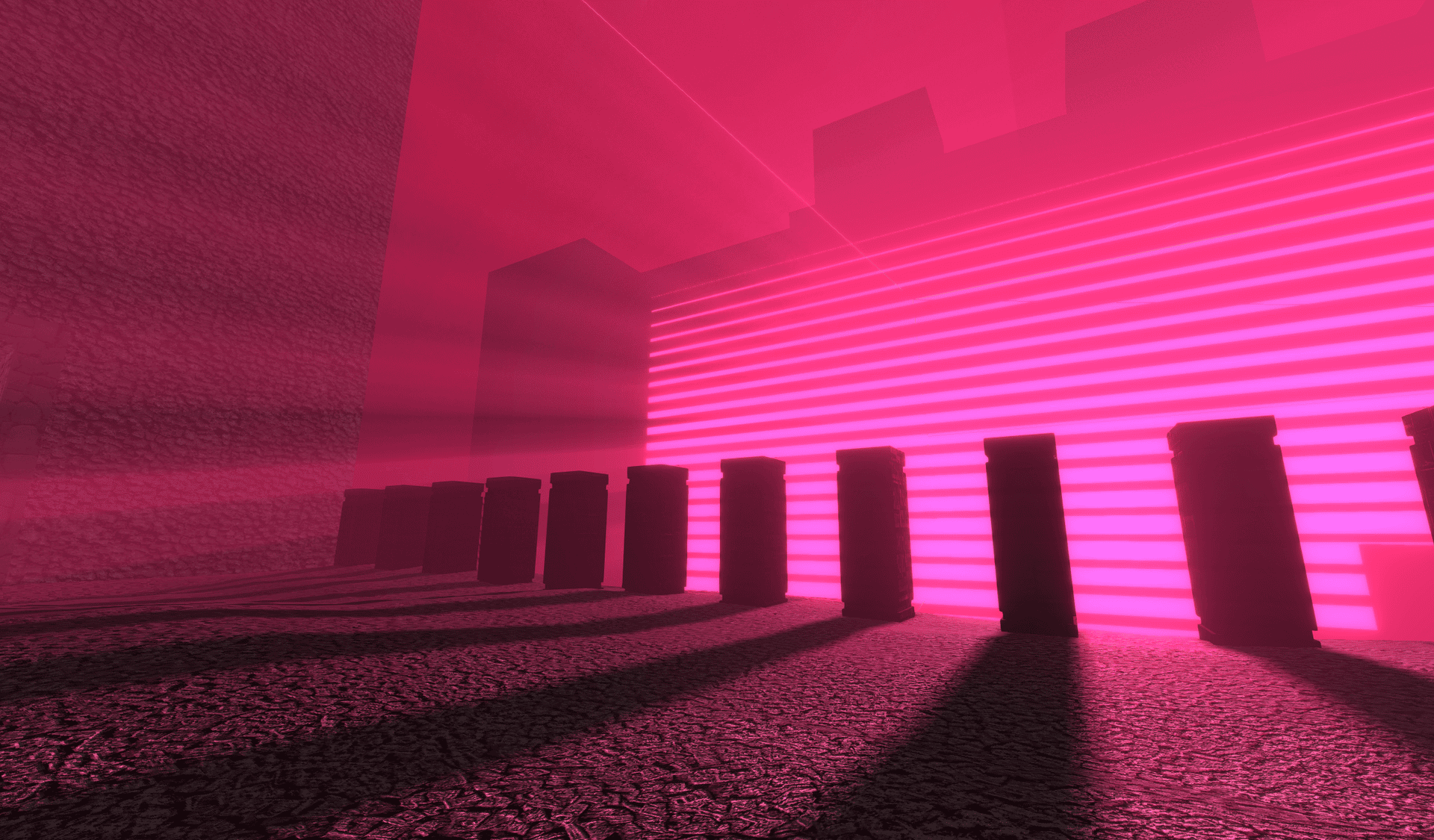 |
| 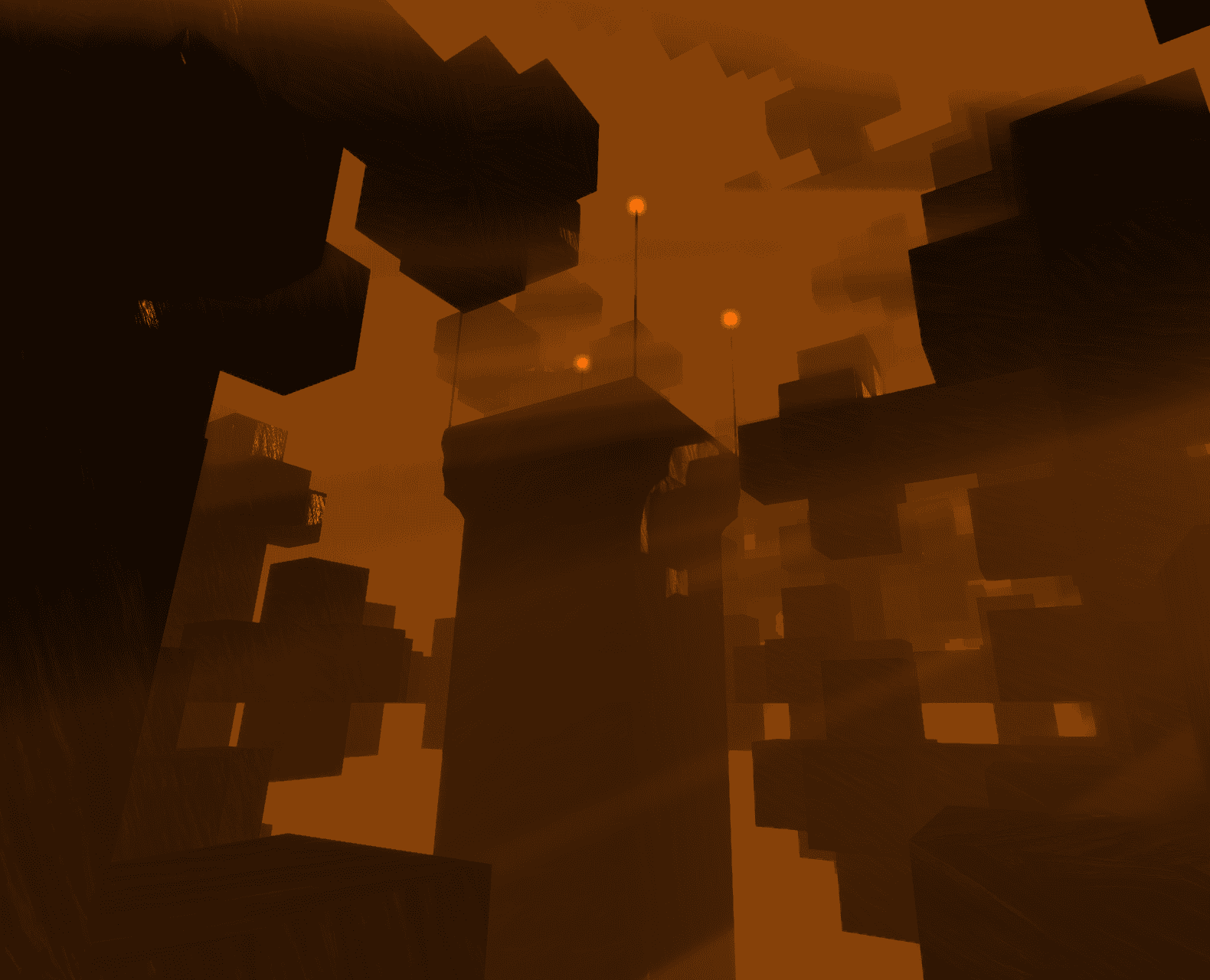 |
| :---------------------------------------------------------------------------------------------------------------------------------------------------------------------------------------------------------------------------------------------------------: | :----------------------------------------------------------------------------------------------------------------------------------------------------------------------------------------------------------------------------------------------------------------------------------------------------------------------------------------------------------------------------: |
|
|
| :---------------------------------------------------------------------------------------------------------------------------------------------------------------------------------------------------------------------------------------------------------: | :----------------------------------------------------------------------------------------------------------------------------------------------------------------------------------------------------------------------------------------------------------------------------------------------------------------------------------------------------------------------------: |
| 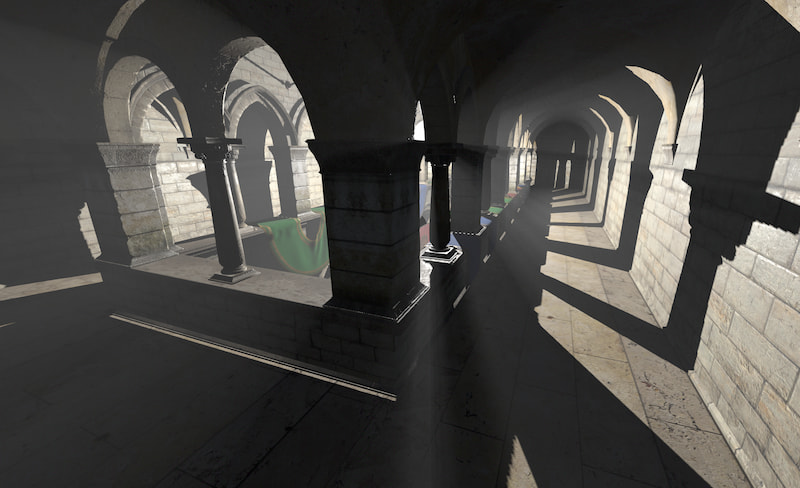 |
| 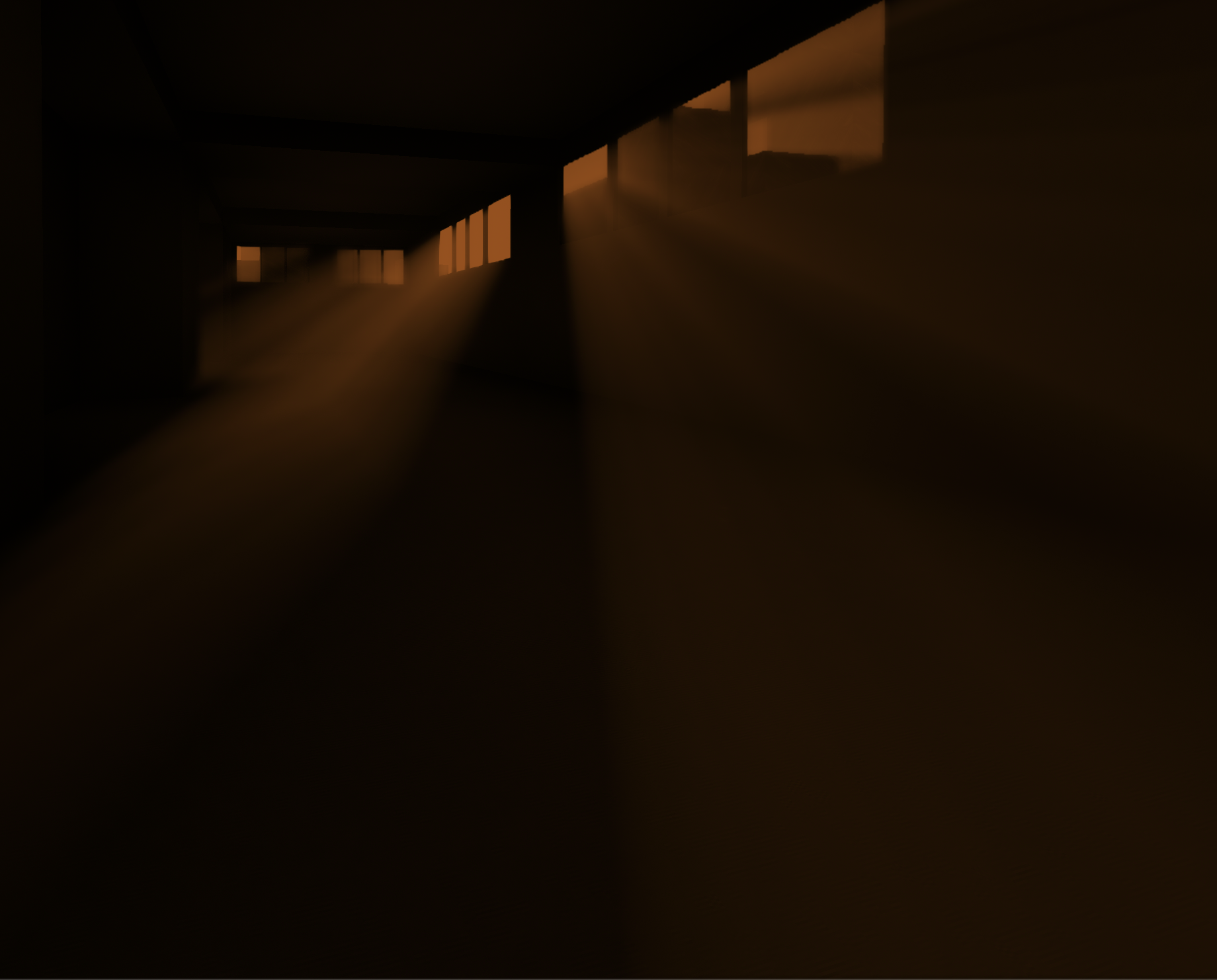 |
|
Install
npm install three-good-godrays
Or import from unpkg as a module:
import { GodraysPass } from 'https://unpkg.com/[email protected]/build/three-good-godrays.esm.js';Supported Three.JS Version
This library was tested to work with Three.JS versions >= 0.125.0 <= 0.182.0. Although it might work with versions outside that range, support is not guaranteed.
Shadow Map Types
This library supports all Three.js shadow map types, but PCFSoftShadowMap or BasicShadowMap are recommended for best performance.
The godrays effect works by raymarching through the scene and sampling the shadow map to determine which points are in shadow. This requires reading raw depth values from the shadow map.
Three.js configures shadow map depth textures differently based on the shadow map type:
| Shadow Map Type | Depth Texture Mode | Godrays Compatibility |
|-----------------|-------------------|----------------------|
| BasicShadowMap | Regular sampling | Direct (best performance) |
| PCFSoftShadowMap | Regular sampling | Direct (best performance) |
| PCFShadowMap | Comparison sampling | Requires depth copy (slight overhead) |
| VSMShadowMap | Regular sampling | Direct (best performance) |
When PCFShadowMap is used, Three.JS enables hardware shadow comparison mode on the depth texture, which is incompatible with the regular texture sampling needed by the godrays shader. In this case, three-good-godrays automatically copies the shadow map depth data to a separate texture each frame, which adds a small performance overhead.
However, in upcoming versions of Three.JS (r183+), PCFSoftShadowMap is being deprecated/removed and will end up doing the same thing as PCFShadowMap. So, it won't matter anyway.
Future Three.js Versions
Three.js has indicated that PCFSoftShadowMap may be deprecated in future versions. The shadow map implementation details may change, and this library will be updated accordingly. If you encounter issues after a Three.js update, please check for a newer version of three-good-godrays or file an issue.
Usage
import { EffectComposer, RenderPass } from 'postprocessing';
import * as THREE from 'three';
import { GodraysPass } from 'three-good-godrays';

const { scene, camera, renderer } = initYourScene();

// shadowmaps are needed for this effect
renderer.shadowMap.enabled = true;
renderer.shadowMap.type = THREE.PCFSoftShadowMap;
renderer.shadowMap.autoUpdate = true;

// Make sure to set applicable objects in your scene to cast + receive shadows
// so that this effect will work
scene.traverse(obj => {
  if (obj instanceof THREE.Mesh) {
    obj.castShadow = true;
    obj.receiveShadow = true;
  }
});

// godrays can be cast from either `PointLight`s or `DirectionalLight`s
const lightPos = new THREE.Vector3(0, 20, 0);
const pointLight = new THREE.PointLight(0xffffff, 1, 10000);
pointLight.castShadow = true;
pointLight.shadow.mapSize.width = 1024;
pointLight.shadow.mapSize.height = 1024;
pointLight.shadow.autoUpdate = true;
pointLight.shadow.camera.near = 0.1;
pointLight.shadow.camera.far = 1000;
pointLight.shadow.camera.updateProjectionMatrix();
pointLight.position.copy(lightPos);
scene.add(pointLight);

// set up rendering pipeline and add godrays pass at the end
const composer = new EffectComposer(renderer, { frameBufferType: THREE.HalfFloatType });

const renderPass = new RenderPass(scene, camera);
renderPass.renderToScreen = false;
composer.addPass(renderPass);

// Default values are shown.  You can supply a sparse object or `undefined`.
const params = {
  density: 1 / 128,
  maxDensity: 0.5,
  edgeStrength: 2,
  edgeRadius: 2,
  distanceAttenuation: 2,
  color: new THREE.Color(0xffffff),
  raymarchSteps: 60,
  blur: true,
  gammaCorrection: true,
};

const godraysPass = new GodraysPass(pointLight, camera, params);
// If this is the last pass in your pipeline, set `renderToScreen` to `true`
godraysPass.renderToScreen = true;
composer.addPass(godraysPass);

function animate() {
  requestAnimationFrame(animate);
  composer.render();
}
requestAnimationFrame(animate);
Gamma Correction
Gamma correction is enabled by this effect by default, matching expectations of sRGB buffers from postprocessing. However, you can disable this by setting gammaCorrection: false in the configuration object for the pass.
This may be necessary if you use other effect passes after GodraysPass that perform their own output encoding. If you see artifacts similar to these:
Try setting gammaCorrection: false on the GodraysPass or setting encodeOutput = false on any EffectPass that is added after the GodraysPass.
Develop + Run Demos Locally
- Clone repo
npm installnpm run prepublishOnlyto run initial buildsnpm install -g serve- Run
node esbuild.mjswhenever files are changed to re-build - Run
serve public/demo -p 5001and visit http://localhost:5001 in your browser